


 本文详细介绍了uni-app的使用,包括uView插件的安装与配置,导航栏的定制,云数据库和云函数的运用,图片上传与预览,地图功能配置,打包发布过程,以及语音转文字和视频相关功能。同时,还涉及到下拉刷新、上拉加载、Echarts图表和隐私弹窗等内容。
文章目录
1. 使用uView插件
1.1 安装(2.0):
npm install uview-ui@2.0.28
1.2 配置:
1.2.1 在根目录的pages.json中添加
"easycom": {
	"^u-(.*)": "uview-ui/components/u-$1/u-$1.vue"
},
1.2.2 在根目录的uni.scss中添加
@import 'uview-ui/theme.scss';
1.2.3 在App.vue的style中添加
<style lang="scss">
	/*每个页面公共css */
		@import "uview-ui/index.scss";
		@import url("./static/font/icon.scss");

		uni-page-body,
		html,
		body {
			height: 100%;
		}

</style>

1.3 使用1.0和Nvue的处理
因为uview1.0 不支持nvue,所以会报很多错,在上步骤1.2.3时,加个判断
<style lang="scss">
	/*每个页面公共css */
	/* #ifndef APP-NVUE */
		@import "uview-ui/index.scss";
		@import url("./static/font/icon.scss");

		uni-page-body,
		html,
		body {
			height: 100%;
		}
	/* #endif */
</style>
2. 配置导航栏:
2.1 底部导航栏 图标及未选中图标
在pages.json文件
"tabBar": {
		"color": "#7A7E83",
		"selectedColor": "#007AFF",
		"borderStyle": "black",
		"backgroundColor": "#F8F8F8",
		"list": [{
				"navigationBarBackgroundColor": "#8A2BE2",
				"pagePath": "pages/index/index",
				"iconPath": "static/home.png",	// 未选中
				"selectedIconPath": "static/home_cur.png", // 选中
				"text": "首页"
			}
		]
	}
2.2 顶部导航栏
在pages.json文件
2.2.1 一般导航栏
"pages": [
	{
		"path": "pages/xuncha/xunchaList",
		"style": {
			"navigationBarBackgroundColor": "#3B6FFF",
			"navigationBarTextStyle": "white",
			"navigationBarTitleText": "巡查处置",
			"app-plus": {
				"titleNView": true
			}
	},
2.2.2 导航栏添加文字、图标、事件
"pages": [
    "style": {
				"navigationBarBackgroundColor": "#8A2BE2",
				"navigationBarTextStyle": "white",
				"navigationBarTitleText": "设施管理",
				"app-plus": {
					"titleNView": {
						"backgroundImage": "linear-gradient(to right, #C280FF, #5E7EDB, #5E7EDB, #C280FF)",
						"buttons": [{
							"text": "\ue468",	// 注意:此处只能使用Unicode码
							"fontSrc": "./static/uni.ttf",	// 需要引入字体
							"fontSize": "25",
							"float": "right"
						}]
					}
				}
			}
]

图标的点击事件:在该文件中,生命周期位置
		// 监听tabbar右侧按钮的点击事件
		onNavigationBarButtonTap(e) {
            // 如果有多个图标,可以判断 e.float == 'right'
			uni.navigateTo({
				url: "xxx可以路由跳转"
			})
		},
2.2.3 定制导航栏
将titleNView 设为false
"pages": [
	{
		"path": "pages/xuncha/xunchaList",
		"style": {
			"navigationBarBackgroundColor": "#3B6FFF",
			"navigationBarTextStyle": "white",
			"navigationBarTitleText": "巡查处置",
			"app-plus": {
				"titleNView": false  //去掉app+h5顶部导航
			}
	},
在文件中,配置地址:https://ext.dcloud.net.cn/plugin?name=uni-nav-bar
		<uni-nav-bar fixed="true" background-color="#62e6b9" color="#fff" title="巡查处置" status-bar="true"
			left-icon="back" :right-icon="userType != 1 ? 'plusempty' : ''" @clickRight="clickNavRight()" @clickLeft="clickNavLeft()">
		</uni-nav-bar>

// 可以控制图标,还能自定义点击事件
2.2.4 导航栏加图片,加副标题
链接:https://uniapp.dcloud.io/component/navigation-bar.html#navigation-bar
<page-meta>
		<navigation-bar
			:title="nbTitle"
			:title-icon="titleIcon"
			:title-icon-radius="titleIconRadius"
			:subtitle-text="subtitleText"
      		:subtitle-color="nbFrontColor"
			:loading="nbLoading"
			:front-color="nbFrontColor"
			:background-color="nbBackgroundColor"
			:color-animation-duration="2000"
			color-animation-timing-func="easeIn"
		/>
	</page-meta>


data() {
  return {
	nbTitle: '大洋湾综合管理平台',
	titleIcon: '/static/images/home/titleIcon.png',
	titleIconRadius: '20px',
	subtitleText: 'subtitleText',
	nbLoading: false,
	nbFrontColor: '#fff',
	nbBackgroundColor: '#79C0D1',
  }
}
2.3 底部导航栏,根权限展示不同的栏目
利用 uni.setTabBarItem 和 visible 来实现

在pages.json中配置齐全,然后在登陆后,根据后端返回的角色,来判断设置
if(res.data.data.userInfo.userType == 1) {
	uni.setTabBarItem({
		index: 2,
		visible: false,
	})
}

3. 下拉刷新 和 上拉加载
3.1 下拉刷新
- ① 首先在pages.json中开启
{
	"path": "pages/xx/xx",
	"style": {
		// ...略
		"enablePullDownRefresh": true,	// 开启下拉动画
		"app-plus": {
			"titleNView": {
				"backgroundImage": "linear-gradient(to right, #62e6b9, #20bd8d)"
			}
		}
	}
},
- ② 然后在使用的地方,与onLoad等平级
onPullDownRefresh() {
	uni.startPullDownRefresh({
		success: () => {
			this.getList();	// 每次下拉重新调用
			uni.stopPullDownRefresh();	// 手动关闭下拉动画
		}
	})
},
3.2 上拉加载(分页)
- 在使用页面,与onLoad等平级
// 在模板底部加上
<u-loadmore :status="status" />

// js部分
data() {
  return {
    status: 'loadmore',
	pageNo: 1
  }
},
onReachBottom() {
	this.status = 'loading';
	setTimeout(() => {
		this.pageNo += 1;
		this.getDatas();
	}, 1000)
},
methods: {
	getDatas() {
		// 请求时将pageNo传给后端即可
	}
}
- 提示如果有搜索、或者下拉时,pageNo = 1即可。
4. 使用云数据库和云函数
4.1 新建云函数
在项目目录上右键 -> 新建uniCloud云开发环境 -> 阿里云(腾讯云只能认证一个) -> 在生成的uniCloud下的cloudfunctions 右键,新建云函数
'use strict';

const db = uniCloud.database(); // 获取数据库的引用
exports.main = async (event, context) => {

	let num = event.scope*10;
	const dbcmd = db.command; // 获取指令集
	const { data } = await db.collection('infoClassify').where({	// 获取 数据库集合引用, 并查询
		// id: event.scope 	// 查找id 为请求值的数据
        // id: parserInt(event.scope)	// 有时候数据是字符串类型,需要转换一下(路由传参就是字符串型)
        id: dbcmd.gte(num).and(dbcmd.lt(num+10))	// 查找 大于num且小于num+10的数据
	}).get();	// 记得要get一下,否则查不到

	//返回数据给客户端
	return data
};
写完云函数后,记得右键【上传部署】
4.2 云数据库
在云数据库中,新建表,全部是 json格式的
4.3 使用云函数
// 在onLoad生命周期中使用
async onLoad() {
	let { result, success} = await uniCloud.callFunction({
		name: "getClassify"	// 刚才新建的云函数文件夹名字
	})
	console.log(result, success);
},
// 在监听器中使用
watch: {
	activeIndex: {
		handler: async function(val) {
			let res = await uniCloud.callFunction({
				name: 'leftClassify', // 云函数的文件夹名字
				data: {
					scope: val + 1
				}
			})
			this.tabbar = res.result;
			// 默认选中第一个
			this.classifyId = this.tabbar[0].classifyId;
		},
		immediate: true
	}
},
参考文档:https://uniapp.dcloud.net.cn/uniCloud/cf-functions?id=clientcallfunction
5. 图片上传和预览
5.1 uView 2.0版本
<u-form-item label="照片" labelWidth="100"></u-form-item>
<u-upload :fileList="info.xc" width="120" height="120" @afterRead="after" @delete="deletePic" multiple :maxCount="1" :previewFullImage="true" ></u-upload>

data() {
  return {
      fileList: [{	// 使用多张上传方式,可以实现预览
		url: 'https://vkceyugu.cdn.bspapp.com/VKCEYUGU-4917ad8f-2b3c-4371-a1e5-dfe5771201c5/c814d40f-9041-4069-9ef2-063a94a08079.png'
	}],
  }
}

methods: {
	// 删除图片
	deletePic(event) {
		this.fileList.splice(event.index, 1)
	},
	// 新增图片 - 单张(很少用)
	async after(event) {
		this.info.xc.push({
			status: 'uploading',
			message: '上传中'
		})
		const result = await this.uploadFilePromise(event.file[0].url, 99)

		// 要先预览回显成功
        // 方法一:使用splice和Object.assign
		this.info.mp.splice(0, 1, Object.assign(this.info.mp[0], {
			status: 'success',
			message: '',
			url: result
		}))
		// 方法二: 使用 $set 改变属性
		// this.$set(this.info.xc[0], 'status', 'success')
		// this.$set(this.info.xc[0], 'message', '')
		// this.$set(this.info.xc[0], 'url', result)

	},
	// 新增图片 - 多张(尽量用)
	async afterRead(event) {

		// 当设置 mutiple 为 true 时, file 为数组格式,否则为对象格式
		let lists = [].concat(event.file)
		let fileListLen = this.fileList.length
		lists.map((item) => {
			this.fileList.push({
				...item,
				status: 'uploading',
				message: '上传中'
			})
		})

		for (let i = 0; i < lists.length; i++) {
			const result = await this.uploadFilePromise(lists[i].url, i)
			let item = this.info.fileList[fileListLen]
			this.fileList.splice(fileListLen, 1, Object.assign(item, {
				status: 'success',
				message: '',
				url: result
			}))
			fileListLen++
		}
	},
	// 上传图片
	uploadFilePromise(url, i) {
		return new Promise((resolve, reject) => {
            // 方式一:如果是上传到自己的云存储中
			//uniCloud.uploadFile({
				//cloudPath: `test${i}.jpg`,   // 文件名
				//filePath: url,    // 文件信息
				//success(res) {
					//setTimeout(() => {
						//resolve(res.fileID)
					//}, 1000)
				//}
			//})
            // 方式二:如果是调用后端接口
            let a = uni.uploadFile({
                url: 'http://192.168.2.21:7001/upload', // 仅为示例,非真实的接口地址
                filePath: url,
                name: 'file',
                formData: {
                    user: 'test'
                },
                success: (res) => {
                    setTimeout(() => {
                        resolve(res.data.data)
                    }, 1000)
                }
            });
		})

	},
}
5.2 uView 1.0版本
<u-upload :action="uploadURL()" :fileList="fileList" width="120"  height="120" multiple :maxCount="3"
		:previewFullImage="true" :showProgress="false" @on-success="onSuccess" @on-remove="onRemove" />


fileList: [
	{
		url: 'https://cdn.uviewui.com/uview/album/1.jpg'
	},
	{
		url: 'https://cdn.uviewui.com/uview/album/2.jpg'
	}
],


// 图片上传地址
uploadURL() {
	return 'http://112.2.52.60:10000/bcz/app/test/api/personnelInfo/uploadPersonnelImage'
},
// 删除图片
onRemove(index) {
	this.fileList.splice(index, 1)
},
// 新增图片
onSuccess(event, index, lists) {
	// 解决上传时,多显示的bug
	lists[index] = {
		"url": data.data,
		"error": false,
		"progress": 100
	};
	// 放到数组里
	this.fileList.push({
		url: event.data
	})
},
5.3 自定义封装
插件地址:
在static文件夹下 新建文件 video-icon.svg
<svg width="24" height="24" xmlns="http://www.w3.org/2000/svg" fill-rule="evenodd" clip-rule="evenodd"><path d="M24 23h-24v-21h24v21zm-20-1v-4h-3v4h3zm15 0v-19h-14v19h14zm4 0v-4h-3v4h3zm-6-9.5l-9 5v-10l9 5zm3 .5v4h3v-4h-3zm-16 4v-4h-3v4h3zm5-1.2l5.941-3.3-5.941-3.3v6.6zm11-7.8v4h3v-4h-3zm-16 4v-4h-3v4h3zm16-9v4h3v-4h-3zm-16 4v-4h-3v4h3z"/></svg>
在components 文件夹下 新建 htz-image-upload
<template>
	<view class="htz-image-upload-list">
		<view class="htz-image-upload-Item" v-for="(item,index) in uploadLists" :key="index">
			<view class="htz-image-upload-Item-video" v-if="isVideo(item)">
				<!-- #ifndef APP-PLUS -->
				<video :disabled="false" :controls="false" :src="getFileUrl(item)">
					<cover-view class="htz-image-upload-Item-video-fixed" @click="previewVideo(getFileUrl(item))">
					</cover-view>

					<cover-view class="htz-image-upload-Item-del-cover" v-if="remove && previewVideoSrc==''"
						@click="imgDel(index)">×</cover-view>

				</video>
				<!-- #endif -->
				<!-- #ifdef APP-PLUS -->
				<view class="htz-image-upload-Item-video-fixed" @click="previewVideo(getFileUrl(item))"></view>
				<image class="htz-image-upload-Item-video-app-poster" mode="widthFix" :src="appVideoPoster"></image>
				<!-- #endif -->
			</view>

			<image v-else :src="getFileUrl(item)" @click="imgPreview(getFileUrl(item))"></image>

			<view class="htz-image-upload-Item-del" v-if="remove" @click="imgDel(index)">×</view>
		</view>
		<view class="htz-image-upload-Item htz-image-upload-Item-add" v-if="uploadLists.length<max && add"
			@click="chooseFile">
			+
		</view>
		<view class="preview-full" v-if="previewVideoSrc!=''">
			<video :autoplay="true" :src="previewVideoSrc" :show-fullscreen-btn="false">
				<cover-view class="preview-full-close" @click="previewVideoClose"> ×
				</cover-view>
			</video>
		</view>


		<!--  -->
	</view>
</template>

<style>
	.ceshi {
		width: 100%;
		height: 100%;
		position: relative;
		top: 0;
		left: 0;
		bottom: 0;
		right: 0;
		background-color: #FFFFFF;
		color: #2C405A;
		opacity: 0.5;
		z-index: 100;
	}
</style>

<script>
	export default {
		name: 'htz-image-upload',
		props: {
			max: { //展示图片最大值
				type: Number,
				default: 1,
			},
			chooseNum: { //选择图片数
				type: Number,
				default: 9,
			},
			name: { //发到后台的文件参数名
				type: String,
				default: 'file',
			},
			dataType: { //v-model的数据结构类型
				type: Number,
				default: 0, // 0: ['http://xxxx.jpg','http://xxxx.jpg'] 1:[{type:0,url:'http://xxxx.jpg'}]  type 0 图片 1 视频 url 文件地址 此类型是为了给没有文件后缀的状况使用的
			},
			remove: { //是否展示删除按钮
				type: Boolean,
				default: true,
			},
			add: { //是否展示添加按钮
				type: Boolean,
				default: true,
			},
			disabled: { //是否禁用
				type: Boolean,
				default: false,
			},
			sourceType: { //选择照片来源 【ps:H5就别费劲了,设置了也没用。不是我说的,官方文档就这样!!!】
				type: Array,
				default: () => ['album', 'camera'],
			},
			action: { //上传地址 如需使用uniCloud服务,设置为uniCloud即可
				type: String,
				default: '',
			},
			headers: { //上传的请求头部
				type: Object,
				default: () => {},
			},
			formData: { //HTTP 请求中其他额外的 form data
				type: Object,
				default: () => {},
			},
			compress: { //是否需要压缩
				type: Boolean,
				default: true,
			},
			quality: { //压缩质量,范围0~100
				type: Number,
				default: 80,
			},
			value: { //受控图片列表
				type: Array,
				default: () => [],
			},
			uploadSuccess: {
				default: (res) => {
					return {
						success: false,
						url: ''
					}
				},
			},
			mediaType: { //文件类型 image/video/all
				type: String,
				default: 'image',
			},
			maxDuration: { //拍摄视频最长拍摄时间,单位秒。最长支持 60 秒。 (只针对拍摄视频有用)
				type: Number,
				default: 60,
			},
			camera: { //'front'、'back',默认'back'(只针对拍摄视频有用)
				type: String,
				default: 'back',
			},
			appVideoPoster: { //app端视频展示封面 只对app有效
				type: String,
				// default: '/static/htz-image-upload/play.png',
				default: '/static/video-icon.svg',
			},
		},
		data() {
			return {
				uploadLists: [],
				mediaTypeData: ['image', 'video', 'all'],
				previewVideoSrc: '',
			}
		},
		mounted: function() {
			this.$nextTick(function() {
				this.uploadLists = this.value;
				if (this.mediaTypeData.indexOf(this.mediaType) == -1) {
					uni.showModal({
						title: '提示',
						content: 'mediaType参数不正确',
						showCancel: false,
						success: function(res) {
							if (res.confirm) {
								//console.log('用户点击确定');
							} else if (res.cancel) {
								//console.log('用户点击取消');
							}
						}
					});
				}
			});
		},
		watch: {
			value(val, oldVal) {
				//console.log('value',val, oldVal)
				this.uploadLists = val;
			},
		},
		methods: {
			isVideo(item) {
				let isPass = false
				if ((!/.(gif|jpg|jpeg|png|gif|jpg|png)$/i.test(item) && this.dataType == 0) || (this.dataType == 1 && item
						.type == 1)) {
					isPass = true
				}
				return isPass
			},
			getFileUrl(item) {
				var url = item;
				if (this.dataType == 1) {
					url = item.url
				}
				//console.log('url', url)
				return url
			},
			previewVideo(src) {
				this.previewVideoSrc = src;
				// this.previewVideoSrc =
				// 	'https://vkceyugu.cdn.bspapp.com/VKCEYUGU-fbd63a76-dc76-485c-b711-f79f2986daeb/ba804d82-860b-4d1a-a706-5a4c8ce137c3.mp4'
			},
			previewVideoClose() {
				this.previewVideoSrc = ''
				//console.log('previewVideoClose', this.previewVideoSrc)
			},
			imgDel(index) {
				uni.showModal({
					title: '提示',
					content: '您确定要删除么?',
					success: (res) => {
						if (res.confirm) {
							// this.uploadLists.splice(index, 1)
							// this.$emit("input", this.uploadLists);
							// this.$emit("imgDelete", this.uploadLists);
							let delUrl = this.uploadLists[index]
							this.uploadLists.splice(index, 1)
							this.$emit("input", this.uploadLists);
							this.$emit("imgDelete", {
								del: delUrl,
								tempFilePaths: this.uploadLists
							});
						} else if (res.cancel) {}
					}
				});
			},
			imgPreview(index) {

				var imgData = []

				this.uploadLists.forEach(item => {
					if (!this.isVideo(item)) {
						imgData.push(this.getFileUrl(item))
					}
				})


				//console.log('imgPreview', imgData)
				uni.previewImage({
					urls: imgData,
					current: index,
					loop: true,
				});


			},
			chooseFile() {
				if (this.disabled) {
					return false;
				}
				switch (this.mediaTypeData.indexOf(this.mediaType)) {
					case 1: //视频
						this.videoAdd();
						break;
					case 2: //全部
						uni.showActionSheet({
							itemList: ['相册', '视频'],
							success: (res) => {
								if (res.tapIndex == 1) {
									this.videoAdd();
								} else if (res.tapIndex == 0) {
									this.imgAdd();
								}
							},
							fail: (res) => {
								console.log(res.errMsg);
							}
						});
						break;
					default: //图片
						this.imgAdd();
						break;
				}


				//if(this.mediaType=='image'){


			},
			videoAdd() {
				//console.log('videoAdd')
				let nowNum = Math.abs(this.uploadLists.length - this.max);
				let thisNum = (this.chooseNum > nowNum ? nowNum : this.chooseNum) //可选数量
				uni.chooseVideo({
					compressed: this.compress,
					sourceType: this.sourceType,
					camera: this.camera,
					maxDuration: this.maxDuration,
					success: (res) => {
						// console.log('videoAdd', res)
						// console.log(res.tempFilePath)
						this.chooseSuccessMethod([res.tempFilePath], 1)
						//this.imgUpload([res.tempFilePath]);
						//console.log('tempFiles', res)
						// if (this.action == '') { //未配置上传路径
						// 	this.$emit("chooseSuccess", res.tempFilePaths);
						// } else {
						// 	if (this.compress && (res.tempFiles[0].size / 1024 > 1025)) { //设置了需要压缩 并且 文件大于1M,进行压缩上传
						// 		this.imgCompress(res.tempFilePaths);
						// 	} else {
						// 		this.imgUpload(res.tempFilePaths);
						// 	}
						// }
					}
				});
			},
			imgAdd() {
				//console.log('imgAdd')
				let nowNum = Math.abs(this.uploadLists.length - this.max);
				let thisNum = (this.chooseNum > nowNum ? nowNum : this.chooseNum) //可选数量
				//console.log('nowNum', nowNum)
				//console.log('thisNum', thisNum)
				// #ifdef APP-PLUS
				if (this.sourceType.length > 1) {
					uni.showActionSheet({
						itemList: ['拍摄', '从手机相册选择'],
						success: (res) => {
							if (res.tapIndex == 1) {
								this.appGallery(thisNum);
							} else if (res.tapIndex == 0) {
								this.appCamera();
							}
						},
						fail: (res) => {
							console.log(res.errMsg);
						}
					});
				}
				if (this.sourceType.length == 1 && this.sourceType.indexOf('album') > -1) {
					this.appGallery(thisNum);
				}

				if (this.sourceType.length == 1 && this.sourceType.indexOf('camera') > -1) {
					this.appCamera();
				}
				// #endif
				//#ifndef APP-PLUS
				uni.chooseImage({
					count: thisNum,
					sizeType: ['original', 'compressed'], //可以指定是原图还是压缩图,默认二者都有
					sourceType: this.sourceType,
					success: (res) => {
						this.chooseSuccessMethod(res.tempFilePaths, 0)
						//console.log('tempFiles', res)
						// if (this.action == '') { //未配置上传路径
						// 	this.$emit("chooseSuccess", res.tempFilePaths);
						// } else {
						// 	if (this.compress && (res.tempFiles[0].size / 1024 > 1025)) { //设置了需要压缩 并且 文件大于1M,进行压缩上传
						// 		this.imgCompress(res.tempFilePaths);
						// 	} else {
						// 		this.imgUpload(res.tempFilePaths);
						// 	}
						// }
					}
				});
				// #endif
			},
			appCamera() {
				var cmr = plus.camera.getCamera();
				var res = cmr.supportedImageResolutions[0];
				var fmt = cmr.supportedImageFormats[0];
				//console.log("Resolution: " + res + ", Format: " + fmt);
				cmr.captureImage((path) => {
						//alert("Capture image success: " + path);
						this.chooseSuccessMethod([path], 0)
					},
					(error) => {
						//alert("Capture image failed: " + error.message);
						console.log("Capture image failed: " + error.message)
					}, {
						resolution: res,
						format: fmt
					}
				);
			},
			appGallery(maxNum) {
				plus.gallery.pick((res) => {
					this.chooseSuccessMethod(res.files, 0)
				}, function(e) {
					//console.log("取消选择图片");
				}, {
					filter: "image",
					multiple: true,
					maximum: maxNum
				});
			},
			chooseSuccessMethod(filePaths, type) {
				if (this.action == '') { //未配置上传路径
					this.$emit("chooseSuccess", filePaths, type); //filePaths 路径 type 0 为图片 1为视频
				} else {
					if (type == 1) {
						this.imgUpload(filePaths, type);
					} else {
						if (this.compress) { //设置了需要压缩
							this.imgCompress(filePaths, type);
						} else {
							this.imgUpload(filePaths, type);
						}
					}

				}
			},
			imgCompress(tempFilePaths, type) { //type 0 为图片 1为视频
				uni.showLoading({
					title: '压缩中...'
				});

				let compressImgs = [];
				let results = [];
				tempFilePaths.forEach((item, index) => {
					compressImgs.push(new Promise((resolve, reject) => {
						// #ifndef H5
						uni.compressImage({
							src: item,
							quality: this.quality,
							success: res => {
								//console.log('compressImage', res.tempFilePath)
								results.push(res.tempFilePath);
								resolve(res.tempFilePath);
							},
							fail: (err) => {
								//console.log(err.errMsg);
								reject(err);
							},
							complete: () => {
								//uni.hideLoading();
							}
						})
						// #endif
						// #ifdef H5
						this.canvasDataURL(item, {
							quality: this.quality / 100
						}, (base64Codes) => {
							//this.imgUpload(base64Codes);
							results.push(base64Codes);
							resolve(base64Codes);
						})
						// #endif
					}))
				})
				Promise.all(compressImgs) //执行所有需请求的接口
					.then((results) => {
						uni.hideLoading();
						//console.log('imgCompress', type)
						this.imgUpload(results, type);
					})
					.catch((res, object) => {
						uni.hideLoading();
					});
			},
			imgUpload(tempFilePaths, type) { //type 0 为图片 1为视频
				// if (this.action == '') {
				// 	uni.showToast({
				// 		title: '未配置上传地址',
				// 		icon: 'none',
				// 		duration: 2000
				// 	});
				// 	return false;
				// }
				if (this.action == 'uniCloud') {
					this.uniCloudUpload(tempFilePaths, type)
					return
				}
				uni.showLoading({
					title: '上传中'
				});
				//console.log('imgUpload', tempFilePaths)
				let uploadImgs = [];
				tempFilePaths.forEach((item, index) => {
					uploadImgs.push(new Promise((resolve, reject) => {
						//console.log(index, item)
						const uploadTask = uni.uploadFile({
							url: this.action, //仅为示例,非真实的接口地址
							filePath: item,
							name: this.name,
							fileType: 'image',
							formData: this.formData,
							header: this.headers,
							success: (uploadFileRes) => {
								//uni.hideLoading();
								//console.log(typeof this.uploadSuccess)
								//console.log('')
								uploadFileRes.fileType = type
								if (typeof this.uploadSuccess == 'function') {

									let thisUploadSuccess = this.uploadSuccess(
										uploadFileRes)
									if (thisUploadSuccess.success) {

										if (this.dataType == 0) {
											this.value.push(thisUploadSuccess.url)
										} else {
											this.value.push({
												type: type,
												url: thisUploadSuccess.url
											})
										}

										this.$emit("input", this.uploadLists);
									}
								}
								resolve(uploadFileRes);
								this.$emit("uploadSuccess", uploadFileRes);
							},
							fail: (err) => {
								console.log(err);
								//uni.hideLoading();
								reject(err);
								this.$emit("uploadFail", err);
							},
							complete: () => {
								//uni.hideLoading();
							}
						});
					}))
				})
				Promise.all(uploadImgs) //执行所有需请求的接口
					.then((results) => {
						uni.hideLoading();
					})
					.catch((res, object) => {
						uni.hideLoading();
						this.$emit("uploadFail", res);
					});
				// uploadTask.onProgressUpdate((res) => {
				// 	//console.log('',)
				// 	uni.showLoading({
				// 		title: '上传中' + res.progress + '%'
				// 	});
				// 	if (res.progress == 100) {
				// 		uni.hideLoading();
				// 	}
				// });
			},
			uniCloudUpload(tempFilePaths, type) {
				uni.showLoading({
					title: '上传中'
				});
				console.log('uniCloudUpload', tempFilePaths);
				let uploadImgs = [];
				tempFilePaths.forEach((item, index) => {
					uploadImgs.push(new Promise((resolve, reject) => {

						uniCloud.uploadFile({
							filePath: item,
							cloudPath: this.guid() + '.' + this.getFileType(item, type),
							success(uploadFileRes) {
								if (uploadFileRes.success) {
									resolve(uploadFileRes.fileID);
								}
							},
							fail(err) {
								console.log(err);
								reject(err);
							},
							complete() {}
						});

					}))
				})
				Promise.all(uploadImgs) //执行所有需请求的接口
					.then((results) => {
						uni.hideLoading();
						// console.log('then', results)

						uniCloud.getTempFileURL({
							fileList: results,
							success: (res) => {
								//console.log('success',res.fileList)
								res.fileList.forEach(item => {
									//console.log(item.tempFileURL)
									this.value.push(item.tempFileURL)
								})
							},
							fail() {},
							complete() {}
						});
					})
					.catch((res, object) => {
						uni.hideLoading();
					});
			},
			getFileType(path, type) { //手机端默认图片为jpg 视频为mp4
				// #ifdef H5
				var result = type == 0 ? 'jpg' : 'mp4';
				// #endif


				// #ifndef H5
				var result = path.split('.').pop().toLowerCase();
				// #ifdef MP
				if (this.compress) {//微信小程序压缩完没有后缀
					result = type == 0 ? 'jpg' : 'mp4';
				}
				// #endif
				// #endif
				return result;
			},
			guid() {
				return 'xxxxxxxx-date-xxxx-4xxx-yxxx-xxxxxxxxxxxx'.replace(/[xy]/g, function(c) {
					var r = Math.random() * 16 | 0,
						v = c == 'x' ? r : (r & 0x3 | 0x8);
					return v.toString(16);
				}).replace(/date/g, function(c) {
					return Date.parse(new Date());
				});
			},
			canvasDataURL(path, obj, callback) {
				var img = new Image();
				img.src = path;
				img.onload = function() {
					var that = this;
					// 默认按比例压缩
					var w = that.width,
						h = that.height,
						scale = w / h;
					w = obj.width || w;
					h = obj.height || (w / scale);
					var quality = 0.8; // 默认图片质量为0.8
					//生成canvas
					var canvas = document.createElement('canvas');
					var ctx = canvas.getContext('2d');
					// 创建属性节点
					var anw = document.createAttribute("width");
					anw.nodeValue = w;
					var anh = document.createAttribute("height");
					anh.nodeValue = h;
					canvas.setAttributeNode(anw);
					canvas.setAttributeNode(anh);
					ctx.drawImage(that, 0, 0, w, h);
					// 图像质量
					if (obj.quality && obj.quality <= 1 && obj.quality > 0) {
						quality = obj.quality;
					}
					// quality值越小,所绘制出的图像越模糊
					var base64 = canvas.toDataURL('image/jpeg', quality);
					// 回调函数返回base64的值
					callback(base64);
				}
			},
		}
	}
</script>

<style>
	.preview-full {
		position: fixed;
		top: 0;
		left: 0;
		bottom: 0;
		width: 100%;
		height: 100%;
		z-index: 1002;
	}

	.preview-full video {
		width: 100%;
		height: 100%;
		z-index: 1002;
	}

	.preview-full-close {
		position: fixed;
		right: 32rpx;
		top: 25rpx;
		width: 80rpx;
		height: 80rpx;
		line-height: 60rpx;
		text-align: center;
		z-index: 1003;
		/* 	background-color: #808080; */
		color: #fff;
		font-size: 65rpx;
		font-weight: bold;
		text-shadow: 1px 2px 5px rgb(0 0 0);
	}


	/* .preview-full-close-before,
	.preview-full-close-after {
		position: absolute;
		top: 50%;
		left: 50%;
		content: '';
		height: 60rpx;
		margin-top: -30rpx;
		width: 6rpx;
		margin-left: -3rpx;
		background-color: #FFFFFF;
		z-index: 20000;
	}

	.preview-full-close-before {
		transform: rotate(45deg);

	}

	.preview-full-close-after {
		transform: rotate(-45deg);

	} */

	.htz-image-upload-list {
		display: flex;
		flex-wrap: wrap;
	}

	.htz-image-upload-Item {
		width: 160rpx;
		height: 160rpx;
		margin: 13rpx;
		border-radius: 10rpx;
		position: relative;
	}

	.htz-image-upload-Item image {
		width: 100%;
		height: 100%;
		border-radius: 10rpx;
	}

	.htz-image-upload-Item-video {
		width: 100%;
		height: 100%;
		border-radius: 10rpx;
		position: relative;

	}

	.htz-image-upload-Item-video-fixed {
		position: absolute;
		top: 0;
		left: 0;
		bottom: 0;
		width: 100%;
		height: 100%;
		border-radius: 10rpx;
		z-index: 996;

	}

	.htz-image-upload-Item video {
		width: 100%;
		height: 100%;
		border-radius: 10rpx;

	}

	.htz-image-upload-Item-add {
		font-size: 105rpx;
		/* line-height: 160rpx; */
		text-align: center;
		border: 1px dashed #d9d9d9;
		color: #d9d9d9;
	}

	.htz-image-upload-Item-del {
		background-color: #f5222d;
		font-size: 24rpx;
		position: absolute;
		width: 35rpx;
		height: 35rpx;
		line-height: 35rpx;
		text-align: center;
		top: 0;
		right: 0;
		z-index: 2;
		color: #fff;
	}

	.htz-image-upload-Item-del-cover {
		background-color: #f5222d;
		font-size: 24rpx;
		position: absolute;
		width: 35rpx;
		height: 35rpx;
		text-align: center;
		top: 0;
		right: 0;
		color: #fff;
		/* #ifdef APP-PLUS */
		line-height: 25rpx;
		/* #endif */
		/* #ifndef APP-PLUS */
		line-height: 35rpx;
		/* #endif */
		z-index: 997;

	}

	.htz-image-upload-Item-video-app-poster {
		width: 100%;
		height: 100%;
	}
</style>
引用: 在 main.js 中
// #ifdef APP-PLUS
	// 上传组件
	Component('htzImageUpload', () => import('@/components/htz-image-upload/htz-image-upload.vue'));
// #endif

// #ifdef H5
	// 上传组件
	Vue.component('htzImageUpload', () => import('@/components/htz-image-upload/htz-image-upload.vue'));
// #endif
使用:
<!-- 上传 -->
<htz-image-upload :max="9" v-model="info.eventFileListAPP" :dataType='1' mediaType="all" @uploadSuccess="uploadSuccess" :action="action" />

<!-- 回显 -->
<htz-image-upload v-model="info.eventFileListAPP" :dataType='1' mediaType="all" :remove="false" :add="false" />


import configService from '@/services/config.service.js'

data() {
  return {
	action: configService.apiUrl + '/personnelInfo/uploadPersonnelImage', // 图片、视频上传地址
	// action: 'http://xxx.2x.xx.xx:10000/app/test/api/personnelInfo/uploadPersonnelImage', // 本地调试时
	info: {
		eventFileListAPP: []
	}
  }
},
methods: {
	uploadSuccess(res) { //上传成功
		let _res = JSON.parse(res.data);
		if (_res.code == 0) {
			let index = _res.data.lastIndexOf(".");
			let ext = _res.data.substr(index+1);
				this.info.eventFileListAPP.push({
					type: ext == 'mp4' ? 1 : 0,
					url: _res.data
				});
		}
	},
}
6. 地图
6.1 appkey
6.1.1 配置appkey_Android
key是在高德官网上自行注册:点击进入:高德官网
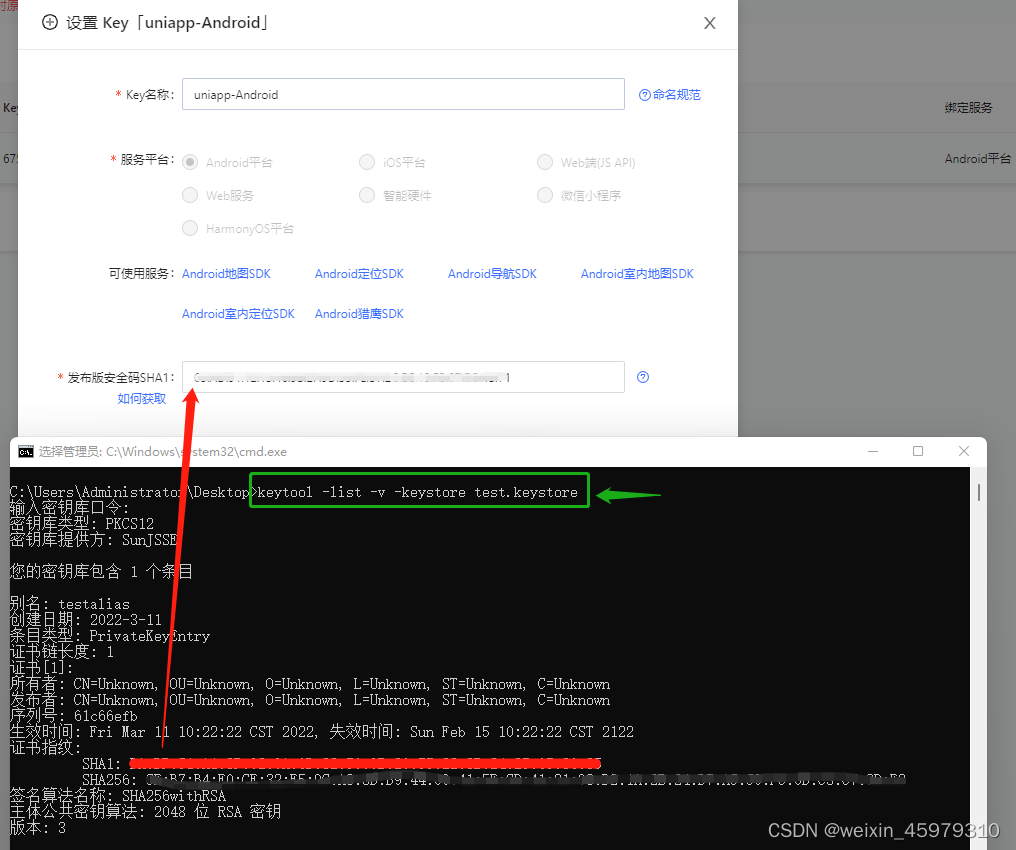
这样会生成 key 值。
6.1.2 打包配置
在打包之前,需要在manifest.json -> App模块配置 -> Maps(地图,只能选一个) -> 高德地图 -> 输入appkey_android(否则打包后,地图会报错),
6.2 使用
		<!-- 地图 -->
		<map style="width: 100%; height: 180px;" :latitude="examineList.lat" :longitude="examineList.lon"
			:markers="covers">
		</map>

covers: [{
	latitude: 33.301783,
	longitude: 120.220362,
	iconPath: require('@/static/safetyindex/myicon.png'),
	width: 20, //宽
	height: 35, //高
}],
examineList: {
	lat: 33.301783,
	lon: 120.220362,
},
6.3 层级
由于地图的层级较高,使用了下拉列表什么的,地图会在最上面,解决方法:
<u-form-item label="所属村" labelWidth="100" borderBottom>
	<u--input v-model="info.vest" disabled disabledColor="#ffffff" border="none"></u--input>
	<u-icon slot="right" name="arrow-right" @click="showVest = true;mapIsHidden = false;"></u-icon>
</u-form-item>

<view class="container">
	<map v-show="mapIsHidden" class="map" style="width: 200px; height: 100px;" :latitude="latitude" :longitude="longitude"
		:enable-satellite="true" :enable-traffic="true" :enable-building="true"scale="14":markers="covers"></map>
	<view v-show="!mapIsHidden" style="width: 200px; height: 100px;"></view>
</view>

<u-picker :show="showVest" :columns="columnsVest" @confirm="confirmVest" @cancel="showVest = false;mapIsHidden = true;"></u-picker>


data() {
    return {
        mapIsHidden: true,	// 地图层级过高,在下拉框上面,所以切换隐藏
        latitude: 33.259857,
        longitude: 120.269415,
        covers: [
            {
                latitude: 33.259857,
                longitude: 120.269415,
                iconPath: '../../../static/myicon.png',	// marker图标
                width: 20, // 宽
                height: 35, // 高
            }
        ],
        showVest: false,
		columnsVest: [['下拉一', '下拉二', '下拉三', '下拉四']],
    }
},
methods: {
	confirmTime(e) {
        this.info.times = e;
        this.showTime = false;
        setTimeout(() => {
            this.mapIsHidden = true;
        }, 200)
    }
}
6.4 使用Nvue平铺页面且居中
<template>
	<view>
		<!-- 地图 -->
		<view class="container" :style="{ height: screenHeight + 'px' }">
			<map class="map" :latitude="latitude" :longitude="longitude" :markers="covers" />
		</view>
	</view>
</template>

<script>
	export default {
		data() {
			return {
				screenHeight: null,
				latitude: 39.909,
				longitude: 116.39742,
				covers: [{
					latitude: 39.909,
					longitude: 116.39742,
					iconPath: '/static/images/Map/location.png'
				}, {
					latitude: 39.90,
					longitude: 116.39,
					iconPath: '/static/images/Map/location.png'
				}],
			};
		},
		onShow() {
			uni.getSystemInfo({
				success: res => {
					this.screenHeight = res.windowHeight;
				}
			});
		},
	}
</script>

<style lang="scss" scoped>

	.container {
		display: flex;

		.map {
			flex: 1;
		}
	}

</style>
7. 证书打包发布
7.1 证书
7.1.1 傻瓜式:
制作证书的网站,网上一大堆,https://www.dibaqu.com/utils/android-cert, 用户名和密码要记住,一个证书只能用在一个app上。
7.1.2 手动制作
前提电脑先安装jdk:点击查看如何安装jdk和配置环境变量
打开cmd -> 输入 keytool -genkey -alias testalias -keyalg RSA -keysize 2048 -validity 36500 -keystore test.keystore 然后看图操作
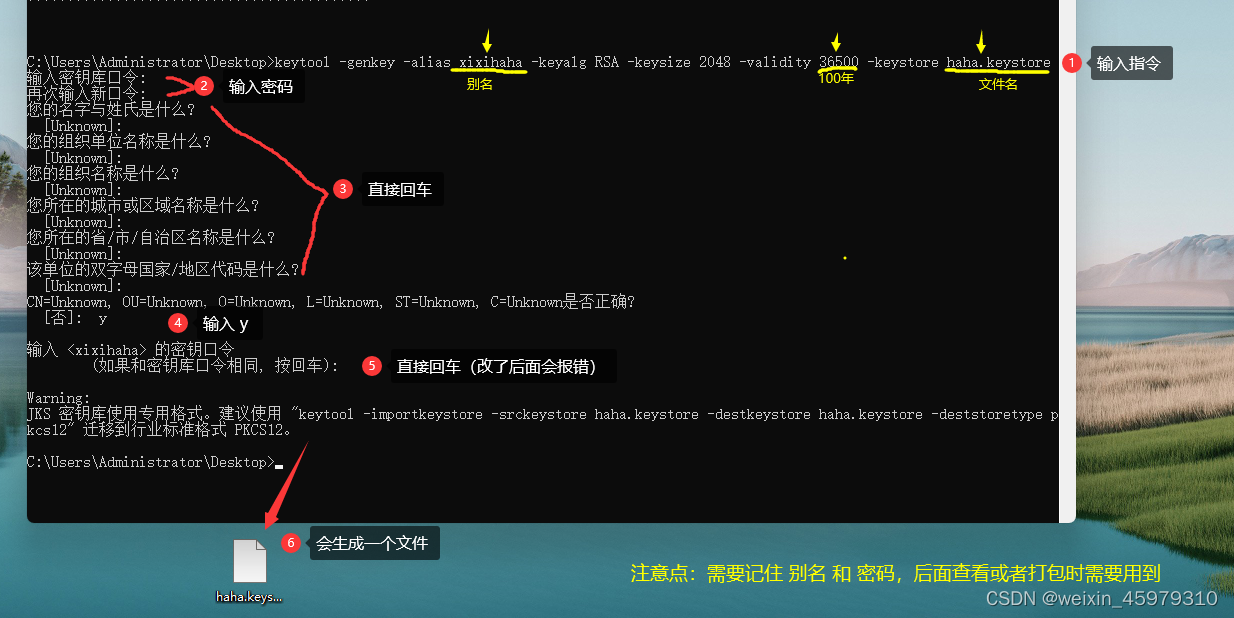
附上官网指南:点击
7.2 打包
点击HBuilder X上的【发行】-> 【原生App-云打包】-> 输入刚才制作的别名和密码,浏览刚才的证书。-> 安心打包 -> 【打包】
8. 使用echarts
8.1 定制
①、先定制 echarts 只选择用到的部分,减少体积。链接https://echarts.apache.org/zh/builder.html
②、将定制的echarts.js文件 放到static目录下
8.2 封装组件
在components目录下,新建 echartComp.vue 文件
参考插件市场:https://ext.dcloud.net.cn/plugin?id=1207
<template>
	<view :id="this.chartName" :prop="options" :change:prop="echarts.updateEcharts"
		:propName="chartName" :change:propName="echarts.updateEcharts"
	></view>
</template>

<script>

	export default {
		name: "echartComp",
		props: {
			chartOptions: {
				required: true,
				type: Object
			},
			nameId: {
				required: true,
				type: String
			}
		},
		data() {
			return {
				options: {},
				chartName: ''
			};
		},
		watch: {
			chartOptions: {
				handler(newVal) {
					this.options = newVal;
				},
				immediate: true
			},
			nameId: {
				handler(newVal) {
					this.chartName = newVal;
				},
				immediate: true
			}
		}
	}
</script>
<script module="echarts" lang="renderjs">
	export default {
		data() {
			return {
				chartInstance: null
			}
		},
		mounted() {
			const script = document.createElement('script')
			// view 层的页面运行在 www 根目录,其相对路径相对于 www 计算
			script.src = 'static/echarts.js'
			script.onload = this.initEcharts.bind(this)
			document.head.appendChild(script)
		},
		methods: {
			initEcharts() {
				this.chartInstance = echarts.init(document.getElementById(this.chartName))
				// 观测更新的数据在 view 层可以直接访问到
				this.chartInstance.setOption(this.options)
			},
			updateEcharts(newValue, oldValue, ownerInstance, instance) {
				// 监听 service 层数据变更
				// chartInstance.setOption(newValue) // Cannot read property 'setOption' of undefined at view
				this.chartInstance && this.chartInstance.setOption(newValue)
				// 也可以
				// let timer = setInterval(() =>{
				// 	if(mypieChart){
				// 		mypieChart.setOption(newValue);
				// 		clearInterval(timer)
				// 	}
				// },10)
			},
		}
	}
</script>
8.3 使用
8.3.1 标准echart图:
根据需求,传对应的echart配置即可
<echartComp style="width: 100%; height: 500upx;" :chartOptions="chartOptions" :nameId="'weiyi_Id'" />

import echartComp from '../../components/echartComp.vue'

components: { echartComp },
data() {
  return {
  	chartOptions: {
		series: [{
			name: 'Access From',
			type: 'pie',
			radius: [20, 80],
			center: ['50%', '50%'],
			roseType: 'area',
			itemStyle: {
				borderRadius: 5
			},
			data: [
				{ value: 30, name: 'rose 1' },
				{ value: 28, name: 'rose 2' },
				{ value: 26, name: 'rose 3' },
				{ value: 24, name: 'rose 4' },
				{ value: 22, name: 'rose 5' },
				{ value: 20, name: 'rose 6' },
				{ value: 18, name: 'rose 7' },
				{ value: 16, name: 'rose 8' }
			]
		}]
	},
  }
}
8.3.2 定制echart图:
在上面的基础上,手动引入
// 如果不加后续的new调用会出错(渐变色哪里)
import * as echarts from '../../static/echarts.js'

示例配置:
data() {
  return {
  	chartOptions: {
	grid: {
		top:'10%',
		left: '3%',
		right: '4%',
		bottom: '5%',
		containLabel: true
	},
	xAxis: {
		type: 'category',
		data: ['Mon', 'Tue', 'Wed', 'Thu', 'Fri', 'Sat', 'Sun'],
		axisLabel: {
			interval: 0,
			rotate: 40,
			inside: false,
			textStyle: {
				color: '#000',
				fontSize: '8',
				itemSize: ''
			}
		}
	},
	yAxis: {
		type: 'value'
	},
	series: [{
		data: [120, 200, 150, 80, 70, 110, 130],
		barWidth: 20,
		type: 'bar',

		itemStyle: {
			normal: {
				// 上面的引用,是这里用的
				color: new echarts.graphic.LinearGradient(0, 0, 0, 1, [{
					offset: 0,
					color: '#00CCFF'
				}, {
					offset: 1,
					color: '#4FACFE'
				}]),
			}
		},
	}]
},
  }
}
9.下拉列表菜单,可滚动(uView 1.0)
// 模板
<u-dropdown class="topNav-right" ref="oneDropdown">
	<u-dropdown-item :title="oneName.eventName" >
		<scroll-view scroll-y="true" style="height: 500upx;">
			<view class="topNav-right-item" v-for="(item,index) in oneOptions" :key="index" @click="oneDrop(item)">
				{{ item.eventName }}
			</view>
		</scroll-view>
	</u-dropdown-item>
</u-dropdown>

// js
data() {
  return {
	// 类型下拉框
	oneName: {},
	oneOptions: [],
  }
},
methods: {
	// 点击类型
	oneDrop(item) {
		this.oneName = item;
		this.$refs.oneDropdown.close();
		// this.getType(item.id)	// 如果有联动的话
	},

}

// 样式
.topNav-right {
	flex: 2.5;
	.topNav-right-item {
		z-index: 9999;
		height: 80upx;
		line-height: 80upx;
		text-align: center;
		border-bottom: 1upx solid rgba(220, 220, 220, 0.4);
		background-color: #FFFFFF;
	}
}
/deep/.u-dropdown__menu {
	z-index: 0;
}
/deep/.u-dropdown__menu__item {
	justify-content: flex-end;
}
10. 全局组件
在 main.js 中, H5和App是用法是不同的见如下示例,
(目前发现bug,也可能不是bug:组件名和文件名要一致,否则引入不成功。例如 ‘htzImageUpload’, 对应后面的文件名也是 ‘htz-image-upload.vue’, 还有在components的组件要用-分割,使用小驼峰也会不成功)
// #ifdef APP-PLUS
	Component('htzImageUpload', () => import('@/components/htz-image-upload/htz-image-upload.vue'));
// #endif

// #ifdef H5
	Vue.component('htzImageUpload', () => import('@/components/htz-image-upload/htz-image-upload.vue'));
// #endif
还有图片上传组件,多选组件,语音组件 等等
11. 语音转文字 组件
新建 voice.svg 文件,以便引入
<?xml version="1.0" standalone="no"?>
<!DOCTYPE svg PUBLIC "-//W3C//DTD SVG 1.1//EN" "http://www.w3.org/Graphics/SVG/1.1/DTD/svg11.dtd"><svg t="1561448511664"
    class="icon" viewBox="0 0 1024 1024" version="1.1" xmlns="http://www.w3.org/2000/svg" p-id="2055"
    xmlns:xlink="http://www.w3.org/1999/xlink" width="200" height="200">
    <defs>
        <style type="text/css"></style>
    </defs>
    <path
        d="M515.041727 670.617766c91.584167 0 166.095647-74.504255 166.095647-166.095646V229.350568c0-91.584167-74.51148-166.095647-166.095647-166.095647-91.598617 0-166.102872 74.51148-166.102871 166.095647V504.52212c0 91.591392 74.504255 166.095647 166.102871 166.095646z"
        fill="#8a8a8a" p-id="2056"></path>
    <path
        d="M801.643237 874.001665H558.391759v-45.423608c161.507768-21.313766 286.60151-159.788217 286.60151-327.01819a43.350032 43.350032 0 0 0-86.700064 0c0 134.124998-109.12648 243.251478-243.258703 243.251479-134.124998 0-243.244253-109.12648-243.244253-243.251479a43.350032 43.350032 0 0 0-86.700063 0c0 167.229972 125.100967 305.711649 286.601509 327.01819v45.423608H228.440217a43.350032 43.350032 0 0 0 0 86.700064h573.20302a43.350032 43.350032 0 0 0 0-86.700064z"
        fill="#8a8a8a" p-id="2057"></path>
</svg>
新建 audio-input.vue 文件
<template>
	<view class="audioInput">
		<image src="@/static/images/voice.svg" mode="aspectFit" @click="startRecognize()" class="voice-icon"></image>
		<input type="text" class="reportContent" :placeholder='tipText' v-model="spokenWords" />
	</view>
</template>

<script>
	export default {
		name:"audio-input",
		props: {
			tipText: {
				default: '请输入操作内容',
				type: String
			}
		},
		data() {
			return {
				spokenWords: '',
				voiceOption: {
					engine: {
						type: String,
						default: 'baidu'	//语音引擎=>讯飞:iFly,百度:'baidu'
					},
					punctuation: false,
					timeout: 10 * 1000
				}
			};
		},
		methods: {
			startRecognize: function() {	//语音输入
				let _this = this;
				plus.speech.startRecognize(_this.voiceOption, function(s) {
					if(_this.spokenWords) {
						_this.spokenWords += s;
					} else {
						_this.spokenWords = s;
					}
					_this.$emit('spoken', _this.spokenWords);
				});
			},
		}
	}
</script>

<style lang="less" scoped>
	.audioInput {
		position: relative;
		height: 80upx;
		border: 1px solid gainsboro;
		.voice-icon {
			position: absolute;
			top: 10upx;
			left: 20upx;
			width: 60upx;
			height: 60upx;
			z-index: 10;
		}
		.reportContent {
			position: absolute;
			left: 0;
			right: 0;
			height: 80upx;
			padding-left: 90upx;
		}
	}
</style>
使用:
<audio-input @spoken="(SubmitText = $event)" :tipText="'请填写扣分描述'" />
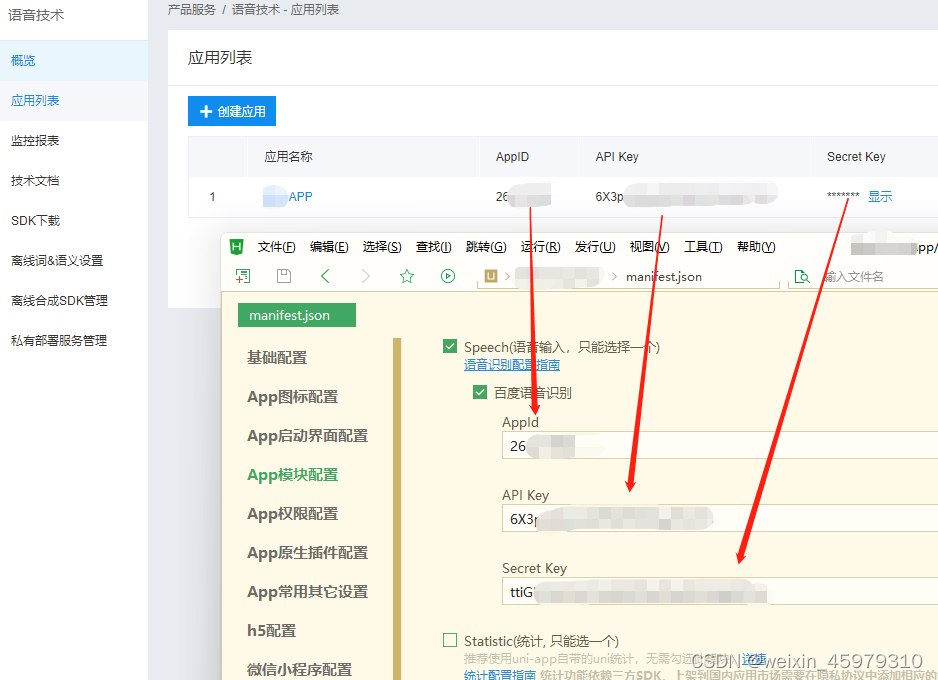
配置
百度语音地址:https://console.bce.baidu.com
12. 更新升级
判断平台
uni.getSystemInfoSync().platform == 'ios'
uni.getSystemInfoSync().platform == 'android'
IOS
//在App Store Connect中的App Store下的app信息,可找到appleId
let appleId = 123456
plus.runtime.launchApplication({
	action: `itms-apps://itunes.apple.com/cn/app/id${appleId}?mt=8`
}, function(e) {
	// console.log('Open system default browser failed: ' + e.message);''
});
Android
view v-if='this.versionFlag==true && JSON.stringify(versionObject) !== "{}" && MobileTypeAndroid==true'>
	<version class="versionModel" :versionObject="versionObject"></version>
</view>
version组件代码
<template>
	<view class="mask flex-center">
		<view class="content botton-radius">
			<view class="content-top">
				<!-- 更新标题 -->
				<text class="content-top-text">{{this.versionObject.name}}</text>
				<image class="content-top" style="top: 0;" width="100%" height="100%" src="@/static/images/bg_top.png"></image>
			</view>
			<view class="content-header"></view>
			<view class="content-body">
				<view class="title">
					<text>{{subTitle}}</text>
				</view>
				<!-- 更新内容 -->
				<view class="body">
					<scroll-view class="box-des-scroll" scroll-y="true">
						<text class="box-des">
							{{this.versionObject.remark}}
						</text>
					</scroll-view>
				</view>
				<view class="footer flex-center">
					<template>
						<template v-if="!downloadSuccess">
							<view class="progress-box flex-column" v-if="downloading">
								<progress class="progress" border-radius="35" :percent="downLoadPercent"
									activeColor="#3DA7FF" show-info stroke-width="10" />
								<view style="width:100%;font-size: 28rpx;display: flex;justify-content: space-around;">
									<text>{{downLoadingText}}</text>
									<text>({{downloadedSize}}/{{packageFileSize}}M)</text>
								</view>
							</view>

							<button v-else class="content-button" style="border: none;color: #fff;" plain
								@click="downloadPackage">
								{{downLoadBtnText}}
							</button>
						</template>
						<button v-else-if="downloadSuccess && !installed" class="content-button"
							style="border: none;color: #fff;" plain :loading="installing" :disabled="installing"
							@click="installPackage">
							{{installing ? '正在安装……' : '下载完成,立即安装'}}
						</button>

						<button v-if="installed && isWGT" class="content-button" style="border: none;color: #fff;" plain
							@click="restart">
							安装完毕,点击重启
						</button>
					</template>
				</view>
			</view>
<!-- 			<image v-if="!is_mandatory" class="close-img" src="@/static/images/app_update_close.png"
				@click.stop="closeUpdate"></image> -->
		</view>
	</view>
</template>

<script>
	const localFilePathKey = '__localFilePath__'
	const platform_iOS = 'iOS';
	let downloadTask = null;


	/**
	 * 对比版本号,如需要,请自行修改判断规则
	 * 支持比对	("3.0.0.0.0.1.0.1", "3.0.0.0.0.1")	("3.0.0.1", "3.0")	("3.1.1", "3.1.1.1") 之类的
	 * @param {Object} v1
	 * @param {Object} v2
	 * v1 > v2 return 1
	 * v1 < v2 return -1
	 * v1 == v2 return 0
	 */
	function compare(v1 = '0', v2 = '0') {
		v1 = String(v1).split('.')
		v2 = String(v2).split('.')
		const minVersionLens = Math.min(v1.length, v2.length);

		let result = 0;
		for (let i = 0; i < minVersionLens; i++) {
			const curV1 = Number(v1[i])
			const curV2 = Number(v2[i])

			if (curV1 > curV2) {
				result = 1
				break;
			} else if(curV1 < curV2) {
				result = -1
				break;
			}
		}

		if (result === 0 && (v1.length !== v2.length)) {
			const v1BiggerThenv2 = v1.length > v2.length;
			const maxLensVersion = v1BiggerThenv2 ? v1 : v2;
			for (let i = minVersionLens; i < maxLensVersion.length; i++) {
				const curVersion = Number(maxLensVersion[i])
				if (curVersion > 0) {
					v1BiggerThenv2 ? result = 1 : result = -1
					break;
				}
			}
		}

		return result;
	}

	export default {
		props:{
			versionObject:[Object,Array]
		},
		data() {
			return {
				// 从之前下载安装
				installForBeforeFilePath: '',

				// 安装
				installed: false,
				installing: false,

				// 下载
				downloadSuccess: false,
				downloading: false,

				downLoadPercent: 0,
				downloadedSize: 0,
				packageFileSize: 0,

				tempFilePath: '', // 要安装的本地包地址

				// 默认安装包信息
				title: '更新日志',
				contents: '',
				is_mandatory: false,

				// 可自定义属性
				subTitle: '发现新版本',
				downLoadBtnTextiOS: '立即跳转更新',
				downLoadBtnText: '立即下载更新',
				downLoadingText: '安装包下载中,请稍后'
			}
		},
		onLoad({local_storage_key}) {
			if (!local_storage_key) {
				console.error('local_storage_key为空,请检查后重试')
				uni.navigateBack()
				return;
			};

			const localPackageInfo = uni.getStorageSync(local_storage_key);
			if (!localPackageInfo) {
				console.error('安装包信息为空,请检查后重试')
				uni.navigateBack()
				return;
			};

			const requiredKey = ['version', 'url', 'type']
			for (let key in localPackageInfo) {
				if (requiredKey.indexOf(key) !== -1 && !localPackageInfo[key]) {
					console.error(`参数 ${key} 必填,请检查后重试`)
					uni.navigateBack()
					return;
				}
			}

			Object.assign(this, localPackageInfo)
			this.checkLocalStoragePackage()
		},
		mounted() {
		},
		onBackPress() {
			// 强制更新不允许返回
			if (this.is_mandatory) {
				return true
			}

			downloadTask && downloadTask.abort()
		},
		computed: {
			isWGT() {
				return this.type === 'wgt'
			},
		},
		methods: {
			checkLocalStoragePackage() {
				// 如果已经有下载好的包,则直接提示安装
				const localFilePathRecord = uni.getStorageSync(localFilePathKey)
				if (localFilePathRecord) {
					const {
						version,
						savedFilePath,
						installed
					} = localFilePathRecord

					// 比对版本
					if (!installed && compare(version, this.version) === 0) {
						this.downloadSuccess = true;
						this.installForBeforeFilePath = savedFilePath;
						this.tempFilePath = savedFilePath
					} else {
						// 如果保存的包版本小 或 已安装过,则直接删除
						this.deleteSavedFile(savedFilePath)
					}
				}
			},
			async closeUpdate() {
				if (this.downloading) {
					if (this.is_mandatory) {
						return uni.showToast({
							title: '下载中,请稍后……',
							icon: 'none',
							duration: 500
						})
					}
					uni.showModal({
						title: '是否取消下载?',
						cancelText: '否',
						confirmText: '是',
						success: res => {
							if (res.confirm) {
								downloadTask && downloadTask.abort()
								uni.navigateBack()
							}
						}
					});
					return;
				}

				if (this.downloadSuccess && this.tempFilePath) {
					// 包已经下载完毕,稍后安装,将包保存在本地
					await this.saveFile(this.tempFilePath, this.version)
					uni.navigateBack()
					return;
				}

				uni.navigateBack()
			},
			downloadPackage() {
				this.downloading = true;
				//下载包
				downloadTask = uni.downloadFile({
					url: this.versionObject.path,
					success: res => {
						if (res.statusCode == 200) {
							this.downloadSuccess = true;
							this.tempFilePath = res.tempFilePath
							// 强制更新,直接安装
							if (this.is_mandatory) {
								this.installPackage();
							}
						}
					},
					complete: () => {
						this.downloading = false;
						this.downLoadPercent = 0
						this.downloadedSize = 0
						this.packageFileSize = 0
						downloadTask = null;
					}
				});
				downloadTask.onProgressUpdate(res => {
					this.downLoadPercent = res.progress;
					this.downloadedSize = (res.totalBytesWritten / Math.pow(1024, 2)).toFixed(2);
					this.packageFileSize = (res.totalBytesExpectedToWrite / Math.pow(1024, 2)).toFixed(2);
				});
			},
			installPackage() {
				// #ifdef APP-PLUS
				// wgt资源包安装
				if (this.isWGT) {
					this.installing = true;
				}

				plus.runtime.install(this.tempFilePath, {
					force: false
				}, async res => {
					this.installing = false;
					this.installed = true;

					// wgt包,安装后会提示 安装成功,是否重启
					if (this.isWGT) {
						// 强制更新安装完成重启
						if (this.is_mandatory) {
							uni.showLoading({
								icon: 'none',
								title: '安装成功,正在重启……'
							})

							setTimeout(() => {
								uni.hideLoading()
								this.restart();
							}, 1000)
						} else {
							uni.showLoading({
								icon: 'none',
								title: '安装成功,重启应用体验新版',
								duration: 1000
							})
						}
					} else {
						const localFilePathRecord = uni.getStorageSync(localFilePathKey)
						uni.setStorageSync(localFilePathKey, {
							...localFilePathRecord,
							installed: true
						})
					}
				}, async err => {
					// 如果是安装之前的包,安装失败后删除之前的包
					if (this.installForBeforeFilePath) {
						await this.deleteSavedFile(this.installForBeforeFilePath)
						this.installForBeforeFilePath = '';
					}

					// 安装失败需要重新下载安装包
					this.installing = false;
					this.installed = false;

					uni.showModal({
						title: `更新失败${this.isWGT ? '' : ',APK文件不存在'},请重新下载`,
						content: err.message,
						showCancel: false
					});
				});

				// 非wgt包,安装跳出覆盖安装,此处直接返回上一页
				if (!this.isWGT) {
					uni.navigateBack()
				}
				// #endif
			},
			restart() {
				this.installed = false;
				// #ifdef APP-PLUS
				//更新完重启app
				plus.runtime.restart();
				// #endif
			},
			async saveFile(tempFilePath, version) {
				const [err, res] = await uni.saveFile({
					tempFilePath
				})
				if (err) {
					return;
				}
				uni.setStorageSync(localFilePathKey, {
					version,
					savedFilePath: res.savedFilePath
				})
			},
			deleteSavedFile(filePath) {
				uni.removeStorageSync(localFilePathKey)
				return uni.removeSavedFile({
					filePath
				})
			},
			jumpToAppStore() {
				plus.runtime.openURL(this.url);
			}
		}
	}
</script>

<style>
	page {
		background: transparent;
	}

	.flex-center {
		/* #ifndef APP-NVUE */
		display: flex;
		/* #endif */
		justify-content: center;
		align-items: center;
	}

	.mask {
		position: fixed;
		left: 0;
		top: 0;
		right: 0;
		bottom: 0;
		background-color: rgba(0, 0, 0, .65);
	}

	.botton-radius {
		border-bottom-left-radius: 30rpx;
		border-bottom-right-radius: 30rpx;
	}

	.content {
		position: relative;
		top: 0;
		width: 600rpx;
		background-color: #fff;
		box-sizing: border-box;
		padding: 0 50rpx;
		font-family: Source Han Sans CN;
	}

	.text {
		/* #ifndef APP-NVUE */
		display: block;
		/* #endif */
		line-height: 200px;
		text-align: center;
		color: #FFFFFF;
	}

	.content-top {
		position: absolute;
		top: -195rpx;
		left: 0;
		width: 600rpx;
		height: 270rpx;
	}

	.content-top-text {
		font-size: 45rpx;
		font-weight: bold;
		color: #F8F8FA;
		position: absolute;
		top: 120rpx;
		left: 50rpx;
		z-index: 1;
	}

	.content-header {
		height: 70rpx;
	}

	.title {
		font-size: 33rpx;
		font-weight: bold;
		color: #3DA7FF;
		line-height: 38px;
	}

	.footer {
		height: 150rpx;
		display: flex;
		align-items: center;
		justify-content: space-around;
	}

	.box-des-scroll {
		box-sizing: border-box;
		padding: 0 40rpx;
		height: 200rpx;
		text-align: left;
	}

	.box-des {
		font-size: 26rpx;
		color: #000000;
		line-height: 50rpx;
	}

	.progress-box {
		width: 100%;
	}

	.progress {
		width: 90%;
		height: 40rpx;
		border-radius: 35px;
	}

	.close-img {
		width: 70rpx;
		height: 70rpx;
		z-index: 1000;
		position: absolute;
		bottom: -120rpx;
		left: calc(50% - 70rpx / 2);
	}

	.content-button {
		text-align: center;
		flex: 1;
		font-size: 30rpx;
		font-weight: 400;
		color: #FFFFFF;
		border-radius: 40rpx;
		margin: 0 18rpx;

		height: 80rpx;
		line-height: 80rpx;

		background: linear-gradient(to right, #1785ff, #3DA7FF);
	}

	.flex-column {
		display: flex;
		flex-direction: column;
		align-items: center;
	}
</style>
13. 视频
<video style="width:100%; margin-top: 55%; height:400upx;object-fit: fill " :src="videoLists" preload="auto"
				:autoplay="true" :custom-cache="false" :playStrategy="1" objectFit="fill" :http-cache="false" :muted="true"></video>


		onLoad(options) {
			let res = JSON.parse(options.data);
			this.videoname = res.name;
			this.videoLists = res.hlsUrl;
		},
		// 监听页面卸载函数
		onUnload() {
			// 将img的src重置为空
			this.videoLists = ''
		},
14. 隐私弹窗
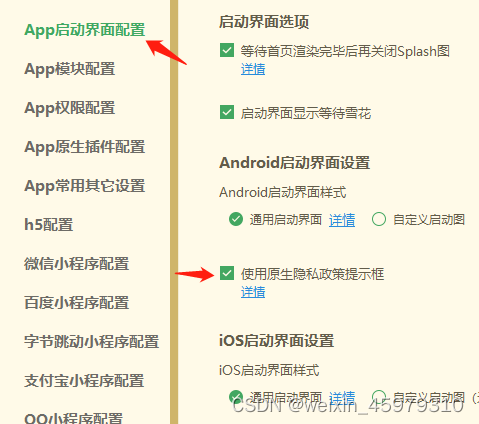
在项目根目录下:新建 androidPrivacy.json
{
    "version" : "1",
    "prompt" : "template",
    "title" : "服务协议和隐私政策",
    "message" : "  请你务必审慎阅读、充分理解“服务协议”和“隐私政策”各条款,包括但不限于:为了更好的向你提供服务,我们需要收集你的设备标识、操作日志等信息用于分析、优化应用性能。<br/>  你可阅读<a href=\"http://xxx.com/yysm/\">《服务协议》</a>和<a href=\"http://xxx.com/yysm/\">《隐私政策》</a>了解详细信息。如果你同意,请点击下面按钮开始接受我们的服务。",
    "buttonAccept" : "同意并接受",
    "buttonRefuse" : "暂不同意",
    "second" : {
        "title" : "确认提示",
        "message" : "  进入应用前,你需先同意<a href=\"http://xxx.com/yysm/\">《服务协议》</a>和<a href=\"http://xxx.com/yysm/\">《隐私政策》</a>,否则将退出应用。",
        "buttonAccept" : "同意并继续",
        "buttonRefuse" : "退出应用"
    },
    "styles" : {
        "backgroundColor" : "#ffffff",
        "borderRadius" : "5px",
        "title" : {
            "color" : "#333333"
        },
        "buttonAccept" : {
            "color" : "#333333"
        },
        "buttonRefuse" : {
            "color" : "#9B9AB5"
        }
    }
}





 扫一扫
扫一扫


 2235
2235

 被折叠的 条评论
为什么被折叠?
被折叠的 条评论
为什么被折叠?
 到【灌水乐园】发言





