


 本文详细介绍了在64位操作系统上安装和配置Docker的步骤,包括环境准备、关闭防火墙、配置yum源、安装及启动Docker、配置私有仓库、添加加速器等,最后通过运行hello-world镜像验证Docker引擎是否安装成功。
基础环境:
水平有限,仅供参考
64位操作系统
内核不低于3.10
内核必须支持任何一种存储驱动:如 device-mapper
通过 uname -a 查看内核版本和64位CPU
通过ls -l /sys/class/misc/device-mapper查看是否有

关闭防火墙一系列东西
1.关闭防火墙:systemctl stop firewalld
2.防火墙开机不自启:systemctl disable firewalld
3.这个必须要:setenforce 0
4.还有这几个:
iptables -F
iptables -X
iptables -Z

配置yum源
新建yum源文件,原来的yum不用移走
[centos7]
name=centos7
baseurl=file:///opt/centos7
enbald=1
gpgcheck=0

然后更新yum
yum update -y

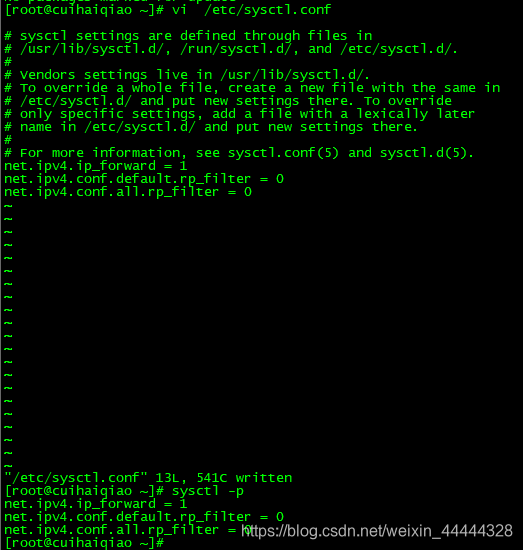
开启路由转发
添加如下三行
然 sysctl -p 生效配置
[root@cuihaiqiao ~]#vi  /etc/sysctl.conf
net.ipv4.ip_forward = 1
net.ipv4.conf.default.rp_filter = 0
net.ipv4.conf.all.rp_filter = 0

[root@cuihaiqiao ~]#sysctl -p   ##生效配置
安装docker
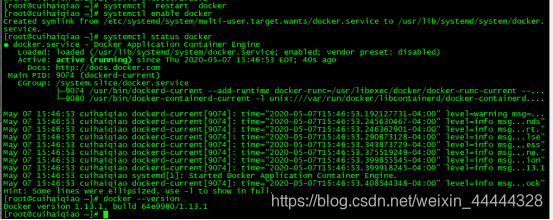
yum install docker-io -y
安装完后启动: systemctl restart docker (启动不了重启虚拟机)
加入开机启动: systemctl enable docker
检查docker运行状态:systemctl status docker或ps -aux | grep docker
查看版本信息:docker --version
添加仓库地址
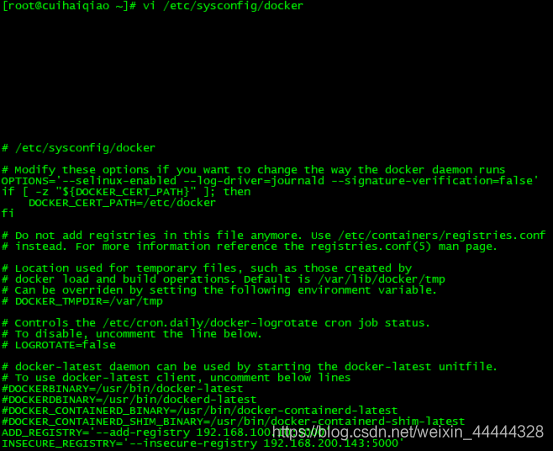
配置私有仓库(根据自己的ip修改ip)
[root@cuihaiqiao ~]#vi /etc/sysconfig/docker
ADD_REGISTRY='--add-registry 192.168.100.10:5000'
INSECURE_REGISTRY='--insecure-registry 192.168.200.143:5000'
添加加速器
我这里是阿里云加速器
网上还有很多其他的
[root@cuihaiqiao ~]# vi /etc/docker/daemon.json

{
  "registry-mirrors": ["https://97by74eg.mirror.aliyuncs.com"]
}

生效加速器:systemctl daemon-reload
然后重启:systemctl restart docker

验证docker是否可以运行
[root@cuihaiqiao ~]# docker run hello-world
看到对应输出结果
[root@cuihaiqiao ~]# docker run hello-world
Unable to find image 'hello-world:latest' locally
Trying to pull repository 192.168.100.10:5000/hello-world ...
Trying to pull repository docker.io/library/hello-world ...
latest: Pulling from docker.io/library/hello-world
0e03bdcc26d7: Pull complete
Digest: sha256:8e3114318a995a1ee497790535e7b88365222a21771ae7e53687ad76563e8e76
Status: Downloaded newer image for docker.io/hello-world:latest

Hello from Docker!
This message shows that your installation appears to be working correctly.

To generate this message, Docker took the following steps:
 1. The Docker client contacted the Docker daemon.
 2. The Docker daemon pulled the "hello-world" image from the Docker Hub.
    (amd64)
 3. The Docker daemon created a new container from that image which runs the
    executable that produces the output you are currently reading.
 4. The Docker daemon streamed that output to the Docker client, which sent it
    to your terminal.

To try something more ambitious, you can run an Ubuntu container with:
 $ docker run -it ubuntu bash

Share images, automate workflows, and more with a free Docker ID:
 https://hub.docker.com/

For more examples and ideas, visit:
 https://docs.docker.com/get-started/





 扫一扫
扫一扫


 315
315

 被折叠的 条评论
为什么被折叠?
被折叠的 条评论
为什么被折叠?
 到【灌水乐园】发言





