


 本文详细介绍了Linux系统中的磁盘管理,包括查看本地存储设备、设备挂载与卸载、磁盘分区、分区步骤、文件系统安装、swap分区管理和配额设置。通过示例演示了如何操作和配置这些功能。
linux系统中的磁盘管理
看到的不一定可以使用
可以被用,不一定在用
1.本地存储的设备
fdisk -l #真实存在的设备

cat /proc/partitions #系统识别的设备

blkid #系统可使用的设备

df #系统正在挂载的设备

2.设备的挂载与卸载
1).设备名称
/dev/xdx #/dev/hd0 /dev/hd1 /dev/sda /dev/sda1 /dev/sdb /dev/sdb1
/dev/sr0 #光驱
/dev/mapper/*虚拟设备
2).设备的挂载
mount    设备     挂载点
mount  /dev/sdb1   /mnt
将/dev/sdb1挂载到 /mnt下,用df查看是否已经挂载成功:

正常卸载:

有时候会出现busy情况,无法正常将挂载点卸载
3).解决设备正忙情况
解决方法1:
[root@foundation14 mnt]# umount /mnt
umount: /mnt: target is busy.
        (In some cases useful info about processes that use
         the device is found by lsof(8) or fuser(1))
[root@foundation14 mnt]# fuser -kvm /mnt
                     USER        PID ACCESS COMMAND
/mnt:                root     kernel mount /run/media/kiosk/KINGSTON
                     root       3024 ..c.. bash
                     kiosk      4388 ..c.. bash
                     root       4475 ..c.. bash
Killed
Killed
Killed
[root@foundation14 mnt]# umount /mnt

解决方法2:
[root@foundation14 mnt]# umount /mnt
[root@foundation14 mnt]# lsof /mnt/
lsof:WARNING:information may be incomplate。
COMMAND    PID USER  FD TYPE DEVICE SIZE/OFF NODE NAME
bash        4626   root  cwd DIR  8,17   4096     2   /mnt

[root@foundation14 mnt]# kill -9 4626
[root@foundation14 mnt]# umount /mnt

3.磁盘分区
1.硬盘0磁道1扇区的512个字节中记录的信息如下
512=446        +            64         +                2
       ^                     ^                          ^
     mbr(主引导记录)          mpt(主分区标)              55aa(硬盘的有效标示)
硬盘分区标
64
一个分区占16个字节
硬盘上最多可以划分4个主分区
4.分区步骤
1).查看真实存在的设备
[root@server-sshd ~]# fdisk -l

Disk /dev/vda: 10.7 GB, 10737418240 bytes, 20971520 sectors
Units = sectors of 1 * 512 = 512 bytes
Sector size (logical/physical): 512 bytes / 512 bytes
I/O size (minimum/optimal): 512 bytes / 512 bytes
Disk label type: dos
Disk identifier: 0x00013f3e

   Device Boot      Start         End      Blocks   Id  System
/dev/vda1   *        2048    20970332    10484142+  83  Linux

Disk /dev/vdb: 10.7 GB, 10737418240 bytes, 20971520 sectors
Units = sectors of 1 * 512 = 512 bytes
Sector size (logical/physical): 512 bytes / 512 bytes
I/O size (minimum/optimal): 512 bytes / 512 bytes
Disk label type: dos
Disk identifier: 0x45d1ee73

   Device Boot      Start         End      Blocks   Id  System
2).分区的管理
[root@server-sshd ~]# fdisk /dev/vdb
Welcome to fdisk (util-linux 2.23.2).

Changes will remain in memory only, until you decide to write them.
Be careful before using the write command.

Command (m for help): m    #查看帮助
Command action
   a   toggle a bootable flag
   b   edit bsd disklabel
   c   toggle the dos compatibility flag
   d   delete a partition      #删除
   g   create a new empty GPT partition table
   G   create an IRIX (SGI) partition table
   l   list known partition types
   m   print this menu
   n   add a new partition   #新建
   o   create a new empty DOS partition table
   p   print the partition table   #显示分区信息
   q   quit without saving changes   #退出
   s   create a new empty Sun disklabel
   t   change a partition's system id   #修改分区id
   u   change display/entry units
   v   verify the partition table
   w   write table to disk and exit      #保存分区标信息到硬盘
   x   extra functionality (experts only)

3).查看分区信息

4).新建分区


建立三个分区

5).如果已经建立了三个分区,那么新建第四个分区将会默认为扩展分区

6).这时就可以在扩展分区里再建立分区,只要分区的存储足够大
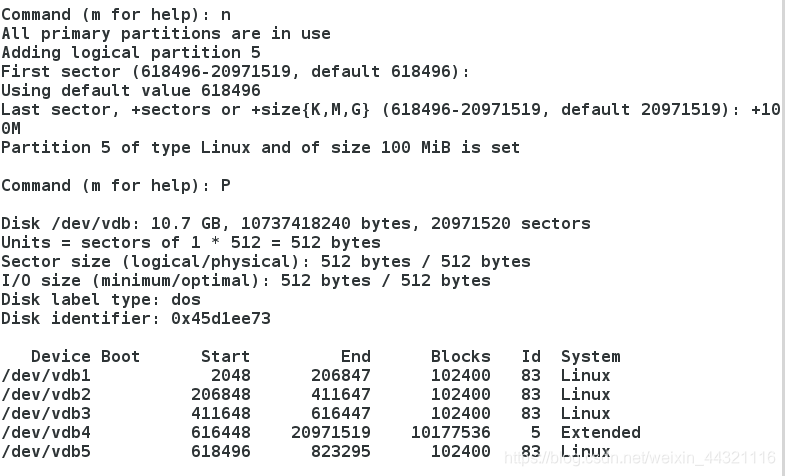
7).记得wq退出保存,q直接退出是不会保存的。
5.给设备安装文件系统
ext3 rhel5及之前的版本 最多支持32T的文件系统和2t文件,实际2tb文件系统,16G文件
ext3 rhel6 1EB 16TB
xfs rhel7 18EB 9eb 7G/s 4G/s
mkfs.xfs /dev/vdb5
mount /dev/vdb5 /mnt
vim /etc/fstab
设备 挂载点 文件系统 挂载参数 是否备份 是否检测
/dev/vdb5 /mnt xfs defaults 0 0
步骤:
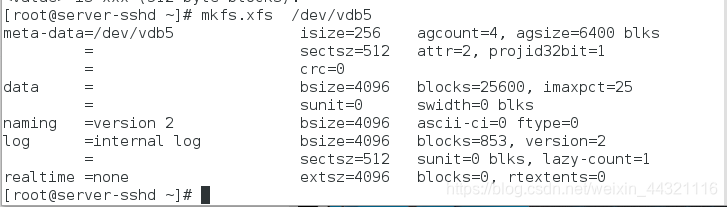
1).格式化/dev/vdb5
[root@server-sshd ~]# blkid   #查看可使用的设备
/dev/vda1: UUID="9bf6b9f7-92ad-441b-848e-0257cbb883d1" TYPE="xfs"

[root@server-sshd ~]# mkfs.xfs  /dev/vdb5
meta-data=/dev/vdb5              isize=256    agcount=4, agsize=6400 blks
         =                       sectsz=512   attr=2, projid32bit=1
         =                       crc=0
data     =                       bsize=4096   blocks=25600, imaxpct=25
         =                       sunit=0      swidth=0 blks
naming   =version 2              bsize=4096   ascii-ci=0 ftype=0
log      =internal log           bsize=4096   blocks=853, version=2
         =                       sectsz=512   sunit=0 blks, lazy-count=1
realtime =none                   extsz=4096   blocks=0, rtextents=0
[root@server-sshd ~]# blkid  #再次查看会发现多了一个/dev/vdb5可用设备
/dev/vda1: UUID="9bf6b9f7-92ad-441b-848e-0257cbb883d1" TYPE="xfs"
/dev/vdb5: UUID="404e2b3a-edaf-4784-92bf-989081b106d9" TYPE="xfs"

2).将/dev/vdb5挂载在/mnt下
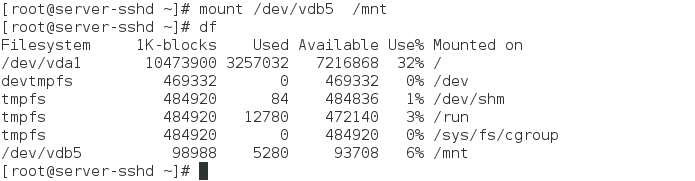
[root@server-sshd ~]# mount /dev/vdb5  /mnt
[root@server-sshd ~]# df   #查看是否挂载成功
Filesystem     1K-blocks    Used Available Use% Mounted on
/dev/vda1       10473900 3257032   7216868  32% /
devtmpfs          469332       0    469332   0% /dev
tmpfs             484920      84    484836   1% /dev/shm
tmpfs             484920   12780    472140   3% /run
tmpfs             484920       0    484920   0% /sys/fs/cgroup
/dev/vdb5          98988    5280     93708   6% /mnt
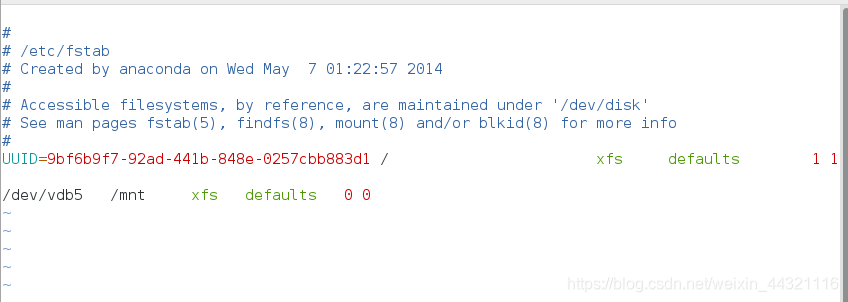
3).编辑/etc/fstab添加:dev/vdb5 /mnt xfs defaults 0 0
[root@server-sshd ~]# vim /etc/fstab

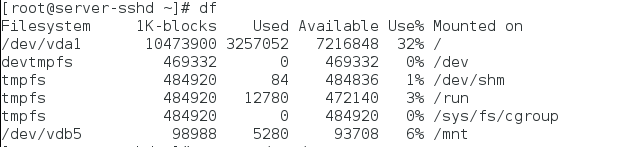
4).查看磁盘分区管理
[root@server-sshd ~]# df
Filesystem     1K-blocks    Used Available Use% Mounted on
/dev/vda1       10473900 3257052   7216848  32% /
devtmpfs          469332       0    469332   0% /dev
tmpfs             484920      84    484836   1% /dev/shm
tmpfs             484920   12780    472140   3% /run
tmpfs             484920       0    484920   0% /sys/fs/cgroup
/dev/vdb5          98988    5280     93708   6% /mnt
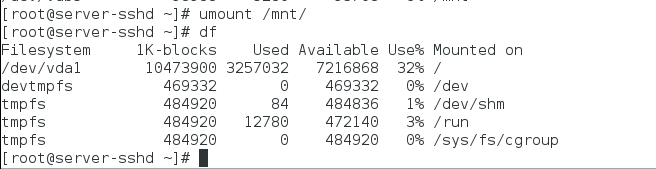
4).卸载/dev/vdb5 ,再次查看是否已经卸载成功
[root@server-sshd ~]# umount /mnt/
[root@server-sshd ~]# df
Filesystem     1K-blocks    Used Available Use% Mounted on
/dev/vda1       10473900 3257032   7216868  32% /
devtmpfs          469332       0    469332   0% /dev
tmpfs             484920      84    484836   1% /dev/shm
tmpfs             484920   12780    472140   3% /run
tmpfs             484920       0    484920   0% /sys/fs/cgroup
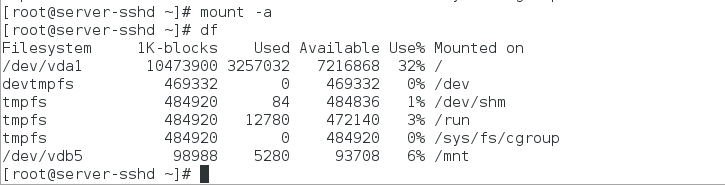
5).mount -a重新读取/etc/fstab,让/dev/vdb5 永久挂载,df查看
[root@server-sshd ~]# mount -a
[root@server-sshd ~]# df
Filesystem     1K-blocks    Used Available Use% Mounted on
/dev/vda1       10473900 3257032   7216868  32% /
devtmpfs          469332       0    469332   0% /dev
tmpfs             484920      84    484836   1% /dev/shm
tmpfs             484920   12780    472140   3% /run
tmpfs             484920       0    484920   0% /sys/fs/cgroup
/dev/vdb5          98988    5280     93708   6% /mnt
6.swap分区管理
1).swap分区建立
划分分区并设定分区标签为82
mkswap /dev/vdb6
swapon -a /dev/vdb6
swapon -s
vim /etc/fstab
/dev/vdb6 swap swap default 0 0
例如:
添加一个分区大小为1G
[root@server-sshd ~]# fdisk /dev/vdb
Welcome to fdisk (util-linux 2.23.2).

Changes will remain in memory only, until you decide to write them.
Be careful before using the write command.


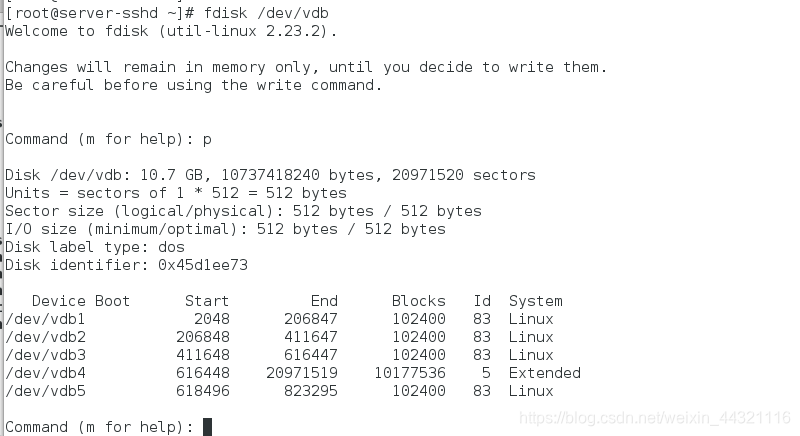
Command (m for help): p

Disk /dev/vdb: 10.7 GB, 10737418240 bytes, 20971520 sectors
Units = sectors of 1 * 512 = 512 bytes
Sector size (logical/physical): 512 bytes / 512 bytes
I/O size (minimum/optimal): 512 bytes / 512 bytes
Disk label type: dos
Disk identifier: 0x45d1ee73

   Device Boot      Start         End      Blocks   Id  System
/dev/vdb1            2048      206847      102400   83  Linux
/dev/vdb2          206848      411647      102400   83  Linux
/dev/vdb3          411648      616447      102400   83  Linux
/dev/vdb4          616448    20971519    10177536    5  Extended
/dev/vdb5          618496      823295      102400   83  Linux
新建分区
Command (m for help): n
All primary partitions are in use
Adding logical partition 6
First sector (825344-20971519, default 825344):
Using default value 825344
Last sector, +sectors or +size{K,M,G} (825344-20971519, default 20971519): +1G
Partition 6 of type Linux and of size 1 GiB is set
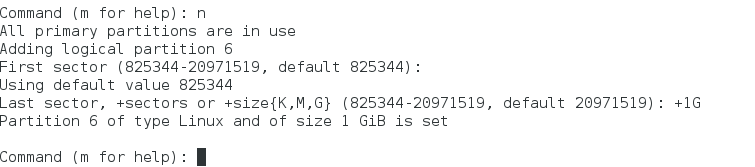
查看分区信息
Command (m for help): p

Disk /dev/vdb: 10.7 GB, 10737418240 bytes, 20971520 sectors
Units = sectors of 1 * 512 = 512 bytes
Sector size (logical/physical): 512 bytes / 512 bytes
I/O size (minimum/optimal): 512 bytes / 512 bytes
Disk label type: dos
Disk identifier: 0x45d1ee73

   Device Boot      Start         End      Blocks   Id  System
/dev/vdb1            2048      206847      102400   83  Linux
/dev/vdb2          206848      411647      102400   83  Linux
/dev/vdb3          411648      616447      102400   83  Linux
/dev/vdb4          616448    20971519    10177536    5  Extended
/dev/vdb5          618496      823295      102400   83  Linux
/dev/vdb6          825344     2922495     1048576   83  Linux
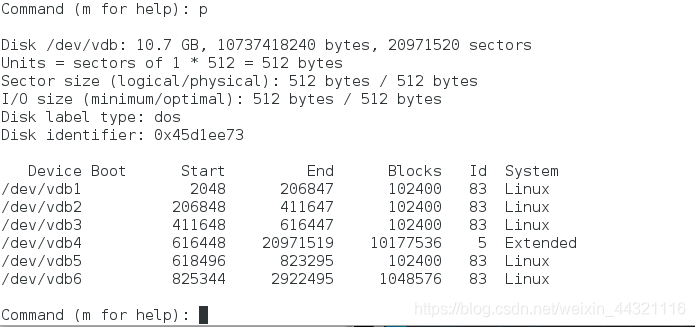
修改Linux为Linux swap
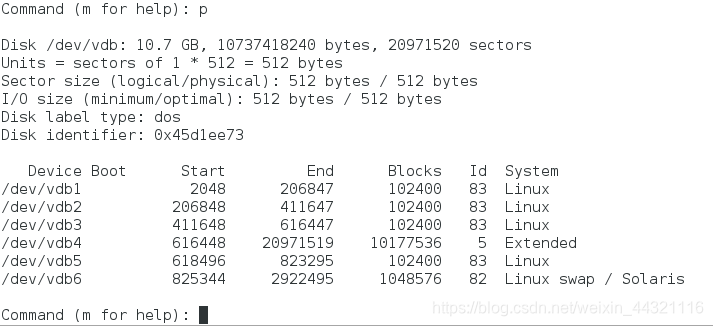
Command (m for help): t     #修改id
Partition number (1-6, default 6): 6
Hex code (type L to list all codes): 82   #修改类型为swap
Changed type of partition 'Linux' to 'Linux swap / Solaris'

查看分区信息
Command (m for help): p

Disk /dev/vdb: 10.7 GB, 10737418240 bytes, 20971520 sectors
Units = sectors of 1 * 512 = 512 bytes
Sector size (logical/physical): 512 bytes / 512 bytes
I/O size (minimum/optimal): 512 bytes / 512 bytes
Disk label type: dos
Disk identifier: 0x45d1ee73

   Device Boot      Start         End      Blocks   Id  System
/dev/vdb1            2048      206847      102400   83  Linux
/dev/vdb2          206848      411647      102400   83  Linux
/dev/vdb3          411648      616447      102400   83  Linux
/dev/vdb4          616448    20971519    10177536    5  Extended
/dev/vdb5          618496      823295      102400   83  Linux
/dev/vdb6          825344     2922495     1048576   82  Linux swap / Solaris
wq退出保存
Command (m for help): wq
The partition table has been altered!

Calling ioctl() to re-read partition table.

WARNING: Re-reading the partition table failed with error 16: Device or resource busy.
The kernel still uses the old table. The new table will be used at
the next reboot or after you run partprobe(8) or kpartx(8)
Syncing disks.
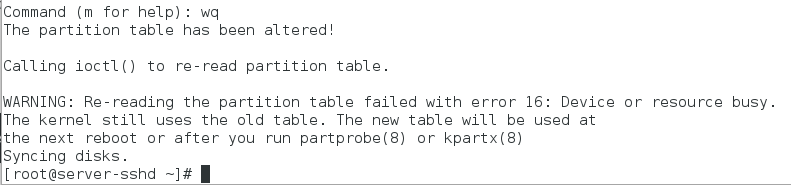 根据提示刷新,查看是否已经存在/dev/vdb6
[root@server-sshd ~]# partprobe
[root@server-sshd ~]# ls -l /dev/vdb6
brw-rw----. 1 root disk 253, 22 Jan 22 05:07 /dev/vdb6

使vdb6的类型变成swap
[root@server-sshd ~]# mkswap /dev/vdb6
Setting up swapspace version 1, size = 1048572 KiB
no label, UUID=529318f9-7cfd-4c9b-85ce-0657c4f4aa64

查看可使用的设备
[root@server-sshd ~]# blkid
/dev/vda1: UUID="9bf6b9f7-92ad-441b-848e-0257cbb883d1" TYPE="xfs"
/dev/vdb5: UUID="404e2b3a-edaf-4784-92bf-989081b106d9" TYPE="xfs"
/dev/vdb6: UUID="529318f9-7cfd-4c9b-85ce-0657c4f4aa64" TYPE="swap"

刷新vdb6
[root@server-sshd ~]# swapon -a /dev/vdb6
[root@server-sshd ~]# swapon -s
Filename				Type		Size	Used	Priority
/dev/vdb6                              	partition	1048572	0	-1

**以上是临时改变,为了永久改变则需要编辑/etc/fstab的文件
[root@server-sshd ~]# vim /etc/fstab

添加/dev/vdb6 swap swap defaults 0 0 后退出保存
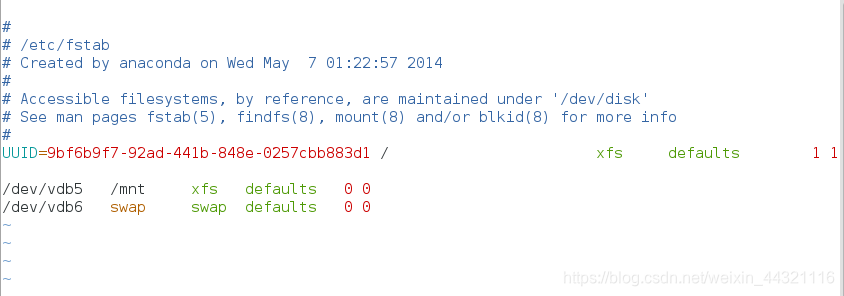
重新读取/etc/fstab文件并查看
[root@server-sshd ~]# swapon -a    /dev/vdb6
[root@server-sshd ~]# swapon -s
Filename				Type		Size	Used	Priority
/dev/vdb6                              	partition	1048572	0	-1
[root@server-sshd ~]#

2)swap分区删除
vim /etc/fstab
swapoff /dev/vdb6
swapon -s
例子:
[root@server-sshd ~]# swapoff /dev/vdb6   #关闭swap分区
[root@server-sshd ~]# swapon -s  #查看swap分区发现已经没有了

编辑/etc/fstab删除之前设定用机的swap分区
[root@server-sshd ~]# vim /etc/fstab

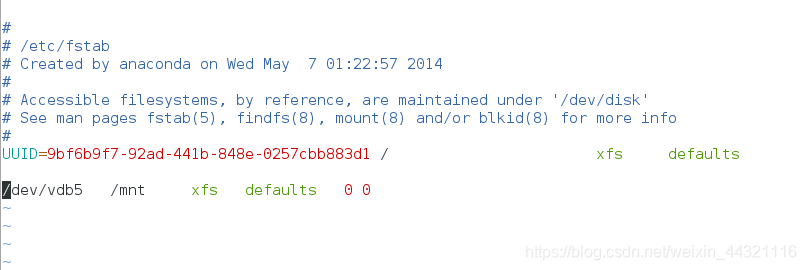
查看分区信息
[root@server-sshd ~]# fdisk -l

Disk /dev/vda: 10.7 GB, 10737418240 bytes, 20971520 sectors
Units = sectors of 1 * 512 = 512 bytes
Sector size (logical/physical): 512 bytes / 512 bytes
I/O size (minimum/optimal): 512 bytes / 512 bytes
Disk label type: dos
Disk identifier: 0x00013f3e

   Device Boot      Start         End      Blocks   Id  System
/dev/vda1   *        2048    20970332    10484142+  83  Linux

Disk /dev/vdb: 10.7 GB, 10737418240 bytes, 20971520 sectors
Units = sectors of 1 * 512 = 512 bytes
Sector size (logical/physical): 512 bytes / 512 bytes
I/O size (minimum/optimal): 512 bytes / 512 bytes
Disk label type: dos
Disk identifier: 0x45d1ee73

   Device Boot      Start         End      Blocks   Id  System
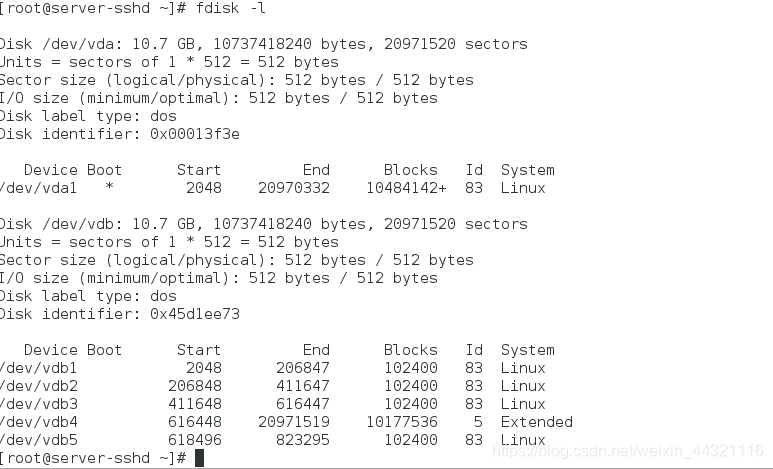
/dev/vdb1            2048      206847      102400   83  Linux
/dev/vdb2          206848      411647      102400   83  Linux
/dev/vdb3          411648      616447      102400   83  Linux
/dev/vdb4          616448    20971519    10177536    5  Extended
/dev/vdb5          618496      823295      102400   83  Linux
/dev/vdb6          825344     2922495     1048576   82  Linux swap / Solaris
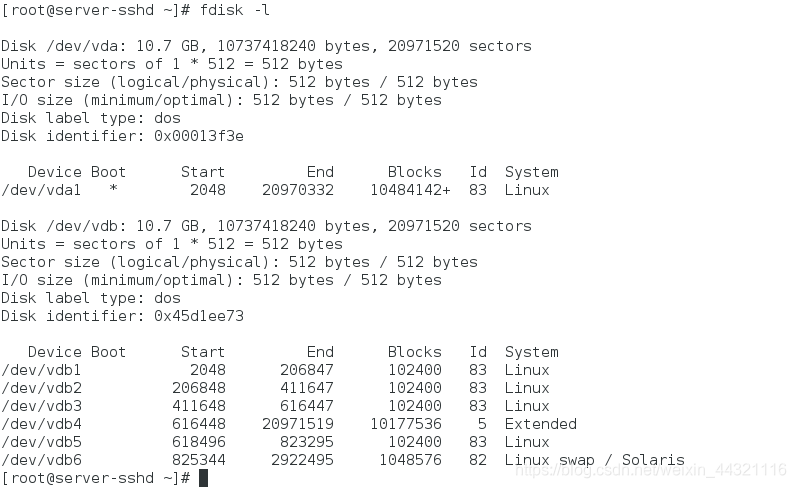
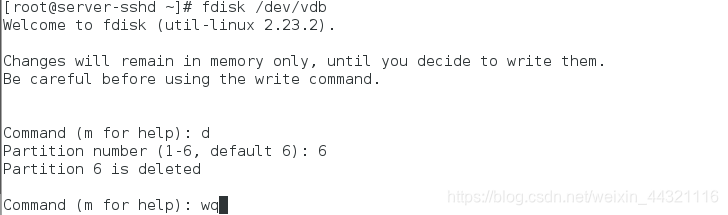
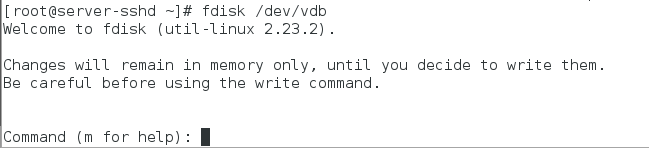 删除vdb6分区
[root@server-sshd ~]# fdisk /dev/vdb
Welcome to fdisk (util-linux 2.23.2).

Changes will remain in memory only, until you decide to write them.
Be careful before using the write command.


Command (m for help): d
Partition number (1-6, default 6): 6
Partition 6 is deleted

Command (m for help): wq
The partition table has been altered!

Calling ioctl() to re-read partition table.

WARNING: Re-reading the partition table failed with error 16: Device or resource busy.
The kernel still uses the old table. The new table will be used at
the next reboot or after you run partprobe(8) or kpartx(8)
Syncing disks.
[root@server-sshd ~]# partprobe #同步分区

[root@server-sshd ~]# fdisk -l #查看存在的设备
7.配额
配额是针对于分区(设备)的
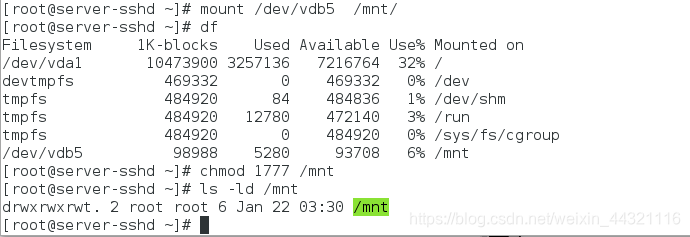
1).先挂载再赋权1777
[root@server-sshd ~]# mount -o usrquota /dev/vdb5 /mnt/   #挂载,打开用户权限
[root@server-sshd ~]# chmod 1777 /mnt
[root@server-sshd ~]# ls -ld /mnt
drwxrwxrwt. 2 root root 6 Jan 22 03:30 /mnt
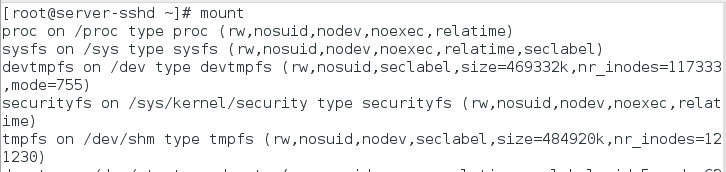
2).mount查看是否打开了用户权限
[root@server-sshd ~]# mount
proc on /proc type proc (rw,nosuid,nodev,noexec,relatime)
sysfs on /sys type sysfs (rw,nosuid,nodev,noexec,relatime,seclabel)
devtmpfs on /dev type devtmpfs (rw,nosuid,seclabel,size=469332k,nr_inodes=117333,mode=755)
securityfs on /sys/kernel/security type securityfs (rw,nosuid,nodev,noexec,relatime)
tmpfs on /dev/shm type tmpfs (rw,nosuid,nodev,seclabel,size=484920k,nr_inodes=121230)
devpts on /dev/pts type devpts (rw,nosuid,noexec,relatime,seclabel,gid=5,mode=620,ptmxmode=000)
tmpfs on /run type tmpfs (rw,nosuid,nodev,seclabel,size=484920k,nr_inodes=121230,mode=755)
tmpfs on /sys/fs/cgroup type tmpfs (rw,nosuid,nodev,noexec,seclabel,size=484920k,nr_inodes=121230,mode=755)
cgroup on /sys/fs/cgroup/systemd type cgroup (rw,nosuid,nodev,noexec,relatime,xattr,release_agent=/usr/lib/systemd/systemd-cgroups-agent,name=systemd)
pstore on /sys/fs/pstore type pstore (rw,nosuid,nodev,noexec,relatime)
cgroup on /sys/fs/cgroup/cpuset type cgroup (rw,nosuid,nodev,noexec,relatime,cpuset)
cgroup on /sys/fs/cgroup/cpu,cpuacct type cgroup (rw,nosuid,nodev,noexec,relatime,cpuacct,cpu)
cgroup on /sys/fs/cgroup/memory type cgroup (rw,nosuid,nodev,noexec,relatime,memory)
cgroup on /sys/fs/cgroup/devices type cgroup (rw,nosuid,nodev,noexec,relatime,devices)
cgroup on /sys/fs/cgroup/freezer type cgroup (rw,nosuid,nodev,noexec,relatime,freezer)
cgroup on /sys/fs/cgroup/net_cls type cgroup (rw,nosuid,nodev,noexec,relatime,net_cls)
cgroup on /sys/fs/cgroup/blkio type cgroup (rw,nosuid,nodev,noexec,relatime,blkio)
cgroup on /sys/fs/cgroup/perf_event type cgroup (rw,nosuid,nodev,noexec,relatime,perf_event)
cgroup on /sys/fs/cgroup/hugetlb type cgroup (rw,nosuid,nodev,noexec,relatime,hugetlb)
configfs on /sys/kernel/config type configfs (rw,relatime)
/dev/vda1 on / type xfs (rw,relatime,seclabel,attr2,inode64,noquota)
rpc_pipefs on /var/lib/nfs/rpc_pipefs type rpc_pipefs (rw,relatime)
selinuxfs on /sys/fs/selinux type selinuxfs (rw,relatime)
systemd-1 on /proc/sys/fs/binfmt_misc type autofs (rw,relatime,fd=29,pgrp=1,timeout=300,minproto=5,maxproto=5,direct)
mqueue on /dev/mqueue type mqueue (rw,relatime,seclabel)
debugfs on /sys/kernel/debug type debugfs (rw,relatime)
hugetlbfs on /dev/hugepages type hugetlbfs (rw,relatime,seclabel)
sunrpc on /proc/fs/nfsd type nfsd (rw,relatime)
gvfsd-fuse on /run/user/0/gvfs type fuse.gvfsd-fuse (rw,nosuid,nodev,relatime,user_id=0,group_id=0)
fusectl on /sys/fs/fuse/connections type fusectl (rw,relatime)
/dev/vdb5 on /mnt type xfs (rw,relatime,seclabel,attr2,inode64,usrquota)

3).
[root@server-sshd ~]$ edquota -u student /dev/vdb5

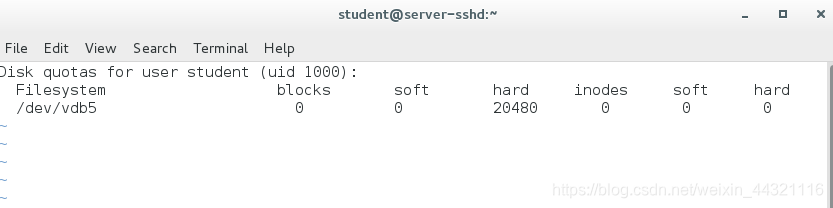
[root@server-sshd ~]# su - student
Last login: Tue Jan 22 06:21:34 CST 2019 on pts/0
Last failed login: Tue Jan 22 06:29:42 CST 2019 on pts/0
There was 1 failed login attempt since the last successful login.
[student@server-sshd mnt]$ dd if=/dev/zero of=/mnt/studentfile bs=1M count=10
10+0 records in
10+0 records out
10485760 bytes (10 MB) copied, 0.00659485 s, 1.6 GB/s
[student@server-sshd mnt]$ dd if=/dev/zero of=/mnt/studentfile bs=1M count=20
20+0 records in
20+0 records out
20971520 bytes (21 MB) copied, 0.906643 s, 23.1 MB/s
[student@server-sshd mnt]$ dd if=/dev/zero of=/mnt/studentfile bs=1M count=22
dd: error writing ‘/mnt/studentfile’: Disk quota exceeded
21+0 records in
20+0 records out
20971520 bytes (21 MB) copied, 0.331566 s, 63.2 MB/s
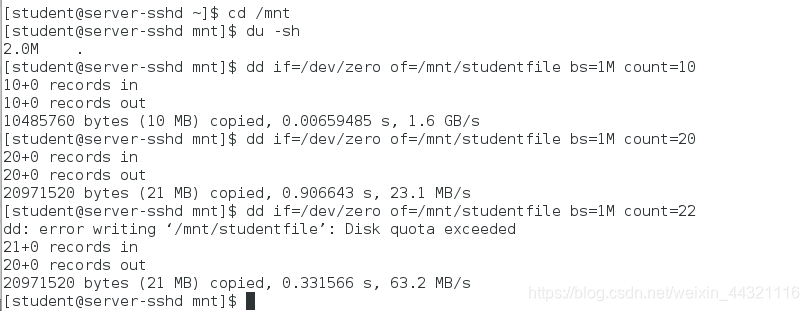
[student@server-sshd mnt]$ du -sh   #查看/mnt的大小
20M	.

###7.磁盘加密
步骤:
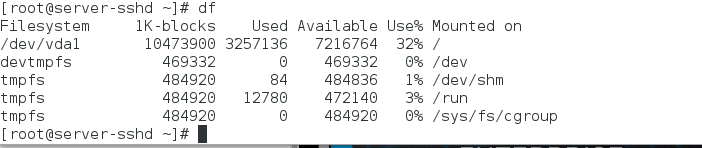
df查看正在挂载的设备
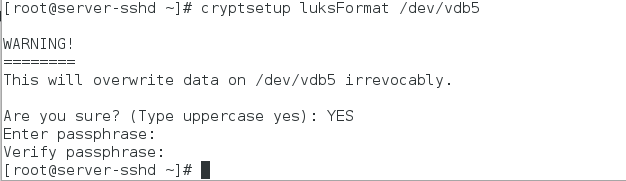
cryptsetup luksFormat /dev/vdb5 #加密
blkid #查看可使用的设备,发现/etc/vda5的类型变为crypto_LUKS

cryptsetup open /dev/vdb westos

mkfs.xfs /dev/mapper/westos #格式化/dev/mapper/westos
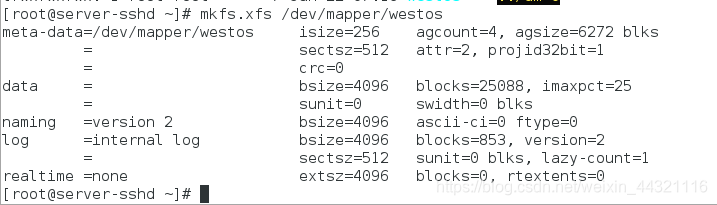
mount /dev/mapper/westos /mnt/ #挂载在/mnt下
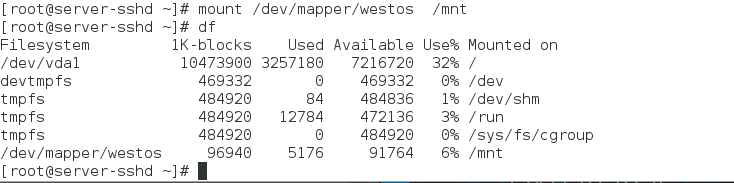
touch /mnt/file #在mnt建立一个file文件
vim /mnt/file #编辑这个文件

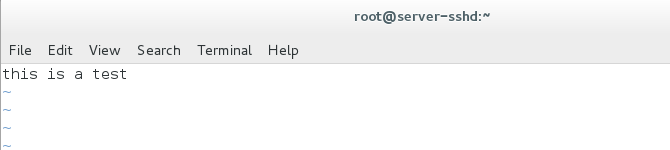
umount /mnt/ #卸载
cryptsetup close westos #关闭 westos 设备

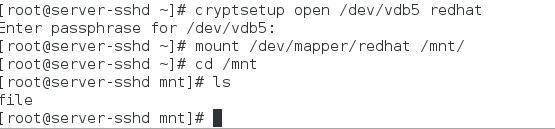
cryptsetup open /dev/vdb redhat #再次打开命名为redhat
mount /dev/mapper/westos /mnt #挂载在mnt
cd /mnt #打开mnt目录
ls #查看目录,发现之前建立的file存在
加密硬盘开机自动挂载
自动挂载的磁盘必须是加密后的
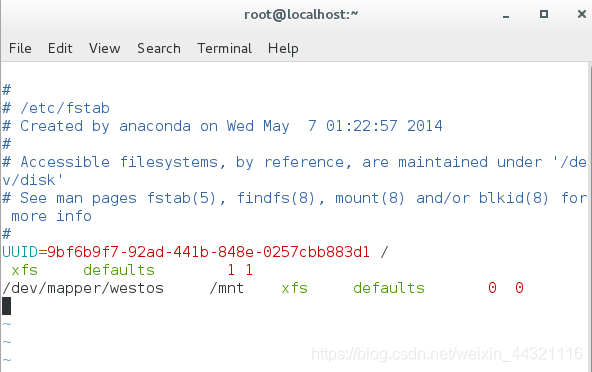
vim /etc/fastab

添加以下内容:
dev/mapper/westos /mnt xfs defaults 0 0
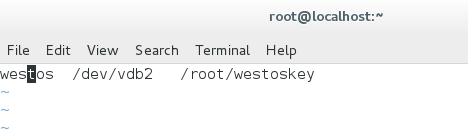
vim /etc/crypttab

添加以下内容:
westos /dev/vdb2 /root/westoskey
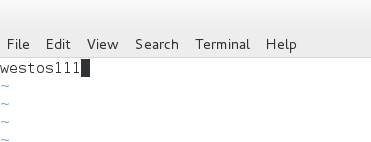
vim /root/westoskey

添加加密的密码内容:
westos111
cryptsetup luksAddKey /dev/vdb2 /root/westos






 扫一扫
扫一扫


 8877
8877

 被折叠的 条评论
为什么被折叠?
被折叠的 条评论
为什么被折叠?
 到【灌水乐园】发言





