


 本文讲述了如何使用Vue3和AntDesignVue库创建列表界面,并展示从后端接口获取的数据。首先选取合适的AntDesignVue列表样式,然后逐步将静态数据替换为通过axios获取的接口数据,对列表样式进行调整,包括栅格布局和 avatar 图标的大小,最终实现动态加载和展示多条列表数据。文章还涉及到了接口的改造,以返回更多数据,以及样式调整,提升列表的视觉效果。
一、前言
昨晚可能是因为更新完文章后,导致过于兴奋睡不着(写代码确实太容易让人兴奋了),结果两点多才睡着,大东北果然还是太冷了。
不知道是不是因为膝盖和脚都是冰凉的,所以才导致很晚才能入睡?
刚眯了一会,大约一个小时吧,感觉不错,接着又想学习了。
二、列表界面展示示例
现在要做的就是把打到页面的数据,带样式,也就是说好看点显示。
之前我们在《Vue3学习(二)之 集成Ant Design Vue》这篇文章中,有提及组件的使用,对于一个前端不是很好(后端也不咋的),本着拿来主义,我们能现成的是最好、最省事的方式了。
直白点说就是,找Ant Design Vue现成的组件,将列表数据按组件样式显示到界面上。
1、挑选自己喜欢的列表样式
从https://2x.antdv.com/components/list-cn中,找到list列表,找到自己喜欢的风格,如下图所示: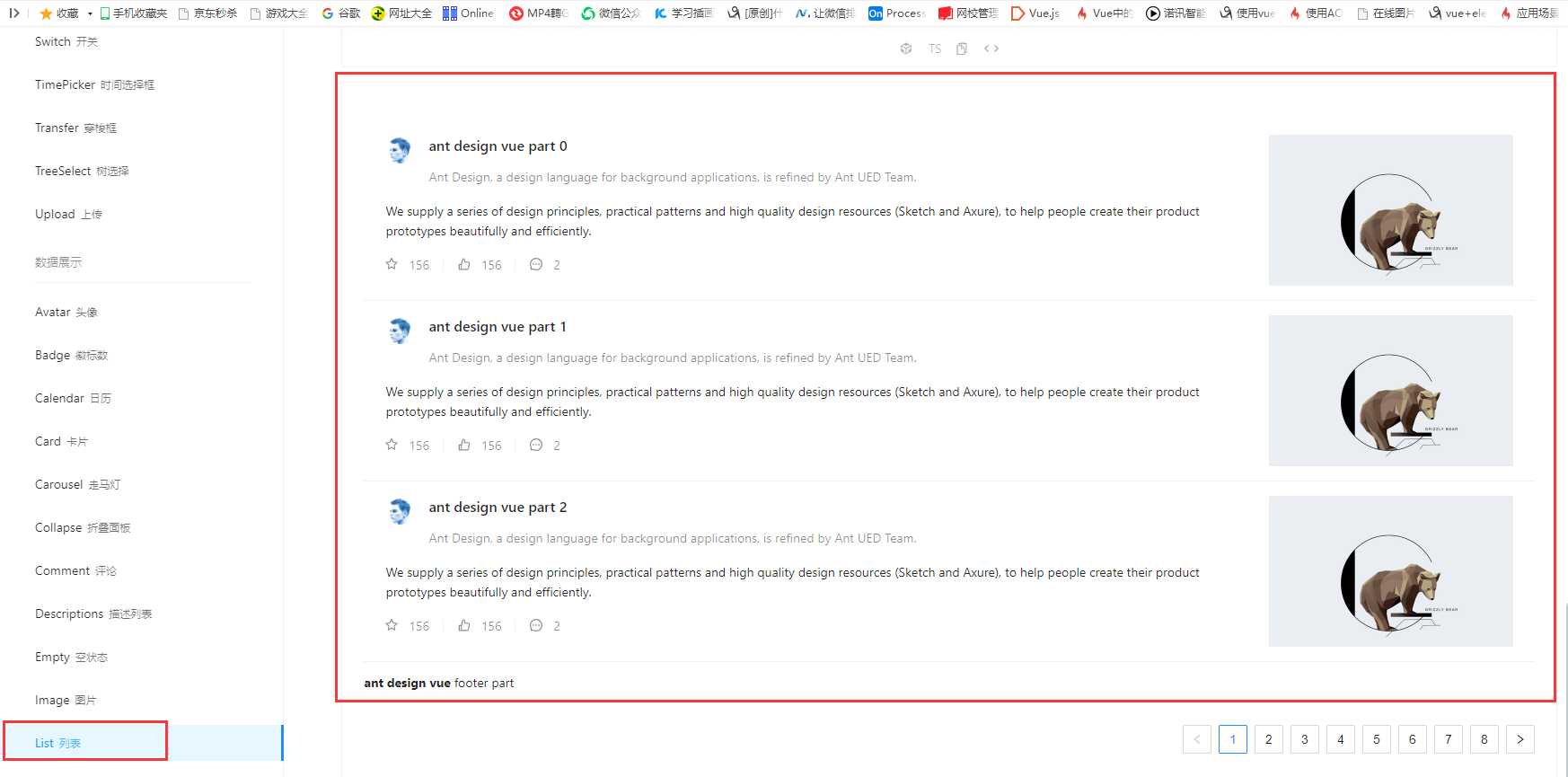
2、进行数据显示
2.1、组件在列表显示
接下来,我们只需要在home里进行修改即可,找到刚才对应组件的位置,把对应代码拷贝到home中,然后在进行修改即可,示例代码如下:
<template>
<a-layout>
<a-layout-sider width="200" style="background: #fff">
<a-menu
mode="inline"
v-model:selectedKeys="selectedKeys2"
v-model:openKeys="openKeys"
:style="{ height: '100%', borderRight: 0 }"
>
<a-sub-menu key="sub1">
<template #title>
<span>
<user-outlined />
subnav 1
</span>
</template>
<a-menu-item key="1">option1</a-menu-item>
<a-menu-item key="2">option2</a-menu-item>
<a-menu-item key="3">option3</a-menu-item>
<a-menu-item key="4">option4</a-menu-item>
</a-sub-menu>
<a-sub-menu key="sub2">
<template #title>
<span>
<laptop-outlined />
subnav 2
</span>
</template>
<a-menu-item key="5">option5</a-menu-item>
<a-menu-item key="6">option6</a-menu-item>
<a-menu-item key="7">option7</a-menu-item>
<a-menu-item key="8">option8</a-menu-item>
</a-sub-menu>
<a-sub-menu key="sub3">
<template #title>
<span>
<notification-outlined />
subnav 3
</span>
</template>
<a-menu-item key="9">option9</a-menu-item>
<a-menu-item key="10">option10</a-menu-item>
<a-menu-item key="11">option11</a-menu-item>
<a-menu-item key="12">option12</a-menu-item>
</a-sub-menu>
</a-menu>
</a-layout-sider>
<a-list item-layout="vertical" size="large" :pagination="pagination" :data-source="listData">
<template #footer>
<div>
<b>ant design vue</b>
footer part
</div>
</template>
<template #renderItem="{ item }">
<a-list-item key="item.title">
<template #actions>
<span v-for="{ type, text } in actions" :key="type">
<component v-bind:is="type" style="margin-right: 8px" />
{
{ text }}
</span>
</template>
<template #extra>
<img
width="272"
alt="logo"
src="https://gw.alipayobjects.com/zos/rmsportal/mqaQswcyDLcXyDKnZfES.png"
/>
</template>
<a-list-item-meta :description="item.description">
<template #title>
<a :href="item.href">{
{ item.title }}</a>
</template>
<template #avatar><a-avatar :src="item.avatar" /></template>
</a-list-item-meta>
{
{ item.content }}
</a-list-item>
</template>
</a-list>
</a-layout>
</template>
<script lang="ts">
import { defineComponent,onMounted,ref,reactive,toRef} from 'vue';
import axios from 'axios';
import { StarOutlined, LikeOutlined, MessageOutlined } from '@ant-design/icons 最低0.47元/天 解锁文章






 扫一扫
扫一扫


 448
448

 被折叠的 条评论
为什么被折叠?
被折叠的 条评论
为什么被折叠?
 到【灌水乐园】发言





