



 本文介绍了在Android应用中集成OpenCV进行图像处理的方法。推荐使用NDK开发以提升性能,详细阐述了集成步骤,包括下载最新OpenCV SDK、新建支持NDK的项目、导入.h文件和.so动态库、进行CMakeLists.txt配置及修改build文件等。
OpenCV简介
OpenCV,全称Open Source Computer VisionLibrary,是基于C/C++编写的,是BSD开源许可的计算机视觉开发框架,其开源协议允许在学术研究与商业应用开发中免费使用它。OpenCV支持Windows、Linux、Mac OS、iOS与Android操作系统上的应用开发。
下载
- 官网[OpenCV官网](https://opencv.org/releases/)Android最新版本SDK(我自己再用的是4.5.0)
- 选择OpenCV对应版本下的Android平台
SDK概述
SDK目录结构如下:
OpenCV-android-sdk
|_ samples
|_ sdk
|     |_ etc
|    |_ java
|    |_ libcxx_helper
|    |_ native
|          |_ 3rdparty
|          |_ jni
|               |_ abi-arm64-v8a
|               |_ abi-armeabi-v7a
|               |_ abi-x86
|               |_ abi-x86_64
|               |_ include
|          |_ libs
|               |_ arm64-v8a
|               |_ armeabi-v7a
|               |_ x86
|               |_ x86_64
|          |_ staticlibs
|               |_ arm64-v8a
|               |_ armeabi-v7a
|               |_ x86
|               |_ x86_64
|
|_ LICENSE
|_ README.android
| 目录 | 文件 |
| samples | OpenCV运行案例 |
| sdk | OpenCV API以及依赖库 |
| sdk/etc | Haar和LBP级联分类器 |
| sdk/java | OpenCV Java API |
| sdk/libcxx_helper | bring libc++_shared.so into packages |
| sdk/native | OpenCV 静态库、动态库以及JNI文件 |
集成OpenCV SDK
在Android应用中调用OpenCV进行图像处理的方法有很多种,考虑到性能问题,本人推荐使用NDK进行开发,毕竟C/C++要比Java性能好的多。
一、集成OpenCV
OpenCV集成还是很简单的,不需要我们自己去交差编译生成动/静态库,解压后的文件已经包含了动态库。一般套路都是这样,下载库、导入.h和动/静态库、配置CmakeList。详细步骤:
1.下载最新OpenCV SDK
2.新建项目
新建工程一定要勾选“Include C++ support”,这样新建的Android工程会直接支持NDK开发,避免各种配置问题,如果提示没有NDK,请下载NDK,并在工程“Project Structure”中导入即可:
新建工程勾选了“Include C++ support”,就已经支持NDK开发了(即native-lib),我们需要做的是,根据自己项目需要,增加JNI接口。
3.导入.h文件和.so动态库
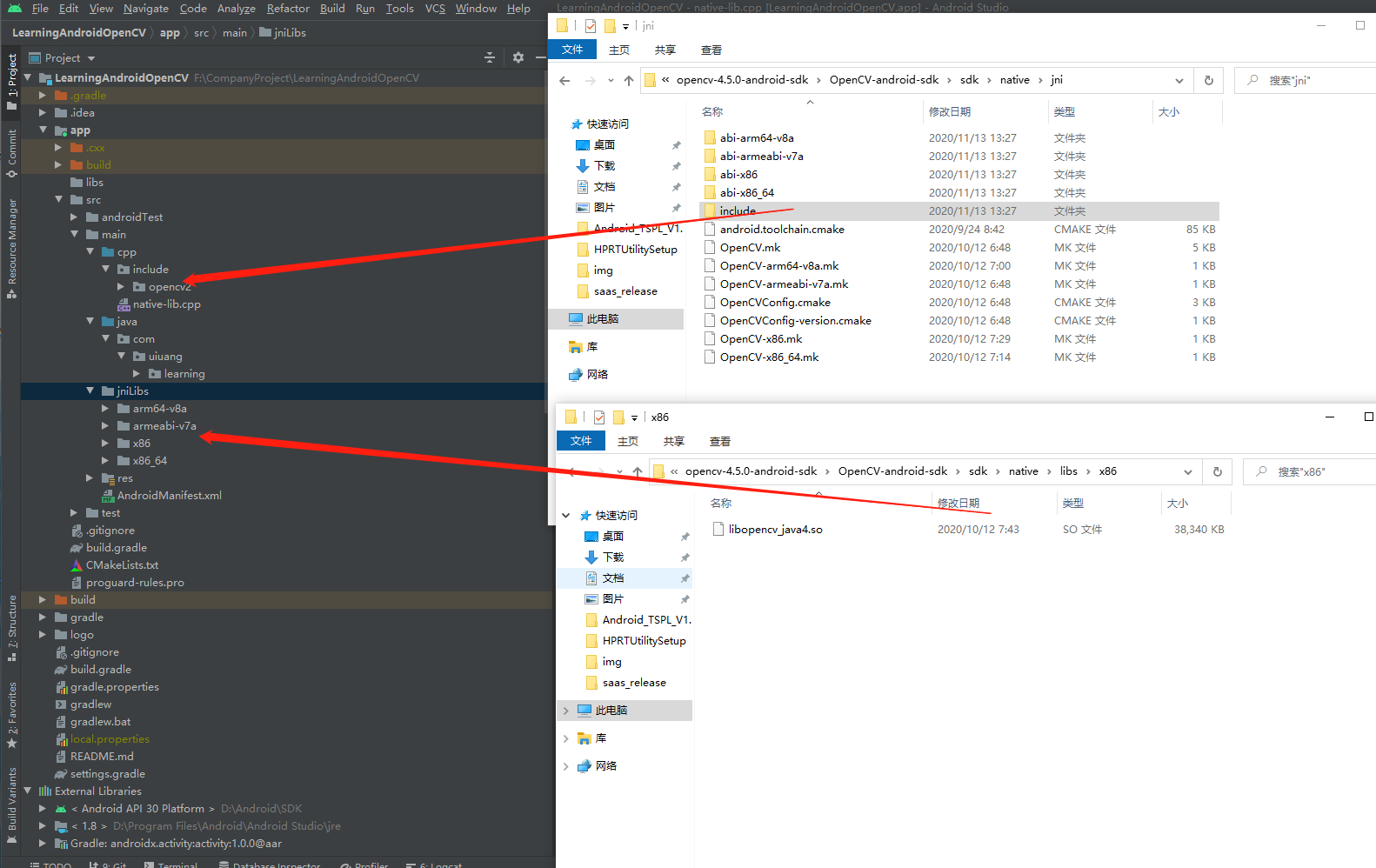
把OpenCV SDK的include文件复制到cpp文件夹下,把opencv的动态库引入jniLibs文件下
4.CMakeLists.txt配置
# For more information about using CMake with Android Studio, read the
# documentation: https://d.android.com/studio/projects/add-native-code.html

# Sets the minimum version of CMake required to build the native library.

cmake_minimum_required(VERSION 3.10.2)

# Declares and names the project.

project("learning")

set(libs "${CMAKE_SOURCE_DIR}/src/main/jnilibs")
#导入libopencv_java4库文件
add_library(libopencv SHARED IMPORTED)
set_target_properties(libopencv PROPERTIES
        IMPORTED_LOCATION "${libs}/${ANDROID_ABI}/libopencv_java4.so")
#导入头文件
include_directories(${CMAKE_SOURCE_DIR}/src/main/cpp/include)

# Creates and names a library, sets it as either STATIC
# or SHARED, and provides the relative paths to its source code.
# You can define multiple libraries, and CMake builds them for you.
# Gradle automatically packages shared libraries with your APK.

add_library( # Sets the name of the library.
        native-lib

        # Sets the library as a shared library.
        SHARED

        # Provides a relative path to your source file(s).
        src/main/cpp/native-lib.cpp)

# Searches for a specified prebuilt library and stores the path as a
# variable. Because CMake includes system libraries in the search path by
# default, you only need to specify the name of the public NDK library
# you want to add. CMake verifies that the library exists before
# completing its build.

find_library( # Sets the name of the path variable.
        log-lib

        # Specifies the name of the NDK library that
        # you want CMake to locate.
        log)

find_library( # Sets the name of the path variable.
        jnigraphics-lib
        jnigraphics)

# Specifies libraries CMake should link to your target library. You
# can link multiple libraries, such as libraries you define in this
# build script, prebuilt third-party libraries, or system libraries.

target_link_libraries( # Specifies the target library.
        native-lib
        #添加opencv_java4
        libopencv
        ${jnigraphics-lib}
        # Links the target library to the log library
        # included in the NDK.
        ${log-lib})
5.修改build文件
android {
    compileSdkVersion 30
    buildToolsVersion "30.0.2"

    defaultConfig {
        ····

        externalNativeBuild {
            cmake {
                cppFlags "-std=c++17"
                arguments "-DANDROID_STL=c++_shared"
                //生成.so库的目标平台
                abiFilters 'armeabi-v7a', 'arm64-v8a'
            }
        }
    }

    ····
    externalNativeBuild {
        cmake {
            path "CMakeLists.txt"// CMakeLists.txt路径
            version "3.10.2"//CMakeLists.txt版本
        }
    }


    compileOptions {
        sourceCompatibility JavaVersion.VERSION_1_8
        targetCompatibility JavaVersion.VERSION_1_8
    }

}
clean一下,并重新编译,这样NDK就支持OpenCV开发了。
PS:到这里,只是表示NDK C++层可以支持OpenCV开发了,要是想在Java层中,直接使用OpenCV的Java包,还需要导入“OpenCV-android-sdk”的Java,方法是可以参考:http://blog.youkuaiyun.com/u010097644/article/details/56849758





 扫一扫
扫一扫


 598
598

 被折叠的 条评论
为什么被折叠?
被折叠的 条评论
为什么被折叠?
 到【灌水乐园】发言





