Protect Your Flash Files From Decompilers by Using Encryption

部署运行你感兴趣的模型镜像

Decompilers are a real worry for people who create Flash content. You can put a lot of effort into creating the best game out there, then someone can steal it, replace the logo and put it on their site without asking you. How? Using a Flash Decompiler. Unless you put some protection over your SWF it can be decompiled with a push of a button and the decompiler will output readable source code.

In this tutorial I will demonstrate a technique I use to protect code and assets from theft.



Editor’s Note: Thanks to Vaclav for use of his lock icon. Visit Psdtuts+ to see how he made it.. 


Before We Begin

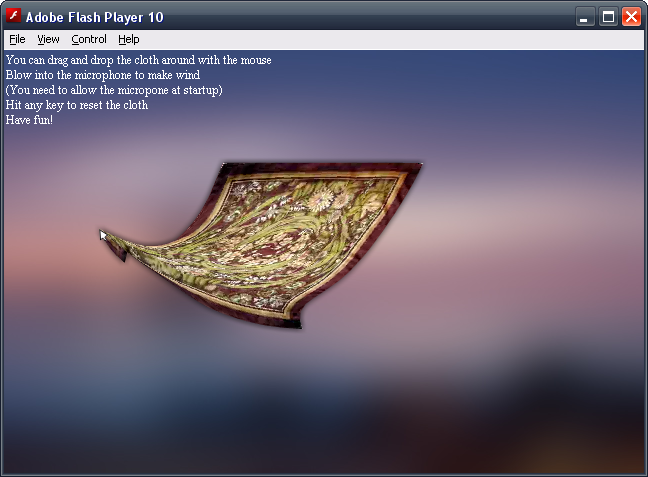
I used a small project of mine to demonstrate how vulnerable SWFs are to decompilation. You can download it and test yourself via the source link above. I used Sothink SWF Decompiler 5 to decompile the SWF and look under its hood. The code is quite readable and you can understand and reuse it fairly easily.
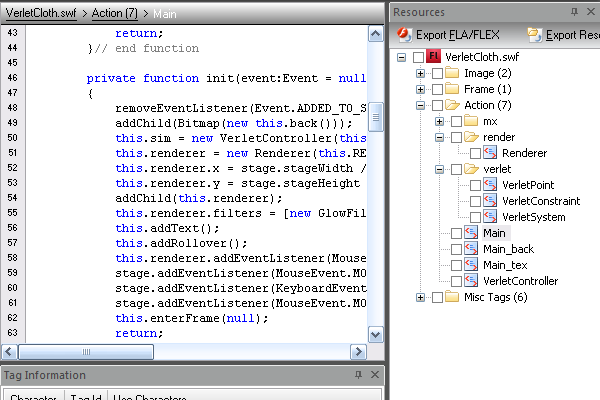
What Can We do About it?

I came up with a technique for protecting SWFs from decompilers and I’m going to demonstrate it in this tutorial. We should be able to produce this:
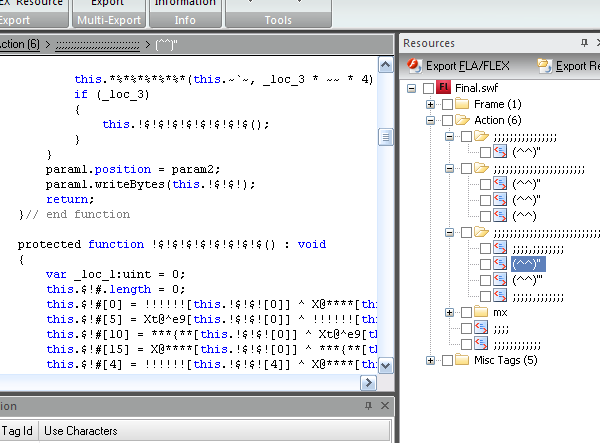
The code that is decompiled is actually the code for decrypting the content and has nothing to do with your main code. Additionally, the names are illegal so it won’t compile back. Try to decompile it yourself.

Before we get going, I want to point out that this tutorial is not suitable for beginners and you should have solid knowledge of AS3 if you want to follow along. This tutorial is also about low level programming that involves bytes, ByteArrays and manipulating SWF files with a hex editor.

Here’s what we need:

  • A SWF to protect. Feel free to download the SWF I’ll be working on.
  • Flex SDK. We will be using it to embed content using the Embed tag. You can download it from opensource.adobe.com.
  • A hex editor. I’ll be using a free editor called Hex-Ed. You can download it from nielshorn.net or you can use an editor of your choice.
  • A decompiler. Whilst not necessary, it would be nice to check if our protection actually works. You can grab a trial of Sothink SWF Decompiler from sothink.com

Step 1: Load SWF at Runtime

Open a new ActionScript 3.0 project, and set it to compile with Flex SDK (I use FlashDevelop to write code). Choose a SWF you want to protect and embed it as binary data using the Embed tag:


Now the SWF is embedded as a ByteArray into the loader SWF and it can be loaded through Loader.loadBytes().

In the end we should have this code:

Compile and see if it works (it should). From now on I will call the embedded SWF the “protected SWF”, and the SWF we just compiled the “loading SWF”.
Step 2: Analyze the Result

Let’s try to decompile and see if it works.
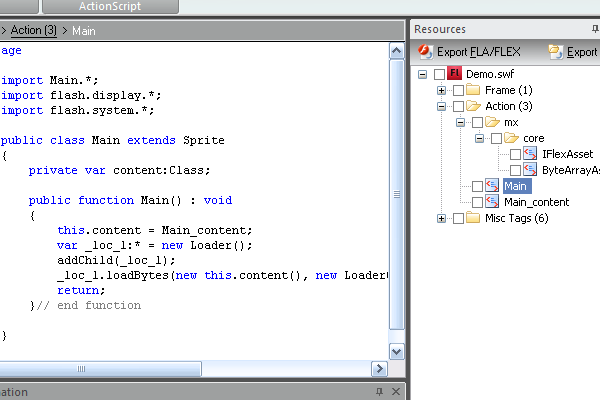
Yey! The assets and the original code are gone! What’s shown now is the code that loads the protected SWF and not its content. This would probably stop most of the first-time attackers who are not too familiar with Flash but it’s still not good enough to protect your work from skilled attackers because the protected SWF is waiting for them untouched inside the loading SWF.

Step 3: Decompressing the SWF

Let’s open the loading SWF with a hex editor:
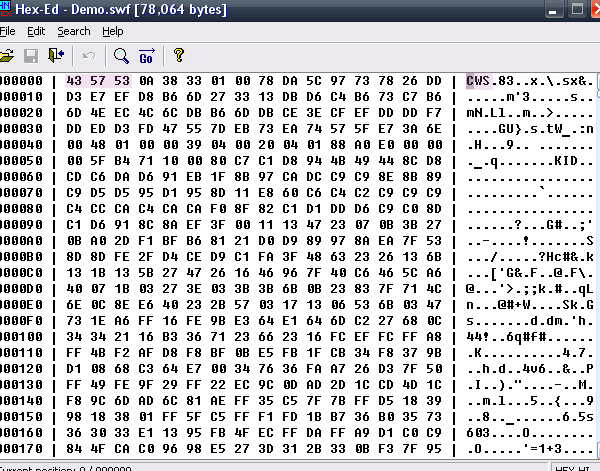
It should look like random binary data because it’s compressed and it should begin with ASCII “CWS”. We need to decompress it! (If your SWF begins with “FWS” and you see meaningful strings in the SWF it’s likely that it didn’t get compressed. You have to enable compression to follow along).

At first it might sound difficult but it’s not. The SWF format is an open format and there is a document that describes it. Download it from adobe.com and scroll down to page 25 in the document. There is a description of the header and how the SWF is compressed, so we can uncompress it easily.

What is written there is that the first 3 bytes are a signature (CWS or FWS), the next byte is the Flash version, the next 4 bytes are the size of the SWF. The remaining is compressed if the signature is CWS or uncompressed if the signature is FWS. Let’s write a simple function to decompress a SWF:

The function does a few things:

  1. It reads the uncompressed header (the first 8 bytes) without the signature and remembers it.
  2. It reads the rest of the data and uncompresses it.
  3. It writes back the header (with the “FWS” signature) and the uncompressed data, creating a new, uncompressed SWF.

Step 4: Creating a Utility

Next we’ll create a handy utility in Flash for compressing and decompressing SWF files. In a new AS3 project, compile the following class as a document class:

As you probably noticed I’ve added 2 things: File loading and the compress function.

The compress function is identical to the decompress function, but in reverse. The file loading is done using FileReference (FP10 required) and the loaded file is either compressed or uncompressed. Note that you have to run the SWF locally from a standalone player, as FileReference.browse() must be invoked by user interaction (but the local standalone player allows to run it without).
Step 5: Uncompressing the Loading SWF

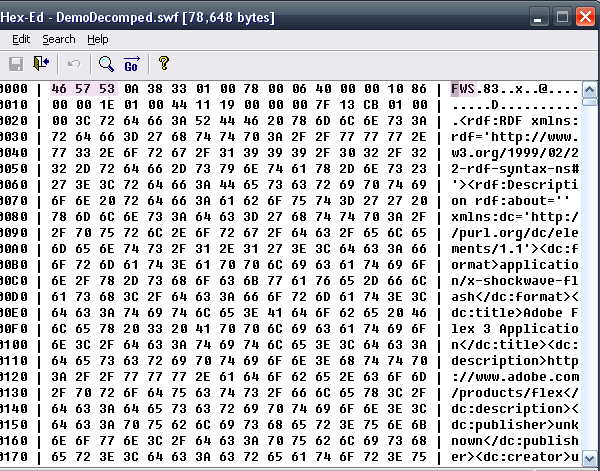
To test the tool, fire it up, select the loading SWF and choose where to save it. Then open it up with a hex editor and scrub through. You should see ascii strings inside like this:
Step 6: Analyze Again

Let’s return back to step 2. While the decompiler didn’t show any useful info about the protected SWF, it’s quite easy to get the SWF from the now uncompressed loader; just search for the signature “CWS” (if the protected SWF is uncompressed search for “FWS”) and see the results:
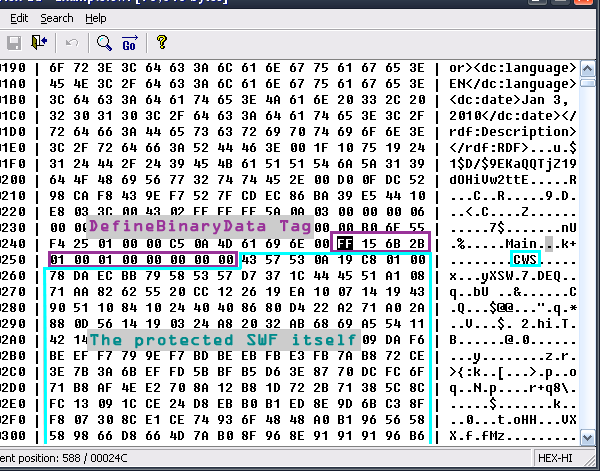
What we found is a DefineBinaryData tag that contains the protected SWF, and extracting it from there is a piece of cake. We are about to add another layer of protection over the loading SWF : Encryption.

Step 7: Encryption

To make the protected SWF less “accessible” we will add some kind of encryption. I chose to use as3crypto and you can download it from code.google.com. You can use any library you want instead (or your own implementation, even better), the only requirement is that it should be able to encrypt and decrypt binary data using a key.

Step 8: Encrypting Data

The first thing we want to do is write a utility to encrypt the protected SWF before we embed it. It requires very basic knowledge of the as3crypto library and it’s pretty straightforward. Add the library into your library path and let’s begin by writing the following:

What’s going on here? We use a class from as3crypto called AESKey to encrypt the content. The class encrypts 16 bytes in a time (128-bit), and we have to for-loop over the data to encrypt it all. Note the second line : data.length & ~15. It makes sure that the number of bytes encrypted can be divided by 16 and we don’t run out of data when calling aes.encrypt().

Note: It’s important to understand the point of encryption in this case. It’s not really encryption, but rather obfuscation since we include the key inside the SWF. The purpose is to turn the data into binary rubbish, and the code above does it’s job, although it can leave up to 15 unencrypted bytes (which doesn’t matter in our case). I’m not a cryptographer, and I’m quite sure that the above code could look lame and weak from a cryptographer’s perspective, but as I said it’s quite irrelevant as we include the key inside the SWF.

Step 9: Encryption Utility

Time to create another utility that will help us encrypt SWF files. It’s almost the same as the compressor we created earlier, so I won’t talk much about it. Compile it in a new project as a document class:

Now run it, and make an encrypted copy of the protected SWF by selecting it first and then saving it under a different name.

Step 10: Modifying the Loader

Return back to the loading SWF project. Because the content is now encrypted we need to modify the loading SWF and add decryption code into it. Don’t forget to change the src in the Embed tag to point to the encrypted SWF.


This is the same as before except with the decryption code stuck in the middle. Now compile the loading SWF and test if it works. If you followed carefully up to now, the protected SWF should load and display without errors.

Step 11: Look Inside Using a Decompiler

Open the new loading SWF with a decompiler and have a look.
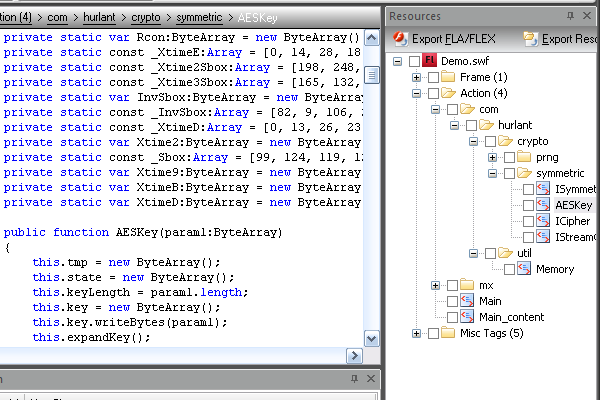
It contains over a thousand lines of tough looking encryption code, and it’s probably harder to get the protected SWF out of it. We’ve added a few more steps the attacker must undertake:

  1. He (or she) has to find the DefineBinaryData that holds the encrypted content and extract it.
  2. He must create a utility to decrypt it.

The problem is that creating a utility is as simple as copy-pasting from the decompiler into the code editor and tweaking the code a little bit. I tried to break my protection myself, and it was quite easy – I managed to do it in about 5 minutes. So we’re going to have to take some measurements against it.

Step 12: String Obfuscation

First we’d put the protected SWF into the loading SWF, then encrypted it, and now we’ll put the final touches to the loading SWF. We’ll rename classes, functions and variables to illegal names.

By saying illegal names I mean names such as ,;!@@,^#^ and (^_^). The cool thing is that this matters to the compiler but not to the Flash Player. When the compiler encounters illegal characters inside identifiers, it fails to parse them and thus the project fails to compile. On the other hand, the Player doesn’t have any problems with those illegal names. We can compile the SWF with legal identifiers, decompress it and rename them to a bunch of meaningless illegal symbols. The decompiler will output illegal code and the attacker will have to go over the hundreds of lines of code manually, removing illegal identifiers before he can compile it. He deserves it!

This is how it looks before any string obfuscation:
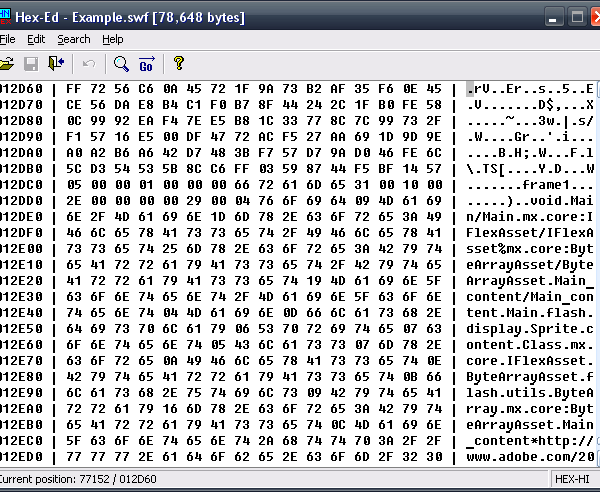
Let’s start! Decompress the loading SWF using the utility we created before and fire up a hex editor.

Step 13: Your First Obfuscation

Let’s try to rename the document class. Assuming you’ve left the original name (Main), let’s search for it in the uncompressed loader SWF with a hex editor:
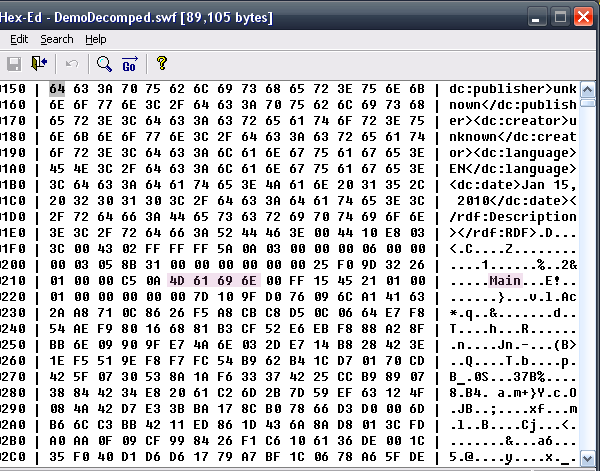
Rename “Main” to ;;;;. Now search for other “Main”s and rename them to ;;;; too.
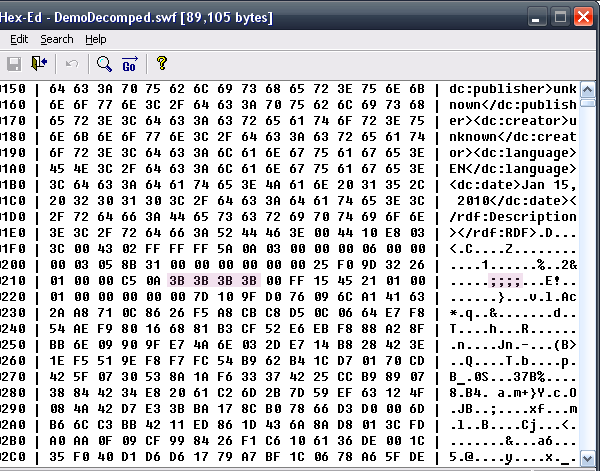
When renaming make sure that you don’t rename unnecessary strings or the SWF will not run.
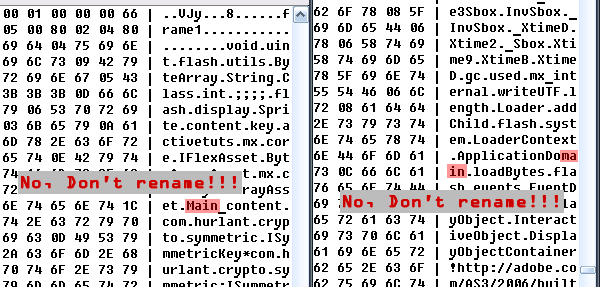
Save and run the SWF. It works! And look what the decompiler says:
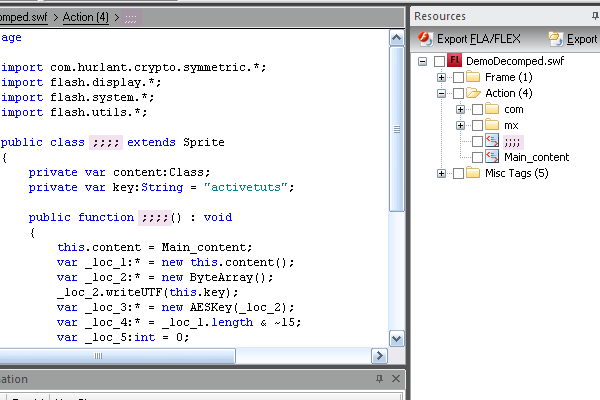
Victory!! :)

Step 14: Renaming the Rest of the Classes

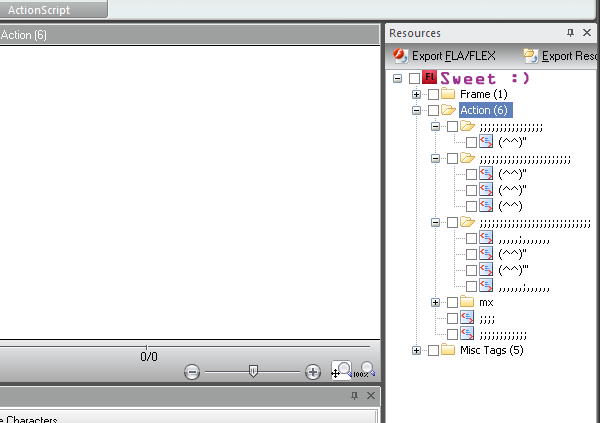
Keep renaming the rest of your classes. Choose a class name and search for it, replacing it with illegal symbols until you reach the end of the file. As I said, the most important thing here is to use your common sense, make sure you don’t mess your SWF up. After renaming the classes you can start renaming the packages. Note that when renaming a package, you can erase the periods too and make it one long illegal package name. Look what I made:
After you finish renaming the classes and the packages, you can start renaming functions and variables. They are even easier to rename as they usually appear only once, in one large cloud. Again, make sure you rename only “your” methods and not the built-in Flash methods. Make sure you don’t wipe out the key (“activetuts” in our case).

Step 15: Compress the SWF

After you finish renaming you would probably want to compress the SWF so it will be smaller in size. No problem, we can use the compressing utility we created before and it will do the job. Run the utility, select the SWF and save it under another name.
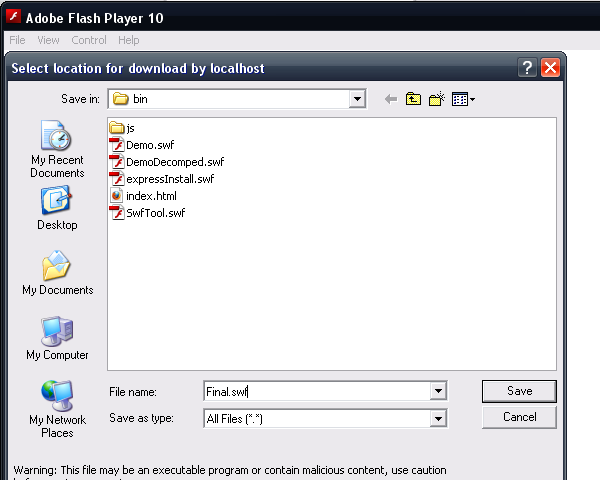
Conclusion: Have a Final Look

Open it one last time and have a look. The classes, the variables and the method names are obfuscated and the protected SWF is somewhere inside, encrypted. This technique could be slow to apply at first, but after a few times it takes only a few minutes.

A while ago I created an automatic utility to inject the protected SWF for me into the loading SWF, and it worked fine. The only problem is that if it can be injected using an automatic utility, it can be decrypted using another utility, so if the attacker makes a utility for that he will get all your SWF easily. Because of this I prefer to protect the SWFs manually each time, adding a slight modification so it would be harder to automate.

Another nice application of the technique is Domain locking. Instead of decrypting the SWF with a constant string you can decrypt it with the domain the SWF is currently running on. So instead of having an if statement to check the domain, you can introduce a more powerful way to protect the SWF from placement on other sites.

Last thing, you may want to replace the encryption code with your own implementation. Why? We invested efforts in making the crypto code illegal, but the code we use is from a popular open source library and the attacker could recognize it as such. He will download a clean copy, and all the obfuscation work is rendered unnecessary. On the other hand, using your own implementation will require him to fix all the illegal names before he can continue.

Other Protection Methods

Because SWF theft is a big problem in the Flash world, there are other options for protecting SWFs. There are numerous programs out there to obfuscate AS on the bytecode level (like Kindisoft’s secureSWF). They mess up the compiled bytecode and when the decompiler attempts to output code it will fail, and even crash sometimes. Of course this protection is better in terms of security but it costs $$$, so before choosing how to protect your SWF consider the amount of security needed. If it’s about protecting a proprietary algorithm your 50-employee Flash studio has been developing for the past two years, you may consider something better then renaming the variables. On the other hand if you want to prevent the kiddies from submitting false high scores you may consider using this technique.

What I like about this technique is the fact that your protected SWF is left untouched when run. AS obfuscation tampers with the byte code and it could possibly damage the SWF and cause bugs (although I haven’t encountered any myself).

That’s all for today, hope you enjoyed the tutorial and learned something new! If you have any questions feel free to drop a comment.

  

link:http://active.tutsplus.com/tutorials/workflow/protect-your-flash-files-from-decompilers-by-using-encryption/


您可能感兴趣的与本文相关的镜像

ACE-Step

ACE-Step

音乐合成
ACE-Step

ACE-Step是由中国团队阶跃星辰(StepFun)与ACE Studio联手打造的开源音乐生成模型。 它拥有3.5B参数量,支持快速高质量生成、强可控性和易于拓展的特点。 最厉害的是,它可以生成多种语言的歌曲,包括但不限于中文、英文、日文等19种语言

Language support for Java ™ for Visual Studio Code Visual Studio Marketplace Installs Join the chat at https://gitter.im/redhat-developer/vscode-java Build Status License Provides Java ™ language support via Eclipse ™ JDT Language Server, which utilizes Eclipse ™ JDT, M2Eclipse and Buildship. Quick Start Install the Extension On the following platforms, the extension should activate without any setup : win32-x64, darwin-x64, darwin-arm64, linux-x64, linux-arm64. If on another platform, or using the "universal" version, you can set a Java Development Kit. It must be Java 21 or above. Optionally, download and install a Java Development Kit for your project (Java 1.8 or above is supported). See Project JDKs for more details Extension is activated when you first access a Java file Recognizes projects with Maven or Gradle build files in the directory hierarchy. Features screencast Supports code from Java 1.8 to Java 24 Maven pom.xml project support Gradle project support (with experimental Android project import support) Standalone Java files support As-you-type reporting of parsing and compilation errors Code completion Code/Source actions / Refactoring Javadoc hovers Organize imports triggered manually or on save when pasting code into a java file with Ctrl+Shift+v (Cmd+Shift+v on Mac). Type search Code outline Code folding Code navigation Code lens (references/implementations) Highlights Code formatting (on-type/selection/file) Code snippets Annotation processing support (automatic for Maven projects) Semantic selection Diagnostic tags Call Hierarchy Type Hierarchy To launch and debug your Java programs, it's recommended you install Java Debug Extension for Visual Studio Code. See the changelog for the latest release. You might also find useful information in the project Wiki. Setting the JDK Java Tooling JDK Now that Java extension will publish platform specific versions, it will embed a JRE for supported platforms such as win32-x64, linux-x64, linux-arm64, darwin-x64, darwin-arm64. The embedded JRE is used to launch the Language Server for Java. Users are only responsible for configuring Project JDKs to compile your Java projects. The following part is only kept for the universal version without embedded JRE. The tooling JDK will be used to launch the Language Server for Java. And by default, will also be used to compile your projects. Java 21 is the minimum required version. The path to the Java Development Kit can be specified by the java.jdt.ls.java.home setting in VS Code settings (workspace/user settings). If not specified, it is searched in the following order until a JDK meets current minimum requirement. the JDK_HOME environment variable the JAVA_HOME environment variable on the current system path Project JDKs If you need to compile your projects against a different JDK version, it's recommended you configure the java.configuration.runtimes property in your user settings, eg: "java.configuration.runtimes": [ { "name": "JavaSE-1.8", "path": "/path/to/jdk-8", }, { "name": "JavaSE-11", "path": "/path/to/jdk-11", }, { "name": "JavaSE-24", "path": "/path/to/jdk-24", "default": true }, ] The default runtime will be used when you open standalone Java files. Available commands The following commands are available: Switch to Standard Mode: switches the Java Language Server to Standard mode. This command is only available when the Java Language Server is in LightWeight mode. Java: Reload Projects (Shift+Alt+U): It forces project configuration / classpath updates (eg. dependency changes or Java compilation level), according to the project build descriptor. Java: Import Java Projects into Workspace: detects and imports all the Java projects into the Java Language Server workspace. Java: Open Java Language Server Log File: opens the Java Language Server log file, useful for troubleshooting problems. Java: Open Java Extension Log File: opens the Java extension log file, useful for troubleshooting problems. Java: Open All Log Files: opens both the Java Language Server log file and the Java extension log file. Java: Force Java Compilation (Shift+Alt+B): manually triggers compilation of the workspace. Java: Rebuild Projects: manually triggers a full build of the selected projects. Java: Open Java Formatter Settings: opens the Eclipse formatter settings. Creates a new settings file if none exists. Java: Clean Java Language Server Workspace: cleans the Java language server workspace. Java: Attach Source: attaches a jar/zip source to the currently opened binary class file. This command is only available in the editor context menu. Java: Add Folder to Java Source Path: adds the selected folder to its project source path. This command is only available in the file explorer context menu and only works for unmanaged folders. Java: Remove Folder from Java Source Path: removes the selected folder from its project source path. This command is only available in the file explorer context menu and only works for unmanaged folders. Java: List All Java Source Paths: lists all the Java source paths recognized by the Java Language Server workspace. Java: Show Build Job Status: shows the Java Language Server job status in Visual Studio Code terminal. Java: Go to Super Implementation: goes to the super implementation for the current selected symbol in editor. Java: Restart Java Language Server: restarts the Java language server. Supported VS Code settings The following settings are supported: java.home : Deprecated, please use 'java.jdt.ls.java.home' instead. Absolute path to JDK home folder used to launch the Java Language Server. Requires VS Code restart. java.jdt.ls.lombokSupport.enabled: Whether to enable lombok support. Defaults to true. java.jdt.ls.vmargs : Extra VM arguments used to launch the Java Language Server. Requires VS Code restart. java.errors.incompleteClasspath.severity : Specifies the severity of the message when the classpath is incomplete for a Java file. Supported values are ignore, info, warning, error. java.trace.server : Traces the communication between VS Code and the Java language server. java.configuration.updateBuildConfiguration : Specifies how modifications on build files update the Java classpath/configuration. Supported values are disabled (nothing happens), interactive (asks about updating on every modification), automatic (updating is automatically triggered). java.configuration.maven.userSettings : Path to Maven's user settings.xml. java.configuration.checkProjectSettingsExclusions: Deprecated, please use 'java.import.generatesMetadataFilesAtProjectRoot' to control whether to generate the project metadata files at the project root. And use 'files.exclude' to control whether to hide the project metadata files from the file explorer. Controls whether to exclude extension-generated project settings files (.project, .classpath, .factorypath, .settings/) from the file explorer. Defaults to false. java.referencesCodeLens.enabled : Enable/disable the references code lenses. java.implementationCodeLens : Enable/disable the implementations code lens for the provided categories. java.signatureHelp.enabled : Enable/disable signature help support (triggered on (). java.signatureHelp.description.enabled : Enable/disable to show the description in signature help. Defaults to false. java.contentProvider.preferred : Preferred content provider (see 3rd party decompilers available in vscode-java-decompiler). java.import.exclusions : Exclude folders from import via glob patterns. Use ! to negate patterns to allow subfolders imports. You have to include a parent directory. The order is important. java.import.gradle.enabled : Enable/disable the Gradle importer. Specify the Gradle distribution used by the Java extension: java.import.gradle.wrapper.enabled: Use Gradle from the 'gradle-wrapper.properties' file. Defaults to true. java.import.gradle.version: Use Gradle from the specific version if the Gradle wrapper is missing or disabled. java.import.gradle.home: Use Gradle from the specified local installation directory or GRADLE_HOME if the Gradle wrapper is missing or disabled and no 'java.import.gradle.version' is specified. java.import.gradle.arguments: Arguments to pass to Gradle. java.import.gradle.jvmArguments: JVM arguments to pass to Gradle. java.import.gradle.user.home: setting for GRADLE_USER_HOME. java.import.gradle.offline.enabled: Enable/disable the Gradle offline mode. Defaults to false. java.import.maven.enabled : Enable/disable the Maven importer. java.autobuild.enabled : Enable/disable the 'auto build'. java.maxConcurrentBuilds: Set max simultaneous project builds. java.completion.enabled : Enable/disable code completion support. java.completion.guessMethodArguments : Specify how the arguments will be filled during completion. Defaults to auto. auto: Use off only when using Visual Studio Code - Insiders, other platform will defaults to insertBestGuessedArguments. off: Method arguments will not be inserted during completion. insertParameterNames: The parameter names will be inserted during completion. insertBestGuessedArguments: The best guessed arguments will be inserted during completion according to the code context. java.completion.filteredTypes: Defines the type filters. All types whose fully qualified name matches the selected filter strings will be ignored in content assist or quick fix proposals and when organizing imports. For example 'java.awt.*' will hide all types from the awt packages. java.completion.favoriteStaticMembers : Defines a list of static members or types with static members. java.completion.importOrder : Defines the sorting order of import statements. java.format.enabled : Enable/disable the default Java formatter. java.format.settings.url : Specifies the url or file path to the Eclipse formatter xml settings. java.format.settings.profile : Optional formatter profile name from the Eclipse formatter settings. java.format.comments.enabled : Includes the comments during code formatting. java.format.onType.enabled : Enable/disable on-type formatting (triggered on ;, } or <return>). java.foldingRange.enabled: Enable/disable smart folding range support. If disabled, it will use the default indentation-based folding range provided by VS Code. java.maven.downloadSources: Enable/disable download of Maven source artifacts as part of importing Maven projects. java.maven.updateSnapshots: Force update of Snapshots/Releases. Defaults to false. java.codeGeneration.hashCodeEquals.useInstanceof: Use 'instanceof' to compare types when generating the hashCode and equals methods. Defaults to false. java.codeGeneration.hashCodeEquals.useJava7Objects: Use Objects.hash and Objects.equals when generating the hashCode and equals methods. This setting only applies to Java 7 and higher. Defaults to false. java.codeGeneration.useBlocks: Use blocks in 'if' statements when generating the methods. Defaults to false. java.codeGeneration.generateComments: Generate method comments when generating the methods. Defaults to false. java.codeGeneration.toString.template: The template for generating the toString method. Defaults to ${object.className} [${member.name()}=${member.value}, ${otherMembers}]. java.codeGeneration.toString.codeStyle: The code style for generating the toString method. Defaults to STRING_CONCATENATION. java.codeGeneration.toString.skipNullValues: Skip null values when generating the toString method. Defaults to false. java.codeGeneration.toString.listArrayContents: List contents of arrays instead of using native toString(). Defaults to true. java.codeGeneration.toString.limitElements: Limit number of items in arrays/collections/maps to list, if 0 then list all. Defaults to 0. java.selectionRange.enabled: Enable/disable Smart Selection support for Java. Disabling this option will not affect the VS Code built-in word-based and bracket-based smart selection. java.showBuildStatusOnStart.enabled: Automatically show build status on startup, defaults to notification. notification: Show the build status via progress notification. terminal: Show the build status via terminal. off: Do not show any build status. For backward compatibility, this setting also accepts boolean value, where true has the same meaning as notification and false has the same meaning as off. java.project.outputPath: A relative path to the workspace where stores the compiled output. Only effective in the WORKSPACE scope. The setting will NOT affect Maven or Gradle project. java.project.referencedLibraries: Configure glob patterns for referencing local libraries to a Java project. java.completion.maxResults: Maximum number of completion results (not including snippets). 0 (the default value) disables the limit, all results are returned. In case of performance problems, consider setting a sensible limit. java.configuration.runtimes: Map Java Execution Environments to local JDKs. java.server.launchMode: Standard: Provides full features such as intellisense, refactoring, building, Maven/Gradle support etc. LightWeight: Starts a syntax server with lower start-up cost. Only provides syntax features such as outline, navigation, javadoc, syntax errors. The lightweight mode won't load thirdparty extensions, such as java test runner, java debugger, etc. Hybrid: Provides full features with better responsiveness. It starts a standard language server and a secondary syntax server. The syntax server provides syntax features until the standard server is ready. And the syntax server will be shutdown automatically after the standard server is fully ready. Default launch mode is Hybrid. Legacy mode is Standard java.sources.organizeImports.starThreshold: Specifies the number of imports added before a star-import declaration is used, default is 99. java.sources.organizeImports.staticStarThreshold: Specifies the number of static imports added before a star-import declaration is used, default is 99. java.imports.gradle.wrapper.checksums: Defines allowed/disallowed SHA-256 checksums of Gradle Wrappers. java.project.importOnFirstTimeStartup: Specifies whether to import the Java projects, when opening the folder in Hybrid mode for the first time. Supported values are disabled (never imports), interactive (asks to import or not), automatic (always imports). Default to automatic. java.project.importHint: Enable/disable the server-mode switch information, when Java projects import is skipped on startup. Defaults to true. java.import.gradle.java.home: Specifies the location to the JVM used to run the Gradle daemon. java.project.resourceFilters: Excludes files and folders from being refreshed by the Java Language Server, which can improve the overall performance. For example, ["node_modules",".git"] will exclude all files and folders named 'node_modules' or '.git'. Pattern expressions must be compatible with java.util.regex.Pattern. Defaults to ["node_modules",".git"]. java.templates.fileHeader: Specifies the file header comment for new Java file. Supports configuring multi-line comments with an array of strings, and using ${variable} to reference the predefined variables. java.templates.typeComment: Specifies the type comment for new Java type. Supports configuring multi-line comments with an array of strings, and using ${variable} to reference the predefined variables. java.references.includeAccessors: Include getter, setter and builder/constructor when finding references. Default to true. java.configuration.maven.globalSettings : Path to Maven's global settings.xml. java.configuration.maven.lifecycleMappings : Path to Maven's lifecycle mappings xml. java.eclipse.downloadSources : Enable/disable download of Maven source artifacts for Eclipse projects. java.references.includeDecompiledSources : Include the decompiled sources when finding references. Default to true. java.project.sourcePaths: Relative paths to the workspace where stores the source files. Only effective in the WORKSPACE scope. The setting will NOT affect Maven or Gradle project. java.typeHierarchy.lazyLoad: Enable/disable lazy loading the content in type hierarchy. Lazy loading could save a lot of loading time but every type should be expanded manually to load its content. java.codeGeneration.insertionLocation: Specifies the insertion location of the code generated by source actions. Defaults to afterCursor. afterCursor: Insert the generated code after the member where the cursor is located. beforeCursor: Insert the generated code before the member where the cursor is located. lastMember: Insert the generated code as the last member of the target type. java.codeGeneration.addFinalForNewDeclaration: Whether to generate the 'final' modifer for code actions that create new declarations. Defaults to none. none: Do not generate final modifier fields: Generate 'final' modifier only for new field declarations variables: Generate 'final' modifier only for new variable declarations all: Generate 'final' modifier for all new declarations java.settings.url : Specifies the url or file path to the workspace Java settings. See Setting Global Preferences java.symbols.includeSourceMethodDeclarations : Include method declarations from source files in symbol search. Defaults to false. java.quickfix.showAt : Show quickfixes at the problem or line level. java.configuration.workspaceCacheLimit : The number of days (if enabled) to keep unused workspace cache data. Beyond this limit, cached workspace data may be removed. java.import.generatesMetadataFilesAtProjectRoot : Specify whether the project metadata files(.project, .classpath, .factorypath, .settings/) will be generated at the project root. Defaults to false. java.inlayHints.parameterNames.enabled: Enable/disable inlay hints for parameter names. Supported values are: none(disable parameter name hints), literals(Enable parameter name hints only for literal arguments) and all(Enable parameter name hints for literal and non-literal arguments). Defaults to literals. java.compile.nullAnalysis.nonnull: Specify the Nonnull annotation types to be used for null analysis. If more than one annotation is specified, then the topmost annotation will be used first if it exists in your project dependencies. This setting will be ignored if java.compile.nullAnalysis.mode is set to disabled. java.compile.nullAnalysis.nullable: Specify the Nullable annotation types to be used for null analysis. If more than one annotation is specified, then the topmost annotation will be used first if it exists in your project dependencies. This setting will be ignored if java.compile.nullAnalysis.mode is set to disabled. java.compile.nullAnalysis.nonnullbydefault: Specify the NonNullByDefault annotation types to be used for null analysis. If more than one annotation is specified, then the topmost annotation will be used first if it exists in your project dependencies. This setting will be ignored if java.compile.nullAnalysis.mode is set to disabled. java.import.maven.offline.enabled: Enable/disable the Maven offline mode. Defaults to false. java.codeAction.sortMembers.avoidVolatileChanges: Reordering of fields, enum constants, and initializers can result in semantic and runtime changes due to different initialization and persistence order. This setting prevents this from occurring. Defaults to true. java.jdt.ls.protobufSupport.enabled: Specify whether to automatically add Protobuf output source directories to the classpath. Note: Only works for Gradle com.google.protobuf plugin 0.8.4 or higher. Defaults to true. java.jdt.ls.androidSupport.enabled: [Experimental] Specify whether to enable Android project importing. When set to auto, the Android support will be enabled in Visual Studio Code - Insiders. Note: Only works for Android Gradle Plugin 3.2.0 or higher. Defaults to auto. java.completion.postfix.enabled: Enable/disable postfix completion support. Defaults to true. java.completion.chain.enabled: Enable/disable chain completion support. Defaults to false. java.completion.matchCase: Specify whether to match case for code completion. Defaults to firstLetter. java.compile.nullAnalysis.mode: Specify how to enable the annotation-based null analysis. Supported values are disabled (disable the null analysis), interactive (asks when null annotation types are detected), automatic (automatically enable null analysis when null annotation types are detected). Defaults to interactive. java.cleanup.actionsOnSave: Deprecated, please use 'java.cleanup.actions' instead. The list of clean ups to be run on the current document when it's saved. Clean ups can automatically fix code style or programming mistakes. Click here to learn more about what each clean up does. java.cleanup.actions: The list of clean ups to be run on the current document when it's saved or when the cleanup command is issued. Clean ups can automatically fix code style or programming mistakes. Click here to learn more about what each clean up does. java.saveActions.cleanup: Enable/disable cleanup actions on save. java.import.gradle.annotationProcessing.enabled: Enable/disable the annotation processing on Gradle projects and delegate to JDT APT. Only works for Gradle 5.2 or higher. java.sharedIndexes.enabled: [Experimental] Specify whether to share indexes between different workspaces. Defaults to auto and the shared indexes is automatically enabled in Visual Studio Code - Insiders. auto on off java.sharedIndexes.location: Specifies a common index location for all workspaces. See default values as follows: Windows: First use "$APPDATA\\.jdt\\index", or "~\\.jdt\\index" if it does not exist macOS: "~/Library/Caches/.jdt/index" Linux: First use "$XDG_CACHE_HOME/.jdt/index", or "~/.cache/.jdt/index" if it does not exist java.refactoring.extract.interface.replace: Specify whether to replace all the occurrences of the subtype with the new extracted interface. Defaults to true. java.import.maven.disableTestClasspathFlag : Enable/disable test classpath segregation. When enabled, this permits the usage of test resources within a Maven project as dependencies within the compile scope of other projects. Defaults to false. java.configuration.maven.defaultMojoExecutionAction : Specifies default mojo execution action when no associated metadata can be detected. Defaults to ignore. java.completion.lazyResolveTextEdit.enabled: [Experimental] Enable/disable lazily resolving text edits for code completion. Defaults to true. java.edit.validateAllOpenBuffersOnChanges: Specifies whether to recheck all open Java files for diagnostics when editing a Java file. Defaults to false. java.editor.reloadChangedSources: Specifies whether to reload the sources of the open class files when their source jar files are changed. Defaults to ask. ask: Ask to reload the sources of the open class files auto: Automatically reload the sources of the open class files manual: Manually reload the sources of the open class files java.edit.smartSemicolonDetection.enabled: Defines the smart semicolon detection. Defaults to false. java.configuration.detectJdksAtStart: Automatically detect JDKs installed on local machine at startup. If you have specified the same JDK version in java.configuration.runtimes, the extension will use that version first. Defaults to true. java.completion.collapseCompletionItems: Enable/disable the collapse of overloaded methods in completion items. Overrides java.completion.guessMethodArguments. Defaults to false. java.diagnostic.filter: Specifies a list of file patterns for which matching documents should not have their diagnostics reported (eg. '**/Foo.java'). java.search.scope: Specifies the scope which must be used for search operation like Find Reference Call Hierarchy Workspace Symbols java.jdt.ls.javac.enabled: [Experimental] Specify whether to enable Javac-based compilation in the language server. Requires running this extension with Java 24. Defaults to off. java.completion.engine: [Experimental] Select code completion engine. Defaults to ecj. java.references.includeDeclarations: Include declarations when finding references. Defaults to true java.jdt.ls.appcds.enabled : [Experimental] Enable Java AppCDS (Application Class Data Sharing) for improvements to extension activation. When set to auto, AppCDS will be enabled in Visual Studio Code - Insiders, and for pre-release versions. Semantic Highlighting Semantic Highlighting fixes numerous syntax highlighting issues with the default Java Textmate grammar. However, you might experience a few minor issues, particularly a delay when it kicks in, as it needs to be computed by the Java Language server, when opening a new file or when typing. Semantic highlighting can be disabled for all languages using the editor.semanticHighlighting.enabled setting, or for Java only using language-specific editor settings. Troubleshooting Check the status of the language tools on the lower right corner (marked with A on image below). It should show ready (thumbs up) as on the image below. You can click on the status and open the language tool logs for further information in case of a failure. status indicator Read the troubleshooting guide for collecting informations about issues you might encounter. Report any problems you face to the project. Contributing This is an open source project open to anyone. Contributions are extremely welcome! For information on getting started, refer to the CONTRIBUTING instructions. Continuous Integration builds can be installed from http://download.jboss.org/jbosstools/jdt.ls/staging/. Download the most recent java-<version>.vsix file and install it by following the instructions here. Stable releases are archived under http://download.jboss.org/jbosstools/static/jdt.ls/stable/. Also, you can contribute your own VS Code extension to enhance the existing features by following the instructions here. Feedback Have a question? Start a discussion on GitHub Discussions, File a bug in GitHub Issues, Chat with us on Gitter, Tweet us with other feedback. License EPL 2.0, See LICENSE for more information.
09-21
评论
成就一亿技术人!
拼手气红包6.0元
还能输入1000个字符
 
红包 添加红包
表情包 插入表情
 条评论被折叠 查看
添加红包

请填写红包祝福语或标题

红包个数最小为10个

红包金额最低5元

当前余额3.43前往充值 >
需支付:10.00
成就一亿技术人!
领取后你会自动成为博主和红包主的粉丝 规则
hope_wisdom
发出的红包
实付
使用余额支付
点击重新获取
扫码支付
钱包余额 0

抵扣说明:

1.余额是钱包充值的虚拟货币,按照1:1的比例进行支付金额的抵扣。
2.余额无法直接购买下载,可以购买VIP、付费专栏及课程。

余额充值