





一个简单的dhcp服务器的配置过程
DHCP服务器简介:
DHCP服务器指的是由服务器控制一段IP地址范围,客户端登录服务器时就可以自动获得服务器分配的IP地址和子网掩码。
1,安装dhcp。
yum install dhcp.x86_64 -y
##
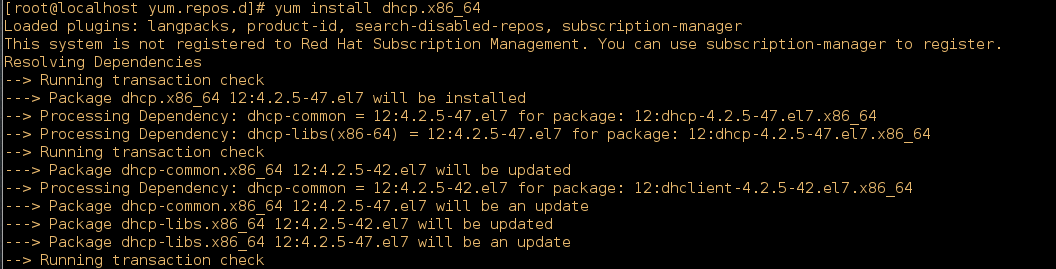
直到出Complete! dhcp就安装完了。
2,dhcp配置
vim /etc/dhcp/dhcpd.conf ##dhcp配置文件
##图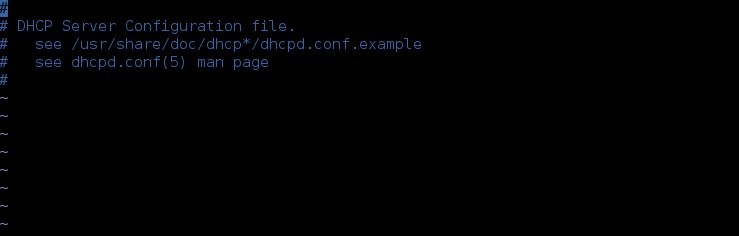
打开后是这样的,里面第三行有个文件路径(配置模版),我们需要复制到这个文件中。
cp /usr/share/doc/dhcp*/dhcpd.conf.example /etc/dhcp/dhcpd.conf ##复制
然后再打开
vim /etc/dhcp/dhcpd.conf
##图

再打开后可以看到如图
7行,是域名设置
8行,是DNS地址,在路由器需要解析时会用到
10,11行,是租赁时间长度,建议默认值
27,28行,删除,不用。
32行,就是主机位,子网掩码的设置
33行,分配的ip池范围设置
34行,网关的设定。
35行后面的都删除了。
  7 option domain-name "server.com";
      ##域名:参见/etc/resolv.conf
  8 option domain-name-servers 172.25.10.254;
      ##指定dns服务器,多台用逗号隔开。
 30 subnet 172.25.10.0 netmask 255.255.255.0 {
      ##指定子网络及子网掩码
 31   range 172.25.10.10 172.25.10.20;
      ##指定IP范围
 32   option routers 172.25.10.254;
 ##指定默认网关
 33 }
 34#### 删除27,28行,34行及以后
3启动dhcp服务。
systemctl start dhcpd ##打开dhcp服务。
systemctl enable dhcpd ##自启动开启
3.防火墙配置
firewall-cmd --permanent --add-service=dhcp ##添加dhcp服务
firewall-cmd --reload ##重新载入
firewall-cmd --list-all ##查看dhcp是否通行
这样一个简单的dhcp服务器就搭建好了。
4,检测
在局域网中的另一台主机中设置ip为动态,重启网络服务,查看新ip是否为dhcp服务器分配。
###为了消除影响,应先关掉其他dhcp服务器,或断开与其他dhcp服务器的连接
/var/log/message,可以清晰的看到,服务器的IP给了哪个MAC地址
/var/lib/dhcpd/dhcpd.leases 这个文件专门记录了DHCP的分配情况
一个配置例子
cat /etc/dhcp/dhcpd.conf
# dhcpd.conf
#
# Sample configuration file for ISC dhcpd
#

# option definitions common to all supported networks...
option domain-name "example.org";
option domain-name-servers 192.168.0.199;

default-lease-time 600;
max-lease-time 7200;

# Use this to enble / disable dynamic dns updates globally.
#ddns-update-style none;

# If this DHCP server is the official DHCP server for the local
# network, the authoritative directive should be uncommented.
#authoritative;

# Use this to send dhcp log messages to a different log file (you also
# have to hack syslog.conf to complete the redirection).
log-facility local7;

# No service will be given on this subnet, but declaring it helps the
# DHCP server to understand the network topology.


# This is a very basic subnet declaration.

subnet 192.168.0.0 netmask 255.255.255.0 {
  range 192.168.0.10 192.168.0.20;
  option routers 192.168.0.199;
}





 扫一扫
扫一扫


 1751
1751

 被折叠的 条评论
为什么被折叠?
被折叠的 条评论
为什么被折叠?
 到【灌水乐园】发言





