

高德地图 自定义图标加路线规划

本文介绍如何在高德地图API中使用图标进行点标记,并实现基于不同策略的驾车路线规划,包括最快捷、最经济及最短距离模式。
<!doctype html>
<html>
<head>
    <meta charset="utf-8">
    <meta http-equiv="X-UA-Compatible" content="IE=edge">
    <meta name="viewport" content="initial-scale=1.0, user-scalable=no, width=device-width">
    <link rel="stylesheet" href="https://a.amap.com/jsapi_demos/static/demo-center/css/demo-center.css" />
    <title>图标点标记</title>
    <style>
        * {
            margin: 0;
            padding: 0;
        }
        html,body,#container{
            height:100%;
            width:100%;
        }
    </style>
</head>
<body>
    <div id="container"></div>
    <script src="https://webapi.amap.com/maps?v=1.4.15&key=您的key&plugin=AMap.Driving"></script>

    <script>
    var map = new AMap.Map('container', {
        zoom: 12,
        center: [116.4,39.92],
        resizeEnable: true
    });

    var startIcon = new AMap.Icon({
        // 图标尺寸
        size: new AMap.Size(25, 25),
        // 图标的取图地址
        image: 'tu.png',
        // 图标所用图片大小
        imageSize: new AMap.Size(25, 25),
    });
    /*
    * 驾车策略 
    * AMap.DrivingPolicy.LEAST_TIME           最快捷模式
    * AMap.DrivingPolicy.LEAST_FEE            最经济模式
    * AMap.DrivingPolicy.LEAST_DISTANCE       最短距离模式
    * AMap.DrivingPolicy.REAL_TRAFFIC         考虑实时路况
    */
    var drivingOption = {
        policy: AMap.DrivingPolicy.LEAST_TIME, // 其它policy参数请参考 https://lbs.amap.com/api/javascript-api/reference/route-search#m_DrivingPolicy
        ferry: 1, // 是否可以使用轮渡
        map: map,
        hideMarkers: false, // 设置隐藏路径规划的起始点图标
        autoFitView: true
    }

    // 构造路线导航类
    var driving = new AMap.Driving(drivingOption)
    // 根据起终点经纬度规划驾车导航路线
    driving.search(new AMap.LngLat(116.421002, 39.93123), new AMap.LngLat(116.402123, 39.91122), function(status, result) {
      if (status === 'complete') {
        console.log('绘制驾车路线完成')
      } else {
        console.log('获取驾车数据失败:' + result)
      }
    });

    var capitals = [{
        center: [116.42,39.93123],
    }, {
        center: [116.41,39.92132],
    }, {
        center: [116.40,39.91122],
    }];

    var facilities = [];
    for (var i = 0; i < capitals.length; i++) {
        var marker = new AMap.Marker({
            position: new AMap.LngLat(capitals[i].center[0], capitals[i].center[1]),
            offset: new AMap.Pixel(-10, -10),
            icon: startIcon,
        });
        facilities.push(marker);
    }
    map.add(facilities);
    </script>
</body>
</html>

效果图:
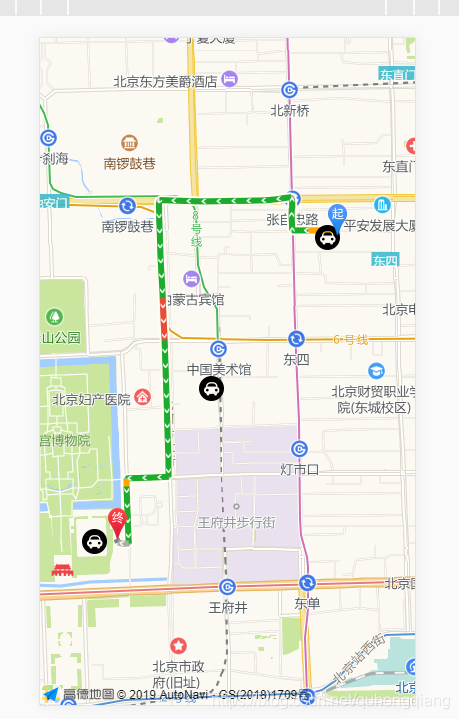
在这里插入图片描述

以防自己以后能用到 先写出来。

<think>我们计划在Vue2中使用高德地图实现自定义规划路线(包括起点、终点、途经点,并绘制路线)。关键步骤包括:1.引入高德地图SDK2.初始化地图3.添起点、终点和途经点的标记(自定义图标)4.使用高德地图路径规划API(驾车路线规划)5.绘制规划路线6.获取并展示路线的详细信息(时间、距离、途经路段等)参考引用[1]中提到:实现路线规划功能,并获取途径路段信息。引用[2]提到:在信息窗体中使用Vue自定义组件。具体实现步骤:1.**引入高德地图SDK**:在public/index.html中引入高德地图JSAPI。2.**准备数据**:包括起点、终点、途经点的经纬度和图标。3.**初始化地图**:在Vue组件的mounted钩子中创建地图实例。4.**添点标记**:使用自定义图标标记起点、终点和途经点。5.**路径规划**:使用AMap.Driving进行驾车路线规划,设置起点、终点和途经点。6.**绘制路线**:在路径规划成功的回调中,将规划路线显示在地图上。7.**展示路线信息**:获取并展示路线的基本信息(总时间、总距离)以及详细的路段信息(每一条道路的名称、距离、时间等)。8.**自定义信息窗体**:参考引用[2],使用Vue自定义组件来展示详细的路段信息。下面是一个详细的示例代码:</think>### Vue2 高德地图自定义路线规划实现方法 在 Vue2 中使用高德地图实现自定义路线规划(包括起点、终点、途经点)的关键步骤如下: #### 1. **引入高德地图 SDK** ```html <!-- public/index.html --> <script src="https://webapi.amap.com/maps?v=2.0&key=您的高德API密钥"></script> ``` #### 2. **核心实现代码** ```vue <template> <div> <div id="map-container" style="width:100%;height:600px"></div> <div class="route-info"> <p>总距离: {{ totalDistance }} 公里</p> <p>预计时间: {{ totalTime }} 分钟</p> <ul> <li v-for="(step, index) in routeSteps" :key="index"> {{ step.action }} {{ step.road }} ({{ step.distance }}米) </li> </ul> </div> </div> </template> <script> export default { data() { return { map: null, driving: null, totalDistance: 0, totalTime: 0, routeSteps: [] }; }, mounted() { this.initMap(); this.calculateRoute(); }, methods: { initMap() { // 初始化地图 this.map = new AMap.Map("map-container", { zoom: 12, center: [116.397428, 39.90923] }); // 创建驾车路线规划实例 this.driving = new AMap.Driving({ map: this.map, panel: "route-info", // 显示路线信息的容器 policy: AMap.DrivingPolicy.LEAST_TIME // 最少时间策略 }); }, calculateRoute() { // 定义路线点(起点、途经点、终点) const points = [ { position: [116.379028, 39.865042], type: "start", title: "起点" }, { position: [116.418261, 39.921984], type: "waypoint", title: "途经点1" }, { position: [116.436202, 39.902917], type: "waypoint", title: "途经点2" }, { position: [116.433847, 39.946140], type: "end", title: "终点" } ]; // 添自定义标记 points.forEach(point => { this.addCustomMarker(point); }); // 路径规划 this.driving.search( points[0].position, points[points.length - 1].position, { waypoints: points.slice(1, -1).map(p => p.position) }, (status, result) => { if (status === 'complete') { this.processRouteResult(result); } else { console.error('路线规划失败:', result); } } ); }, addCustomMarker(point) { // 根据点类型选择不同图标 const iconUrl = point.type === "start" ? require("@/assets/start.png") : point.type === "end" ? require("@/assets/end.png") : require("@/assets/waypoint.png"); const marker = new AMap.Marker({ position: point.position, content: `<div style="position:relative"> <img src="${iconUrl}" style="width:32px;height:40px"> <div class="marker-label">${point.title}</div> </div>`, offset: new AMap.Pixel(-15, -30) }); marker.setMap(this.map); // 添点击事件显示信息窗体 marker.on('click', () => { this.showInfoWindow(point); }); }, showInfoWindow(point) { // 创建Vue组件实例作为信息窗体内容 const instance = new Vue({ render: h => h('div', { class: 'custom-info' }, [ h('h3', point.title), h('p', `经纬度: ${point.position.join(', ')}`) ]) }); instance.$mount(); // 创建信息窗体 const infoWindow = new AMap.InfoWindow({ content: instance.$el, offset: new AMap.Pixel(0, -40) }); infoWindow.open(this.map, point.position); }, processRouteResult(result) { // 提取路线信息 const route = result.routes[0]; this.totalDistance = (route.distance / 1000).toFixed(1); this.totalTime = Math.round(route.time / 60); // 提取详细路段信息 this.routeSteps = []; route.steps.forEach(step => { const instruction = step.instruction.replace(/<.*?>/g, ""); const match = instruction.match(/(.*?)行驶(.*?)(,|$)/); if (match) { this.routeSteps.push({ action: match[1] || "直行", road: match[2] || "主路", distance: step.distance }); } }); // 自定义路线样式 this.customizeRouteStyle(route); }, customizeRouteStyle(route) { // 获取路线路径 const path = route.path.map(p => [p.lng, p.lat]); // 创建自定义样式的折线 const polyline = new AMap.Polyline({ path: path, strokeColor: "#FF6600", // 路线颜色 strokeWeight: 6, // 路线宽度 strokeStyle: "solid", // 实线 map: this.map }); // 添箭头标记 for (let i = 0; i < path.length; i += 10) { new AMap.Marker({ position: path[i], content: '<div style="color:red;font-size:20px">→</div>', offset: new AMap.Pixel(-10, -10), map: this.map }); } } } }; </script> <style> .route-info { background: white; padding: 15px; margin-top: 10px; border-radius: 4px; box-shadow: 0 2px 6px rgba(0,0,0,0.1); } .custom-info { padding: 10px; min-width: 150px; } .marker-label { position: absolute; top: -20px; left: 50%; transform: translateX(-50%); background: rgba(0,0,0,0.6); color: white; padding: 2px 8px; border-radius: 4px; white-space: nowrap; } </style> ``` #### 关键功能说明: 1. **路线规划核心**: - 使用 `AMap.Driving` 进行驾车路线规划 - 支持起点、终点和多个途经点 - 通过 `policy` 参数设置路线策略(最少时间/最短距离等) 2. **自定义标记点**: - 区分起点、终点和途经点的不同图标 - 使用 `require()` 载本地图片资源 - 添点击事件显示自定义信息窗体[^2] 3. **路线样式定制**: - 使用 `Polyline` 自定义路线颜色和粗细 - 添方向箭头标记 - 可调整 `strokeColor` 和 `strokeWeight` 改变外观 4. **路线信息提取**: - 获取总距离和总时间 - 解析详细路段信息(道路名称、距离、行驶方向) - 在页面展示路线分解步骤 #### 高级优化建议: 1. **性能优化**: - 使用 `map.clearMap()` 清除旧路线 - 对大量标记点使用聚合标记 `MarkerCluster` 2. **动态更新**: ```js // 更新路线示例 updateRoute(newPoints) { this.map.clearMap(); this.calculateRoute(newPoints); } ``` 3. **添途经点控件**: - 实现用户交互添/删除途经点 - 使用 `map.on('click')` 捕获点击位置 4. **路线保存与分享**: - 将路线数据序列化为 GeoJSON - 生成可分享的路线链接
评论
成就一亿技术人!
拼手气红包6.0元
还能输入1000个字符
 
红包 添加红包
表情包 插入表情
 条评论被折叠 查看
添加红包

请填写红包祝福语或标题

红包个数最小为10个

红包金额最低5元

当前余额3.43前往充值 >
需支付:10.00
成就一亿技术人!
领取后你会自动成为博主和红包主的粉丝 规则
hope_wisdom
发出的红包
实付
使用余额支付
点击重新获取
扫码支付
钱包余额 0

抵扣说明:

1.余额是钱包充值的虚拟货币,按照1:1的比例进行支付金额的抵扣。
2.余额无法直接购买下载,可以购买VIP、付费专栏及课程。

余额充值


