Latex---如何在Overleaf中插入图片?

目录

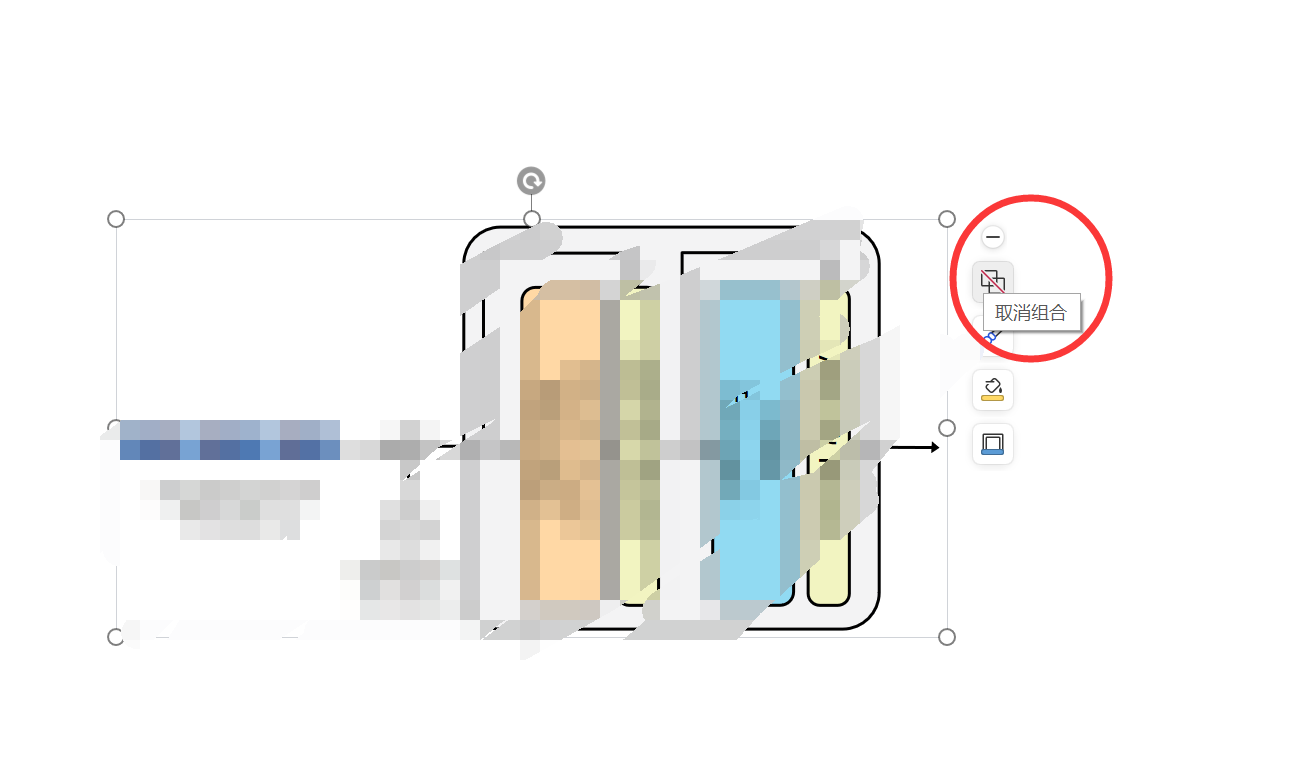
1、首先,在PPT中组合图片

2、然后,将此PPT导出为PDF

3、接着,对PDF进行裁剪

4、最后,将PDF上传到Overleaf中,并在正文中通过如下格式进行图片的插入

5、为什么使用PDF而不是PNG格式?

6、Latex中插入图片常见格式

6.1. 基础浮动体插入(推荐方式)

6.2. 精确位置插入

6.3. 多图排列

6.4. 直接插入(非浮动体)

通用建议

调试技巧


 具体操作方式如下:

1、首先,在PPT中组合图片

2、然后,将此PPT导出为PDF
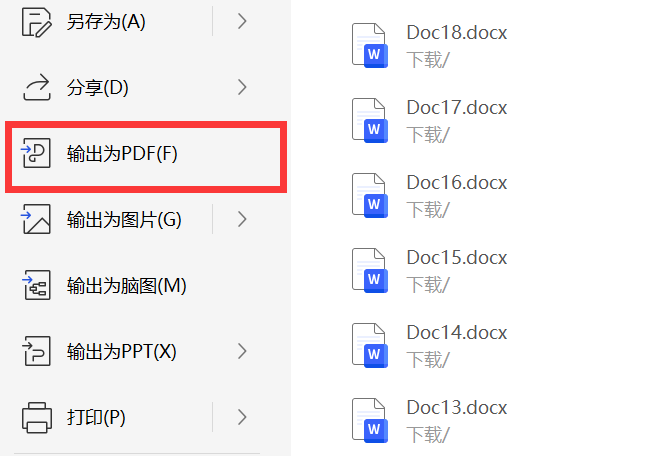
3、接着,对PDF进行裁剪

4、最后,将PDF上传到Overleaf中,并在正文中通过如下格式进行图片的插入

\begin{figure}[ht]
  \centering
  \includegraphics[width=0.5\linewidth]{Figure/transformer block.pdf}  % 图片的路径
  \caption{Transformer}
  \label{fig:transformer_block}
\end{figure}

在overleaf中引用图片的时,使用如下代码来引用:

/ref{fig:transformer_block}

5、为什么使用PDF而不是PNG格式?

这是因为PDF是矢量图更清晰,而PNG不支持矢量图可能会模糊。

6、Latex中插入图片常见格式

在Overleaf中插入图片主要有以下几种常用方法,每种方式适用于不同场景:

6.1. 基础浮动体插入(推荐方式)

\begin{figure}[ht]
  \centering
  \includegraphics[width=0.8\textwidth]{images/sample.png}
  \caption{示例图片标题}
  \label{fig:sample}
\end{figure}
  • 特点:自动处理图片位置,支持跨页浮动
  • 参数说明:
    • [ht]:位置参数组合(h=此处,t=页顶)
    • width:建议使用相对单位(如\textwidth
    • \label:实现交叉引用

6.2. 精确位置插入

\begin{figure}[H]
  \centering
  \includegraphics[scale=0.6]{diagrams/flowchart.pdf}
  \caption{流程图示例}
  \label{fig:flow}
\end{figure}
  • 需要引入float包:\usepackage{float}
  • [H]:强制固定位置(不推荐大量使用)

6.3. 多图排列

\begin{figure}[ht]
  \centering
  \begin{subfigure}[b]{0.45\textwidth}
    \includegraphics[width=\textwidth]{plots/data1.png}
    \caption{数据集A}
  \end{subfigure}
  \hfill
  \begin{subfigure}[b]{0.45\textwidth}
    \includegraphics[width=\textwidth]{plots/data2.png}
    \caption{数据集B}
  \end{subfigure}
  \caption{对比实验结果}
\end{figure}
  • 需要subcaption包:\usepackage{subcaption}

6.4. 直接插入(非浮动体)

\noindent
\includegraphics[width=0.3\linewidth]{icons/logo.png}
  • 特点:不生成浮动体,适合小图标插入
  • 注意:无法添加自动编号的标题

通用建议:

  1. 推荐使用矢量图格式(PDF/EPS)
  2. 路径建议:
    • 项目根目录创建images/目录
    • 使用相对路径引用
  3. 常用参数组合:
    \includegraphics[width=0.5\textwidth, angle=90, trim=10 20 30 40]{...}
    
    • angle:旋转角度
    • trim:裁剪边距(左 下 右 上)

调试技巧:

  • 文件路径错误时,Overleaf会显示黄色警告框
  • 使用draft模式可加快编译速度:
    \usepackage[draft]{graphicx}
    

Overleaf 中引用图片时,可以通过以下几种常见方法限制图片大小: ### 使用 `graphicx` 宏包的 `width`、`height` 和 `scale` 选项 `graphicx` 宏包是 LaTeX 中用于处理图形的常用宏包,在引用图片时可以使用其选项来控制图片大小。 - **指定宽度**:使用 `width` 选项可以将图片的宽度设置为指定的值。例如,将图片宽度设置为文本宽度的 0.8 倍: ```latex \usepackage{graphicx} % ... \begin{figure} \centering \includegraphics[width=0.8\textwidth]{example-image} \caption{An example image with specified width} \end{figure} ``` - **指定高度**:使用 `height` 选项可以将图片的高度设置为指定的值。例如,将图片高度设置为 5cm: ```latex \usepackage{graphicx} % ... \begin{figure} \centering \includegraphics[height=5cm]{example-image} \caption{An example image with specified height} \end{figure} ``` - **按比例缩放**:使用 `scale` 选项可以按比例缩放图片。例如,将图片缩小为原来的 0.5 倍: ```latex \usepackage{graphicx} % ... \begin{figure} \centering \includegraphics[scale=0.5]{example-image} \caption{An example image scaled by 0.5} \end{figure} ``` ### 同时限制宽度和高度并保持纵横比 可以同时使用 `width` 和 `height` 选项,并结合 `keepaspectratio` 选项来限制图片的宽度和高度,同时保持图片的纵横比。例如,将图片的宽度限制为文本宽度的 0.6 倍,高度限制为 8cm: ```latex \usepackage{graphicx} % ... \begin{figure} \centering \includegraphics[width=0.6\textwidth, height=8cm, keepaspectratio]{example-image} \caption{An example image with both width and height limits and kept aspect ratio} \end{figure} ``` ### 使用 `adjustbox` 宏包 `adjustbox` 宏包提供了更多的图形调整功能,包括限制图片大小。例如,使用 `max width` 和 `max height` 选项来限制图片的最大宽度和最大高度: ```latex \usepackage{graphicx} \usepackage{adjustbox} % ... \begin{figure} \centering \adjustbox{max width=0.7\textwidth, max height=10cm}{ \includegraphics{example-image} } \caption{An example image with max width and max height limits} \end{figure} ```
评论
添加红包

请填写红包祝福语或标题

红包个数最小为10个

红包金额最低5元

当前余额3.43前往充值 >
需支付:10.00
成就一亿技术人!
领取后你会自动成为博主和红包主的粉丝 规则
hope_wisdom
发出的红包
实付
使用余额支付
点击重新获取
扫码支付
钱包余额 0

抵扣说明:

1.余额是钱包充值的虚拟货币,按照1:1的比例进行支付金额的抵扣。
2.余额无法直接购买下载,可以购买VIP、付费专栏及课程。

余额充值