





 本文详细介绍了如何在Windows10环境下安装MySQL8.0.28,包括下载软件、配置环境变量、初始化数据库、设置服务、配置远程登录等步骤,并提供了常见错误的解决方案。
MySQL8.0.28在Win10下安装
需要在Windows下安装一个MySQL用,原来以为MySQL在win10下安装就是,setup,然后一路next就可以,没有想到比Linux还麻烦 。
1、下载软件
到官网上下载,不要下载debug的版本。
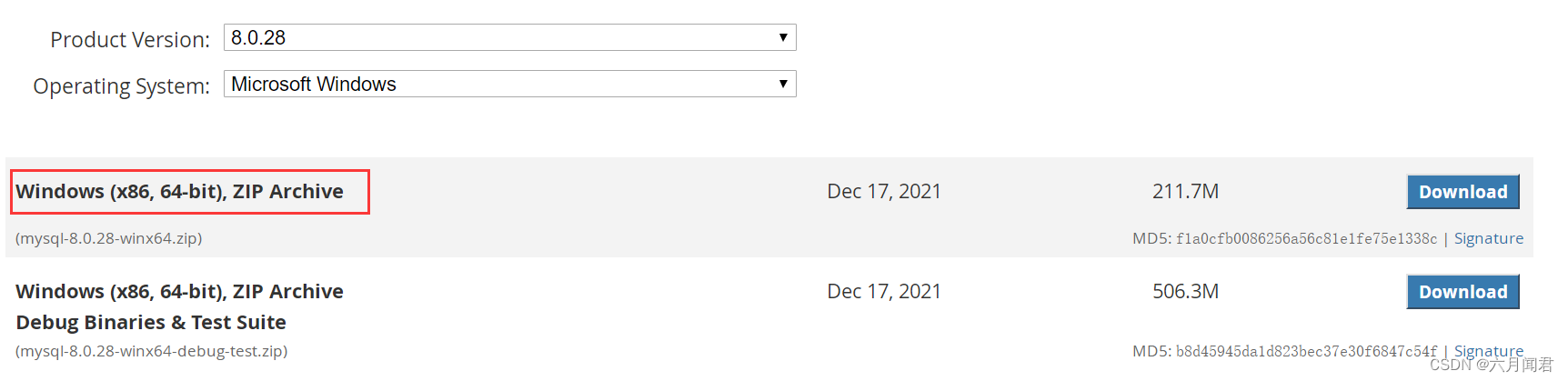
没有安装文件,就是一个应用程序文件夹。
2、配置路径和环境
(1)配置路径
把解压缩的文件都拷贝到这个路径下
D:\app\mysql-8.0.28-winx64
在系统属性中,设置环境变量
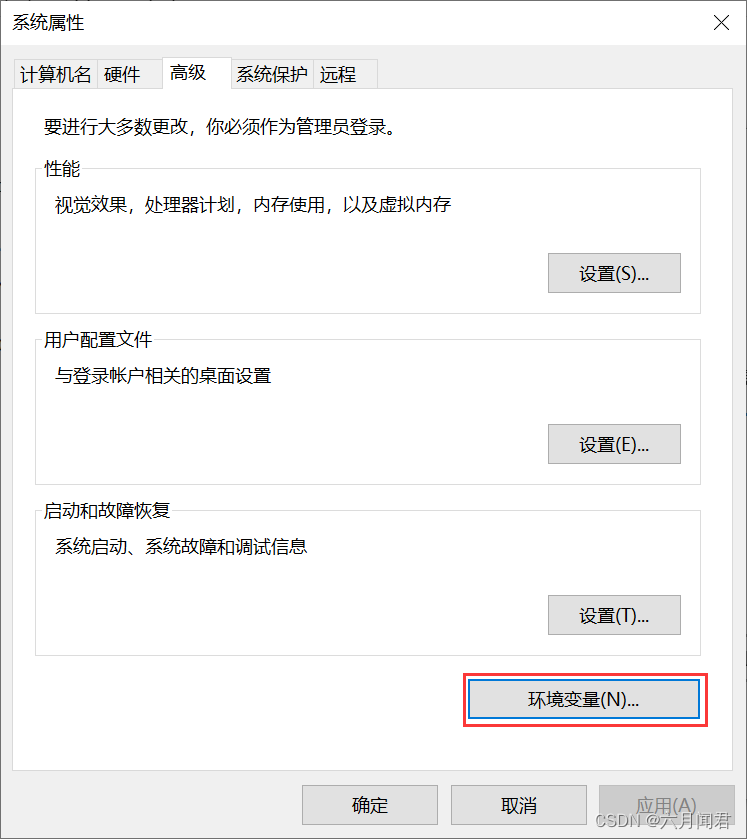
在系统环境变量设置中,增加路径,D:\app\mysql-8.0.28-winx64\bin
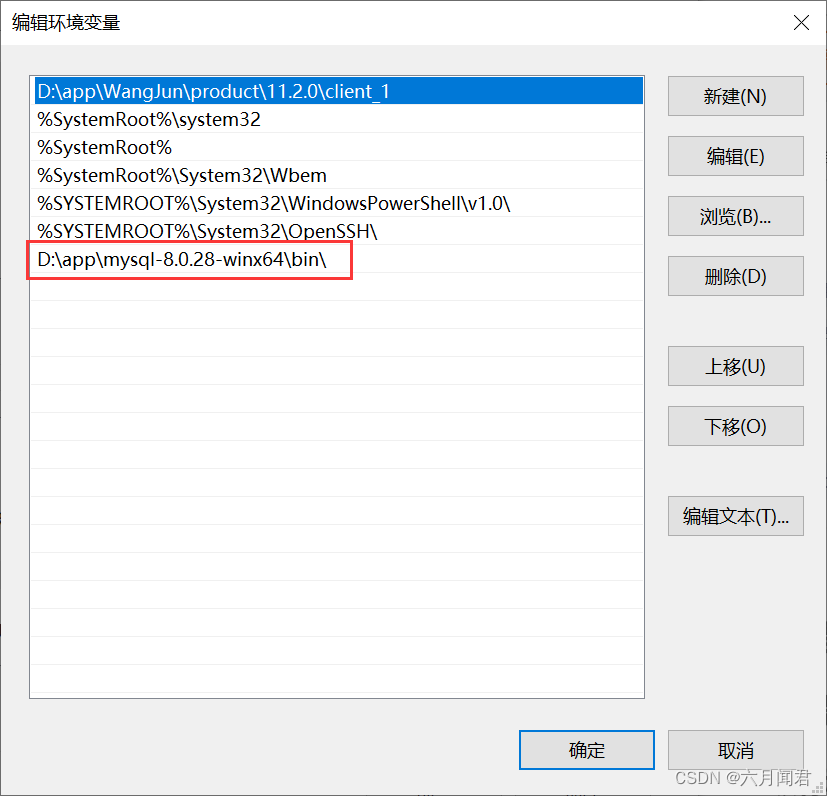
(2)数据路径和配置文件
在D:\app\mysql-8.0.28-winx64\,增加一个数据库文件的路径
D:\app\mysql-8.0.28-winx64\Data
在D:\app\mysql-8.0.28-winx64\,编辑一个启动配置文件 my.ini
注意:basedir 、datadir 需要根据实际路径调整
[mysqld]
#设置3306端口
port=3306
#设置mysql的安装目录
basedir="D:\\app\\mysql-8.0.28-winx64"
#设置mysql数据库的数据的存放目录
datadir="D:\\app\\mysql-8.0.28-winx64\\data"
#允许最大连接数
max_connections=200
#允许连接失败的次数。
max_connect_errors=10
#服务端使用的字符集默认为utf8mb4
character-set-server=utf8mb4
#创建新表时将使用的默认存储引擎
default-storage-engine=INNODB
#默认使用“mysql_native_password”插件认证
#mysql_native_password
default_authentication_plugin=mysql_native_password
[mysql]
#设置mysql客户端默认字符集
default-character-set=utf8mb4
[client]
#设置mysql客户端连接服务端时默认使用的端口
port=3306
default-character-set=utf8mb4
3、数据库服务初始化和启动
(1)初始化
D:\app\mysql-8.0.28-winx64\bin>mysqld --initialize --console
windows弹窗”由于找不到VCRUNTIME 140_1.dll,无法继续执行代码.重新安装程序可能会解决此问题.“
原因是没有VC++环境,需要下载安装VC_redist.x64 ,默认安装即可。下载地址如下。
https://learn.microsoft.com/zh-CN/cpp/windows/latest-supported-vc-redist?view=msvc-170
安装后重启计算机,再次初始化。
D:\app\mysql-8.0.28-winx64\bin>mysqld --initialize --console
2022-11-12T09:27:45.591466Z 0 [Warning] [MY-010918] [Server] 'default_authentication_plugin' is deprecated and will be removed in a future release. Please use authentication_policy instead.
2022-11-12T09:27:45.591492Z 0 [System] [MY-013169] [Server] D:\app\mysql-8.0.28-winx64\bin\mysqld.exe (mysqld 8.0.28) initializing of server in progress as process 5900
2022-11-12T09:27:45.622945Z 1 [System] [MY-013576] [InnoDB] InnoDB initialization has started.
2022-11-12T09:27:45.961821Z 1 [System] [MY-013577] [InnoDB] InnoDB initialization has ended.
2022-11-12T09:27:47.540761Z 6 [Note] [MY-010454] [Server] A temporary password is generated for root@localhost: _a9_bSu*gzp<

D:\app\mysql-8.0.28-winx64\bin>
初始化成功。临时密码的位置:
临时密码:temporary password is generated for root@localhost: _a9_bSu*gzp<
(2)配置MySQL服务
在cmd下执行。
mysqld --install mysql8028
mysql8028服务名,可以自定义。
D:\app\mysql-8.0.28-winx64>mysqld --install mysql8028
Install/Remove of the Service Denied!
报错,没有权限。
用管理员执行cmd
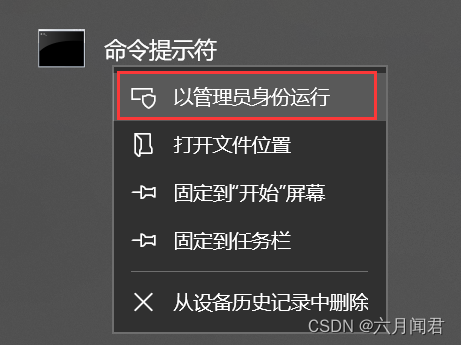
再次执行:
C:\Windows\system32>mysqld --install mysql8028
Service successfully installed.
(3)登录数据库
C:\Windows\system32>mysql -uroot -p
ERROR 2003 (HY000): Can't connect to MySQL server on 'localhost:3306' (10061)
在服务管理中启动服务

再次登录,修改root的密码。
alter user ‘root’@‘localhost’ identified by ‘Mysql#8028’;
C:\Windows\system32>mysql -uroot -p
Enter password: ************
Welcome to the MySQL monitor.  Commands end with ; or \g.
Your MySQL connection id is 10
Server version: 8.0.28

Copyright (c) 2000, 2022, Oracle and/or its affiliates.

Oracle is a registered trademark of Oracle Corporation and/or its
affiliates. Other names may be trademarks of their respective
owners.

Type 'help;' or '\h' for help. Type '\c' to clear the current input statement.

mysql> alter user 'root'@'localhost' identified by 'Mysql#8028';
Query OK, 0 rows affected (0.02 sec)

mysql> flush privileges;
Query OK, 0 rows affected (0.00 sec)

mysql>
mysql>
mysql> quit
Bye
验证root密码
C:\Windows\system32>mysql -uroot -pMysql#8028
mysql: [Warning] Using a password on the command line interface can be insecure.
Welcome to the MySQL monitor.  Commands end with ; or \g.
Your MySQL connection id is 11
Server version: 8.0.28 MySQL Community Server - GPL

Copyright (c) 2000, 2022, Oracle and/or its affiliates.

Oracle is a registered trademark of Oracle Corporation and/or its
affiliates. Other names may be trademarks of their respective
owners.

Type 'help;' or '\h' for help. Type '\c' to clear the current input statement.

mysql> show databases;
+--------------------+
| Database           |
+--------------------+
| information_schema |
| mysql              |
| performance_schema |
| sys                |
+--------------------+
4 rows in set (0.02 sec)
安装完毕。
4、配置远程登陆
(1)修改my.ini
[mysqld] 下增加
bind-address = 0.0.0.0
(2)开windows防火墙端口
在windows的防火墙配置中,编辑入站规则,增加端口。
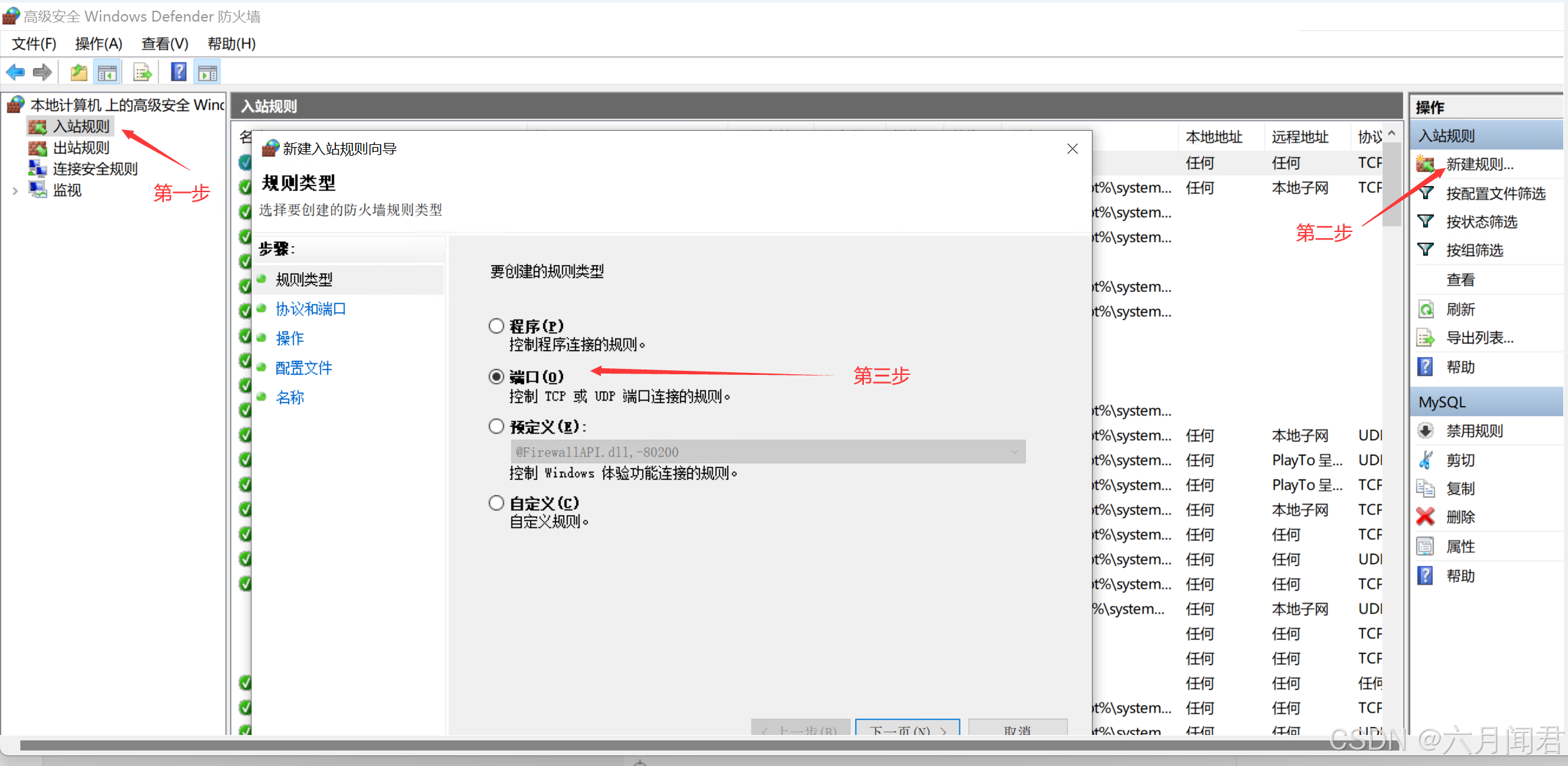
设置开放端口:
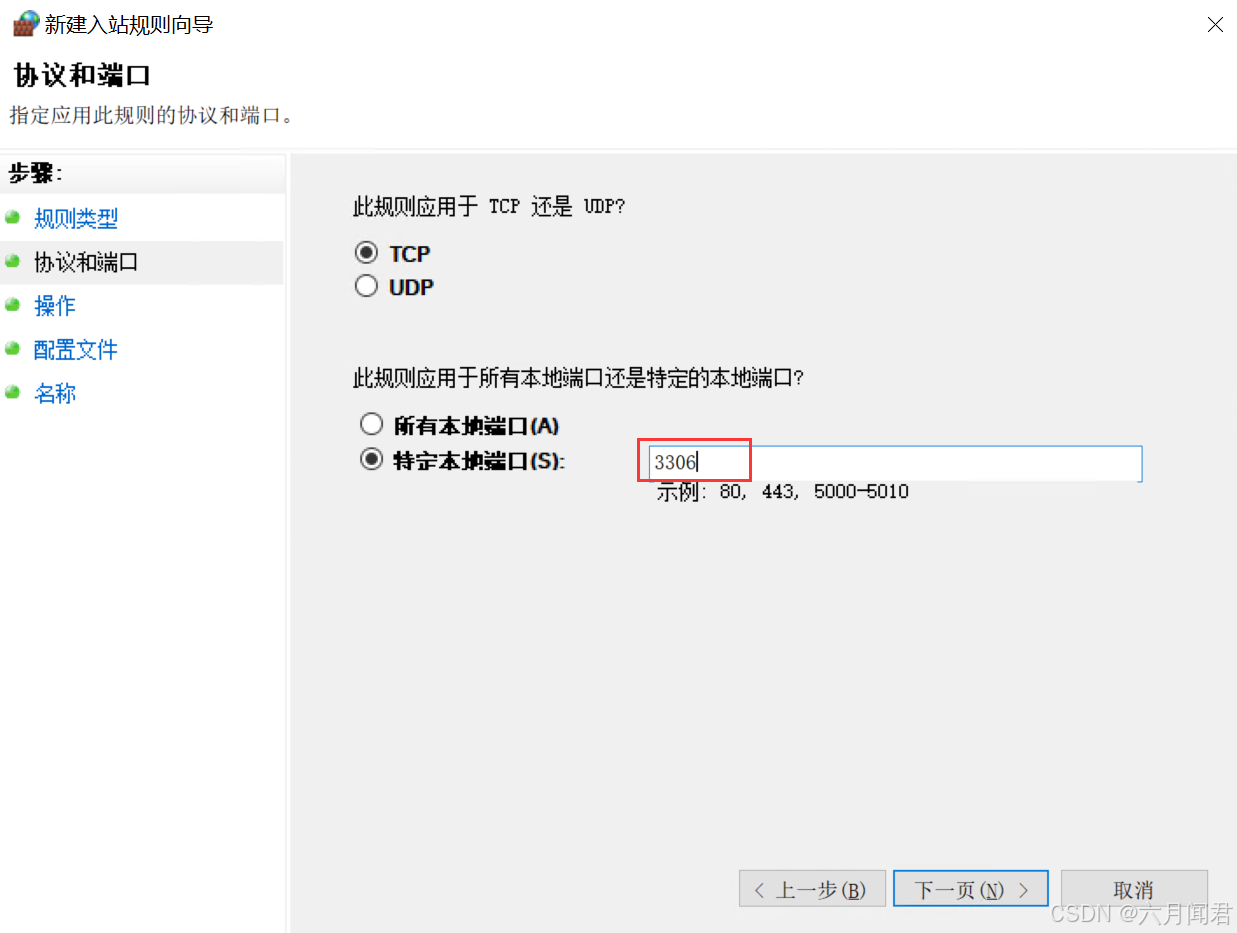
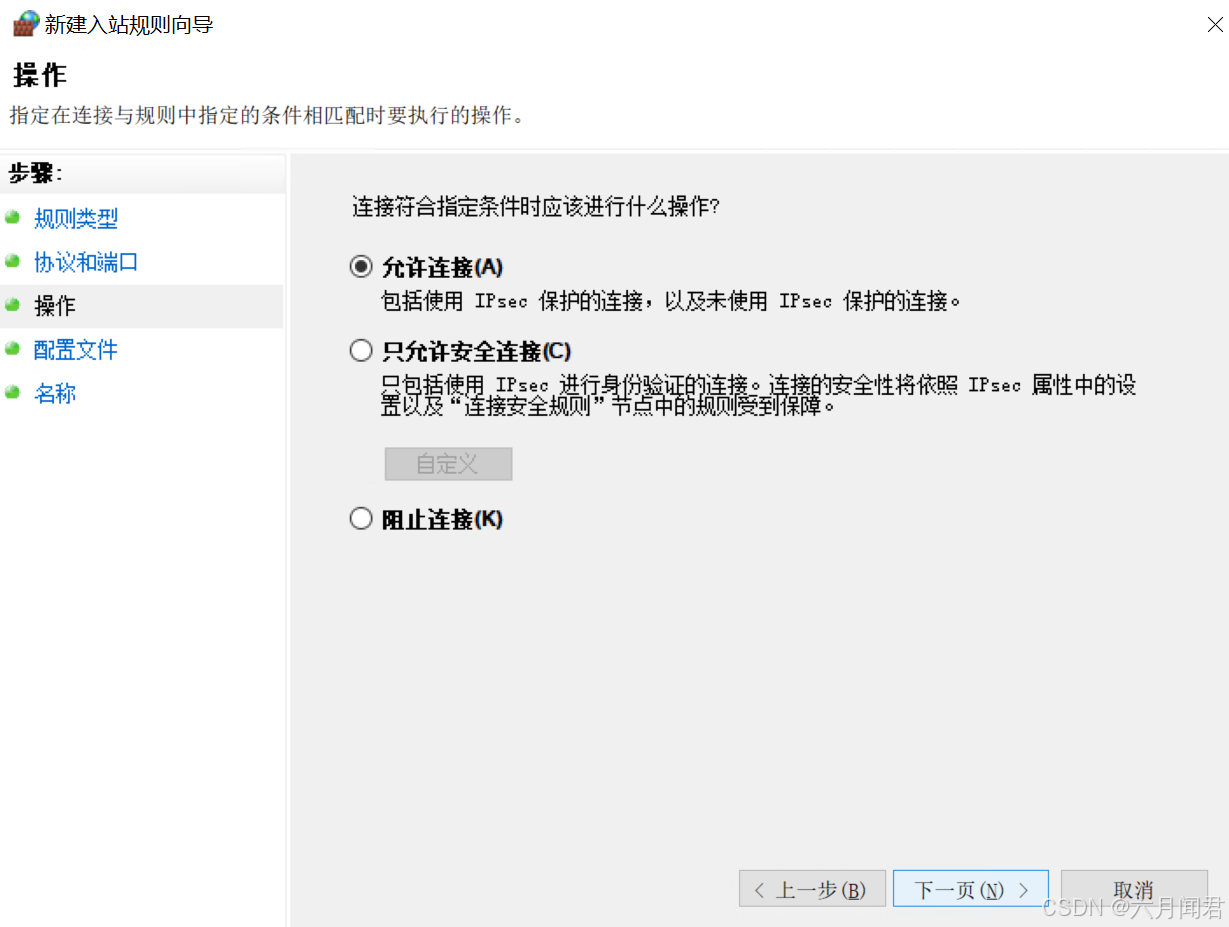
下一步,允许操作:
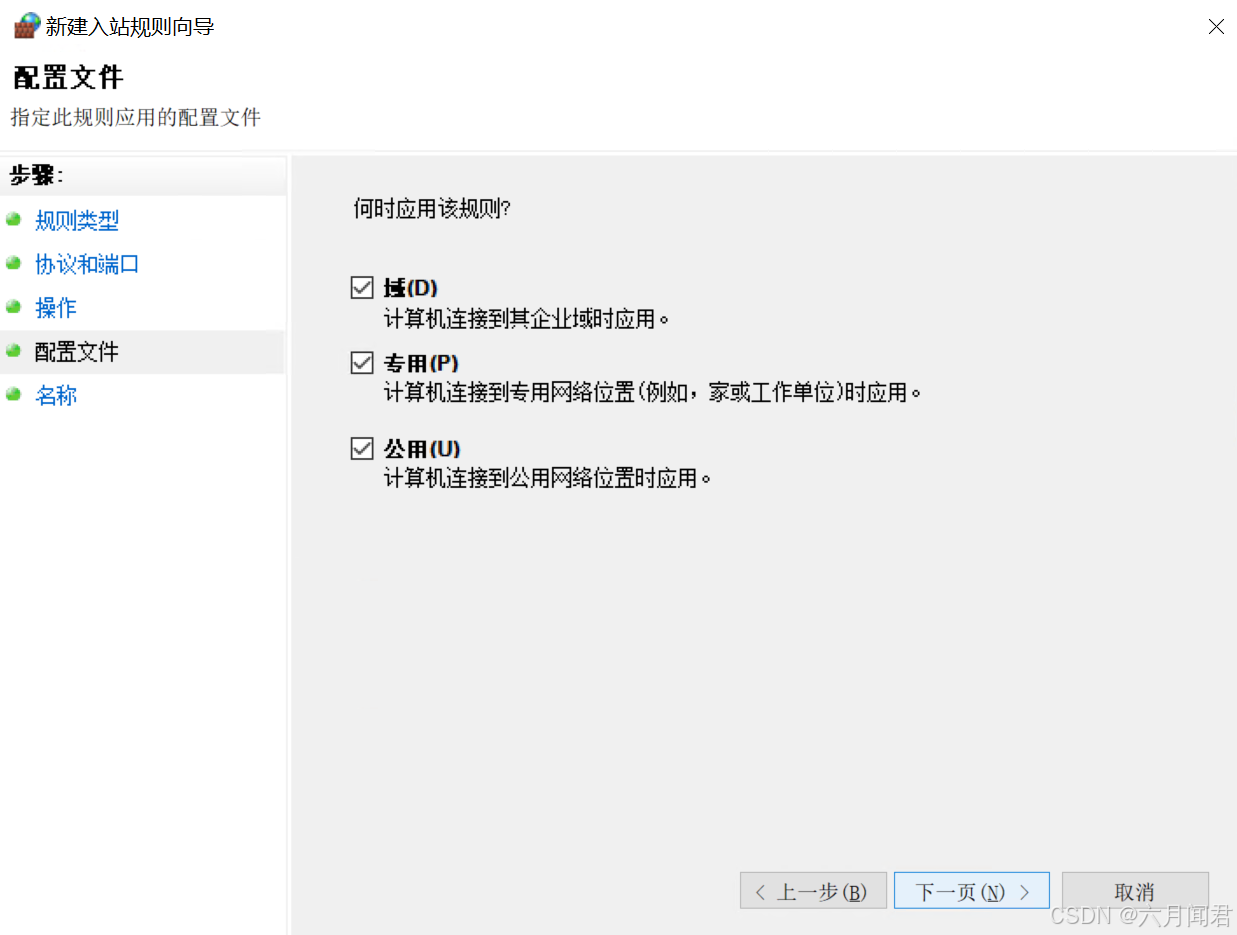
下一步,配置文件:
下一步,设置名称

(3)增加远程用户
检查MySQL版本:
C:\App\mysql-8.0.39-winx64>mysql --version
mysql  Ver 8.0.39 for Win64 on x86_64 (MySQL Community Server - GPL)
登陆MySQL后,增加’root’@‘%’ 用户,授权。
CREATE USER 'root'@'%' IDENTIFIED BY 'Root#2024#';
GRANT ALL PRIVILEGES ON *.* TO 'root'@'%' WITH GRANT OPTION;
FLUSH PRIVILEGES;
(4)检查端口
检查端口3306 ,对应的PID是 1220 ,检查1220对应的程序:
C:\App\mysql-8.0.39-winx64>netstat -ano | findstr :3306
  TCP    0.0.0.0:3306           0.0.0.0:0              LISTENING       1220
  TCP    0.0.0.0:33060          0.0.0.0:0              LISTENING       1220
  TCP    [::]:33060             [::]:0                 LISTENING       1220


C:\App\mysql-8.0.39-winx64>tasklist | findstr 1220
mysqld.exe                    1220 Services                   0    197,928 K
5、其他操作
以管理员允许cmd :
启动,停止
C:\Windows\system32>net stop mysql8028
mysql8028 服务正在停止..
mysql8028 服务已成功停止。


C:\Windows\system32>net start mysql8028
mysql8028 服务正在启动 .
mysql8028 服务已经启动成功。
如果要删除服务:
sc delete [mysql的服务名]





 扫一扫
扫一扫


 882
882

 被折叠的 条评论
为什么被折叠?
被折叠的 条评论
为什么被折叠?
 到【灌水乐园】发言





