


 本文介绍了SPIE提供的Microsoft Word模板的使用方法,包括如何下载、安装及应用模板来格式化学术论文。通过该模板,作者可以轻松保持文档格式的一致性,并了解SPIE对稿件的具体格式要求。
Download one of the following files; Version 3.2 (released 17 April 2007):
MS Word 2002 template file, spieword32.dot (62 KB). Save in your MS Word template directory.
A Zipped version, spieword32.dot.zip (24 KB), in case the above file does not download properly
The formatted document is available as:
MS Word 2002 document, spieword32.doc
The following files show what a properly formatted manuscript looks like and provide instructions for writing and formatting an SPIE manuscript:
Manuscript in Rich Text Format, spieword32.rtf (250 KB)
Manuscript in PDF, spieword32.pdf (133 KB)
The previous version for MS Word 2002 is available: spie28.dot (59 KB). Save in your MS Word template directory.
A Zipped version, spie28.dot.zip (23 KB), in case the above file does not download properly
The previous version 2.7 is available: MS Word 97 template file, spie27.dot (50 KB). Save in your MS Word template directory. Be sure to correct the top margin in this template.
A Zipped version, spie27.dot.zip (21 KB), in case the above file does not download properly
Templates for earlier versions of MS Word and Word Perfect, but without the instructions included in these files, are available from SPIE's web site.
Template instructions for Microsoft Word
What is a template?
A Microsoft Word template stores page setup information and formatting styles. Using a template helps to maintain consistent formatting throughout a document. With a template, you apply formatting to text by selecting a style from the Style list on your Formatting toolbar. For example, you might normally format your manuscript title by selecting 16 point Times New Roman, bold, and centered. With the above SPIE template, you simply type the manuscript title, select (highlight) the text, and select *Title of paper* from the Style drop-down menu on the toolbar. All of the formatting elements are automatically applied to the manuscript title. Alternatively, you can select the Style *Title of paper* and start typing the title. When finished with the title, a carriage return should automatically put you in the next appropriate style, e.g., *Authors*. Another way to work with the spie.dot template is by inserting your own text in place of that in the template.
How to create a document using the SPIE template
Download the above file, which was created in Microsoft Word 2002. Please save the file in the MS Word template directory specified for your particular system, for example,
C:/PROGRAM FILES/MSOFFICE/TEMPLATES.
For optimal benefit, we recommend that you use this template in the following way:
- Open a New (blank) document based on the template spie.dot by selecting File | New and then selecting the template spie.dot. If you do not find this file, you should check to make sure you saved the file in the correct Template directory.
Note: Attaching the template (by selecting File | Templates | Attach) to an existing Word file is not recommended, as certain format specifications, such as Paper Size and Margins, will be lost. - The template file contains a document that explains the use of the template and shows what the final appearance of the manuscript should be. You may either insert your own text, field-by-field, or delete all the text and start from scratch by selecting the appropriate style as you go. The margins of these template files, 0.875 in. left and right; 1 in. on top and 1.25 in. on bottom, are to be used with 8.5 in. X 11 in. paper. For A4 paper, change the margins to 20 mm left and right; 25.4 mm top; 49 mm bottom.
- Margins:
What the style menu looks like
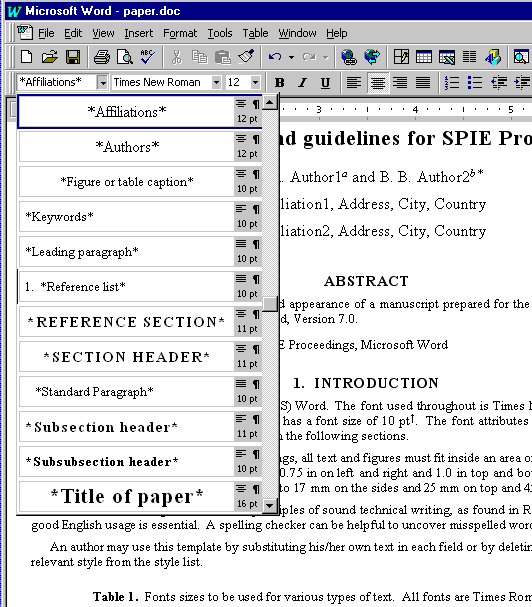
SPIE styles are marked with an asterisk and should appear at the top of the Style pull-down menu on your Formatting toolbar. When you open a new document based on spie.dot, the *Title of paper* style will already be selected. After you type in your title, a carriage return will change the style to *Authors*. Another carriage return will change the style to *Affiliations*, and so forth.
You should normally not need to enter extra carriage returns to adjust the vertical spacing between the various document elements. One of the advantages of using the template is that the style specifications include appropriate spacing before and after each element.
These styles do not include automatic numbering for section headings and subsection headings. Therefore, authors need to number the sections themselves. Please make sure the section numbers are consecutive.
The text of the template contains a complete description of the specifications of a properly formatted SPIE manuscript, as well as some guidelines for good technical writing.





 扫一扫
扫一扫


 6702
6702

 被折叠的 条评论
为什么被折叠?
被折叠的 条评论
为什么被折叠?
 到【灌水乐园】发言





