


 文章详细介绍了如何搭建Harbor私有仓库,包括下载安装、配置和上传拉取镜像。接着讲解了Docker的五种网络类型,最后通过docker-compose部署了一个包含nginx、mysql、php的多容器服务,涵盖了安装docker-compose、配置服务和测试页面的步骤。
目录
一、搭建配置 harbor私有仓库
背景:两台主机已安装docker-ce(23.0.6)详见:yum源安装
1. 下载并安装harbor
$ cd /usr/local/src
$ tar xvf harbor-offline-installer-v2.3.2.tgz
harbor/harbor.v2.3.2.tar.gz
harbor/prepare
harbor/LICENSE
harbor/install.sh
harbor/common.sh
harbor/harbor.yml.tmpl
更改配置文件( https配置 需按 官方步骤 来,注:还需将证书文件分发至各node节点)
$ ln -sv /usr/local/src/harbor /usr/local/harbor
'/usr/local/harbor' -> '/usr/local/src/harbor'

$ cd /usr/local/harbor
$ mv harbor.yml.tmpl harbor.yml
$ vim harbor.yml

改:hostname: 192.168.37.211
    harbor_admin_password: 123456

    若单独分配一块新硬盘,还要改: data_volume

    由于本例不用https,所以 注释 https下的相关所有项(若配ssl则不用,改下 certificate 和 private_key 即可)
由于安装会检查docker版本、docker-compose版本、harbor.yml文件,所以要提前准备好
$ apt install docker-compose -y
$ ./install.sh --with-trivy(开启镜像扫描,看有无漏洞) --with-chartmuseum(用于helm)

[Step 5]: starting Harbor ...
Creating network "harbor_harbor" with the default driver
Creating harbor-log ... done
Creating harbor-portal ... done
Creating harbor-db     ... done
Creating redis         ... done
Creating registry      ... done
Creating registryctl   ... done
Creating harbor-core   ... done
Creating harbor-jobservice ... done
Creating nginx             ... done
✔ ----Harbor has been installed and started successfully.----
更新配置后需要执行prepare(首次部署可执行)
$ ./prepare

Clearing the configuration file: /config/portal/nginx.conf
Clearing the configuration file: /config/registryctl/config.yml
Clearing the configuration file: /config/registryctl/env
Clearing the configuration file: /config/core/app.conf
Clearing the configuration file: /config/core/env
Clearing the configuration file: /config/nginx/nginx.conf
Clearing the configuration file: /config/db/env
Clearing the configuration file: /config/jobservice/config.yml
Clearing the configuration file: /config/jobservice/env
Clearing the configuration file: /config/registry/config.yml
Clearing the configuration file: /config/registry/root.crt
Clearing the configuration file: /config/registry/passwd
Clearing the configuration file: /config/log/logrotate.conf
Clearing the configuration file: /config/log/rsyslog_docker.conf
Generated configuration file: /config/portal/nginx.conf
Generated configuration file: /config/log/logrotate.conf
Generated configuration file: /config/log/rsyslog_docker.conf
Generated configuration file: /config/nginx/nginx.conf
Generated configuration file: /config/core/env
Generated configuration file: /config/core/app.conf
Generated configuration file: /config/registry/config.yml
Generated configuration file: /config/registryctl/env
Generated configuration file: /config/registryctl/config.yml
Generated configuration file: /config/db/env
Generated configuration file: /config/jobservice/env
Generated configuration file: /config/jobservice/config.yml
loaded secret from file: /data/secret/keys/secretkey
Generated configuration file: /compose_location/docker-compose.yml
Clean up the input dir
默认安装后会自动启动所有harbor组件,若手动启动操作
$ docker-compose -f /usr/local/harbor/docker-compose.yml start
Starting log         ... done
Starting registry    ... done
Starting registryctl ... done
Starting postgresql  ... done
Starting portal      ... done
Starting redis       ... done
Starting core        ... done
Starting jobservice  ... done
Starting proxy       ... done
2. 根据自己设置的hostname,从浏览器登录,user为admin
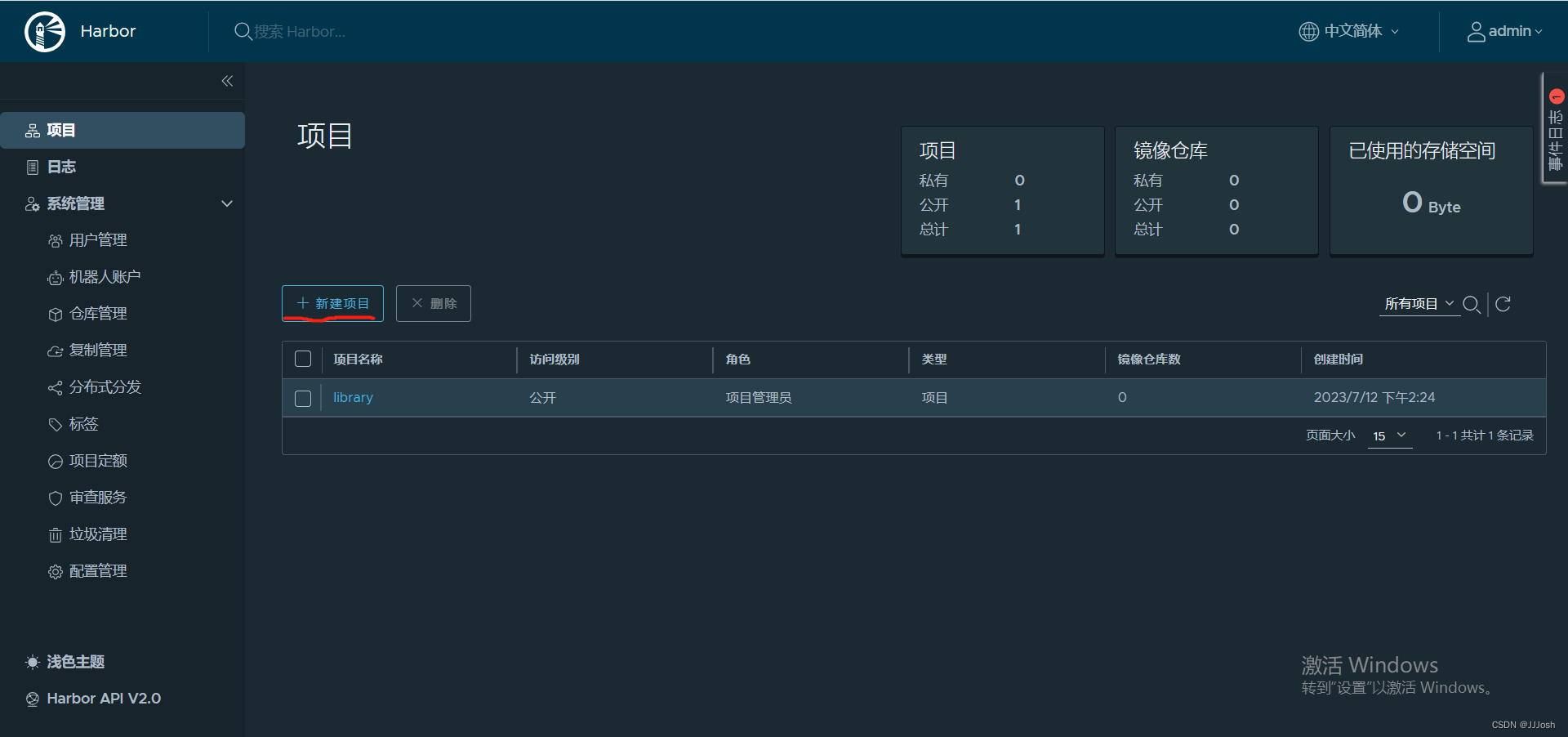
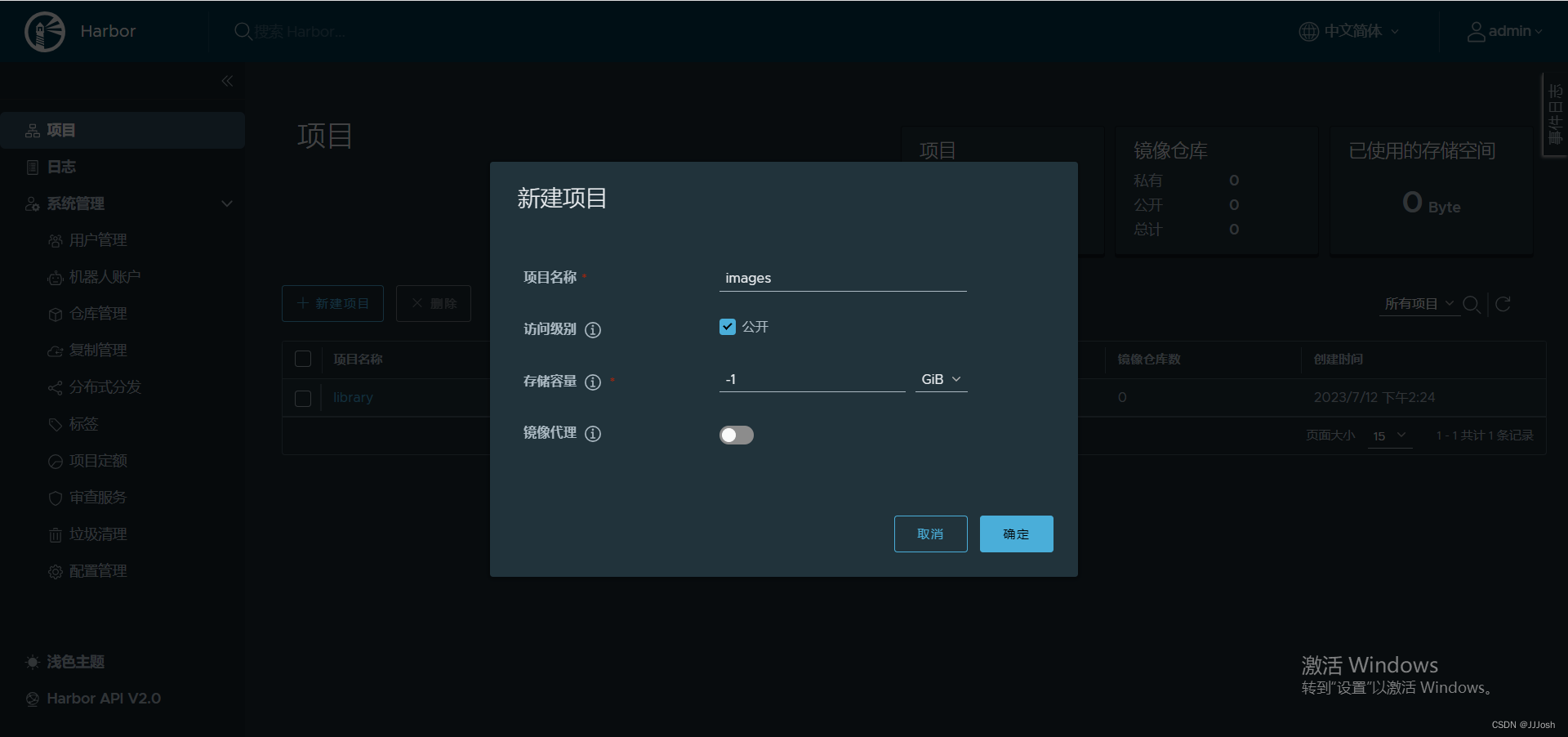
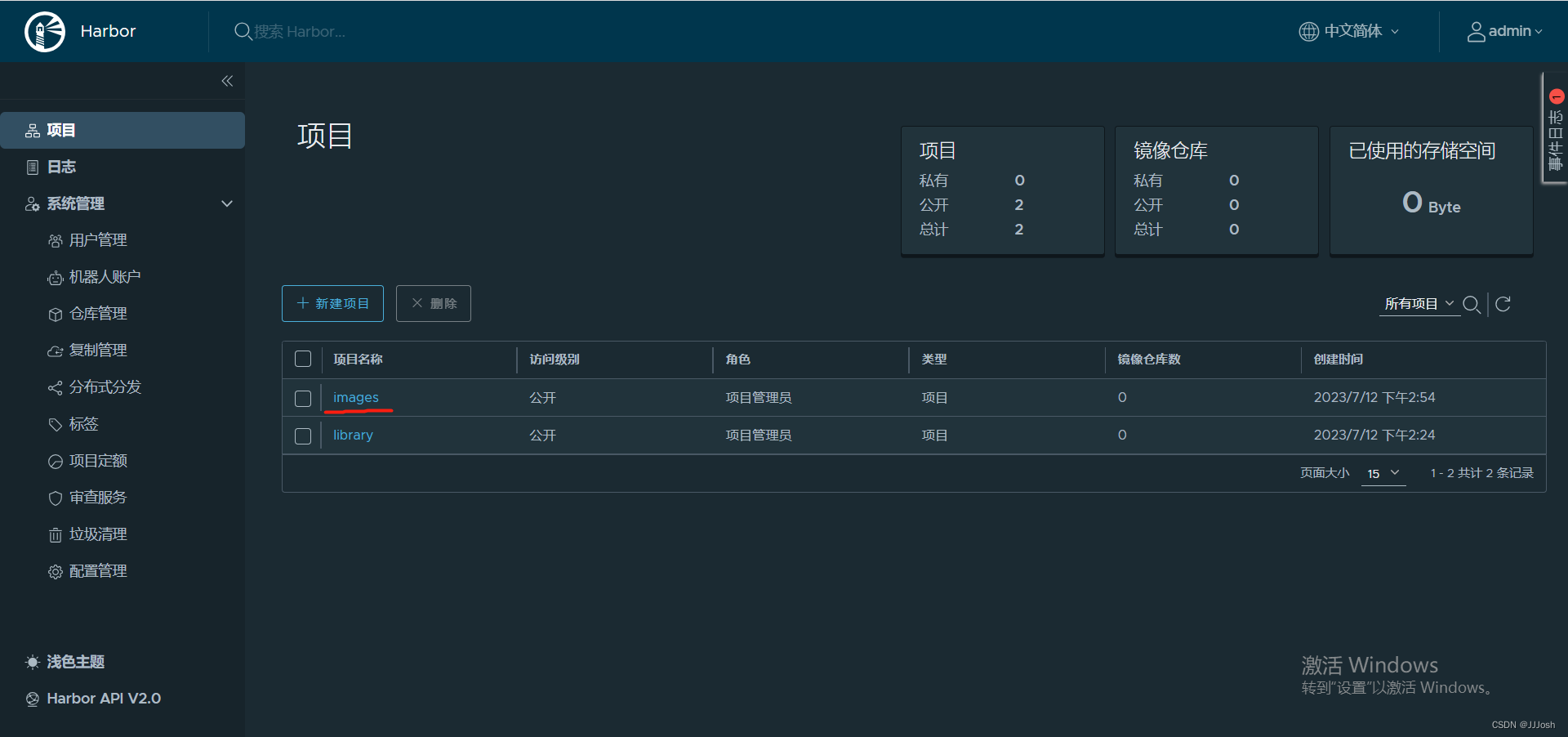
新建一个名为images的项目
3. 登录harbor做镜像的上传与拉取
若 第一次使用docker,需要在官方 docker hub 上注册一个账号用于登录
$ docker login docker.io
Login with your Docker ID to push and pull images from Docker Hub. If you don't have a Docker ID, head over to https://hub.docker.com to create one.
Username: xxxxxx
Password:
WARNING! Your password will be stored unencrypted in /root/.docker/config.json.
Configure a credential helper to remove this warning. See
https://docs.docker.com/engine/reference/commandline/login/#credentials-store

Login Succeeded
随便拉取一个镜像
$ docker pull nginx
Using default tag: latest
latest: Pulling from library/nginx
faef57eae888: Pull complete
76579e9ed380: Pull complete
cf707e233955: Pull complete
91bb7937700d: Pull complete
4b962717ba55: Pull complete
f46d7b05649a: Pull complete
103501419a0a: Pull complete
Digest: sha256:08bc36ad52474e528cc1ea3426b5e3f4bad8a130318e3140d6cfe29c8892c7ef
Status: Downloaded newer image for nginx:latest
docker.io/library/nginx:latest


$ docker images
REPOSITORY                      TAG       IMAGE ID       CREATED         SIZE
nginx                           latest    021283c8eb95   7 days ago      187MB
编辑harbor配置文件(若配置https,则无需此步)
由于是不安全的registry,所以要在 docker启动脚本 中加配置(若做 高可用 则需要加所有harbor主机)
$ vim /lib/systemd/system/docker.service
改:ExecStart=/usr/bin/dockerd -H fd:// --containerd=/run/containerd/containerd.sock --insecure-registry 192.168.37.211 --insecure-registry 192.168.37.212

$ systemctl daemon-reload
$ systemctl restart docker
重启harbor(别忘了~)后 登录harbor
$ docker-compose -f /usr/local/harbor/docker-compose.yml down
$ docker-compose -f /usr/local/harbor/docker-compose.yml up -d

$ docker login 192.168.37.211
Username: admin
Password:
WARNING! Your password will be stored unencrypted in /root/.docker/config.json.
Configure a credential helper to remove this warning. See
https://docs.docker.com/engine/reference/commandline/login/#credentials-store

Login Succeeded
为镜像 打标签并上传
$ docker tag nginx:latest 192.168.37.211/images/nginx:v1
$ docker push 192.168.37.211/images/nginx:v1
The push refers to repository [192.168.37.211/images/nginx]
3c9d04c9ebd5: Pushed
434c6a715c30: Pushed
9fdfd12bc85b: Pushed
f36897eea34d: Pushed
1998c5cd2230: Pushed
b821d93f6666: Pushed
24839d45ca45: Pushed
v1: digest: sha256:1bb5c4b86cb7c1e9f0209611dc2135d8a2c1c3a6436163970c99193787d067ea size: 1778
检查harbor网页端是否可见
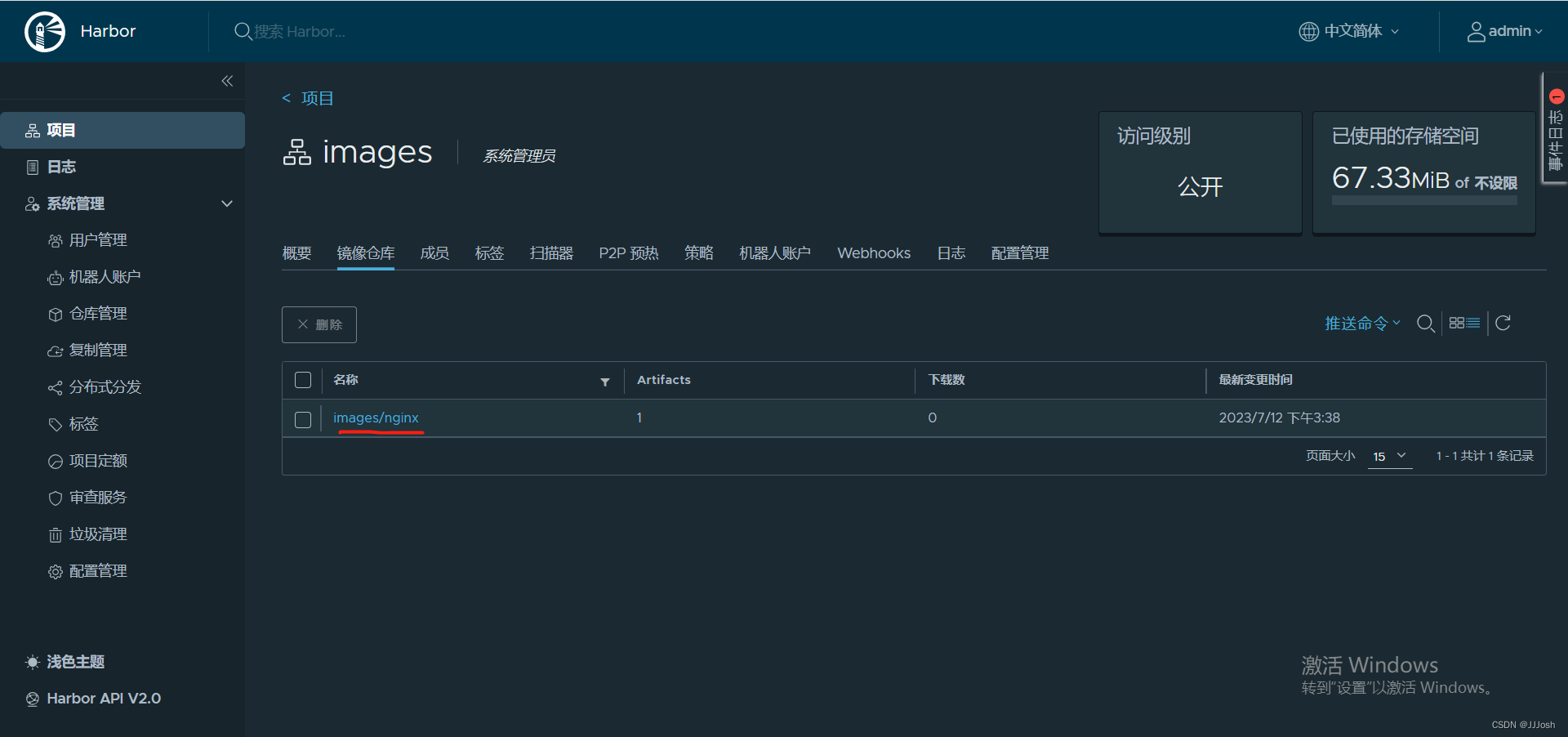
harbor上镜像 拉取
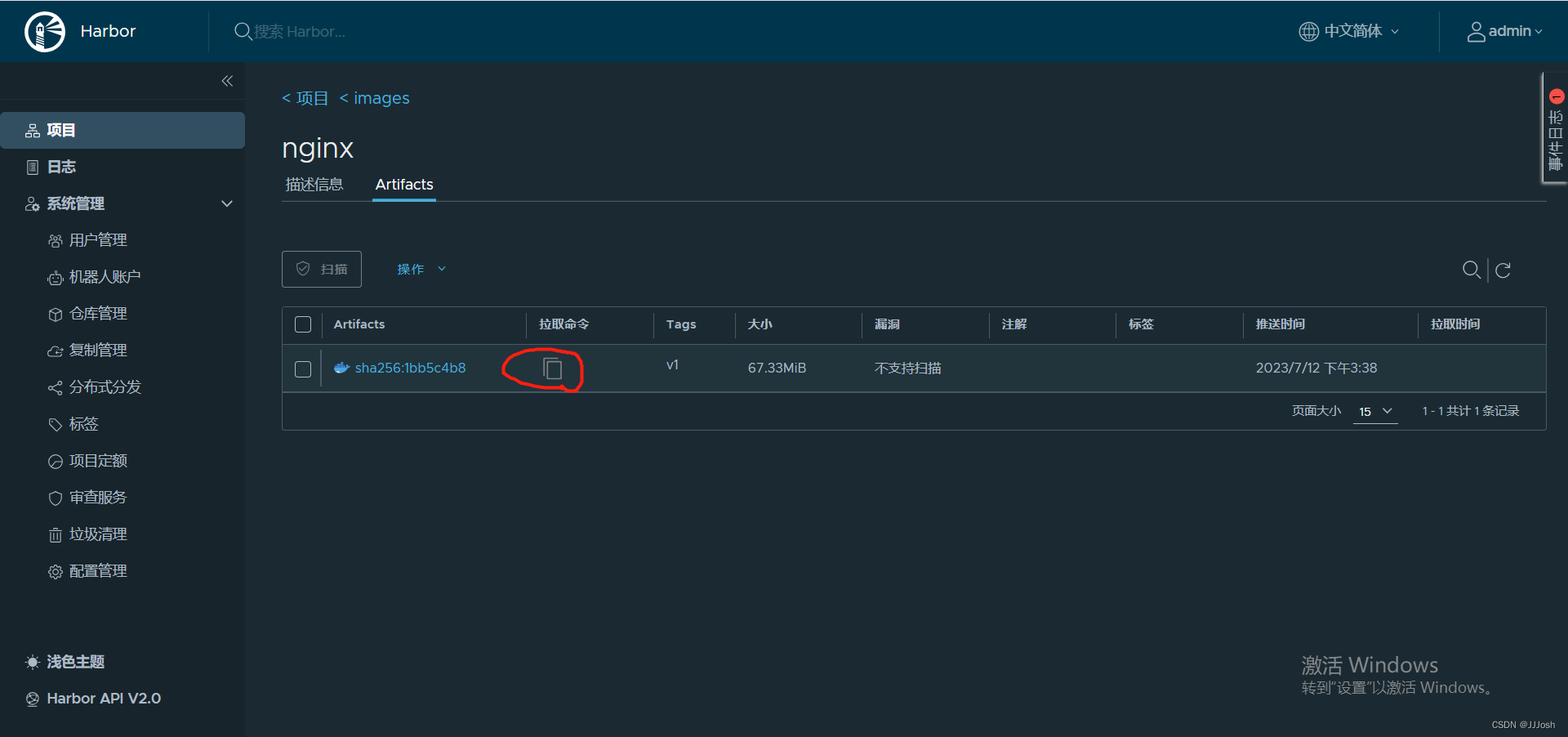
$ docker pull 192.168.37.211/images/nginx@sha256:1bb5c4b86cb7c1e9f0209611dc2135d8a2c1c3a6436163970c99193787d067ea
二、docker网络
- docker网络类型(5种)
bridge
默认模式,使用较多,该模式下创建的容器会为每一个容器都分配独立的网络IP,并将容器连接到 docker0 这个虚拟网桥上并通过 docker0 与外通信
host
host模式,使用 --net=host 指定
该模式下,创建的容器 直接使用宿主机的网卡和IP地址,所以容器中看到的IP信息即为宿主机的信息,访问容器时直接使用 宿主机的IP+容器端口
网络性能最高,但各容器间端口不能相同,且不支持端口映射(-p),适用于运行容器端口较为固定的业务
none
none模式,使用 --net=none 指定
该模式下,Docker容器不会有任何网络配置,无法与外部通信,使用较少
container
container模式,使用 --net=container:容器名或ID 指定
该模式下,创建的容器与一个已建立的容器共享其网络,这个容器的端口不能和被指定的容器的端口冲突,除了网络之外的文件系统、进程信息等仍然保持相互隔离,两个容器可以通过lo网卡和容器IP进行通信
自定义
基于docker命令创建的自定义网络,可以自定义IP地址范围和网关等信息
三、利用 docker-compose 组装一个多容器的服务(nginx、mysql、php)
1. 安装docker-compose
$ wget https://github.com/docker/compose/releases/download/v2.17.3/docker-compose-linux-x86_64
$ cp docker-compose-Linux-x86_64 /usr/bin/docker-compose
$ chmod a+x /usr/bin/docker-compose
验证版本
$ docker-compose version
Docker Compose version v2.17.3
2. 目录结构
根据该目录结构建立相关文件文件夹
.
├── docker-compose.yml
├── wordpress
│   ├── mysql
│   │   ├── conf
│   │   └── data
│   ├── nginx
│   │   ├── build-command.sh
│   │   ├── Dockerfile
│   │   └── nginx.conf
│   │   └── nginx-1.14.2.tar.gz
│   └── php
│       ├── build-command.sh
│       ├── Dockerfile
│       ├── run_php.sh
│       └── www.conf
└── wwwroot
    ├── index.html
    └── test.php
3. mysql配置
配置一个简单的my.cnf
$ cd /opt/cd

$ cat wordpress/mysql/conf/my.cnf
[mysqld]
user = mysql
basedir = /usr/local/mysql
datadir = /var/lib/mysql
port = 3306
server-id = 1
socket = /var/run/mysql/mysql.sock
pid-file = /var/run/mysqld/mysql.pid
4. nginx配置
nginx Dockfile
FROM 192.168.37.106/baseimages/centos-base:v7.9.2009

MAINTAINER  wangjiaqi

RUN yum install -y vim wget tree  lrzsz gcc gcc-c++ automake pcre pcre-devel zlib zlib-devel openssl openssl-devel iproute net-tools iotop
ADD nginx-1.14.2.tar.gz /usr/local/src/
RUN cd /usr/local/src/nginx-1.14.2 && ./configure  && make && make install && ln -sv  /usr/local/nginx/sbin/nginx /usr/sbin/nginx && useradd nginx -u 2001 &&rm -rf /usr/local/src/nginx-1.14.2.tar.gz

ADD nginx.conf /usr/local/nginx/conf/nginx.conf

EXPOSE 80

CMD ["/usr/local/nginx/sbin/nginx","-g","daemon off;"]
nginx.conf
user  root;
worker_processes  auto;

#error_log  logs/error.log;
#error_log  logs/error.log  notice;
#error_log  logs/error.log  info;

#pid        logs/nginx.pid;

#daemon off;

events {
    worker_connections  1024;
}


http {
    include       mime.types;
    default_type  application/octet-stream;

    #log_format  main  '$remote_addr - $remote_user [$time_local] "$request" '
    #                  '$status $body_bytes_sent "$http_referer" '
    #                  '"$http_user_agent" "$http_x_forwarded_for"';

    #access_log  logs/access.log  main;

    sendfile        on;
    #tcp_nopush     on;

    keepalive_timeout  65;
    client_max_body_size 10M;
    client_body_buffer_size 16k;
    client_body_temp_path  /usr/local/nginx/tmp   1 2 2;
    gzip  on;


    server {
        listen       80;
        server_name  localhost;
        root         html;
        index        index.html index.php;
        #charset koi8-r;

        #access_log  logs/host.access.log  main;

        location ~ \.php$ {
            root           html;
            fastcgi_pass   php-cgi:9000;
            fastcgi_index  index.php;
            #fastcgi_param  SCRIPT_FILENAME  /scripts$fastcgi_script_name;
            fastcgi_param  SCRIPT_FILENAME  $document_root$fastcgi_script_name;
             include        fastcgi_params;
        }
}
5. php配置
php Dockerfile
FROM 192.168.37.106/baseimages/centos-base:v7.6

MAINTAINER  wangjiaqi

RUN yum install -y epel-release
RUN useradd nginx -u 2001 && rpm -ivh https://mirrors.tuna.tsinghua.edu.cn/remi/enterprise/remi-release-7.rpm && yum install  php56-php-fpm php56-php-mysql -y
ADD www.conf /opt/remi/php56/root/etc/php-fpm.d/www.conf
ADD run_php.sh /usr/local/bin/run_php.sh
EXPOSE 9000

CMD ["/usr/local/bin/run_php.sh"]
www.conf
改: listen = 0.0.0.0:9000
注释: ;listen.allowed_clients
run_php.sh
#!/bin/bash
/opt/remi/php56/root/usr/sbin/php-fpm
tail -f /etc/hosts
6. 测试页面
index.html
$ vim index.html
www
test.php
vim test.php
<?php
  phpinfo();
?>
7. 创建 docker-compose.yml
$ cd /opt/dc

vim docker-compose.yml

services:
 nginx:
  hostname: nginx  #主机名
  image: 192.168.37.106/linux36/php-nginx:v1
  expose:
    - 80
  ports:
    - "80:80"
  links:
    - php:php-cgi  #设一个别名,可与nginx容器能ping通php
  volumes:  #定义一个数据卷挂载
    - ./wwwroot:/usr/local/nginx/html

 mysql:
  hostname: mysql
  image: 192.168.37.106/linux36/mysql:5.7
  expose:
    - 3306
  ports:
    - "3306:3306"
  volumes:
    - ./wordpress/mysql/conf:/etc/mysql/conf.d
    - ./wordpress/mysql/data:/var/lib/mysql
  environment:
    MYSQL_ROOT_PASSWORD: 123456
    MYSQL_DATABASE: wordpress
    MYSQL_USER: wordpress
    MYSQL_PASSWORD: wordpress

 php:
  hostname: php
  image: 192.168.37.106/linux36/wordpress-php-5.6:v1
  expose:
    - 9000
  ports:
    - "9000:9000"
  volumes:  #因为需要php处理.php后缀文件再转发回nginx,所以定义一个数据卷挂载到一起
    - ./wwwroot:/usr/local/nginx/html
  links:
    - mysql:mysql-db
启动
$ docker-compose up -d
[+] Running 3/3
 ✔ Container dc-mysql-1  Started                                                                                13.8s
 ✔ Container dc-php-1    Started                                                                                13.0s
 ✔ Container dc-nginx-1  Started                                                                                 3.5s
$ docker-compose ps
NAME                IMAGE                                         COMMAND                  SERVICE             CREATED             STATUS              PORTS
dc-mysql-1          192.168.37.106/linux36/mysql:5.7              "docker-entrypoint.s…"   mysql               4 hours ago         Up 4 hours          0.0.0.0:3306->3306/tcp, :::3306->3306/tcp, 33060/tcp
dc-nginx-1          192.168.37.106/linux36/php-nginx:v1           "/usr/local/nginx/sb…"   nginx               4 hours ago         Up 4 hours          0.0.0.0:80->80/tcp, :::80->80/tcp
dc-php-1            192.168.37.106/linux36/wordpress-php-5.6:v1   "/usr/local/bin/run_…"   php                 4 hours ago         Up 4 hours          0.0.0.0:9000->9000/tcp, :::9000->9000/tcp
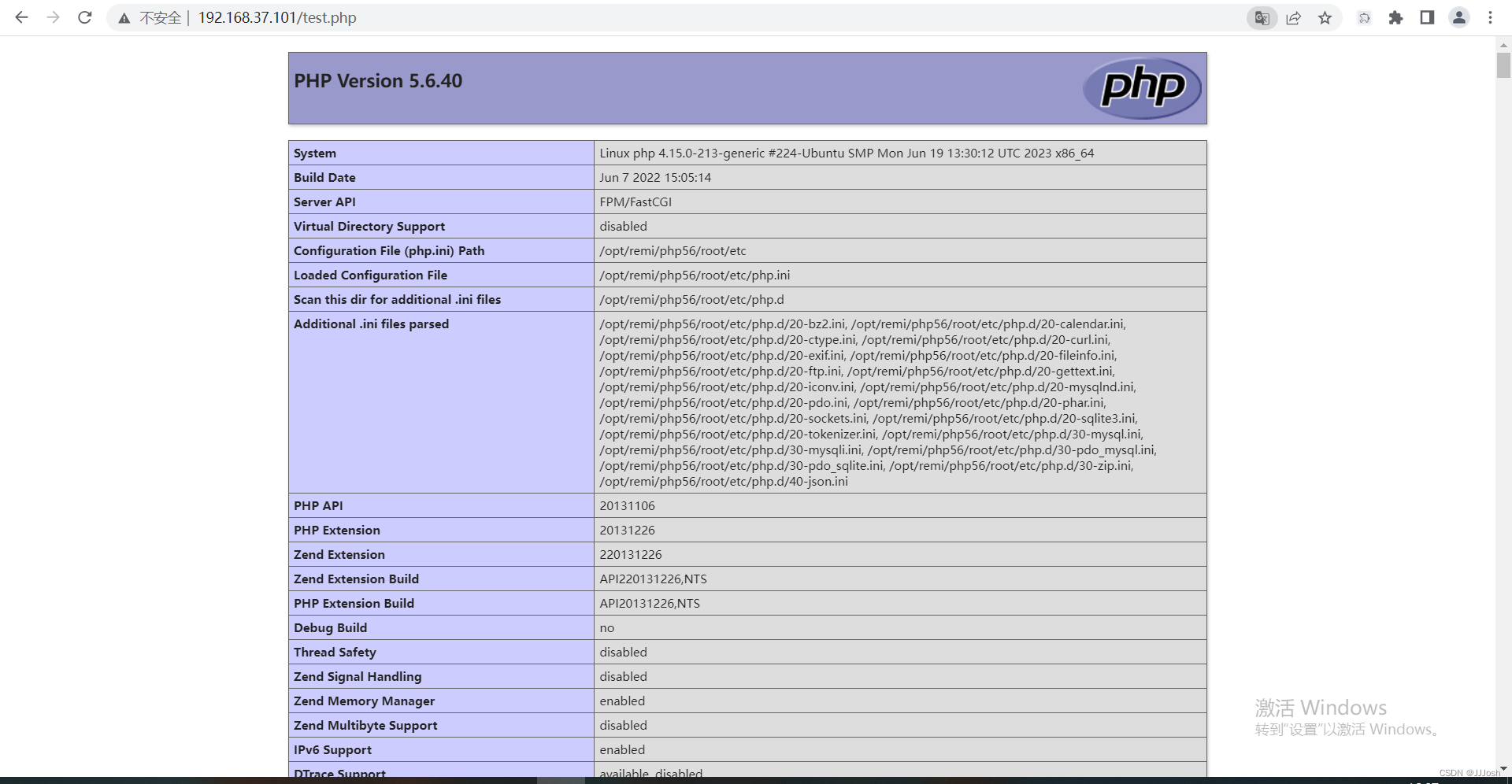
8. 测试
nignx:

php:
mysql:
$ mysql -uwordpress -pwordpress -h127.0.0.1

mysql: [Warning] Using a password on the command line interface can be insecure.
Welcome to the MySQL monitor.  Commands end with ; or \g.
Your MySQL connection id is 4
Server version: 5.7.40 MySQL Community Server (GPL)

Copyright (c) 2000, 2023, Oracle and/or its affiliates.

Oracle is a registered trademark of Oracle Corporation and/or its
affiliates. Other names may be trademarks of their respective
owners.

Type 'help;' or '\h' for help. Type '\c' to clear the current input statement.

mysql>show databases;
+--------------------+
| Database           |
+--------------------+
| information_schema |
| wordpress          |
+--------------------+
2 rows in set (0.00 sec)
之后如果有想要执行的php程序,解压放进 /opt/dc/wwwroot/ 下即可





 扫一扫
扫一扫


 1万+
1万+

 被折叠的 条评论
为什么被折叠?
被折叠的 条评论
为什么被折叠?
 到【灌水乐园】发言





