


一、简单说明
本人最近在用若依的微服务框架开发,在开发PDF上传预览时(上传到后端部署的服务器上),问AI以及查看若依文档花费了比较多的时间(我比较菜),所以在这里整理一下实现方法,仅仅是单模块的,供大家参考。
二、PDF上传
1、引用依赖
给自己的服务引用开发 Web 应用的核心依赖,在文件上传方面,spring-boot-starter-web间接引入了处理 multipart 请求的相关类库,实现文件上传功能时,只需要在 Controller 中使用MultipartFile类型接收上传的文件即可。
<dependency>
    <groupId>org.springframework.boot</groupId>
    <artifactId>spring-boot-starter-web</artifactId>
</dependency>
2、配置文件
1)、首先是自定义的文件上传配置,这里包括文件保存路径以及文件大小的限制(10MB),配置在配置文件中,方便使用和后续修改。
2)、其次是spring的文件上传参数,这里也是本人踩过的坑,如果只设置了自定义的配置,上传文件时文件大小会被tomcat限制,只能1MB,所以需要在这里配置好。
#文件上传配置
file:
  upload:
    base-dir: D:/test/upload/
    max-size: 10485760

#spring配置
spring:
  #上传文件限制
  servlet:
    multipart:
      enabled: true
      max-file-size: 10MB
      max-request-size: 10MB
      file-size-threshold: 0B
3、前端代码
1)、页面部分
<el-form-item label="上传文件" class="full-width">
    <el-upload
        class="upload-demo"
        drag
        :limit="1"
        accept=".pdf"
        :action="upload.url"
        :headers="upload.headers"
        :file-list="upload.fileList"
        :before-upload="beforeUpload"
        :on-progress="handleFileUploadProgress"
        :on-success="handleUploadSuccess"
        :on-error="handleUploadError"
        :disabled="!canUpload"
        :multiple="false"
        :data="{
            test1: form.test1,
            test2: form.test2
        }">
        <i class="el-icon-upload"></i>
        <div class="el-upload__text">将PDF文件拖到此处,或<em>点击上传</em></div>
        <div class="el-upload__tip" slot="tip">
            只能上传PDF文件,且不超过10MB<br>
        </div>
     </el-upload>
</el-form-item>
这里将文件拖到上传区域之后,会自动向后端发请求,请求地址是upload.url,带的数据是文件本身,以及test1,test2两个参数。
2)、方法部分
<script>
import { getToken } from "@/utils/auth";


export default {
  data() {
    return {
      canUpload: false,
      upload: {
        // 是否禁用上传
        isUploading: false,
        // 设置上传的请求头部
        headers: { Authorization: "Bearer " + getToken() },
        // 上传的地址
        url: process.env.VUE_APP_BASE_API + "/master/test/upload",
        // 上传的文件列表
        fileList: []
      },
      previewVisible: false,  // 预览弹窗是否显示
      previewUrl: ''          // PDF 预览的 URL(后端文件访问地址)
    }
  }
  methods: {
    // 文件上传中处理
    handleFileUploadProgress(event, file, fileList) {
      this.upload.isUploading = true;
    },
    // 上传失败处理
    handleUploadError(error) {
      this.$message.error('文件上传失败,请重试')
      console.error('上传错误:', error)
    },
    // 上传成功处理
    handleUploadSuccess(response, file, fileList) {
      if (response.code === 200) {
        this.$message.success('文件上传成功')
        // 保存后端返回的文件路径
        this.form.location = response.location
        this.form.fileName = response.fileName
        this.upload.fileList = [{ name: this.form.fileName, url: this.form.location }];
      } else {
        this.$message.error(`上传失败: ${response.msg || '未知错误'}`)
      }
    },
    // 上传前验证
    beforeUpload(file) {
      // 验证文件类型
      const isPDF = file.type === 'application/pdf' || file.name.toLowerCase().endsWith('.pdf')
      // 验证文件大小(10MB)
      const isLt10M = file.size / 1024 / 1024 < 10

      if (!isPDF) {
        this.$message.error('只能上传PDF格式的文件!')
        return false
      }
      if (!isLt10M) {
        this.$message.error('上传文件大小不能超过10MB!')
        return false
      }

      // 验证路径参数是否完整
      if (!this.form.test1|| !this.form.test2) {
        this.$message.error('请先填写test1和test2!')
        return false
      }

      return true
    },
    // test1,2,3变化时更新上传限制
    handlePathChange() {
      if (this.form.test1 && this.form.test2 && this.form.test3) {
        this.canUpload = true
      } else {
        this.canUpload = false
      }
    }
  }
}
</script>
这里的canUpload,form.test1,test2,test3都是业务需要,大家可以自行去除。
form.location和form.fileName都需要在数据库中保存,可以提前配置好字段,方便后续的修改和预览。上传完成后,会在response中返回,大家自己写方法保存就好,这里不做过多展示。
4、后端代码
@RestController
@RequestMapping("/master/test")
public class TestController {

@Value("${file.upload.base-dir}")
private String baseDir;

@Value("${file.upload.max-size}")
private long maxSize;

@PostMapping("/upload")
    public AjaxResult upload(@RequestParam("file") MultipartFile file,
                             @RequestParam("test1") String test1,
                             @RequestParam("test2") String test2) {
        try {
            // 1. 校验参数合法性
            if (file.isEmpty()) {
                return AjaxResult.error("上传文件不能为空");
            }
            if (StringUtils.isBlank(test1) || StringUtils.isBlank(test2)) {
                return AjaxResult.error("test1和test2不能为空");
            }
            // 2. 校验文件大小
            if (file.getSize() > maxSize) {
                return AjaxResult.error("文件大小超过10MB限制");
            }

            // 2. 校验路径安全性(防止路径遍历攻击)
            if (test1.contains("..") || test2.contains("..") ||
                    test1.contains("/") || test2.contains("\\")) {
                return AjaxResult.error("路径参数不合法");
            }

            // 3. 构建目标路径:基础路径 + test1+ test2
            File targetDir = new File(new File(new File(baseDir), test1), test2);
            String filePath = targetDir.getAbsolutePath() + File.separator;

            // 4. 上传文件
            String fileName = FileUploadUtils.upload(filePath, file, MimeTypeUtils.DEFAULT_ALLOWED_EXTENSION);

            // 5. 构建完整访问路径(根据实际部署情况调整)
            String fullPath = new File(targetDir, fileName).getAbsolutePath();
            fileName = FilenameUtils.getName(fileName);
            String accessUrl = Constants.RESOURCE_PREFIX + "/" + test1+ "/" + test2+ "/" + fileName;

            AjaxResult ajax = AjaxResult.success();
            ajax.put("location", accessUrl);
            ajax.put("fileName", fileName);
            return ajax;

        } catch (IOException e) {
            return AjaxResult.error("文件上传失败:" + e.getMessage());
        } catch (Exception e) {
            return AjaxResult.error("上传异常:" + e.getMessage());
        }
    }
}
后端中,本人通过test1和test2两个参数建立保存的位置,大家不需要的直接去除掉。
至此,文件上传部分的所有代码以及写好了,如果有鉴权错误,大家可以在网关服务的配置中加上下面一行,这样可以去掉权限鉴定,但是我们前面加了token,应该不需要。
  # 不校验白名单
  ignore:
    whites:
      - /profile/**
三、PDF预览
1、前端代码
前面文件上传时我们已经引用好了相关的配置,所以先给大家展示效果,然后直接上代码。
大家不要忘记之前的location和fileName的保存,这里预览时需要用到。
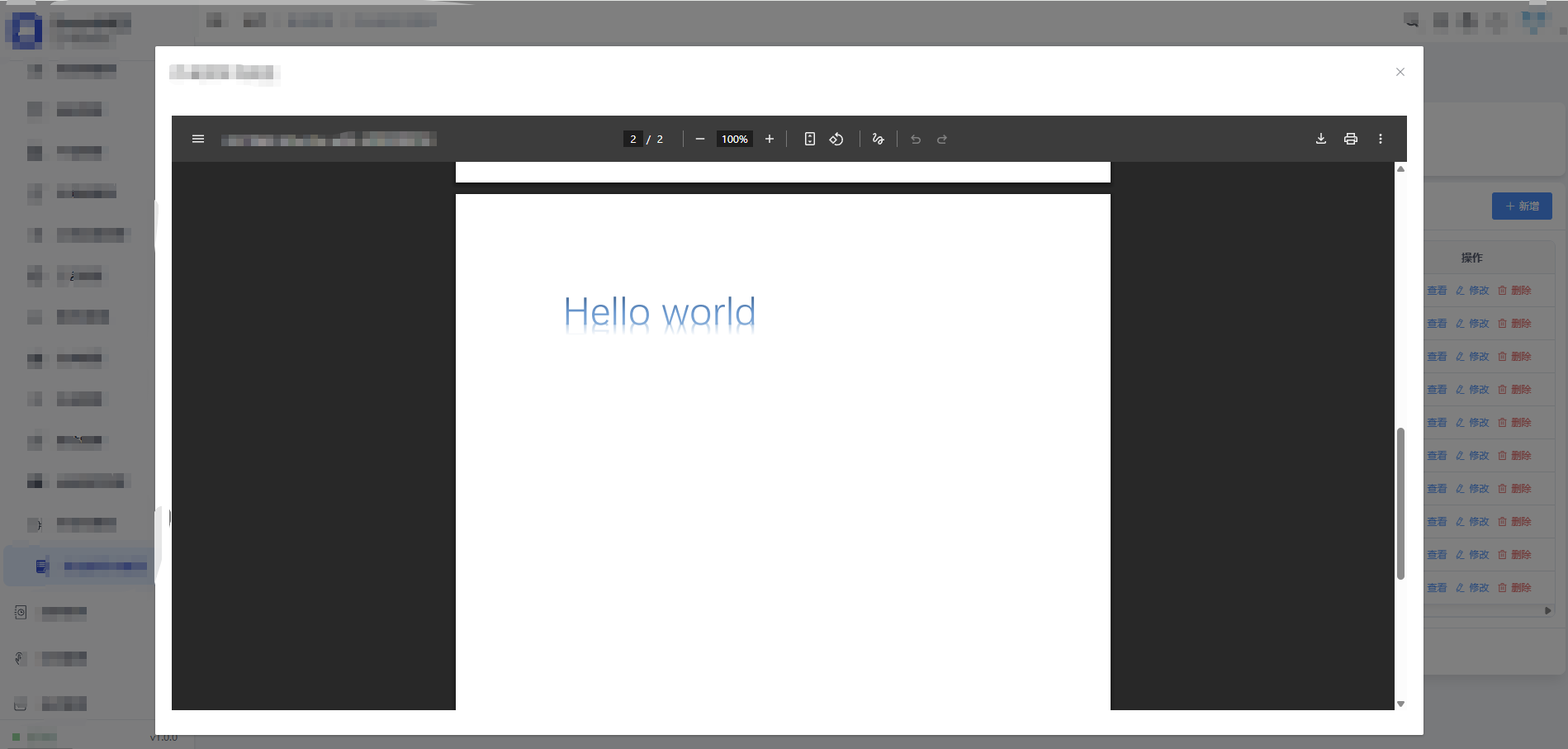
1)、页面部分
<el-dialog
      title="作业指导书预览"
      :visible.sync="previewVisible"
      width="80%"
      height="90vh"
    :close-on-click-modal="false"
    >
    <div style="width: 100%; height: calc(90vh - 100px);">
      <!-- 核心:用 iframe 加载 PDF,src 为后端文件访问 URL -->
      <iframe
        :src="previewUrl"
        style="width: 100%; height: 100%; border: none;"
        frameborder="0"
      ></iframe>
      <!-- 降级提示:若浏览器不支持 PDF 预览 -->
      <div v-if="!previewUrl" style="text-align: center; padding: 50px;">
        <el-icon size="48" style="color: #909399;"><InfoFilled /></el-icon>
        <p style="margin-top: 10px; color: #606266;">暂无预览文件</p>
      </div>
    </div>
</el-dialog>
2)、方法部分
<script>
import { getToken } from "@/utils/auth";
import axios from "axios";


export default {
  data() {
    return {
      previewVisible: false,  // 预览弹窗是否显示
      previewUrl: ''          // PDF 预览的 URL(后端文件访问地址)
    }
  }
  methods: {
    //预览pdf文件
    handleView(row) {
      const fileLocation = row.location
      this.previewUrl = `${process.env.VUE_APP_BASE_API}/master/test/files?location=${encodeURIComponent(fileLocation)}`;

      // 调用接口前,加入 Authorization 头
      axios.get(this.previewUrl, {
        headers: {
          Authorization: "Bearer " + getToken() // 添加令牌到请求头
        },
        responseType: 'blob'
      }).then((response) => {
        // 如果请求成功,显示预览
        this.previewUrl = URL.createObjectURL(new Blob([response.data], { type: 'application/pdf' }));
        this.previewVisible = true;
      }).catch((error) => {
        this.$message.error('文件加载失败,可能是令牌无效或文件不存在');
      });
    },
  }
}
</script>
本人将handleView(row)方法放在了表格的操作栏中,这里不做展示,大家可以自行放置。
这里一定要加上responseType: 'blob' 不然获取的展示不出来PDF。
row.location就是之前我们上传时返回的location,需要保存在数据库中,然后在这里拿到它。
2、后端代码
@RestController
@RequestMapping("/master/test")
public class TestController {

@Value("${file.upload.base-dir}")
private String baseDir;

@Value("${file.upload.max-size}")
private long maxSize;

@GetMapping("/files")
    public void getFile(@RequestParam("location") String location,
                        @RequestHeader("Authorization") String token,  // 获取请求头中的令牌
                        HttpServletResponse response) throws IOException {

        String filePath = location.replace(Constants.RESOURCE_PREFIX + "/", baseDir + File.separator);

        // 获取文件路径
        File file = new File(filePath);
        if (!file.exists()) {
            response.setStatus(HttpServletResponse.SC_NOT_FOUND);  // 404 文件未找到
            return;
        }

        // 设置响应头和文件内容类型
        response.setContentType("application/pdf");

        // 输出文件内容
        Files.copy(file.toPath(), response.getOutputStream());
        response.getOutputStream().flush();
    }
}
至此,预览方法也结束了,因为是前段时间做的,所以如果哪里有问题大家可以再问我。下载方法暂时没有写,因为业务不需要,后续如果有需求我再补充进来。





 扫一扫
扫一扫


 6415
6415

 被折叠的 条评论
为什么被折叠?
被折叠的 条评论
为什么被折叠?
 到【灌水乐园】发言





