



 本文介绍了如何使用C#通过DataSet操作将数据库中的数据填充到Word模板中,并演示了如何配置OfficeDCOM,执行遍历和替换操作以实现批量打印功能。作者还提供了核心代码示例和注意事项,包括字段类型判断及分页处理。
目录
应用需求
将数据库数据表中的数据输出并打印,WORD 是一个良好的载体, 在应用项目里,许多情况下我们会使用数据记录结合 WORD 标签模板进行配合,输出数据进行打印的功能需求。
实现步骤
1、设计WORD模板,在需要输出值的地方设置 自定义关键字+字段名(如%%_name),其中%%_为自定义关键字,name为输出字段名。
2、根据条件查询数据表,生成 DataSet ,如果有数据则取 Tables[0]里的数据记录。
3、拷贝 WORD 全部内容到剪贴板做模板数据。
4、遍历数据表记录,粘贴剪贴板内容, 按照自定义关键+列名称,在 WORD 中按关键字查找,并替换成对应的实际数据,完成输出。
举例我们需要提取人员的基本信息生成准考证并打印如下图:
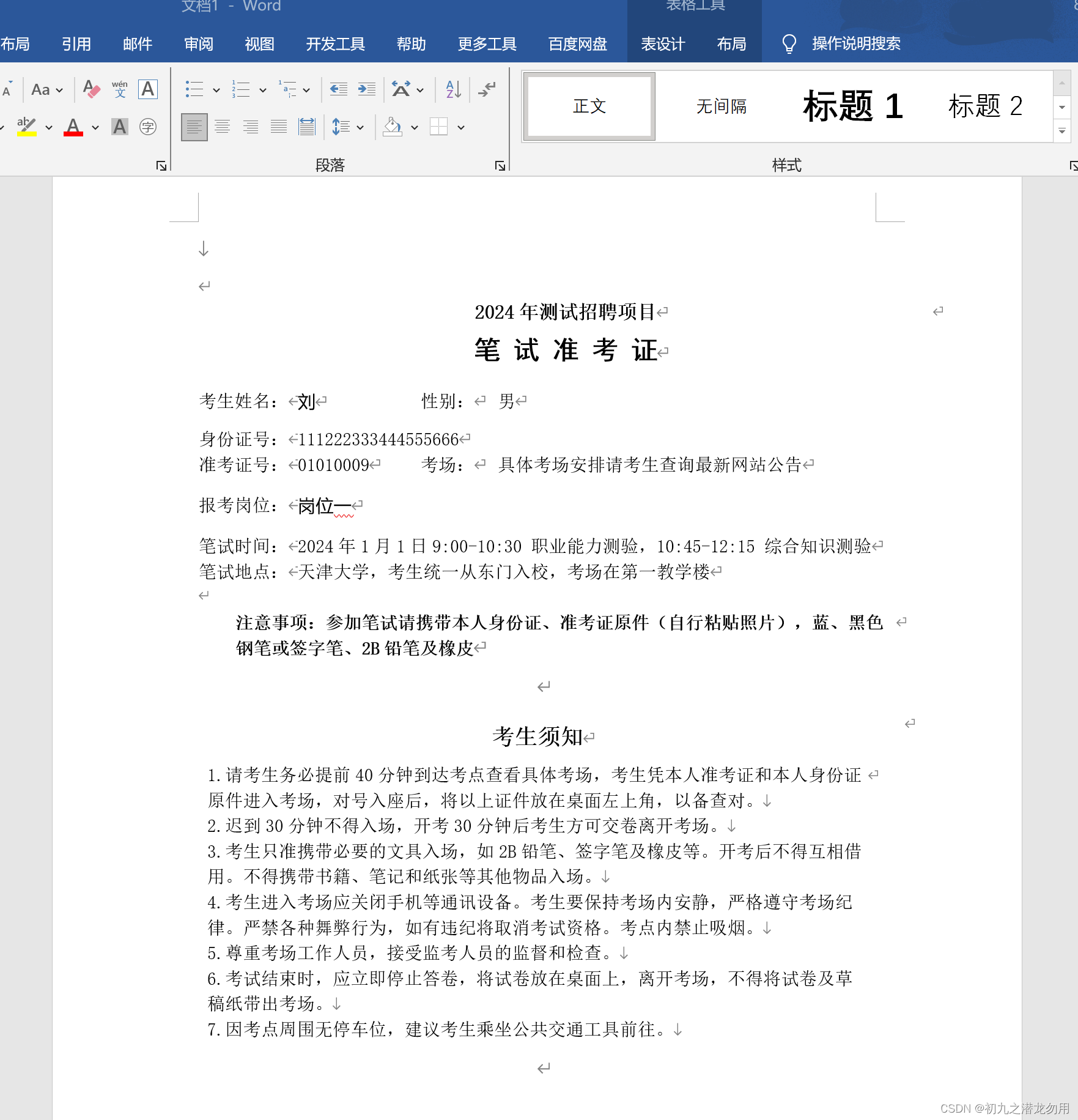
根据以上的结果输出,我们需要设置如下图标签模板:
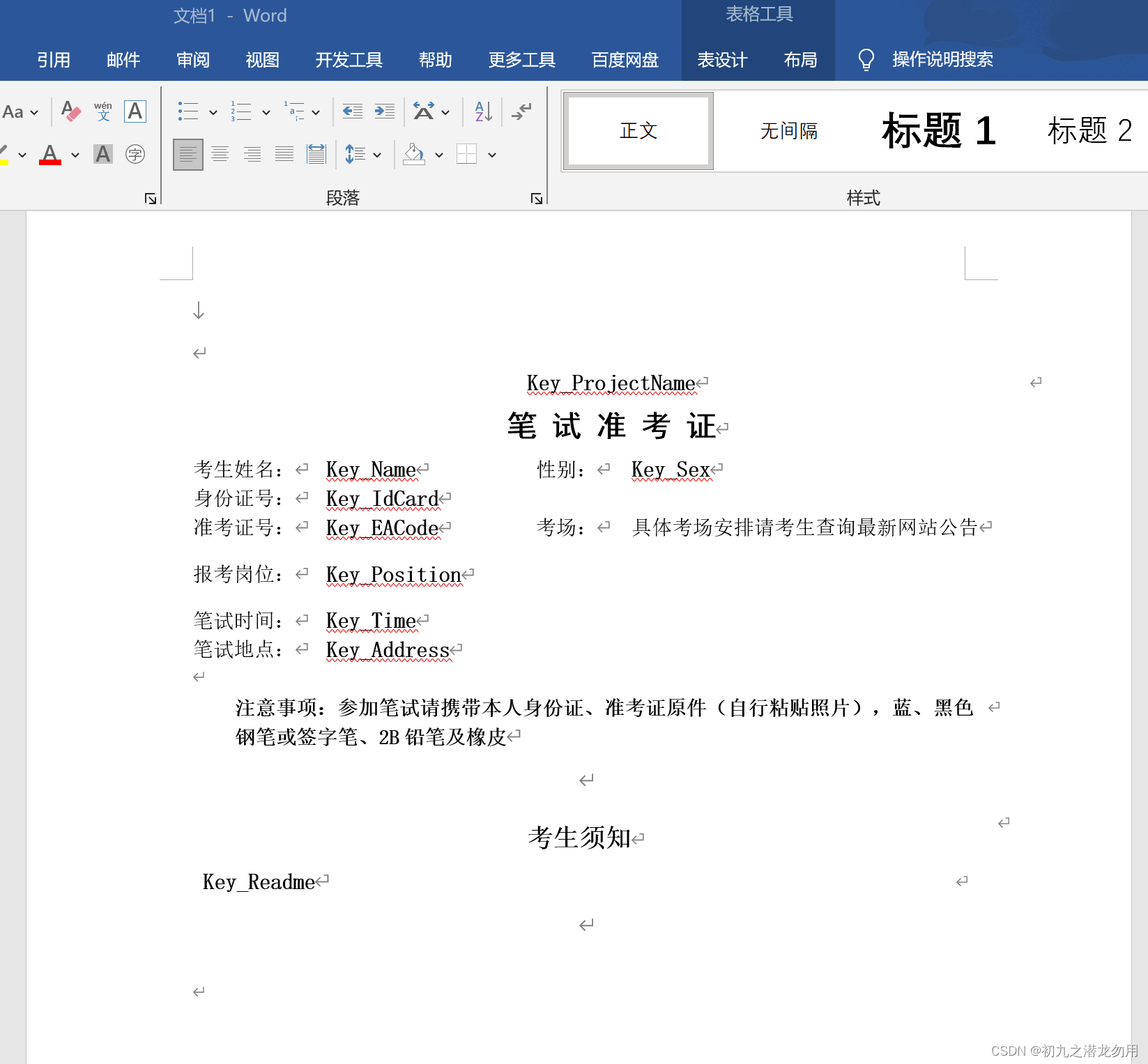
如图我们准备SQL语句如:select ProjectName,Name,Sex,IdCard,EACode,Position,Time,Address from infos where ... 并生成数据表。
其中 “ key_” 则为自定义关键字,后缀则对应查询输出字段名。
范例运行环境
操作系统: Windows Server 2019 DataCenter
操作系统上安装 Office Word 2016
数据库:Microsoft SQL Server 2016
.net版本: .netFramework4.7.1 或以上
开发工具:VS2019 C#
配置Office DCOM
配置方法可参照我的文章《C# 读取Word表格到DataSet》进行处理和配置。
实现代码
组件库引入

核心代码
public string DataTableToWord(string _filename,string _repeatKey,object _dataset),该方法提供3个参数,WORD模板文件名、自定义关键字、System.Data.DataSet。
public void DataTableToWord(string _filename,string _repeatKey,object _dataset)
        {
            Object Nothing = System.Reflection.Missing.Value;
            object filename = _filename;
            //创建一个名为WordApp的组件对象
            Word.Application WordApp = new Word.Application();
            //创建一个名为WordDoc的文档对象
            WordApp.DisplayAlerts = Word.WdAlertLevel.wdAlertsNone;

            Word.Document WordDoc = WordApp.Documents.Open(ref filename, ref Nothing, ref Nothing, ref Nothing, ref Nothing, ref Nothing, ref Nothing, ref Nothing, ref Nothing, ref Nothing, ref Nothing, ref Nothing, ref Nothing, ref Nothing, ref Nothing, ref Nothing);

            WordDoc.SpellingChecked = false;//关闭拼写检查

            WordDoc.ShowSpellingErrors = false;//关闭显示拼写错误提示框

				WordApp.Selection.WholeStory();
				WordApp.Selection.Cut();
			 	DataSet ds=(DataSet)_dataset;
				System.Data.DataTable  dt=ds.Tables[0];
				for(int i=0;i<dt.Rows.Count;i++)
				{
					WordApp.Selection.Paste();
					for(int j=0;j<dt.Columns.Count;j++)
					{

						string _repKey=_repeatKey+dt.Columns[j].ColumnName.ToString();
						string _repValue=string.Format("{0}",dt.Rows[i][j].ToString());

						bool isPhoto=false;
						if(dt.Columns[j].DataType==typeof(System.Byte[]))
						{
							isPhoto=true;
							_repValue="";
						}


						WordApp.Options.ReplaceSelection=true;
						Word.Find fnd = WordApp.Selection.Find;
						fnd.ClearFormatting();

						Object findText = _repKey;
						Object matchCase = false;
						Object matchWholeWord = Type.Missing;
						Object matchWildcards = false;
						Object matchSoundsLike = false;
						Object matchAllWordForms = false;
						Object forward = true;
						Object wrap =Word.WdFindWrap.wdFindContinue;
						Object format = false;
						Object replaceWith ="";
						Object replace =Type.Missing;;
						Object matchKashida = Type.Missing;
						Object matchDiacritics = Type.Missing;
						Object matchAlefHamza = Type.Missing;
						Object matchControl = Type.Missing;


						while(fnd.Execute(ref findText, ref matchCase, ref matchWholeWord,ref matchWildcards, ref matchSoundsLike, ref matchAllWordForms,
							ref forward, ref wrap, ref format, ref replaceWith,ref replace, ref matchKashida, ref matchDiacritics,ref matchAlefHamza, ref matchControl))
						{

							string r_f=WordApp.Selection.Font.Name.ToString();


							WordApp.Selection.Range.Text=_repValue;
							if(isPhoto==true)
							{
								string _jpgfile=_path+System.Guid.NewGuid()+".jpg";
                                if (dt.Rows[i][j] == System.DBNull.Value)
                                {
                                    continue;
                                }
								byte[] filedata = (byte[])dt.Rows[i][j];
								System.IO.MemoryStream ms = new MemoryStream(filedata);
								System.Drawing.Image img1 = System.Drawing.Image.FromStream(ms);
								img1.Save(@_jpgfile);
								ms.Close();
								object m1=Type.Missing;
								object m2=Type.Missing;
								object m3=Type.Missing;

								Word.InlineShape pic= WordApp.Selection.InlineShapes.AddPicture(@_jpgfile,ref m1,ref m2,ref m3);
								int def_width=240;
								int def_height=320;
								foreach(Word.Bookmark bm in  WordApp.ActiveDocument.Bookmarks)
								{
									string _findkey=_repKey+"_";
									int _f1=bm.Name.IndexOf(_findkey);
									if(_f1==0 && bm.Name.Length>(_findkey.Length))
									{
										string[] _paras=bm.Name.Substring(_findkey.Length,bm.Name.Length-_findkey.Length).Split('_');
										if(_paras.GetLength(0)>1){
											def_width=int.Parse(_paras[0]);
											def_height=int.Parse(_paras[1]);
										}
									}
								}
								pic.Width=def_width;
								pic.Height=def_height;
//								_repValue=string.Format("{0},{1},{2},{3},{4}",_p1,_p2,_p3,def_width,def_height);
								File.Delete(@_jpgfile);
							}

						}
					}

					object dummy = System.Reflection.Missing.Value;
					object what = Word.WdGoToItem.wdGoToLine;
					object which = Word.WdGoToDirection.wdGoToLast;
					object count = System.Reflection.Missing.Value;
//					WordApp.Selection.GoTo(ref oGoToItem, ref oGoToLast, ref Nothing, ref Nothing);
					WordApp.Selection.GoTo(ref what, ref which, ref count, ref dummy);
					//default 表示每行记录之间插入分页符,最后一行时不再插入分页符,以免造成多余一空白页
    				if(i!=dt.Rows.Count-1)
						{
							object ib = Word.WdBreakType.wdPageBreak;
							WordApp.Selection.InsertBreak(ref ib);
						}
					}

             }
			WordDoc.Save();
            WordDoc.Close(ref Nothing, ref Nothing, ref Nothing);
			//关闭WordApp组件对象
			WordApp.Quit(ref Nothing, ref Nothing, ref Nothing);

}
小结
1、核心代码中有对字段类型的判断:if(dt.Columns[j].DataType==typeof(System.Byte[])),如果为System.Byte[],则表示为图片类型字段,这是我们自行的约定,对于图片的宽高可以根据实际需要进行设定或定义参数。
2、在根据模板内容,每输出一条记录后,均会插入分页符:
object ib = Word.WdBreakType.wdPageBreak;
WordApp.Selection.InsertBreak(ref ib);
以保证打印的数据区域独立和完整性,这要根据实际应用来决定是否输出。
这些代码我们提供了一些操作WORD相关的关键方法,这里仅作参考,欢迎大家评论指教!





 扫一扫
扫一扫


 7241
7241


 到【灌水乐园】发言



