


 本文介绍了如何使用Spring Boot配置MinIO对象存储服务,并结合Vue实现图片的上传和预览功能。首先,文章简述了MinIO的特性以及在Linux上的安装运行步骤。接着,展示了Spring Boot中MinIO的配置、API依赖和接口调用。最后,详细讲解了Vue组件如何调用接口完成图片上传和预览,并展示了前后端效果。
一、MinIO简介及Linux安装运行
1、简介
MinIO 是一个基于Apache License v2.0开源协议的对象存储服务。它兼容亚马逊S3云存储服务接口,非常适合于存储大容量非结构化的数据,例如图片、视频、日志文件、备份数据和容器/虚拟机镜像等,而一个对象文件可以是任意大小,从几kb到最大5T不等。
MinIO是一个非常轻量的服务,可以很简单的和其他应用的结合,类似 NodeJS, Redis 或者 MySQL。
这里仅描述API的简单应用。
2、在Linux安装运行
官方中文文档:https://docs.min.io/cn/minio-quickstart-guide.html
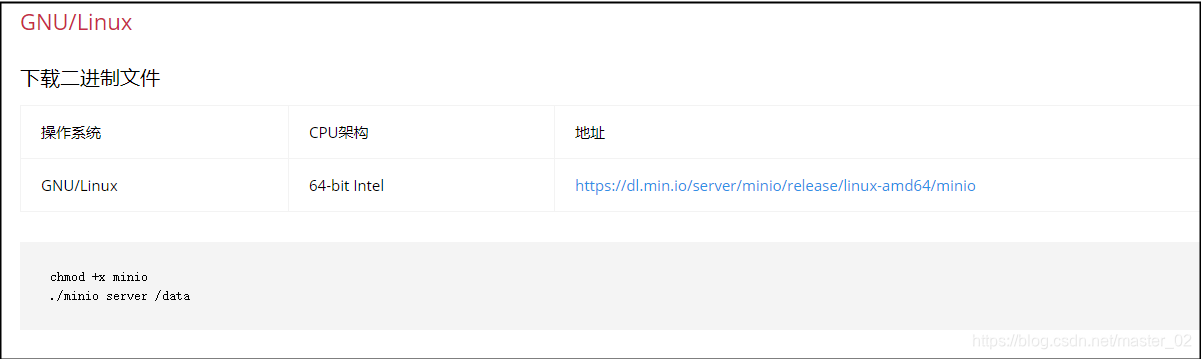
按照地址下载执行文件,放在指定目录下,
(1)、执行截图中的命令可快速把服务运行起来。
(2)、上面(1)是快速启动,一旦关闭命令窗口服务就挂了。下面命令可实现关闭命令窗口仍可运行并且能够设置账号密码、生成日志。
cd /root
# 设置账号
export MINIO_ACCESS_KEY=XXXXXX

# 设置密码
export MINIO_SECRET_KEY=XXXXXX

# nohup启动服务 指定文件存放路径 /root/data 还有设置日志文件路径 /root/minio/log
nohup /root/minio server /root/data > /root/log/minio.log 2>&1 &
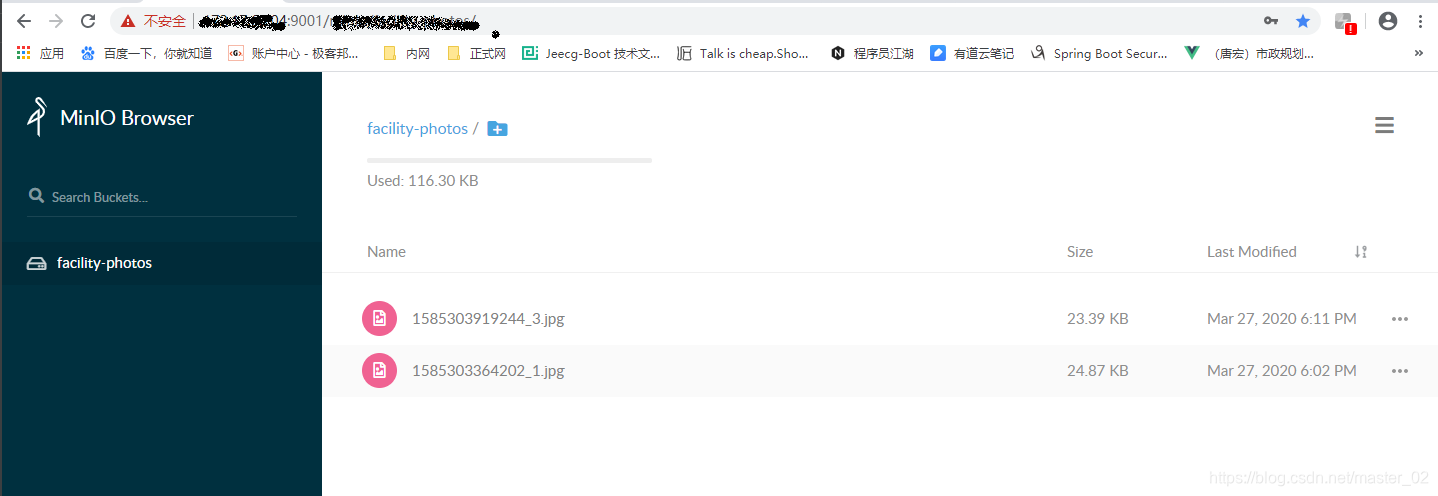
用http://IP:端口/minio/login(端口默认是9000,我这里是9001)运行之后输入账号密码登录。
二、Spring Boot 配置MinIO
1、application.yml配置
# 图片服务器 minio配置
minio:
  ip: xxxxxxx:9001
  # minio登录账号密码
  accessKey: xxxxxxx
  secretKey: xxxxxxxx

  ## 桶名(文件夹)命名规则要符合 亚马逊S3标准 详情可看http://docs.aws.amazon.com/AmazonS3/latest/dev/BucketRestrictions.html
  bucketName:
    ## 照片文件夹
    facility: facility-photos
2、MinIO API依赖
<!-- minio api-->
 <dependency>
   <groupId>io.minio</groupId>
   <artifactId>minio</artifactId>
    <version>5.0.2</version>
</dependency>
3、操作API 类
更多Java Client API 请参考https://docs.min.io/cn/java-client-api-reference.html
package zondy.config;

import io.minio.MinioClient;
import lombok.extern.slf4j.Slf4j;
import org.springframework.beans.factory.annotation.Value;
import org.springframework.stereotype.Component;
import org.springframework.web.multipart.MultipartFile;
import zondy.entity.enums.ResultEnum;
import zondy.utils.R;

import javax.servlet.ServletOutputStream;
import javax.servlet.http.HttpServletRequest;
import javax.servlet.http.HttpServletResponse;
import java.io.IOException;
import java.io.InputStream;
import java.net.HttpURLConnection;
import java.net.URL;
import java.nio.charset.StandardCharsets;
import java.util.ArrayList;
import java.util.HashMap;
import java.util.List;
import java.util.Map;

/**
 * @ClassName Minio
 * @Description Minio文件存储云服务相关工具类  api文档:https://docs.min.io/cn/java-client-api-reference.html
 * @Author sya
 * @Date 2019/8/1 20:05
 **/
@Component
@Slf4j
public class Minio {

    /**
     * 服务器地址
     */
    @Value("${minio.ip}")
    private String ip;

    /**
     * 登录账号
     */
    @Value("${minio.accessKey}")
    private String accessKey;

    /**
     * 登录密码
     */
    @Value("${minio.secretKey}")
    private String secretKey;

    /**
     * 缩略图大小
     */
    @Value("${minio.thumbor.width}")
    private String thumborWidth;


    /**
     * Minio文件上传
     * @param file 文件实体
     * @param fileName 修饰过的文件名 非源文件名
     * @param bucketName 所存文件夹(桶名)
     * @return
     */
    public R minioUpload(MultipartFile file, String fileName, String bucketName) {
        try {
            MinioClient minioClient = new MinioClient("http://" + ip, accessKey, secretKey);
            boolean bucketExists = minioClient.bucketExists(bucketName);
            if (bucketExists) {
                log.info("仓库" + bucketName + "已经存在,可直接上传文件。");
            } else {
                minioClient.makeBucket(bucketName);
            }
            if (file.getSize() <= 20971520) {
                // fileName为空,说明要使用源文件名上传
                if (fileName == null) {
                    fileName = file.getOriginalFilename();
                    fileName = fileName.replaceAll(" ", "_");
                }

                // minio仓库名
                minioClient.putObject(bucketName, fileName, file.getInputStream(), file.getContentType());
                log.info("成功上传文件 " + fileName + " 至 " + bucketName);
                String fileUrl = bucketName + "/" + fileName;
                Map<String, Object> map = new HashMap<String, Object>();
                map.put("fileUrl", fileUrl);
                map.put("bucketName", bucketName);
                map.put("originFileName", fileName);
                return R.ok(map);
            } else {
                throw new Exception("请上传小于20mb的文件");
            }

        } catch (Exception e) {
            e.printStackTrace();
            if (e.getMessage().contains("ORA")) {
                return R.error("上传失败:【查询参数错误】");
            }
            return R.error("上传失败:【" + e.getMessage() + "】");
        }
    }

    /**
     * 判断文件是否存在
     * @param fileName 文件名
     * @param bucketName 桶名(文件夹)
     * @return
     */
    public boolean isFileExisted(String fileName, String bucketName) {
        InputStream inputStream = null;
        try {
            MinioClient minioClient = new MinioClient("http://" + ip, accessKey, secretKey);
            inputStream = minioClient.getObject(bucketName, fileName);
            if (inputStream != null) {
                return true;
            }
        } catch (Exception e) {
            return false;
        } finally {
            if (inputStream != null) {
                try {
                    inputStream.close();
                } catch (IOException e) {
                    e.printStackTrace();
                }
            }
        }
        return false;
    }

    /**
     * 删除文件
     * @param bucketName 桶名(文件夹)
     * @param fileName 文件名
     * @return
     */
    public boolean delete(String bucketName,String fileName) {
        try {
            MinioClient minioClient = new MinioClient("http://" + ip, accessKey, secretKey);
            minioClient.removeObject(bucketName,fileName);
            return true;
        } catch (Exception e) {
            log.error(e.getMessage());
            return false;
        }
    }

    /**
     * 下载文件
     * @param objectName 文件名
     * @param bucketName 桶名(文件夹)
     * @param response
     * @return
     */
    public R downloadFile(String objectName,String bucketName, HttpServletResponse response) {
        try {
            MinioClient minioClient = new MinioClient("http://" + ip, accessKey, secretKey);
            InputStream file = minioClient.getObject(bucketName,objectName);
            String filename = new String(objectName.getBytes("ISO8859-1"), StandardCharsets.UTF_8);
            response.setHeader("Content-Disposition", "attachment;filename=" + filename);
            ServletOutputStream servletOutputStream = response.getOutputStream();
            int len;
            byte[] buffer = new byte[1024];
            while((len=file.read(buffer)) > 0){
                servletOutputStream.write(buffer, 0, len);
            }
            servletOutputStream.flush();
            file.close();
            servletOutputStream.close();
            return R.ok(objectName + "下载成功");
        } catch (Exception e) {
            e.printStackTrace();
            if (e.getMessage().contains("ORA")) {
                return R.error("下载失败:【查询参数错误】");
            }
            return R.error("下载失败:【" + e.getMessage() + "】");
        }
    }


    /**
     * 获取文件流
     * @param objectName 文件名
     * @param bucketName 桶名(文件夹)
     * @return
     */
    public InputStream getFileInputStream(String objectName,String bucketName) {
        try {
            MinioClient minioClient = new MinioClient("http://" + ip, accessKey, secretKey);
            return minioClient.getObject(bucketName,objectName);
        } catch (Exception e) {
            e.printStackTrace();
            log.error(e.getMessage());
        }
        return null;
    }


}
4、公共接口调用
extractPathFromPattern 这个静态方法可以把指定url的后面“/”剩下的字符串全部截断当成参数,请求预览图片接口时,http://127.0.0.1:8083/sys/common/minio/view/facility-photos/1585303364202_1.jpg 后面的facility-photos/1585303364202_1.jpg会有参数的形式传过来。使用字符串分割得到桶名和文件名,最后获取文件流显示图片。
package zondy.common.system.controller;

import com.alibaba.fastjson.JSONObject;
import io.swagger.annotations.ApiOperation;
import lombok.extern.slf4j.Slf4j;
import org.apache.commons.lang.StringUtils;
import org.springframework.beans.factory.annotation.Autowired;
import org.springframework.beans.factory.annotation.Value;
import org.springframework.util.AntPathMatcher;
import org.springframework.web.bind.annotation.*;
import org.springframework.web.multipart.MultipartFile;
import org.springframework.web.multipart.MultipartHttpServletRequest;
import org.springframework.web.servlet.HandlerMapping;
import zondy.annotation.LoginUser;
import zondy.common.api.vo.Result;
import zondy.config.Minio;
import zondy.utils.R;
import javax.servlet.http.HttpServletRequest;
import javax.servlet.http.HttpServletResponse;
import java.io.*;
import java.util.Map;

@Slf4j
@RestController
@RequestMapping("/sys/common")
public class CommonController {


	@Autowired
	private Minio minio;

	/**
	 * 桶名
	 */
	@Value("${minio.bucketName.facility}")
	private String bucketName;


	@PostMapping(value = "/facility/upload")
	@ApiOperation(value = "图片上传")
	@ResponseBody
	public Result<JSONObject> facilityUpload(HttpServletRequest request, HttpServletResponse response) {
		Result<JSONObject> result = new Result<>();

		try {
			MultipartHttpServletRequest multipartRequest = (MultipartHttpServletRequest) request;
			MultipartFile mf = multipartRequest.getFile("file");// 获取上传文件对象
			String orgName = "";
			String fileName = "";
			if (mf != null){
				 orgName = mf.getOriginalFilename();// 获取文件名
				 fileName = System.currentTimeMillis()+"_"+ orgName.replaceAll(" ", "_");
			}
			// 步骤一、判断文件是否存在过 存在则不能上传(Minio服务器上传同样位置的同样文件名的文件时,新的文件会把旧的文件覆盖掉)
			boolean exist = minio.isFileExisted(fileName, bucketName);
			if (exist) {
				result.error500("文件已存在");
				log.error("文件 " + fileName + " 已经存在");
				return result;
			}
			// 步骤二、上传文件
			R r = minio.minioUpload(mf,fileName,bucketName);
			if (r.get("data") != null) {
				Map map = (Map) r.get("data");
				// 步骤三、将上传的文件信息返回
				JSONObject obj = new JSONObject();
				obj.put("fileInfo", map);
				result.setResult(obj);
				result.setSuccess(true);
			}
			result.setSuccess(false);

		} catch (Exception e) {
			result.setSuccess(false);
			result.setMessage(e.getMessage());
			log.error(e.getMessage(), e);
		}
		return result;
	}

	/**
	 * 预览图片
	 * 请求地址:http://localhost:8080/common/minio/view/{user/20190119/e1fe9925bc315c60addea1b98eb1cb1349547719_1547866868179.jpg}
	 *
	 * @param request
	 * @param response
	 */
	@GetMapping(value = "minio/view/**")
	public void minioView(HttpServletRequest request, HttpServletResponse response) {
		// ISO-8859-1 ==> UTF-8 进行编码转换
		String imgPath = extractPathFromPattern(request);
		// 其余处理略
		InputStream inputStream = null;
		OutputStream outputStream = null;
		try {
			String bucketName = "";
			String fileName = "";
			response.setContentType("image/jpeg;charset=utf-8");
			if (StringUtils.isNotEmpty(imgPath)){
				String[] split = imgPath.split("/");
				bucketName = split[0];
				fileName = split[1];
			}
			inputStream =minio.getFileInputStream(fileName,bucketName);
			outputStream = response.getOutputStream();
			byte[] buf = new byte[1024];
			int len;
			while ((len = inputStream.read(buf)) > 0) {
				outputStream.write(buf, 0, len);
			}
			response.flushBuffer();
		} catch (IOException e) {
			log.error("预览图片失败" + e.getMessage());
			// e.printStackTrace();
		} finally {
			if (inputStream != null) {
				try {
					inputStream.close();
				} catch (IOException e) {
					log.error(e.getMessage(), e);
				}
			}
			if (outputStream != null) {
				try {
					outputStream.close();
				} catch (IOException e) {
					log.error(e.getMessage(), e);
				}
			}
		}

	}


	/**
	  *  把指定URL后的字符串全部截断当成参数
	  *  这么做是为了防止URL中包含中文或者特殊字符(/等)时,匹配不了的问题
	 * @param request
	 * @return
	 */
	private static String extractPathFromPattern(final HttpServletRequest request) {
		String path = (String) request.getAttribute(HandlerMapping.PATH_WITHIN_HANDLER_MAPPING_ATTRIBUTE);
		String bestMatchPattern = (String) request.getAttribute(HandlerMapping.BEST_MATCHING_PATTERN_ATTRIBUTE);
		return new AntPathMatcher().extractPathWithinPattern(bestMatchPattern, path);
	}

}
三、Vue调用接口实现上传和预览图片功能
1、FileModal.vue ___template部分
(1)、<a-upload></a-upload>的:action="uploadAction" 发起上传图片事件,调用上传图片接口;
(2)、<a-upload></a-upload>的:src="getAvatarView()" 是预览图片,调用预览图片接口;
<template>
  <a-drawer
    :title="title"
    :maskClosable="true"
    :width="drawerWidth"
    placement="right"
    :closable="true"
    @close="handleCancel"
    :visible="visible"
    style="height: calc(100% - 55px);overflow: auto;padding-bottom: 53px;">

    <template slot="title">
      <div style="width: 100%;">
        <span>{{ title }}</span>
        <span style="display:inline-block;width:calc(100% - 51px);padding-right:10px;text-align: right">
          <a-button @click="toggleScreen" icon="appstore" style="height:20px;width:20px;border:0px"></a-button>
        </span>
      </div>

    </template>

    <a-spin :spinning="confirmLoading">
      <a-form :form="form">

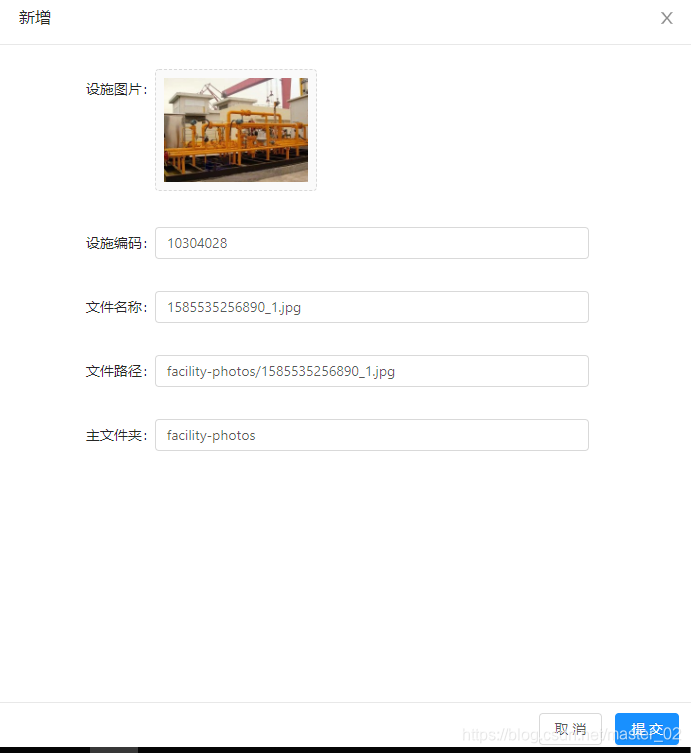
        <a-form-item label="设施图片" :labelCol="labelCol" :wrapperCol="wrapperCol">
          <a-upload
            listType="picture-card"
            class="avatar-uploader"
            :showUploadList="false"
            :action="uploadAction"
            :data="{'isup':3}"
            :headers="headers"
            :beforeUpload="beforeUpload"
            @change="handleChange"
          >
            <img v-if="picUrl" :src="getAvatarView()" alt="设施图片" style="height:104px;max-width:300px"/>
            <div v-else>
              <a-icon :type="uploadLoading ? 'loading' : 'plus'" />
              <div class="ant-upload-text">上传</div>
            </div>
          </a-upload>
        </a-form-item>

        <a-form-item
          :labelCol="labelCol"
          :wrapperCol="wrapperCol"
          label="设施编码">
           <a-input  :value="model.facilId" readOnly/>
        </a-form-item>

        <a-form-item
          :labelCol="labelCol"
          :wrapperCol="wrapperCol"
          label="文件名称">
          <a-input  :value="model.fileName" readOnly/>
        </a-form-item>

        <a-form-item
          :labelCol="labelCol"
          :wrapperCol="wrapperCol"
          label="文件路径">
          <a-input :value="model.filePath" readOnly/>
        </a-form-item>

        <a-form-item
          :labelCol="labelCol"
          :wrapperCol="wrapperCol"
          label="主文件夹">
          <a-input :value="model.bucketName" readOnly/>
        </a-form-item>

      </a-form>
    </a-spin>

    <div class="drawer-bootom-button" v-show="!disableSubmit">
      <a-popconfirm title="确定放弃编辑?" @confirm="handleCancel" okText="确定" cancelText="取消">
        <a-button style="margin-right: .8rem">取消</a-button>
      </a-popconfirm>
      <a-button @click="handleSubmit" type="primary" :loading="confirmLoading">提交</a-button>
    </div>
  </a-drawer>
</template>
2、FileModal.vue ___script部分
(1)、url:fileUpload对应上传文件到MinIO的接口,minioView对应从MinIO获取文件流并返回图片的接口。
(2)、当调用上传文件后,将返回的文件信息(桶名、文件名、文件存放路径等)存到一个全局实体model中,预览图片调用 getAvatarView(),其中filePath这个参数包含桶名和文件名,在后端可根据“/”切割获取。处理提交那里的addFacilityFile(formData) 是将文件信息上传到数据库的,此处不描述。
<script>
  import pick from 'lodash.pick'
  import moment from 'moment'
  import Vue from 'vue'
  // 引入搜索部门弹出框的组件
  import { ACCESS_TOKEN } from "@/store/mutation-types"
  import { addFacilityFile } from '@/api/api'
  import { disabledAuthFilter } from "@/utils/authFilter"

  export default {
    name: "FacilityFileModal",
    data () {
      return {
        modalWidth:800,
        drawerWidth:700,
        modaltoggleFlag:true,
        confirmDirty: false,
        disableSubmit:false,

        title:"操作",
        visible: false,
        model: {},
        labelCol: {
          xs: { span: 24 },
          sm: { span: 5 },
        },
        wrapperCol: {
          xs: { span: 24 },
          sm: { span: 16 },
        },
        uploadLoading:false,
        confirmLoading: false,
        headers:{},
        form:this.$form.createForm(this),
        picUrl: "",
        url: {
          fileUpload: window._CONFIG['domianURL']+"/sys/common/facility/upload",
          minioView: window._CONFIG['domianURL']+"/sys/common/minio/view",
        },
      }
    },
    created () {
      const token = Vue.ls.get(ACCESS_TOKEN);
      this.headers = {"X-Access-Token":token}

    },
    computed:{
      uploadAction:function () {
        return this.url.fileUpload;
      }
    },
    methods: {
      isDisabledAuth(code){
        return disabledAuthFilter(code);
      },
      //窗口最大化切换
      toggleScreen(){
        if(this.modaltoggleFlag){
          this.modalWidth = window.innerWidth;
        }else{
          this.modalWidth = 800;
        }
        this.modaltoggleFlag = !this.modaltoggleFlag;
      },
      add () {
        this.picUrl = "";
        this.edit({});
      },
      edit (record) {
        this.resetScreenSize(); // 调用此方法,根据屏幕宽度自适应调整抽屉的宽度
        let that = this;
        that.form.resetFields();
        that.visible = true;
        that.model = Object.assign({}, record);
        that.$nextTick(() => {
  that.form.setFieldsValue(pick(this.model,'facilId','fileName','filePath','bucketName'))
        });

      },
      close () {
        this.$emit('close');
        this.visible = false;
        this.disableSubmit = false;
      },
      moment,
      handleCancel () {
        this.close()
      },
      handleSubmit () {

        const that = this;
        // 触发表单验证
        this.form.validateFields((err, values) => {
          if (!err) {
            if (!this.model.fileName){
              that.$message.warning('请点击上传图片');
              return false;
            }else {
              that.confirmLoading = true;
              let formData = Object.assign(this.model, values);

              let obj;
              obj=addFacilityFile(formData);
              // 赋值后 清空 参数,以便上传下一张图片的信息
              this.model={};
              obj.then((res)=>{
                if(res.success){
                  that.$message.success(res.message);
                  that.$emit('ok');
                }else{
                  that.$message.warning(res.message);
                }
              }).finally(() => {
                that.confirmLoading = false;
                that.close();
              })
            }
          }
        })
      },

      normFile  (e) {
        console.log('Upload event:', e);
        if (Array.isArray(e)) {
          return e
        }
        return e && e.fileList
      },
      beforeUpload: function(file){
        var fileType = file.type;
        if(fileType.indexOf('image')<0){
          this.$message.warning('请上传图片');
          return false;
        }
        //TODO 验证文件大小
      },
      handleChange (info) {
        this.picUrl = "";
        if (info.file.status === 'uploading') {
          this.uploadLoading = true;
          return
        }
        if (info.file.status === 'done') {
          var response = info.file.response;
          this.uploadLoading = false;
          if(response.result){
            let fileInfo = response.result.fileInfo;
            this.model.facilId = this.selectedFacilityId;
            this.model.fileName = fileInfo.originFileName;
            this.model.filePath = fileInfo.fileUrl;
            this.model.bucketName = fileInfo.bucketName;
            this.picUrl = "Has no pic url yet";
          }else{
            this.$message.warning(response.message);
          }
        }
      },
      getAvatarView(){
        return this.url.minioView +"/"+this.model.filePath;
      },

      // 根据屏幕变化,设置抽屉尺寸
      resetScreenSize(){
        let screenWidth = document.body.clientWidth;
        if(screenWidth < 500){
          this.drawerWidth = screenWidth;
        }else{
          this.drawerWidth = 700;
        }
      },
    }
  }
</script>
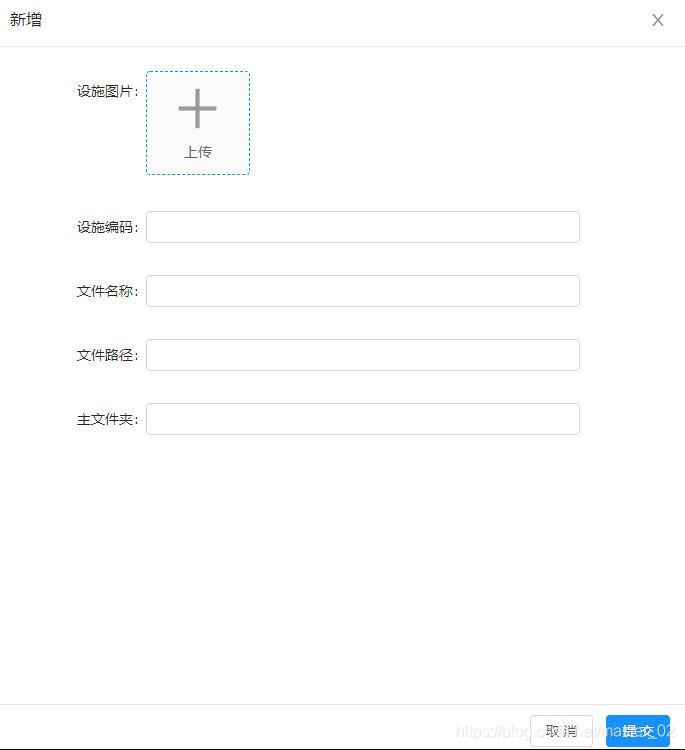
3、前端效果
选择上传前:
选择上传后
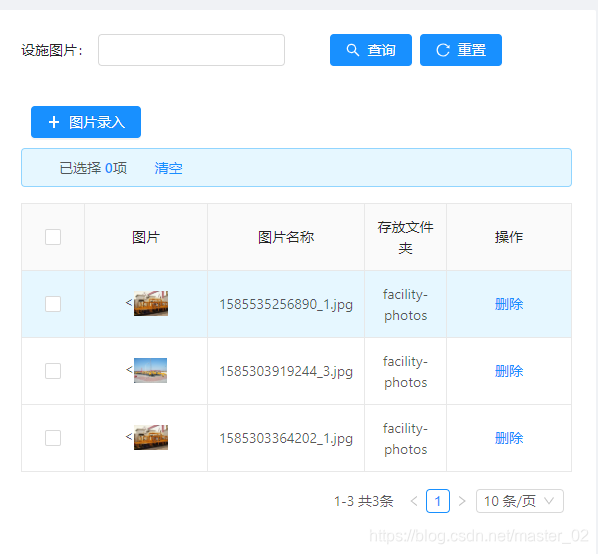
列表展示
学习一种新的技术,需要一边研究一边应用到项目中,学习与实践要统筹兼顾,不积跬步无以至千里。以上有不足之处,请各位多多指教!





 扫一扫
扫一扫


 到【灌水乐园】发言



