






第一步:找到Three.js – JavaScript 3D Library (threejs.org)
第二步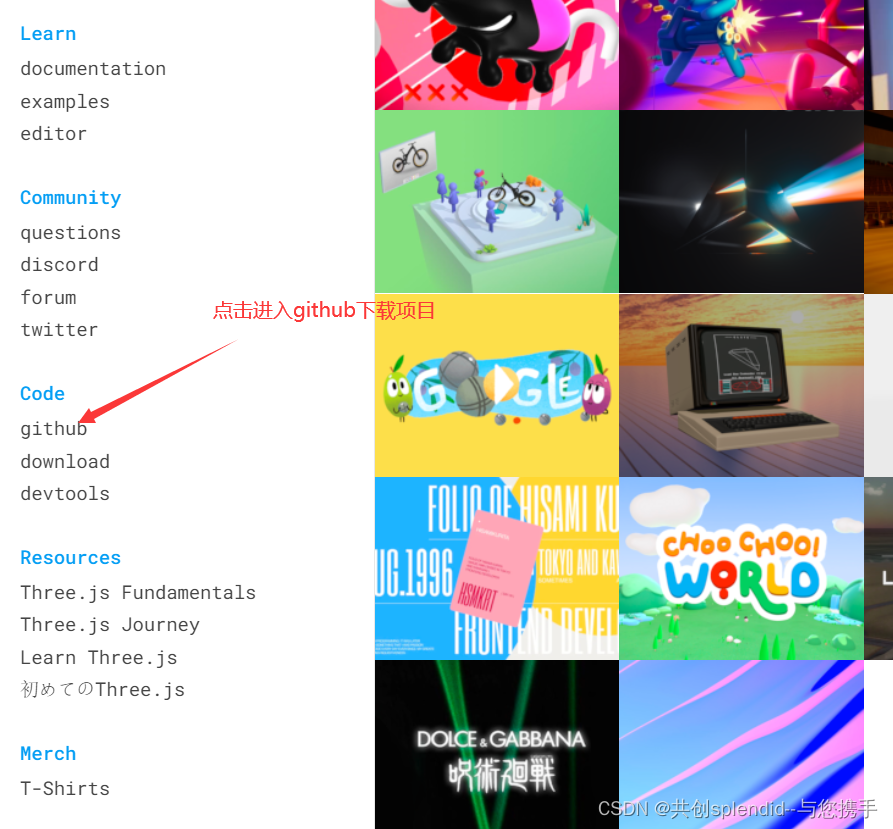
第三步:
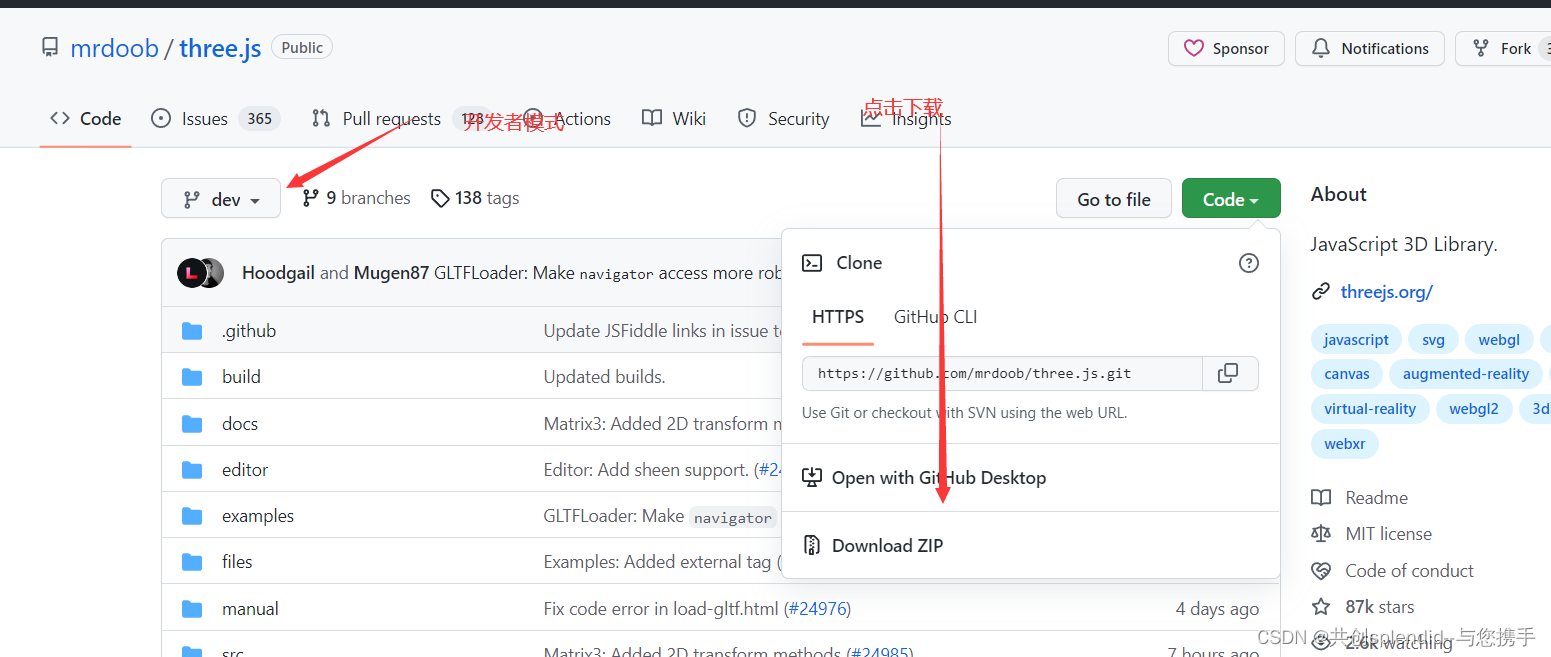
第四步:
安装依赖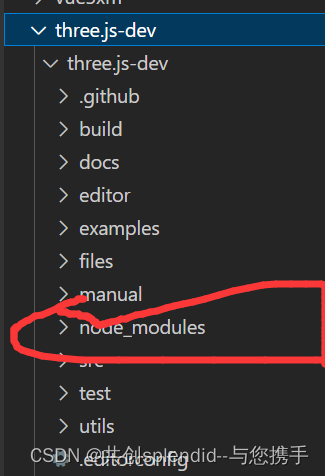
第五步:新建一个项目文件,在文件中npm init 进行初始化出现一个package.json
第六步:配置安装🚀 快速开始 | Parcel中文网 (parceljs.cn)

在package.json中配置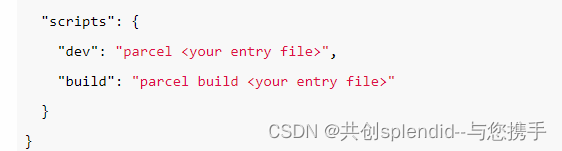
配置结果:
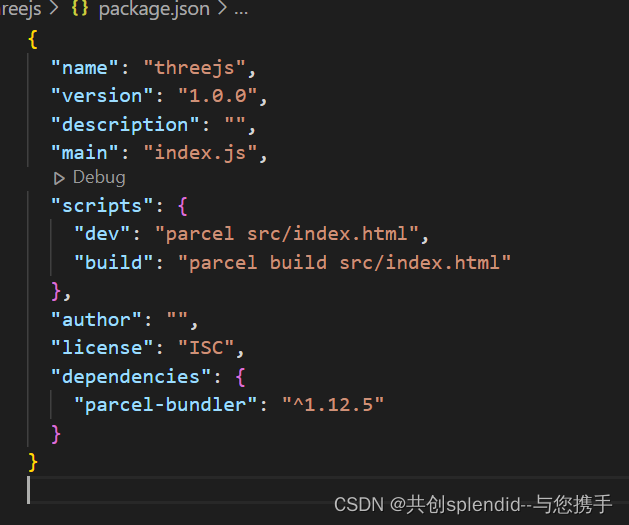
package.json文件中的配置如下:
{
"name": "threejs",
"version": "1.0.0",
"description": "",
"main": "index.js",
"scripts": {
"dev": "parcel src/index.html",
"build": "parcel build src/index.html"
},
"author": "",
"license": "ISC",
"dependencies": {
"dat.gui": "^0.7.9",
"gsap": "^3.11.3",
"parcel-bundler": "^1.12.5",
"three": "^0.146.0"
},
"devDependencies": {
"parcel": "^2.8.0"
}
}
文件创建:
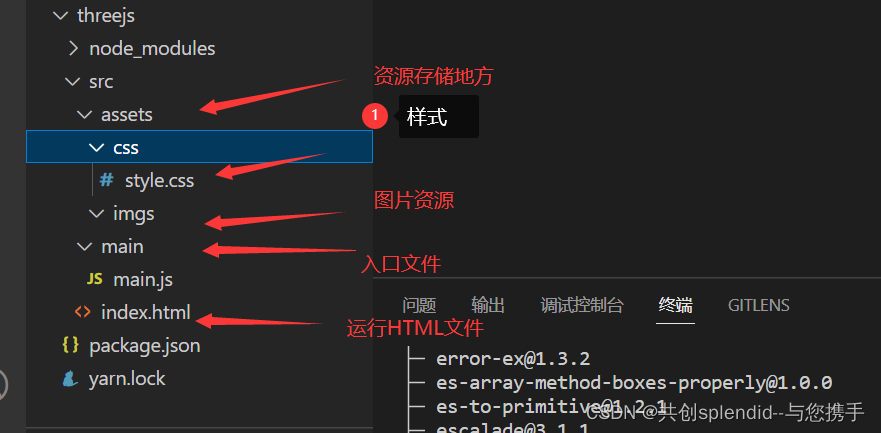
第七步:
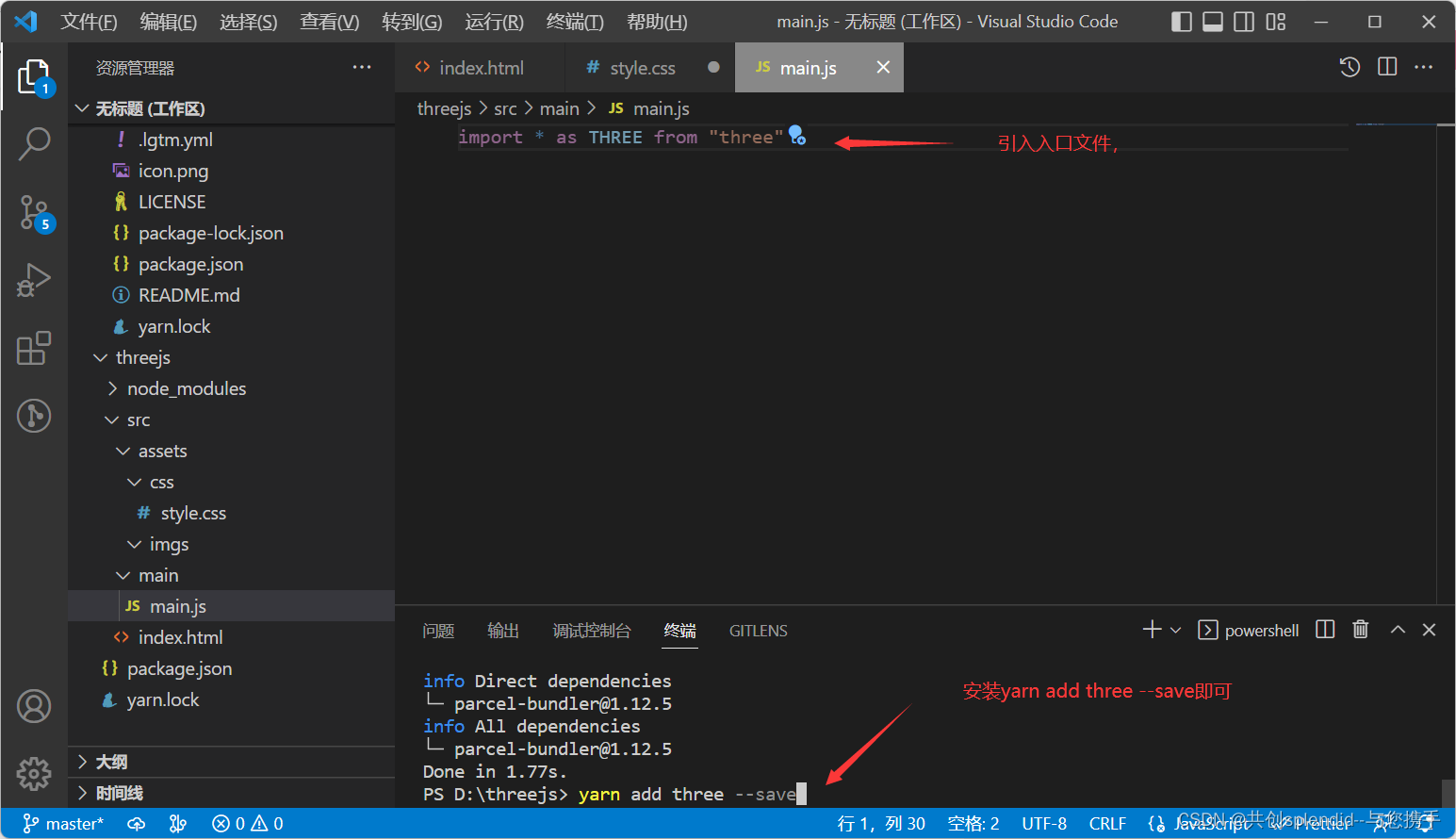
第八步:
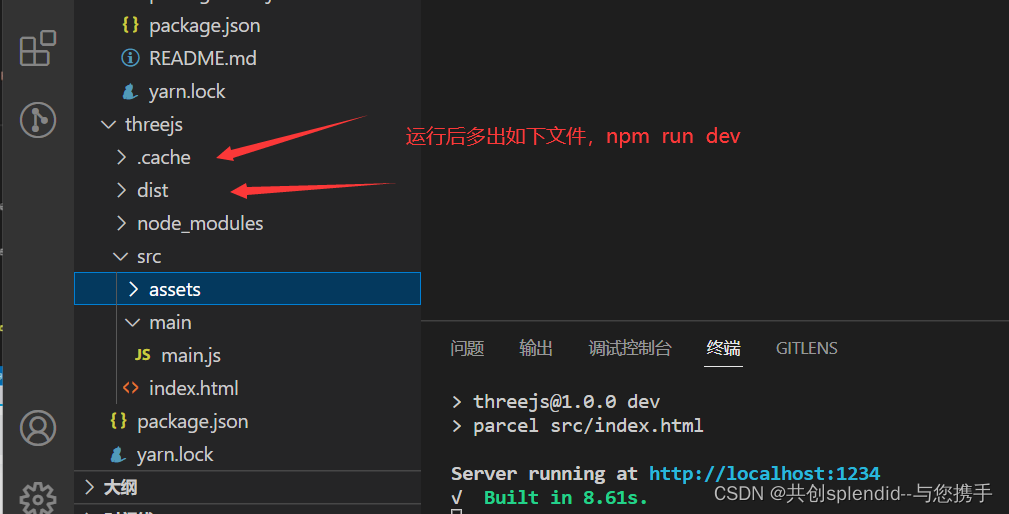 dist是生产的源文件
第九步: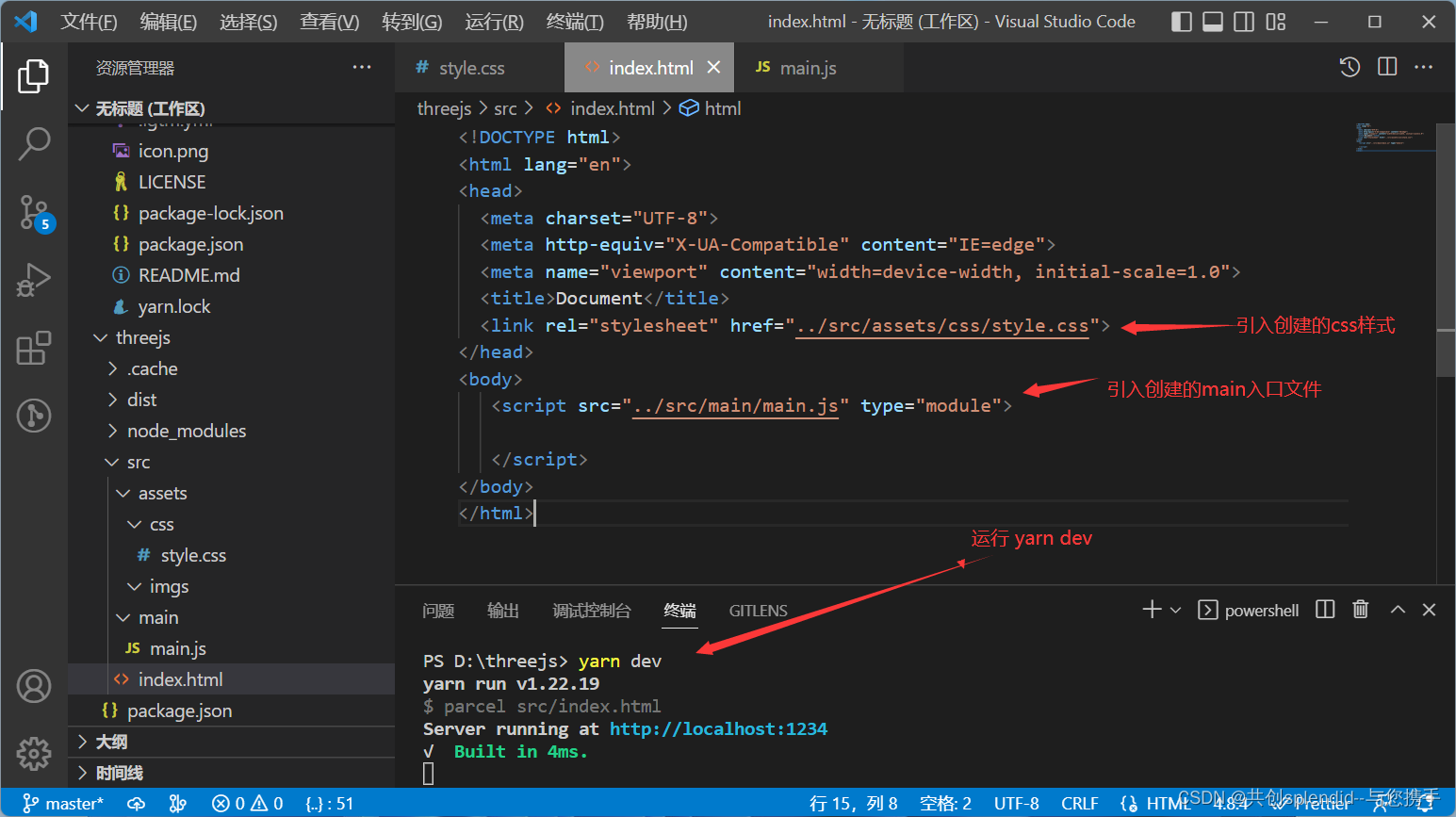
main中的配置及详解:
import * as THREE from "three"
//导入轨道控制器
import{OrbitControls} from "three/examples/jsm/controls/OrbitControls"
//目标:3D物体的移动
const scene = new THREE.Scene();//创建一个场景
//创建相机 PerspectiveCamera 透视相机
const camera = new THREE.PerspectiveCamera( 75, window.innerWidth / window.innerHeight, 0.1, 1000 );
// 设置相机位置
// 将几何体添加到场景中
//初始化渲染器
const renderer = new THREE.WebGLRenderer();
//设置渲染的尺寸大小
renderer.setSize( window.innerWidth, window.innerHeight );
// 将webgl渲染的canvas内容添加到body
document.body.appendChild( renderer.domElement );
// 创建几何体
const geometry = new THREE.BoxGeometry( 1, 1, 1 );
// 颜色
const material = new THREE.MeshBasicMaterial( { color: 0x00ff00 } );
//根据几何体和材质创建物体
const cube = new THREE.Mesh( geometry, material );
console.log("物体几何的位置",cube)
//修改物体的位置
// cube.position.set(5,0,0)//这个是方法
cube.position.x=3//这个是属性
scene.add( cube );
//创建轨道控制器 第一个参数是相机 第二个是渲染器
const controls = new OrbitControls(camera, renderer.domElement )
//添加坐标轴辅助器
const axesHelper = new THREE.AxesHelper( 5 );
// 红色代表 X 轴. 绿色代表 Y 轴. 蓝色代表 Z 轴.
scene.add( axesHelper );
function animate() {
//判断x轴的属性等于5时,从0开始
cube.position.x+=0.01
if(cube.position.x>=5){//当x轴的属性等于5时从头开始
cube.position.x=0
}
//下一帧再重新的渲染这个函数
requestAnimationFrame( animate );
// 开启局部旋转模式 旋转的距离x与y轴 鼠标的变化而变化
// cube.rotation.x += 0.01;
// cube.rotation.y += 0.01;
//使用渲染器,通过相机将场景渲染进来
renderer.render( scene, camera );
}
//开始渲染一次 第一次
animate();
camera.position.z = 5;
入口文件index.html引入
<!DOCTYPE html>
<html lang="en">
<head>
<meta charset="UTF-8">
<meta http-equiv="X-UA-Compatible" content="IE=edge">
<meta name="viewport" content="width=device-width, initial-scale=1.0">
<title>Document</title>
<link rel="stylesheet" href="../src/assets/css/style.css">
</head>
<body>
<script src="../src/main/main.js" type="module"></script>
</body>
</html>
所有的文档均从官网下载后,运行找到
本地的loclhost:8080....地址,点击文档即可打开。





 扫一扫
扫一扫


 5508
5508


 被折叠的 条评论
为什么被折叠?
被折叠的 条评论
为什么被折叠?
 到【灌水乐园】发言




