


今天带来一篇和工作无关的文章。常规的前端业务,其实挺繁琐的,但其实我们可以做一些有意思的事情。当年百度首页的机器人动画,把整个页面内容打碎的特效,也是惊艳了一众前端啊。文本的作者,也是做了一个有意思的事情,把页面内容以动画的形式,逐个吸收掉,看动画有点像孙猴子的金箍棒在收妖精 感兴趣的同学可以看看,自己能不能有机会用上下面是正文部分。
有位古人说过,人不是在烦的路上,就是正在烦!

最近在逛某乎,总是会刷到很多让人焦虑的话题!比如这样:

或者这样:
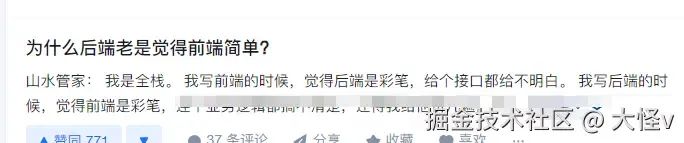
还有这样:

然后,就这么一焦虑,我就不怀好意的把目光转向了juejin,要不要把juejin砸了,让面向搜索编程者没有地儿找,少一些竞争者?
首先引入脑海的是二向箔,作为“吾主”最强大武器之一,我打算用这个收 juejin 首页!
说干就干!建个demo,打个样品:
<!DOCTYPE html>
<html lang="en">
<head>
  <meta charset="UTF-8">
  <meta http-equiv="X-UA-Compatible" content="IE=edge">
  <meta name="viewport" content="width=device-width, initial-scale=1.0">
  <title>Add Span to Each Character</title>
</head>
<body style="background-color: #fff;">
  <!-- Your HTML content here -->
  <p>This is some text.</p>
  <div>
    <p>More text here.</p>
    <image src="./3333.png" />
    <video></video>
  </div>
  <img src="./3333.png" />
  <style>
    .aaa {
      height: 100px;
    }
  </style>
</body>
</html>
再来一段JS,用来模拟一根棍进入效果:
<script>
    'use strict';
    const targetNodeObject = document.body;
    const styleElement = document.createElement('style');
    const floatBall = document.createElement('div');
    let center = { centerX: 0, centerY: 0 };
    const timer = 32;
    styleElement.textContent = `
          .highlighted-text {
            width: 4px;
            height: 4px;
            margin: 0 2px;
            display: inline-block;
            overflow: hidden;
            background-color: #f00;
            transition: all 1s;
          }
          .highlighted-image {
            margin: 0 2px !important;
            display: inline-block !important;
            overflow: hidden !important;
            background-color: #000 !important;
            transition: all 1s;
            transform-origin: center top;
          }
          .floating-ball {
            width: 4px;
            position:fixed;
            height: 100px;
            background: #000 !important;
            animation: floatAnimation 0.2s linear infinite;
            left: 50%;
            top: -800px;
            transition: top 1s ease;
            z-index:9999;
            border:1px solid #fff;
            transform-origin: center center;
          }
          @keyframes floatAnimation {
            to {
              transform: rotate(360deg);
            }
          }
          .inhaleAnimation{
            position: fixed;
            z-index:9999;
            animation: inhaleAnimation 2s ease-out forwards;
          }
          @keyframes inhaleAnimation {
            to {
              transform: scale(0);
            }
          }
        `;
    document.head.appendChild(styleElement);

    createAttack();

    // 创建进攻武器 - 棍
    function createAttack(callback) {
      floatBall.classList.add('floating-ball');
      targetNodeObject.appendChild(floatBall);
      setTimeout(() => {
        floatBall.style.top = "100px";
        setTimeout(() => {
          if (callback) callback();
        }, 1000)
      }, 100)
    }
</script>
大致效果是这样:

好了,第一步完成,接下去想攻击效果,基本思路就是模拟二向箔。二向箔是三维物体二维化,那我们juejin首页是二维物体,那我就一维化。效果就是文字化成点。图片变成线。
完整代码如下:
<script>
    'use strict';
    const targetNodeObject = document.body;
    const styleElement = document.createElement('style');
    const floatBall = document.createElement('div');
    let center = { centerX: 0, centerY: 0 };
    const timer = 32;
    styleElement.textContent = `
          .highlighted-text {
            width: 4px;
            height: 4px;
            margin: 0 2px;
            display: inline-block;
            overflow: hidden;
            background-color: #f00;
            transition: all 1s;
          }
          .highlighted-image {
            margin: 0 2px !important;
            display: inline-block !important;
            overflow: hidden !important;
            background-color: #000 !important;
            transition: all 1s;
            transform-origin: center top;
          }
          .floating-ball {
            width: 4px;
            position:fixed;
            height: 100px;
            background: #000 !important;
            animation: floatAnimation 0.2s linear infinite;
            left: 50%;
            top: -800px;
            transition: top 1s ease;
            z-index:9999;
            border:1px solid #fff;
            transform-origin: center center;
          }
          @keyframes floatAnimation {
            to {
              transform: rotate(360deg);
            }
          }
          .inhaleAnimation{
            position: fixed;
            z-index:9999;
            animation: inhaleAnimation 2s ease-out forwards;
          }
          @keyframes inhaleAnimation {
            to {
              transform: scale(0);
            }
          }
        `;
    document.head.appendChild(styleElement);


    function createBall(callback) {
      floatBall.classList.add('floating-ball');
      targetNodeObject.appendChild(floatBall);
      setTimeout(() => {
        floatBall.style.top = "100px";
        setTimeout(() => {
          if (callback) callback();
        }, 1000)
      }, 100)
    }
    createBall(() => {
      init();
      center = getElementCenter(floatBall);
    });
    // 获取棍的中心点位置
    function getElementCenter(element) {
      const rect = element.getBoundingClientRect();
      const centerX = rect.left + rect.width / 2;
      const centerY = rect.top + rect.height / 2;

      return { centerX, centerY }
    }

    function init() {
      const steps = [];
      const elements = [];

    // 获取当前信息
      function getNodes(element) {
        const textNodes = [];
        const imageNodes = [];

        function traverse(node) {
          hasBackgroundColor(node)
          if (node.nodeType === Node.TEXT_NODE && node.nodeValue.trim() !== '') {
            textNodes.push(node);
          } else if (isImageNode(node)) {
            imageNodes.push(node);
          } else if (node.nodeType === Node.ELEMENT_NODE && !isExcludedNode(node)) {
            for (const childNode of node.childNodes) {
              traverse(childNode);
            }
          }
        }

        function isExcludedNode(node) {
          const excludedTags = ['SCRIPT', 'STYLE', 'LINK', 'IFRAME', 'path'];
          return excludedTags.includes(node.tagName);
        }

// 校验元素是否有背景颜色
        function hasBackgroundColor(node) {
          try {
            const computedStyle = window.getComputedStyle(node);
            const backgroundColor = computedStyle.backgroundColor;
            if (backgroundColor !== 'rgba(0, 0, 0, 0)' && backgroundColor !== 'transparent') {
              node.style.backgroundColor = 'rgba(255, 255, 255, 1)'
            }
          } catch (e) {
          }
        }

        traverse(element);
        return { textNodes, imageNodes };
      }

        // 添加步骤到执行队列
      function addStep(func, node) {
        steps.push(func.bind(this));
        elements.push(node);
      }
      // 开始步骤
      function startStep() {
        const interTimer = setInterval(() => {
          if (steps.length > 0) {
            const func = steps.shift();
            const element = elements.shift();
            if (func) {
              func();
              if (element) {
                const rect = element.getBoundingClientRect();
                element.style.top = `${rect.top}px`;
                element.style.left = `${rect.left}px`;
                addStep(() => {
                  element.classList.add('inhaleAnimation');
                  element.style.top = `${center.centerY}px`;
                  element.style.left = `${center.centerX}px`;
                  element.addEventListener('animationend', function () {
                    element.remove();
                  });
                })
              }
            }
          } else {
            clearInterval(interTimer);
          }
        }, timer)
      }

      const { textNodes, imageNodes } = getNodes(targetNodeObject);
      // 处理文字
      function textFn(node) {
        const textContent = node.nodeValue.trim();
        const newSpan = document.createElement('span');
        const newContent = Array.from(textContent).map(char => {
          const charSpan = document.createElement('span');
          charSpan.textContent = char;
          addStep(() => {
            charSpan.classList.add("highlighted-text");
          }, charSpan);
          newSpan.appendChild(charSpan);
          return charSpan.outerHTML;
        }).join('');
        node.parentNode.replaceChild(newSpan, node);
      };
      // 处理图片
      function imageFn(node) {
        const charSpan = document.createElement('span');
        node.classList.add("highlighted-image");
        addStep(() => {
          const rect = node.getBoundingClientRect();
          charSpan.style.width = `${node.width || node.clientWidth || rect.width}px`;
          charSpan.style.height = `${node.height || node.clientHeight || rect.width}px`;
          charSpan.classList.add("highlighted-image");
          node.replaceWith(charSpan);
          addStep(() => {
            charSpan.style.width = "4px";
            //charSpan.style.transform = `scale(1) rotate(${30}deg)`
          }, charSpan);
        });
      }
      textNodes.forEach(node => {
        if (node.nodeValue.indexOf('@font-face') !== -1) { return; }
        textFn(node);
      });
      imageNodes.forEach(node => {
        imageFn(node);
      });

    // 判断是否为图片
    function isImageNode(node) {
      if (node.tagName === 'BODY') { return; }
      const imageTags = ['IMG', 'IMAGE', 'VIDEO', 'svg', "FORM", "svg"];
      return imageTags.includes(node.tagName) &&
        !(node.tagName === 'BODY' && node.classList.contains('floating'));
    }

      startStep();
    }
  </script>
效果为:
效果好像还不错!
现在,将上面JS代码压缩
通过在url输入框内,输入Javascrip:【上面压缩的代码】
将代码放入juejin某页,一起look下效果(截取一段):
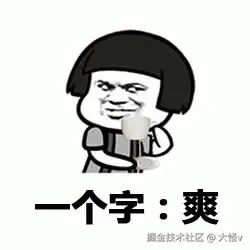
看到这里的朋友也知道,这个也就一个前端佬的自嗨了。
但还是想说....
原文链接:https://juejin.cn/post/7416664040401600539
作者:大怪
最后:





 扫一扫
扫一扫


 3905
3905

 被折叠的 条评论
为什么被折叠?
被折叠的 条评论
为什么被折叠?
 到【灌水乐园】发言





