



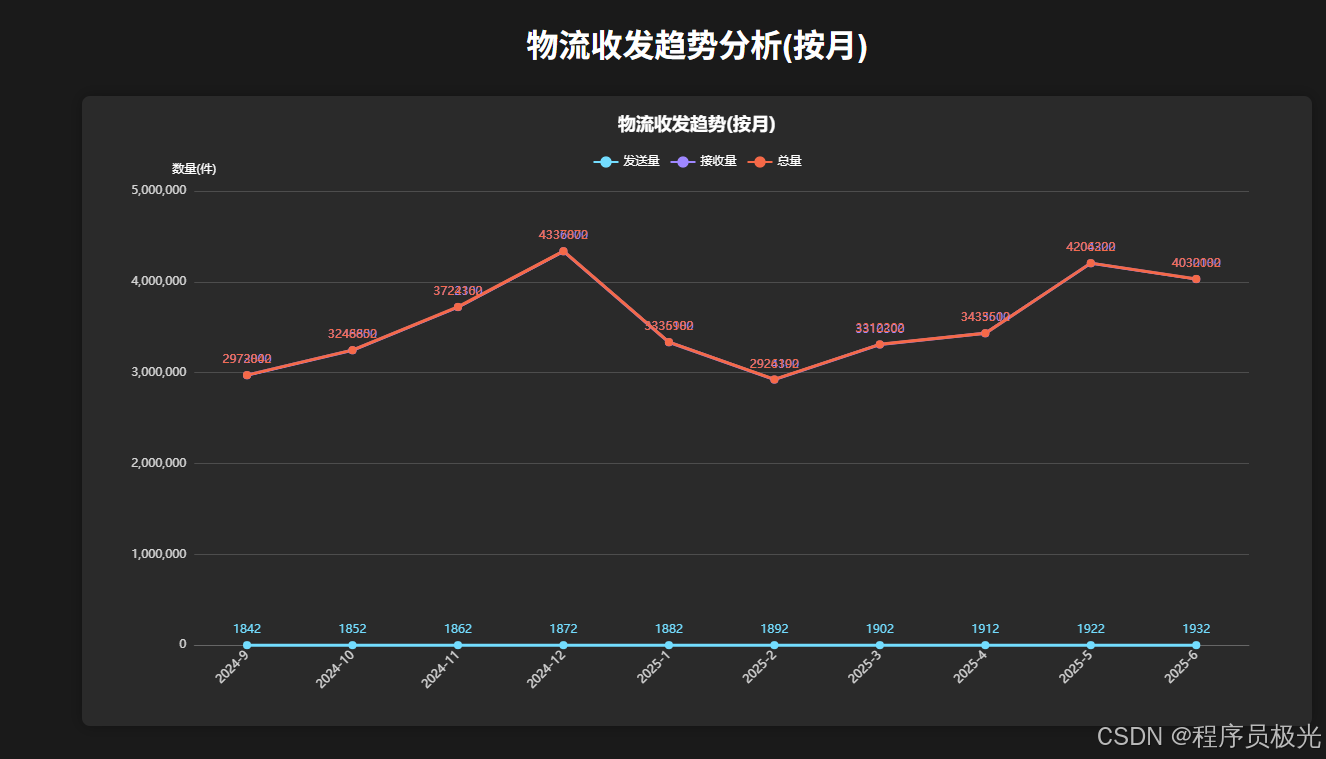
下面是根据您提供的按月物流数据制作折线图的完整过程:
1. HTML 结构准备
html
<!DOCTYPE html>
<html lang="zh-CN">
<head>
    <meta charset="UTF-8">
    <meta name="viewport" content="width=device-width, initial-scale=1.0">
    <title>物流收发趋势分析(按月)</title>
    <!-- 引入 ECharts 库 -->
    <script src="https://cdn.jsdelivr.net/npm/echarts@5.4.3/dist/echarts.min.js"></script>
    <style>
        body {
            margin: 0;
            padding: 20px;
            background-color: #1a1a1a;
            color: #fff;
            font-family: Arial, sans-serif;
        }
        .chart-container {
            width: 100%;
            max-width: 1200px;
            height: 600px;
            margin: 0 auto;
            background-color: #2a2a2a;
            border-radius: 8px;
            padding: 15px;
            box-shadow: 0 0 15px rgba(0, 0, 0, 0.3);
        }
        h1 {
            text-align: center;
            margin-bottom: 30px;
        }
    </style>
</head>
<body>
    <h1>物流收发趋势分析(按月)</h1>
    <div id="ShippingReceivingTrends" class="chart-container"></div>

    <script>
        // 这里放置下面的 JavaScript 代码
    </script>
</body>
</html>
2. JavaScript 完整实现
javascript
// 1. 初始化图表
const chartDom = document.getElementById('ShippingReceivingTrends');
const myChart = echarts.init(chartDom);

// 2. 准备数据
const logisticsData = [
    { "Year": "2024", "Month": "10", "TotalSend": 1852, "TotalReceive": 3246800, "TotalAmount": 3248652 },
    { "Year": "2024", "Month": "11", "TotalSend": 1862, "TotalReceive": 3722300, "TotalAmount": 3724162 },
    { "Year": "2024", "Month": "12", "TotalSend": 1872, "TotalReceive": 4336000, "TotalAmount": 4337872 },
    { "Year": "2024", "Month": "9", "TotalSend": 1842, "TotalReceive": 2972000, "TotalAmount": 2973842 },
    { "Year": "2025", "Month": "1", "TotalSend": 1882, "TotalReceive": 3335100, "TotalAmount": 3336982 },
    { "Year": "2025", "Month": "2", "TotalSend": 1892, "TotalReceive": 2924300, "TotalAmount": 2926192 },
    { "Year": "2025", "Month": "3", "TotalSend": 1902, "TotalReceive": 3310300, "TotalAmount": 3312202 },
    { "Year": "2025", "Month": "4", "TotalSend": 1912, "TotalReceive": 3433600, "TotalAmount": 3435512 },
    { "Year": "2025", "Month": "5", "TotalSend": 1922, "TotalReceive": 4204300, "TotalAmount": 4206222 },
    { "Year": "2025", "Month": "6", "TotalSend": 1932, "TotalReceive": 4030100, "TotalAmount": 4032032 }
];

// 3. 数据处理 - 按年月排序
const sortedData = logisticsData.sort((a, b) => {
    const dateA = new Date(`${a.Year}-${a.Month}-01`);
    const dateB = new Date(`${b.Year}-${b.Month}-01`);
    return dateA - dateB;
});

// 准备x轴数据 (年月)
const xAxisData = sortedData.map(item => `${item.Year}-${item.Month}`);

// 准备系列数据
const sendData = sortedData.map(item => item.TotalSend);
const receiveData = sortedData.map(item => item.TotalReceive);
const totalData = sortedData.map(item => item.TotalAmount);

// 4. 图表配置
const option = {
    title: {
        text: '物流收发趋势(按月)',
        left: 'center',
        textStyle: {
            color: '#fff',
            fontSize: 18
        }
    },
    tooltip: {
        trigger: 'axis',
        axisPointer: {
            type: 'shadow'
        },
        formatter: function(params) {
            let result = params[0].axisValue + '<br>';
            params.forEach(param => {
                result += `${param.marker} ${param.seriesName}: ${param.value.toLocaleString()}<br>`;
            });
            return result;
        }
    },
    legend: {
        data: ['发送量', '接收量', '总量'],
        top: 40,
        textStyle: {
            color: '#fff'
        }
    },
    grid: {
        top: 80,
        left: '3%',
        right: '4%',
        bottom: '3%',
        containLabel: true
    },
    xAxis: {
        type: 'category',
        data: xAxisData,
        axisLine: {
            lineStyle: {
                color: 'rgba(160,160,160,0.3)'
            }
        },
        axisLabel: {
            color: 'rgba(255,255,255,0.8)',
            rotate: 45
        },
        axisTick: {
            show: false
        }
    },
    yAxis: {
        type: 'value',
        name: '数量(件)',
        nameTextStyle: {
            color: '#fff'
        },
        splitLine: {
            lineStyle: {
                color: 'rgba(160,160,160,0.3)'
            }
        },
        axisLabel: {
            color: 'rgba(255,255,255,0.8)'
        }
    },
    series: [
        {
            name: '发送量',
            type: 'line',
            data: sendData,
            symbol: 'circle',
            symbolSize: 8,
            itemStyle: {
                color: '#73DDFF'
            },
            lineStyle: {
                width: 3,
                color: '#73DDFF'
            },
            label: {
                show: true,
                position: 'top',
                color: '#73DDFF'
            }
        },
        {
            name: '接收量',
            type: 'line',
            data: receiveData,
            symbol: 'circle',
            symbolSize: 8,
            itemStyle: {
                color: '#9E87FF'
            },
            lineStyle: {
                width: 3,
                color: '#9E87FF'
            },
            label: {
                show: true,
                position: 'top',
                color: '#9E87FF'
            }
        },
        {
            name: '总量',
            type: 'line',
            data: totalData,
            symbol: 'circle',
            symbolSize: 8,
            itemStyle: {
                color: '#F56948'
            },
            lineStyle: {
                width: 3,
                color: '#F56948'
            },
            label: {
                show: true,
                position: 'top',
                color: '#F56948'
            }
        }
    ]
};

// 5. 应用配置
myChart.setOption(option);

// 6. 响应式调整
window.addEventListener('resize', function() {
    myChart.resize();
});
3. 图表特点说明
- 数据排序处理:
- 原始数据按年月排序,确保时间轴正确显示
- 使用
YYYY-MM格式作为x轴标签
- 多系列折线图:
- 显示三条折线:发送量、接收量和总量
- 每条折线使用不同颜色区分
- 每个数据点显示数值标签
- 视觉设计:
- 暗色主题设计,提高对比度
- 折线加粗(3px宽度)增强可视性
- 数据点使用圆形标记
- 悬停提示框显示详细数值
- 交互功能:
- 悬停显示详细数据
- 响应式设计,自动调整大小
- 数据展示:
- y轴显示数量(件)
- 数值使用千位分隔符格式化
- x轴标签旋转45度避免重叠
这个图表清晰地展示了按月统计的物流收发趋势,通过三条折线的对比可以直观看出发送量、接收量和总量的变化趋势。






 扫一扫
扫一扫


 867
867

 被折叠的 条评论
为什么被折叠?
被折叠的 条评论
为什么被折叠?
 到【灌水乐园】发言





