



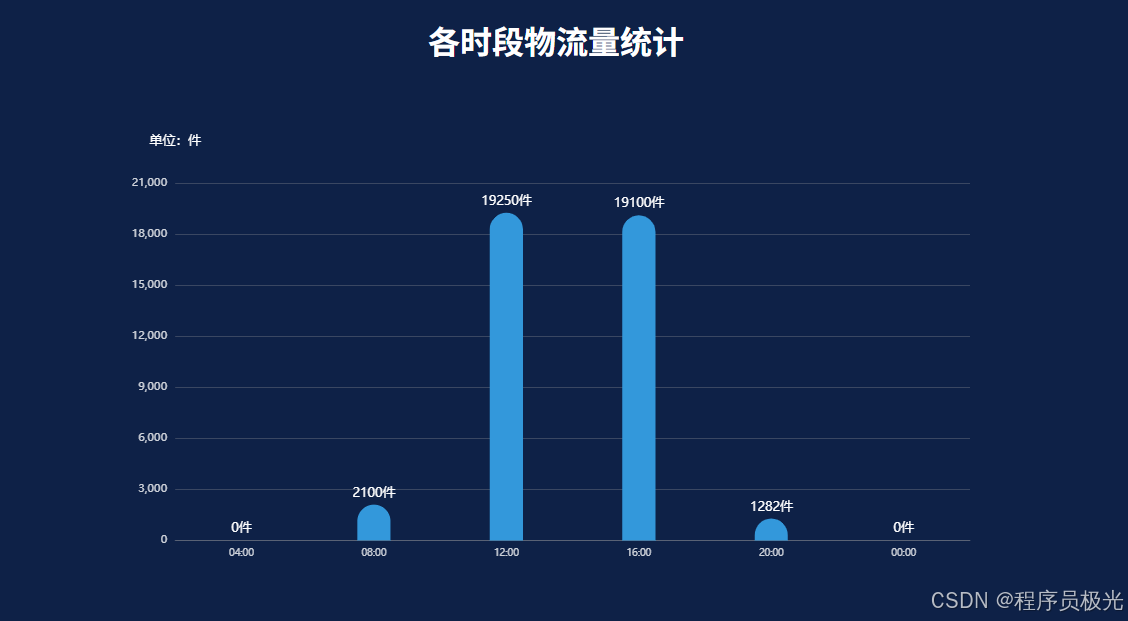
下面是将 JavaScript 对象数据制作成柱状图的完整过程:
1. HTML 结构准备
html
<!DOCTYPE html>
<html lang="zh-CN">
<head>
    <meta charset="UTF-8">
    <meta name="viewport" content="width=device-width, initial-scale=1.0">
    <title>实时物流量统计</title>
    <!-- 引入 ECharts 库 -->
    <script src="https://cdn.jsdelivr.net/npm/echarts@5.4.3/dist/echarts.min.js"></script>
    <style>
        body {
            margin: 0;
            padding: 20px;
            background-color: #0e2147;
            color: #fff;
            font-family: Arial, sans-serif;
        }
        .chart-container {
            width: 100%;
            max-width: 900px;
            height: 500px;
            margin: 0 auto;
            border-radius: 8px;
            padding: 15px;
        }
        h1 {
            text-align: center;
            margin-bottom: 30px;
            color: #fff;
        }
    </style>
</head>
<body>
    <h1>各时段物流量统计</h1>
    <div id="RealTimeLogistics" class="chart-container"></div>

    <script>
        // 这里放置下面的 JavaScript 代码
    </script>
</body>
</html>
2. JavaScript 完整实现
javascript
// 1. 初始化图表
const chartDom = document.getElementById('RealTimeLogistics');
const RealTimeLogistics_Histogram_Echarts = echarts.init(chartDom);

// 2. 准备数据
const d = {
    "SenderOrRecipientobj": [0, 0, 0, 0, 0, 0],
    "Maxobj": [],
    "Dateobj": ["04:00", "08:00", "12:00", "16:00", "20:00", "00:00"],
    "LogisticsAllobj": [
        { "name": "04:00", "value": 0, "max": 1.2 },
        { "name": "08:00", "value": 2100, "max": 1.2 },
        { "name": "12:00", "value": 19250, "max": 1.2 },
        { "name": "16:00", "value": 19100, "max": 1.2 },
        { "name": "20:00", "value": 1282, "max": 1.2 },
        { "name": "00:00", "value": 0, "max": 1.2 }
    ]
};

// 3. 样式配置
const gain = 0.8; // 缩放系数
const gap = 0; // 间距调整
const myColor = '#3398DB'; // 主色
const myBgColor = 'rgba(19,181,177,0.2)'; // 背景色

// 4. 数据处理
const data = d.LogisticsAllobj;
const xData = []; // 时间段
const yData = []; // 实际值
const y2Data = []; // 最大值

data.forEach(item => {
    xData.push(item.name);
    yData.push(item.value);
    y2Data.push(item.max);
});

// 5. 图表配置
const option = {
    grid: {
        top: '15%',
        left: '3%',
        right: '4%',
        bottom: '10%',
        containLabel: true
    },
    tooltip: {
        trigger: 'axis',
        axisPointer: {
            type: 'shadow'
        },
        formatter: params => {
            return `${params[0].axisValue}<br/>
                    ${params[0].marker} 物流量: ${params[0].value}件`;
        }
    },
    xAxis: [{
        type: 'category',
        axisTick: {
            show: false
        },
        axisLine: {
            lineStyle: {
                color: 'rgba(160,160,160,0.3)',
            }
        },
        axisLabel: {
            color: 'rgba(255,255,255,0.8)',
            fontSize: 12 * gain,
        },
        data: xData
    }, {
        type: 'category',
        axisLine: { show: false },
        axisTick: { show: false },
        axisLabel: { show: false },
        splitArea: { show: false },
        splitLine: { show: false },
        data: yData
    }],
    yAxis: {
        type: 'value',
        name: '单位:件',
        nameGap: 35 + gap,
        nameTextStyle: {
            color: '#ffffff',
            fontSize: 16 * gain,
        },
        axisTick: { show: false },
        axisLine: { show: false },
        splitLine: {
            lineStyle: {
                color: 'rgba(160,160,160,0.3)',
            }
        },
        axisLabel: {
            color: 'rgba(255,255,255,0.8)',
            fontSize: 14 * gain,
        }
    },
    series: [{
        type: 'bar',
        xAxisIndex: 1,
        itemStyle: {
            color: myBgColor,
            barBorderRadius: [50, 50, 0, 0],
            borderWidth: 0,
        },
        barWidth: '25%',
        data: y2Data
    }, {
        type: 'bar',
        itemStyle: {
            color: myColor,
            barBorderRadius: [50, 50, 0, 0],
            borderWidth: 0,
        },
        label: {
            show: true,
            position: 'top',
            color: '#ffffff',
            fontSize: 16 * gain,
            formatter: '{c}件'
        },
        barWidth: '25%',
        data: yData
    }]
};

// 6. 应用配置
RealTimeLogistics_Histogram_Echarts.setOption(option);

// 7. 自动轮播提示
let faultByHourIndex = 0;
const faultByHourTime = setInterval(() => {
    RealTimeLogistics_Histogram_Echarts.dispatchAction({
        type: 'showTip',
        seriesIndex: 0,
        dataIndex: faultByHourIndex
    });
    faultByHourIndex = (faultByHourIndex + 1) % xData.length;
}, 3000);

// 8. 鼠标交互控制
chartDom.addEventListener('mouseover', () => {
    clearInterval(faultByHourTime);
});

chartDom.addEventListener('mouseout', () => {
    faultByHourTime = setInterval(() => {
        RealTimeLogistics_Histogram_Echarts.dispatchAction({
            type: 'showTip',
            seriesIndex: 0,
            dataIndex: faultByHourIndex
        });
        faultByHourIndex = (faultByHourIndex + 1) % xData.length;
    }, 3000);
});

// 9. 响应式调整
window.addEventListener('resize', () => {
    RealTimeLogistics_Histogram_Echarts.resize();
});
3. 图表特点说明
- 双柱状图设计:
- 主柱状图显示实际物流量(蓝色)
- 背景柱状图显示最大容量(半透明浅色)
- 顶部圆角设计增强视觉效果
- 数据展示:
- X轴显示时间段(04:00-00:00)
- Y轴显示物流量(单位:件)
- 柱顶显示具体数值
- 悬停提示框显示详细信息
- 交互功能:
- 自动轮播高亮显示不同时段(3秒切换一次)
- 鼠标悬停时暂停自动轮播
- 响应式设计,自动调整大小
- 视觉设计:
- 深色背景提高对比度
- 蓝色主色调突出数据
- 半透明背景柱显示容量上限
- 适当的字体大小和颜色确保可读性
这个图表清晰地展示了不同时间段的物流量变化情况,通过自动轮播和悬停交互增强了数据可视化效果。






 扫一扫
扫一扫


 4096
4096

 被折叠的 条评论
为什么被折叠?
被折叠的 条评论
为什么被折叠?
 到【灌水乐园】发言





