


 本文介绍如何在Windows环境中使用Apache配置Git服务器,并通过PHP界面简化仓库管理。
原文地址:http://www.jeremyskinner.co.uk/2010/07/31/hosting-a-git-server-under-apache-on-windows/
Last month I posted abouthosting a git server under IISby usingGitAspx. While this is certainly one way to host a git server on windows, I wouldn’t recommend this in a production environment.
An alternative (and somewhat more stable) approach is to use the native implementation of git-http-backend that ships withmsysgitalong with Apache.
Step 1: Install Git
Firstly you’ll need to installmsysgit. The current stable version is 1.7.0.2, but this process should also work with the 1.7.1 beta. Be sure to selectRun git from the Windows Command promptwhen the installer asks you if you want to modify your PATH variable.
Once installed, you’ll need to tweak the installation slightly. By default, the git http server is located at C:Program Files (x86)Gitlibexecgit-coregit-http-backend.exe(on x64 systems). If you try and run git-http-backend.exe you’ll get the message that the application couldn’t be started because libiconv2.dll is missing:
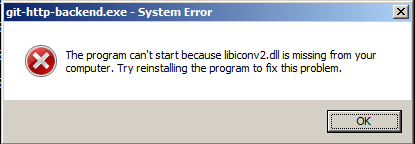
In order to fix this, copy libiconv2.dll fromC:Program Files (x86)GitbintoC:Program Files (x86)Gitlibexecgit-core
Now when you run git-http-backend.exe from a command prompt, the application should run and you should see an HTTP 500 server error:

Step 2: Install Apache
Next you’ll need to install the Apache webserver. I’m using the 2.2.16 installerwhich can be found here. I ran through the installation using the default options so my Apache instance is running on port 80.
If you visit http://localhost at this point you should be greeted with Apache’s standard “It works!” message.
Step 3: Create Repositories Directory
Create the directory where you want to store your git repositores. I’m usingC:Repositories.For testing purposes I created an empty test repository:
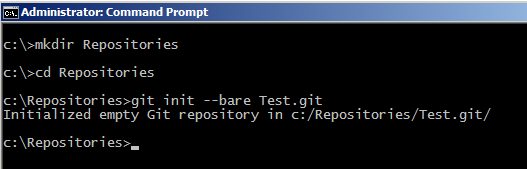
You’ll also need to put some content in this test repositor
Step 4: Modify Apache Configuration
Next, you’ll need to modify the Apache configuration file so that it forwards requests to git-http-backend.exe. This is done by editinghttpd.confinC:Program Files (x86)Apache Software FoundationApache2.2conf
At the bottom of httpd.conf, add the following lines:
SetEnv GIT_PROJECT_ROOT C:/Repositories
SetEnv GIT_HTTP_EXPORT_ALL
ScriptAliasMatch \
        "(?x)^/(.*/(HEAD |  info/refs |  objects/(info/[^/]+ |  [0-9a-f]{2}/[0-9a-f]{38} |  pack/pack-[0-9a-f]{40}.(pack|idx)) | git-(upload|receive)-pack))$" \
       "C:/Program Files (x86)/git/libexec/git-core/git-http-backend.exe/$1"
The first line tells git where your repositories are located. The second line tells git that all repositories in this directory should be published over http (by default, git will only publish those repositories that contain a file named “git-daemon-export-ok”). The final lines tell apache to route git-specific URLs to the git http server.
Finally, if you want to be able to clone from the server without authentication, then you’ll need to tell Apache to allow anonymous access by adding the following lines into httpd.conf:
<Directory />
  Allow from all
</Directory>
After saving the changes, restart the Apache service.
Step 5: Clone the test repository
Next, clone the test repository that you crated in step 3 by issuing the command git clone http://localhost/Test.gitIf all goes well, you should see the following output:
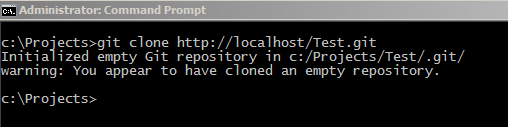
At this point, you can now clone repositories from the server without any authentication.
Step 6: Authentication
If you try to push changes to the repository you cloned in step 5, you’ll receive an error:
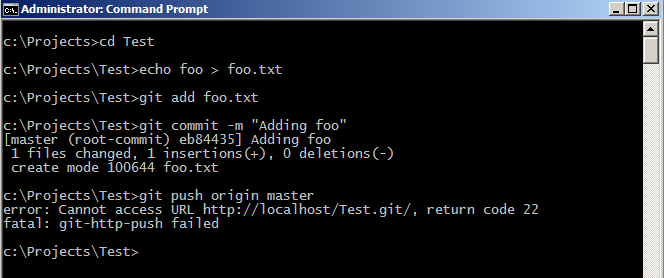
This is because by default, you can only pull from repositories anonymously, while pushing requires authentication to be enabled.
Scenario 1: Allow anonymous pushes
Sometimes you may want to allow users to push to your repositories without authentication, for example when using an internal, privately hosted server.
To enable this scenario, edit theconfigfile in C:RepositoriesTest.git on the server and add the following lines to the bottom of the file:
[http]
  receivepack = true
This will allow git to accept pushes from anonymous users.
Note that you’ll have to add this to every repository that you create. I’ll show a nicer way to do this later in the tutorial.
Scenario 2: Anonymous pull, authenticated push
This is the default scenario. Git will only allow users to push if they have been authenticated with apache.
There are several ways to enable user accounts with apache. The most basic is to use .htaccess files, although you can also configure integration with Windows user accounts and Active Directory by using mod_authnz_ldap. Configuring these is outside the scope for this tutorial, but there are plenty of examples on the internets.
Once authentication is set up, you’ll need to ensure that you clone your repositories with the username in the URL, as git will not prompt you for a username by default:
git clone http://MyUserName@mygitserver/Test.git
Git will then prompt you for a password every time that you try to push. You can also hard code the password in the URL (somewhat insecure) if you want to avoid this prompt:
git clone http://MyUserName:Password@mygitserver/Test.git
To make this more secure, you could enable SSL on the server and require authenticated traffic to go over HTTPS. Although configuring OpenSSL with apache is outside the scope for this tutorial, I will point out that once configured, you will need to disable the SSL verification on your git client by running:
git config --global http.sslverify false
If you don’t do this, you’ll get an error saying“error setting certificate verify locations”every time you try to clone/push/pull over HTTPS.
Step 7: A prettier UI
At this point, you should be able to clone, pull from and push to the server. However, creating new repositories requires that you connect remotely to the server and run git init from a command prompt on the server.
A nicer alternative is to use a web-based front for the creation of repositories. For this I’ll be usingGitPhpHomepagewhich is a small collection of PHP scripts that I ported fromGitAspx'sASP.NET-based UI to PHP in order to get it working under Apache.
First, you’ll need to install PHP on the server. I’ll be using the PHP 5.3.3 Windows binaries that can be found athttp://windows.php.net/download/. The download page is somewhat confusing, offering both thread-safe and non-thread-safe versions compiled with both VC6 and VC9. For use with Apache 2.2 be sure to select theVC6 x86 Thread Safe zip package. Here’sa direct link.
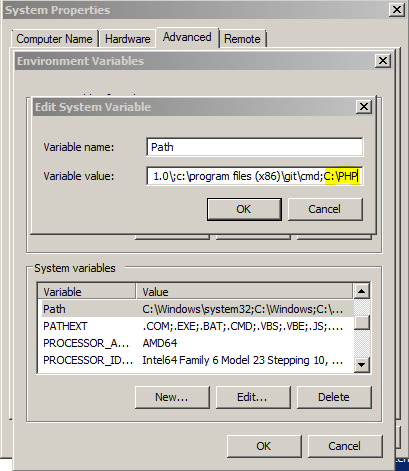
Unzip the contents of this package toC:PHPon the server and add this directory to Windows’ PATH environment variable:
Next, rename the php.ini-production file to just php.ini and edit the following settings:
Uncomment and edit the “extension_dir” (about half way through the file) so that it says the following:
extension_dir = "c:phpext"
Next, edit your Apache configuration file (C:Program Files (x86)Apache Software FoundationApache2.2confhttpd.conf) and add the following lines to the bottom of the file:
AddType application/x-httpd-php .php
LoadModule php5_module "C:/php/php5apache2_2.dll"
PHPIniDir "C:/php"
This tells Apache to map .php file extensions to the PHP5 apache module located in C:php.
You’ll also need to tell Apache to look for index.php as a default index file. This can be done by searching for the lines that look like this:
<IfModule dir_module>
  DirectoryIndex index.html
</IfModule>
…and changing them to this:
<IfModule dir_module>
  DirectoryIndex index.php index.html
</IfModule>
Be sure to restart the Apache server once you’ve made these changes.
To see whether this is working, create a file called phpinfo.php in C:Program Files (x86)Apache Software FoundationApache2.2htdocs and place in it the following content:
<?php phpinfo(); ?>
Now, visiting http://mygitserver/phpinfo.php should display a page containing PHP configuration information.
Now that PHP is configured, download the GitPhpHomepage files fromhttp://github.com/JeremySkinner/GitPhpHomepageand unzip them into C:Program Files (x86)Apache Software FoundationApache2.2htdocs
Be sure to edit the config.php file so that it accurately reflects both the git installation directory and your repositories directory.
At this point, visiting http://mygitserver should display a page where you can view and create repositories:
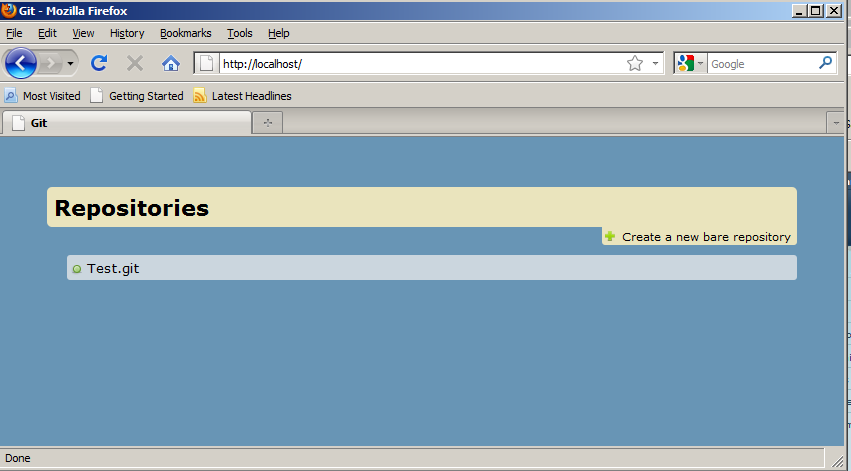
Pressing the “Create a new bare repository” button will open a dialog where you can create a new repository, including the option to enable anonymous pushes:

Obviously, if you’re thinking of using this on a public-facing server you should enable authentication so that not just anyone can create repositories on your server.





 扫一扫
扫一扫


 1134
1134

 被折叠的 条评论
为什么被折叠?
被折叠的 条评论
为什么被折叠?
 到【灌水乐园】发言





