


 本文详细介绍了CSS的各个核心概念,包括语法、选择器、注释、样式创建、背景、文本、字体、链接、列表、表格、盒子模型、浮动、布局对齐、伪类、导航栏、下拉菜单、提示工具、属性选择器、表单样式以及!important规则。内容全面,适合前端开发者学习参考。
文章目录
- CSS
- 一.CSS语法
- 二.CSS注释
- 三.CSS选择器
- 四.CSS创建
- 五、CSS背景
- 六、CSS文本
- 七、CSS字体
- 八、CSS链接
- 九、CSS列表
- 十.CSS表格
- 十一.CSS盒子模型
- 十二.CSS边框
- 十三.CSS轮廓(outline)
- 十四.CSS外边距(margin)
- 十五.CSS内边距(padding)
- 十六.CSS分组和嵌套选择器
- 十七.CSS尺寸
- 十八.CSS Display(显示) 与 Visibility(可见性)
- 十九.CSS定位(Position)
- 二十.CSS布局(Overflow)
- 二十一.CSS浮动(Float)
- 二十二.CSS布局-对齐
- 二十三.CSS 伪类
- 二十四.CSS导航栏
- 二十五.CSS 下拉菜单
- 二十六.CSS提示工具
- 二十七.CSS 属性选择器
- 二十八.CSS 表单
- 二十九.CSS !important 规则
CSS
- CSS 指层叠样式表 (Cascading Style Sheets)
- 样式定义如何显示 HTML 元素
- 样式通常存储在样式表中
- 把样式添加到 HTML 4.0 中,是为了解决内容与表现分离的问题
- 外部样式表可以极大提高工作效率
- 外部样式表通常存储在 CSS 文件中
- 多个样式定义可层叠为一个
样式表定义如何显示 HTML 元素,就像 HTML 中的字体标签和颜色属性所起的作用那样。
样式通常保存在外部的( .css )文件中。
我们只需要编辑一个简单的 CSS 文档就可以改变所有页面的布局和外观。
一.CSS语法
CSS 规则由两个主要的部分构成:选择器,以及一条或多条声明
实例:
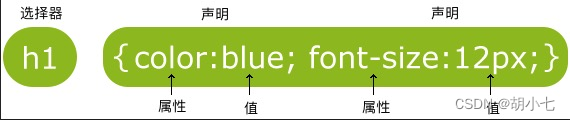
- 选择器指向您需要设置样式的 HTML 元素。每一条属性:值为一条声明。
- 声明块包含一条或多条用分号分隔的声明。
- 每条声明都包含一个 CSS 属性名称和一个值,以冒号分隔。
- 多条 CSS 声明用分号分隔,声明块用花括号括起来。
二.CSS注释
注释是用来解释你的代码,并且可以随意编辑它,浏览器会忽略它。
CSS注释以 / * 开始, 以 * / 结束。
实例:
/*这是个注释*/
p
{


    text-align:center;
    /*这是另一个注释*/
    color:black;
}
三.CSS选择器
CSS 选择器用于“查找”(或选取)要设置样式的 HTML 元素。
css选择器的分类:
-
简单选择器
根据名称,id,类来选取元素 -
组合器选择器
根据他们之间的特定关系来选取元素 -
伪类选择器
根据特定状态选取元素 -
伪元素选择器
选取元素的一部分并设置样式 -
属性选择器
根据属性或属性值来选取元素
1.CSS-元素选择器
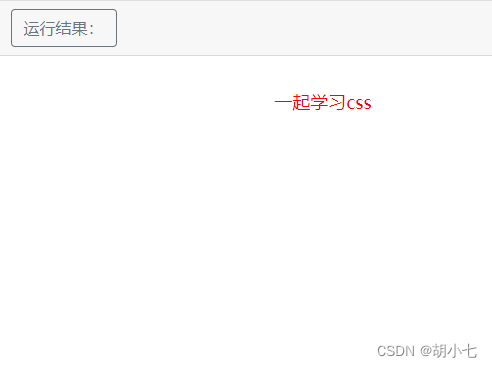
元素选择器根据元素名称来选择 HTML 元素。
实例:
<!DOCTYPE html>
<html>
<head>
    <title>Document</title>
    <style>
        p{


            font-size: large;
            color:red;
            text-align: center;
        }
    </style>

</head>
<body>
    <p>一起学习css</p>
</body>
</html>
2.CSS-id选择器(#)
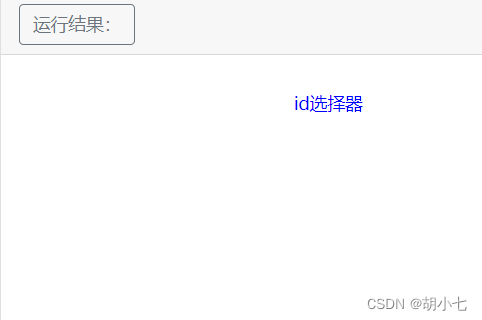
id 选择器使用 HTML 元素的 id 属性来选择特定元素。元素的 id 在页面中是唯一的,因此 id 选择器用于选择一个唯一的元素!要选择具有特定 id 的元素,写一个井号(#),后跟该元素的 id。
实例:
<!DOCTYPE html>
<html>
<head>
    <title>Document</title>
    <style>
        #p_name{


            text-align: center;
            color: blue;
        }
    </style>
</head>
<body>
    <p id="p_name">id选择器</p>
</body>
</html>
3.CSS-类选择器(.)
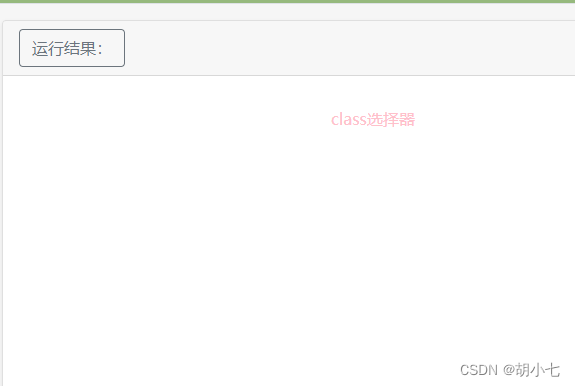
类选择器选择有特定 class 属性的 HTML 元素。如需选择拥有特定 class 的元素,请写一个句点(.)字符,后面跟类名。 —也叫class选择器
class 选择器用于描述一组元素的样式,class 选择器有别于id选择器,class可以在多个元素中使用。
实例:
<!DOCTYPE html>
<html>
<head>
    <title>Document</title>
    <style>
        .p_class{


            text-align: center;
            color: pink;
        }
    </style>

</head>
<body>
    <p class="p_class">class选择器</p>
</body>
</html>
一个HTML 元素也可以引用多个类。
例如:
<p class="p_class p_class1">class选择器</p>
		.p_class{


            text-align: center;
        }
        .p_class1{


            color: blue;
        }
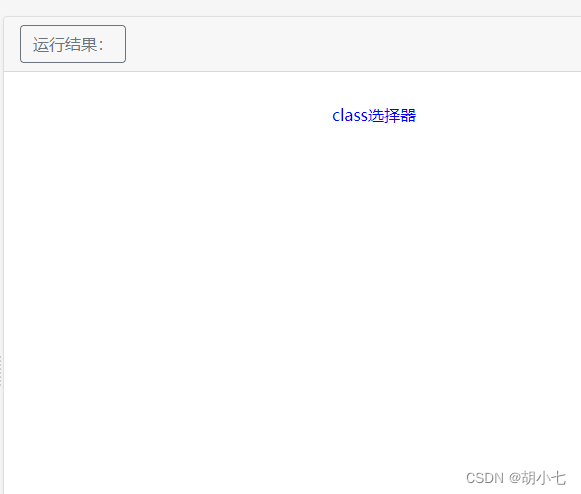
注:类名不能以数字开头!
4.CSS-通用选择器(*)
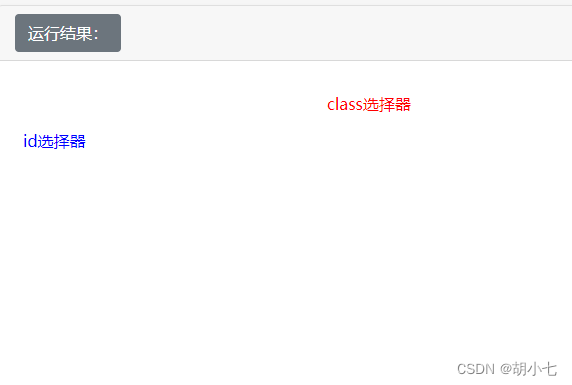
通用选择器(*)选择页面上的所有的 HTML 元素。
实例:
<!DOCTYPE html>
<html>
<head>
    <title>Document</title>
    <style>
		.p_class{


            text-align: center;
        }
        #p_id{


            color: blue;
        }
        *{


            color: red;
        }
    </style>

</head>
<body>
    <p class="p_class">class选择器</p>
    <p id="p_id">id选择器</p>
</body>
</html>
5.CSS-分组选择器
分组选择器选取所有具有相同样式定义的 HTML 元素。
实例:
<html>
<head>
    <title>css</title>
    <style>
        h1,p{


            text-align: center;
            color: red;
        }
    </style>
</head>
<body>
    <h1>css分组选择器</h1>
    <p>第一个段落:</p>

</body>
</html>
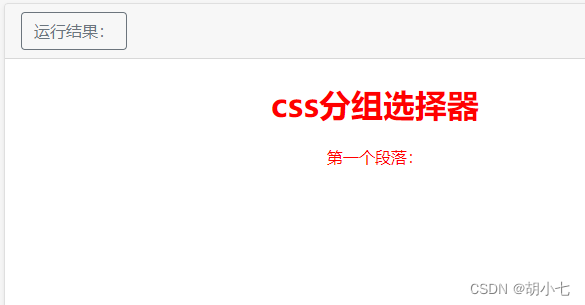
分组选择器可以大程度的缩减代码,不同选择器之间用逗号分隔。
6.CSS-组合器选择器
组合器是解释选择器之间关系的某种机制。CSS 选择器可以包含多个简单选择器。
在简单选择器之间,我们可以包含一个组合器。
CSS 中有四种不同的组合器:
- 后代选择器 (空格)
- 子选择器 (>)
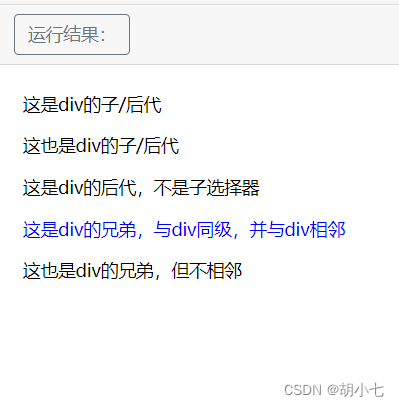
- 相邻兄弟选择器 (+)
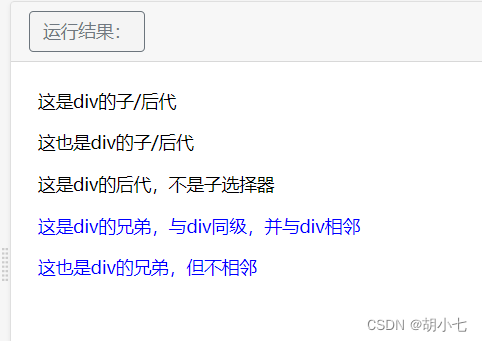
- 通用兄弟选择器 (~)
6.1 后代选择器(空格)
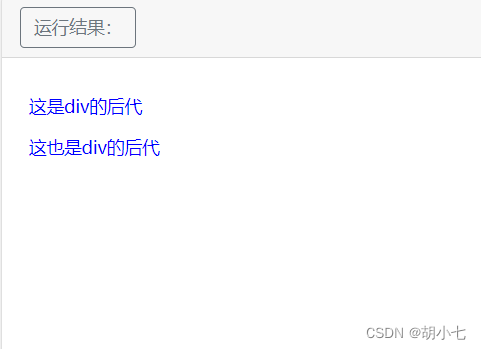
实例:
<html>
<head>
    <title>后代选择器</title>
    <style>
        div p{


            color: blue;
        }
    </style>
</head>
<body>
    <div>
        <p>这是div的子/后代</p>
        <p>这也是div的子/后代</p>
    </div>
</body>
</html>
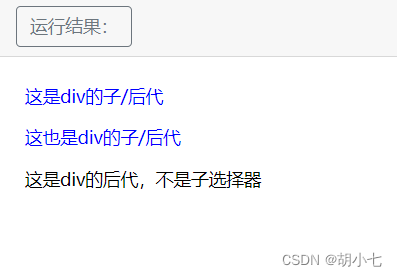
6.2 子选择器 (>)
实例:
<html>
<head>
    <title>子选择器</title>
    <style>
        div>p{


            color: blue;
        }
    </style>
</head>
<body>
    <div>
        <p>这是div的子/后代</p>
        <p>这也是div的子/后代</p>
        <section><p>这是div的后代,不是子选择器</p></section>
    </div>
</body>
</html>
6.3 相邻兄弟选择器 (+)
实例:
<html>
<head>
    <title>相邻兄弟选择器</title>
    <style>
        div+p{


            color: blue;
        }
    </style>
</head>
<body>
    <div>
        <p>这是div的子/后代</p>
        <p>这也是div的子/后代</p>
        <section><p>这是div的后代,不是子选择器</p></section>
    </div>
    <p>这是div的兄弟,与div同级,并与div相邻</p>
    <p>这也是div的兄弟,但不相邻</p>
</body>
</html>
6.4 通用兄弟选择器 (~)
实例:
<html>
<head>
    <title>通用兄弟选择器</title>
    <style>
        div~p{


            color: blue;
        }
    </style>
</head>
<body>
    <div>
        <p>这是div的子/后代</p>
        <p>这也是div的子/后代</p>
        <section><p>这是div的后代,不是子选择器</p></section>
    </div>
    <p>这是div的兄弟,与div同级,并与div相邻</p>
    <p>这也是div的兄弟,但不相邻</p>
</body>
</html>
7.CSS-伪类选择器
伪类用于定义元素的特殊状态。
- 设置鼠标悬停在元素上时的样式
- 为已访问和未访问链接设置不同的样式
- 设置元素获得焦点时的样式
7.1 a标签的伪类
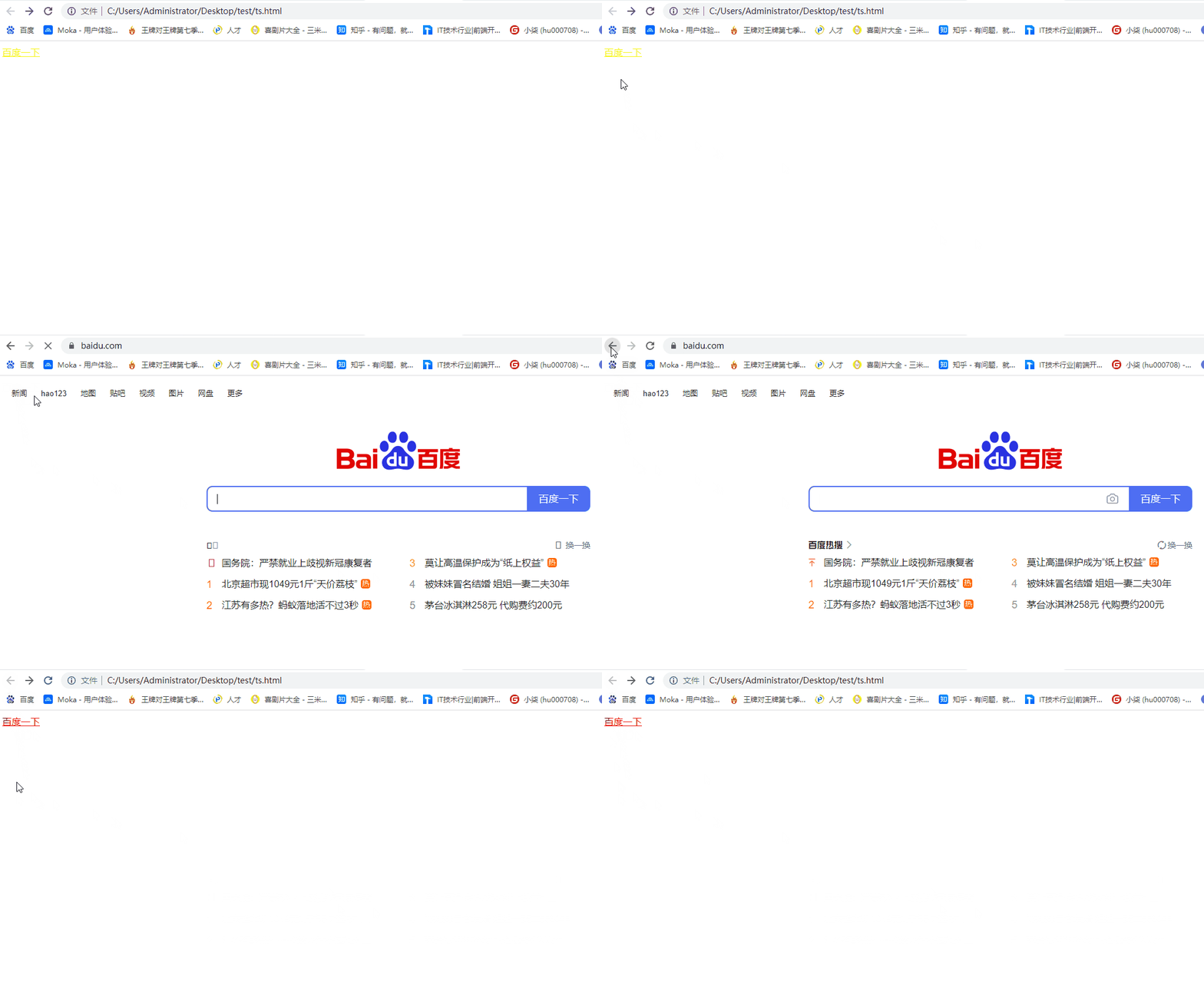
- :link(未访问状态)
- :visited(已被访问状态)
- :hover(鼠标悬停状态)
- :active(用户激活)
:link 和 :visited
对未点击的链接和已点击的链接进行样式设置。
实例:
<html>
<head>
    <title>伪类选择器</title>
    <style>
        /*已点击的链接颜色:红色*/
        a:link{


            color: red;
        }
        /*未点击的链接颜色:黄色*/
        a:visited{


            color: yellow;
        }
    </style>
</head>
<body>
        <a href="https://www.baidu.com/">百度一下</a>
</html>
:hover
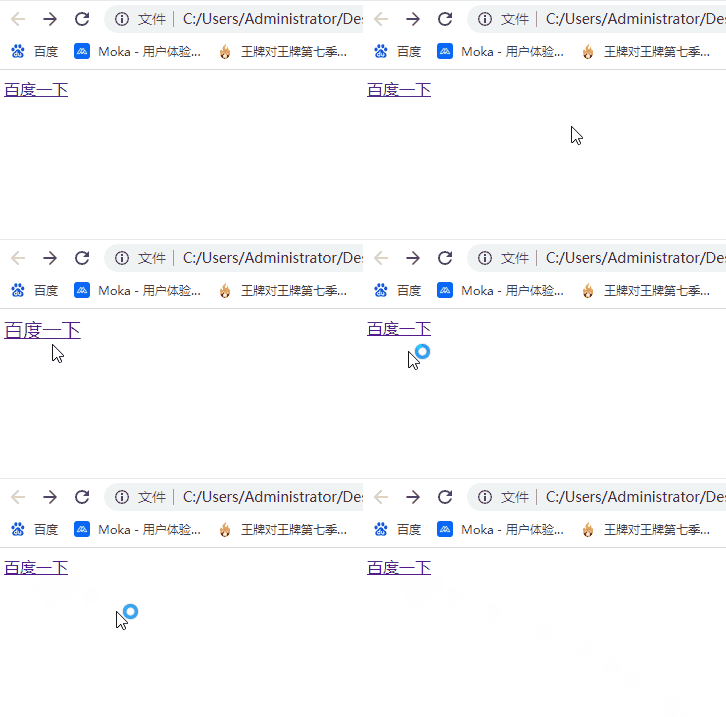
鼠标悬停时的样式。
实例:
<html>
<head>
    <title>伪类选择器</title>
    <style>
    /*鼠标悬停时字体变大*/
        a:hover{


            font-size: larger;
        }
    </style>
</head>
<body>
        <a href="https://www.baidu.com/">百度一下</a>
</html>
:active
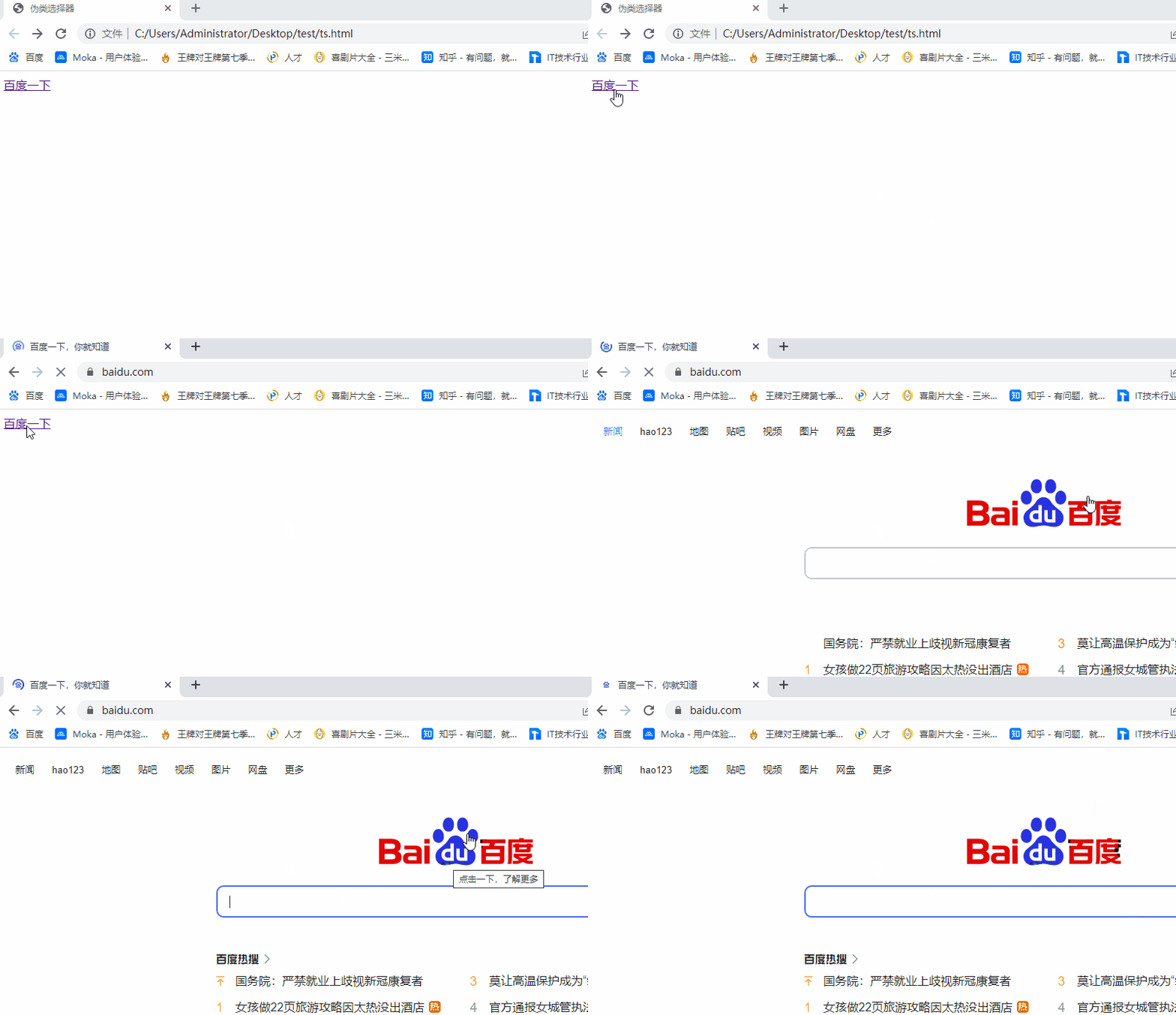
用于选择活动链接。当您在一个链接上点击时,它就会成为活动的。即设置鼠标点击触发的样式。
实例:
<html>
<head>
    <title>伪类选择器</title>
    <style>
        /*点击一下链接字体会变大*/
        a:active{


            font-size: larger;
        }
    </style>
</head>
<body>
        <a href="https://www.baidu.com/">百度一下</a>
</html>
7.2 伪类选择器合集
| 选择器 | 实例 | 描述 |
|---|---|---|
| :activ | a:active | 选择活动的链接。 |
| :checked | input:checked | 选择每个被选中的 < input > 元素。 |
| :disabled | input:disabled | 选择每个被禁用的 < input > 元素。 |
| :empty | p:empty | 选择没有子元素的每个 < p > 元素。 |
| :enabled | input:enabled | 选择每个已启用的 < input > 元素。 |
| :first-child | p:first-child | 选择作为其父的首个子元素的每个 < p > 元素。 |
| :first-of-type | p:first-of-type | 选择作为其父的首个 < p > 元素的每个 < p > 元素。 |
| :focus | input:focus | 选择获得焦点的 < input > 元素。 |
| :hover | a:hover | 选择鼠标悬停其上的链接。 |
| :in-range | input:in-range | 选择具有指定范围内的值的 < input > 元素。 |
| :invalid | input:invalid | 选择所有具有无效值的 < input > 元素。 |
| :lang(language) | p:lang(it) | 选择每个 lang 属性值以 “it” 开头的 < p > 元素。 |
| :last-child | p:last-child | 选择作为其父的最后一个子元素的每个 < p > 元素。 |
| :last-of-type | p:last-of-type | 选择作为其父的最后一个 < p > 元素的每个 < p > 元素。 |
| :link | a:link | 选择所有未被访问的链接。 |
| :not(selector) | :not§ | 选择每个非 < p > 元素的元素。 |
| :nth-child(n) | p:nth-child(2) | 选择作为其父的第二个子元素的每个 < p > 元素。 |
| :nth-last-child(n) | p:nth-last-child(2) | 选择作为父的第二个子元素的每个< p >元素,从最后一个子元素计数。 |
| :nth-last-of-type(n) | p:nth-last-of-type(2) | 选择作为父的第二个< p >元素的每个< p >元素,从最后一个子元素计数 |
| :nth-of-type(n) | p:nth-of-type(2) | 选择作为其父的第二个 < p > 元素的每个 < p > 元素。 |
| :only-of-type | p:only-of-type | 选择作为其父的唯一 < p > 元素的每个 < p > 元素。 |
| :only-child | p:only-child | 选择作为其父的唯一子元素的 < p > 元素。 |
| :optional | input:optional | 选择不带 “required” 属性的 < input > 元素。 |
| :out-of-range | input:out-of-range | 选择值在指定范围之外的 < input > 元素。 |
| :read-only | input:read-only | 选择指定了 “readonly” 属性的 < input > 元素。 |
| :read-write | input:read-write | 选择不带 “readonly” 属性的 < input > 元素。 |
| :required | input:required | 选择指定了 “required” 属性的 < input > 元素。 |
| :root | root | 选择元素的根元素。 |
| :target | #news:target | 选择当前活动的 #news 元素(单击包含该锚名称的 URL)。 |
| :valid | input:valid | 选择所有具有有效值的 < input > 元素。 |
| :visited | a:visited | 选择所有已访问的链接。 |
8.CSS-伪元素选择器
CSS 伪元素用于设置元素指定部分的样式。
例如,它可用于:
- 设置元素的首字母、首行的样式
- 在元素的内容之前或之后插入内容
8.1 伪元素合集
| 选择器 | 例子 | 描述 |
|---|---|---|
| ::after | p::after | 在每个 < p > 元素之后插入内容。 |
| ::before | p::before | 在每个 < p > 元素之前插入内容。 |
| ::first-letter | p::first-letter | 选择每个 < p > 元素的首字母。 |
| ::first-line | p::first-line | 选择每个 < p > 元素的首行。 |
| ::selection | p::selection | 选择用户选择的元素部分。 |
::after和::before
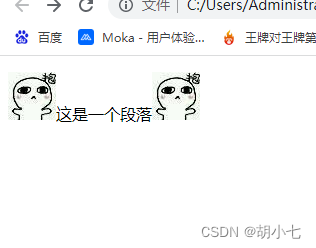
在元素之后/之前插入内容。
实例:
<!DOCTYPE html>
<html lang="en">
<head>
    <title>伪元素选择器</title>
    <style>
        p::after{


            content:url(image/1.jpg);
        }
        p::before{


            content: url(image/1.jpg);

        }
    </style>
</head>
<body>
    <p>这是一个段落</p>

</body>
</html>
::first-letter
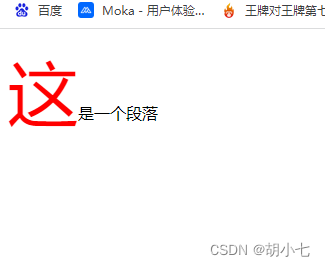
选中元素的第一个字/字母/数字…
实例:
<!DOCTYPE html>
<html lang="en">
<head>
    <title>伪元素选择器</title>
    <style>
        p::first-letter{


            color:red;
            font-size: 70px;
        }

    </style>
</head>
<body>
    <p>这是一个段落</p>
</body>
</html>
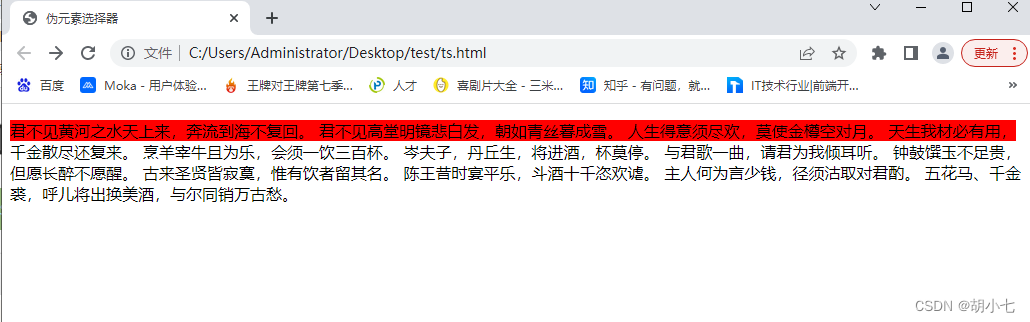
::first-line
选择第一行
<!DOCTYPE html>
<html lang="en">
<head>
    <title>伪元素选择器</title>
    <style>
        p::first-line{


            background-color: red;
        }

    </style>
</head>
<body>
    <p>
        君不见黄河之水天上来,奔流到海不复回。
        君不见高堂明镜悲白发,朝如青丝暮成雪。
        人生得意须尽欢,莫使金樽空对月。
        天生我材必有用,千金散尽还复来。
        烹羊宰牛且为乐,会须一饮三百杯。
        岑夫子,丹丘生,将进酒,杯莫停。
        与君歌一曲,请君为我倾耳听。
        钟鼓馔玉不足贵,但愿长醉不愿醒。
        古来圣贤皆寂寞,惟有饮者留其名。
        陈王昔时宴平乐,斗酒十千恣欢谑。
        主人何为言少钱,径须沽取对君酌。
        五花马、千金裘,呼儿将出换美酒,与尔同销万古愁。
    </p>
</body>
</html>
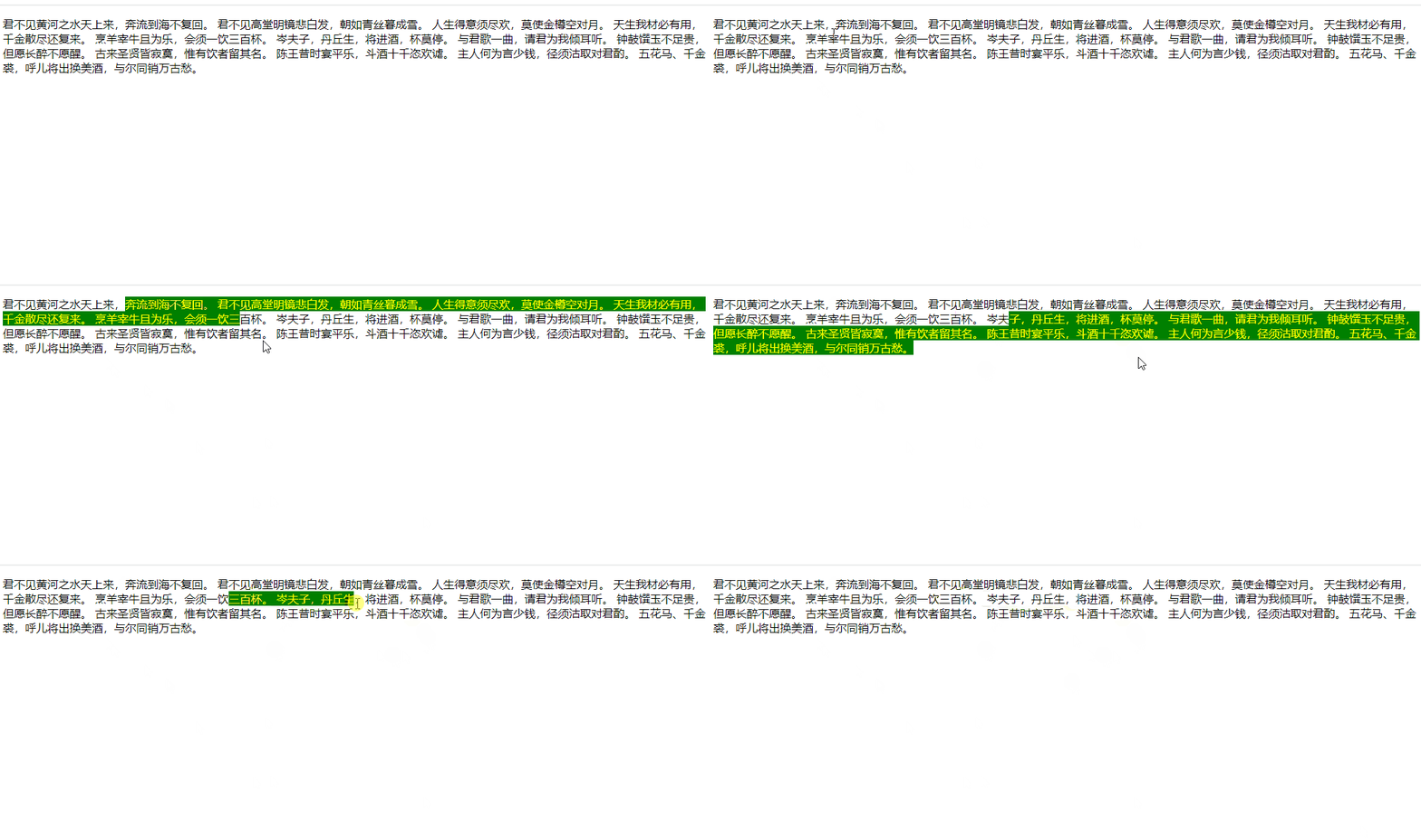
::selection
设置选中时的样式。
实例:
<!DOCTYPE html>
<html lang="en">
<head>
    <title>伪元素选择器</title>
    <style>
        p::selection{


           background-color: green;
           color: yellow;
       }
    </style>
</head>
<body>
    <p>
        君不见黄河之水天上来,奔流到海不复回。
        君不见高堂明镜悲白发,朝如青丝暮成雪。
        人生得意须尽欢,莫使金樽空对月。
        天生我材必有用,千金散尽还复来。
        烹羊宰牛且为乐,会须一饮三百杯。
        岑夫子,丹丘生,将进酒,杯莫停。
        与君歌一曲,请君为我倾耳听。
        钟鼓馔玉不足贵,但愿长醉不愿醒。
        古来圣贤皆寂寞,惟有饮者留其名。
        陈王昔时宴平乐,斗酒十千恣欢谑。
        主人何为言少钱,径须沽取对君酌。
        五花马、千金裘,呼儿将出换美酒,与尔同销万古愁。
    </p>
</body>
</html>
四.CSS创建
当浏览器读到样式表时,它将根据样式表中的信息来格式化 HTML 文档。
有三种插入样式表(css)的方法:
- 外部 样式
- 内部 样式
- 行内 样式
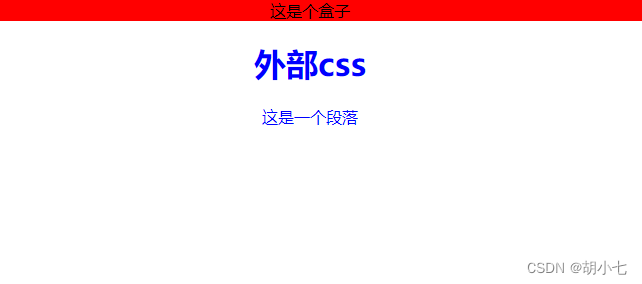
1.外部样式
通过使用外部样式表,只需修改一个文件即可改变整个网站的外观!每张 HTML 页面必须在 head 部分的 < link > 元素内包含对外部样式表文件的引用。
实例:
HTML部分:
<html>
<head>
    <title>外部样式</title>
    <link rel="stylesheet" type="text/css" href="style.css">
</head>
<body>
    <div>
        <p>这是个盒子</p>
    </div>
    <h1>外部css</h1>
    <p>这是一个段落</p>
</body>
</html>
css部分:
div{


    background-color: red;
    text-align: center;
}
h1,div~p{


    text-align: center;
    color: blue;
}
外部样式分为link引入和import引入两种方式。这两种方式区别:
- link是XHTML标签,除了加载css外,还可以定义RSS等其他事务;@import属于css范畴,只能加载css。
- link引用css时,在页面载入时同时加载;@import需要页面网页完全载入以后加载。
- link是XHTML标签,无兼容问题;@import是在css2.1提出的,低版本的浏览器不支持。
- link支持使用JavaScript控制DOM去改变样式;而@import不支持。
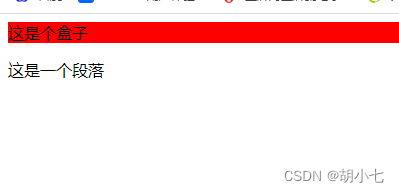
2.内部样式
如果一张 HTML 页面拥有唯一的样式,那么可以使用内部样式表。内部样式是在 head 部分的 < style > 元素中进行定义。
实例:
<html>
<head>
    <title>内部样式</title>
    <style>
div{


    background-color: red;
}
    </style>
</head>
 <body>
    <div>
        <p>这是个盒子</p>
    </div>
    <p>这是一个段落</p>
</body>

</html>
3.行内样式
行内样式(也称内联样式)可用于为单个元素应用唯一的样式。如需使用行内样式,请将 style 属性添加到相关元素。style 属性可包含任何 CSS 属性。
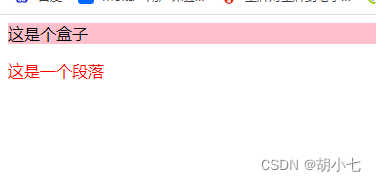
实例:
<html>
<head>
    <title>行内样式</title>
</head>
<body>
    <div style="background-color:pink; ">
        <p>这是个盒子</p>
    </div>
    <p style="color:red; ">这是一个段落</p>
</body>
</html>
4.多重样式优先级
当为某个 HTML 元素指定了多个样式时,会使用哪种样式呢?页面中的所有样式将按照以下规则“层叠”为新的“虚拟”样式表。
(行内样式)Inline style > (内部样式)Internal style sheet >(外部样式)External style sheet > 浏览器默认样式
4.1 行内样式 > 内部样式
实例:
<html>
<head>
    <title>行内样式</title>
    <style>
        p{


            color: blue;
        }
    </style>
</head>
<body>
    <p style="color:red; ">这是一个段落</p>
</body>
</html>
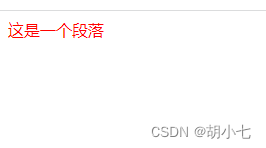
上面的< p >样式蓝色并没有生效
4.2 行内样式 > 外部样式
实例:
HTML部分:
<html>
<head>
    <title>行内样式</title>
    <link rel="stylesheet" type="text/css" href="css/style.css"
</head>
<body>
    <p style="color:red; ">这是一个段落</p>
</body>
</html>
css部分:
p{


    color: blue;
}
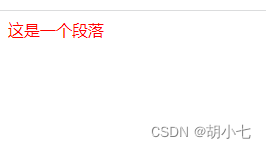
外部的样式还是没有被引用,颜色还是红色
4.3 内部样式 > 外部样式
实例:
HTML部分:
<html>
<head>
    <title>行内样式</title>
    <link rel="stylesheet" type="text/css" href="css/style.css">
    <style>
        p{


            color: red;
        }
    </style>
</head>
<body>
    <p>这是一个段落</p>
</body>
</html>
css部分:
p{


    color: blue;
}
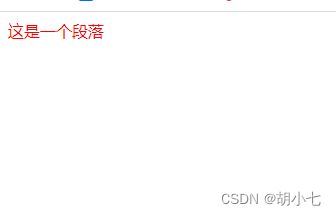
这里颜色还是红色,外部样式没有生效
注意:如果外部样式放在内部样式后面,则外部样式会覆盖内部样式
实例:
<html>
<head>
    <title>行内样式</title>
    <style>
        p{


            color: red;
        }
    </style>
    <link rel="stylesheet" type="text/css" href="css/style.css">
</head>
<body>
    <p>这是一个段落</p>
</body>
</html>
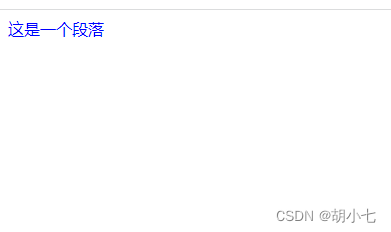
这里就变成蓝色了,外部样式把内部样式覆盖了
我们可以总结出当渲染元素的顺序为从上到下,行内优先级最高,其次是内部和外部样式,在前面定义的样式会被后面定义的样式所覆盖!!
5.样式权重
!important(10000)>内联样式(1000)>id选择器(100)>l类、伪类选择器(10)>标签选择器(1)
五、CSS背景
CSS 背景属性用于定义HTML元素的背景。
CSS 属性定义背景效果:
- background-color:背景颜色
- background-image:背景图像
- background-repeat:背景图像铺排方式
- background-attachment:背景图像滚动位置
- background-position:设置背景图片的位置
1.background-colo(背景颜色)
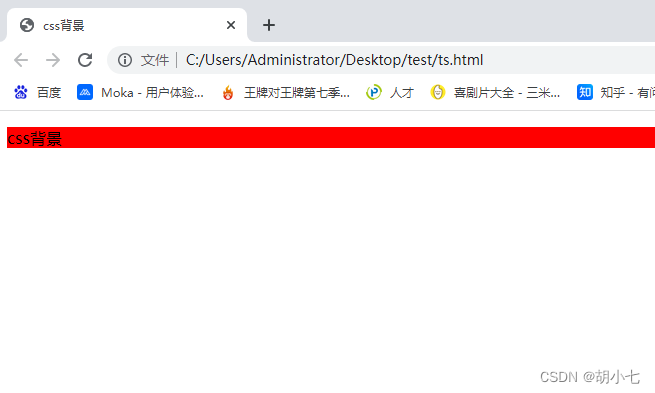
background-color 属性定义了元素的背景颜色.
实例:
<!DOCTYPE html>
<html lang="en">
<head>
    <title>css背景</title>
    <style>
     p{


         background-color: red;
     }
    </style>
</head>
<body>
    <p>css背景</p>
</body>
</html>
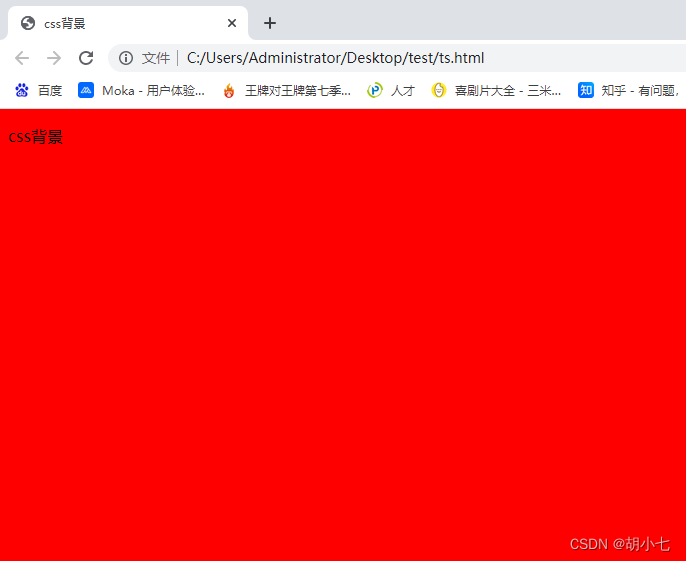
页面的背景颜色使用在body的选择器中:
实例:
<!DOCTYPE html>
<html lang="en">
<head>
    <title>css背景</title>
    <style>
     body{


         background-color: red;
     }
    </style>
</head>
<body>
    <p>css背景</p>
</body>
</html>
CSS中,颜色值通常以以下方式定义:
- 十六进制 - 如:“#ff0000”
- RGB - 如:“rgb(255,0,0)”
- 颜色名称 - 如:“red”
2.background-image(背景图像)
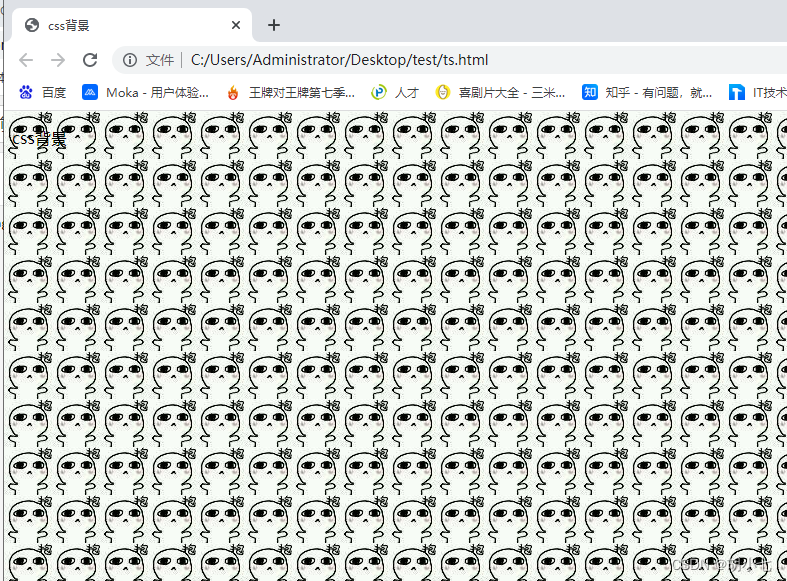
background-image 属性描述了元素的背景图像.
默认情况下,背景图像进行平铺重复显示,以覆盖整个元素实体.
实例:
<!DOCTYPE html>
<html lang="en">
<head>
    <title>css背景</title>
    <style>
     body{


         background-image: url("image/1.jpg");
     }
    </style>
</head>
<body>
    <p>css背景</p>
</body>
</html>
3.background-repeat(背景图像铺排方式)
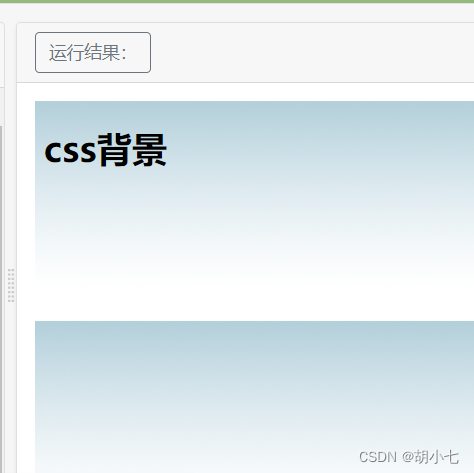
默认情况下 background-image 属性会在页面的水平或者垂直方向平铺。
一些图像如果在水平方向与垂直方向平铺,这样看起来很不协调,如下所示:
<!DOCTYPE html>
<html lang="en">
<head>
    <title>css背景</title>
    <style>
     body{


         background-image: url("image/1.jpg");
     }
    </style>
</head>
<body>
    <p>css背景</p>
</body>
</html>
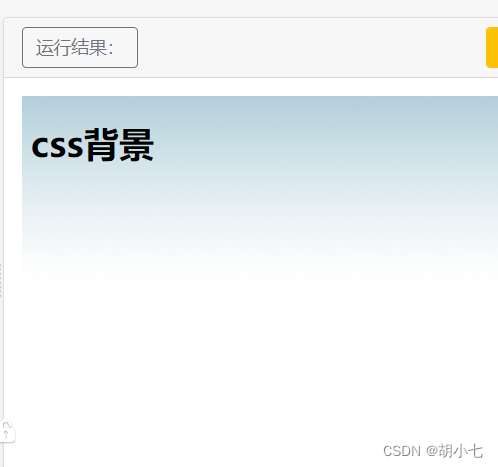
如果图像只在水平方向平铺 (repeat-x), 页面背景会更好些
实例:
<!DOCTYPE html>
<html lang="en">
<head>
    <title>css背景</title>
    <style>
     body{


         background-image: url('image/1.jpg');
         background-repeat:repeat-x;
     }
    </style>
</head>
<body>
    <p>css背景</p>
</body>
</html>
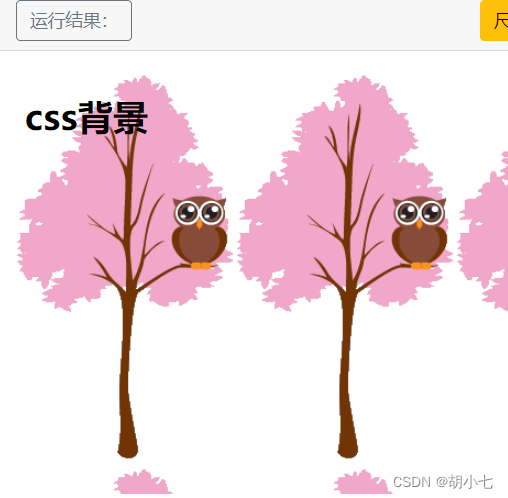
有的时候背景图像会影响文本的排版,不太美观
实例:
<!DOCTYPE html>
<html>
<head>
<meta charset="utf-8">
<title>css背景</title>
<style>
body
{


	background-image:url('img_tree.png');
}
</style>
</head>

<body>
<h1>css背景</h1>
</body>

</html>
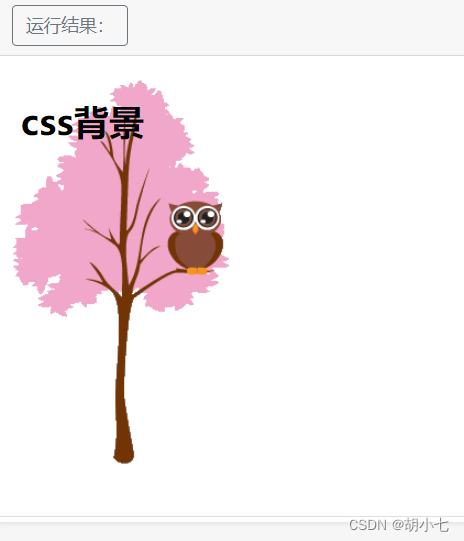
如果你不想让图像平铺,你可以使用 background-repeat 属性:no-repeat;
实例:
<!DOCTYPE html>
<html>
<head>
<meta charset="utf-8">
<title>css背景</title>
<style>
body
{


	background-image:url('img_tree.png');
	background-repeat:no-repeat;
}
</style>
</head>

<body>
<h1>css背景</h1>
</body>

</html>
4.background-position(背景图像的位置)
默认背景图显示在左上角(0,0)
取值:
- 关键字:top、bottom、left、right、center
- 坐标:(x,y),向右为x正方向,向下为y正方向
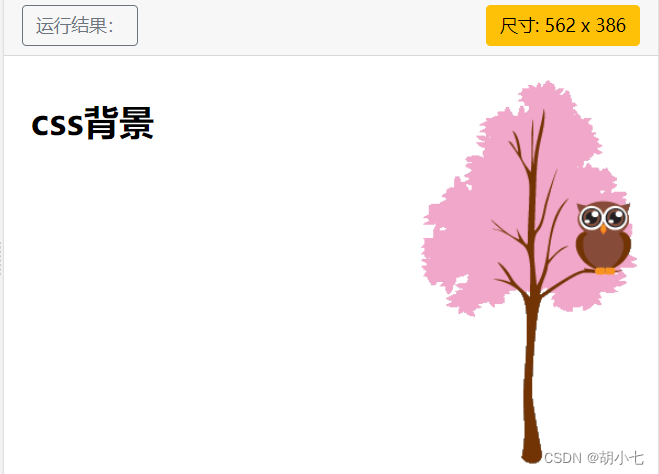
上面实例中背景图像与文本显示在同一个位置,为了让页面排版更加合理,不影响文本的阅读,我们可以改变图像的位置。
可以利用 background-position 属性改变图像在背景中的位置
实例:
<!DOCTYPE html>
<html>
<head>
<meta charset="utf-8">
<title>css背景</title>
<style>
body
{


	background-image:url('img_tree.png');
	background-repeat:no-repeat;
	background-position:100px 100px;
}
</style>
</head>

<body>
<h1>css背景</h1>
</body>

</html>
5.background 简写属性
在以上实例中我们可以看到页面的背景颜色通过了很多的属性来控制。
为了简化这些属性的代码,我们可以将这些属性合并在同一个属性中.
背景颜色的简写属性为 “background”
当使用简写属性时,属性值的顺序为:
background:background-color|background-image|background-repeat|background-position (用空格隔开)
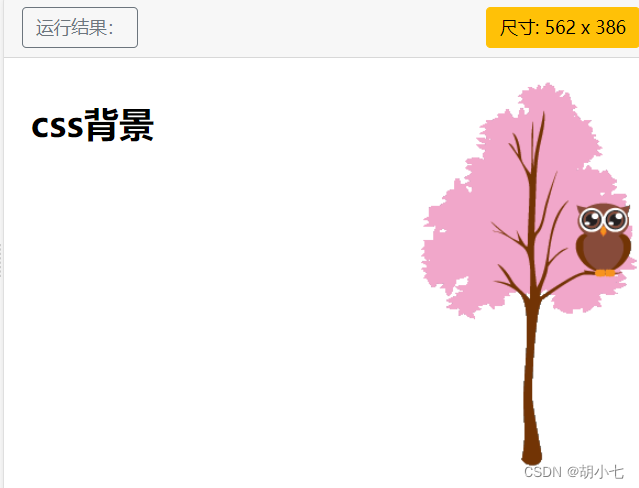
实例:
<!DOCTYPE html>
<html>
<head>
<meta charset="utf-8">
<title>css背景</title>
<style>
body
{


	background:white url('image/1.jpg') no-repeat right top;
}
</style>

</head>

<body>
<h1>css背景</h1>
</body>

</html>
6.总结
| 属性 | 含义 | 说明 |
|---|---|---|
| background-color | 背景颜色 | 取值:transparent (透明) / color |
| background-image | 背景图像 | 取值:none(没有) / url |
| background-repeat | 背景图像铺排方式 | 取值:repeat(默认)/ no-repeat(不排列)/ repeat-x(横向排列)/ repeat-y(纵向排列) |
| background-position | 背景图像的显示位置 | 取值:(x,y) / top(上面)/ center (中间)/ botton(下面)/ left(左边)/ right(右边) |
| background-attachment | 背景图像滚动位置 | 取值:scroll(默认) / fixed(固定不动) |
六、CSS文本
1.文本颜色 (color)
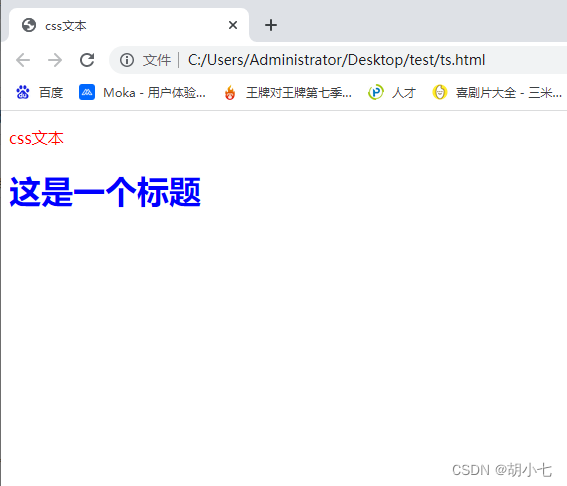
颜色属性被用来设置文字的颜色。
实例:
<!DOCTYPE html>
<html lang="en">
<head>
    <title>css文本</title>
    <style>
    /*这里body属性定义的是全文的字体*/
    body{


        color: blue;
    }
    p{


        color: red;
    }
    </style>
</head>
<body>
    <p>css文本</p>
    <h1>这是一个标题</h1>
</body>
</html>
2.文本的对齐方式 (text-align)
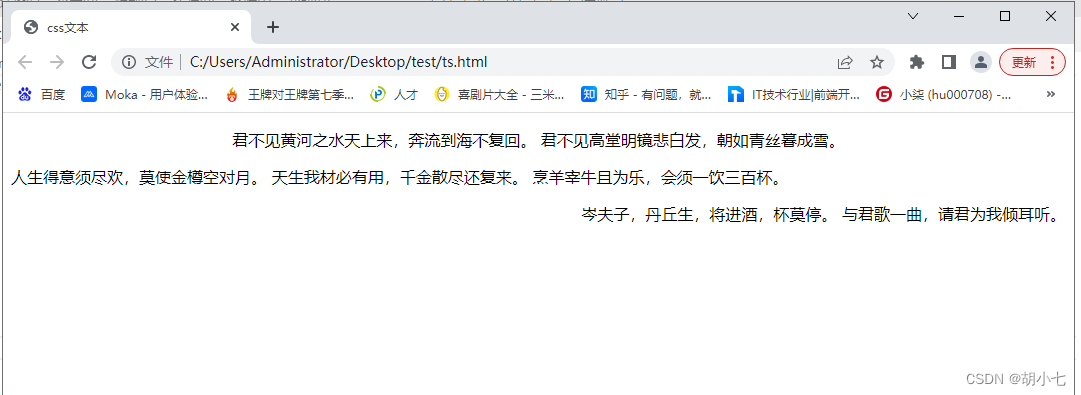
文本排列属性是用来设置文本的水平对齐方式。
文本可居中或对齐到左或右
实例:
<!DOCTYPE html>
<html lang="en">
<head>
    <title>css文本</title>
    <style>
     p{


         text-align: center;   /*居中对齐*/
     }
     .left{


         text-align: left;     /*左对齐*/
     }
     .right{


         text-align: right;    /*右对齐*/
     }
    </style>
</head>
<body>
    <p>君不见黄河之水天上来,奔流到海不复回。
        君不见高堂明镜悲白发,朝如青丝暮成雪。
    </p>
        <p class="left">人生得意须尽欢,莫使金樽空对月。
        天生我材必有用,千金散尽还复来。
        烹羊宰牛且为乐,会须一饮三百杯。
        </p>
        <p class="right">
            岑夫子,丹丘生,将进酒,杯莫停。
        与君歌一曲,请君为我倾耳听。
        </p>

</body>
</html>
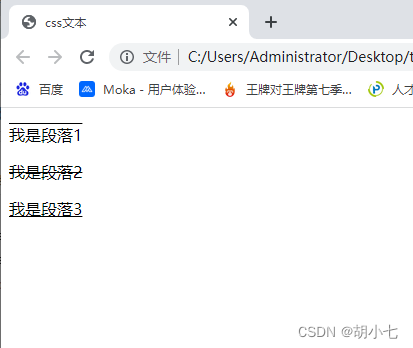
3.文本修饰 (text-decoration)
text-decoration 属性用来设置或删除文本的装饰。
取值:overline(下划线在上面)、line-through(下划线在中间)、underline(下划线在下面)、none(无下划线)
实例:
<!DOCTYPE html>
<html lang="en">
<head>
    <title>css文本</title>
    <style>
      .one{


          text-decoration: overline;
      }
      .two{


          text-decoration: line-through;
      }
      .three{


          text-decoration: underline;
      }
    </style>
</head>
<body>
    <p class="one">我是段落1</p>
    <p class="two">我是段落2</p>
    <p class="three">我是段落3</p>
</body>
</html>
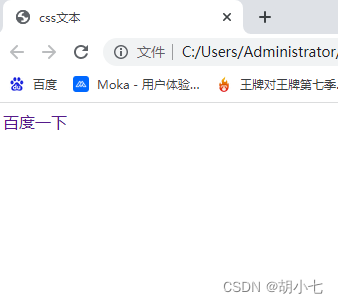
可以用来删除链接的下划线。
实例:
<!DOCTYPE html>
<html lang="en">
<head>
    <title>css文本</title>
    <style>
     a{


         text-decoration: none;
     }
    </style>
</head>
<body>
        <a href="https://www.baidu.com">百度一下</a>
</body>
</html>
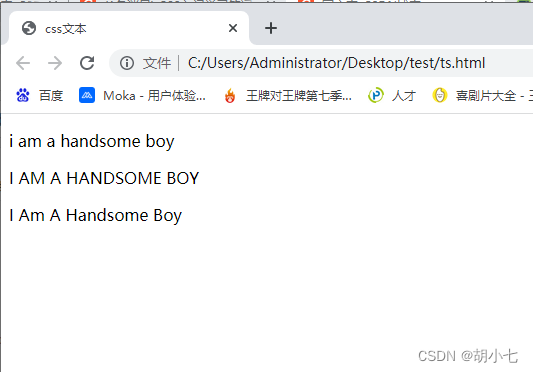
4.文本中字母大小写转换 (text-transform)
text-transform 属性是用来指定在一个文本中的大写和小写字母。
可用于所有字句变成大写或小写字母,或每个单词的首字母大写。
取值:lowercase(大写转小写)、uppercase(小写转大写)、capitalize(首字母大写)
实例:
<!DOCTYPE html>
<html lang="en">
<head>
    <title>css文本</title>
    <style>
      .one{


          text-transform: lowercase;     /*全部转小写*/
      }
      .two{


          text-transform: uppercase;    /*全部转大写*/
      }
      .three{


          text-transform: capitalize;   /*首字母都大写*/
      }
    </style>
</head>
<body>
    <p class="one">I am a handsome boy</p>
    <p class="two">I am a handsome boy</p>
    <p class="three">I am a handsome boy</p>
</body>
</html>
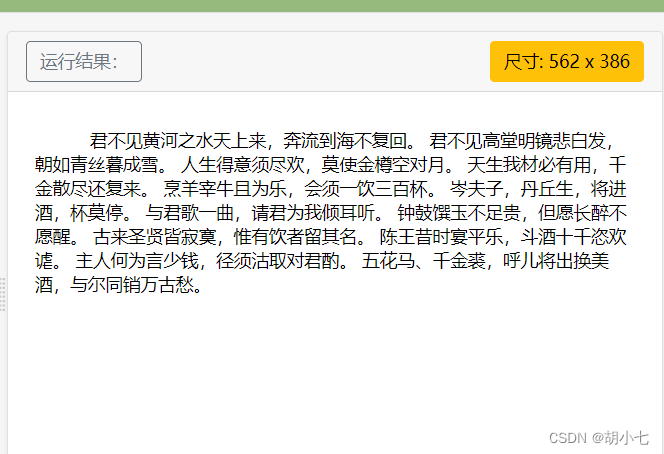
5.文本缩进(text-indent)
text-indent 属性是用来指定文本的第一行的缩进。
实例:
<!DOCTYPE html>
<html>
<head>
<meta charset="utf-8">
<title>css文本</title>
<style>
p {


	text-indent:50px;
	}
</style>
</head>
<body>

<p>
	君不见黄河之水天上来,奔流到海不复回。
        君不见高堂明镜悲白发,朝如青丝暮成雪。
        人生得意须尽欢,莫使金樽空对月。
        天生我材必有用,千金散尽还复来。
        烹羊宰牛且为乐,会须一饮三百杯。
        岑夫子,丹丘生,将进酒,杯莫停。
        与君歌一曲,请君为我倾耳听。
        钟鼓馔玉不足贵,但愿长醉不愿醒。
        古来圣贤皆寂寞,惟有饮者留其名。
        陈王昔时宴平乐,斗酒十千恣欢谑。
        主人何为言少钱,径须沽取对君酌。
        五花马、千金裘,呼儿将出换美酒,与尔同销万古愁。
	</p>
</body>
</html>
6.总结
所有css文本
| 属性 | 描述 | 说明 |
|---|---|---|
| color | 设置文本颜色 | |
| direction | 设置文本方向。 | |
| letter-spacing | 设置字符间距 | |
| line-height | 设置行高 | 行之间的高度 |
| text-align | 对齐元素中的文本 | 取值:left、center、right |
| text-decoration | 向文本添加修饰 | 取值:overline(下划线在上面)、line-through(下划线在中间)、underline(下划线在下面)、none(无下划线) |
| text-indent | 缩进元素中文本的首行 | |
| text-shadow | 设置文本阴影 | |
| text-transform | 控制元素中的字母 | 取值:lowercase(大写转小写)、uppercase(小写转大写)、capitalize(首字母大写) |
| unicode-bidi | 设置或返回文本是否被重写 | |
| vertical-align | 设置元素的垂直对齐 | 取值:top、middle、bottom可以用于图片和文字的对齐方式 |
| white-space | 设置元素中空白的处理方式 | 文本超出后是否换行,取值:nowrap |
| word-spacing | 设置字间距 | 只对英文有效 |
七、CSS字体
font 属性定义css字体,加粗,大小,文字样式。
1.字体大小(font-size)
font-size 属性设置文本的大小。
取值:
- inherited 继承,默认从父标签继承字体大小(默认值),所有CSS属性的默认值都是inherited
- px 像素 pixel
- % 百分比,相对父标签字体大小的百分比
- em 倍数,相对于父标签字体大小的倍数
HTML根元素默认字体的大小为16px,也称为基础字体大小
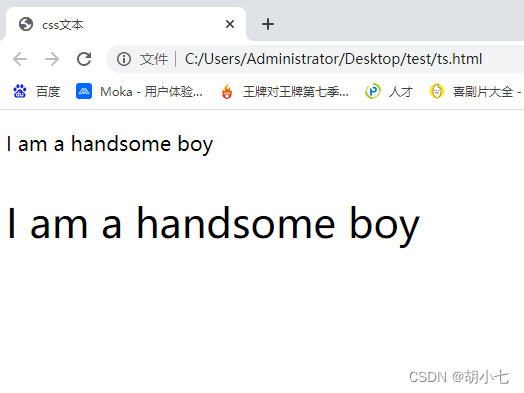
实例:
<!DOCTYPE html>
<html lang="en">
<head>
    <title>css字体</title>
    <style>
      .one{


          font-size: 20px;
      }
      .two{


          font-size: 40px;
      }

    </style>
</head>
<body>
    <p class="one">I am a handsome boy</p>
    <p class="two">I am a handsome boy</p>
</body>
</html>
2.字体粗细( font-weight)
font-weight 属性指定字体的粗细。
取值:
- normal :普通(默认)
- bold : 粗体
- bolder:比bold粗
- lighter:比normal细
- 自定义
实例:
<!DOCTYPE html>
<html lang="en">
<head>
    <title>css字体</title>
    <style>
      .two{


          font-weight: normal;
      }
      .three{


          font-weight: bold;
      }
      .four{


          font-weight: 300;
      }

    </style>
</head>
 最低0.47元/天 解锁文章






 扫一扫
扫一扫


 2万+
2万+

 被折叠的 条评论
为什么被折叠?
被折叠的 条评论
为什么被折叠?
 到【灌水乐园】发言





