


参考:
BubblePopupWindow:https://github.com/smuyyh/BubblePopupWindow
PopupMenuView:https://github.com/kareluo/PopupMenuView
Android仿QQ长按删除弹出框:https://blog.youkuaiyun.com/shangmingchao/article/details/50244161#comments
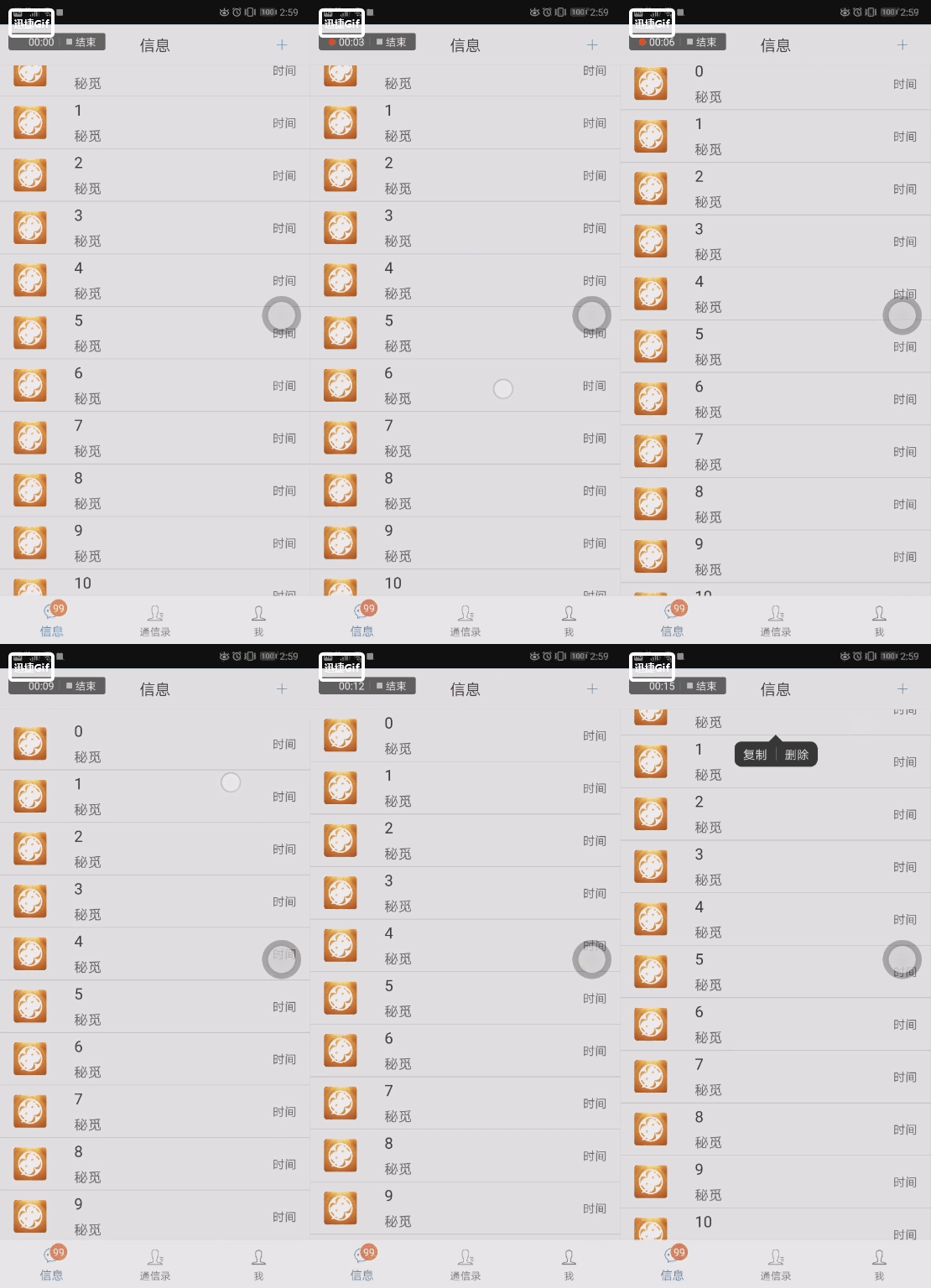
项目中要实现类似QQ长按气泡弹窗的效果,GitHub上找了些项目太杂了,还有些在Android P上适配不好,于是站在巨人们的肩上自己动手撸了一个(只有一个类),有需要的自取,废话不多说先看效果。
1.仿IOS效果
2.跟随手指显示
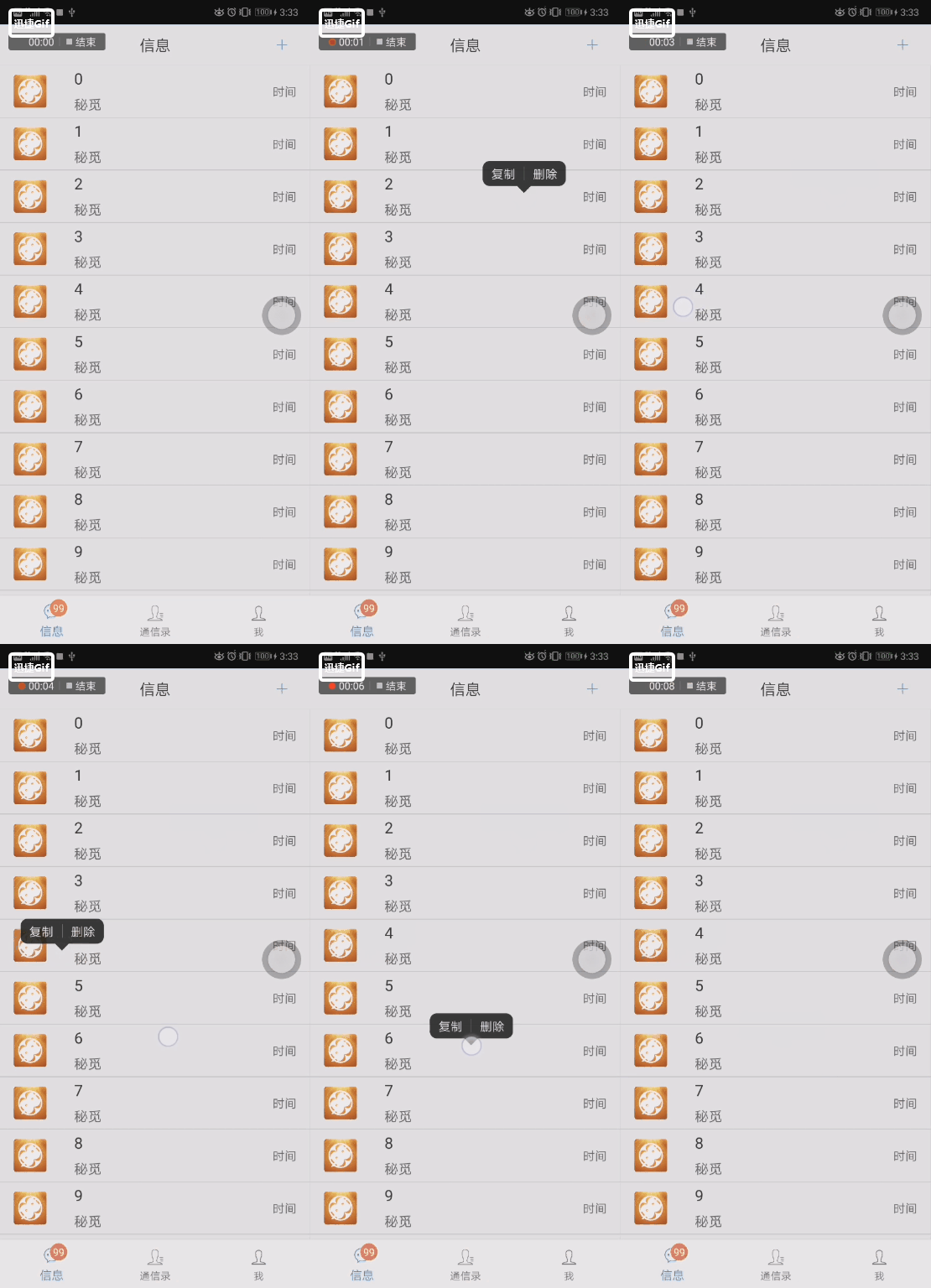
气泡组成:由2部分组成:1个横向布局实现item,1个指示器(气泡下方三角)
如何使用:我是结合RecycleView使用的,也可以用在其他地方
            //监听Touch事件,获取手指落下点
            findViewById(R.id.itemLayout).setOnTouchListener(new View.OnTouchListener() {
                @Override
                public boolean onTouch(View v, MotionEvent event) {
                    mRawX = event.getRawX();
                    mRawY = event.getRawY();
                    return false;
                }
            });

			//设置长按事件
           findViewById(R.id.itemLayout).setOnLongClickListener(new View.OnLongClickListener() {
                @Override
                public boolean onLongClick(View v) {
                	//实例化BubblePopupView
                    BubblePopupView bubblePopup = new BubblePopupView(v.getContext());
                    //是否跟随手指显示,默认false,设置true后翻转高度无效,永远在上方显示
                    bubblePopup.setShowTouchLocation(false);
                    //要实现顶部气泡向下,需要添加翻转高度,默认为0不翻转(举例:导航栏高度40dp,列表item高度40dp,需设置40+40=80)
				    bubblePopup.setmReversalHeight(80f);
                    //参数分别是:View(我这里就是List的item),position(用于回调返回),手指落下X坐标,手指落下Y坐标,气泡按钮集合,回调监听
                    bubblePopup.showPopupListWindow(v, viewHolder.position, mRawX, mRawY, popupItemList, new BubblePopupView.PopupListListener() {
                        @Override
                        public boolean showPopupList(View adapterView, View contextView, int contextPosition) {
                            return true;
                        }


                        @Override
                        public void onPopupListClick(View contextView, int contextPosition, int position) {
                            Toast.makeText(contextView.getContext(), contextPosition + "," + position, Toast.LENGTH_SHORT).show();
                        }
                    });
                    return false;
                }
            });
BubblePopupView 完整类:里面注释我写的算很清楚了,我就不重复解释了
import android.app.Activity;
import android.content.Context;
import android.content.res.ColorStateList;
import android.content.res.Resources;
import android.graphics.Canvas;
import android.graphics.Color;
import android.graphics.ColorFilter;
import android.graphics.Paint;
import android.graphics.Path;
import android.graphics.PixelFormat;
import android.graphics.drawable.BitmapDrawable;
import android.graphics.drawable.Drawable;
import android.graphics.drawable.GradientDrawable;
import android.graphics.drawable.StateListDrawable;
import android.util.TypedValue;
import android.view.Gravity;
import android.view.View;
import android.view.ViewGroup;
import android.view.ViewParent;
import android.widget.ImageView;
import android.widget.LinearLayout;
import android.widget.PopupWindow;
import android.widget.TextView;
import java.util.List;
/**
* 仿QQ长按气泡弹窗
* 作者:pixiaozhi
* 时间:19/05/31.
*/
public class BubblePopupView {
private static final boolean DEFAULT_SHOW_BOTTOM = false;
private static final boolean DEFAULT_SHOW_TOUCH_LOCATION = false;
private static final int DEFAULT_NORMAL_TEXT_COLOR = Color.WHITE;
private static final int DEFAULT_PRESSED_TEXT_COLOR = Color.WHITE;
private static final float DEFAULT_TEXT_SIZE_DP = 14;
private static final float DEFAULT_TEXT_PADDING_LEFT_DP = 10.0f;
private static final float DEFAULT_TEXT_PADDING_TOP_DP = 5.0f;
private static final float DEFAULT_TEXT_PADDING_RIGHT_DP = 10.0f;
private static final float DEFAULT_TEXT_PADDING_BOTTOM_DP = 5.0f;
private static final int DEFAULT_NORMAL_BACKGROUND_COLOR = 0xCC000000;
private static final int DEFAULT_PRESSED_BACKGROUND_COLOR = 0xE7777777;
private static final int DEFAULT_BACKGROUND_RADIUS_DP = 8;
private static final int DEFAULT_DIVIDER_COLOR = 0x9AFFFFFF;
private static final float DEFAULT_DIVIDER_WIDTH_DP = 0.5f;
private static final float DEFAULT_DIVIDER_HEIGHT_DP = 16.0f;
private static final float DEFAULT_NAVIGATION_BAR_HEIGHT = 0f;
private Context mContext;
private PopupWindow mPopupWindow;
private View mAnchorView;
private View mContextView;
private View mIndicatorView;
private List<String> mPopupItemList;
private PopupListListener mPopupListListener;
private int mContextPosition;
private StateListDrawable mLeftItemBackground;
private StateListDrawable mRightItemBackground;
private StateListDrawable mCornerItemBackground;
private ColorStateList mTextColorStateList;
private GradientDrawable mCornerBackground;
//指示器属性
private int mIndicatorWidth;
private int mIndicatorHeight;
//PopupWindow属性
private int mPopupWindowWidth;
private int mPopupWindowHeight;
//文本属性
private int mNormalTextColor;
private int mPressedTextColor;
private float mTextSize;
private int mTextPaddingLeft;
private int mTextPaddingTop;
private int mTextPaddingRight;
private int mTextPaddingBottom;
private int mNormalBackgroundColor;
private int mPressedBackgroundColor;
private int mBackgroundCornerRadius;
//分割线属性
private int mDividerColor;
private int mDividerWidth;
private int mDividerHeight;
//是否显示在下方
private boolean mIsShowBottom;
//是否跟随手指显示
private boolean mIsShowTouchLocation;
//倒转高度,当落下位置比这个值小时,气泡显示在下方
private float mReversalHeight;
public BubblePopupView(Context context) {
this.mContext = context;
this.mIsShowBottom = DEFAULT_SHOW_BOTTOM;
this.mIsShowTouchLocation = DEFAULT_SHOW_TOUCH_LOCATION;
this.mReversalHeight = dp2px(DEFAULT_NAVIGATION_BAR_HEIGHT);
this.mNormalTextColor = DEFAULT_NORMAL_TEXT_COLOR;
this.mPressedTextColor = DEFAULT_PRESSED_TEXT_COLOR;
this.mTextSize = dp2px(DEFAULT_TEXT_SIZE_DP);
this.mTextPaddingLeft = dp2px(DEFAULT_TEXT_PADDING_LEFT_DP);
this.mTextPaddingTop = dp2px(DEFAULT_TEXT_PADDING_TOP_DP);
this.mTextPaddingRight = dp2px(DEFAULT_TEXT_PADDING_RIGHT_DP);
this.mTextPaddingBottom = dp2px(DEFAULT_TEXT_PADDING_BOTTOM_DP);
this.mNormalBackgroundColor = DEFAULT_NORMAL_BACKGROUND_COLOR;
this.mPressedBackgroundColor = DEFAULT_PRESSED_BACKGROUND_COLOR;
this.mBackgroundCornerRadius = dp2px(DEFAULT_BACKGROUND_RADIUS_DP);
this.mDividerColor = DEFAULT_DIVIDER_COLOR;
this.mDividerWidth = dp2px(DEFAULT_DIVIDER_WIDTH_DP);
this.mDividerHeight = dp2px(DEFAULT_DIVIDER_HEIGHT_DP);
this.mIndicatorView = getDefaultIndicatorView(mContext);
refreshBackgroundOrRadiusStateList();
refreshTextColorStateList(mPressedTextColor, mNormalTextColor);
}
/**
* 以气泡样式显示弹出窗口
*
* @param anchorView 要固定弹出窗口的视图
* @param contextPosition 上下文位置,当是列表时用于记录Position
* @param rawX 原始X坐标
* @param rawY 原始Y坐标
* @param popupItemList 弹出菜单列表
* @param popupListListener 监听器
*/
public void showPopupListWindow(View anchorView, int contextPosition, float rawX, float rawY,
List<String> popupItemList, PopupListListener popupListListener) {
mAnchorView = anchorView;
mContextPosition = contextPosition;
mPopupItemList = popupItemList;
mPopupListListener = popupListListener;
mPopupWindow = null;
mContextView = anchorView;
if (mPopupListListener != null
&& !mPopupListListener.showPopupList(mContextView, mContextView, contextPosition)) {
return;
}
int[] location = new int[2];
mAnchorView.getLocationOnScreen(location);
// LogUtil.e("rawX:" + rawX + ",rawY:" + rawY + ",location[0]:" + location[0] + ",location[1]" + location[1]);
if (mIsShowTouchLocation) {
showPopupListWindow(rawX - location[0], rawY - location[1]);
} else {
LogUtil.e("navigationBarHeight:" + mReversalHeight + rawY + ",rawY:" + rawY);
if (mReversalHeight > rawY) {
mIsShowBottom = true;
showPopupListWindow(mAnchorView.getWidth() / 2f, mAnchorView.getHeight());
} else {
mIsShowBottom = false;
showPopupListWindow(mAnchorView.getWidth() / 2f, 0);
}
}
}
/**
* 创建布局和显示
*/
private void showPopupListWindow(float offsetX, float offsetY) {
if (mContext instanceof Activity && ((Activity) mContext).isFinishing()) {
return;
}
if (mPopupWindow == null) {
//创建根布局
LinearLayout contentView = new LinearLayout(mContext);
contentView.setLayoutParams(new LinearLayout.LayoutParams(LinearLayout.LayoutParams.WRAP_CONTENT, LinearLayout.LayoutParams.WRAP_CONTENT));
contentView.setOrientation(LinearLayout.VERTICAL);
//创建list布局
LinearLayout popupListContainer = new LinearLayout(mContext);
popupListContainer.setLayoutParams(new LinearLayout.LayoutParams(LinearLayout.LayoutParams.WRAP_CONTENT, LinearLayout.LayoutParams.WRAP_CONTENT));
popupListContainer.setOrientation(LinearLayout.HORIZONTAL);
popupListContainer.setBackgroundDrawable(mCornerBackground);
//创建指示器
if (mIndicatorView != null) {
LinearLayout.LayoutParams layoutParams;
if (mIndicatorView.getLayoutParams() == null) {
layoutParams = new LinearLayout.LayoutParams(LinearLayout.LayoutParams.WRAP_CONTENT, LinearLayout.LayoutParams.WRAP_CONTENT);
} else {
layoutParams = (LinearLayout.LayoutParams) mIndicatorView.getLayoutParams();
}
layoutParams.gravity = Gravity.CENTER;
mIndicatorView.setLayoutParams(layoutParams);
ViewParent viewParent = mIndicatorView.getParent();
if (viewParent instanceof ViewGroup) {
((ViewGroup) viewParent).removeView(mIndicatorView);
}
if (!mIsShowBottom) {
contentView.addView(popupListContainer);
contentView.addView(mIndicatorView);
} else {
contentView.addView(mIndicatorView);
contentView.addView(popupListContainer);
}
}
//添加list的item
for (int i = 0; i < mPopupItemList.size(); i++) {
TextView textView = new TextView(mContext);
textView.setTextColor(mTextColorStateList);
textView.setTextSize(TypedValue.COMPLEX_UNIT_PX, mTextSize);
textView.setPadding(mTextPaddingLeft, mTextPaddingTop, mTextPaddingRight, mTextPaddingBottom);
textView.setClickable(true);
final int finalI = i;
//设置点击回调
textView.setOnClickListener(new View.OnClickListener() {
@Override
public void onClick(View v) {
if (mPopupListListener != null) {
mPopupListListener.onPopupListClick(mContextView, mContextPosition, finalI);
hidePopupListWindow();
}
}
});
textView.setText(mPopupItemList.get(i));
//设置item的背景
if (mPopupItemList.size() > 1 && i == 0) {
textView.setBackgroundDrawable(mLeftItemBackground);
} else if (mPopupItemList.size() > 1 && i == mPopupItemList.size() - 1) {
textView.setBackgroundDrawable(mRightItemBackground);
} else if (mPopupItemList.size() == 1) {
textView.setBackgroundDrawable(mCornerItemBackground);
} else {
textView.setBackgroundDrawable(getCenterItemBackground());
}
popupListContainer.addView(textView);
//设置2个item中的分割线
if (mPopupItemList.size() > 1 && i != mPopupItemList.size() - 1) {
View divider = new View(mContext);
LinearLayout.LayoutParams layoutParams = new LinearLayout.LayoutParams(mDividerWidth, mDividerHeight);
layoutParams.gravity = Gravity.CENTER;
divider.setLayoutParams(layoutParams);
divider.setBackgroundColor(mDividerColor);
popupListContainer.addView(divider);
}
}
if (mPopupWindowWidth == 0) {
mPopupWindowWidth = getViewWidth(popupListContainer);
}
//获取指示器宽高
if (mIndicatorView != null && mIndicatorWidth == 0) {
if (mIndicatorView.getLayoutParams().width > 0) {
mIndicatorWidth = mIndicatorView.getLayoutParams().width;
} else {
mIndicatorWidth = getViewWidth(mIndicatorView);
}
}
if (mIndicatorView != null && mIndicatorHeight == 0) {
if (mIndicatorView.getLayoutParams().height > 0) {
mIndicatorHeight = mIndicatorView.getLayoutParams().height;
} else {
mIndicatorHeight = getViewHeight(mIndicatorView);
}
}
if (mPopupWindowHeight == 0) {
mPopupWindowHeight = getViewHeight(popupListContainer) + mIndicatorHeight;
}
mPopupWindow = new PopupWindow(contentView, mPopupWindowWidth, mPopupWindowHeight, true);
mPopupWindow.setTouchable(true);
mPopupWindow.setBackgroundDrawable(new BitmapDrawable());
}
int[] location = new int[2];
mAnchorView.getLocationOnScreen(location);
if (mIndicatorView != null) {
float leftTranslationLimit = mIndicatorWidth / 2f + mBackgroundCornerRadius - mPopupWindowWidth / 2f;
float rightTranslationLimit = mPopupWindowWidth / 2f - mIndicatorWidth / 2f - mBackgroundCornerRadius;
//获取最大绝对宽度,单位是px
float maxWidth = mContext.getResources().getDisplayMetrics().widthPixels;
//通过setTranslationX改变view的位置,是不改变view的LayoutParams的,也即不改变getLeft等view的信息
if (location[0] + offsetX < mPopupWindowWidth / 2f) {
mIndicatorView.setTranslationX(Math.max(location[0] + offsetX - mPopupWindowWidth / 2f, leftTranslationLimit));
} else if (location[0] + offsetX + mPopupWindowWidth / 2f > maxWidth) {
mIndicatorView.setTranslationX(Math.min(location[0] + offsetX + mPopupWindowWidth / 2f - maxWidth, rightTranslationLimit));
} else {
mIndicatorView.setTranslationX(0);
}
}
if (!mPopupWindow.isShowing()) {
int x = (int) (location[0] + offsetX - mPopupWindowWidth / 2f + 0.5f);
int y = mIsShowBottom ? (int) (location[1] + offsetY + 0.5f) : (int) (location[1] + offsetY - mPopupWindowHeight + 0.5f);
mPopupWindow.showAtLocation(mAnchorView, Gravity.NO_GRAVITY, x, y);
}
}
/**
* 刷新背景或附加状态列表
*/
private void refreshBackgroundOrRadiusStateList() {
// left
GradientDrawable leftItemPressedDrawable = new GradientDrawable();
leftItemPressedDrawable.setColor(mPressedBackgroundColor);
leftItemPressedDrawable.setCornerRadii(new float[]{
mBackgroundCornerRadius, mBackgroundCornerRadius,
0, 0,
0, 0,
mBackgroundCornerRadius, mBackgroundCornerRadius});
GradientDrawable leftItemNormalDrawable = new GradientDrawable();
leftItemNormalDrawable.setColor(Color.TRANSPARENT);
leftItemNormalDrawable.setCornerRadii(new float[]{
mBackgroundCornerRadius, mBackgroundCornerRadius,
0, 0,
0, 0,
mBackgroundCornerRadius, mBackgroundCornerRadius});
mLeftItemBackground = new StateListDrawable();
mLeftItemBackground.addState(new int[]{android.R.attr.state_pressed}, leftItemPressedDrawable);
mLeftItemBackground.addState(new int[]{}, leftItemNormalDrawable);
// right
GradientDrawable rightItemPressedDrawable = new GradientDrawable();
rightItemPressedDrawable.setColor(mPressedBackgroundColor);
rightItemPressedDrawable.setCornerRadii(new float[]{
0, 0,
mBackgroundCornerRadius, mBackgroundCornerRadius,
mBackgroundCornerRadius, mBackgroundCornerRadius,
0, 0});
GradientDrawable rightItemNormalDrawable = new GradientDrawable();
rightItemNormalDrawable.setColor(Color.TRANSPARENT);
rightItemNormalDrawable.setCornerRadii(new float[]{
0, 0,
mBackgroundCornerRadius, mBackgroundCornerRadius,
mBackgroundCornerRadius, mBackgroundCornerRadius,
0, 0});
mRightItemBackground = new StateListDrawable();
mRightItemBackground.addState(new int[]{android.R.attr.state_pressed}, rightItemPressedDrawable);
mRightItemBackground.addState(new int[]{}, rightItemNormalDrawable);
// corner
GradientDrawable cornerItemPressedDrawable = new GradientDrawable();
cornerItemPressedDrawable.setColor(mPressedBackgroundColor);
cornerItemPressedDrawable.setCornerRadius(mBackgroundCornerRadius);
GradientDrawable cornerItemNormalDrawable = new GradientDrawable();
cornerItemNormalDrawable.setColor(Color.TRANSPARENT);
cornerItemNormalDrawable.setCornerRadius(mBackgroundCornerRadius);
mCornerItemBackground = new StateListDrawable();
mCornerItemBackground.addState(new int[]{android.R.attr.state_pressed}, cornerItemPressedDrawable);
mCornerItemBackground.addState(new int[]{}, cornerItemNormalDrawable);
mCornerBackground = new GradientDrawable();
mCornerBackground.setColor(mNormalBackgroundColor);
mCornerBackground.setCornerRadius(mBackgroundCornerRadius);
}
/**
* 获取中心item背景
*/
private StateListDrawable getCenterItemBackground() {
StateListDrawable centerItemBackground = new StateListDrawable();
GradientDrawable centerItemPressedDrawable = new GradientDrawable();
centerItemPressedDrawable.setColor(mPressedBackgroundColor);
GradientDrawable centerItemNormalDrawable = new GradientDrawable();
centerItemNormalDrawable.setColor(Color.TRANSPARENT);
centerItemBackground.addState(new int[]{android.R.attr.state_pressed}, centerItemPressedDrawable);
centerItemBackground.addState(new int[]{}, centerItemNormalDrawable);
return centerItemBackground;
}
/**
* 刷新文本颜色状态列表
*
* @param pressedTextColor 按下文本颜色
* @param normalTextColor 正常状态下文本颜色
*/
private void refreshTextColorStateList(int pressedTextColor, int normalTextColor) {
int[][] states = new int[2][];
states[0] = new int[]{android.R.attr.state_pressed};
states[1] = new int[]{};
int[] colors = new int[]{pressedTextColor, normalTextColor};
mTextColorStateList = new ColorStateList(states, colors);
}
public void hidePopupListWindow() {
if (mContext instanceof Activity && ((Activity) mContext).isFinishing()) {
return;
}
if (mPopupWindow != null && mPopupWindow.isShowing()) {
mPopupWindow.dismiss();
}
}
public View getIndicatorView() {
return mIndicatorView;
}
public View getDefaultIndicatorView(Context context) {
return getTriangleIndicatorView(context, dp2px(16), dp2px(8), DEFAULT_NORMAL_BACKGROUND_COLOR);
}
public View getTriangleIndicatorView(Context context, final float widthPixel, final float heightPixel,
final int color) {
ImageView indicator = new ImageView(context);
Drawable drawable = new Drawable() {
@Override
public void draw(Canvas canvas) {
Path path = new Path();
Paint paint = new Paint();
paint.setColor(color);
paint.setStyle(Paint.Style.FILL);
if (!mIsShowBottom) {
//这里画的倒三角
path.moveTo(0f, 0f);
path.lineTo(widthPixel, 0f);
path.lineTo(widthPixel / 2, heightPixel);
//将图像封闭,这里path.close()等同于 path.moveTo(widthPixel / 2, heightPixel);path.lineTo(widthPixel, 0);
path.close();
} else {
//正三角
path.moveTo(0f, heightPixel);
path.lineTo(widthPixel, heightPixel);
path.lineTo(widthPixel / 2, 0);
path.close();
}
canvas.drawPath(path, paint);
}
@Override
public void setAlpha(int alpha) {
}
@Override
public void setColorFilter(ColorFilter colorFilter) {
}
@Override
public int getOpacity() {
return PixelFormat.TRANSLUCENT;
}
@Override
public int getIntrinsicWidth() {
return (int) widthPixel;
}
@Override
public int getIntrinsicHeight() {
return (int) heightPixel;
}
};
indicator.setImageDrawable(drawable);
return indicator;
}
public void setIndicatorView(View indicatorView) {
this.mIndicatorView = indicatorView;
}
public void setIndicatorSize(int widthPixel, int heightPixel) {
this.mIndicatorWidth = widthPixel;
this.mIndicatorHeight = heightPixel;
LinearLayout.LayoutParams layoutParams = new LinearLayout.LayoutParams(mIndicatorWidth, mIndicatorHeight);
layoutParams.gravity = Gravity.CENTER;
if (mIndicatorView != null) {
mIndicatorView.setLayoutParams(layoutParams);
}
}
public int getNormalTextColor() {
return mNormalTextColor;
}
public void setNormalTextColor(int normalTextColor) {
this.mNormalTextColor = normalTextColor;
refreshTextColorStateList(mPressedTextColor, mNormalTextColor);
}
public int getPressedTextColor() {
return mPressedTextColor;
}
public void setPressedTextColor(int pressedTextColor) {
this.mPressedTextColor = pressedTextColor;
refreshTextColorStateList(mPressedTextColor, mNormalTextColor);
}
public float getTextSize() {
return mTextSize;
}
public void setTextSize(float textSizePixel) {
this.mTextSize = textSizePixel;
}
public int getTextPaddingLeft() {
return mTextPaddingLeft;
}
public void setTextPaddingLeft(int textPaddingLeft) {
this.mTextPaddingLeft = textPaddingLeft;
}
public int getTextPaddingTop() {
return mTextPaddingTop;
}
public void setTextPaddingTop(int textPaddingTop) {
this.mTextPaddingTop = textPaddingTop;
}
public int getTextPaddingRight() {
return mTextPaddingRight;
}
public void setTextPaddingRight(int textPaddingRight) {
this.mTextPaddingRight = textPaddingRight;
}
public int getTextPaddingBottom() {
return mTextPaddingBottom;
}
public void setTextPaddingBottom(int textPaddingBottom) {
this.mTextPaddingBottom = textPaddingBottom;
}
public void setTextPadding(int left, int top, int right, int bottom) {
this.mTextPaddingLeft = left;
this.mTextPaddingTop = top;
this.mTextPaddingRight = right;
this.mTextPaddingBottom = bottom;
}
public int getNormalBackgroundColor() {
return mNormalBackgroundColor;
}
public void setNormalBackgroundColor(int normalBackgroundColor) {
this.mNormalBackgroundColor = normalBackgroundColor;
refreshBackgroundOrRadiusStateList();
}
public int getPressedBackgroundColor() {
return mPressedBackgroundColor;
}
public void setPressedBackgroundColor(int pressedBackgroundColor) {
this.mPressedBackgroundColor = pressedBackgroundColor;
refreshBackgroundOrRadiusStateList();
}
public void setShowBottom(boolean isShowBottom) {
this.mIsShowBottom = isShowBottom;
}
public void setShowTouchLocation(boolean showTouchLocation) {
mIsShowTouchLocation = showTouchLocation;
}
public int getBackgroundCornerRadius() {
return mBackgroundCornerRadius;
}
public void setBackgroundCornerRadius(int backgroundCornerRadiusPixel) {
this.mBackgroundCornerRadius = backgroundCornerRadiusPixel;
refreshBackgroundOrRadiusStateList();
}
public int getDividerColor() {
return mDividerColor;
}
public void setDividerColor(int dividerColor) {
this.mDividerColor = dividerColor;
}
public int getDividerWidth() {
return mDividerWidth;
}
public void setDividerWidth(int dividerWidthPixel) {
this.mDividerWidth = dividerWidthPixel;
}
public int getDividerHeight() {
return mDividerHeight;
}
public void setDividerHeight(int dividerHeightPixel) {
this.mDividerHeight = dividerHeightPixel;
}
public void setmReversalHeight(float mReversalHeight) {
this.mReversalHeight = mReversalHeight;
}
public Resources getResources() {
if (mContext == null) {
return Resources.getSystem();
} else {
return mContext.getResources();
}
}
private int getViewWidth(View view) {
// 1、UNSPECIFIED,不限定。意思就是,子View想要多大,我就可以给你多大,你放心大胆的measure吧,不用管其他的。也不用管我传递给你的尺寸值。(其实Android高版本中推荐,只要是这个模式,尺寸设置为0)
//
// 2、EXACTLY,精确的。意思就是,根据我当前的状况,结合你指定的尺寸参数来考虑,你就应该是这个尺寸,具体大小在MeasureSpec的尺寸属性中,自己去查看吧,你也不要管你的content有多大了,就用这个尺寸吧。
//
// 3、AT_MOST,最多的。意思就是,根据我当前的情况,结合你指定的尺寸参数来考虑,在不超过我给你限定的尺寸的前提下,你测量一个恰好能包裹你内容的尺寸就可以了。
view.measure(View.MeasureSpec.makeMeasureSpec(0, View.MeasureSpec.UNSPECIFIED), View.MeasureSpec.makeMeasureSpec(0, View.MeasureSpec.UNSPECIFIED));
return view.getMeasuredWidth();
}
private int getViewHeight(View view) {
view.measure(View.MeasureSpec.makeMeasureSpec(0, View.MeasureSpec.UNSPECIFIED), View.MeasureSpec.makeMeasureSpec(0, View.MeasureSpec.UNSPECIFIED));
return view.getMeasuredHeight();
}
public int dp2px(float value) {
return (int) TypedValue.applyDimension(TypedValue.COMPLEX_UNIT_DIP,
value, getResources().getDisplayMetrics());
}
public int sp2px(float value) {
return (int) TypedValue.applyDimension(TypedValue.COMPLEX_UNIT_SP,
value, getResources().getDisplayMetrics());
}
/**
* 回调监听器
*/
public interface PopupListListener {
boolean showPopupList(View adapterView, View contextView, int contextPosition);
void onPopupListClick(View contextView, int contextPosition, int position);
}
}
为了向别人、向世界证明自己而努力拼搏,而一旦你真的取得了成绩,才会明白:人无须向别人证明什么,只要你能超越自己。

 2917


 扫一扫


 被折叠的 条评论
为什么被折叠?
 到【灌水乐园】发言


