Step7 组态 PC Station 与 CM1243-5 基于 Profibus 的 S7 通信

部署运行你感兴趣的模型镜像

Step7 组态PC Station 与 S7-1200 CM1243-5 基于Profibus 的S7 通信

硬件:
CPU1214C DC/DC/DC,V2.2
CM1243-5
CP5611 A2

软件:
STEP 7 V5.5
SIMATIC NET V8.2
STEP7 V11 SP2 Update5

由于CM1243-5 支持S7通信,因此,可以使用SIMATIC NET 组态的OPC 服务器与其建立S7通信连接。

操作步骤

1、使用 STEP7 V11 生成 S7-1200 项目文件

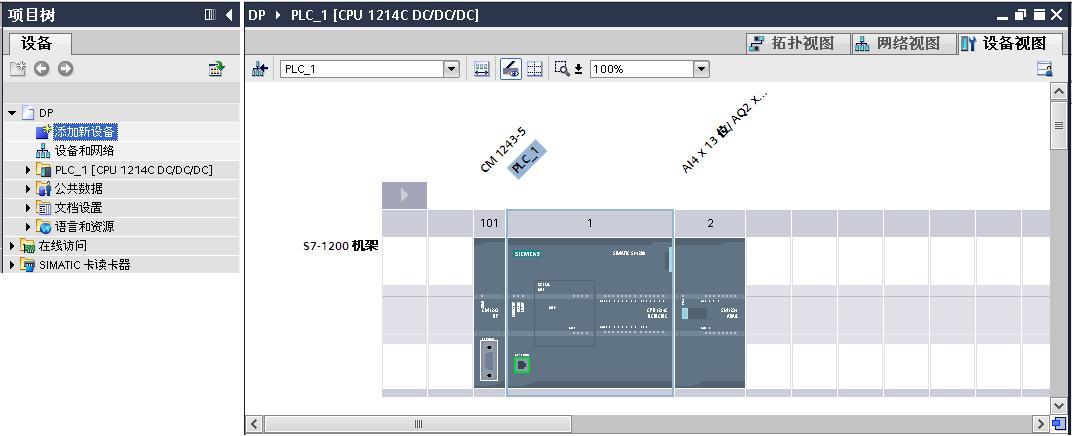
通过“添加新设备”组态 S7-1200 站PLC_1,选择 CPU1214C DC/DC/DC V2.2 创建项目。 如图1所示。
A screenshot of a computer

Description automatically generated

图1 创建 S7-1200 项目文件

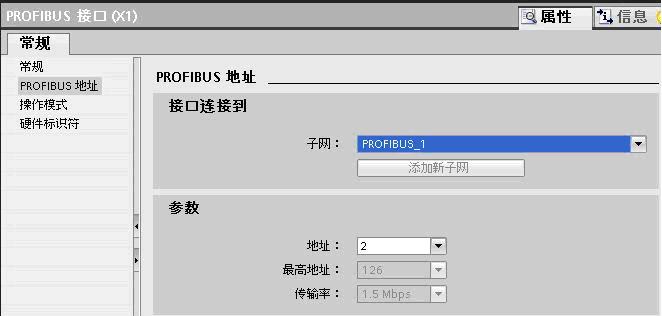
组态 CM1243-5 ,为 CM1243-5 添加子网PROFIBUS _1,分配站地址为2 。 如图2 所示。
A screenshot of a computer

Description automatically generated

图2 组态 CM1243-5

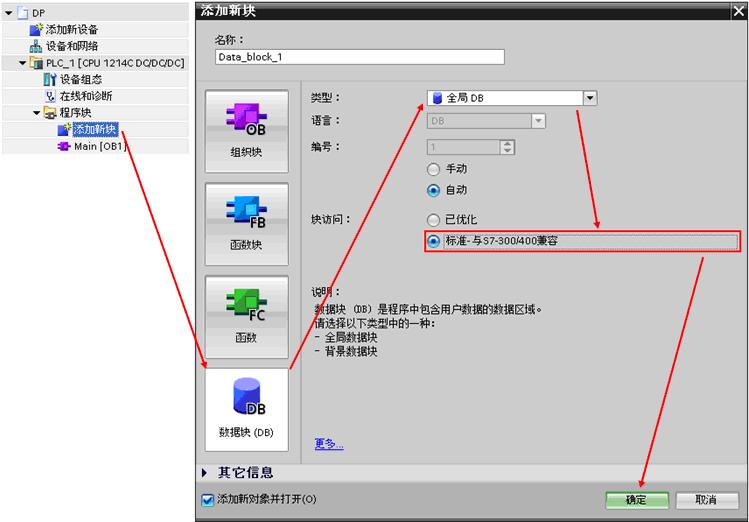
点击添加新块,生成块访问方式为“标准-与S7-300/400兼容”模式全局块数据块 DB1。如图3 所示。
A screenshot of a computer

Description automatically generated

图3 创建DB块

双击 DB 1,添加数据元素 data,数组数据类型, 1000个字节,编译 DB 1。如图4所示。
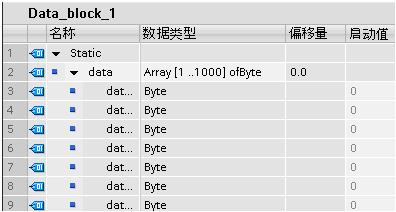
A screenshot of a computer

Description automatically generated

图4 创建DB块元素

编译PLC_1站,下载到 CPU。

2、用STEP 7 组态SIMATIC PC Station

(1)打开STEP7 V5.5 生成新项目CM1243-5,在项目中添加SIMATIC PC Station。
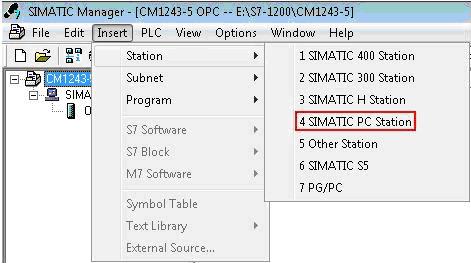
A screenshot of a computer program

Description automatically generated

图5 建立PC站

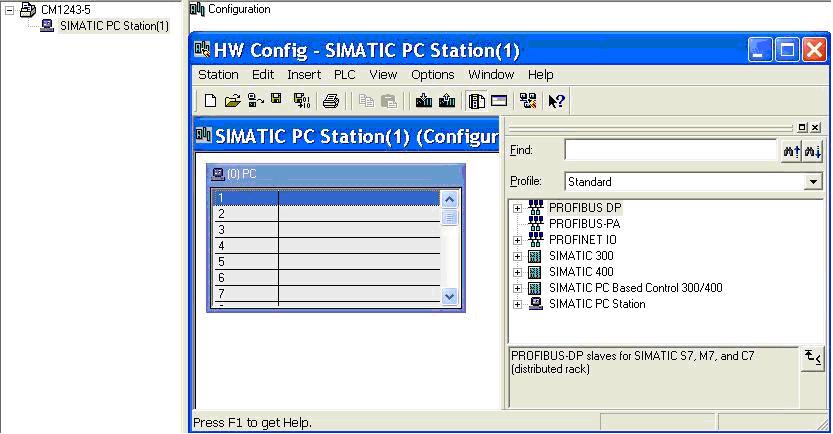
双击Configuration进入PC站的硬件组态。

A computer screen shot of a computer

Description automatically generated

图6 进入硬件组态

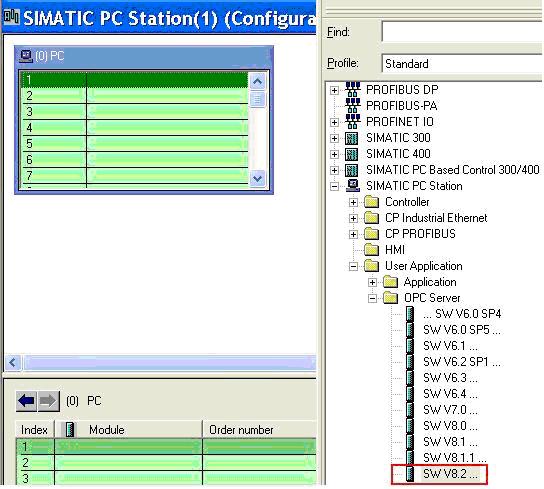
添加OPC Server。

A screenshot of a computer program

Description automatically generated

图7 添加OPC Server

添加CP5611 ,为CP5611添加新网PROFIBUS(1),并选择地址为0,编译存盘。
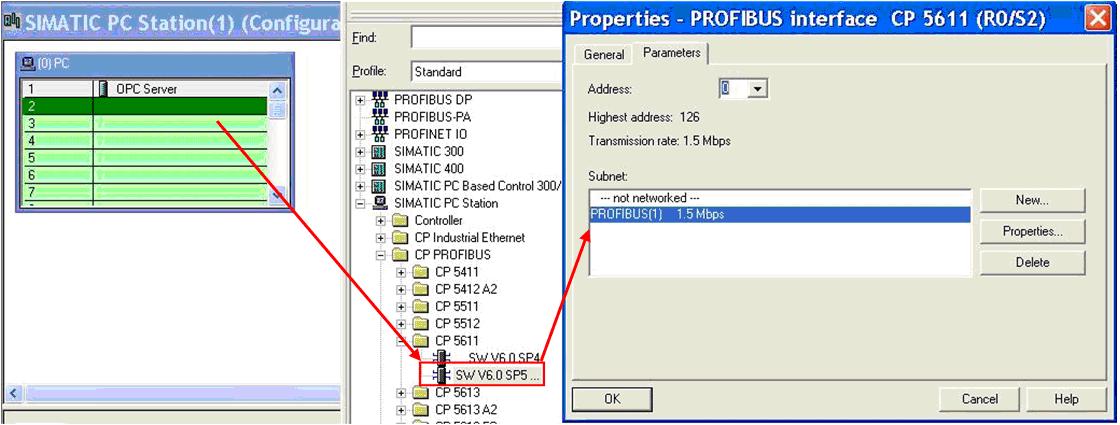
A screenshot of a computer

Description automatically generated

图8 添加CP卡

(2)组态网络连接
双击

进入网络组态,点亮OPC Server,在连接编辑栏右键插入新的连接,建立一个连接对象为 Unspecified 的 S7 Connection,点击 OK 确认连接。
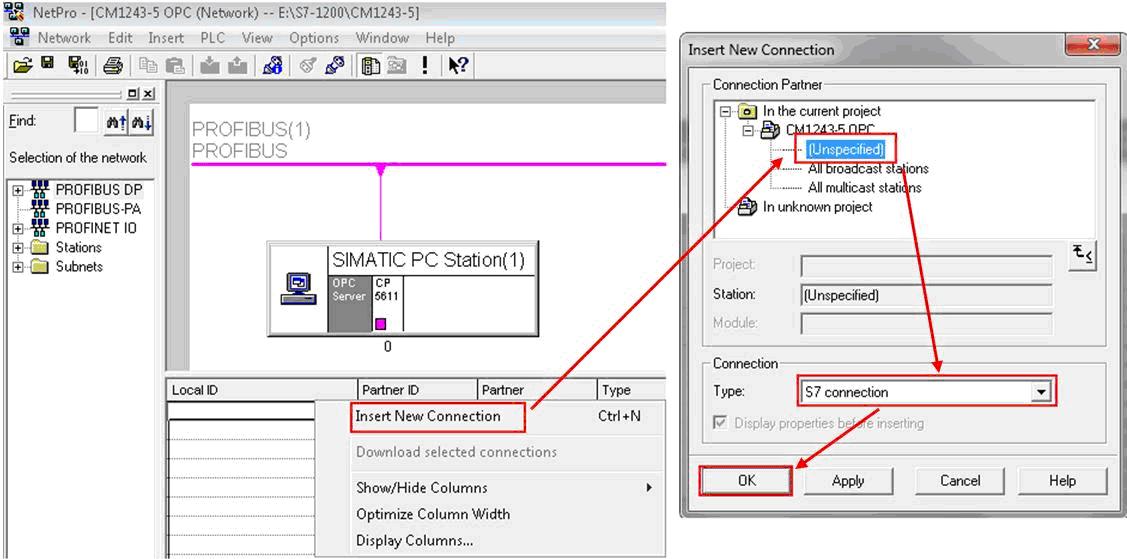
A screenshot of a computer

Description automatically generated

图9 建立S7连接

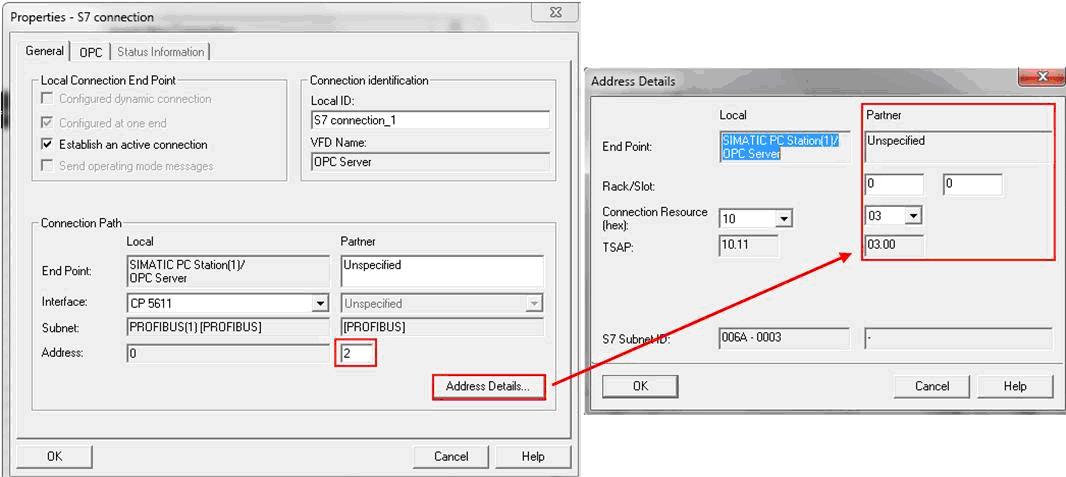
双击连接组态连接参数。在General中选择连接伙伴的PROFIBUS 地址为2,点击Address Details 定义连接伙伴 S7-1200 CPU 的 TSAP(03 00和03 01都可以)。
A screenshot of a computer

Description automatically generated

图10 修改参数

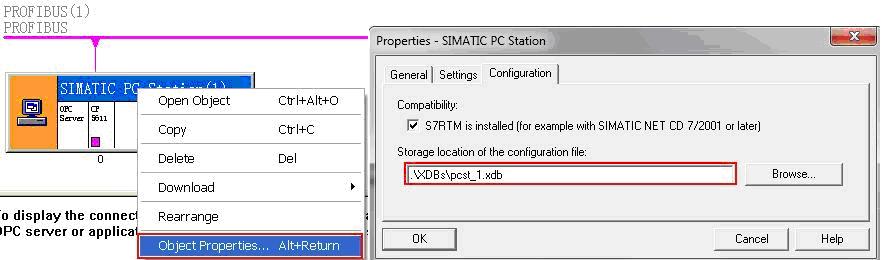
点击 OPC Server 站右键选择 Object Properties,在接下来的对话框中的 Configuration 选择生产.xdb 文件的路径,默认路径为项目文件的目录XDBs。
A screenshot of a computer

Description automatically generated

图11 设置XDB路径

(3)导入组态到 OPC Server
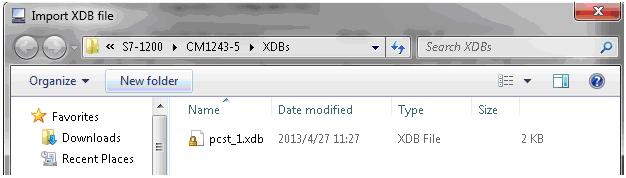
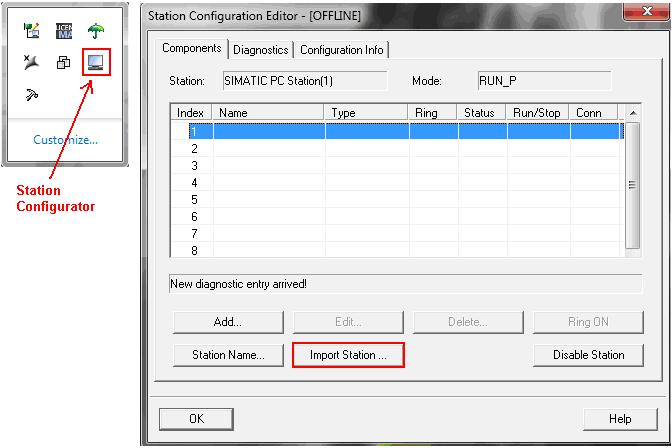
双击“Station Configurator”进入“Station Configuration Editor”,点击“Import Station” 导入(2)中生成的文件“pcst_1.xdb”。
A screenshot of a computer

Description automatically generated

图12 导入XDB文件

A screenshot of a computer

Description automatically generated

图13 浏览到XDB文件

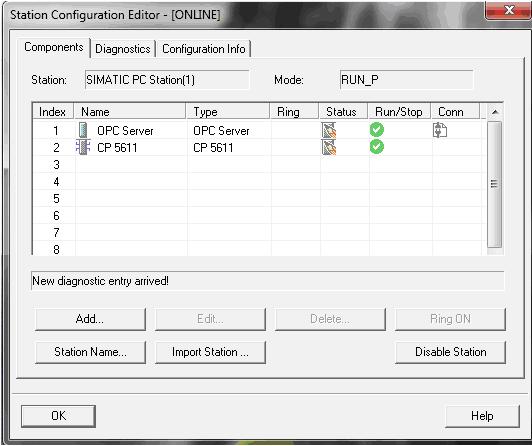
组态正确导入后,连接建立。

A screenshot of a computer

Description automatically generated

图14 导入完成

3、检查通信连接

计算机开始菜单,执 行SIMATIC NET的 OPC Scout V10 打开“Server Explorer”。
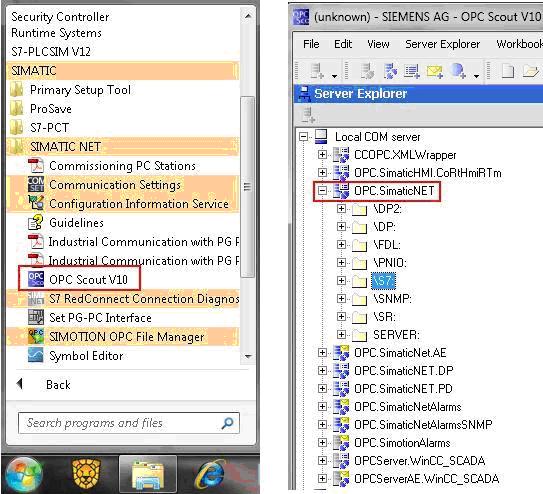
图15 打开OPC Scout

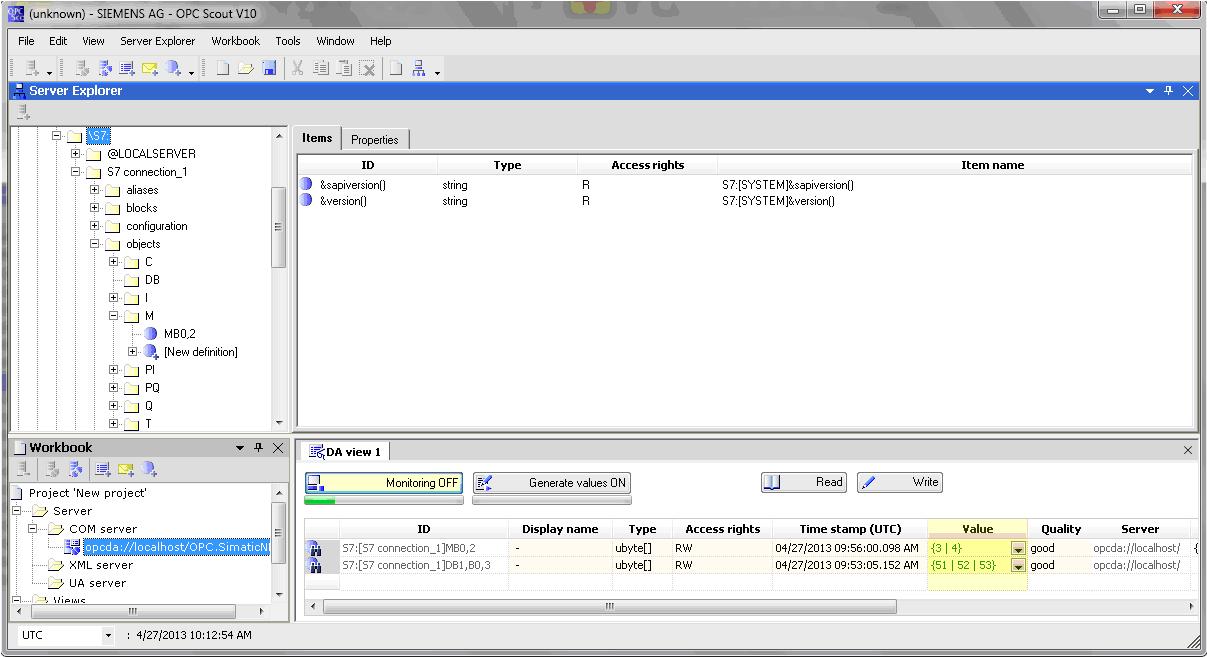
打开“S7”中“S7 connection_1”的“objects”,添加变量,将添加的变量拖入到 “DA view”,点击“Monitoring ON ”查看变量状态。
A computer screen shot of a computer

Description automatically generated

图16 监视变量

打开 PLC 变量表比较变量的值。

A screenshot of a computer

Description automatically generated

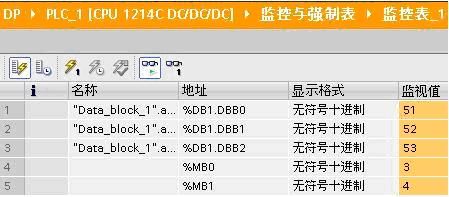
图17 监视DB

您可能感兴趣的与本文相关的镜像

ACE-Step

ACE-Step

音乐合成
ACE-Step

ACE-Step是由中国团队阶跃星辰(StepFun)与ACE Studio联手打造的开源音乐生成模型。 它拥有3.5B参数量,支持快速高质量生成、强可控性和易于拓展的特点。 最厉害的是,它可以生成多种语言的歌曲,包括但不限于中文、英文、日文等19种语言

评论
成就一亿技术人!
拼手气红包6.0元
还能输入1000个字符
 
红包 添加红包
表情包 插入表情
 条评论被折叠 查看
添加红包

请填写红包祝福语或标题

红包个数最小为10个

红包金额最低5元

当前余额3.43前往充值 >
需支付:10.00
成就一亿技术人!
领取后你会自动成为博主和红包主的粉丝 规则
hope_wisdom
发出的红包

打赏作者

D-海漠

你的鼓励将是我创作的最大动力

¥1 ¥2 ¥4 ¥6 ¥10 ¥20
扫码支付:¥1
获取中
扫码支付

您的余额不足,请更换扫码支付或充值

打赏作者

实付
使用余额支付
点击重新获取
扫码支付
钱包余额 0

抵扣说明:

1.余额是钱包充值的虚拟货币,按照1:1的比例进行支付金额的抵扣。
2.余额无法直接购买下载,可以购买VIP、付费专栏及课程。

余额充值