



 该博客介绍了如何在Android应用中实现底部导航栏,通过XML布局定义顶部、中间和底部组件。使用LinearLayout和FrameLayout管理界面元素,通过点击事件切换不同的Fragment(微信、朋友、通讯录、设置)。每个按钮点击时,对应的图片会被高亮显示,同时展示相应的Fragment内容。代码中展示了如何实例化和管理Fragment,以及如何响应按钮点击事件来更新界面状态。
作业项目
主界面
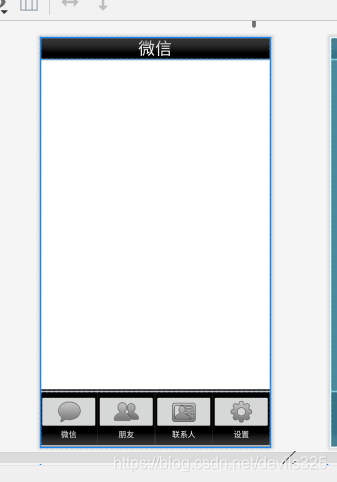
顶部top
<?xml version="1.0" encoding="utf-8"?>
<LinearLayout xmlns:android="http://schemas.android.com/apk/res/android"
    android:layout_width="match_parent"
    android:layout_height="match_parent">
    <TextView
        android:id="@+id/textView1"
        android:layout_width="wrap_content"
        android:layout_height="wrap_content"
        android:gravity="center_horizontal"
        android:layout_weight="1"
        android:background="@color/black"
        android:text="微信"
        android:textColor="@color/white"
        android:textSize="30sp" />
</LinearLayout>
中间
<?xml version="1.0" encoding="utf-8"?>
<LinearLayout xmlns:android="http://schemas.android.com/apk/res/android"
    android:layout_width="match_parent"
    android:layout_height="match_parent"
    android:baselineAligned="false"
    android:orientation="vertical">

    <include
        layout="@layout/top"
        android:layout_width="match_parent"
        android:layout_height="40dp"></include>

    <FrameLayout
        android:id="@+id/id_content"
        android:layout_width="match_parent"
        android:layout_height="0dp"
        android:layout_weight="1">


    </FrameLayout>

    <include
        layout="@layout/bottom"
        android:layout_width="match_parent"
        android:layout_height="100dp"></include>
</LinearLayout>
底部部分
<LinearLayout
        android:id="@+id/linearLayout1"
        android:layout_width="0dp"
        android:layout_height="match_parent"
        android:layout_weight="1"
        android:gravity="center"
        android:background="@color/black"
        android:orientation="vertical">

        <ImageButton
            android:id="@+id/imageButton1"
            android:layout_width="match_parent"
            android:layout_height="wrap_content"
            android:clickable="false"
            android:contentDescription="TODO"
            android:src="@drawable/tab_weixin_normal" />

        <TextView
            android:id="@+id/textView1"
            android:layout_width="match_parent"
            android:layout_height="wrap_content"
            android:gravity="center_horizontal"
            android:text="微信"
            android:textColor="@color/white" />
    </LinearLayout>
MainActivity
package com.example.myapplication;


import android.app.Fragment;
import android.app.FragmentManager;
import android.app.FragmentTransaction;
import android.os.Bundle;
import android.util.Log;
import android.view.View;
import android.view.Window;
import android.widget.ImageButton;
import android.widget.LinearLayout;

import androidx.appcompat.app.ActionBar;
import androidx.appcompat.app.AppCompatActivity;

public class MainActivity extends AppCompatActivity implements View.OnClickListener {

    LinearLayout tabweixin,tabfrd,tabbook,tabsettings;
    ImageButton imageweixin,imagefrd,imagebook,imagesettings;
    FragmentManager fragmentManager;
    Fragment tab1=new WeixinFragment();
    Fragment tab2=new FriendFragment();
    Fragment tab3=new BookFragment();
    Fragment tab4=new SettingFragment();

    @Override
    protected void onCreate(Bundle savedInstanceState) {
        super.onCreate(savedInstanceState);
        requestWindowFeature(Window.FEATURE_NO_TITLE);
        setContentView(R.layout.layout_main);

        ActionBar act= getSupportActionBar();//隐藏标题
        act.hide();//隐藏标题

        initView();
        initFragment();
        initEvent();
        selectTab(0);
    }

    @Override
    public void onClick(View v) {
        resetimg();
        switch (v.getId()){
            case R.id.linearLayout1:
                selectTab(0);
                Log.v("xr","第一个被点击");
                break;
            case R.id.linearLayout2:
                selectTab(1);
                Log.v("xr","第二个被点击");
                break;
            case R.id.linearLayout3:
                selectTab(2);
                Log.v("xr","第三个被点击");
                break;
            case R.id.linearLayout4:
                selectTab(3);
                Log.v("xr","第四个被点击");
                break;
        }
    }
    public void selectTab(int i)
    {
        FragmentTransaction fragmentTransaction = fragmentManager.beginTransaction();
        hideFragment(fragmentTransaction);
        switch (i)
        {
            case 0:
                Log.d("setSelect","1");
                fragmentTransaction.show(tab1);
                imageweixin.setImageResource(R.drawable.tab_weixin_pressed);
                break;
            case 1://Log.d("setSelect","2");
                fragmentTransaction.show(tab2);
                imagefrd.setImageResource(R.drawable.tab_find_frd_pressed);
                break;
            case 2://Log.d("setSelect","3");
                fragmentTransaction.show(tab3);
                imagebook.setImageResource(R.drawable.tab_address_pressed);
                break;
            case 3://Log.d("setSelect","4");
                fragmentTransaction.show(tab4);
                imagesettings.setImageResource(R.drawable.tab_settings_pressed);
                break;
            default:
                break;
        }
        fragmentTransaction.commit();
    }
    public void initFragment()
    {
        fragmentManager=getFragmentManager();
        FragmentTransaction transaction =fragmentManager.beginTransaction();
        transaction.add(R.id.id_content,tab1);
        transaction.add(R.id.id_content,tab2);
        transaction.add(R.id.id_content,tab3);
        transaction.add(R.id.id_content,tab4);
        transaction.commit();

    }
    public void hideFragment(FragmentTransaction transaction)
    {
        transaction.hide(tab1);
        transaction.hide(tab2);
        transaction.hide(tab3);
        transaction.hide(tab4);
    }
    public void resetimg(){
        imageweixin.setImageResource(R.drawable.tab_weixin_normal);
        imagefrd.setImageResource(R.drawable.tab_find_frd_normal);
        imagebook.setImageResource(R.drawable.tab_address_normal);
        imagesettings.setImageResource(R.drawable.tab_settings_normal);
    }
    public void initEvent()
    {
        tabweixin.setOnClickListener(this);
        tabfrd.setOnClickListener(this);
        tabbook.setOnClickListener(this);
        tabsettings.setOnClickListener(this);
    }
    public void initView(){
        tabweixin=findViewById(R.id.linearLayout1);
        tabfrd=findViewById(R.id.linearLayout2);
        tabbook=findViewById(R.id.linearLayout3);
        tabsettings=findViewById(R.id.linearLayout4);

        imageweixin=findViewById(R.id.imageButton1);
        imagefrd=findViewById(R.id.imageButton2);
        imagebook=findViewById(R.id.imageButton3);
        imagesettings=findViewById(R.id.imageButton4);
    }
}
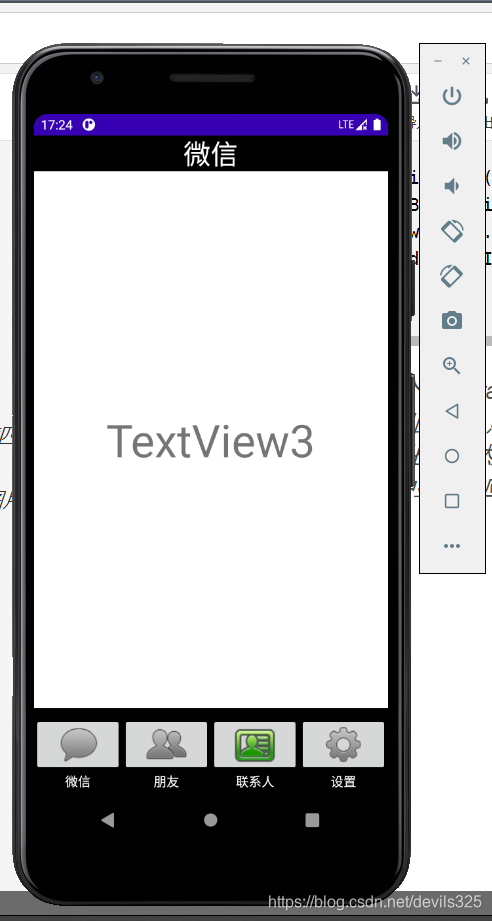
小结: 底部四个图标对应四个界面(fragment),开始进入主界面时要隐藏四个界面,否则会让四个界面重合.点击底部四个按钮时会监听被点击的imagebutton,同时初始化页面然后把被点击的按钮点亮(替换点亮后的图片)以及在主界面中显示对应的fragment.
代码仓库地址





 扫一扫
扫一扫


 182
182


 到【灌水乐园】发言



