


屏幕旋转的研究理由:
因为本人从事视频类的iOS开发工作,经常项目中经常会遇到需要在不同的页面对屏幕方向进行控制,例如正常的列表页面都只支持竖屏不能旋转,而播放页面需要能够控制旋转 :
- 手动点击全屏进入全屏并保持全屏不自动旋转;
- 旋转屏幕能够屏幕能够自动旋转。
相信很多人也在屏幕旋转上遇到过不同的疑惑与阻碍,下面介绍实现方式,以及遇到的坑。
屏幕旋转基础
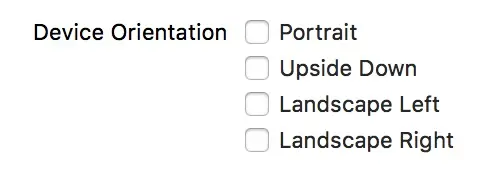
我们能在工程的General里面设置app的方向,如果你全不选似乎是跟全选是一样的效果。
然后是我们在AppDelegate里也能设置这个属性。
我们在这里把这个方向Mark一下:Orientation_App_Support
- (UIInterfaceOrientationMask)application:(UIApplication *)application supportedInterfaceOrientationsForWindow:(UIWindow *)window {
   //返回你的app支持的旋转方向。
    return  XXX ;
}
我们再看看我们的控制器里面3个方法
- (BOOL)shouldAutorotate {
    //确定你的控制器是否能够旋转(手动控制,或者自动旋转都要Return YES)
    return XXX;
}

#if __IPHONE_OS_VERSION_MAX_ALLOWED < __IPHONE_9_0
- (NSUInteger)supportedInterfaceOrientations {
#else
- (UIInterfaceOrientationMask)supportedInterfaceOrientations {
#endif
    //返回你的屏幕支持的方向
    return XXX;
}

- (UIInterfaceOrientation)preferredInterfaceOrientationForPresentation {
    //你跳转(present)到这个新控制器时,按照什么方向初始化控制器
    return XXX;
}
这里我们要进行第二和第三个标记了:
- Orientation_VC_Support
- Orientation_Presentation
Orientation_VC_Support是我们当前控制器支持的方向。
由下面这个方法返回
- (UIInterfaceOrientationMask)supportedInterfaceOrientationsOrientation_Presentation是我们跳转到某一个控制器时,控制器初始化展示的屏幕方向。
由下面这个方法返回
-(UIInterfaceOrientation)preferredInterfaceOrientationForPresentation 介绍完三个标记,我们来看我们怎么通过这个三个标记来控制我们的控制器旋转
这里就要说一下了,当我们跳转的时候,会先进入一次新控制器的这个方法(只会进入一次,用于跳转到新控制器的时候初始化新控制器方向Orientation_Presentation)
-(UIInterfaceOrientation)preferredInterfaceOrientationForPresentation
//返回Orientation_Presentation
Orientation_Presentation必须是Orientation_VC_Support中的一种(只能是一种,不能用|的方式返回多个方向,否则必崩)。
假设你的Orientation_VC_Support不支持Orientation_Presentation,那么你会获得崩溃
Terminating app due to uncaught exception 'UIApplicationInvalidInterfaceOrientation', reason: 'preferredInterfaceOrientationForPresentation must return a supported interface orientation!'

/*Orientation_Presentation写成如下方式
  return UIInterfaceOrientationLandscapeLeft | UIInterfaceOrientationPortrait;
  即使你的Orientation_VC_Support是所有的方向也会出现如上错误
  Orientation_Presentation有且只能是一个
  UIInterfaceOrientation是不允许用|的
  UIInterfaceOrientationMask才允许用|
  在枚举里面使用或的问题可以自己另外去研究一下位运算
*/
好的preferredInterfaceOrientationForPresentation这个方法的用途以及如何避免上面这个crash应该解释的很清楚了。
接下来是控制我们控制器旋转的三个方法(iOS6以上,iOS6以下的旋转不再赘述)
注意注意注意!!!
请关闭你的iPhone的锁屏,不然你怎么旋转都不会起作用的
从iPhone底部上滑,拉出菜单,关闭锁屏
- (UIInterfaceOrientationMask)application:(UIApplication *)application supportedInterfaceOrientationsForWindow:(UIWindow *)window;
//返回Orientation_App_Support
- (BOOL)shouldAutorotate;
//返回是否可以旋转#if __IPHONE_OS_VERSION_MAX_ALLOWED < __IPHONE_9_0
- (NSUInteger)supportedInterfaceOrientations;
#else
- (UIInterfaceOrientationMask)supportedInterfaceOrientations;
#endif
//返回Orientation_VC_Support
进入第一个和第三个方法的前提,是我们第二个方法要返回YES。
也就是说,当我们的控制器支持自动旋转,并且设备将要旋转到另一个方向,才会调用第一个和第三个方法,来判断是否旋转到将要旋转的方向。
再接下来,讲一个比较重要的点
- - 为何我的控制器的这些方法都没有被调用?
如果你的控制器里这些方法没有被调用,我猜想99%的原因都是因为这个:
— — 容器
咱们常用的容器类型控制器有两种:
- UITabBarViewController
- UINavigationController
假如你在工程里使用了这些容器来控制你的页面架构,那么你的当前显示的控制器是否可以旋转,以及能够旋转到什么方向,都是由你的最底层容器控制的。
- 你的页面架构是建立在一个navigation上的,那么在这navigation上push/pop的所有视图的旋转方向都是根据这个navigationController所支持的方向确定的。
- 你的页面架构是建立在一个tabBarController上的,那么你的所有childViewControllers的旋转方向都是根据tabBarController所支持的方向确定的。
也就是说,如果你的ViewController放在在一个容器里,他的旋转方向就会受到容器的控制,而不是自己控制。
因此,在这样有容器存在的页面构造里,我们能够通过继承的方式自定义容器子类,在自定义容器类中控制我们的页面旋转。这样自定义容器还可以在自定义容器类中,将容器控制旋转转化成当前控制器控制旋转
举一个栗子,假设我们底层容器是一个TabBarController,TabBarController里的ChildViewController,都是NavigationContoller容器。
/*自定义的TabBarController.m*/
- (BOOL)shouldAutorotate {
    return [self.selectedViewController shouldAutorotate];
}

- (UIInterfaceOrientation)preferredInterfaceOrientationForPresentation {
    return [self.selectedViewController preferredInterfaceOrientationForPresentation];
}

- (UIInterfaceOrientationMask)supportedInterfaceOrientations {
    return [self.selectedViewController supportedInterfaceOrientations];
}
/*自定义的NavigationController.m*/
- (BOOL)shouldAutorotate {
return [self.topViewController shouldAutorotate];
}
- (UIInterfaceOrientationMask)supportedInterfaceOrientations {
return [self.topViewController supportedInterfaceOrientations];
}
- (UIInterfaceOrientation)preferredInterfaceOrientationForPresentation {
return [self.topViewController preferredInterfaceOrientationForPresentation];
}像上面这样定义好两个容器类,即可将容器控制旋转方向,转化为当前显示的控制器控制旋转方向。
这里有个小坑:
      假设这里有个场景:一个独立的页面(例如登陆页面)跳转到一个tabBarViewController页面。
      你会发现不论你怎么改都会报错:
         Terminating app due to uncaught exception 'UIApplicationInvalidInterfaceOrientation', reason: 'preferredInterfaceOrientationForPresentation must return a supported interface orientation!'
      这是为什么呢?这是因为你tabBarViewController初始化的时候并没有赋值self.selectedViewController。
      而在supportedInterfaceOrientations和preferredInterfaceOrientationForPresentation中调用了self.selectedViewController的方向,返回值理所当然就导致两者无法像之前原理中所说的一样匹配。
      因此,你在构造完childViewControllers之后,需要给selectedIndex赋值,让selectedViewController不为空。
      建议如下在init方法中构建TabBarViewController的childViewControllers。

- (instancetype)init {
    if (self = [super init]) {
        [self setupViewControllers];
        self.selectedIndex = 0;
    }
    return self;
}
然后就是自定义我们的UIViewController了。
/*自定义的ViewController*/
- (BOOL)shouldAutorotate {
    return XXX;
}

- (UIInterfaceOrientation)preferredInterfaceOrientationForPresentation {
    return XXX;
}

- (UIInterfaceOrientationMask)supportedInterfaceOrientations {
    return XXX;
}
这样自定义了3个基类:
- BaseTabBarController : UITabBarController
- BaseNavigationController : UINavigationController
- BaseViewController : UIViewController
当然,你也可以用Category的方式自定义控制器,原理是一样的,如果你们的工程已经是一个代码量很庞大的工程,我建议使用Category,我们这里用继承的方式。
我们所有创建的UIViewController都采用继承BaseViewController,这样能够一下控制所有页面的基础旋转状态。
例如,绝大部分的视图都不能旋转,处于Portrait方向,而某些特定个视图控制器能够旋转,那我在BaseViewController中定义控制器只支持Portrait方向,并且不能够旋转,然后在需要能够自由旋转的那个视图控制器里重写旋转的几个方法即可。
介绍完由容器控制旋转如何转化成当前控制器旋转,接下来就是要讲控制器旋转是怎么个实现方法了
- 前提:当控制器的shouldAutorotate返回YES
- 1.自动旋转
· Orientation_App_Support和Orientation_VC_Support之间所支持方向的交集就是我们控制器能够自动旋转到的方向
· Orientation_App_Support和Orientation_VC_Support之间没有交集的时候(即没有相同的方向),那么你的程序会在展示这个控制器的时候挂掉,错误信息如下:
Terminating app due to uncaught exception 'UIApplicationInvalidInterfaceOrientation', reason: 'Supported orientations has no common orientation with the application, and [XXXController shouldAutorotate] is returning YES'- 2.手动强制控制器旋转
/*调用前请保证shouldAutorotate返回YES*/
if ([[UIDevice currentDevice] respondsToSelector:@selector(setOrientation:)]) {
    SEL selector = NSSelectorFromString(@"setOrientation:");
    NSInvocation *invocation = [NSInvocation invocationWithMethodSignature:[UIDevice instanceMethodSignatureForSelector:selector]];
    [invocation setSelector:selector];
    [invocation setTarget:[UIDevice currentDevice]];
    int val = UIInterfaceOrientationLandscapeRight;//这个方向即需要旋转到的那个方向,自行设置
    [invocation setArgument:&val atIndex:2];
    [invocation invoke];
}
一定要注意前提,两种旋转都是要在shouldAutorotate返回YES的情况下才能完成的。
学会了旋转,让我们来看看旋转后页面该用什么方式布局
记住以下几点即可:
- 1.用AutoLayout约束过的控件,在旋转过后会按照约束重构视图的位置大小。
- 2.旋转过后,会调用子控件的layoutSubViews方法(建议自定义视图的布局均在视图layoutSubviews中书写)
- 3.旋转过后会在控制器中调用如下方法(根据iOS系统版本不同有差别)
/*iOS8以上,旋转控制器后会调用*/
 - (void)viewWillTransitionToSize:(CGSize)size withTransitionCoordinator:(id <UIViewControllerTransitionCoordinator>)coordinator NS_AVAILABLE_IOS(8_0);
/*iOS8以下,旋转控制器后会调用*/
 - (void)willRotateToInterfaceOrientation:(UIInterfaceOrientation)toInterfaceOrientation duration:(NSTimeInterval)duration
在这两个方法中,给控制器中的控件进行布局即可,具体操作自己摸索一下便知,不再详述。
请阅读完以上屏幕旋转的基本知识,下面我们根据这个理论来总结配置一下我们的工程
1.首先是AppDelegate.m
/*
  1.建议去掉General里Device Orientation的勾选用代码方式设置。
  2.建议在AppDelegate.h里设置公有属性,通过设置该属性来灵活改变App支持方向。
  3.此方法在shouldAutorotate返回YES时会触发。
*/
- (UIInterfaceOrientationMask)application:(UIApplication *)application supportedInterfaceOrientationsForWindow:(UIWindow *)window {
    if (self.Rotate) {
        return UIInterfaceOrientationMaskAll;
    }else {
        switch (self.type) {
            case RotationTypeOne:
                return UIInterfaceOrientationMaskLandscape;
                break;
            case RotationTypeTwo:
                return UIInterfaceOrientationMaskPortrait;
                break;
            default:
                return UIInterfaceOrientationMaskPortrait;
                break;
        }
    }
}
2.自定义BaseTabBarController.m容器
- (instancetype)init {
    if (self = [super init]) {
        [self setupViewControllers];
        self.selectedIndex = 0;
    }
    return self;
}


- (void)setupViewControllers {
    /*创建childViewControllers,以下代码可以自定义*/
    NSArray *vcClassNames = @[@"ViewController1", @"ViewController2", @"ViewController3", @"ViewController4"];
    NSArray *vcNames = @[@"控制器1",@"控制器2",@"控制器3",@"控制器4"];

    for (NSInteger i = 0; i < vcClassNames.count; i ++) {
        NSString *vcClassName = vcClassNames[i];
        Class vcClass = NSClassFromString(vcClassName);
        UIViewController *vc = [[vcClass alloc] init];

        NavigationController *navController = [[NavigationController alloc] initWithRootViewController:vc];
        vc.navigationItem.title = [NSString stringWithFormat:@"控制器%ld", i + 1];
        [navController.tabBarItem setTitle:vcNames[i]];
        [self addChildViewController:navController];
    }
}


- (BOOL)shouldAutorotate {
    return [self.selectedViewController shouldAutorotate];
}


- (UIInterfaceOrientation)preferredInterfaceOrientationForPresentation {
    return [self.selectedViewController preferredInterfaceOrientationForPresentation];
}


- (UIInterfaceOrientationMask)supportedInterfaceOrientations {
    return [self.selectedViewController supportedInterfaceOrientations];
}
2.自定义BaseNavigtionController.m容器
- (BOOL)shouldAutorotate {
    return [self.topViewController shouldAutorotate];
}


- (UIInterfaceOrientationMask)supportedInterfaceOrientations {
    return [self.topViewController supportedInterfaceOrientations];
}


- (UIInterfaceOrientation)preferredInterfaceOrientationForPresentation {
    return [self.topViewController preferredInterfaceOrientationForPresentation];
}
3.自定义BaseViewController.m
/*这里按需return旋转策略*/
- (BOOL)shouldAutorotate {
    return NO;
}

- (UIInterfaceOrientation)preferredInterfaceOrientationForPresentation {
    return UIInterfaceOrientationPortrait;
}

- (UIInterfaceOrientationMask)supportedInterfaceOrientations {
    return UIInterfaceOrientationMaskPortrait;
}
4.控制某一个ViewController的旋转
@implementation CustomViewController
{
    BOOL _shouldAutorotate;
    UIButton *button;
}

- (void)viewDidLoad {
    [super viewDidLoad];
    // Do any additional setup after loading the view, typically from a nib.
    button = [UIButton buttonWithType:UIButtonTypeCustom];
    button.frame = CGRectMake(0, 0, 100, 100);
    button.center = self.view.center;
    button.backgroundColor = [UIColor redColor];
    [button setTitle:@"Allowed Rotation" forState:UIControlStateNormal];
    [button setTitle:@"Not Allowed Rotation" forState:UIControlStateSelected];
    button.titleLabel.font = [UIFont systemFontOfSize:12];
    [button addTarget:self action:@selector(allowedRotation:) forControlEvents:UIControlEventTouchUpInside];
    [self.view addSubview:button];
}

- (void)dismissVC {
    [self dismissViewControllerAnimated:YES completion:nil];
}

- (void)allowedRotation:(UIButton *)button {
    button.selected = !button.selected;
    _shouldAutorotate = button.selected;
}

- (BOOL)shouldAutorotate {
    return _shouldAutorotate;
}

- (UIInterfaceOrientation)preferredInterfaceOrientationForPresentation {
    return UIInterfaceOrientationPortrait;
}

- (UIInterfaceOrientationMask)supportedInterfaceOrientations {
    if (_shouldAutorotate) {
        return UIInterfaceOrientationMaskAll;
    }
    else {
        return UIInterfaceOrientationPortrait;
    }
}

/*iOS8以上,旋转控制器后会调用*/
- (void)viewWillTransitionToSize:(CGSize)size withTransitionCoordinator:(id<UIViewControllerTransitionCoordinator>)coordinator {
    button.center = CGPointMake(size.width / 2.f - button.bounds.size.width / 2.f, size.height / 2.f - button.bounds.size.height / 2.f);
}

/*iOS8以下,旋转控制器后会调用*/
- (void)willRotateToInterfaceOrientation:(UIInterfaceOrientation)toInterfaceOrientation duration:(NSTimeInterval)duration {
    if (toInterfaceOrientation == UIInterfaceOrientationPortrait) {
        button.center = self.view.center;
    }
    else {
        button.center = CGPointMake(self.view.bounds.size.width / 2.f - button.bounds.size.width / 2.f, self.view.bounds.size.height / 2.f - button.bounds.size.height / 2.f);
    }
}
以上基本上满足了目前iOS6以上屏幕旋转的需求,其实不难,摸清楚原理后很容易避免错误,还有一些设备旋转的监听事件我就不列举了,暂时感觉没什么用处,如果仍有疑问可以留言询问。

 307


 扫一扫


 被折叠的 条评论
为什么被折叠?
 到【灌水乐园】发言


