


 本文介绍了在Ubuntu系统上管理启动程序的方法。包括如何启动GNOME的启动管理器,可通过点击按钮、快捷键或命令操作;还说明了阻止程序自动启动,取消复选框即可;以及添加自定义启动程序,需知晓程序完整路径并在相应窗口输入。

Many applications automatically set themselves to start when you sign into your Linux desktop. You might want to add your own favorite programs to the startup process, too. Here’s how to control what Ubuntu starts when you sign in.
当您登录Linux桌面时,许多应用程序会自动将其设置为启动。 您可能也想在启动过程中添加自己喜欢的程序。 这是控制登录后Ubuntu启动的方式。
We ran through this process on Ubuntu 20.04 LTS with its default GNOME desktop. The steps will be similar on other Linux distributions with a GNOME desktop, but you might need to use a different configuration tool on other desktop environments.
我们在具有默认GNOME桌面的Ubuntu 20.04 LTS上完成了此过程。 在具有GNOME桌面的其他Linux发行版上,这些步骤将相似,但是您可能需要在其他桌面环境上使用其他配置工具。
如何启动GNOME的启动管理器 (How to Launch GNOME’s Startup Manager)
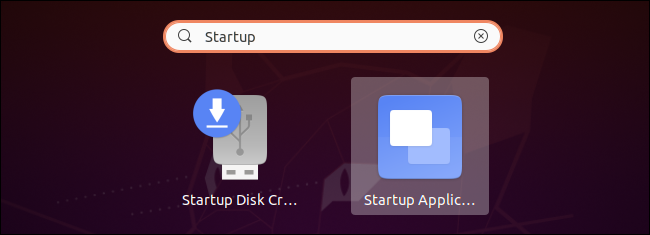
To launch the startup manager, open the applications list by clicking the “Show Applications” button on the dash at the bottom-left corner of your screen. Search for and launch the “Startup Applications” tool.
要启动启动管理器,请通过单击屏幕左下角短划线上的“显示应用程序”按钮来打开应用程序列表。 搜索并启动“启动应用程序”工具。
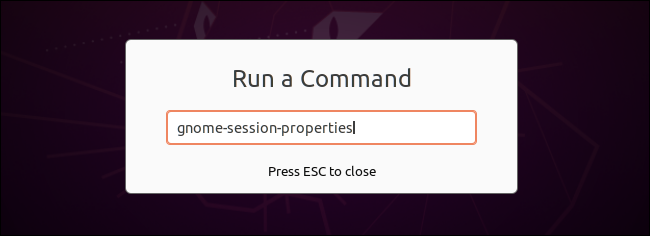
You can also press Alt+F2 to open the Run a Command dialog and run the following command:
您也可以按Alt + F2打开“运行命令”对话框,然后运行以下命令:
gnome-session-properties
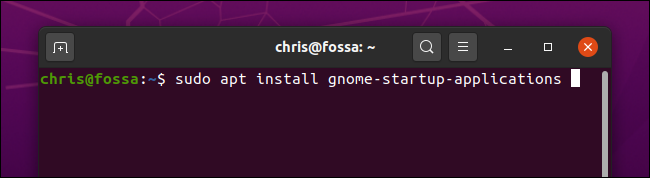
If the Startup Tools tool doesn’t appear in your application menu for some reason, you can open a Terminal window and use the following command to launch it:
如果由于某种原因启动工具未出现在应用程序菜单中,则可以打开“终端”窗口并使用以下命令启动它:
sudo apt install gnome-startup-applications
如何阻止程序在Ubuntu上自动启动 (How to Stop Programs From Starting Automatically on Ubuntu)
The Startup Applications Preferences window will open. You’ll see a list of programs that automatically start when you sign into your graphical desktop. Each application has a name and, optionally, a description.
“启动应用程序首选项”窗口将打开。 您将看到登录图形桌面时自动启动的程序列表。 每个应用程序都有一个名称以及(可选)描述。
To stop a program from starting automatically, just uncheck the checkbox to the program’s left. Unchecked programs won’t be loaded at startup.
要阻止程序自动启动,只需取消选中程序左侧的复选框即可。 未经检查的程序将在启动时不加载。
You can also click select a program and click “Remove” to remove it from the list here, but unchecking the program accomplishes the same thing—and will let you more easily re-enable the startup program in the future, if you like.
您也可以单击选择一个程序,然后单击“删除”以将其从此处的列表中删除,但是取消选中该程序可完成相同的操作-并且,如果您愿意,将来可以更轻松地重新启用启动程序。
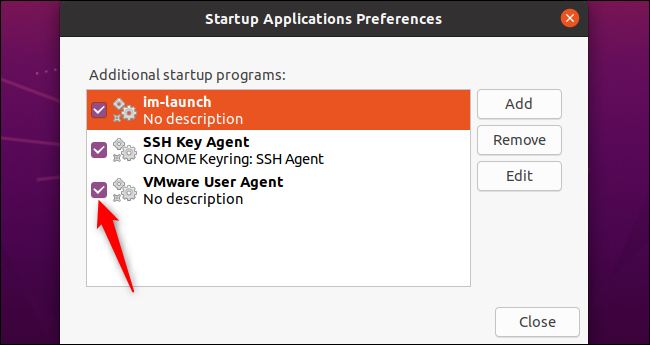
If you’re not sure what a program is, you can search for its name on the web. For example, if you search im-launch, you’ll find that this is the command that launches any input methods you need.
如果不确定程序是什么,可以在网络上搜索其名称。 例如,如果您搜索im-launch ,则会发现这是启动所需输入法的命令。
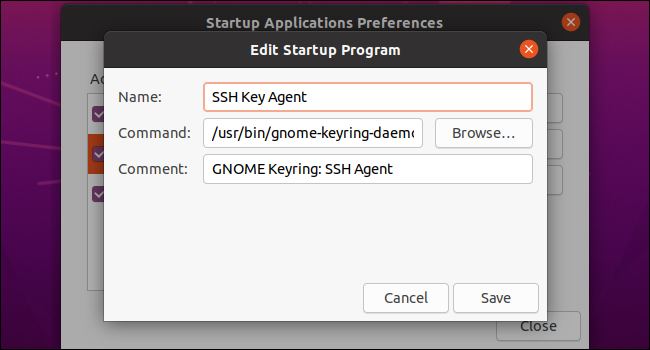
You can also select a program and click “Edit” to see the full command that is run when you sign in.
您还可以选择一个程序,然后单击“编辑”以查看登录时运行的完整命令。
如何在Ubuntu上添加自己的启动程序 (How to Add Your Own Startup Programs on Ubuntu)
To add a startup program, you’ll want to know its full path. You can find this with the which command in a Terminal window.
要添加启动程序,您需要了解其完整路径。 您可以在“终端”窗口中使用which命令找到which 。
For example, let’s say you want to run Firefox. First, launch a Terminal window and run the following command:
例如,假设您要运行Firefox。 首先, 启动“终端”窗口并运行以下命令:
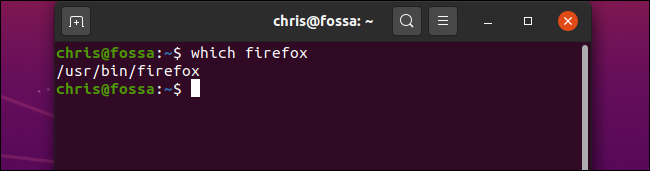
which firefox
You’ll be told that the firefox binary is located at /usr/bin/firefox . This is the path you must enter in the Command field in the Add Startup Program window.
您将被告知firefox二进制文件位于/usr/bin/firefox 。 这是您必须在“添加启动程序”窗口的“命令”字段中输入的路径。
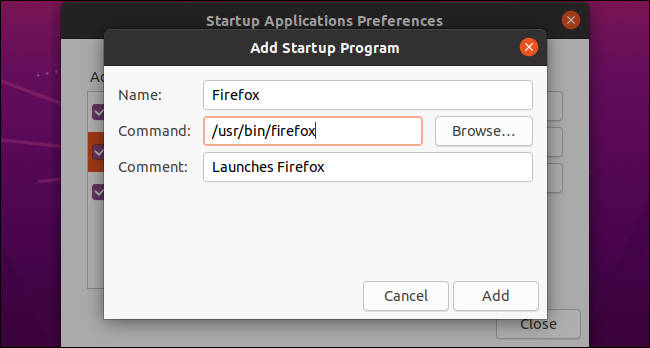
Click the “Add” button in the Startup Applications Preferences window and enter the full path to the program you want to launch in the Command field.
单击“启动应用程序首选项”窗口中的“添加”按钮,然后在“命令”字段中输入要启动的程序的完整路径。
You should also type a name for the program and, optionally, a comment. Both of these fields will only be displayed in the Startup Applciations Preferences window.
您还应该键入程序的名称,以及可选的注释。 这两个字段都只会显示在“启动应用程序首选项”窗口中。
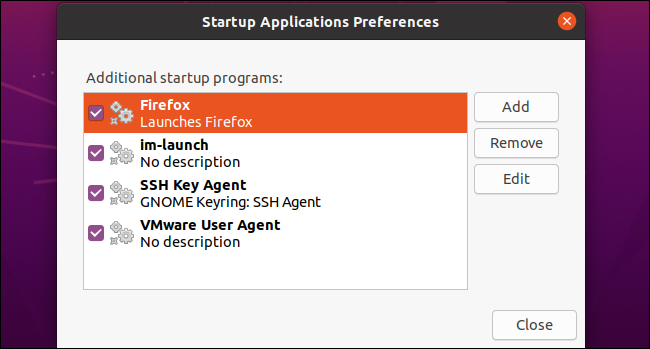
When you’re done, click “Add.” You’ll see your custom startup program displayed here. As long as it has a checkbox and appears in this list, the GNOME desktop will launch it every time you sign into Ubuntu.
完成后,点击“添加”。 您将在此处看到您的自定义启动程序。 只要它具有复选框并显示在此列表中,GNOME桌面就会在您每次登录Ubuntu时启动。
By the way, many applications that launch at startup offer a built-in option to change this. For example, you can stop Dropbox from auto-starting on Linux by using its options window, just as you can on Windows and Mac.
顺便说一下,许多在启动时启动的应用程序都提供了一个内置选项来更改此设置。 例如,您可以使用Windows的选项窗口来阻止Dropbox在Linux上自动启动,就像在Windows和Mac上一样。
However, the Startup Application Preferences tool lets you see everything your desktop automatically opens and control it from one place.
但是,使用“启动应用程序首选项”工具,您可以查看桌面自动打开的所有内容,并可以从一个位置进行控制。
翻译自: https://www.howtogeek.com/686952/how-to-manage-startup-programs-on-ubuntu-linux/






 扫一扫
扫一扫


 1万+
1万+

 被折叠的 条评论
为什么被折叠?
被折叠的 条评论
为什么被折叠?
 到【灌水乐园】发言





