



开发语言:Objective-C
原生框架:PDFKit.framework
三方框架:Masonry
demo工程在Gitee:pdfkit-demo.git
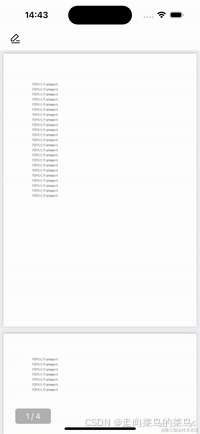
一、预览PDF文件
使用PDFKit.framework框架中的类有:PDFView、PDFDocument。
1、添加PDFView视图
// 预览PDF的容器视图
self.pdfView = [[PDFView alloc] initWithFrame:self.bounds];
// 设置每一页的内边距
self.pdfView.pageBreakMargins = UIEdgeInsetsMake(1, 0, 0, 0);
// 设置代理
self.pdfView.delegate = self;
// 设置自动适配
self.pdfView.autoScales = YES;
[self addSubview:self.pdfView];
2、给PDFView设置文件
// 创建文件
PDFDocument *document = [[PDFDocument alloc] initWithURL:[NSURL fileURLWithPath:localPDFPath]];
self.pdfView.document = document;
3、监听当前显示页码
// 监听页码发生改变
[[NSNotificationCenter defaultCenter] addObserverForName:PDFViewPageChangedNotification object:nil queue:nil usingBlock:^(NSNotification * _Nonnull note) {
    // 获取当前页码
    NSInteger currentPageIndex = self.pdfView.currentPage.label.integerValue;
    // 获取总页码
    NSInteger totalPageCount = self.pdfView.document.pageCount;
    // 指示器赋值
    weakSelf.indicatorLabel.text = [NSString stringWithFormat:@"%ld / %ld", currentPageIndex, totalPageCount];
}];
二、PDF文件添加涂鸦(绘制曲线)
使用PDFKit.framework框架中的类有:PDFAnnotation、PDFPage。
绘制曲线使用UIBezierPath完成。
原理:在
touchesBegan / touchesMoved / touchesEnded方法中,使用UIBezierPath绘制一条曲线,把曲线转化为PDFAnnotation批注对象,并添加到绘制的PDFPage当前页上。
1、触摸开始
- (void)touchesBegan:(NSSet<UITouch *> *)touches withEvent:(UIEvent *)event {
    // 获取touch
    UITouch *touch = touches.anyObject;
    if (![touch.view isEqual:self]) {
        return;
    }
    // 获取开始时的上一次触摸点
    previousPointNew = [touch previousLocationInView:self];
    // 获取当前触摸点
    currentPoint = [touch locationInView:self];
    // 获取触摸点所在PDF页
    self.currentPage = [self.pdfView pageForPoint:previousPointNew nearest:YES];
    // 将触摸点转化为当前页的触摸点
    CGPoint currentPagePoint = [self.pdfView convertPoint:previousPointNew toPage:self.currentPage];
    // 创建PDF贝塞尔曲线(每次都新建曲线)
    self.drawPath = [UIBezierPath bezierPath];
    self.drawPath.lineCapStyle = kCGLineCapRound;
    self.drawPath.lineJoinStyle = kCGLineJoinRound;
    self.drawPath.lineWidth = self.lineWidth;
    [self.drawPath moveToPoint:currentPagePoint];
}
2、触摸移动
- (void)touchesMoved:(NSSet<UITouch *> *)touches withEvent:(UIEvent *)event {
    // 获取touch
    UITouch *touch = touches.anyObject;
    if (![touch.view isEqual:self]) {
        return;
    }
    // 记录上一个触摸点
    previousPointOld = previousPointNew;
    // 获取移动时的上一次触摸点
    previousPointNew = [touch previousLocationInView:self];
    // 获取当前触摸点
    currentPoint = [touch locationInView:self];
    // 将触摸点转化为当前页的触摸点
    CGPoint currentPagePointOld = [self.pdfView convertPoint:previousPointOld toPage:self.currentPage];
    CGPoint currentPagePointNew = [self.pdfView convertPoint:previousPointNew toPage:self.currentPage];
    CGPoint currentPagePointCurrent = [self.pdfView convertPoint:currentPoint toPage:self.currentPage];
    // 添加路径
    [self.drawPath addPathPreviousPreviousPoint:currentPagePointOld withPreviousPoint:currentPagePointNew withCurrentPoint:currentPagePointCurrent];

    // 移动时添加批注,实现手指滑动的过程中,有曲线显示
    if (self.moveAnnotation == nil) {
        CGRect bounds = [self.currentPage boundsForBox:self.pdfView.displayBox];
        self.moveAnnotation = [[PKPDFAnnotation alloc] initWithBounds:bounds forType:PDFAnnotationSubtypeInk withProperties:nil];
    }
    self.moveAnnotation.color = self.lineColor;
    self.moveAnnotation.path = self.drawPath;
    [self.currentPage addAnnotation:self.moveAnnotation];
}
3、触摸结束
- (void)touchesEnded:(NSSet<UITouch *> *)touches withEvent:(UIEvent *)event {
    // 获取touch
    UITouch *touch = touches.anyObject;
    if (![touch.view isEqual:self]) {
        return;
    }
    if (!self.moveAnnotation) {
        return;
    }
    // 移除移动过程中的标注
    [self.currentPage removeAnnotation:self.moveAnnotation];
    // 停止触摸,添加最终的曲线标注
    CGRect bounds = [self.currentPage boundsForBox:self.pdfView.displayBox];
    PKPDFAnnotation *annotation = [[PKPDFAnnotation alloc] initWithBounds:bounds forType:PDFAnnotationSubtypeInk withProperties:nil];
    annotation.color = self.lineColor;
    annotation.path = self.drawPath;
    [self.currentPage addAnnotation:annotation];

    // 再撤销数组中添加标注对象
    [self.lastAnnotations addObject:annotation];
    // 更新工具栏按钮状态
    [self updateToolsViewStatus];
    NSLog(@"停止批注个数:%ld", [self.currentPage annotations].count);
}
三、PDF文件添加文字
正在开发
四、PDF文件添加贴图
正在开发






 扫一扫
扫一扫


 3482
3482

 被折叠的 条评论
为什么被折叠?
被折叠的 条评论
为什么被折叠?
 到【灌水乐园】发言





