
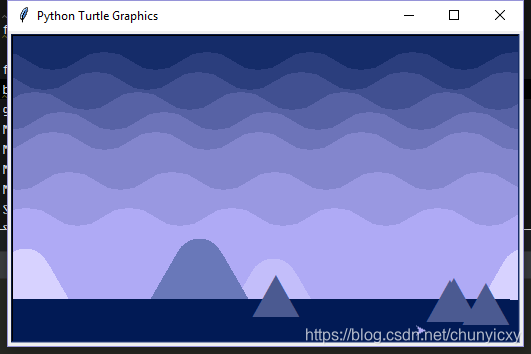
【Pyhton TurtleArt】画一幅极简渐变风景图

冬

代码如下:

import turtle as tu
import random as ra

#天空
tu.colormode(255)
tu.setup(515,315)
tu.bgcolor('midnight blue')
tu.speed(100)

#云层
tu.color('dark slate blue')
tu.pu()
tu.pensize(5)
tu.goto(ra.randint(-700,-258),128)
tu.pd()
tu.begin_fill()
tu.seth(-40)
for i in range(10):
    tu.circle(40,80)
    tu.circle(-40,80)
tu.goto(258,-158)
tu.goto(-258,-158)
tu.goto(-258,108)
tu.end_fill()
tu.pu()

tu.goto(ra.randint(-700,-258),108)
tu.color('MediumPurple3')
tu.pd()
tu.begin_fill()
tu.seth(-40)
for i in range(10):
    tu.circle(40,80)
    tu.circle(-40,80)
tu.goto(258,-158)
tu.goto(-258,-158)
tu.goto(-258,108)
tu.end_fill()
tu.pu()

tu.goto(ra.randint(-700,-258),
要使用Python绘制折线图,你可以使用pandas和matplotlib这两个库。首先,你需要导入这两个库,并读取你的数据文件。可以使用pandas的`read_excel`函数来读取Excel文件。然后,你需要指定你要绘制的曲线的x轴和y轴的数据。在这个例子中,x轴是姓名,y轴分别是语文、数学、英语、物理和化学的成绩。 为了解决中文乱码问题,你可以使用matplotlib的`rcParams`来设置字体为SimHei。然后,你可以创建一个8x7大小的布,使用`figure`函数。接下来,使用`plot`函数绘制五条折线,分别对应不同科目的成绩。你可以指定每个折线的颜色、标记点的样式和线条的样式。使用`grid`函数可以添加网格线。设置x轴和y轴的标题,使用`ylabel`和`xlabel`函数。通过`legend`函数设置图例,用于标识每个折线对应的科目。最后,使用`yticks`函数设置y轴刻度的范围,并使用`show`函数显示图表。 下面是一个代码示例,可以参考一下: ```python import pandas as pd import matplotlib.pyplot as plt # 导入excel文件 df = pd.read_excel('成绩表.xlsx') # 取df中某一列数据 x = df['姓名'] y1 = df['语文'] y2 = df['数学'] y3 = df['英语'] y4 = df['物理'] y5 = df['化学'] # 解决中文乱码 plt.rcParams['font.sans-serif'] = ['SimHei'] # 设置布宽度 plt.figure(figsize=(8, 7)) # 绘制折线图 plt.plot(x, y1, label='语文', color='r', marker='p') plt.plot(x, y2, label='数学', color='g', marker='p', linestyle='--') plt.plot(x, y3, label='英语', color='b', marker='p', linestyle='-.') plt.plot(x, y4, label='物理', color='y', marker='p', linestyle='-.') plt.plot(x, y5, label='化学', color='r', marker='p', linestyle='--') # 添加网格线 plt.grid() # 设置坐标轴的标题 plt.ylabel('分数') plt.xlabel('姓名') # 设置图例 plt.legend(['语文', '数学', '英语', '物理', '化学']) # 设置y轴刻度 plt.yticks(range(80, 150, 10)) # 显示图表 plt.show() ``` 这段代码可以帮助你使用Python绘制折线图。你只需要将数据文件路径更改为你的文件路径,然后运行代码即可。希望对你有帮助!
评论 1
添加红包

请填写红包祝福语或标题

红包个数最小为10个

红包金额最低5元

当前余额3.43前往充值 >
需支付:10.00
成就一亿技术人!
领取后你会自动成为博主和红包主的粉丝 规则
hope_wisdom
发出的红包
实付
使用余额支付
点击重新获取
扫码支付
钱包余额 0

抵扣说明:

1.余额是钱包充值的虚拟货币,按照1:1的比例进行支付金额的抵扣。
2.余额无法直接购买下载,可以购买VIP、付费专栏及课程。

余额充值



