


1. Docker常用命令
1.1 基础命令
docker version #查看docker的版本信息
docker info #查看docker的系统信息,包括镜像和容器的数量
docker 命令 --help #帮助命令(可查看可选的参数)
docker COMMAND --help
命令的帮助文档地址:https://docs.docker.com/engine/reference/commandline/docker/
1.2 镜像命令
1.docker images 查看本地主机的所有镜像
# docker images
REPOSITORY TAG IMAGE ID CREATED SIZE
hello-world latest bf756fb1ae65 11 months ago 13.3kB
#解释:
1.REPOSITORY 镜像的仓库源
2.TAG 镜像的标签
3.IMAGE ID 镜像的id
4.CREATED 镜像的创建时间
5.SIZE 镜像的大小
# 可选参数
docker images -a/ --all 列出所有镜像
docker images -q/ --quiet 只显示镜像的id
2.docker search 搜索镜像
# docker search mysql
NAME DESCRIPTION STARS OFFICIAL AUTOMATED
mysql MySQL is a widely used, open-source relation… 10308 [OK]
mariadb MariaDB is a community-developed fork of MyS… 3819 [OK]
mysql/mysql-server Optimized MySQL Server Docker images. Create… 754 [OK]
percona Percona Server is a fork of the MySQL relati… 517 [OK]
centos/mysql-57-centos7 MySQL 5.7 SQL database server 86
mysql/mysql-cluster Experimental MySQL Cluster Docker images. Cr… 79
centurylink/mysql Image containing mysql. Optimized to be link… 60 [OK]
#搜索收藏数大于5000的镜像
# docker search mysql --filter=STARS=5000
NAME DESCRIPTION STARS OFFICIAL AUTOMATED
mysql MySQL is a widely used, open-source relation… 10308 [OK]
3.docker pull 镜像名[:tag] 下载镜像
# docker pull mysql
Using default tag: latest #如果不写tag默认就是latest
latest: Pulling from library/mysql
6ec7b7d162b2: Pull complete #分层下载,docker image的核心-联合文件系统
fedd960d3481: Pull complete
7ab947313861: Pull complete
64f92f19e638: Pull complete
3e80b17bff96: Pull complete
014e976799f9: Pull complete
59ae84fee1b3: Pull complete
ffe10de703ea: Pull complete
657af6d90c83: Pull complete
98bfb480322c: Pull complete
6aa3859c4789: Pull complete
1ed875d851ef: Pull complete
Digest: sha256:78800e6d3f1b230e35275145e657b82c3fb02a27b2d8e76aac2f5e90c1c30873 #签名
Status: Downloaded newer image for mysql:latest
docker.io/library/mysql:latest #下载来源的真实地址
#docker pull mysql等价于docker pull docker.io/library/mysql:latest
指定版本下载
# docker pull mysql:5.7
5.7: Pulling from library/mysql
6ec7b7d162b2: Already exists
fedd960d3481: Already exists
7ab947313861: Already exists
64f92f19e638: Already exists
3e80b17bff96: Already exists
014e976799f9: Already exists
59ae84fee1b3: Already exists
7d1da2a18e2e: Pull complete
301a28b700b9: Pull complete
529dc8dbeaf3: Pull complete
bc9d021dc13f: Pull complete
Digest: sha256:c3a567d3e3ad8b05dfce401ed08f0f6bf3f3b64cc17694979d5f2e5d78e10173
Status: Downloaded newer image for mysql:5.7
docker.io/library/mysql:5.7
4.docker rmi 删除镜像
#1.删除指定的镜像id
# docker rmi -f 镜像id
#2.删除多个镜像id
# docker rmi -f 镜像id 镜像id 镜像id
#3.删除全部的镜像id
# docker rmi -f $(docker images -aq)
1.3 容器命令
如拉取一个centos镜像
docker pull centos
运行容器的命令说明:
docker run [可选参数] image
#参数说明
--name="名字" 指定容器名字
-d 后台方式运行
-it 使用交互方式运行,进入容器查看内容
-p 指定容器的端口
(
-p ip:主机端口:容器端口 配置主机端口映射到容器端口
-p 主机端口:容器端口
-p 容器端口
)
-P 随机指定端口(大写的P)
运行并进入容器centos
# ls
bin dev etc home lib lib64 lost+found media mnt opt proc root run sbin srv sys tmp usr var
退出容器命令:
#exit 停止并退出容器(后台方式运行则仅退出)
#Ctrl+P+Q 不停止容器退出
# exit
exit
列出运行过的容器命令:
#docker ps
# 列出当前正在运行的容器
-a # 列出所有容器的运行记录
-n=? # 显示最近创建的n个容器
-q # 只显示容器的编号
# docker ps
CONTAINER ID IMAGE COMMAND CREATED STATUS PORTS NAMES
# docker ps -a
CONTAINER ID IMAGE COMMAND CREATED STATUS PORTS NAMES
bca129320bb5 centos "/bin/bash" 4 minutes ago Exited (0) 3 minutes ago optimistic_shtern
bd1b8900c547 centos "/bin/bash" 6 minutes ago Exited (0) 5 minutes ago cool_tesla
cf6adbf1b506 bf756fb1ae65 "/hello" 5 hours ago Exited (0) 5 hours ago optimistic_darwin
删除容器命令:
docker rm 容器id #删除指定的容器,不能删除正在运行的容器,强制删除使用 rm -f
docker rm -f $(docker ps -aq) #删除所有的容器
docker ps -a -q|xargs docker rm #删除所有的容器
启动和停止容器命令:
docker start 容器id #启动容器
docker restart 容器id #重启容器
docker stop 容器id #停止当前运行的容器
docker kill 容器id #强制停止当前容器
1.4 其他常用命令
1.4 1 日志的查看
# docker logs --help
Usage: docker logs [OPTIONS] CONTAINER
Fetch the logs of a container
Options:
--details Show extra details provided to logs
-f, --follow Follow log output
--since string Show logs since timestamp (e.g. 2013-01-02T13:23:37Z) or relative (e.g. 42m for 42 minutes)
-n, --tail string Number of lines to show from the end of the logs (default "all")
-t, --timestamps Show timestamps
--until string Show logs before a timestamp (e.g. 2013-01-02T13:23:37Z) or relative (e.g. 42m for 42 minutes)
常用:
docker logs -tf 容器id
docker logs --tail number 容器id #num为要显示的日志条数
#docker容器后台运行,必须要有一个前台的进程,否则会自动停止
#编写shell脚本循环执行,使得centos容器保持运行状态
# docker run -d centos /bin/sh -c "while true;do echo hello;sleep 5;done"
# docker ps
CONTAINER ID IMAGE COMMAND CREATED STATUS PORTS NAMES
c703b5b1911f centos "/bin/sh -c 'while t…" 13 seconds ago Up 10 seconds pedantic_banach
# docker logs -tf --tail 10 5d0da3dc9764
2022-04-02T13:24:01.005700500Z hello
2022-04-02T13:24:06.007627447Z hello
2022-04-02T13:24:11.009523519Z hello
2022-04-02T13:24:16.011453098Z hello
2022-04-02T13:24:21.013433033Z hello
2022-04-02T13:24:26.015378200Z hello
2022-04-02T13:24:31.017335327Z hello
2022-04-02T13:24:36.019275073Z hello
2022-04-02T13:24:41.021301117Z hello
2022-04-02T13:24:46.023559303Z hello
2022-04-02T13:24:51.025452093Z hello
1.4 2 查看容器中进程信息
# docker top a7bd8627fdc7
UID PID PPID C STIME TTY TIME CMD
root 11156 11135 0 11:31 ? 00:00:00 /bin/sh -c while true;do echo hi;sleep 5;done
root 11886 11156 0 11:43 ? 00:00:00 /usr/bin/coreutils --coreutils-prog-shebang=sleep /usr/bin/sleep 5
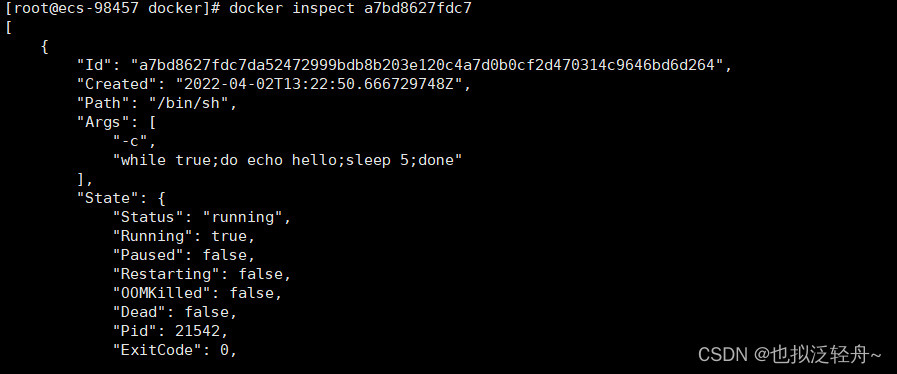
1.4.3 查看容器的元数据
# docker inspect 容器id
1.4.4 进入当前正在运行的容器
因为通常我们的容器都是使用后台方式来运行的,有时需要进入容器修改配置
方式一:
# docker exec -it a7bd8627fdc7/bin/bash
# ls
bin dev etc home lib lib64 lost+found media mnt opt proc root run sbin srv sys tmp usr var
# ps -ef
UID PID PPID C STIME TTY TIME CMD
root 1 0 0 03:31 ? 00:00:00 /bin/sh -c while true;do echo hi;sleep 5;done
root 279 0 0 03:54 pts/0 00:00:00 /bin/bash
root 315 1 0 03:56 ? 00:00:00 /usr/bin/coreutils --coreutils-prog-shebang=sleep /usr/bin/sleep 5
root 316 279 0 03:56 pts/0 00:00:00 ps -ef
方式二:
# docker attach a7bd8627fdc7
docker exec 进入容器后开启一个新的终端,可以在里面操作
docker attach 进入容器正在执行的终端,不会启动新的进程
10.4.5 拷贝操作
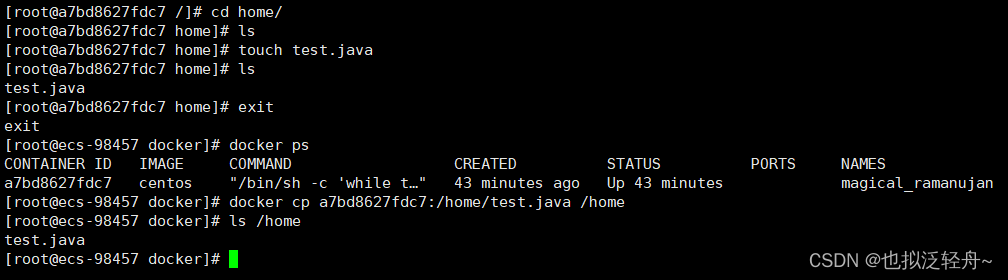
拷贝操作的命令如下:
#拷贝容器的文件到主机中
docker cp 容器id:容器内路径 目的主机路径
#拷贝宿主机的文件到容器中
docker cp 目的主机路径 容器id:容器内路径
# docker exec -it a7bd8627fdc7 /bin/bash
# cd home
# ls
#touch 新建文件
# touch test.java
# ls
test.java
# exit
exit
# docker ps
CONTAINER ID IMAGE COMMAND CREATED STATUS PORTS NAMES
a7bd8627fdc7 centos "/bin/sh -c 'while t…" 35 minutes ago Up 35 minutes pedantic_banach
# docker cp a7bd8627fdc7:/home/test.java /home
# ls /home
test.java





 扫一扫
扫一扫


 1603
1603

 被折叠的 条评论
为什么被折叠?
被折叠的 条评论
为什么被折叠?
 到【灌水乐园】发言





