




学习参考来自
更多学习笔记可以参考
- 【python】OpenCV—RGB(1)
- 【python】OpenCV—Rectangle, Circle, Selective Search(1.2)
- 【python】OpenCV—Blur, Threshold, Gradient, Morphology(2)
- 【python】OpenCV—Edge, Corner, Face Detection(3)
- 【python】OpenCV—findContours(4)
- 【python】OpenCV—Video to Imag / Image to Video(5)
- 【python】OpenCV—Brightness and Contrast adjustments(6)
- 【python】OpenCV—Data Augmentation(7)
- 【python】OpenCV—Image Pyramid(8)
1、直方图
直方图可以清晰了解图像的整体灰度分布,先看看 opencv 中的接口
cv2.calcHist()
- image输入图像,传入时应该用中括号[]括起来
- channels::传入图像的通道,如果是灰度图像,那就不用说了,只有一个通道,值为0,如果是彩色图像(有3个通道),那么值为0,1,2,中选择一个,对应着BGR各个通道。这个值也得用[]传入。
- mask:掩膜图像。如果统计整幅图,那么为none。主要是如果要统计部分图的直方图,就得构造相应的炎掩膜来计算。
- histSize:灰度级的个数,需要中括号,比如[256]
- ranges:像素值的范围,通常[0,256],有的图像如果不是0-256,比如说你来回各种变换导致像素值负值、很大,则需要调整后才可以。
import cv2
import numpy as np
import matplotlib.pyplot as plt

img = cv2.imread('2.jpg', 0)  #直接读为灰度图像


# 法一:opencv方法读取-cv2.calcHist(速度最快)
hist_cv = cv2.calcHist([img], [0], None, [256], [0, 256])

# 法二:numpy方法读取-np.histogram()
hist_np, bins = np.histogram(img.ravel(), 256, [0, 256])

# 法三:numpy的另一种方法读取-np.bincount()(速度=10倍法2)
hist_np2 = np.bincount(img.ravel(), minlength=256)

plt.subplot(221), plt.imshow(img, 'gray')
plt.subplot(222), plt.plot(hist_cv), plt.title("cv2.calcHist")
plt.subplot(223), plt.plot(hist_np), plt.title("np.histogram")
plt.subplot(224), plt.plot(hist_np2), plt.title("np.bincount")
plt.show()
原图

不同接口计算得到的直方图

2、局部图片区域的直方图
加个 mask 对比看看
import cv2
import numpy as np
import matplotlib.pyplot as plt

img = cv2.imread('2.jpg', 0)
mask = np.zeros(img.shape[:2], np.uint8)
mask[25:185, 265:412] = 255
masked_img = cv2.bitwise_and(img, img, mask=mask)

hist_full = cv2.calcHist([img], [0], None, [256], [0, 256])
hist_mask = cv2.calcHist([img], [0], mask, [256], [0, 256])

plt.subplot(221), plt.imshow(img, 'gray')
plt.subplot(222), plt.imshow(mask, 'gray')
plt.subplot(223), plt.imshow(masked_img, 'gray')
plt.subplot(224), plt.plot(hist_full), plt.plot(hist_mask)
plt.show()

蓝色是全图的,黄色是 mask 后的
3、全局直方图均衡化
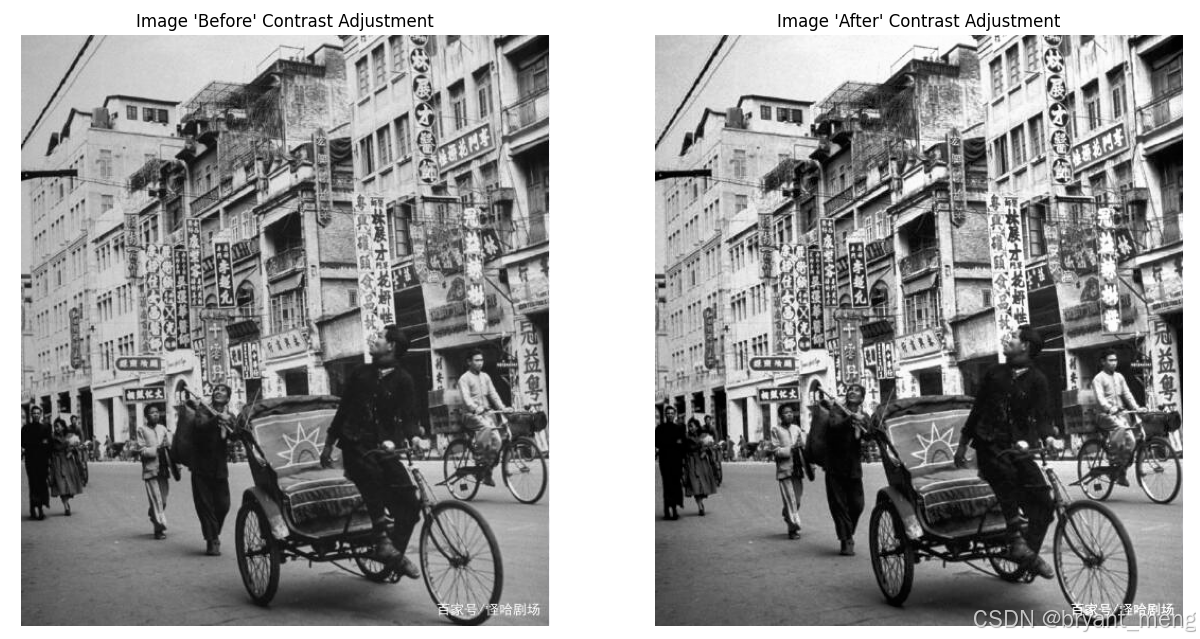
直方图是对图像对比度效果上的一种处理,旨在使得图像整体效果均匀,黑与白之间的各个像素级之间的点更均匀一点。
import cv2
import matplotlib.pyplot as plt

img = cv2.imread('2.jpg', 0)
res = cv2.equalizeHist(img)

plt.subplot(121), plt.imshow(img, 'gray')
plt.subplot(122), plt.imshow(res, 'gray')
plt.show()

上述的直方图均衡化是一种全局意义上的均衡化
下面尝试自己实现下直方图均衡化
# encoding=utf-8
import numpy as np
import matplotlib.pyplot as plt
from PIL import Image
import os.path
# 读取图片
img_path = "./1.jpeg"
img = Image.open(img_path)

# 图像转化为numpy数组
img = np.asarray(img)
flat = img.flatten()

# 创建函数
def get_histogram(image, bins):
    # array with size of bins, set to zeros
    histogram = np.zeros(bins)
    # loop through pixels and sum up counts of pixels
    for pixel in image:
        histogram[pixel] += 1
    # return our final result
    return histogram

# execute our histogram function
hist = get_histogram(flat, 256)  # (256,)

# execute the fn
cs = np.cumsum(hist)  # (256,) 计算累计和

# numerator & denomenator
nj = (cs - cs.min()) * 255  # 减去最小值乘以 255
N = cs.max() - cs.min()

# re-normalize the cumsum
cs = nj / N  # 最大值最小值归一化到 0-255 之间

# cast it back to uint8 since we can't use floating point values in images
cs = cs.astype('uint8')

# get the value from cumulative sum for every index in flat, and set that as img_new
img_new = cs[flat]

# put array back into original shape since we flattened it
img_new = np.reshape(img_new, img.shape)

# set up side-by-side image display
fig = plt.figure()
fig.set_figheight(15)
fig.set_figwidth(15)

# display the real image
fig.add_subplot(1, 2, 1)
plt.imshow(img, cmap='gray')
plt.title("Image 'Before' Contrast Adjustment")
plt.axis("off")

# display the new image
fig.add_subplot(1, 2, 2)
plt.imshow(img_new, cmap='gray')
plt.title("Image 'After' Contrast Adjustment")
plt.axis("off")

plt.show()
输入图片
4、局部直方图均衡化
下面看看局部均衡化
cv2. createCLAHE()
- clipLimit:颜色对比度的阈值,可选项,默认值 8
- titleGridSize:局部直方图均衡化的模板(邻域)大小,可选项,默认值 (8,8)
消融下 titleGridSize, 10,20,50
import cv2
import matplotlib.pyplot as plt

img = cv2.imread('2.jpg', 0)
cl0 = cv2.createCLAHE(clipLimit=2, tileGridSize=(10, 10)).apply(img)
c20 = cv2.createCLAHE(clipLimit=2, tileGridSize=(20, 20)).apply(img)
c50 = cv2.createCLAHE(clipLimit=2, tileGridSize=(50, 50)).apply(img)

plt.subplot(221), plt.imshow(img, 'gray'), plt.title("ori")
plt.subplot(222), plt.imshow(cl0, 'gray'), plt.title("CLAHE 10")
plt.subplot(223), plt.imshow(c20, 'gray'), plt.title("CLAHE 20")
plt.subplot(224), plt.imshow(c50, 'gray'), plt.title("CLAHE 50")
plt.show()

消融下 clipLimit, 2, 4,6
import cv2
import matplotlib.pyplot as plt

img = cv2.imread('2.jpg', 0)
c2 = cv2.createCLAHE(clipLimit=2, tileGridSize=(10, 10)).apply(img)
c4 = cv2.createCLAHE(clipLimit=4, tileGridSize=(10, 10)).apply(img)
c6 = cv2.createCLAHE(clipLimit=6, tileGridSize=(10, 10)).apply(img)

plt.subplot(221), plt.imshow(img, 'gray'), plt.title("ori")
plt.subplot(222), plt.imshow(c2, 'gray'), plt.title("clipLimit 2")
plt.subplot(223), plt.imshow(c4, 'gray'), plt.title("clipLimit 4")
plt.subplot(224), plt.imshow(c6, 'gray'), plt.title("clipLimit 6")
plt.show()







 扫一扫
扫一扫


 2549
2549

 被折叠的 条评论
为什么被折叠?
被折叠的 条评论
为什么被折叠?
 到【灌水乐园】发言





