



 博客介绍了商品界面相关代码和布局,包括GoodsFragment.kt作为商品主界面容器布局,GoodsAdapter.kt为右侧内容栏容器,GoodsFragmentPresenter.kt负责数据请求分解,还有item_goods.xml等布局文件。
GoodsFragment.kt商品主界面的容器布局,赋值左边和右边的布局
package com.example.takeout.ui.fragment

import android.os.Bundle
import android.view.LayoutInflater
import android.view.View
import android.view.ViewGroup
import androidx.fragment.app.Fragment
import androidx.recyclerview.widget.LinearLayoutManager
import androidx.recyclerview.widget.RecyclerView
import com.example.takeout.R
import com.example.takeout.model.beans.GoodsInfo
import com.example.takeout.model.beans.GoodsTypeInfo
import com.example.takeout.presenter.GoodsFragmentPresenter
import com.example.takeout.ui.adapter.GoodsAdapter
import com.example.takeout.ui.adapter.GoodsTypeRvAdapter
import org.jetbrains.anko.find
import se.emilsjolander.stickylistheaders.StickyListHeadersListView

/**
 * 详情页商品列表界面
 */
class GoodsFragment : Fragment() {

    lateinit var rvGoodsType: RecyclerView //左侧的RecyclerView
    lateinit var slhlv: StickyListHeadersListView //
    lateinit var goodsFragmentPresenter: GoodsFragmentPresenter
    lateinit var goodsTypeAdapter :GoodsTypeRvAdapter
    lateinit var goodsAdapter: GoodsAdapter

    override fun onCreateView(
        inflater: LayoutInflater,
        container: ViewGroup?,
        savedInstanceState: Bundle?
    ): View? {
        val goodsView =
            LayoutInflater.from(activity).inflate(R.layout.fragment_goods, container, false)
        rvGoodsType = goodsView.find(R.id.rv_goods_type)
        slhlv = goodsView.find<StickyListHeadersListView>(R.id.slhlv)
        goodsAdapter = GoodsAdapter(activity,this)
        slhlv.adapter = goodsAdapter
        rvGoodsType.layoutManager = LinearLayoutManager(activity)
        goodsTypeAdapter = GoodsTypeRvAdapter(activity, this)
        rvGoodsType.adapter = goodsTypeAdapter
        goodsFragmentPresenter = GoodsFragmentPresenter(this)
        return goodsView
    }

    override fun onActivityCreated(savedInstanceState: Bundle?) {
        super.onActivityCreated(savedInstanceState)
        goodsFragmentPresenter.getBusinessInfo()
    }

    fun onLoadBusinessSuccess(goodstypeList: List<GoodsTypeInfo>, allTypeGoodsList: ArrayList<GoodsInfo>) {
        goodsTypeAdapter.setDatas(goodstypeList)  //左侧列表//右侧列表
        goodsAdapter.setDatas(allTypeGoodsList)
//        goodsTypeAdapter.notifyDataSetChanged()

    }

}
GoodsAdapter.kt右侧内容栏的StickyListHeadersAdapter容器
package com.example.takeout.ui.adapter

import android.graphics.Color
import android.view.LayoutInflater
import android.view.View
import android.view.ViewGroup
import android.widget.BaseAdapter
import android.widget.ImageButton
import android.widget.ImageView
import android.widget.TextView
import androidx.fragment.app.FragmentActivity
import com.example.takeout.R
import com.example.takeout.model.beans.GoodsInfo
import com.example.takeout.ui.fragment.GoodsFragment
import org.jetbrains.anko.find
import se.emilsjolander.stickylistheaders.StickyListHeadersAdapter

class GoodsAdapter(val context: FragmentActivity?, val goodsFragment: GoodsFragment) : BaseAdapter(), StickyListHeadersAdapter {

    var goodsList: List<GoodsInfo> = ArrayList()

    fun setDatas(goodsInfoList: List<GoodsInfo>) {
        this.goodsList = goodsInfoList
        notifyDataSetChanged()
    }

    inner class GoodsItemHolder(itemView: View) : View.OnClickListener {

        override fun onClick(v: View?) {
            TODO("Not yet implemented")
        }

        val ivIcon: ImageView
        val tvName: TextView
        val tvForm: TextView
        val tvMonthSale: TextView
        val tvNewPrice: TextView
        val tvOldPrice: TextView
        val btnAdd: ImageButton
        val btnMinus: ImageButton
        val tvCount: TextView

        init {
            ivIcon = itemView.find(R.id.iv_icon)
            tvName = itemView.find(R.id.tv_name)
            tvForm = itemView.find(R.id.tv_form)
            tvMonthSale = itemView.find(R.id.tv_month_sale)
            tvNewPrice = itemView.find(R.id.tv_newprice)
            tvOldPrice = itemView.find(R.id.tv_oldprice)
            tvCount = itemView.find(R.id.tv_count)
            btnAdd = itemView.find(R.id.ib_add)
            btnMinus = itemView.find(R.id.ib_minus)
            btnAdd.setOnClickListener(this)
            btnMinus.setOnClickListener(this)
        }

        fun bindData(goodsInfo: GoodsInfo) {
            tvName.text = goodsInfo.name
        }
    }

    override fun getCount(): Int {
        return goodsList.size
    }

    override fun getItem(position: Int): Any {
        return goodsList.get(position)
    }

    override fun getItemId(position: Int): Long {
        return position.toLong()
    }

    override fun getView(position: Int, convertView: View?, parent: ViewGroup?): View {
        var itemView: View
        val goodsItemHolder: GoodsItemHolder
        if (convertView == null) {
            itemView = LayoutInflater.from(context).inflate(R.layout.item_goods, parent, false)
            goodsItemHolder = GoodsItemHolder(itemView)
            itemView.tag = goodsItemHolder
        } else {
            itemView = convertView
            goodsItemHolder = convertView.tag as GoodsItemHolder
        }
        goodsItemHolder.bindData(goodsList.get(position))
        return itemView
    }

    override fun getHeaderView(position: Int, convertView: View?, parent: ViewGroup?): View {
        val textView = TextView(context)
        textView.text = "商品类别1"
        textView.setTextColor(Color.BLACK)
        return textView
    }

    override fun getHeaderId(position: Int): Long {
        return 0
    }
}
GoodsFragmentPresenter.kt负责数据的请求分解上一节的请求的数据
package com.example.takeout.presenter

import android.util.Log
import com.example.takeout.model.beans.GoodsInfo
import com.example.takeout.model.beans.GoodsTypeInfo
import com.example.takeout.ui.fragment.GoodsFragment
import com.google.gson.Gson
import com.google.gson.reflect.TypeToken
import org.json.JSONObject

class GoodsFragmentPresenter(val goodsFragment: GoodsFragment) : NetPresenter() {

    var goodstypeList: List<GoodsTypeInfo> = arrayListOf()
    val allTypeGoodsList: ArrayList<GoodsInfo> = arrayListOf()

    //连接服务器拿到此商家所有商品
    fun getBusinessInfo() {
        val businessCall = takeoutService.getBusinessInfo()
        businessCall.enqueue(callback)
    }


    override fun parserJson(json: String) {
        val gson = Gson()
        val jsoObj = JSONObject(json)
        val allStr = jsoObj.getString("list")
        //商品类型的集合
        goodstypeList = gson.fromJson(allStr, object : TypeToken<List<GoodsTypeInfo>>() {
        }.type)
        Log.e("business", "该商家一共有" + goodstypeList.size + "个类别商品")
        for (i in 0 until goodstypeList.size) {
            val goodsTypeInfo = goodstypeList.get(i)
            allTypeGoodsList.addAll(goodsTypeInfo.list)
        }
        goodsFragment.onLoadBusinessSuccess(goodstypeList, allTypeGoodsList)
    }
}
item_goods.xml单个条目的布局文件
<?xml version="1.0" encoding="utf-8"?>
<LinearLayout xmlns:android="http://schemas.android.com/apk/res/android"
    android:orientation="horizontal" android:layout_width="match_parent"
    android:layout_height="wrap_content">
    <ImageView
        android:id="@+id/iv_icon"
        android:layout_width="50dp"
        android:layout_height="50dp"
        android:layout_margin="10dp"
        android:background="@mipmap/food_list_item_image_default"/>
    <LinearLayout
        android:layout_width="match_parent"
        android:layout_height="wrap_content"
        android:orientation="vertical">
        <TextView
            android:id="@+id/tv_name"
            android:layout_width="wrap_content"
            android:layout_height="wrap_content"
            android:layout_marginTop="10dp"
            android:maxLines="2"
            android:textSize="16sp"
            android:textStyle="bold"
            android:textColor="#000"
            android:text="尖椒土豆丝"
            />
        <TextView
            android:id="@+id/tv_form"
            android:layout_width="wrap_content"
            android:layout_height="wrap_content"
            android:maxLines="2"
            android:textSize="10sp"
            android:layout_marginTop="2dp"
            android:text="尖椒土豆丝+千叶豆腐+时蔬"
            />
        <TextView
            android:id="@+id/tv_month_sale"
            android:layout_width="wrap_content"
            android:layout_height="wrap_content"
            android:maxLines="1"
            android:textSize="12sp"
            android:layout_marginTop="2dp"
            android:text="月售137份"
            />
        <RelativeLayout
            android:layout_width="match_parent"
            android:layout_height="wrap_content"
            android:layout_marginTop="5dp">
            <TextView
                android:id="@+id/tv_newprice"
                android:layout_width="wrap_content"
                android:layout_height="wrap_content"
                android:textSize="16sp"
                android:text="¥30"
                android:textStyle="bold"
                android:textColor="#be5048"
                />
            <TextView
                android:id="@+id/tv_oldprice"
                android:layout_width="wrap_content"
                android:layout_height="wrap_content"
                android:textSize="13sp"
                android:text="¥60"
                android:layout_toRightOf="@id/tv_newprice"
                android:layout_marginLeft="10dp"
                android:textStyle="bold"
                android:textColor="#8f8d8d"
                android:layout_alignBottom="@id/tv_newprice"
                />

            <LinearLayout
                android:gravity="right"
                android:layout_width="wrap_content"
                android:layout_height="wrap_content"
                android:layout_alignParentRight="true"
                android:orientation="horizontal">
                <ImageButton
                    android:id="@+id/ib_minus"
                    android:layout_width="20dp"
                    android:layout_height="20dp"
                    android:visibility="invisible"
                    android:background="@mipmap/button_minus"/>
                <TextView
                    android:id="@+id/tv_count"
                    android:layout_width="20dp"
                    android:layout_height="20dp"
                    android:textSize="14sp"
                    android:text="0"
                    android:gravity="center"
                    android:textColor="#000"
                    android:visibility="invisible"
                    android:layout_gravity="center_vertical"
                    />
                <ImageButton
                    android:id="@+id/ib_add"
                    android:layout_width="20dp"
                    android:layout_height="20dp"
                    android:background="@mipmap/button_add"/>
            </LinearLayout>
        </RelativeLayout>
    </LinearLayout>

</LinearLayout>
item_type_header.xml
<?xml version="1.0" encoding="utf-8"?>
<TextView xmlns:android="http://schemas.android.com/apk/res/android"
    android:layout_width="match_parent"
    android:layout_height="wrap_content"
    android:gravity="center_vertical"
    android:textSize="12sp"
    android:padding="5dp"
    android:background="#c6c5c5"
    android:textColor="#fd262525"
    android:textStyle="bold"
    android:text="标题">
</TextView>
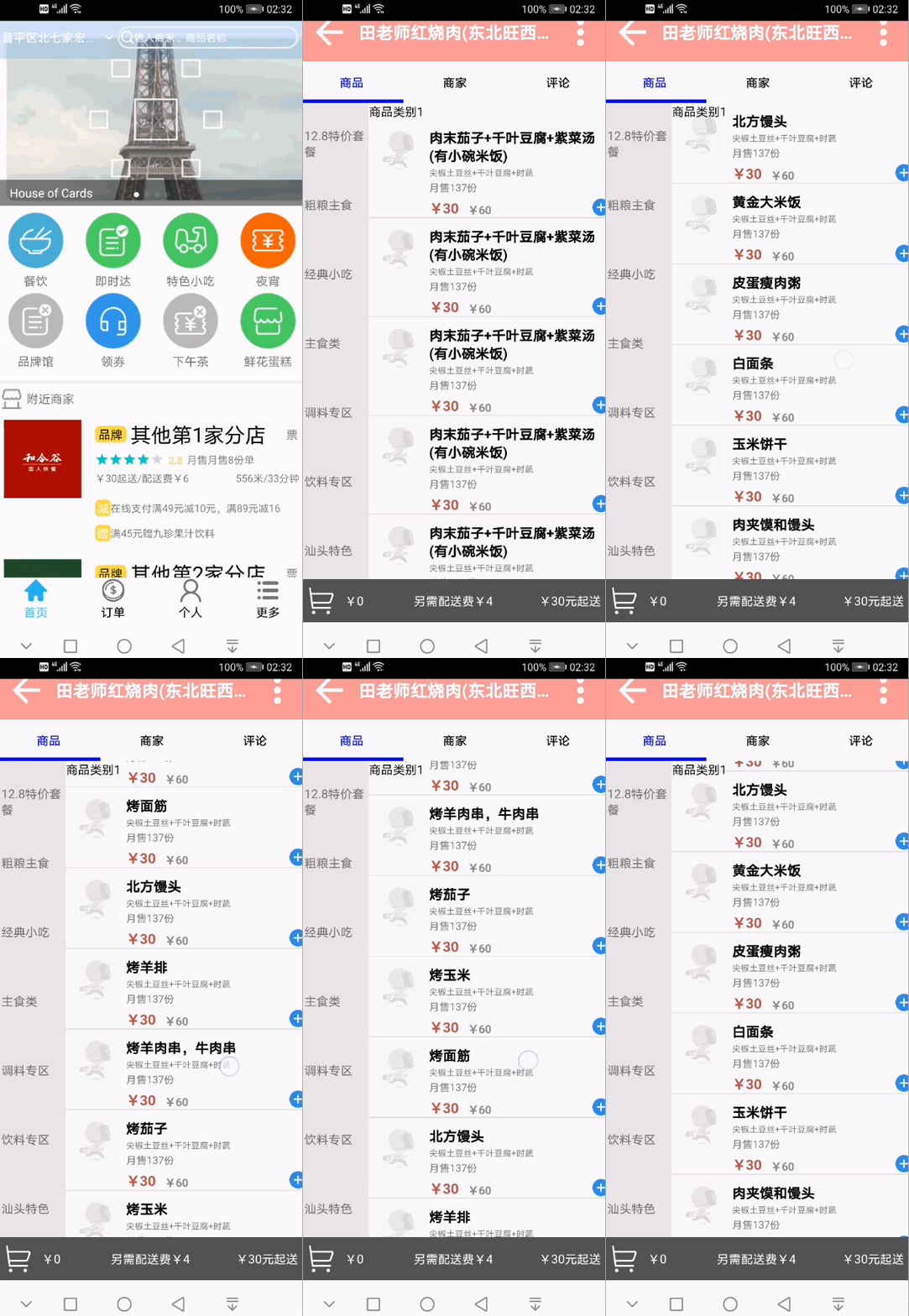
效果如下:





 扫一扫
扫一扫


 1951
1951

 被折叠的 条评论
为什么被折叠?
被折叠的 条评论
为什么被折叠?
 到【灌水乐园】发言





