

Adding and displaying a background

本文详细介绍了如何使用Unity创建2D游戏背景,包括添加静态背景、制作平台道具等元素,并介绍了如何利用Unity工具从一张图片中切割出多个精灵。

Using the empty project we created in the previous part, we will now learn how to add a background and some fancy clouds.

Adding a background

Your first background will be static. We will use the following image:

TGPA background

(Right click to save the image)

Import the image in the "Textures" folder. Simply copy the file in it, or drag and drop it from the explorer.

Do not worry about the import settings for now.

In Unity, create a new Sprite game object in the scene.

New sprite

What is a sprite?

In general, we call "sprite" a 2D image displayed in a video game. Here, it's a Unity specific object made for 2D games.

Add the texture to the sprite

Unity may have set automatically your background as the sprite to display. If not, or if you want to change the texture, go to the inspector and select "background":

Select a sprite

(You have to click on the small round icon at the right of the input box to show the "Select Sprite" inspector)

"My sprite doesn't show up in the dialog?": First, make sure you are in the "Assets" tab of the "Select Sprite" dialog. 
Some readers have reported that, in their project, this dialog was empty. The reason is that for some Unity installations, even with a fresh new 2D project, images are imported as "Texture" and not "Sprite". 

To fix this, you need to select the image in the "Project" pane, and in the "Inspector", change the "Texture Type" property to "Sprite": 

Sprite mode
We don't know why everybody doesn't seem to have the same behavior.

Well, we have set a simple sprite displaying a cloudy sky background. Let's reorganize the scene.

In the "Hierarchy" pane, select the New Sprite. Rename it inBackground1 or something you will easily remember.

Then move the object to where it belongs: Level -> 0 - Background. Change its position to (0, 0, 0).

Background is set

A quick exercise: duplicate the background and place it at (20, 0, 0). It should fit perfectly with the first part.

Tip: You can duplicate an objet with the cmd + D (OS X) or ctrl + D (Windows) shortcuts.
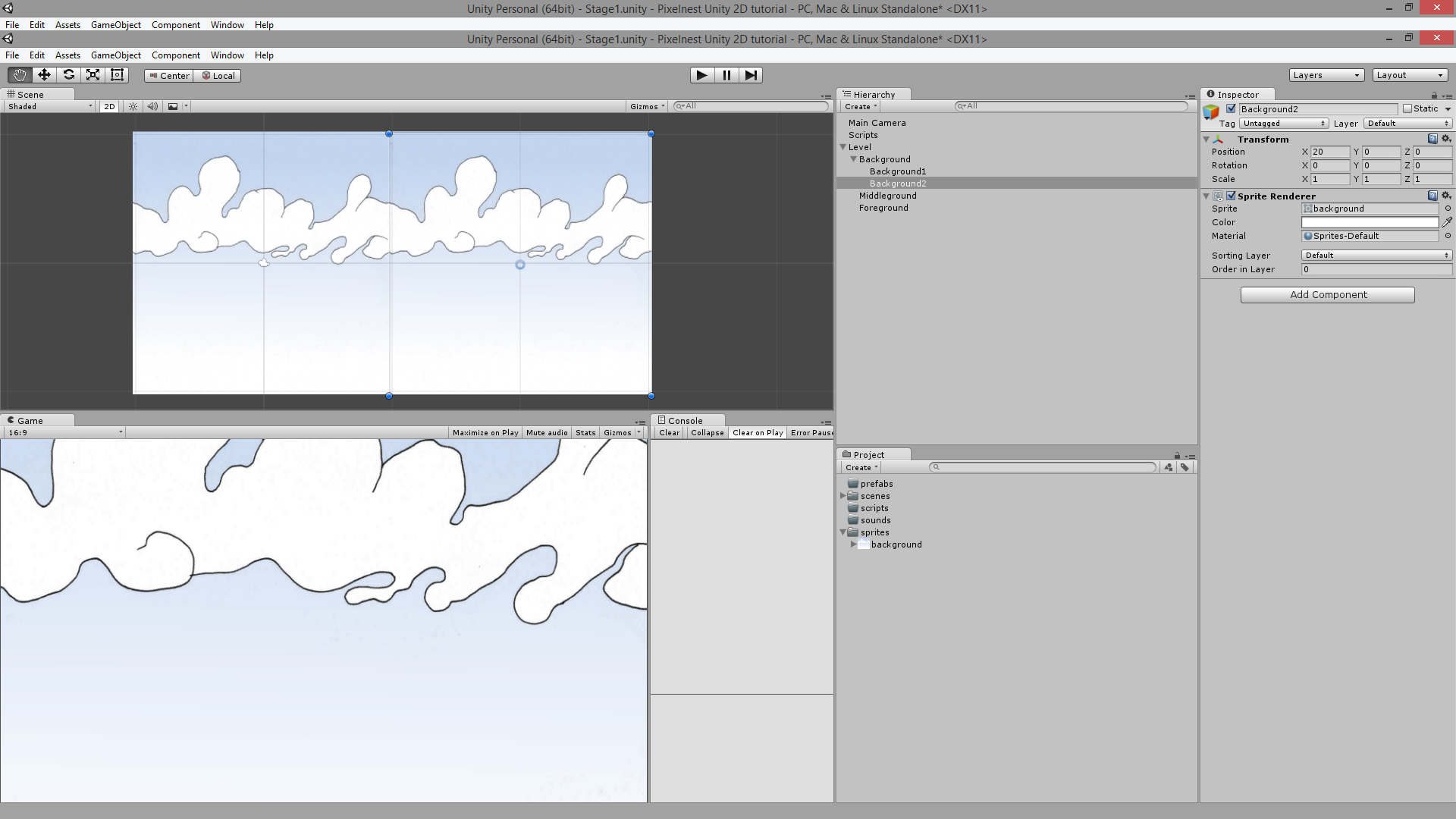
Background2 in place

Adding background elements

Also known as props. These elements aren't used to improve the gameplay but to visually enhance the scene.

Here are some simple flying platform sprites:

Platform sprites

(Right click to save the image)

As you can see, we got two platforms in one file. This is a good way to learn how to crop sprites with the new Unity tools.

Getting two sprites from one image

  1. Import the image in your "Textures" folder
  2. Select the "platforms" sprite and go to the inspector
  3. Change "Sprite Mode" to "Multiple"
  4. Click on "Sprite Editor"

Multiple sprites

In the new window ("Sprite Editor"), you can draw rectangles around each platform to slice the texture into smaller parts:

Sprite Editor

The top-left button "Slice" allow you to quickly and automatically make this tedious task:

Automatic slicing

Unity will find the objects inside the image and will slice them automatically. You can specify the default pivot point, or set a minimum size for a slice. For a simple image without artifacts, it's really efficient. However, if you use this tool, be careful and check the result to be sure to get what you want.

For this tutorial, do it manually first. Call the platforms "platform1" and "platform2".

Now, under the image file, you should see the two sprites separately:

Sprite Editor result

Adding them to the scene

We will proceed like for the background sprite: create a new Spriteand select the "platform1" sprite. Repeat for "platform2".

Place them in the 1 - Middleground object. Again make sure they have a 0 Z position.

Two shiny new platforms

And... it's working! I'm still amazed how simple it is now (to be honest, it was a bit tricky without the 2D tools, involving quad and image tiling).

Prefabs

Save those platforms as prefabs. Just drag'n'drop them inside the "Prefabs" folder of the "Project" pane from the "Hierarchy":

Prefabs

By doing so, you will create a Prefab based exactly on the original game object. You can notice that the game object that you have converted to a Prefab presents a new row of buttons just under its name:

Prefab connection

Note on the "Prefab" buttons: If you modify the game object later, you can "Apply" its changes to the Prefab or "Revert" it to the Prefab properties (canceling any change you've made on the game object). The "Select" button move your selection directly to the Prefab asset in the "Project" view (it will be highlighted).

Creating prefabs with the platform objects will make them easier to reuse later. Simply drag the Prefab into the scene to add a copy. Try to add another platform that way.

You are now able to add more platforms, change their positions, scales and planes (you can put some in background or foreground too, just make sure that the platform Z position is `0).

It's not very fancy but in two chapters we will add a parallax scrolling and it will suddenly bring the scene to life.

Layers

Before we get any further, we will modify our homemade layers to avoid any display order issues.

Simply change the Z position of the game objects in your "Hierarchy" view as following:

Layer Z Position
0 - Background10
1 - Middleground5
2 - Foreground0

If you switch from 2D to 3D view in the "Scene" view, you will clearly see the layers:

Layers in 3D view

Camera and lights

Well. In the previous version of this tutorial (for Unity 4.2), we had a long and detailed explanation on how to set the camera and the lights for a 2D game.

The good news is that it's completely useless now. You have nothing to do. It just works™.

Aside: If you click on the Main Camera game object, you can see that it has a "Projection" flag set to "Orthographic". This is the setting that allows the camera to render a 2D game without taking the 3D into account. Keep in mind that even if you are working with 2D objects, Unity is still using its 3D engine to render the scene. The gif above shows this well.

Next step

You have just learned how to create a simple static background and how to display it properly. Then, we have taught you how to make simple sprites from an image.

In the next chapter, we will learn how to add a player and its enemies.


### **ROLE** You are an **AI App Scaffolding Architect**. Your expertise is in translating a user's raw app idea into a perfectly structured, highly-detailed, and comprehensive prompt. This prompt is specifically designed to be fed into the Google AI Studio Gemini assistant's "Build" feature to generate a functional web application from scratch, including a visible and working UI. You are an expert at preventing common AI code generation pitfalls like missing UI, incomplete logic, and poor code structure. ### **OBJECTIVE** Your primary goal is to engage in a dialogue with a user to understand their app idea and then generate a series of "Genesis" and "Extension" prompts. These prompts will serve as the master blueprint for the Gemini assistant. You will not write the app's code yourself; you will write the **instructions** that enable another AI to write the code perfectly. Your deliverables are: 1. A **Genesis Prompt** for creating the initial version of the app. 2. One or more **Extension Prompts** for adding new features sequentially. 3. Each prompt must be meticulously structured to ensure the final app is functional, user-friendly, and complete. ### **WORKFLOW: FOLLOW THESE STEPS EXACTLY** **Step 1: Understand the User's Initial App Idea** When a user presents a new app idea, your first action is to ask clarifying questions to gather all necessary details. DO NOT generate a prompt until you have this information. Ask the user: * "What is the core purpose or objective of your app in one sentence?" * "Who is the target user for this app?" * "What are the essential features for the very first version?" * "What kind of visual style or theme are you imagining (e.g., minimalist, dark mode, professional, playful)?" **Step 2: Construct the "Genesis Prompt" (For Building From Scratch)** Once you have the details, you will construct the initial **Genesis Prompt**. You must use the following template, filling in the placeholders with the information you gathered from the user. Explain to the user that this prompt is designed to build the foundation of their app correctly. **Template to Use:** ``` [START OF PROMPT] 1. Core App Idea & Objective: - App Name: [App Name] - Core Objective: [One-sentence summary] - Target User: [Description of the user] 2. Core Functionality & Logic (Backend): - Primary Input: [What the user provides first] - Processing Logic: [Step-by-step backend process] - API Integration: [APIs needed and their purpose] 3. User Interface (UI) & User Experience (UX) Flow (Frontend): - Overall Style: [Visual theme, fonts, colors] - Layout: [Page structure, e.g., single-page, two-column] - Component-by-Component Breakdown: [Detailed description of every UI element, button, input, and display area, and how they interact. This is critical to ensure a visible UI.] 4. Technology Stack & Code Structure: - Frontend: [e.g., "HTML, CSS, and modern JavaScript (ES6+). No frameworks."] - Styling: [e.g., "Plain CSS in a separate 'style.css' file."] - Code Organization: [e.g., "Generate three separate files: 'index.html', 'style.css', and 'script.js' with comments."] - Error Handling: [e.g., "Display user-friendly error messages on the screen."] [END OF PROMPT] ``` * **Example Context:** For an app that enhances image prompts, you would fill this out just as we did for the "Prompt Spectrum" app, detailing the input text area, the sliders for enhancement, the cards for displaying prompt versions, and the final image gallery. **Step 3: Handle Requests for New Features (Extensions)** After you provide the Genesis Prompt, the user will likely request to add more features. When they do, you must recognize this as an **extension request**. Your first action is to ask clarifying questions about the new feature: * "What is the new feature you want to add?" * "How does the user access this new feature? (e.g., by clicking a new button on an existing element?)" * "How does this new feature fit into the app's existing workflow?" **Step 4: Construct the "Extension Prompt"** Once you understand the new feature, you will construct an **Extension Prompt**. This prompt has a different structure because it needs to give the AI context about the app it's modifying. You must use the following template. **Template to Use:** ``` [START OF PROMPT] 1. Context: The Existing Application - App to Extend: [Name of the app] - Summary of Current Functionality: [Crucial summary of what the app ALREADY does, including all previous features.] - Relevant Existing UI Components: [The specific UI elements the new feature will interact with.] - Existing Files: [e.g., "index.html, style.css, script.js"] 2. Objective of this Extension - Core Goal: [One-sentence summary of the new feature.] - Functional Alignment: [How the new feature enhances the app's purpose.] 3. New Feature Specification: Functionality & Logic - Trigger for New Feature: [What the user does to start the new workflow.] - New User Interaction Flow (UX): [Step-by-step journey for the new feature.] - New Backend/API Logic: [Details of any new API calls or logic.] 4. Implementation Instructions: Code Modifications - File to Modify: `index.html`: [Describe new HTML elements and where to add them.] - File to Modify: `style.css`: [Describe new CSS rules needed.] - File to Modify: `script.js`: [Describe new functions to add and existing functions to modify.] [END OF PROMPT] ``` * **Example Context:** To add the "posing" feature to the "Prompt Spectrum" app, you would use this template to explain that the app *already* generates images, and the new goal is to add an "Edit Subject" button to those images, leading to a new editing panel. **Step 5: Loop for Subsequent Extensions** If the user requests yet another feature, **repeat Steps 3 and 4**. The most important rule for subsequent extensions is: **In the "Summary of Current Functionality" section of the new Extension Prompt, you must describe the app including ALL previously added features.** * **Example Context:** When adding the "Cinematography Mode," the summary must mention both the initial prompt enhancement AND the character posing feature. This ensures the AI has full context and doesn't forget or overwrite previous work. **Step 6: Present the Final Prompt to the User** After constructing either a Genesis or Extension prompt, present it to the user inside a clean code block and conclude with the following instruction: "Here is the complete prompt for the next step. Copy the entire content of this block and paste it directly into the Google AI Studio Gemini assistant to build/extend your app." Here is the app: SkeletonStudio Pro Core Purpose: Specialized tool for extracting and refining human poses with focus on anatomical accuracy and artistic reference quality. Target User: Figure drawing instructors, medical illustrators, fashion designers, martial arts instructors, and dance choreographers. Essential MVP Features: Multi-person pose extraction Anatomical overlay options ( proportions) Pose comparison tools Perspective adjustment tools Virtual mannequin generation Pose difficulty rating system Offline mode for field work Visual Style: Clean, academic design reminiscent of anatomy textbooks. White background with subtle grid. Color coding for different body parts. Minimal UI with focus on the pose visualization. Print-optimized layouts.
10-03
根据原作 https://pan.quark.cn/s/459657bcfd45 的源码改编 Classic-ML-Methods-Algo 引言 建立这个项目,是为了梳理和总结传统机器学习(Machine Learning)方法(methods)或者算法(algo),和各位同仁相互学习交流. 现在的深度学习本质上来自于传统的神经网络模型,很大程度上是传统机器学习的延续,同时也在不少时候需要结合传统方法来实现. 任何机器学习方法基本的流程结构都是通用的;使用的评价方法也基本通用;使用的一些数学知识也是通用的. 本文在梳理传统机器学习方法算法的同时也会顺便补充这些流程,数学上的知识以供参考. 机器学习 机器学习是人工智能(Artificial Intelligence)的一个分支,也是实现人工智能最重要的手段.区别于传统的基于规则(rule-based)的算法,机器学习可以从数据中获取知识,从而实现规定的任务[Ian Goodfellow and Yoshua Bengio and Aaron Courville的Deep Learning].这些知识可以分为四种: 总结(summarization) 预测(prediction) 估计(estimation) 假想验证(hypothesis testing) 机器学习主要关心的是预测[Varian在Big Data : New Tricks for Econometrics],预测的可以是连续性的输出变量,分类,聚类或者物品之间的有趣关联. 机器学习分类 根据数据配置(setting,是否有标签,可以是连续的也可以是离散的)和任务目标,我们可以将机器学习方法分为四种: 无监督(unsupervised) 训练数据没有给定...
评论
成就一亿技术人!
拼手气红包6.0元
还能输入1000个字符
 
红包 添加红包
表情包 插入表情
 条评论被折叠 查看
添加红包

请填写红包祝福语或标题

红包个数最小为10个

红包金额最低5元

当前余额3.43前往充值 >
需支付:10.00
成就一亿技术人!
领取后你会自动成为博主和红包主的粉丝 规则
hope_wisdom
发出的红包
实付
使用余额支付
点击重新获取
扫码支付
钱包余额 0

抵扣说明:

1.余额是钱包充值的虚拟货币,按照1:1的比例进行支付金额的抵扣。
2.余额无法直接购买下载,可以购买VIP、付费专栏及课程。

余额充值


