



 本文介绍如何在MotionScene文件中定义场景约束及使用自定义属性。通过示例演示如何创建过渡动画并利用自定义属性实现背景颜色变化。
阅读说明:
- 本文假设读者已掌握如何使用
ConstraintLayout。 - 本文假设读者已对
MotionLayout有了基本了解,知道如何创建MotionScene文件,以及如何使用MotionLayout在两个layout布局文件间创建过渡动画。如您完全不了解这些,建议您阅读 《MotionLayout 基础教程》。 - 建议读者在阅读过程中动手实践,有助于更好的理解,如您现在不方便,建议稍后阅读。
- 由于官方文档不全,部分内容来自笔者的个人理解,如有错误,欢迎指正。
本文是 《MotionLayout 基础教程》 的第 2 篇,主要向读者介绍如何在 MotionScene 文件中定义场景约束以及如何使用自定义属性。
在 MotionScene 文件中定义约束
可以在 <MotionScene> 元素中使用 <ConstraintSet> 子元素定义一个场景约束集,并在 <ConstraintSet> 元素中使用 <Constraint> 元素定义单个 View 的属性约束。
例:在 MotionScene 文件中定义 End 场景的约束集
<?xml version="1.0" encoding="utf-8"?>
<MotionScene xmlns:android="http://schemas.android.com/apk/res/android"
    xmlns:app="http://schemas.android.com/apk/res-auto">

    <!-- 定义 End 场景的约束集 -->
    <ConstraintSet android:id="@+id/activity_main_end">

        <!-- 定义布局中 id 为 image 的 View 的属性约束 -->
        <Constraint
            android:id="@+id/button"
            android:layout_width="56dp"
            android:layout_height="56dp"
            app:layout_constraintBottom_toBottomOf="parent"
            app:layout_constraintLeft_toLeftOf="parent"
            app:layout_constraintRight_toRightOf="parent"
            app:layout_constraintTop_toTopOf="parent"
            app:layout_constraintVertical_bias="0.0" />

    </ConstraintSet>

    <!-- Start 场景是布局文件,End 场景是定义在 MotionScene 文件中的约束集 -->
    <Transition
        app:constraintSetStart="@layout/activity_main"
        app:constraintSetEnd="@id/activity_main_end"
        app:duration="1000">

        <OnClick
            app:clickAction="toggle"
            app:targetId="@id/button" />

    </Transition>

</MotionScene>
复制代码
实际上,你即可以把 Start 场景的约束集定义在 MotionScene 文件中,也可以把 End 场景的约束集定义在 MotionScene 文件中。或者仅在 MotionScene 文件中定义这两者之一,另一个场景使用 layout 布局文件定义。
建议:建议把
Start场景和End场景的约束集都定义在MotionScene文件中。因为MotionLayout框架某些特性(例如自定义属性(下节会介绍))依赖于MotionScene文件中Start场景,如果Start场景没有定义在MotionScene文件中,这些特性可能会无法使用。
例:在 MotionScene 文件中定义 Start 场景约束与 End 场景约束(本示例分为以下两步)
1. 创建布局文件:
文件名:
activity_main.xml
<?xml version="1.0" encoding="utf-8"?>
<androidx.constraintlayout.motion.widget.MotionLayout
    xmlns:android="http://schemas.android.com/apk/res/android"
    xmlns:app="http://schemas.android.com/apk/res-auto"
    android:id="@+id/motionLayout"
    android:layout_width="match_parent"
    android:layout_height="match_parent"
    app:layoutDescription="@xml/activity_main_motion_scene">

    <Button
        android:id="@+id/button"
        android:layout_width="56dp"
        android:layout_height="56dp"
        android:background="@color/colorPrimary"
        app:layout_constraintBottom_toBottomOf="parent"
        app:layout_constraintLeft_toLeftOf="parent"
        app:layout_constraintRight_toRightOf="parent"
        app:layout_constraintTop_toTopOf="parent"
        app:layout_constraintVertical_bias="1.0" />

</androidx.constraintlayout.motion.widget.MotionLayout>
复制代码提示:布局文件还是要有的,并不是说将
Start场景约束和End场景约束都定义在了MotionScene文件中就可以不需要布局文件了。
布局文件预览:
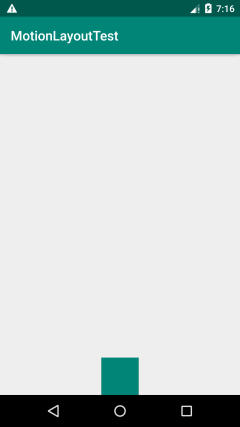
2. 创建 MotionScene 文件:
文件名:
activity_main_motion_scene.xml
<?xml version="1.0" encoding="utf-8"?>
<MotionScene xmlns:android="http://schemas.android.com/apk/res/android"
    xmlns:app="http://schemas.android.com/apk/res-auto">

    <!-- 定义 Start 场景的属性约束集 -->
    <ConstraintSet android:id="@+id/activity_main_start">

        <!-- 定义布局中 id 为 button 的 View 的属性约束 -->
        <Constraint
            android:id="@id/button"
            android:layout_width="56dp"
            android:layout_height="56dp"
            app:layout_constraintBottom_toBottomOf="parent"
            app:layout_constraintLeft_toLeftOf="parent"
            app:layout_constraintRight_toRightOf="parent"
            app:layout_constraintTop_toTopOf="parent"
            app:layout_constraintVertical_bias="1.0" />

    </ConstraintSet>


    <!-- 定义 End 场景的属性约束集 -->
    <ConstraintSet android:id="@+id/activity_main_end">

        <!-- 定义布局中 id 为 button 的 View 的属性约束 -->
        <Constraint
            android:id="@+id/button"
            android:layout_width="56dp"
            android:layout_height="56dp"
            app:layout_constraintBottom_toBottomOf="parent"
            app:layout_constraintLeft_toLeftOf="parent"
            app:layout_constraintRight_toRightOf="parent"
            app:layout_constraintTop_toTopOf="parent"
            app:layout_constraintVertical_bias="0.0" />

    </ConstraintSet>

    <!-- Start 场景与 End 场景都是定义在 MotionScene 文件中的约束集 -->
    <Transition
        app:constraintSetStart="@id/activity_main_start"
        app:constraintSetEnd="@id/activity_main_end"
        app:duration="1000">

        <OnClick
            app:clickAction="toggle"
            app:targetId="@id/button" />

    </Transition>

</MotionScene>
复制代码
<ConstraintSet> 元素属性说明:
android:id:设置当前约束集的id。这个id值可被<Transition>元素的app:constraintSetStart或者app:constraintSetEnd引用。
<Constraint> 元素属性说明:
android:id:当前约束关联到的那个View的id。app:transitionEasing:定义动画到此点时使用的缓动曲线,该值可以是一个字符串(例如"curve(1.0,0,0,1.0)")还可以是以下几个枚举值之一:standard:标准accelerate:加速decelerate:减速linear:线性
提示
1:<Constraint>元素的app:transitionEasing属性与<Transition>元素的app:motionInterpolator属性类似,都是用来定义过渡动画的插值器的。不同的是,<Constraint>元素的app:transitionEasing属性定义的是单独某个View的过渡动画的插值器,而<Transition>元素的app:motionInterpolator定义的是整个过渡动画的插值器。
提示
2:如果为<Constraint>元素指定了app:transitionEasing插值器,这个插值器将与app:motionInterpolator属性指定的全局插值器同时作用于View的过渡动画,而不是替换掉app:motionInterpolator属性指定的全局插值器。
提示
3:<Constraint>元素的app:transitionEasing属性值应该在Start场景中指定,(经测试)仅在End场景中指定app:transitionEasing无法生效。
提示
4:(经测试,似乎无效)可以使用形如"curve(1.0,0,0,1.0)"的字符串来为<Constraint>元素的app:transitionEasing属性设置一个缓动曲线,MotionLayout框架将根据这个缓动曲线来生成一个插值器。
app:transitionPathRotate:【浮点值】相对于所采用的路径旋转对象(弧形路径/关键帧 相关)。app:drawPath:绘制过渡动画路径(调试用,关键帧相关)。可以是以下几个枚举值之一:nonepathpathRelativedeltaRelativeasConfiguredrectangles
app:progress:【浮点值】在关联的View上调用setProgress(float)方法(用于与嵌套的ConstraintLayout交互)
前面说过,<Constraint> 元素用来定义单个 View 的属性约束,它支持对 View 的所有 ConstraintLayout 属性定义约束,以及对 View 的下面这些标准属性定义约束:
android:visibilityandroid:alphaandroid:elevationandroid:rotationandroid:rotationXandroid:rotationYandroid:scaleXandroid:scaleYandroid:translationXandroid:translationYandroid:translationZ
当 View 的标准属性或者 ConstraintLayout 属性发生改变时,MotionLayout 会自动应用过渡动画。
自定义属性
MotionLayout 控件只会检测标准属性和 ConstraintLayout 属性这类布局相关的属性变动,对于其他的属性变动,如 View 的背景颜色变动是无法检测出来的,因此就需要使用自定义属性。
在 <Constraint> 元素中使用 <CustomAttribute> 子元素来指定自定义属性。
例:
<?xml version="1.0" encoding="utf-8"?>
<MotionScene xmlns:android="http://schemas.android.com/apk/res/android"
    xmlns:app="http://schemas.android.com/apk/res-auto">

    <!-- 定义 Start 场景的属性约束集 -->
    <ConstraintSet android:id="@+id/activity_main_start">

        <!-- 定义布局中 id 为 image 的 View 的属性约束 -->
        <Constraint
            android:id="@id/button"
            android:layout_width="56dp"
            android:layout_height="56dp"
            app:layout_constraintBottom_toBottomOf="parent"
            app:layout_constraintLeft_toLeftOf="parent"
            app:layout_constraintRight_toRightOf="parent"
            app:layout_constraintTop_toTopOf="parent"
            app:layout_constraintVertical_bias="1.0">

            <!-- 使用自定义属性 -->
            <CustomAttribute
                app:attributeName="backgroundColor"
                app:customColorValue="@color/colorPrimary" />

        </Constraint>

    </ConstraintSet>


    <!-- 定义 End 场景的属性约束集 -->
    <ConstraintSet android:id="@+id/activity_main_end">

        <!-- 定义布局中 id 为 image 的 View 的属性约束 -->
        <Constraint
            android:id="@+id/button"
            android:layout_width="56dp"
            android:layout_height="56dp"
            app:layout_constraintBottom_toBottomOf="parent"
            app:layout_constraintLeft_toLeftOf="parent"
            app:layout_constraintRight_toRightOf="parent"
            app:layout_constraintTop_toTopOf="parent"
            app:layout_constraintVertical_bias="0.0">

            <!-- 使用自定义属性 -->
            <CustomAttribute
                app:attributeName="backgroundColor"
                app:customColorValue="@color/colorAccent" />

        </Constraint>

    </ConstraintSet>

    <Transition
        app:constraintSetEnd="@id/activity_main_end"
        app:constraintSetStart="@id/activity_main_start"
        app:duration="1000">

        <OnClick
            app:clickAction="toggle"
            app:targetId="@id/button" />

    </Transition>

</MotionScene>
复制代码
效果预览:
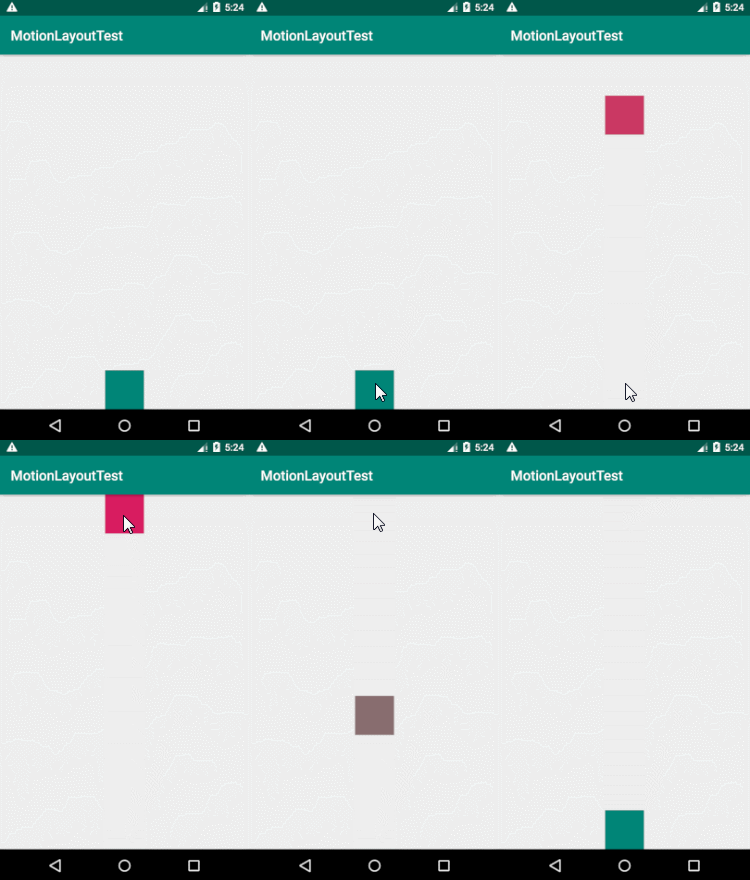
<CustomAttribute> 元素属性说明:
app:attributeName属性用来指定自定义属性的名字(例如"backgroundColor")。关联的View必须要有一对与这个名字相关的getter/setter方法(例如getBackgroundColor()/setBackgroundColor(int color))。- 剩下的其他属性都是用来设置自定义属性的值的。需要根据自定义属性的值类型使用以下
XML属性之一来设置自定义属性的值:app:customColorValue:设置属性的值(颜色类型)。app:customColorDrawableValue:设置属性的值(颜色类型)。app:customIntegerValue:设置属性的值(整数类型)。app:customFloatValue:设置属性的值(浮点类型)。app:customStringValue:设置属性的值(字符串类型)。app:customDimension:设置属性的值(尺寸类型)。app:customPixelDimension:设置属性的值(尺寸类型)。app:customBoolean:设置属性的值(布尔类型)。
结语
本篇文章是 《MotionLayout 基础教程》 的第 2 篇,阅读完这两篇文章后您基本就能掌握 MotionLayout 的基础内容了。
写这两篇文章的主要目的是为了向读者介绍 MotionLayout 的基础内容,让读者能够入门,并在此基础上进一步学习。如您想要了解更多 MotionLayout 内容,推荐您阅读以下 3 篇文章:
作者:溜了溜了
链接:https://juejin.cn/post/6844903816739946504
来源:掘金
著作权归作者所有。商业转载请联系作者获得授权,非商业转载请注明出处。





 扫一扫
扫一扫


 869
869


 到【灌水乐园】发言



