<!--翻页组件-可以加载tif图片-->
<!-- 使用插件 "flipbook-vue": "^0.10.4",-->
<template>

  <div style="overflow:auto" class="read-book-back">
    <flipbook
        class="flipbook"
        :pages="pages"
        :startPage="startPage"
        :forwardDirection="turnPages"
        :singlePage="false"
        :clickToZoom="false"
        @flip-left-end="flipLeftEnd"
        @flip-right-end="flipRightEnd"
        v-slot="flipbook"
    >
      <div style="color: #ccc;text-align: center;padding: 10px;">
        <el-button
            type="primary"
            size="small"
            icon="ArrowLeft"
            @click="flipbook.flipLeft">
        </el-button>
        <el-button
            type="primary"
            size="small"
            icon="Menu"
            @click="changeSwiper">
        </el-button>
        <!-- <el-button
          type="primary"
          size="mini"
          icon="el-icon-video-play"
          @click="play">
        </el-button> -->
        <el-button
            icon="ArrowRight"
            type="primary"
            size="small"
            @click="flipbook.flipRight">
        </el-button>
        <el-input
            style="width: 90px;margin: 0 14px;"
            size="small"
            clearable
            @keyup.enter.native="goPage()"
            v-model="pageNum">
        </el-input>
        <el-button
            type="primary"
            size="small"
            icon="ZoomIn"
            @click="flipbook.zoomIn">
        </el-button>
        <el-button
            icon="ZoomOut"
            type="primary"
            size="small"
            @click="flipbook.zoomOut">
        </el-button>
      </div>
    </flipbook>
    <div class="swiper-box" :style="{scale:showSwiper?1:0}">
      <swiper  :modules="modules"
               :loop="false"
               :slidesPerView="8"
               @swiper="onSwiper"
               @slideChange="onSlideChange"
               navigation
               ref="swiper" :space-between="6" class="swiper"  v-if="pages">
        <swiper-slide :class="{ 'slide-active': slideActiveIndex === 0 }" @click="changeActive(0)">
          <div class="img-box">
            <el-image :src="pages[1]" loading="lazy" />
          </div>
        </swiper-slide>
        <template v-if="pages.length>3">
          <swiper-slide :class="{ 'slide-active': slideActiveIndex === i }" @click="changeActive(i)" v-for="i in Math.floor((pages.length - 3) / 2)" :key="i">
            <div class="img-box">
              <el-image :src="pages[i * 2]" loading="lazy" />
              <el-image :src="pages[i * 2 + 1]" loading="lazy" />
            </div>
          </swiper-slide>
        </template>
        <swiper-slide :class="{ 'slide-active': slideActiveIndex === (pages.length - 1) / 2 }" @click="changeActive((pages.length - 1) / 2)">
          <div class="img-box" >
            <el-image v-if="(pages.length - 2) % 2 === 0" :src="pages[pages.length - 2]" loading="lazy" />
            <el-image :src="pages[pages.length - 1]" loading="lazy" />
          </div>
        </swiper-slide>
      </swiper>

    </div>
  </div>
</template>

<script>
import { Autoplay, Pagination, Navigation, Scrollbar } from 'swiper'
const modules = [Autoplay, Pagination, Navigation, Scrollbar]
import flipbook from 'flipbook-vue'
import { getGenealogyDetail as genealogyContent } from '@/request/home_api'
import { Swiper, SwiperSlide } from 'swiper/vue'
// 引入swiper样式(按需导入)
import 'swiper/css'
import 'swiper/css/pagination' // 轮播图底面的小圆点
import 'swiper/css/navigation' // 轮播图两边的左右箭头
import 'swiper/css/scrollbar' // 轮播图的滚动条
// 引入swiper组件
/*import { Swiper, SwiperSlide } from 'vue-awesome-swiper'*/
import * as _ from 'lodash'
import {coverUrl} from "../../utils/dict.ts";
/*import 'swiper/dist/css/swiper.css'*/
export default {
  name: 'ComReadBook',
  data () {
    return {
      swiper: null,
      modules:modules,
      pageNum: 0,
      currentPage: 1,
      startPage: 0,
      slideActiveIndex: 0,
      turnPages: 'right',
      pages: [
        null
      ],
      showSwiper: true,
      swiperOption1: {
        // width: '1200',
        slidesPerView: '8',
        spaceBetween: 6,
        pagination: {
          el: '.swiper-pagination',
          clickable: true
        },
        navigation: {
          nextEl: '.swiper-button-next',
          prevEl: '.swiper-button-prev'
        },
        // preventClicksPropagation: false,
        observer: true,
        observeParents: true,
        on: {
          click: () => {
            const swiper = this.swiper
            this.startPage = swiper.clickedIndex * 2
            this.slideActiveIndex = swiper.clickedIndex
            console.log(this.slideActiveIndex)
            this.pageNum = `${this.slideActiveIndex * 2}-${this.slideActiveIndex * 2 + 1} / ${this.pages.length - 1}`
          }
        }
      }
    }
  },
  components: {
    flipbook,
    Swiper,
    SwiperSlide
  },
  computed: {
  },
  mounted () {
    this.getGenealogyContent(this.$route.query.id)
  },
  methods: {
    changeActive(slideActiveIndex){
      this.slideActiveIndex = slideActiveIndex
      const swiper = this.swiper
      this.startPage = swiper.clickedIndex * 2
      this.slideActiveIndex = swiper.clickedIndex
      console.log(this.slideActiveIndex)
      this.pageNum = `${this.slideActiveIndex * 2}-${this.slideActiveIndex * 2 + 1} / ${this.pages.length - 1}`
    },
    onSwiper(swiper) {
      console.log(swiper);
      // console.info(this.$refs.swiper)
      this.swiper=swiper
    },
    onSlideChange (){
      console.log("slide change");
    },
    async getGenealogyContent (mid) {
      console.info(mid)
      try {
        const res = await genealogyContent({ genealogyId:mid })
        if (res.code === 0) {
          const totolPage = parseInt(res.data.genealogy.extent.join(''))
          const genealogy = res.data.genealogy
          this.pages = [null]
          for (let i =1; i<=totolPage;i++) {
            this.pages.push(coverUrl(genealogy)+genealogy.coverImageFilePath+_.padStart(i.toString(),8,'0')+'.jpg')
          }
          // this.pages = [null, ...res.data.imageList.map(i => `${this.$store.state.obsImgUrl}/${res.data.filePath}${i}`)]
          this.pageNum = `${this.currentPage} / ${this.pages.length - 1}`
          this.turnPages = res.data.turnPages === '反' ? 'left' : 'right'
        }
      } catch (error) {
        console.log(error)
      }
    },
    clickSlide (i) {
      console.log(i)
    },
    goPage () {
      console.log(Number(this.pageNum))
      // this.startPage = Number(this.pageNum)
      console.log(this.pageNum.match(/\D/))
      if (this.pageNum.match(/\D/)) {
        return
      }
      this.startPage = Number(this.pageNum) % 2 === 0 ? Number(this.pageNum) : Number(this.pageNum) - 1
      const page = Number(this.pageNum) % 2 === 0 ? Number(this.pageNum) / 2 : (Number(this.pageNum) - 1) / 2
      this.slideActiveIndex = page
      this.swiper.swiper.slideTo(page, 100, false)
    },
    flipLeftEnd (page) {
      console.log(page)
      this.flipEnd(page)
    },
    flipEnd (page) {
      this.currentPage = page
      if (this.currentPage === 1) {
        this.pageNum = 1
        this.slideActiveIndex = 0
        this.swiper.slideTo(1, 100, false)
      } else {
        this.pageNum = `${this.currentPage}-${this.currentPage + 1} / ${this.pages.length - 1}`
        this.slideActiveIndex = page / 2
        this.swiper.slideTo(page / 2, 100, false)
      }
    },
    flipRightEnd (page) {
      console.log(page)
      this.flipEnd(page)
    },
    // 缩略图显示与隐藏
    changeSwiper () {
      this.showSwiper = !this.showSwiper
    }
  }
}
</script>

<style lang="scss" scoped>
.read-book-back{
  :deep(.platform-index){
    height: auto ;
  }
}
.read-book-back{

}
.flipbook {
  :deep(.viewport) {
    width: 90vh;
    height: calc(100vh - 200px);
    margin: 0 auto;
  }
  :deep(.bounding-box) {
    box-shadow: 0 0 20px #000;
  }
  :deep( .el-button--primary) {
    background-color: dimgrey;
    border-color: dimgrey;
  }
  :deep( .el-button--primary:focus), .el-button--primary:hover {
    background: #fff;
    border-color: #ccc;
  }
  :deep( .el-button:focus), .el-button:hover {
    color: #000;
  }
  :deep( .el-input--suffix .el-input__inner) {
    padding-right: 15px;
  }
}
.swiper-box {
  // height: 160px;
  width: 1344px;
  margin: 0 auto;
  margin-top: 40px;
  position: relative;
  transition: 0.5s;
  .img-box {
    height: 78px;
    display: flex;
    justify-content: space-around;
    img {
      width: 40%;
      height: 100%;
      padding: 4px;
    }
  }
}
.swiper-slide {
  width: 155px!important;
  height: 86px;
  background: #fff;
  border: 4px solid transparent;
}
.slide-active {
  border: 4px solid #A85948!important;
}
.swiper-slide:nth-child(2n) {
  width: 40%;
}
.swiper-slide:nth-child(3n) {
  width: 20%;
}
</style>
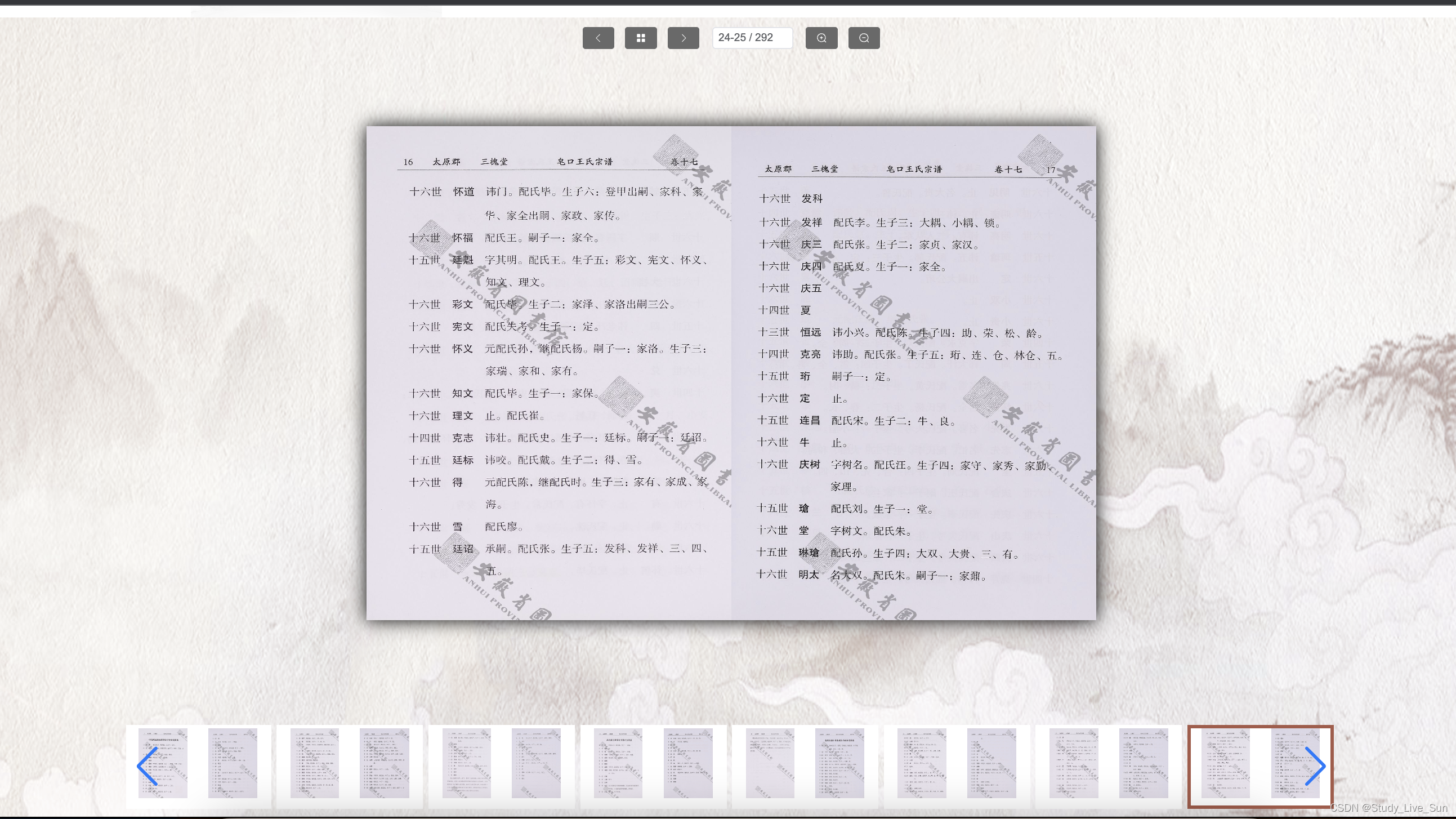


 该代码段展示了一个使用Vue.js和flipbook-vue插件创建的交互式图片翻页组件。组件包括左右翻页按钮、缩放功能、输入框跳转页面以及一个Swiper轮播图来预览多张图片。





 扫一扫
扫一扫


 6969
6969

 被折叠的 条评论
为什么被折叠?
被折叠的 条评论
为什么被折叠?
 到【灌水乐园】发言





