


 本文详细介绍了如何在Linux上搭建FTP服务器,配置仅允许本地用户远程登录,并提供了使用Windows的CMD、文件资源管理器以及IE浏览器访问FTP服务的步骤。遇到登录问题时,还给出了相应的解决方案。
一. FTP详解
FTP(File Transfer Protocol):文件传输协议
目的:共享文件
作用:提供各主机之间文件共享服务,可以应用在互联网中,实现外地登陆服务器下载公司文件功能,不区分客户端,在windows和linux中都可以使用。
linux下ftp服务器端软件:
vsftpd —— Very Secure FTP Daemon
ftp客户端软件:
linux:ftp lftp
windows:FileZilla
默认端口及协议: tcp 20/21
连接端口:21(等待客户端建立管理连接)
数据端口:20(主动)  1025~65535(随机,被动)
工作模式:
主动模式
被动模式
默认开启被动传输模式
set ftp:passive-mode off # 登录ftp后,命令行关闭被动模式,变为主动模式
三类用户:
本地用户:服务器上存在的用户
匿名用户:匿名用户实际上有一个与之对应的系统用户 — “ftp”这个用户默认是匿名用户所对应的用户,匿名用户映射为ftp
虚拟用户
二. 安装FTP,并配置仅本地用户可远程登录ftp
- 查看软件包是否安装
rpm -qa | grep vsftpd
- 安装vsftp服务器端
yum install vsftpd -y
- 查看软件安装产生的文件
rpm -ql vsftpd
/etc/vsftpd		# 配置文件的目录
/etc/vsftpd/ftpusers	# 访问控制
/etc/vsftpd/user_list	# 访问控制
/etc/vsftpd/vsftpd.conf	# 配置文件
/var/ftp		# 匿名用户的家目录
/var/ftp/pub	# 默认上传下载的目录
- 启动服务
systemctl start vsftpd

# 开机自启
systemctl enable vsftpd
- 服务端提供本地用户异地登录
# 提供普通用户
useradd hqx

# 为用户设置密码
echo 123 | passwd --stdin hqx
- 配置文件
# 简洁明了的配置文件参数
# 此配置已经关闭了被动模式,只使用主动模式
egrep -v '^$|^#' /etc/vsftpd/vsftpd.conf
anonymous_enable=NO
local_enable=YES
write_enable=YES
local_umask=022
anon_max_rate=0
local_max_rate=0
dirmessage_enable=YES
xferlog_enable=YES
connect_from_port_20=YES
ftp_data_port=20
pasv_enable=NO
pasv_address=192.168.4.39
pasv_addr_resolve=YES
max_clients=0
max_per_ip=0
xferlog_file=/var/log/xferlog
xferlog_std_format=YES
log_ftp_protocol=YES
chroot_local_user=YES
allow_writeable_chroot=YES
listen=YES
listen_address=192.168.4.39
listen_port=21
pam_service_name=vsftpd
userlist_enable=YES
userlist_deny=NO
userlist_file=/etc/vsftpd/user_list
tcp_wrappers=NO
上面的配置文件参数详解:\color{red}上面的配置文件参数详解:上面的配置文件参数详解:
注意:只要参数生效的配置行里,从行首到行尾绝对不能有空格
# 首先备份原始配置文件
cp /etc/vsftpd/vsftpd.conf /etc/vsftpd/vsftpd.conf.default

vim /etc/vsftpd/vsftpd.conf
# Example config file /etc/vsftpd/vsftpd.conf
#
# The default compiled in settings are fairly paranoid. This sample file
# loosens things up a bit, to make the ftp daemon more usable.
# Please see vsftpd.conf.5 for all compiled in defaults.
#
# READ THIS: This example file is NOT an exhaustive list of vsftpd options.
# Please read the vsftpd.conf.5 manual page to get a full idea of vsftpd's
# capabilities.
#
# Allow anonymous FTP? (Beware - allowed by default if you comment this out).
anonymous_enable=NO
# 控制是否允许匿名用户登入,YES 为允许匿名登入,NO 为不允许。默认值为YES。
# Uncomment this to allow local users to log in.
# When SELinux is enforcing check for SE bool ftp_home_dir
local_enable=YES
#控制是否允许本地用户登入,YES 为允许本地用户登入,NO为不允许。默认值为YES。
# Uncomment this to enable any form of FTP write command.
write_enable=YES
#是否允许登陆用户有写权限。属于全局设置,默认值为YES。
# Default umask for local users is 077. You may wish to change this to 022,
# if your users expect that (022 is used by most other ftpd's)
local_umask=022
#本地用户新增档案时的umask 值。默认值为077。
# Uncomment this to allow the anonymous FTP user to upload files. This only
# has an effect if the above global write enable is activated. Also, you will
# obviously need to create a directory writable by the FTP user.
# When SELinux is enforcing check for SE bool allow_ftpd_anon_write, allow_ftpd_full_access
#
#anon_upload_enable=NO
#如果设为YES,则允许匿名登入者有上传文件(非目录)的权限,只有在write_enable=YES时,此项才有效。
#当然,匿名用户必须要有对上层目录的写入权。默认值为NO。
# Uncomment this if you want the anonymous FTP user to be able to create
# new directories.
#
#anon_mkdir_write_enable=YES
#anon_other_write_enable=YES
#
anon_max_rate=0
#设置匿名登入者使用的最大传输速度,单位为B/s,0 表示不限制速度。默认值为0。
local_max_rate=0
#本地用户使用的最大传输速度,单位为B/s,0 表示不限制速度。预设值为0。
#
# Activate directory messages - messages given to remote users when they
# go into a certain directory.
dirmessage_enable=YES
#
# Activate logging of uploads/downloads.
xferlog_enable=YES
#
# Make sure PORT transfer connections originate from port 20 (ftp-data).
connect_from_port_20=YES
#指定FTP使用20端口进行数据传输,默认值为YES。
#
ftp_data_port=20
#设置在PORT方式下,FTP数据连接使用的端口,默认值为20。
#
#pasv_min_port=9001
#在PASV工作模式下,数据连接可以使用的端口范围的最小端口,0 表示任意端口。默认值为0。
#pasv_max_port=9010
#在PASV工作模式下,数据连接可以使用的端口范围的最大端口,0 表示任意端口。默认值为0。
#
pasv_enable=NO
# 关闭被动
#若设置为YES,则使用PASV工作模式;若设置为NO,则使用PORT模式。默认值为YES,即使用PASV工作模式。
pasv_address=192.168.4.39
pasv_addr_resolve=YES
max_clients=0
# 设置vsftpd允许的最大连接数,默认为0,表示不受限制
max_per_ip=0
# 设置每个IP地址允许与FTP服务器同时建立连接的数目。默认为0,不受限制。

#
# If you want, you can arrange for uploaded anonymous files to be owned by
# a different user. Note! Using "root" for uploaded files is not
# recommended!
#chown_uploads=YES
#chown_username=whoever
#
# You may override where the log file goes if you like. The default is shown
# below.
xferlog_file=/var/log/xferlog
#
# If you want, you can have your log file in standard ftpd xferlog format.
# Note that the default log file location is /var/log/xferlog in this case.
xferlog_std_format=YES
#
log_ftp_protocol=YES
#如果启用此选项,所有的FTP请求和响应都会被记录到日志中,默认日志文件在/var/log/vsftpd.log。
#启用此选项时,xferlog_std_format不能被激活。这个选项有助于调试。默认值为NO。
#
# You may change the default value for timing out an idle session.
#idle_session_timeout=600
#
# You may change the default value for timing out a data connection.
#data_connection_timeout=120
#
# It is recommended that you define on your system a unique user which the
# ftp server can use as a totally isolated and unprivileged user.
#nopriv_user=ftpsecure
#
# Enable this and the server will recognise asynchronous ABOR requests. Not
# recommended for security (the code is non-trivial). Not enabling it,
# however, may confuse older FTP clients.
#async_abor_enable=YES
#
# By default the server will pretend to allow ASCII mode but in fact ignore
# the request. Turn on the below options to have the server actually do ASCII
# mangling on files when in ASCII mode. The vsftpd.conf(5) man page explains
# the behaviour when these options are disabled.
# Beware that on some FTP servers, ASCII support allows a denial of service
# attack (DoS) via the command "SIZE /big/file" in ASCII mode. vsftpd
# predicted this attack and has always been safe, reporting the size of the
# raw file.
# ASCII mangling is a horrible feature of the protocol.
#ascii_upload_enable=YES
#ascii_download_enable=YES
#
# You may fully customise the login banner string:
#ftpd_banner=Welcome to blah FTP service.
#
# You may specify a file of disallowed anonymous e-mail addresses. Apparently
# useful for combatting certain DoS attacks.
#deny_email_enable=YES
# (default follows)
#banned_email_file=/etc/vsftpd/banned_emails
#
# You may specify an explicit list of local users to chroot() to their home
# directory. If chroot_local_user is YES, then this list becomes a list of
# users to NOT chroot().
# (Warning! chroot'ing can be very dangerous. If using chroot, make sure that
# the user does not have write access to the top level directory within the
# chroot)
chroot_local_user=YES
allow_writeable_chroot=YES
#chroot_list_enable=YES
# (default follows)
#chroot_list_file=/etc/vsftpd/chroot_list
#
# You may activate the "-R" option to the builtin ls. This is disabled by
# default to avoid remote users being able to cause excessive I/O on large
# sites. However, some broken FTP clients such as "ncftp" and "mirror" assume
# the presence of the "-R" option, so there is a strong case for enabling it.
#ls_recurse_enable=YES
#
# When "listen" directive is enabled, vsftpd runs in standalone mode and
# listens on IPv4 sockets. This directive cannot be used in conjunction
# with the listen_ipv6 directive.
listen=YES
#设置vsftpd服务器是否以standalone模式运行。以standalone模式运行是一种较好的方式,此时listen必须设置为YES,此为默认值。
#建议不要更改,有很多与服务器运行相关的配置命令,需要在此模式下才有效。
#若设置为NO,则vsftpd不是以独立的服务运行,要受到xinetd服务的管控,功能上会受到限制。
#
#
listen_address=192.168.4.39
# 设置在指定的IP地址上侦听用户的FTP请求。若不设置,则对服务器所绑定的所有IP地址进行侦听。只有在以standalone模式运行时才有效。
# 对于只绑定了一个IP地址的服务器,不需要配置该项,默认情况下,配置文件中没有该配置项。
# 若服务器同时绑定了多个IP地址,则应通过该配置项,指定在哪个IP地址上提供FTP服务,即指定FTP服务器所使用的IP地址。
listen_port=21
#设置FTP服务器建立连接所监听的端口,默认值为21。
#
#setproctitle_enable=NO
#设置每个与FTP服务器的连接,是否以不同的进程表现出来。默认值为NO,此时使用ps aux |grep ftp只会有一个vsftpd的进程。
#若设置为YES,则每个连接都会有一个vsftpd的进程。
#
# This directive enables listening on IPv6 sockets. By default, listening
# on the IPv6 "any" address (::) will accept connections from both IPv6
# and IPv4 clients. It is not necessary to listen on *both* IPv4 and IPv6
# sockets. If you want that (perhaps because you want to listen on specific
# addresses) then you must run two copies of vsftpd with two configuration
# files.
# Make sure, that one of the listen options is commented !!
#listen_ipv6=YES

pam_service_name=vsftpd
userlist_enable=YES
#是否启用vsftpd.user_list文件。
userlist_deny=NO
#决定vsftpd.user_list文件中的用户是否能够访问FTP服务器。
#若设置为YES,则vsftpd.user_list文件中的用户不允许访问FTP,若设置为NO,则只有vsftpd.user_list文件中的用户才能访问FTP。
#/etc/vsftpd/ftpusers 文件专门用于定义不允许访问FTP服务器的用户列表:
#注意:如果userlist_enable=YES,userlist_deny=NO,此时如果在vsftpd.user_list和ftpusers中都有某个用户时,那么这个用户是不能够访问FTP的,即ftpusers的优先级要高
userlist_file=/etc/vsftpd/user_list
#控制用户访问FTP的文件,里面写着用户名称。一个用户名称一行。
tcp_wrappers=NO
#设置vsftpd是否与tcp wrapper相结合来进行主机的访问控制。默认值为YES。
#如果启用,则vsftpd服务器会检查/etc/hosts.allow 和/etc/hosts.deny 中的设置,来决定请求连接的主机,是否允许访问该FTP服务器。
#这两个文件可以起到简易的防火墙功能。
#比如:若要仅允许192.168.0.1—192.168.0.254的用户可以连接FTP服务器,则在/etc/hosts.allow文件中添加以下内容:
#vsftpd:192.168.0. :allow
#all:all :deny
- 启用白名单,在user.list文件里添加本地用户
echo hqx >> /etc/vsftpd/user_list

# 重启ftp服务
systemctl restart vsftpd
- 开启防火墙端口:
firewall-cmd --zone=public --add-port=20/tcp --permanent
firewall-cmd --zone=public --add-port=21/tcp --permanent
# 假设打开了被动模式,开启被动模式端口
firewall-cmd --zone=public --add-port=9001-9010/tcp --permanent
firewall-cmd --reload
三. 客户端命令使用
ls		# 查看远程文件列表
cd		# 切换远程目录
cat		# 查看远程文件内容
more	# 查看远程文件内容
mkdir	# 在远程服务器上创建目录
rm		# 删除文件或目录
mrm		# 批量删除文件
rmdir	# 删除目录

#所有上传的文件必须为绝对路径
put file [-o 目录] 	# 上传文件 [到指定位置]
mput file1 file2	# 批量上传文件,用空格隔开

get file [-o 目录]			# 下载单个文件 [到指定位置]
mget file1 file2 [-o 目录]	# 批量下载文件

mirror -R 目录			# 上传目录
mirror 目录 [-c 目录]	# 下载目录 [到指定位置]

exit	# 退出:退出之前,服务器21端口一直存在
四. 各类客户端登录访问FTP
4.1 Linux客户端登录访问Linux空间FTP
- 安装客户端软件
yum install lftp -y
- 使用本地用户连接登录ftp
语法:lftp -u 用户名,密码 服务器ip
或者:lftp '用户名':'密码'@服务器ip -p 端口
lftp -u hqx,123 192.168.4.39
lftp hqx@192.168.4.39:~> ls
-rw-r--r--    1 1002     1002         1073 Aug 01 07:38 passwd
报错:\color{red}报错:报错:
若是执行命令报以下错误:
lftp hqx@192.168.4.39:~> ls
Interrupt    # 执行命令报错
则修改lftp的配置文件,禁用SSL验证登录
# 编辑 /etc/lftp.conf 追加如下参数,保存就生效
set ssl:verify-certificate no
set ftp:ssl-allow no
注意:不是报错,有时执行命令后的结果返回时间会变长\color{red}注意:不是报错,有时执行命令后的结果返回时间会变长注意:不是报错,有时执行命令后的结果返回时间会变长
如果lftp连接ftp服务后,执行 “ls” 等命令,`ls’ at 0 [FEAT negotiation…] 遇到这个提示,可使用以下两种方法修改:
①. 登录后不要立即执行命令,在会话框中输入下面两条命令之后,再执行相关命令
lftp hqx@192.168.4.39:~> set ssl-allow false
lftp hqx@192.168.4.39:~> set use-feat false
lftp hqx@192.168.4.39:~> ls
-rw-r--r--    1 1002     1002         1073 Aug 01 07:38 passwd
但此方法为一次性,若想以后登录服务直接使用命令,则添加在客户端的配置文件里
但是这个永久方式我经过测验并未成功,也许是我机器或者版本问题。有碰到类似问题的有成功的,或者有别的方法解决的,希望可以一起分享下。
vim /etc/lftp.conf
set ssl-allow false
set use-feat false
②. 前面的解决方法是lftp4.4版本的,此方法为4.8以后的版本解决不方法:
我没有安装这个版本,网上看到有网友分享就顺便粘贴出来了,具体是否有用,有待验证。
# 编辑配置文件 ~/.config/lftp/rc ,加入下面的配置:
set use-feat no
4.2 通过Windows的CMD连接Linux空间FTP
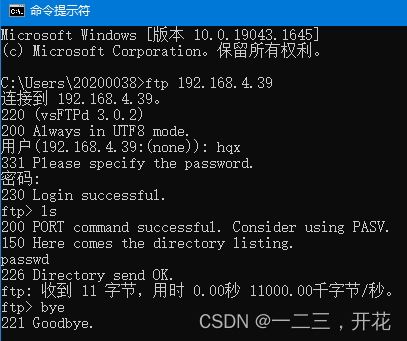
C:\Users\20200038>ftp 192.168.4.39     # 连接ftp
连接到 192.168.4.39。
220 (vsFTPd 3.0.2)
200 Always in UTF8 mode.
用户(192.168.4.39:(none)): hqx     # ftp用户名
331 Please specify the password.
密码:      # 输入用户名登录密码
230 Login successful.
ftp> ls    # 命令查看共享的文件
200 PORT command successful. Consider using PASV.
150 Here comes the directory listing.
passwd
226 Directory send OK.
ftp: 收到 11 字节,用时 0.00秒 11000.00千字节/秒。
ftp>bye     # 退出ftp
4.3 使用Windows文件资源管理器及IE等浏览器登录Linux空间FTP
4.3.1. windows文件资源管理器访问ftp
打开我的电脑,在地址栏直接使用ftp://ip地址来访问
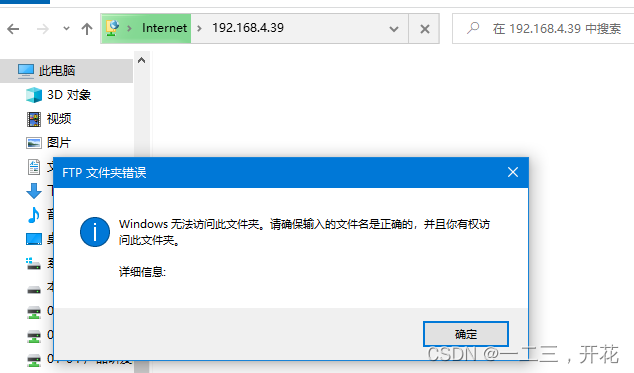
弹出一个对话框,点击 “确定”,然后在空白的处点击右键 —> 登陆,出现登陆界面了,输入用户名和密码就可以了
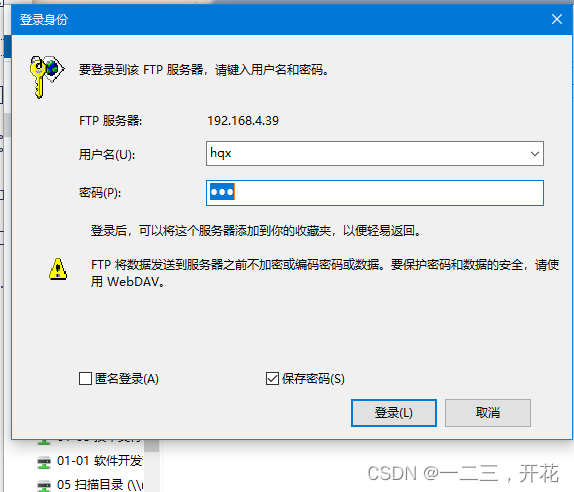
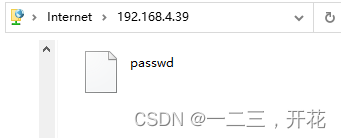
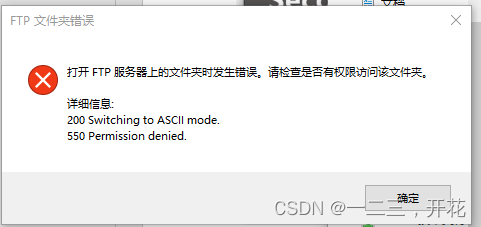
报错:打开FTP服务器上的文件夹时发生错误,请检查是否有权限访问该文件夹\color{red}报错:打开FTP服务器上的文件夹时发生错误,请检查是否有权限访问该文件夹报错:打开FTP服务器上的文件夹时发生错误,请检查是否有权限访问该文件夹
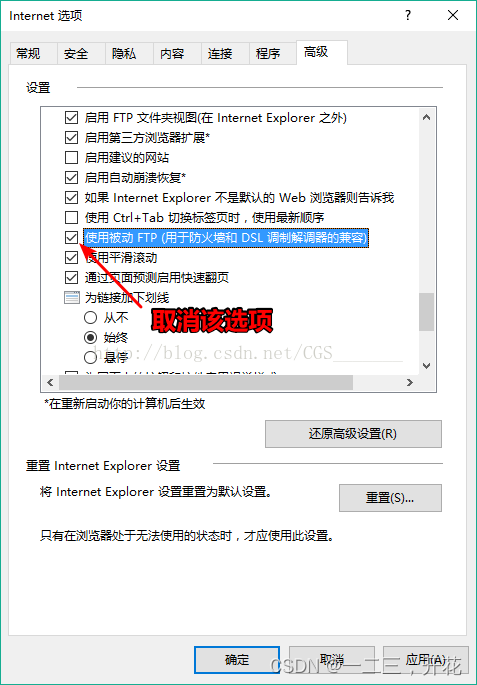
设置IE浏览器 —— Internet选项 —— 高级 —— 将使用被动FTP(用于防火墙和DSL调制解调器的兼容)选项去掉 —— 确定
4.3.2 用IE及IE内核的浏览器(如360等)登录Linnux空间FTP
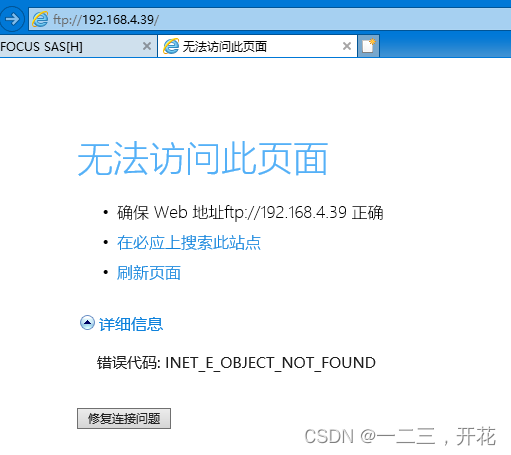
直接用ftp://xx.xx.xx.xx访问linux空间的ftp,会出现如下报错:
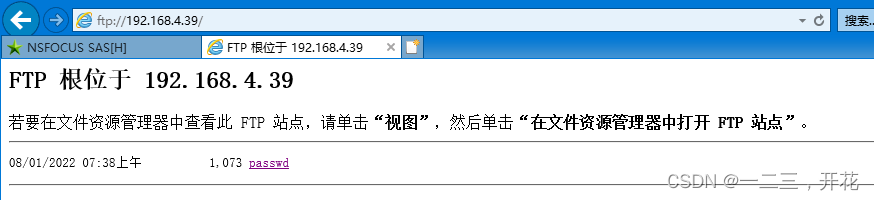
需要使用ftp://用户名:密码@ftp地址来访问
ftp://hqx:123@192.168.4.39
4.3.3 依照上面方法,windwos端依然无法登陆访问ftp的话,参照下面方式解决:
- 检查ftp服务是否已开启:控制面板 —— 程序 —— 启用或关闭windows功能
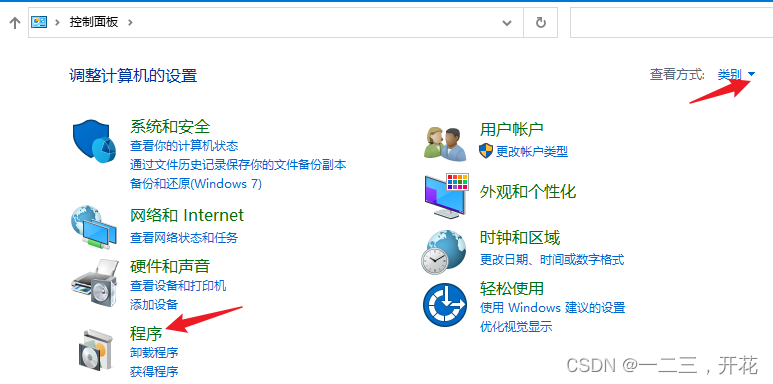
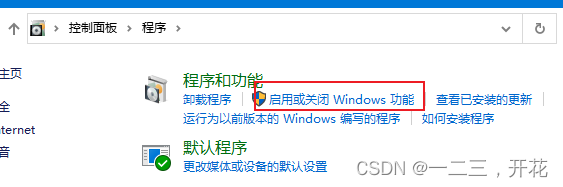
-
找到
Internet Information Services里的FTP服务器,并勾选FTP服务和FTP扩展性
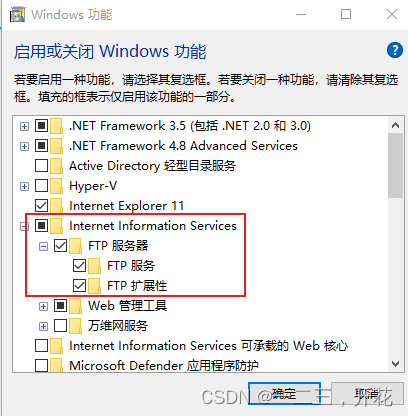
-
找到
TFTP客户端,并勾选,点击 “确定” 等待系统自动安装程序完毕
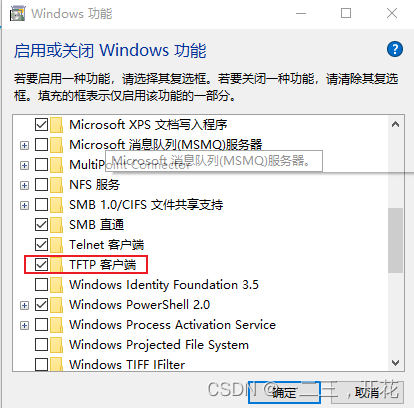
基本到这步就可以访问了,若是还不行,可接着尝试下面的方法: -
检查IE浏览器是否处于 “脱机” 状态:打开 “Internet选项” ,选择 “连接” 选项卡,打开“设置”
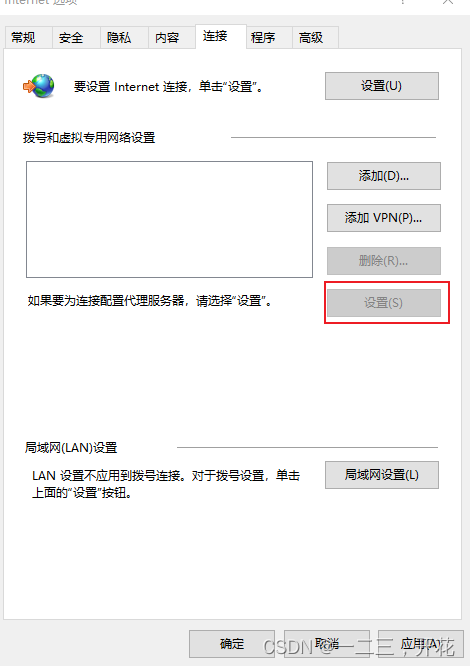
-
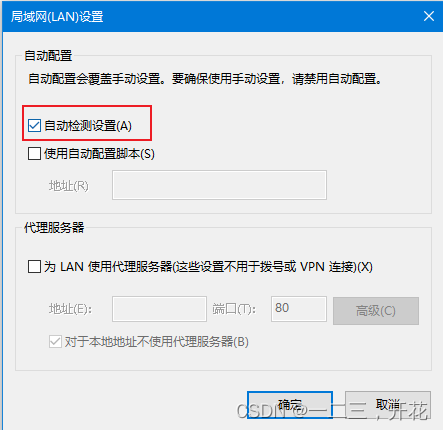
勾选 “自动检测设置” ,并点击“确定”
-
点击打开 “局域网设置” ,勾选 “自动检车设置” ,并点击“确定”
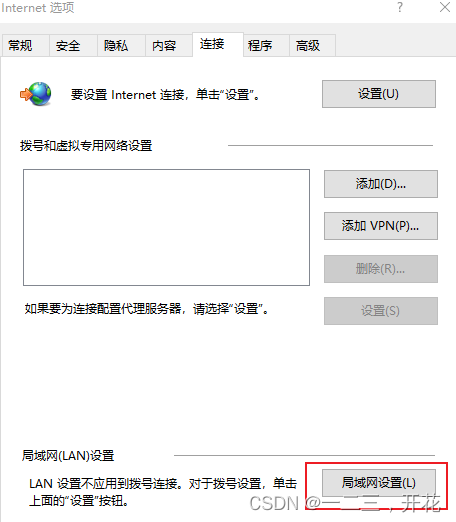
- 控制面板 —— 系统和安全 —— 点击Windows防火墙下的 “允许应用通过Windows防火墙”
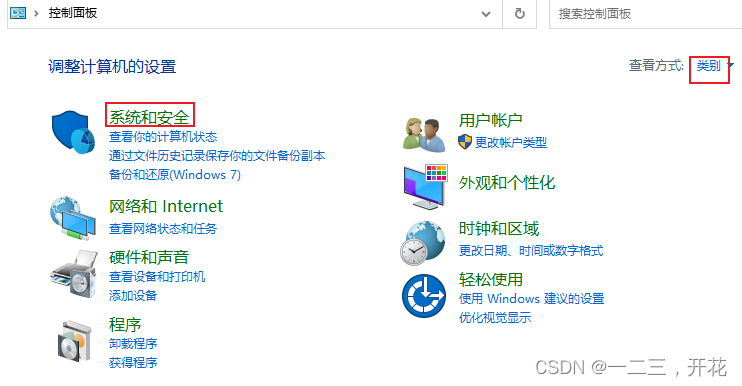
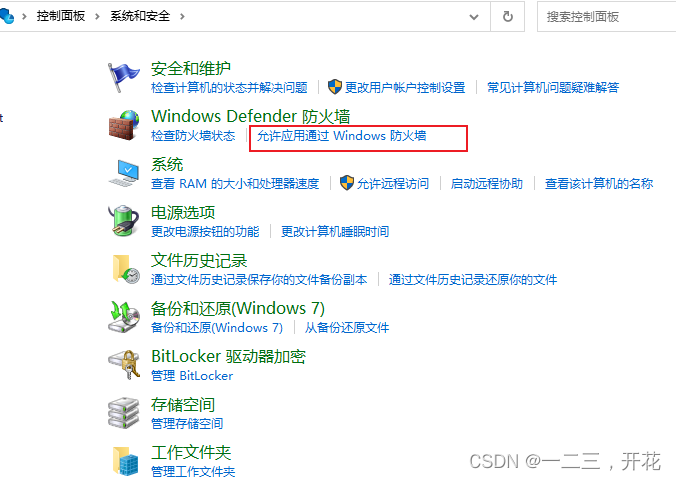
- 在列表中确认 “Windows资源管理器” 右侧的两个勾选,如果没有勾选则点击上方的 “更改设置” 。






 扫一扫
扫一扫


 625
625

 被折叠的 条评论
为什么被折叠?
被折叠的 条评论
为什么被折叠?
 到【灌水乐园】发言





