



 本文介绍了一个基于Unity3D的简单鼠标打飞碟游戏开发过程,重点介绍了游戏设计模式、对象管理和人机交互等内容。游戏采用MVC架构和工厂模式,通过预制飞碟、动态创建和回收游戏对象等方式提升性能。
【3D游戏编程与设计】五 与游戏世界交互:鼠标打飞碟(Hit UFO)
编写一个简单的鼠标打飞碟(Hit UFO)游戏
游戏内容要求
- 游戏有 n 个 round,每个 round 都包括10 次 trial;
- 每个 trial 的飞碟的色彩、大小、发射位置、速度、角度、同时出现的个数都可能不同。它们由该 round 的 ruler 控制;
- 每个 trial 的飞碟有随机性,总体难度随 round 上升;
- 鼠标点中得分,得分规则按色彩、大小、速度不同计算,规则可自由设定。
游戏的要求
- 使用带缓存的工厂模式管理不同飞碟的生产与回收,该工厂必须是场景单实例的!具体实现见参考资源 Singleton 模板类
- 尽可能使用前面 MVC 结构实现人机交互与游戏模型分离
项目架构
软件版本
项目使用的开发软件为Unity 3D 2020.1.4f1c1。
文件组织
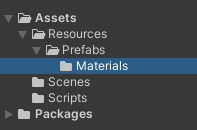
项目的资源文件夹包括Assets和Packages两个子文件夹。其中,Packages子文件夹存储了系统自带的一些包,在这个项目中并没有特别使用。而Assets文件夹则存储了这次游戏项目使用的资源,场景,脚本等。而Scenes文件夹存储了游戏的场景(这个游戏中只有一个场景)。Scripts文件夹存储了游戏中使用的脚本。Resources文件夹存储了游戏中用到的材料和预制对象。
其中,项目的脚本包括如下文件:

设计模式

游戏项目要求采用MVC设计模式和工厂模式设计。其中MVC设计模式在之前Web 2.0课程中也有接触和学习实践过,在之前的牧师与魔鬼游戏中也有进一步熟悉与实践。MVC界面是人机交互程序设计的一种经典架构模式。它把程序分为三个部分:
- 模型(Model):数据对象及关系,包括游戏对象,空间组织关系等。
- 控制器(Controller):接受用户事件,控制模型的变化。在游戏中,每一个游戏场景都需要一个主控制器。控制器至少要能实现与玩家交互的接口,并且一般要实现和管理运动。
- 界面(View):显示模型,将人机交互事件交给控制器处理。其接收和处理输入事件,并进行相应GUI的渲染。
此外,这次的设计模式还使用了工厂模式:
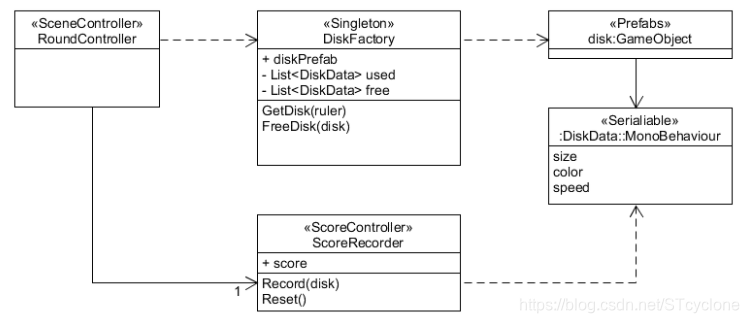
由于本次游戏需要产生和回收很多飞碟,我们需要特别关注如何低耦合地“创建和回收对象”,我们需要将对象的创建和使用分离。这样可以降低系统的耦合度,使得系统更容易扩展和维护,使用者也不需要关注对象的创建细节,对象的创建都由相应的工厂来完成。
主要关注点是“怎样创建对象”的创建型模式包括几种主要类型,分别为:
- 单例(Singleton)模式:某个类只能生成一个实例,该类提供了一个全局访问点供外部获取该实例,其拓展是有限多例模式。
- 原型(Prototype)模式:将一个对象作为原型,通过对其进行复制而克隆出多个和原型类似的新实例。
- 工厂方法(FactoryMethod)模式:定义一个用于创建产品的接口,由子类决定生产什么产品。
- 抽象工厂(AbstractFactory)模式:提供一个创建产品族的接口,其每个子类可以生产一系列相关的产品。
- 建造者(Builder)模式:将一个复杂对象分解成多个相对简单的部分,然后根据不同需要分别创建它们,最后构建成该复杂对象。
在这个飞碟游戏中,每一轮都有很多种不同种类的飞碟,根据游戏的规则和需要,代码中会有很多处地方都需要创建飞碟。为此,需要一个类来整合这些可以共享的代码来创建这些飞碟,也就是采用工厂类来创建飞碟。根据实验要求,本游戏中使用了一个场景单实例的工厂类DiskFactory,其负责创建和回收各种具体的飞碟。这样就实现了飞碟的创建和使用相分离,增加新的飞碟种类,也不需要在工厂类的外部进行较多的繁琐的修改。
设计思路
这次游戏中包括的对象主要是各种飞碟。本次实验重点关注用户与游戏世界的交互,用户的输入设备,在本游戏中主要是鼠标,也是这个游戏中需要重点关注的对象。我们可以考虑玩家与游戏中对象交互的各种动作。经过考察与分析,我们需要对飞碟和关卡都定义controllor,此外类似之前牧师与魔鬼的框架,需要定义管理动作的controllor,此外就是管理场景的controllor。
前面提到这次游戏中只包括一个场景,也就是产生飞碟和玩家击打飞碟的场景(不同的关卡都在这个场景中设计,不同关卡产生飞碟的重力,初始速度,频率,分数等参数不同)。这个场景需要一个场景主控制器,其需要具体调用上面阐述的几个controllor。
导演类的职责包括:获取当前游戏的场景,控制场景运行、切换、入栈与出栈,暂停、恢复、退出,管理游戏全局状态,设定游戏的配置,设定游戏的全局视图等。其实际起到了最高的总体控制作用。导演类采取单体设计模式,其在整个游戏运行过程中始终只有唯一的一个实例对象。当前游戏中没有用到场景的切换,因此只是简单地设计了导演类对象,并没有在其中具体实现复杂的功能。
此外,我们还需要提供一个用户友好的GUI接口,其可以向用户展示目前的游戏状态,包括玩家的生命,分数,轮数,而且可以及时反馈游戏胜利、失败信息,提供接口使得用户可以重新开始游戏。UserGUI类具体实现了这个功能。
游戏中的所有GameObject就是MVC架构中的Model,它们都分别受到对应的Controller的控制。上述的UserGUi类则属于View部分,该部分展示游戏状态,并且负责用户通过点击物体或按钮的形式与游戏交互。上面描述的对应飞碟和关卡的Controller,场景的主控制器,导演类则属于MVC架构中的Controller部分。这样的设计就符合MVC架构的设计。
将游戏中对象做成预制
首先,找到一些合适的材料贴图,创建相应的纹理:

之后,使用上面的纹理以及Unity中的调色板等工具,创建相应的材料:
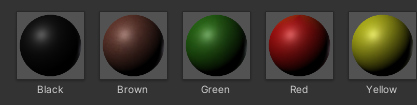
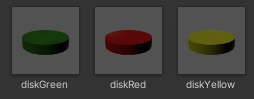
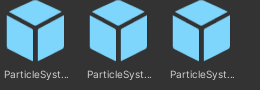
之后,可以创建Unity中的圆柱体对象,设置其材料为上面对应的材料,并设置Scale的分量为合适的大小来调整其高度与底面的比例,可以得到下面的飞碟游戏对象。为了有打击飞碟的良好动画效果,同时还使用了Unity中的粒子系统,使得击中飞碟后会产生碎片溅射的粒子系统效果。
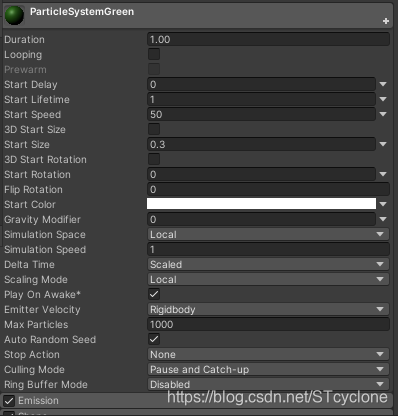
粒子系统的设置,主要是设置持续时间一秒且不循环,设置Emission,这样就有类似碎片飞溅的效果。
之后,类似上一个实验的操作,将这些对象拖入到Assets/Resources/Prefabs文件夹中,使其成为预制对象。之后在游戏中删除这些对象的实例。根据实验要求,游戏中所有对象都必须由代码生成,初始不能有游戏对象出现在游戏中。
项目地址
由于整个游戏文件夹过大,这里按照实验要求仅将Assets文件夹传到了公开的仓库上。仓库的链接为https://github.com/alphabstc/Hit-UFO。新建一个Unity 3D项目,按照下面的指引将仓库内容导入,将脚本拖到对应的对象上,应该可以创建出一个可以正常运行的游戏。
脚本分析与设计
GUI界面
首先,声明了如下的接口类,其声明了GUI界面需要使用的虚函数。之后,场景控制器会具体实现这些函数,并提供给GUI使用。
using System.Collections;
using System.Collections.Generic;
using UnityEngine;

public interface ISceneControllor{
	void LoadResources ();
}

public interface IUserAction{
	void Hit (Vector3 pos);
	void Restart();//重新开始
	int GetScore();//获得分数
	int GetRound();//获得当前轮数
	void GameOver();//游戏结束
	bool isCounting();//是否在计时
	int getEmitTime();//获得开始时间 用于开场倒计时
	void setting(float speed,GameObject explosion);//设置速度和爆炸效果
}
之后,在UserGUI.cs中主要实现了UserGUI的图形界面类,其OnGUI函数具体完成了GUI界面各项文字和各个按钮的绘画与设置。其代码如下,具体分析详见注释:
using System.Collections;
using System.Collections.Generic;
using UnityEngine;

public class UserGUI : MonoBehaviour
{
	private IUserAction action;
	public int life = 10;//玩家生命 也就是还可以错过的飞碟数目
	GUIStyle bold_style = new GUIStyle();
	GUIStyle text_style = new GUIStyle();
	GUIStyle text_style2 = new GUIStyle();

	void Start ()
	{
		action = GameDirector.GetInstance().CurrentSceneControllor as IUserAction;//获得当前的场景控制器
	}

	void OnGUI ()
	{
		text_style.normal.textColor = new Color(1,1,1,1);//设置字体
		text_style.fontSize = 16;
		text_style2.normal.textColor = new Color(1,1,1,1);//设置另一种字体
		text_style2.fontSize = 100;
		if (action.isCounting ()) {//开场倒计时的提示信息绘制
			GUI.Label(new Rect(Screen.width / 2 - 40, Screen.width / 2 - 300, 50, 50), action.getEmitTime().ToString(), text_style2);
		} else {//游戏中游戏状态信息绘制
			if (Input.GetButtonDown("Fire1"))//鼠标点击
			{
				Vector3 pos = Input.mousePosition;//获得鼠标位置
				action.Hit(pos);//触发鼠标点击事件
			}
			GUI.Label(new Rect(10, 5, 200, 50), "Score:", text_style);//分数信息
			GUI.Label(new Rect(60, 5, 200, 50), action.GetScore().ToString(), text_style);
			GUI.Label(new Rect(10, 30, 50, 50), "HP:", text_style);//生命值信息
			for (int i = 0; i < life; i++)
			{
				GUI.Label(new Rect(40 + 10 * i, 30, 50, 50), "X", text_style);
			}
			if (life == 0)//游戏结束
			{
				GUI.Label(new Rect(Screen.width / 2 - 50, Screen.width / 2 - 300, 100, 100), "GameOver!", text_style);
				if (GUI.Button(new Rect(Screen.width / 2 - 60, Screen.width / 2 - 250, 100, 50), "Restart"))//重新开始
				{
					action.Restart();//执行重新开始
					return;
				}
				action.GameOver();//执行游戏结束
			}
			GUI.Label(new Rect(10, 55, 200, 50), "Round:", text_style);//当前轮数的信息
			GUI.Label(new Rect(64, 55, 200, 50), action.GetRound().ToString(), text_style);
		}
	}
	public void ReduceBlood()//减少生命值
	{
		if(life > 0)
			life--;
	}
}
飞碟工厂
这是本次游戏项目的关键,其实现了要求“使用带缓存的工厂模式管理不同飞碟的生产与回收,该工厂必须是场景单实例的”。正如之前所述,飞碟工厂类管理,创建和回收飞碟实例,其对外屏蔽飞碟实例的提取和回收细节。它可以根据当前轮数的不同生产出不同种类和属性的飞碟,然后对于需要回收的(被点中或者飞出场景外)飞碟就可以进行回收。飞碟工厂从仓库中获取这种类型的飞碟,如果仓库中没有这种类型的,则新的实例化一个飞碟,然后添加到正在使用的飞碟列表中。这样就可以保证资源更能被有效利用,因为每次动态申请和释放飞碟都需要大量资源,这样就可以避免反复申请和释放飞碟。代码如下,具体分析详见代码注释:
using System.Collections;
using System.Collections.Generic;
using UnityEngine;

public class DiskFactory : MonoBehaviour//飞碟工厂类
{
	public GameObject disk_prefab = null;          //飞碟预制
	private List<DiskData> used = new List<DiskData>();  //正在使用的
	private List<DiskData> free = new List<DiskData>();   //已经被释放的

	public GameObject GetDisk(int round)//产生飞碟
	{
		float start_y = -10f;         //开始的y坐标
		string tag;
		disk_prefab = null;//预制件指针
		if (round == 1)//第一轮
		{
			tag = "diskGreen";;
		}
		else if(round == 2)//第二轮
		{
			tag = "diskYellow";
		}
		else//其他轮
		{
			tag = "diskRed";
		}
		for(int i=0;i<free.Count;i++)//检查是否有空闲的飞碟可以用
		{
			if(free[i].tag == tag)//是同一类型的
			{
				disk_prefab = free[i].gameObject;//使用这个飞碟
				free.Remove(free[i]);//被使用
				break;
			}
		}
		if(disk_prefab == null)//没有找到之前被回收的 需要新创建
		{
			if (tag == "diskGreen")//绿色
			{
				disk_prefab = Instantiate(Resources.Load<GameObject>("Prefabs/diskGreen"), new Vector3(0, start_y, 0), Quaternion.identity);

			}
			else if (tag == "diskYellow")//黄色
			{
				disk_prefab = Instantiate(Resources.Load<GameObject>("Prefabs/diskYellow"), new Vector3(0, start_y, 0), Quaternion.identity);
				disk_prefab.GetComponent<DiskData> ().score = 2;//分数更高
			}
			else//红色
			{
				disk_prefab = Instantiate(Resources.Load<GameObject>("Prefabs/diskBrown"), new Vector3(0, start_y, 0), Quaternion.identity);
				disk_prefab.GetComponent<DiskData> ().score = 3;//分数最高
			}
			float ran_x = Random.Range(-1f, 1f) < 0 ? -1 : 1;//随机x坐标
			disk_prefab.GetComponent<MeshRenderer> ().material.color = disk_prefab.GetComponent<DiskData>().color;//获得对应的颜色
			disk_prefab.GetComponent<DiskData>().direction = new Vector3(ran_x, start_y, 0);//设置方向
			disk_prefab.GetComponent<DiskData> ().tag = tag;//设置tag
			disk_prefab.transform.localScale = disk_prefab.GetComponent<DiskData>().scale;//设置大小范围
		}
		used.Add(disk_prefab.GetComponent<DiskData>());//增加到使用的飞碟中去
		return disk_prefab;
	}
	public void FreeDisk(GameObject disk)//回收飞碟
	{
		for(int i = 0;i < used.Count; i++)
		{
			if (disk.GetInstanceID() == used[i].gameObject.GetInstanceID())//正在索引的飞碟为正好需要的飞碟
			{
				used[i].gameObject.SetActive(false);//设置其被回收
				free.Add(used[i]);//增加到回收中的去
				used.Remove(used[i]);//从正在使用中的移除
				break;
			}
		}
	}
}
飞碟参数
这个类定义在文件DiskDate.cs中,其主要包含每个飞碟的位置,方向,大小,颜色,分数等参数,以及是属于哪一轮的飞碟。
using System.Collections;
using System.Collections.Generic;
using UnityEngine;

public class DiskData : MonoBehaviour
{
	public int score = 1;       //分数
	public Color color = Color.white; //颜色
	public Vector3 direction;           //方向
	public Vector3 scale = new Vector3(3, 0.3f, 3);  //大小
	public string tag;//标签
}
动作控制器
动作控制器的架构与之前牧师与魔鬼中的架构基本相同,使用场景控制器中的FlyActionManager 类的函数,然后在FlyActionManager 类中调用UFOFlyAction类进行每一帧对飞碟位置的渲染更新即可实现飞碟飞的动作。具体来说,需要在UFOFlyAction类中给飞碟一个初始速度(包括大小和方向),然后根据之前离散仿真引擎所学知识和现实生活中的物理定律,飞碟每一帧计算下一帧做有向下重力加速度的位置,然后进行赋值即可实现的飞行动作。最后当飞出场景外或者被玩家击中时就需要等待场景控制器和飞碟工厂进行配合回收飞碟。代码如下,具体分析详见注释:
using System.Collections;
using System.Collections.Generic;
using UnityEngine;

public class GameAction : ScriptableObject//动作的抽象类
{
    public bool enable = true;
    public bool destroy = false;
    public GameObject gameobject;
    public Transform transform;
    public ISSActionCallback callback;

    protected GameAction() { }

    public virtual void Start()
    {
        throw new System.NotImplementedException();
    }
    public virtual void Update()
    {
        throw new System.NotImplementedException();
    }
}


public enum SSActionEventType : int { Started, Competeted }//枚举类型

public interface ISSActionCallback//用于动作回调的接口
{
	void SSActionEvent(GameAction source, SSActionEventType events = SSActionEventType.Competeted,
		int intParam = 0, string strParam = null, Object objectParam = null);
}

public class SSActionManager : MonoBehaviour, ISSActionCallback//动作管理者类
{
	private Dictionary<int, GameAction> actions = new Dictionary<int, GameAction>(); //使用了字典类型,根据int类型映射到对应的动作
	private List<GameAction> waitingAdd = new List<GameAction>(); //等待加入列表
	private List<int> waitingDelete = new List<int>();  //等待删除列表

	protected void Update()//更新
	{
		foreach (GameAction ac in waitingAdd)
		{
			actions[ac.GetInstanceID()] = ac;  //设置映射关系 设置id映射到的动作
		}
		waitingAdd.Clear();//遍历了一遍等待加入列表 清空等待加入列表

		foreach (KeyValuePair<int, GameAction> kv in actions)//遍历actions
		{
			GameAction ac = kv.Value;
			if (ac.destroy)//如果已经销毁
			{
				waitingDelete.Add(ac.GetInstanceID());//id加入等待删除列表
			}
			else if (ac.enable)//否则进行更新
			{
				ac.Update();
			}
		}

		foreach (int key in waitingDelete)//遍历等待删除列表
		{
			GameAction ac = actions[key];//从actions中删除
			actions.Remove(key);
			Destroy(ac);//销毁
		}
		waitingDelete.Clear();//遍历了一遍等待删除列表 清空等待删除列表
	}

	public void RunAction(GameObject gameobject, GameAction action, ISSActionCallback manager)//执行动作
	{
		action.gameobject = gameobject;//设置相应gameobject和transform
		action.transform = gameobject.transform;
		action.callback = manager;//设置回调者
		waitingAdd.Add(action);//等待加入动作
		action.Start();//执行
	}

	public void SSActionEvent(GameAction source, SSActionEventType events = SSActionEventType.Competeted,
		int intParam = 0, string strParam = null, Object objectParam = null)
	{
	}
}
public class FlyActionManager : SSActionManager{//处理飞碟飞行的动作
	public UFOFlyAction fly;//飞行动作
	public Controllor scene;//场景控制器
	protected void Start(){
		scene = (Controllor)GameDirector.GetInstance ().CurrentSceneControllor;//获得当前场景控制器
		scene.fam = this;
	}

	public void UFOfly(GameObject disk, float angle, float power){//飞行
		fly = UFOFlyAction.GetSSAction(disk.GetComponent<DiskData> ().direction, angle, power);//根据参数设置水平方向 角度 初始速度
		this.RunAction (disk, fly, this);//执行动作
	}
}
public class UFOFlyAction : GameAction//实现了GameAction抽象类
{
	public float gravity = -1.7f;         //重力加速度
	private Vector3 start_vector;//开始速度
	private Vector3 gravity_vector = Vector3.zero;     //向下速度
	private float time;    //时间
	private Vector3 current_angle = Vector3.zero; //当前角度

	private UFOFlyAction() { }
	public static UFOFlyAction GetSSAction(Vector3 direction, float angle, float power)
	{

		UFOFlyAction action = CreateInstance<UFOFlyAction>();
		if (direction.x == -1)//从右往左飞
		{
			action.start_vector = Quaternion.Euler(new Vector3(0, 0, -angle)) * Vector3.left * power;//计算开始速度
		}
		else//从左往右飞
		{
			action.start_vector = Quaternion.Euler(new Vector3(0, 0, angle)) * Vector3.right * power;//计算开始速度
		}
		return action;
	}

	public override void Update()//更新
	{

		time += Time.fixedDeltaTime;//增加相应时间
		gravity_vector.y = gravity * time;//更新向下的速度
		transform.position += (start_vector + gravity_vector) * Time.fixedDeltaTime;//更新位置
		current_angle.z = Mathf.Atan((start_vector.y + gravity_vector.y) / start_vector.x) * Mathf.Rad2Deg;//更新角度
		transform.eulerAngles = current_angle;//设置角度


		if (this.transform.position.y < -10)//掉出范围外
		{
			this.destroy = true;//设置摧毁
			this.callback.SSActionEvent(this);//回调管理者
		}
	}

	public override void Start() { }
}
主场景控制器
主场景控制器具体实现了之前定义的接口中的函数。游戏开始时其通过isCounting()函数以及getEmitTime()函数判断开始倒计时是否完成,若倒计时结束则将counting(是否倒计时)设为false并开始发送飞碟。之后其在每一帧中,其以speed的时间间隔扔出飞碟,进入下一轮后就加速speed以更快的方式扔出飞碟来提高游戏难度。Hit函数实现了玩家通过点击发出子弹摧毁飞碟。玩家若击中飞碟则触发飞碟的粒子爆炸效果。GetScore(),GetRound(),Restart(),GameOver()等函数则都是与GUI交互的函数。
同时其利用了定义的单例模板类,保证了飞碟工厂是单实例的。代码如下,具体分析详见代码注释:
using System.Collections;
using System.Collections.Generic;
using UnityEngine;
using UnityEngine.SceneManagement;

public class Controllor : MonoBehaviour,ISceneControllor,IUserAction
{
	public FlyActionManager fam;//飞行动作管理者
	public DiskFactory df;//飞碟工厂
	public UserGUI ug;//用户GUI
	public ScoreRecorder sr;//计分者
	public RoundControllor rc;//轮控制器

	private Queue<GameObject> dq = new Queue<GameObject> ();//飞碟队列
	private List<GameObject> dfree = new List<GameObject> ();//空闲飞碟列表
	private GameObject explosion;//爆炸效果
	private float emit_time = 3;//倒计时时间
	private int round = 1;//当前轮数
	private float t = 1;//临时变量
	private float speed = 3;//飞碟间隔
	private bool game_over = false;  //游戏是否结束
	private bool counting = true;//是否在倒计时
	public bool isCounting(){return counting;}//是否在倒计时
	public int getEmitTime(){return (int)emit_time+1;}//获得倒计时时间

	void Start(){
		GameDirector director = GameDirector.GetInstance();  //创建导演
		director.CurrentSceneControllor = this;   //设置当前场景控制器
		df = Singleton<DiskFactory>.Instance;//飞碟工厂
		sr = gameObject.AddComponent<ScoreRecorder> () as ScoreRecorder;//计分者
		fam = gameObject.AddComponent<FlyActionManager>() as FlyActionManager;//飞行动作管理者
		ug = gameObject.AddComponent<UserGUI>() as UserGUI;//用户GUI
		rc = gameObject.AddComponent<RoundControllor> () as RoundControllor;//轮控制器
		explosion = Instantiate (Resources.Load<GameObject> ("Prefabs/ParticleSystemGreen"), new Vector3(0, -100, 0), Quaternion.identity);//爆炸的粒子系统效果
		t = speed;//飞碟间隔
	}
	void Update ()
	{
		if (emit_time > 0) {//倒计时状态
			counting = true;
			emit_time -= Time.deltaTime;
		} else {//非倒计时状态
			counting = false;
			t-=Time.deltaTime;
			if (t < 0) {//间隔到了 扔飞碟
				LoadResources ();
				SendDisk ();
				t = speed;
			}
			if (sr.number % 10 == 0) {//轮数增加的条件
				round++;//轮数增加
				rc.loadRoundData (round);//下一轮
			}
		}
	}
	public void setting(float speed_,GameObject explosion_)//设置速度和爆炸
	{
		speed = speed_;
		explosion = explosion_;
	}
	public void LoadResources()//载入资源
	{
		dq.Enqueue(df.GetDisk(round));
	}

	private void SendDisk()//扔飞碟
	{
		float position_x = 16;  //初始位置
		if (dq.Count != 0)//队列数目不为0
		{
			GameObject disk = dq.Dequeue();//从队列中出来
			dfree.Add(disk);//加入dfree列表
			disk.SetActive(true);//激活
			float ran_y = Random.Range(2f, 5f);//随机高度
			float ran_x = Random.Range(-1f, 1f) < 0 ? -1 : 1;//随机方向(左往右还是右往左)
			disk.GetComponent<DiskData>().direction = new Vector3(ran_x, ran_y, 0);//随机方向
			Vector3 position = new Vector3(-disk.GetComponent<DiskData>().direction.x * position_x, ran_y, 0);//随机位置
			disk.transform.position = position;
			float power = Random.Range(3.5f, 5f);//随机初始速度
			float angle = Random.Range(25f, 37f);//随机角度
			fam.UFOfly(disk,angle,power);//执行飞行
		}

		for (int i = 0; i < dfree.Count; i++)//遍历dfree中的飞碟
		{
			GameObject temp = dfree[i];
			if (temp.transform.position.y < -10 && temp.gameObject.activeSelf == true)//检查是否越界
			{
				df.FreeDisk(dfree[i]);//回收
				dfree.Remove(dfree[i]);
				ug.ReduceBlood();//扣血
			}
		}
	}
	public void Hit (Vector3 pos){//击中飞碟
		Ray ray = Camera.main.ScreenPointToRay(pos);//通过射线检查
		RaycastHit[] hits;
		hits = Physics.RaycastAll(ray);//获得击中的点
		bool not_hit = false;
		for (int i = 0; i < hits.Length; i++)
		{
			RaycastHit hit = hits[i];
			if (hit.collider.gameObject.GetComponent<DiskData>() != null)//判断是否击中飞碟
			{//击中了飞碟
				for (int j = 0; j < dfree.Count; j++)
				{
					if (hit.collider.gameObject.GetInstanceID() == dfree[j].gameObject.GetInstanceID())//是dfree中的飞碟
					{
						not_hit = true;//击中了
					}
				}
				if(!not_hit)//没有击中
				{
					return;
				}
				dfree.Remove(hit.collider.gameObject);//移除对应的飞碟
				sr.Record(hit.collider.gameObject);//计分者记录

				explosion.transform.position = hit.collider.gameObject.transform.position;//设置碎片飞溅效果
				explosion.GetComponent<ParticleSystem>().Play();
				hit.collider.gameObject.transform.position = new Vector3(0, -100, 0);
				df.FreeDisk(hit.collider.gameObject);
				break;
			}
		}
	}

	public void Restart (){//重新开始
		SceneManager.LoadScene(0);
	}
	public int GetScore (){//获得当前分数
		return sr.score;
	}
	public int GetRound (){//获得当前轮数
		return round;
	}
	public void GameOver (){//游戏结束
		game_over = true;
	}
}
计分者
这个类的功能比较简单,其根据每次击中飞碟的不同加上不同的分数。而具体的分数在DiskData中进行了设置。
using System.Collections;
using System.Collections.Generic;
using UnityEngine;

public class ScoreRecorder : MonoBehaviour {

	public int score = 0;
	void Start(){
		score = 0;
	}
	public void Record(GameObject disk){
		score = score + disk.GetComponent<DiskData> ().score;
	}
}
轮控制器
下面的轮控制器实现了5轮。每一轮的飞碟颜色和速度都不同。且随着轮数增大,飞碟产生速度越快,游戏难度也越大。这样就实现了游戏的需求。
using System.Collections;
using System.Collections.Generic;
using UnityEngine;

public class RoundControllor : MonoBehaviour {
	private IUserAction action;
	private float speed;
	private GameObject explosion;
	void Start(){
		action = GameDirector.GetInstance().CurrentSceneControllor as IUserAction;
		speed = 3f;
	}
	public void loadRoundData(int round)
	{

		switch (round)
		{
		case 1:

			break;
		case 2:

			speed = 2.5f;
			explosion = Instantiate (Resources.Load<GameObject> ("Prefabs/ParticleSystemYellow"), new Vector3(0, -100, 0), Quaternion.identity);
			action.setting (speed,explosion);
			break;
		case 3:

			speed = 2f;
			explosion = Instantiate (Resources.Load<GameObject> ("Prefabs/ParticleSystemRed"), new Vector3(0, -100, 0), Quaternion.identity);
			action.setting (speed,explosion);
			break;
		case 4:
			speed = 1.5f;
			explosion = Instantiate (Resources.Load<GameObject> ("Prefabs/ParticleSystemGreen"), new Vector3(0, -100, 0), Quaternion.identity);
			action.setting (speed,explosion);
			break;
		case 5:
			speed = 1f;
			explosion = Instantiate (Resources.Load<GameObject> ("Prefabs/ParticleSystemYellow"), new Vector3(0, -100, 0), Quaternion.identity);
			action.setting (speed,explosion);
		}
	}
}
导演类
这个类起到了导演的功能。其是整个游戏中最高的控制器,由初始场景的主控制器调用载入。导演类采用单体设计模式,在整个游戏过程中仅有一个实例对象。当前游戏中没有用到场景的切换,因此只是简单地设计了导演类对象,并没有在其中具体实现复杂的功能。
using System.Collections;
using System.Collections.Generic;
using UnityEngine;

public class GameDirector : System.Object
{
	private static GameDirector _instance;
	public ISceneControllor CurrentSceneControllor{ get;set;}
	public static GameDirector GetInstance(){
		if (_instance == null) {
			_instance = new GameDirector();
		}
		return _instance;
	}
}
部署脚本
可以使用项目链接中的场景,这样就不需要部署脚本。也可以自己创建一个新的场景,对于这个新的场景,只需要在游戏中创建一个除了摄像头和光源之外的空对象,然后将第一个场景主控制器的脚本Controller.cs(在这个游戏中也是唯一一个场景主控制器)和飞碟工厂脚本DiskFactory.cs拖动到这个空对象上,就可以完成脚本的部署。
调整摄像头
调整摄像头的位置和姿态,使得其可以以比较好的视角看见游戏场景。
这样就完成了项目的配置。
游戏效果截图
游戏开始前倒计时:
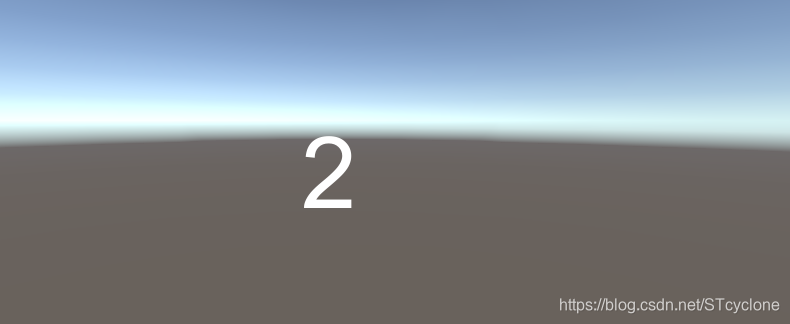
飞碟:
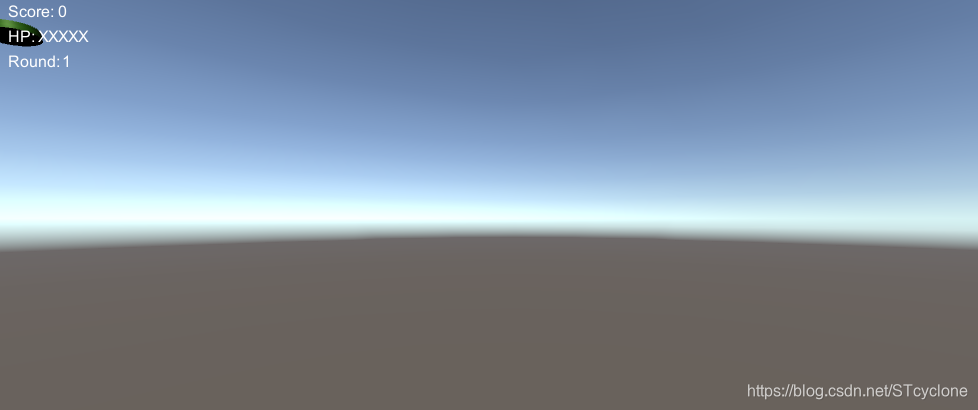
飞碟:
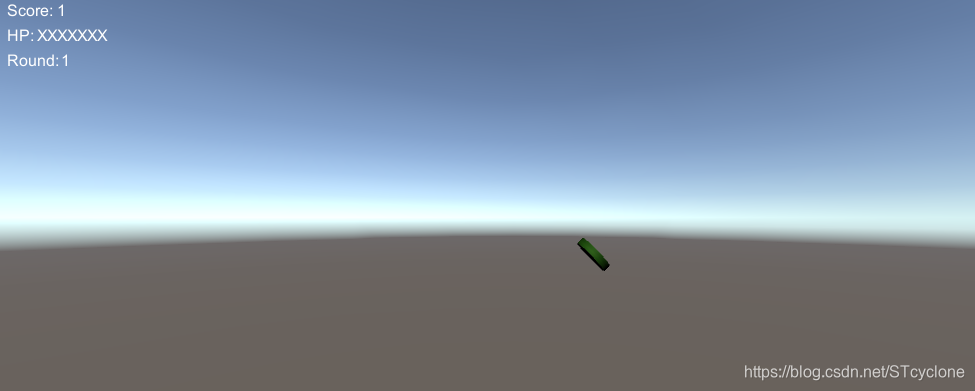
碎片飞溅: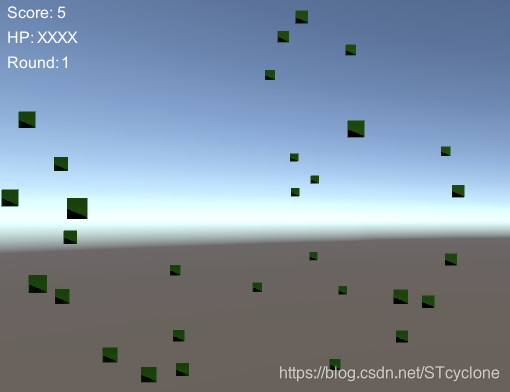
第二轮:
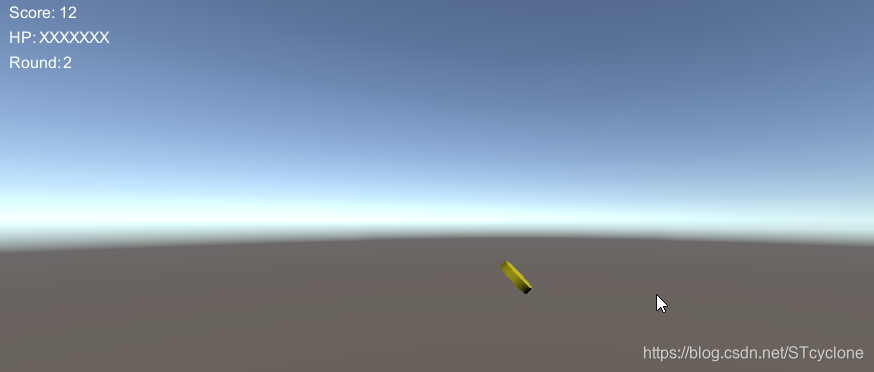
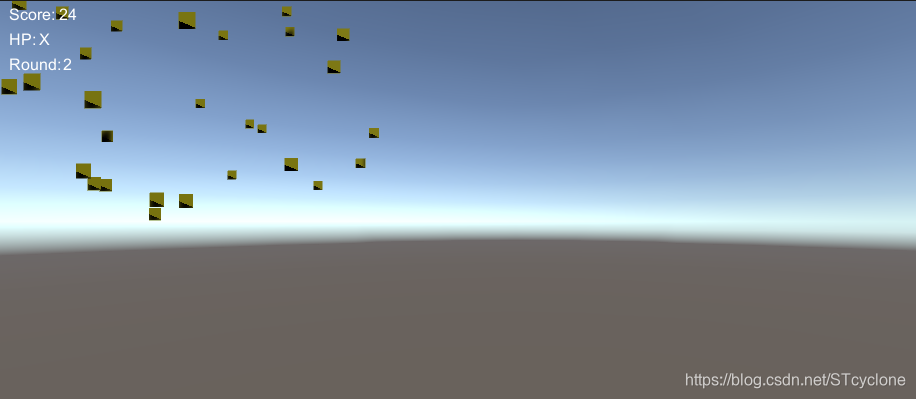
黄色飞碟打中的分数更高。黄色飞碟飞溅:
游戏结束:
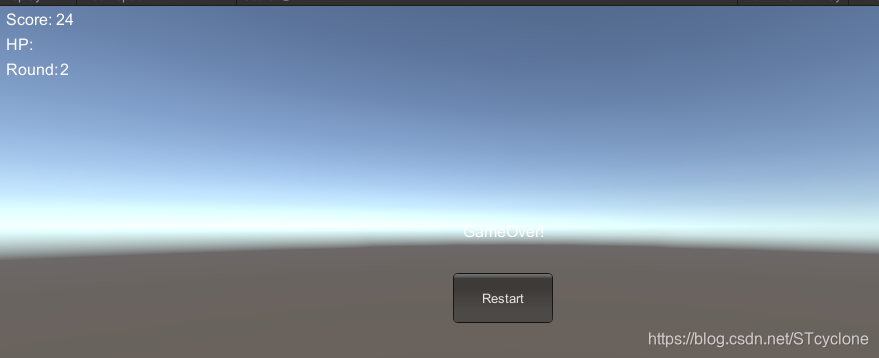
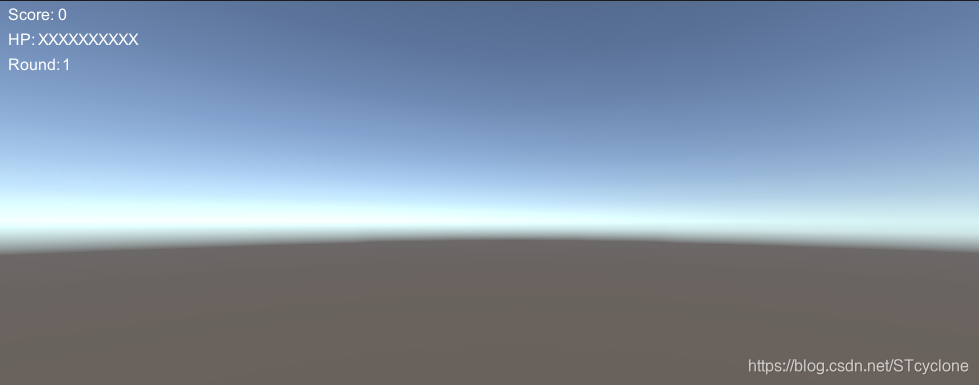
重新开始,所有状态被正常初始化:
编写一个简单的自定义 Component (选做)
编写自定义组件代码如下:
using System.Collections;
using System.Collections.Generic;
using UnityEngine;

public class DiskData : MonoBehaviour
{
	public int score = 1;
	public Color color = Color.white;
	public Vector3 direction;
	public Vector3 scale = new Vector3(1, 0.1f, 1);
	public string tag;
}
之后将其拖到飞碟的prefabs上,可以看到其出现在了Unity编辑器界面上:
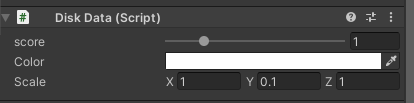
可以很方便的在上面的界面进行游戏对象属性的编辑。也可以在游戏过程中,在Inspector界面对飞碟的大小颜色分数等参数进行编辑。这样就可以避免直接通过脚本来进行修改,这在多对象编辑、撤消和覆盖预制等情景下是有用的。此外通过编辑器进行设置,在一个对象名称改变时,也不需要在脚本中找到所有引用位置进行相应修改,Unity会自动完成对引用的重新定位。在编辑器界面中,我们对分数进行滑动条的设置,然后显示大小和颜色的数值进行调整,最后应用这个更改,就可以定义一个自定义组件。之后用unity菜单中添加组件,就可以将其添加到对应的游戏对象上去,这样就可以使用自定义组件。





 扫一扫
扫一扫


 493
493

 被折叠的 条评论
为什么被折叠?
被折叠的 条评论
为什么被折叠?
 到【灌水乐园】发言





