


各位iOS开发大佬们好:
我是一名Swift+SwiftUI栈的iOS小白,目前还在上大三,最近准备实习,面试的过程中发现现在大公司很多还在用OC + UIKit的技术栈,OC我还在考虑要不要学,目前想先把UIKit学完,这是我在官网学习UIKit英文文档时摘录的本人认为的重点,如果你们也觉得对你们有用的话欢迎持续关注,我大概一天更一节,有事除外。格式什么的我也就不做了,翻译都是我自己翻译的,哪里不对欢迎在评论区指正,感谢各位大佬支持
今天2021年11月27日
这一章叫做View and Window Architecture
Each superview stores its subviews in an ordered array and the order in that array also affects the visibility of each subview. If two sibling subviews overlap each other, the one that was added last (or was moved to the end of the subview array) appears on top of the other.
每个视图都将他的子视图储存在一个有序数组当中,顺序影响着子视图的展示,如果两个子视图互相覆盖,那么栈顶视图将会覆盖其他视图
When a view first appears on the screen, the system asks it to draw its content. The system captures a snapshot of this content and uses that snapshot as the view’s visual representation. If you never change the view’s content, the view’s drawing code may never be called again. The snapshot image is reused for most operations involving the view. If you do change the content, you notify the system that the view has changed. The view then repeats the process of drawing the view and capturing a snapshot of the new results.
当一个视图第一次出现在屏幕上时,系统要求它渲染自己的内容,系统获取一张内容的快照呈现视觉内容,如果你不更改视图内容,那么渲染代码不会再被调用,快照用于涉及视图的大部分操作,如果你确实更改了视图内容,视图会重复上述操作获得新的内容快照
When the contents of your view change, you do not redraw those changes directly. Instead, you invalidate the view using either the setNeedsDisplay or setNeedsDisplayInRect: method. These methods tell the system that the contents of the view changed and need to be redrawn at the next opportunity. The system waits until the end of the current run loop before initiating any drawing operations. This delay gives you a chance to invalidate multiple views, add or remove views from your hierarchy, hide views, resize views, and reposition views all at once. All of the changes you make are then reflected at the same time.
当视图内容更改时,你实际上不是重新渲染这部分内容,相反的,你首先使用setNeedsDisplay 或 setNeedsDisplayInRect: 使视图无效,这些方法通知系统将在下一帧时重新渲染这些更改,系统等待当前runloop结束之后初始化其他渲染操作,这段时间使你能够使更多的视图无效,从你的视图树中添加或移除视图,隐藏,定位,或重设视图大小,所有你做的更改均会被即时反映出来
Content modes are good for recycling the contents of your view, but you can also set the content mode to the UIViewContentModeRedraw value when you specifically want your custom views to redraw themselves during scaling and resizing operations. Setting your view’s content mode to this value forces the system to call your view’s drawRect: method in response to geometry changes. In general, you should avoid using this value whenever possible, and you should certainly not use it with the standard system views.
内容的显示模式有利于视图的重复利用,当你想要让你的自定义视图在初始化期间重新渲染,可以在 UIViewContentModeRedraw 属性中使用这些模式,这会强制系统调用视图的drawRect: 方法来响应形状的更改,你不应该使用它,更不可以和系统视图一起使用。
You can designate a portion of a view as stretchable so that when the size of the view changes only the content in the stretchable portion is affected. You typically use stretchable areas for buttons or other views where part of the view defines a repeatable pattern. The stretchable area you specify can allow for stretching along one or both axes of the view. Of course, when stretching a view along two axes, the edges of the view must also define a repeatable pattern to avoid any distortion. Figure 1-3 shows how this distortion manifests itself in a view. The color from each of the view’s original pixels is replicated to fill the corresponding area in the larger view
您可以将视图的一部分指定为可伸缩部分,以便在视图大小更改时,仅影响可伸缩部分的内容。您通常将可伸缩区域用于按钮或其他视图,其中视图的一部分定义了可重复模式。您指定的可伸缩区域可以沿着视图的一个或两个轴伸展。当然,当沿着两个轴拉伸视图时,视图的边缘还必须定义可重复的模式,以避免任何失真。图1-3显示了这种失真如何在视图中表现出来。复制视图每个原始像素的颜色,以填充大视图中的相应区域。
Built—in Animation Support
frame—Use this to animate position and size changes for the view.
bounds—Use this to animate changes to the size of the view.
center—Use this to animate the position of the view.
transform—Use this to rotate or scale the view.
alpha—Use this to change the transparency of the view.
backgroundColor—Use this to change the background color of the view.
contentStretch—Use this to change how the view’s contents stretch.
frame is from the outside of the view
Bounds is from the inside of the view
When you set the frame property, the size value in the bounds property changes to match the new size of the frame rectangle. The value in the center property similarly changes to match the new center point of the frame rectangle.
When you set the center property, the origin value in the frame changes accordingly.
When you set the size of the bounds property, the size value in the frame property changes to match the new size of the bounds rectangle.
frame center bounds的联系
frame改变bounds的大小
Bounds改变frame的大小但不改变位置
center改变frame位置但不改变大小
坐标系统从左上到右下,浮点数
Core Graphics and OpenGL ES use a coordinate system whose origin lies in the lower-left corner of the view or window and whose y-axis points upward relative to the screen
OpenGL ES的坐标系统从左下到右上
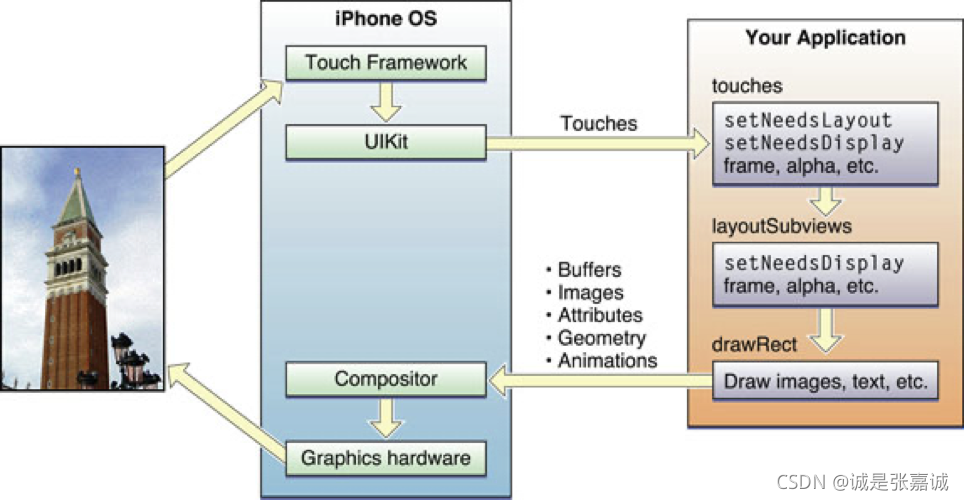
The user touches the screen.
The hardware reports the touch event to the UIKit framework.
The UIKit framework packages the touch into a UIEvent object and dispatches it to the appropriate view. (For a detailed explanation of how UIKit delivers events to your views, see Event Handling Guide for iOS.)
The event-handling code of your view responds to the event. For example, your code might:
Change the properties (frame, bounds, alpha, and so on) of the view or its subviews.
Call the setNeedsLayout method to mark the view (or its subviews) as needing a layout update.
Call the setNeedsDisplay or setNeedsDisplayInRect: method to mark the view (or its subviews) as needing to be redrawn.
Notify a controller about changes to some piece of data.
Of course, it is up to you to decide which of these things the view should do and which methods it should call.
If the geometry of a view changed for any reason, UIKit updates its subviews according to the following rules:
If you have configured autoresizing rules for your views, UIKit adjusts each view according to those rules. For more information about how autoresizing rules work, see Handling Layout Changes Automatically Using Autoresizing Rules.
If the view implements the layoutSubviews method, UIKit calls it.You can override this method in your custom views and use it to adjust the position and size of any subviews. For example, a view that provides a large scrollable area would need to use several subviews as “tiles” rather than create one large view, which is not likely to fit in memory anyway. In its implementation of this method, the view would hide any subviews that are now offscreen or reposition them and use them to draw newly exposed content. As part of this process, the view’s layout code can also invalidate any views that need to be redrawn.
If any part of any view was marked as needing to be redrawn, UIKit asks the view to redraw itself.For custom views that explicitly define a drawRect: method, UIKit calls that method. Your implementation of this method should redraw the specified area of the view as quickly as possible and nothing else. Do not make additional layout changes at this point and do not make other changes to your application’s data model. The purpose of this method is to update the visual content of your view.
Standard system views typically do not implement a drawRect: method but instead manage their drawing at this time.
Any updated views are composited with the rest of the application’s visible content and sent to the graphics hardware for display.
The graphics hardware transfers the rendered content to the screen.
- 用户触屏
- 硬件检测后通知UIKit
- UIKit打包为一个UIEvent对象之后传给可能的响应视图
- A 更改一些动画属性的值
B 调用setNeedsLayout 方法标记视图需要更改布局
C 调用setNeedsDisplay 或 setNeedsDisplayInRect:方法标记视图需要被重新渲染
D 通知controller可能需要更改的一些数据 - (4)中操作有你决定是否发生
- UIKit根据以下规则更改可能由于视图形状更改引起的子视图变化
A 可以设置自动更改尺寸
B 如果视图实现了layoutSubviews 方法,将会被调用,你可以重写此方法,此方法用于子视图尺寸位置适应父视图的变化 - drawRect:方法仅用于更新视觉内容,切勿做例如布局更改,数据模型更改等其他操作
- 所有更新后的视图都将被一起送往硬件部分渲染呈现
- 硬件部分渲染呈现
仿射变换
An affine transform is a mathematical matrix that specifies how points in one coordinate system map to points in a different coordinate system.
To modify your entire view, modify the affine transform in the transform property of your view.
To modify specific pieces of content in your view’s drawRect: method, modify the affine transform associated with the active graphics context.
You typically modify the transform property of a view when you want to implement animations.
The coordinate system of each subview builds upon the coordinate systems of its ancestors.
仿射变换是一个矩阵明确了将一个坐标系统上的点映射到另一个坐标系统的方法
如果修改整个视图的仿射坐标,使用transform 属性
如果修改视图的特定内容,使用drawRect: 属性
transform属性为可动画属性
So when you modify a view’s transform property, that change affects the view and all of its subviews.
However, these changes affect only the final rendering of the views on the screen
子视图的坐标系统建立在其父视图之上(即父视图左上为(0,0))
父视图的仿射变换会影响到其所有子视图
变换仅影响最终屏幕上的渲染
Tips for Using Views Effectively
Custom views are useful for situations where you need to draw something the standard system views do not provide, but it is your responsibility to ensure that the performance of your views is good enough. UIKit does everything it can to optimize view-related behaviors and help you achieve good performance in your custom views. However, you can help UIKit in this aspect by considering the following tips.
Important: Before optimizing your drawing code, you should always gather data about your view’s current performance. Measuring the current performance lets you confirm whether there actually is a problem and, if there is, gives you a baseline measurement against which you can compare future optimizations.
Views Do Not Always Have a Corresponding View Controller
There is rarely a one-to-one relationship between individual views and view controllers in your application. The job of a view controller is to manage a view hierarchy, which often consists of more than one view used to implement some self-contained feature. For iPhone applications, each view hierarchy typically fills the entire screen, although for iPad applications a view hierarchy may fill only part of the screen.
As you design your application’s user interface, it is important to consider the role that view controllers will play. View controllers provide a lot of important behaviors, such as coordinating the presentation of views on the screen, coordinating the removal of those views from the screen, releasing memory in response to low-memory warnings, and rotating views in response to interface orientation changes. Circumventing these behaviors could cause your application to behave incorrectly or in unexpected ways.
For more information view controllers and their role in applications, see View Controller Programming Guide for iOS.
Minimize Custom Drawing
Although custom drawing is necessary at times, it is also something you should avoid whenever possible. The only time you should truly do any custom drawing is when the existing system view classes do not provide the appearance or capabilities that you need. Any time your content can be assembled with a combination of existing views, your best bet is to combine those view objects into a custom view hierarchy.
Take Advantage of Content Modes
Content modes minimize the amount of time spent redrawing your views. By default, views use the UIViewContentModeScaleToFill content mode, which scales the view’s existing contents to fit the view’s frame rectangle. You can change this mode as needed to adjust your content differently, but you should avoid using the UIViewContentModeRedraw content mode if you can. Regardless of which content mode is in effect, you can always force your view to redraw its contents by calling setNeedsDisplay or setNeedsDisplayInRect:.
Declare Views as Opaque Whenever Possible
UIKit uses the opaque property of each view to determine whether the view can optimize compositing operations. Setting the value of this property to YES for a custom view tells UIKit that it does not need to render any content behind your view. Less rendering can lead to increased performance for your drawing code and is generally encouraged. Of course, if you set the opaque property to YES, your view must fill its bounds rectangle completely with fully opaque content.
Adjust Your View’s Drawing Behavior When Scrolling
Scrolling can incur numerous view updates in a short amount of time. If your view’s drawing code is not tuned appropriately, scrolling performance for your view could be sluggish. Rather than trying to ensure that your view’s content is pristine at all times, consider changing your view’s behavior when a scrolling operation begins. For example, you can reduce the quality of your rendered content temporarily or change the content mode while a scroll is in progress. When scrolling stops, you can then return your view to its previous state and update the contents as needed.
Do Not Customize Controls by Embedding Subviews
Although it is technically possible to add subviews to the standard system controls—objects that inherit from UIControl—you should never customize them in this way. Controls that support customizations do so through explicit and well-documented interfaces in the control class itself. For example, the UIButton class contains methods for setting the title and background images for the button. Using the defined customization points means that your code will always work correctly. Circumventing these methods, by embedding a custom image view or label inside the button, might cause your application to behave incorrectly now or at some point in the future if the button’s implementation changes.
使用自定义视图的小贴士
1.当你自定义视图时,考虑好viewcontroller扮演的角色
2.尽量使自定义绘图最少,就算用多个视图可以合成一个你需要的图形时,都不要自定义
3.尽量让视图不透明以提高性能,如果你声明视图不透明,那么内容必须填满整个视图
4.滚动时可以暂时降低视图内容的显示效果以获得更好的滚动体验
5.禁止为继承自UIControl的对象添加子视图

 467


 扫一扫


 被折叠的 条评论
为什么被折叠?
 到【灌水乐园】发言


