


1. 官网手动下载
Git软件官网:https://git-scm.com/
Windows软件地址:https://git-scm.com/downloads/win
在这个网址里面可以直接选择下最新版的64位软件。
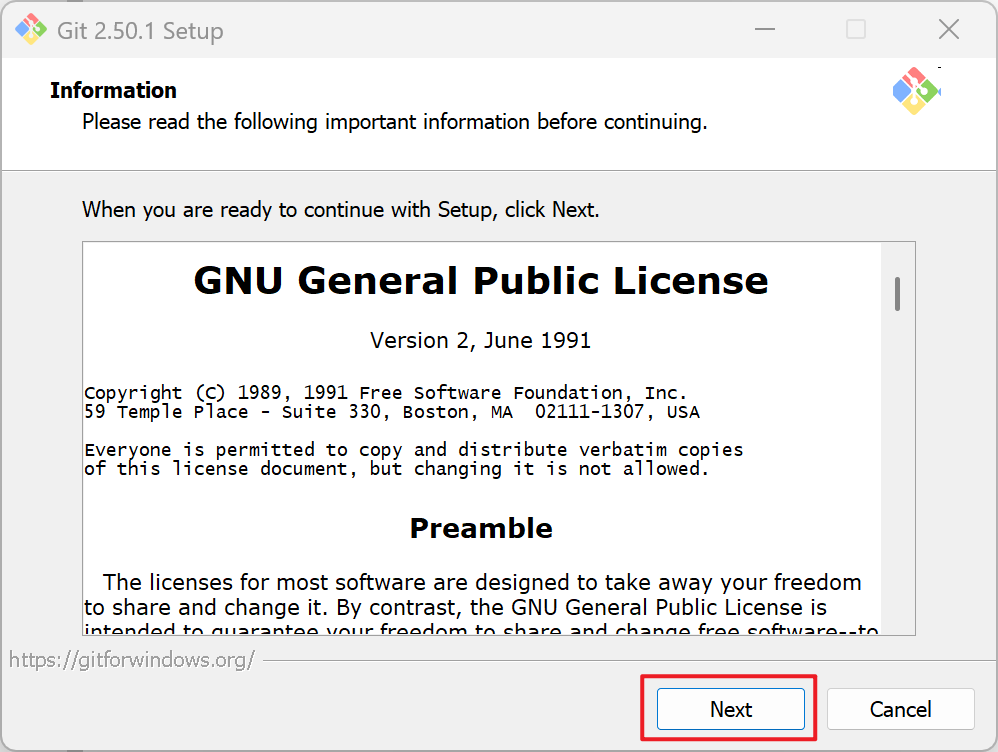
基本上一路无脑点确定下去:
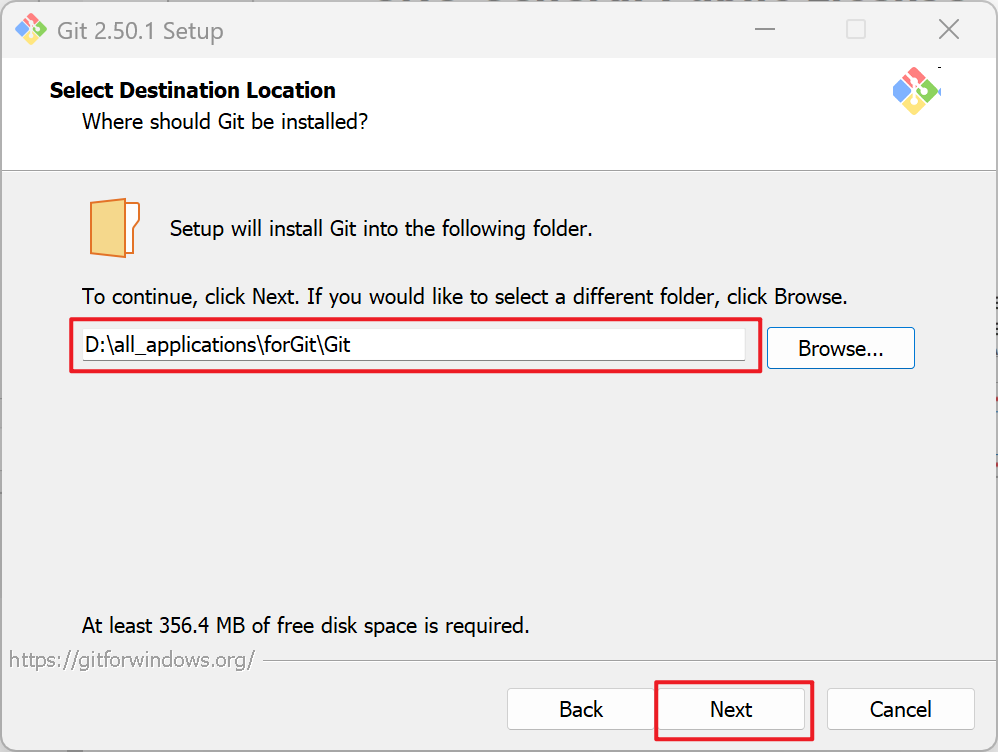
选择下载路径:
这一步是选择要下载哪些组件:
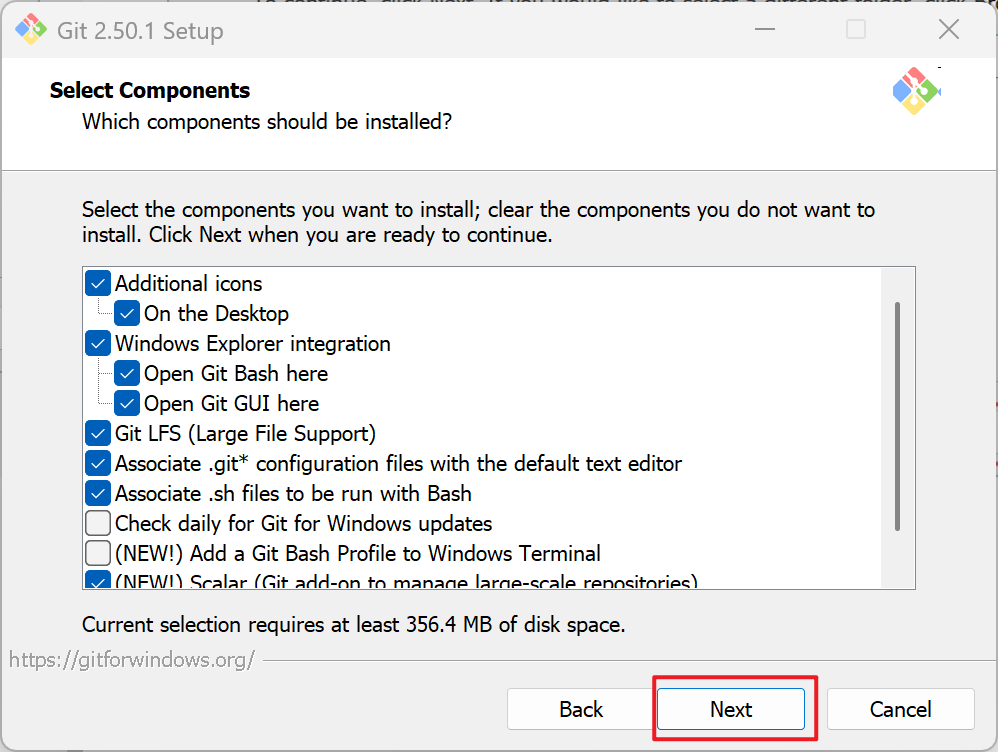
- Additional Icons
- On the Desktop:添加桌面图标(建议勾选)
- Windows Explorer integration(这里是勾选用bash(命令行)还是GUI(图形界面)的,建议都选上以后想用啥用啥)
- Git LFS (Large File Support)大文件支持(建议勾选)
- Associate .git* configuration files with the default text editor 设置.git后缀文件默认打开方式
- Associate .sh files to be run with Bash 设置.sh后缀文件默认打开方式
- Check daily for Git for Windows updates 每天检查版本更新
- (NEW!) Add a Git Bash Profile to Windows Terminal 将Git Bash添加到Windows Terminal中
这个勾选了以后你就可以跟打开powershell或者cmd一样把git bash当windows terminal一样打开了,要不然如果你想执行Git命令还得专门打开Git bash自己的窗口 - (NEW!)Scalar (Git add-on to manage large-scale repositories) Windows
scalar这个工具我也没用过,以后用了我再介绍。这是官方文档:https://git-scm.com/docs/scalar
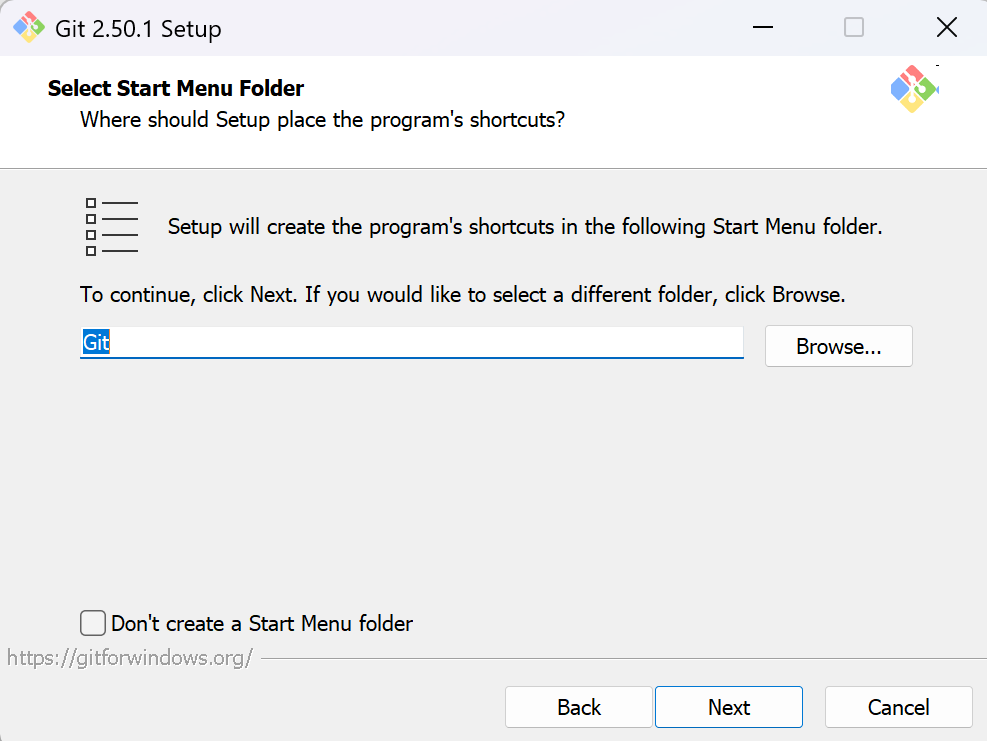
设置开始快捷按钮:
选择默认编辑器:
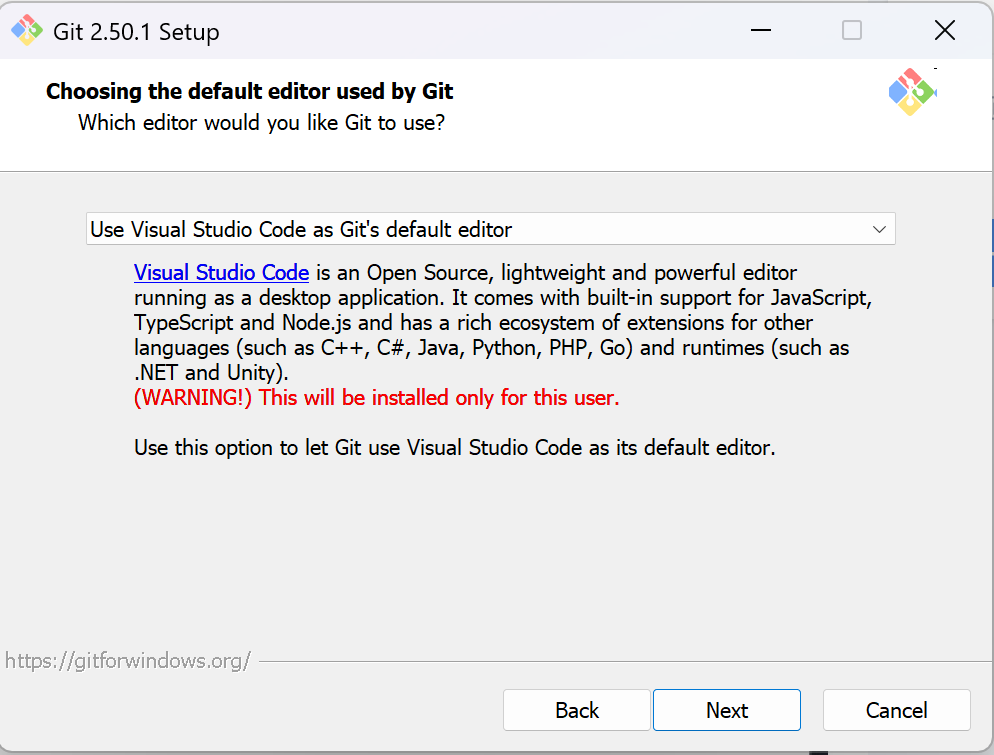
我喜欢用VSCode,所以选择了VSCode。
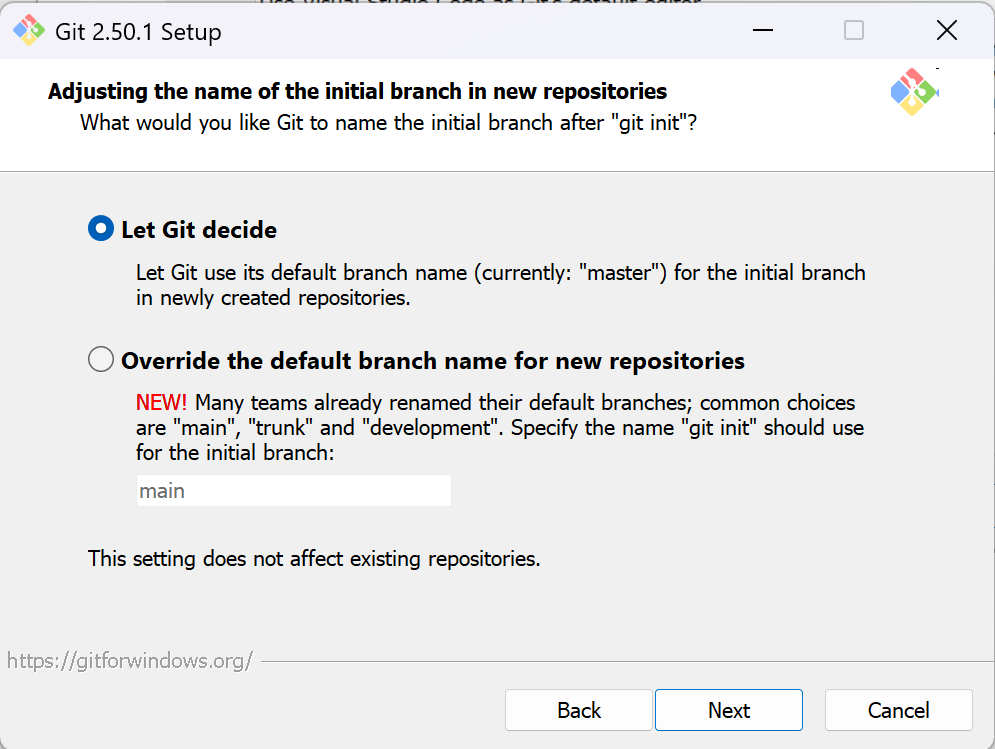
设置默认branch名,直接默认就可以:
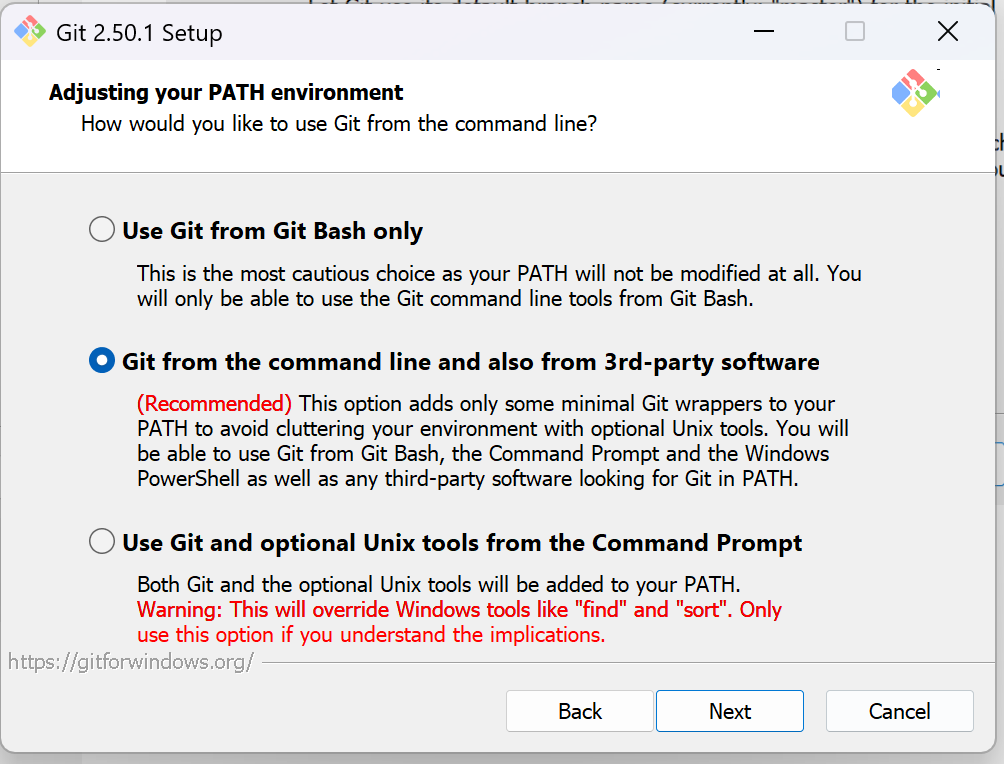
设置环境路径(选择默认的就得了):
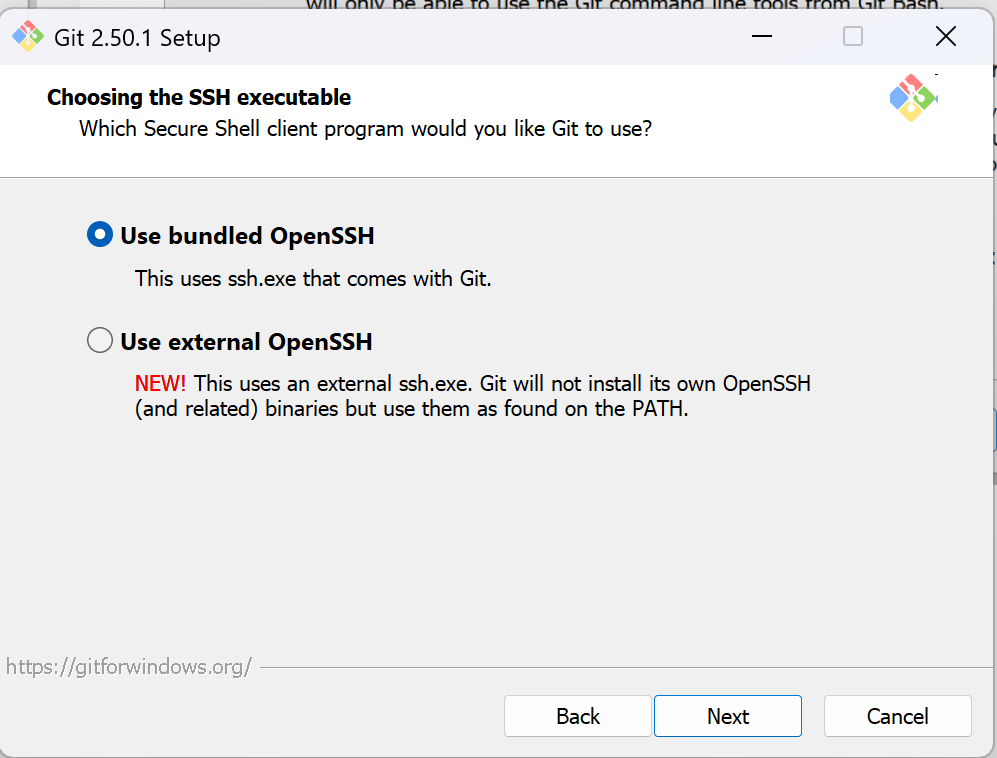
选择SSH执行文件,建议用默认选项就行:
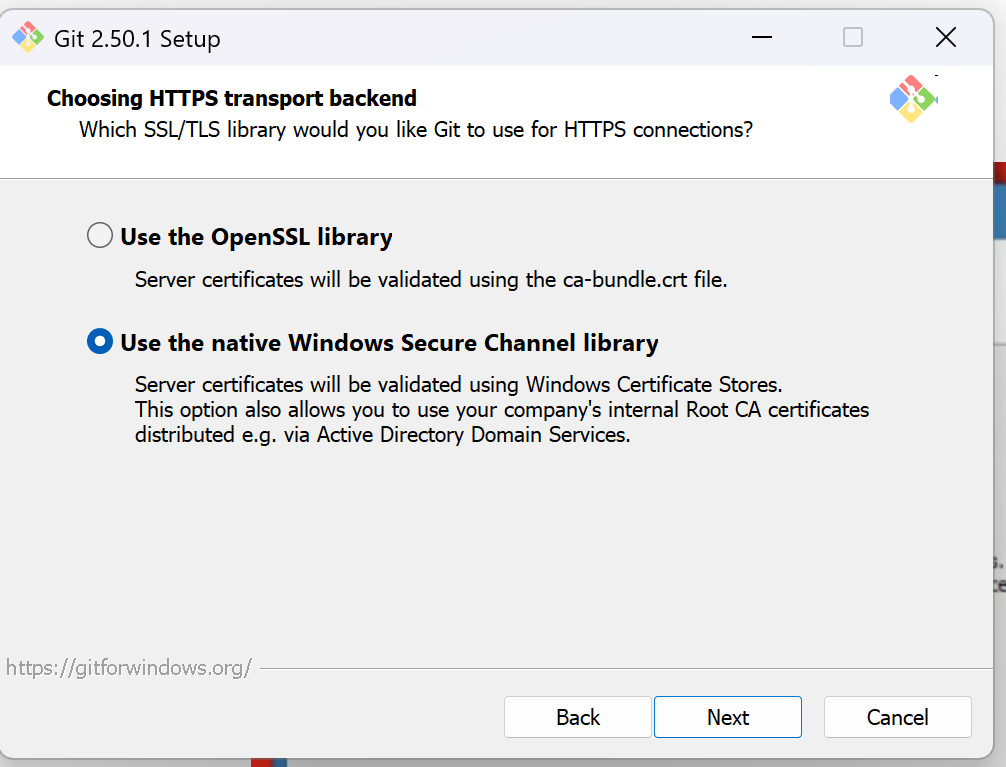
选择HTTPS传输后端:这个看你用Git的用途,如果你是用的公司Git服务器,有用内部CA证书的必要,就选“the native windows Secure Channel library”。
否则没有区别,选哪个都行,选默认项就行。
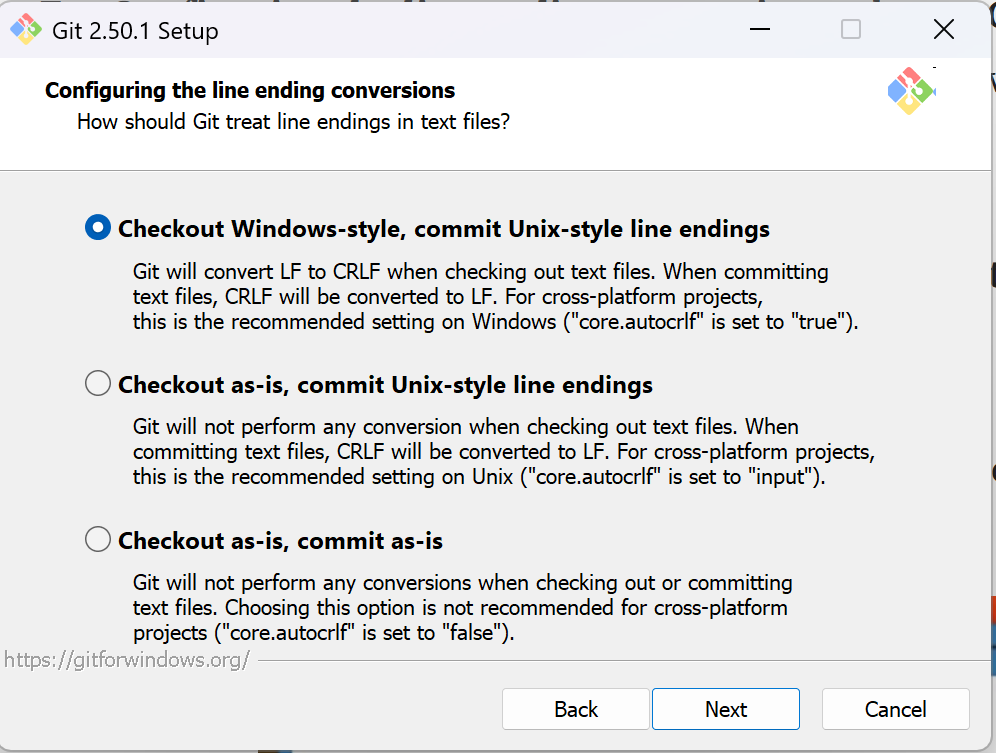
配置换行符转换设置:
……这事有点复杂,总之记住在Windows上直接安装默认的第一项就可以。
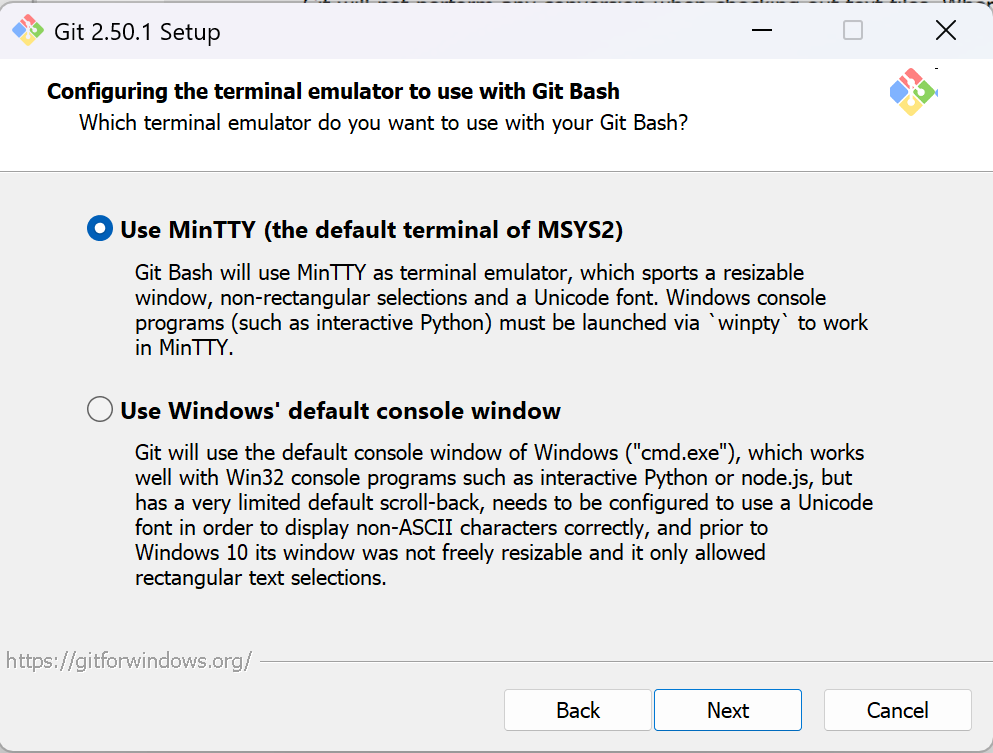
配置终端模拟器:选默认项即可
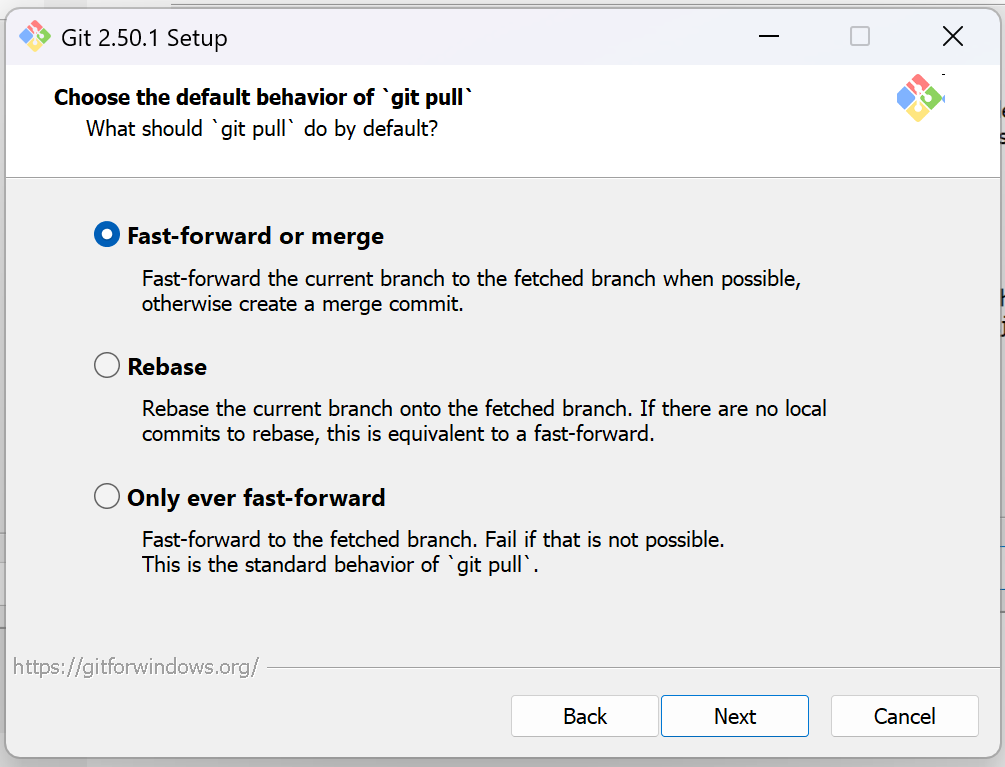
设置git pull的默认行为:总之也选默认项就行了
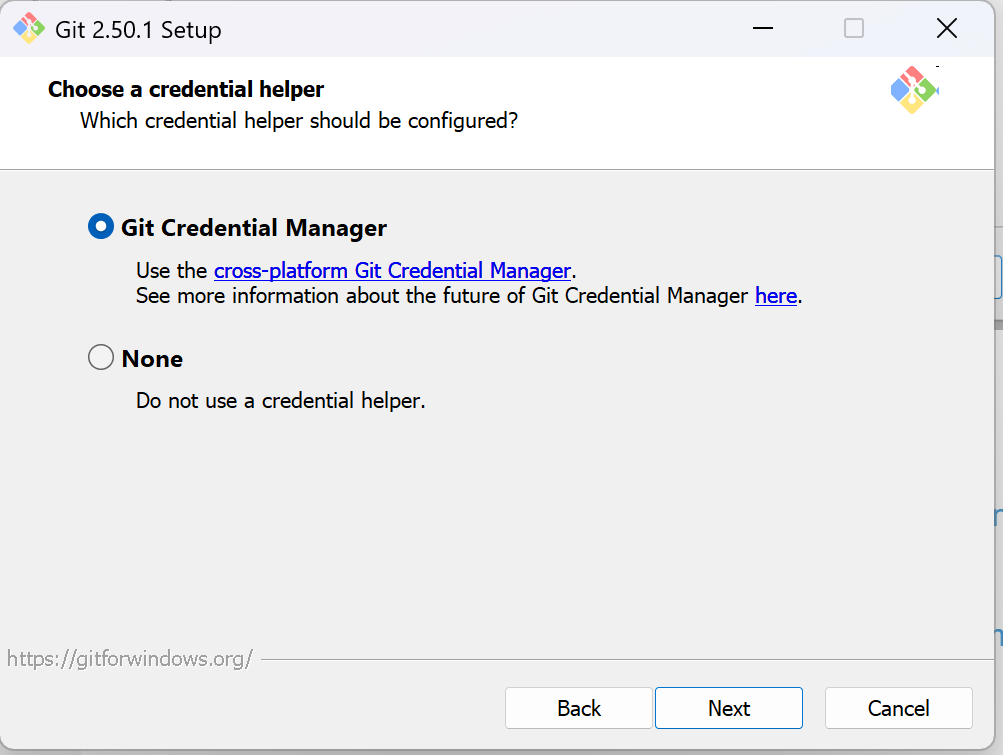
选择凭证管理工具:选默认项即可
设置其它选项:
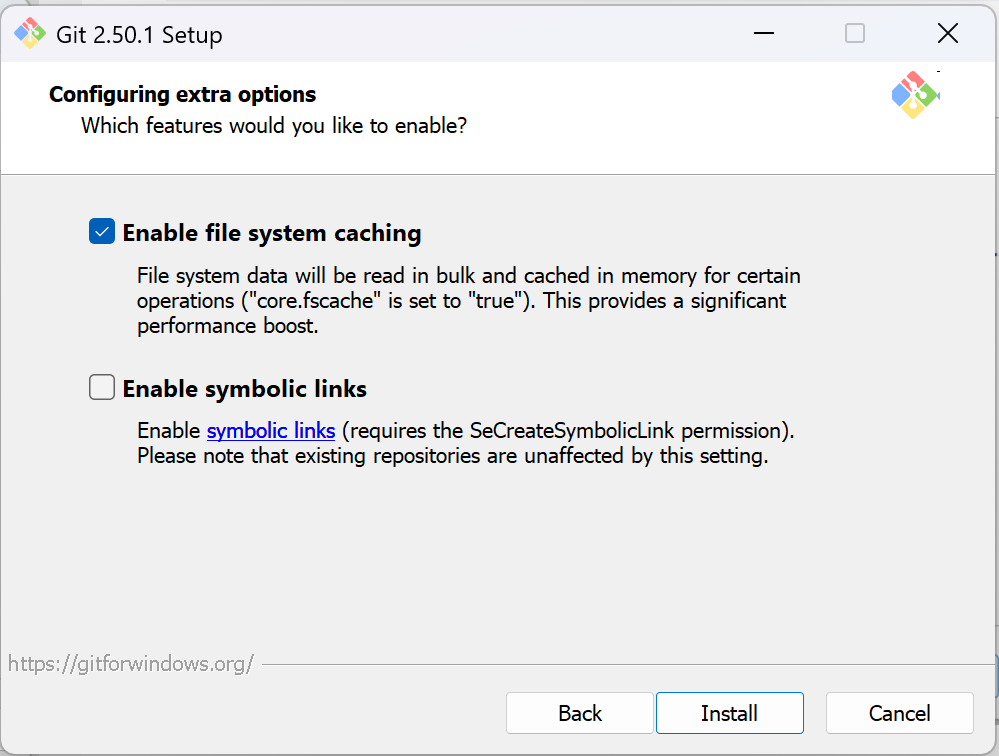
- 启用文件系统缓存:能提速,建议选择
- 启用符号链接:……这玩意也有点麻烦,建议不了解就别选了
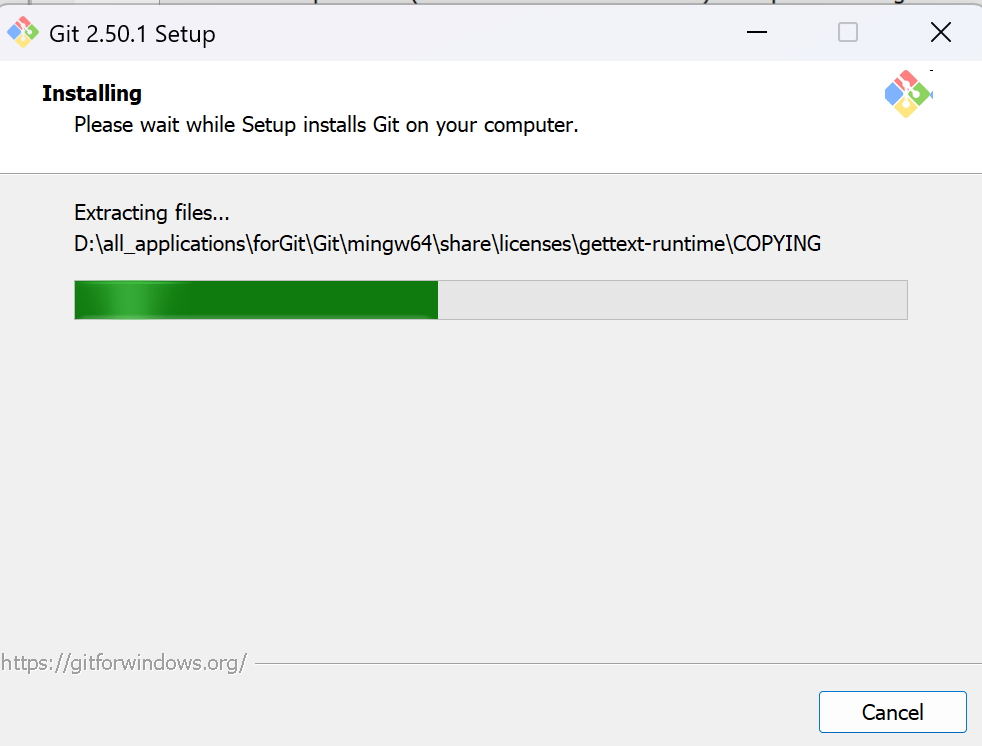
然后就可以美美等待安装:
安装完成后,需要先设置:
git config --global user.name "您的用户名"
git config --global user.email "您的邮箱"
然后就可以开始进行Git操作啦!
直接使用命令行的教程可参考:Git命令行入门_命令行运行git-优快云博客
在VSCode中使用的教程可参考:VSCode上的Git使用手记(持续更新ing…)_vscode staged changes-优快云博客
2. 本文撰写过程中参考的网络资料
- Can anyone tell me what this bottom option does? (Git Bash installation) : r/webdev
- Beginner git user deciding between Notepad++ or VS Code as text editor : r/git
- git - What’s the difference between OpenSSL and the native windows Secure Channel library - Stack Overflow
- Learn how to install and use git on Windows | by Shamli Singh | Medium
- Git安装全教程(Win11) - 知乎





 扫一扫
扫一扫


 被折叠的 条评论
为什么被折叠?
被折叠的 条评论
为什么被折叠?
 到【灌水乐园】发言





