


 本文介绍了Android界面布局中的LinearLayout、RelativeLayout和FrameLayout。LinearLayout按照垂直或水平方向排列控件,RelativeLayout通过相对定位实现复杂布局,而FrameLayout则简单地将控件置于左上角,可通过layout_gravity调整对齐。理解这些布局对于创建有条理的界面至关重要。
一、控件和布局的关系
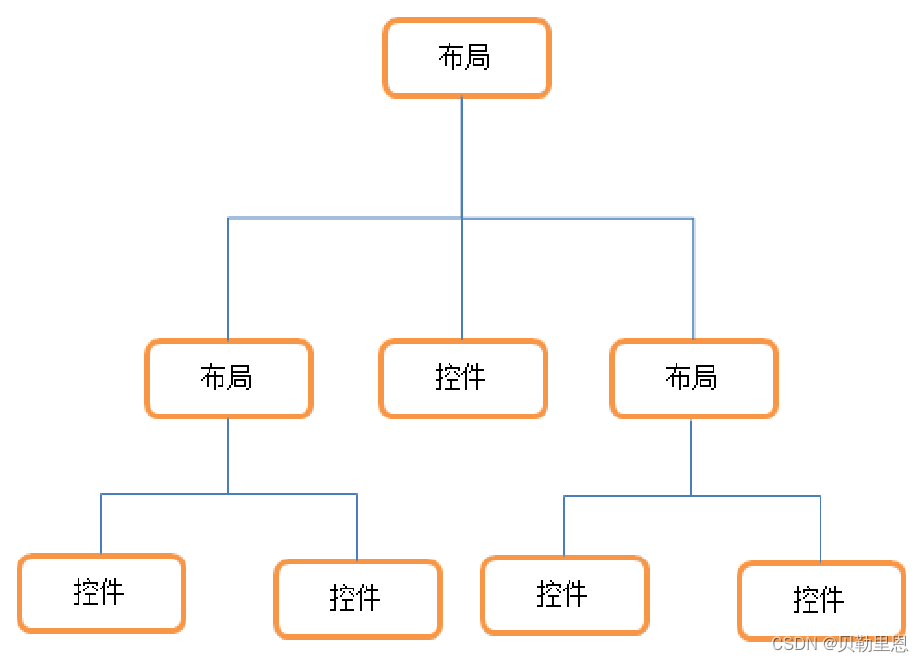
一个丰富的界面是由很多个控件组成的,那么我们如何才能让各个控件都有条不紊地摆放在界面上,而不是乱糟糟的呢?
这就需要借助布局来实现了。布局是一种可用于放置很多控件的容器,它可以按照一定的规律调整内部控件的位置,从而编写出精美的界面。
当然,布局的内部除了放置控件外,也可以放置布局,通过多层布局的嵌套,我们就能够完成一些比较复杂的界面实现。
二、布局视图
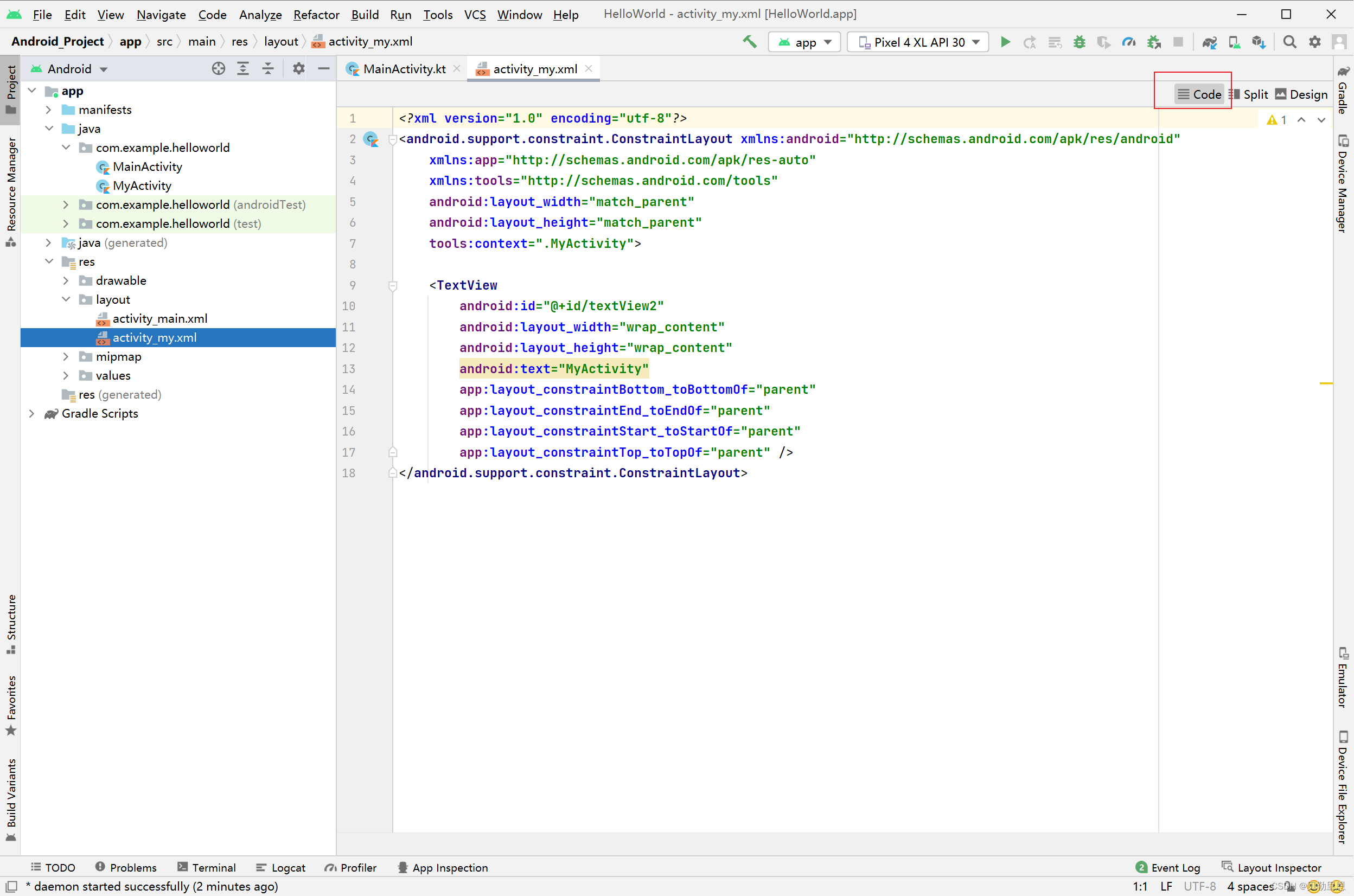
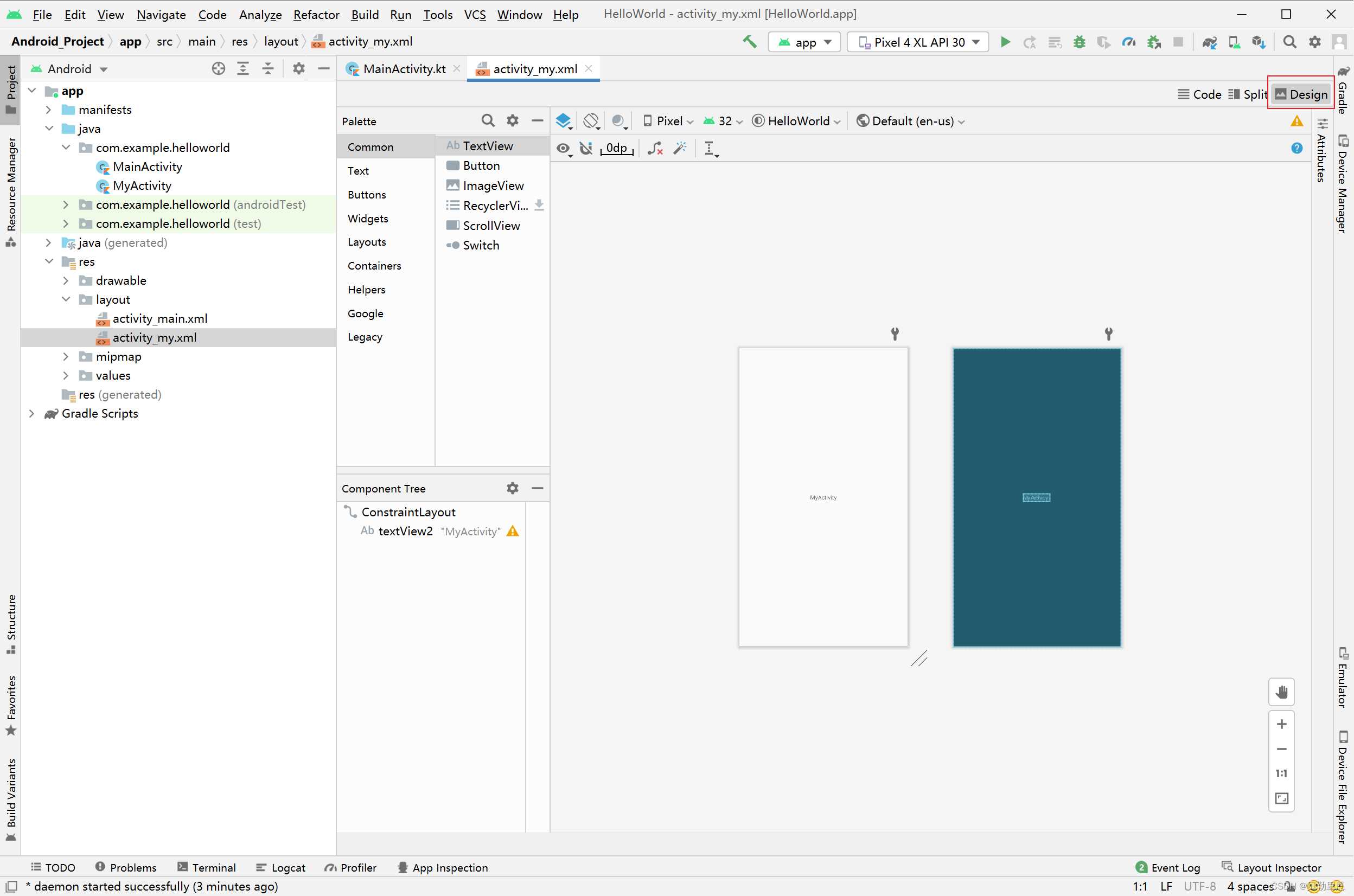
在Android Studio中,对界面进行布局,可以选择纯代码布局,也可以选择拖拽布局,可以通过右上侧按钮进行切换
三、线性布局(LinearLayout)
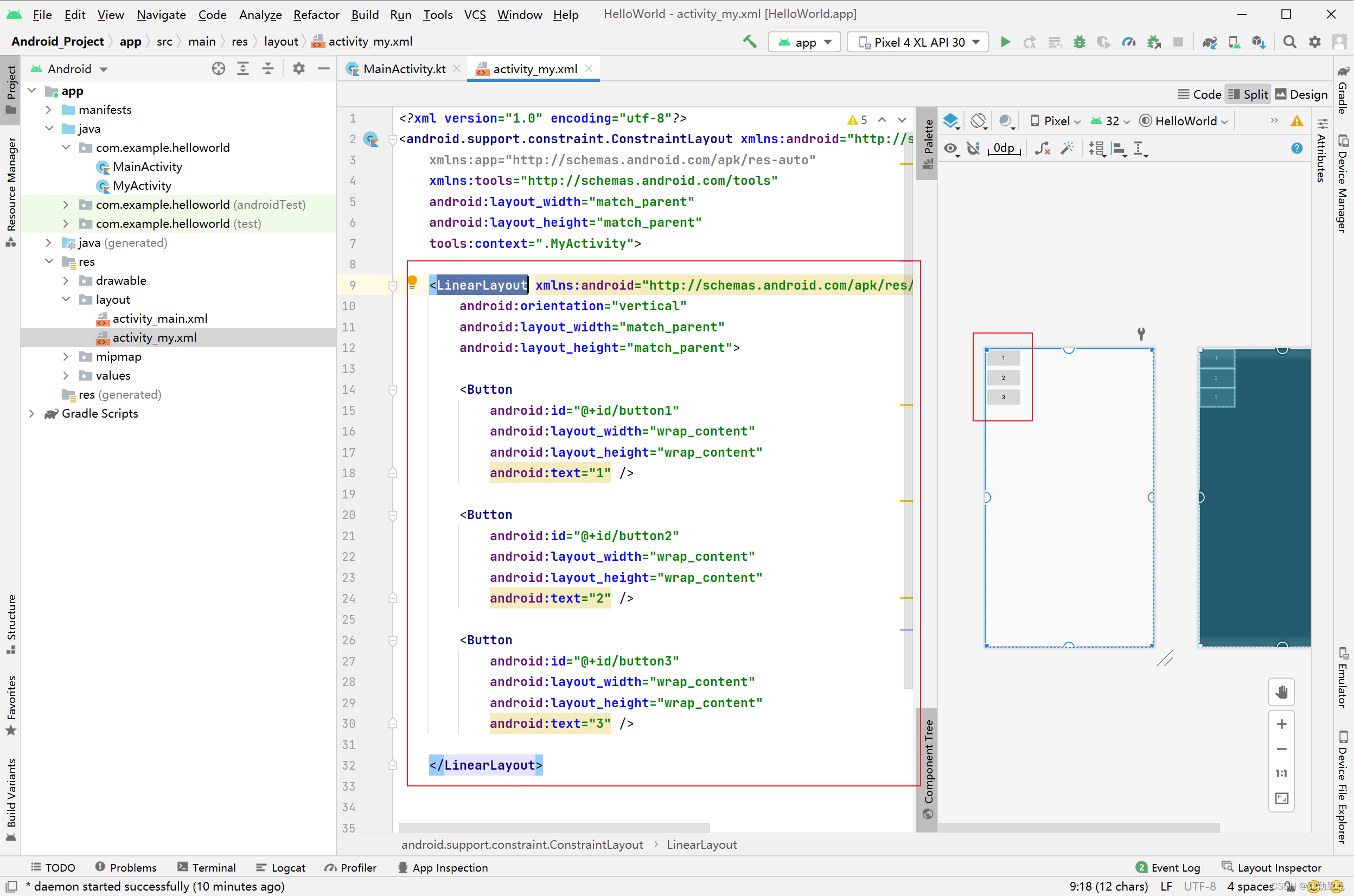
LinearLayout又称线性布局,这个布局会将它所包含的控件在线性方向上依此排列,可以选择水平(horizontal)还是垂直(vertical):
<LinearLayout xmlns:android="http://schemas.android.com/apk/res/android"
	android:orientation="vertical"
    android:layout_width="match_parent"
    android:layout_height="match_parent">

    <Button
    	android:id="@+id/button1"
        android:layout_width="wrap_content"
        android:layout_height="wrap_content"
        android:text="1" />

   <Button
        android:id="@+id/button2"
        android:layout_width="wrap_content"
        android:layout_height="wrap_content"
        android:text="2" />

   <Button
        android:id="@+id/button3"
        android:layout_width="wrap_content"
        android:layout_height="wrap_content"
        android:text="3" />

</LinearLayout>
- layout_width和layout_height是必须的;
- layout_gravity可以用来对齐
android:layout_gravity = "top"
android:layout_gravity = "center_vertical"
android:layout_gravity = "buttom"
四、相对布局(RelativeLayout)
RelativeLayout又称作相对布局,它可以通过相对定位的方式让控件出现在布局的任何位置;
<?xml version="1.0" encoding="utf-8"?>
<android.support.constraint.ConstraintLayout xmlns:android="http://schemas.android.com/apk/res/android"
    xmlns:app="http://schemas.android.com/apk/res-auto"
    xmlns:tools="http://schemas.android.com/tools"
    android:layout_width="match_parent"
    android:layout_height="match_parent"
    tools:context=".MyActivity">

    <RelativeLayout xmlns:android="http://schemas.android.com/apk/res/android"
        android:layout_width="match_parent"
        android:layout_height="match_parent">

        <Button
            android:id="@+id/button1"
            android:layout_width="wrap_content"
            android:layout_height="wrap_content"
            android:layout_alignParentLeft="true"
            android:layout_alignParentTop="true"
            android:text="1" />

        <Button
            android:id="@+id/button2"
            android:layout_width="wrap_content"
            android:layout_height="wrap_content"
            android:layout_alignParentRight="true"
            android:layout_alignParentTop="true"
            android:text="2" />

        <Button
            android:id="@+id/button3"
            android:layout_width="wrap_content"
            android:layout_height="wrap_content"
            android:layout_centerInParent="true"
            android:text="3" />

        <Button
            android:id="@+id/button4"
            android:layout_width="wrap_content"
            android:layout_height="wrap_content"
            android:layout_alignParentLeft="true"
            android:layout_alignParentBottom="true"
            android:text="4" />

        <Button
            android:id="@+id/button5"
            android:layout_width="wrap_content"
            android:layout_height="wrap_content"
            android:layout_alignParentRight="true"
            android:layout_alignParentBottom="true"
            android:text="5" />
    </RelativeLayout>
</android.support.constraint.ConstraintLayout>
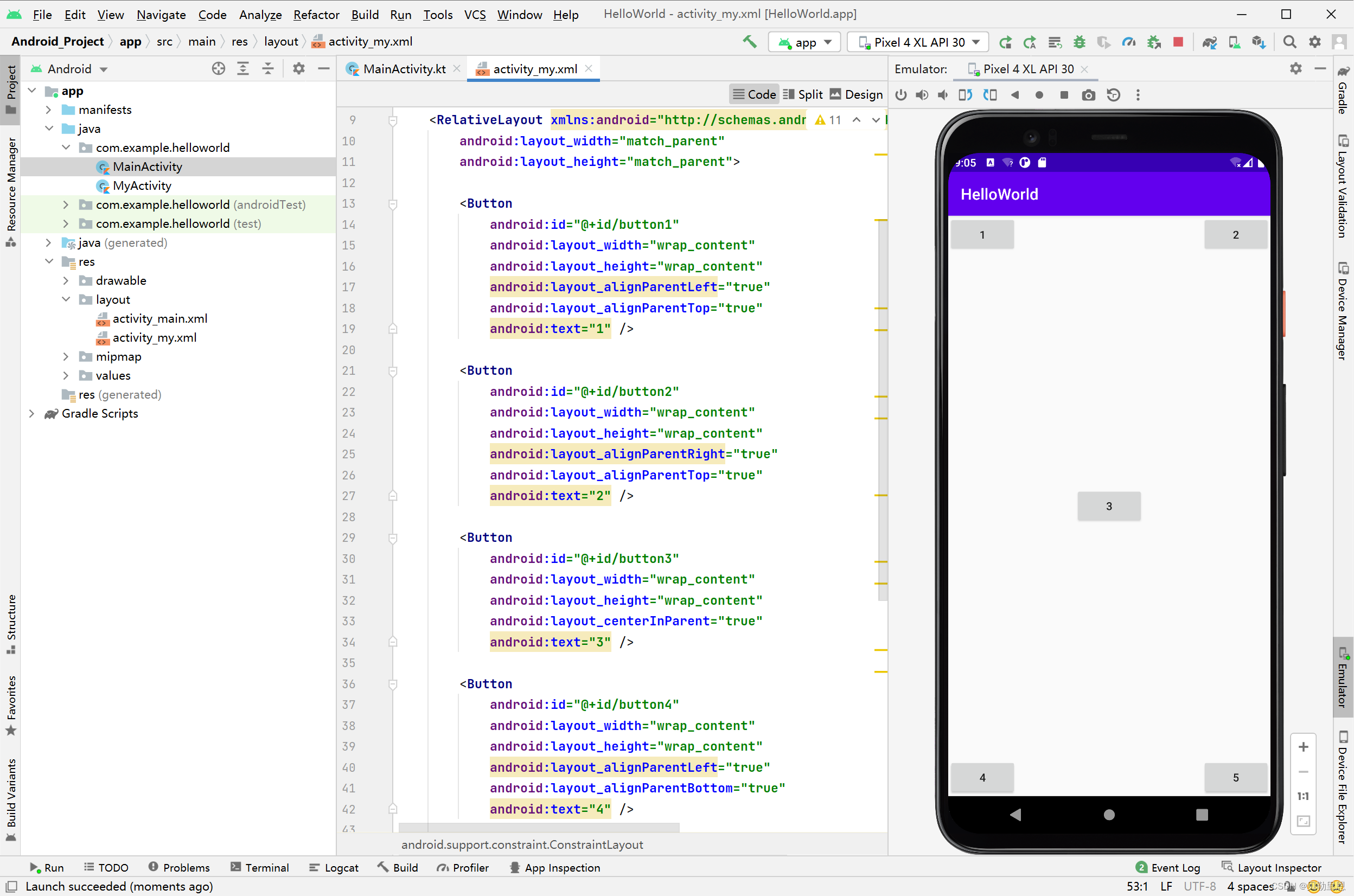
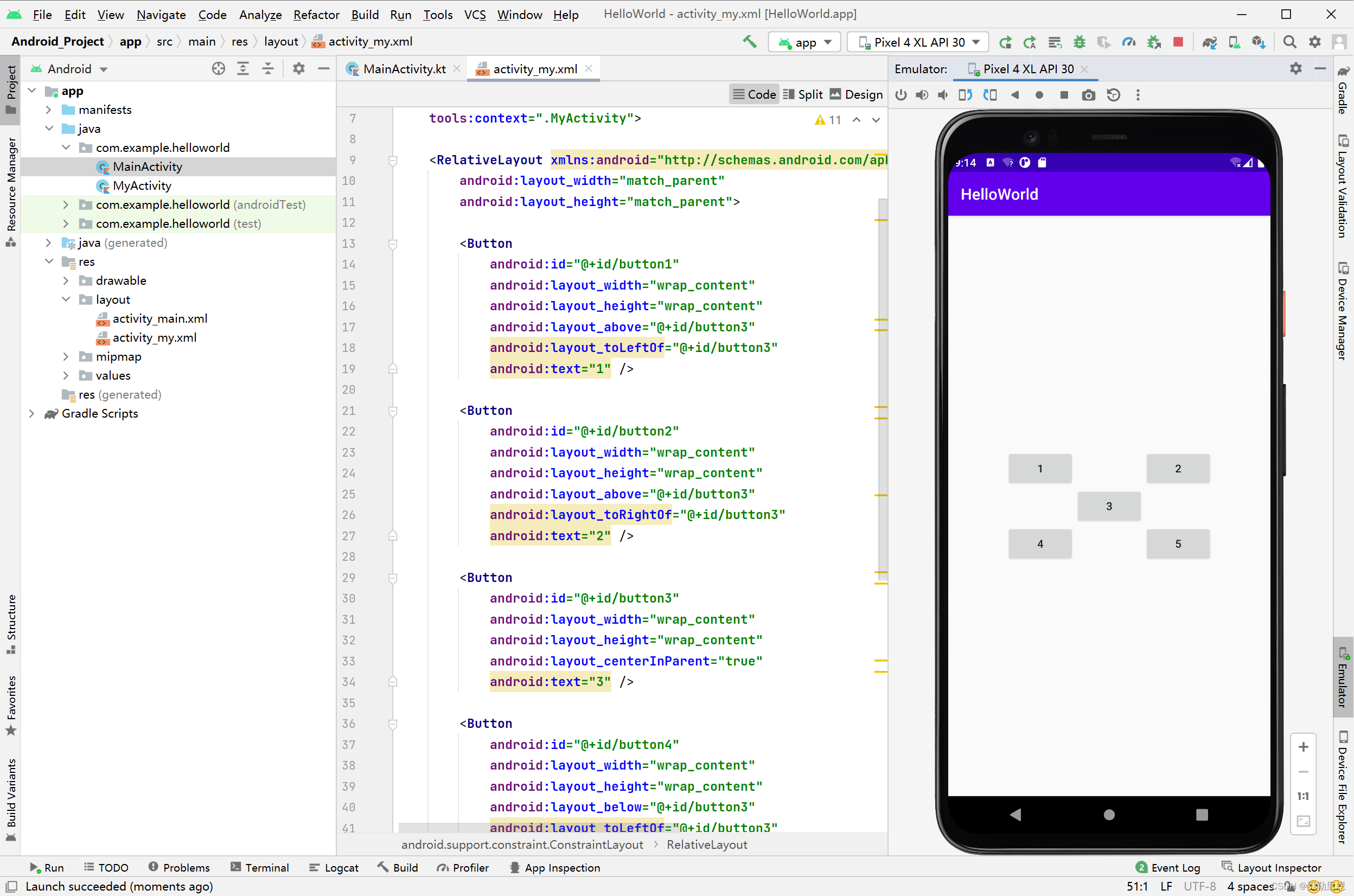
除了相对于父布局定位之外,RelativeLayout还允许相对于控件进行定位:
<?xml version="1.0" encoding="utf-8"?>
<android.support.constraint.ConstraintLayout xmlns:android="http://schemas.android.com/apk/res/android"
    xmlns:app="http://schemas.android.com/apk/res-auto"
    xmlns:tools="http://schemas.android.com/tools"
    android:layout_width="match_parent"
    android:layout_height="match_parent"
    tools:context=".MyActivity">

    <RelativeLayout xmlns:android="http://schemas.android.com/apk/res/android"
        android:layout_width="match_parent"
        android:layout_height="match_parent">

        <Button
            android:id="@+id/button1"
            android:layout_width="wrap_content"
            android:layout_height="wrap_content"
            android:layout_above="@+id/button3"
            android:layout_toLeftOf="@+id/button3"
            android:text="1" />

        <Button
            android:id="@+id/button2"
            android:layout_width="wrap_content"
            android:layout_height="wrap_content"
            android:layout_above="@+id/button3"
            android:layout_toRightOf="@+id/button3"
            android:text="2" />

        <Button
            android:id="@+id/button3"
            android:layout_width="wrap_content"
            android:layout_height="wrap_content"
            android:layout_centerInParent="true"
            android:text="3" />

        <Button
            android:id="@+id/button4"
            android:layout_width="wrap_content"
            android:layout_height="wrap_content"
            android:layout_below="@+id/button3"
            android:layout_toLeftOf="@+id/button3"
            android:text="4" />

        <Button
            android:id="@+id/button5"
            android:layout_width="wrap_content"
            android:layout_height="wrap_content"
            android:layout_below="@+id/button3"
            android:layout_toRightOf="@+id/button3"
            android:text="5" />

    </RelativeLayout>
</android.support.constraint.ConstraintLayout>
五、帧布局(FrameLayout)
FrameLayout又称作帧布局,这种布局没有丰富的定位方式,所有的控件都会默认摆放在布局的左上角;
<?xml version="1.0" encoding="utf-8"?>
<android.support.constraint.ConstraintLayout xmlns:android="http://schemas.android.com/apk/res/android"
    xmlns:app="http://schemas.android.com/apk/res-auto"
    xmlns:tools="http://schemas.android.com/tools"
    android:layout_width="match_parent"
    android:layout_height="match_parent"
    tools:context=".MyActivity">

    <FrameLayout xmlns:android="http://schemas.android.com/apk/res/android"
        android:layout_width="match_parent"
        android:layout_height="match_parent">

        <TextView
            android:layout_width="wrap_content"
            android:layout_height="wrap_content"
            android:text="HelloWorld" />

        <Button
            android:id="@+id/button1"
            android:layout_width="wrap_content"
            android:layout_height="wrap_content"
            android:layout_above="@+id/button3"
            android:layout_toLeftOf="@+id/button3"
            android:text="1" />

    </FrameLayout>
</android.support.constraint.ConstraintLayout>
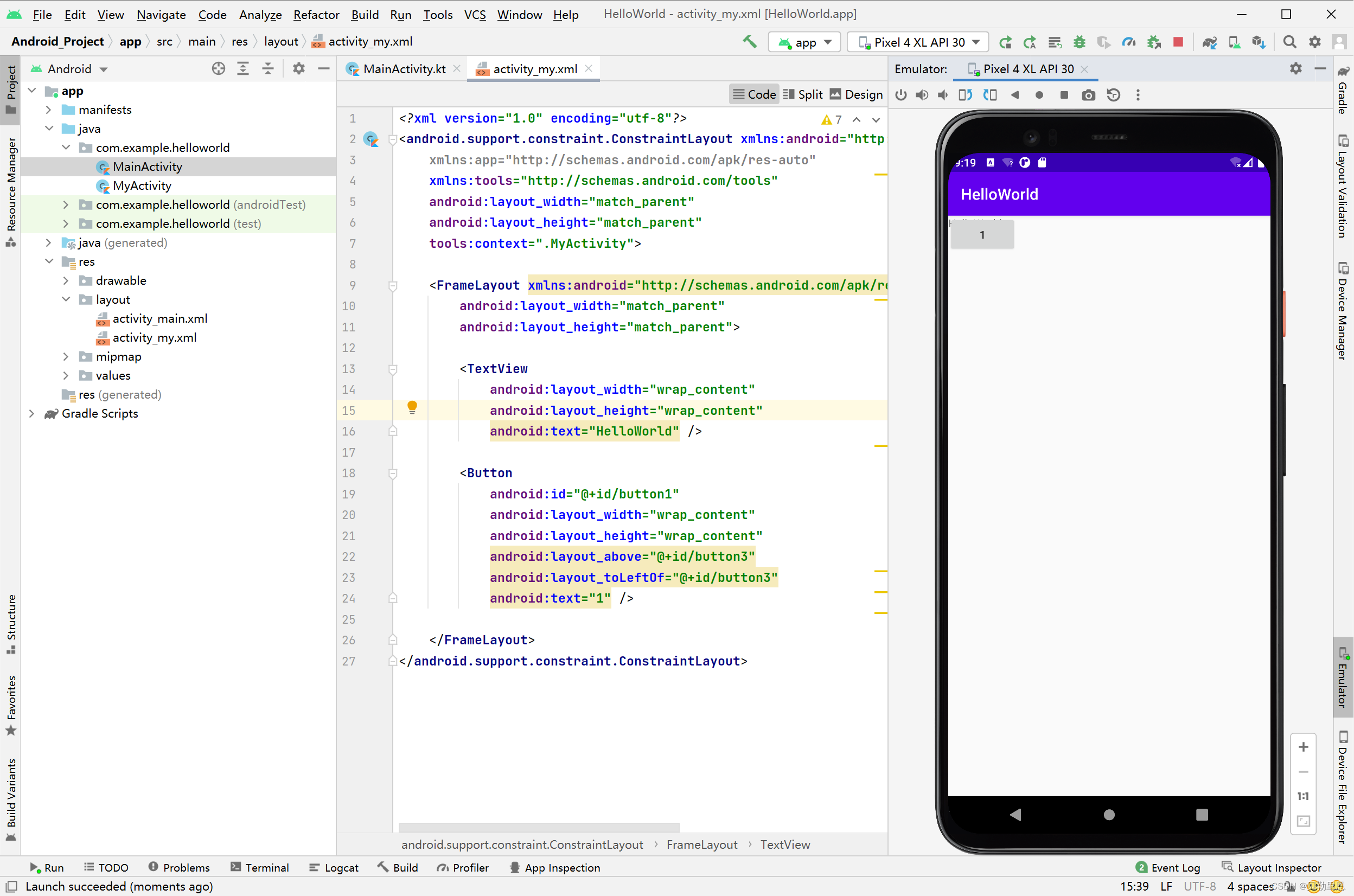
除了默认效果之外,还可以使用layout_gravity属性来指定控件在布局中的对齐方式,这和LinearLayout中的用法是相似的。





 扫一扫
扫一扫


 1077
1077

 被折叠的 条评论
为什么被折叠?
被折叠的 条评论
为什么被折叠?
 到【灌水乐园】发言





