





目录
2.1.1 find_element() 和 find_elements()的区别
7、WebElement对象的find_element或者find_elements
9.6 获取页面id current_window_handle
前言:
这是博主在学习记录笔记中拷贝的Python写Selenium部分,所以比较适合大家复习,由于比较简单没有特别详细的介绍
1、环境准备
在控制台输入
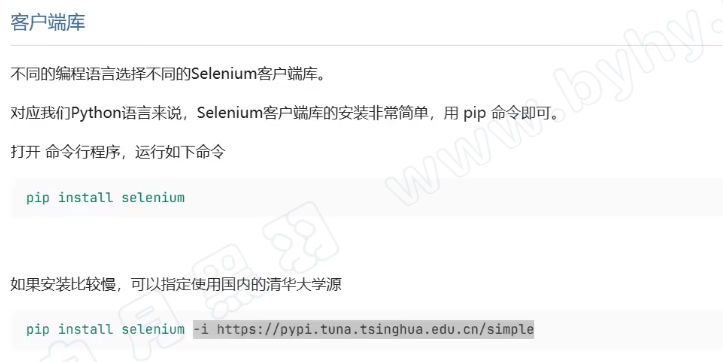
下载Chrom浏览器驱动
chromedriver.storage.googleapis.com/index.html
2、浏览器驱动自动下载的地址
博主的是:C:\Users\用户名\.cache\selenium
3、简单代码演示
from selenium import webdriver

wd = webdriver.Edge() # 自动下载浏览器驱动

wd.get("https://www.baidu.com/index.php?tn=75144485_1_dg&ch=9")

input("敲回车退出")
4、如果自动下载浏览器驱动缓慢可以更改下载地址
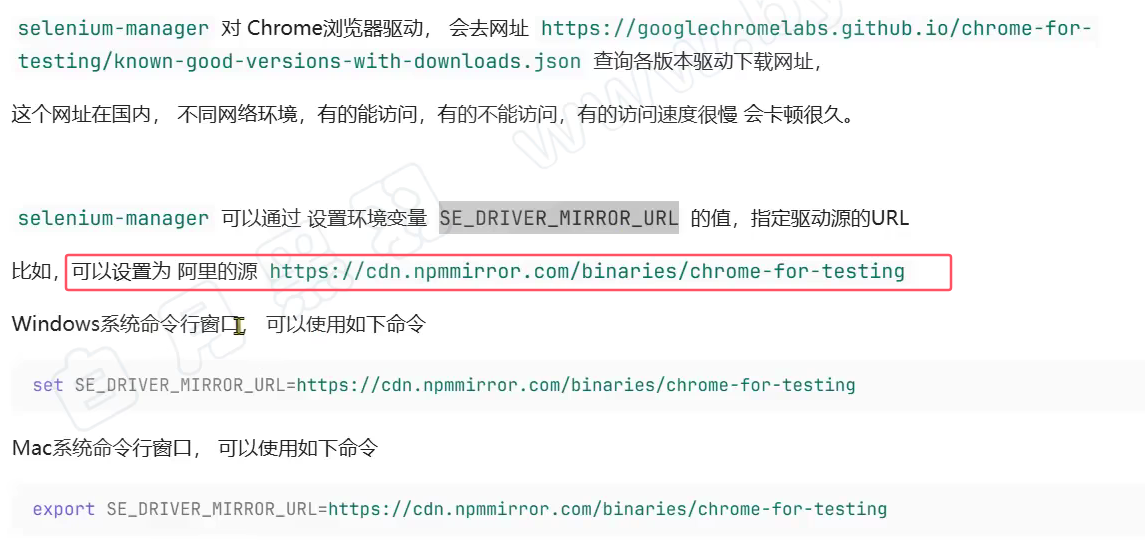
但是这个只对当时的cmd窗口有效,我们可以手动在代码中设置镜像路径:
import os

# 注意要在导包之前, 【手动控制镜像】
os.environ['SE_DRIVER_MIRROR_URL'] = \
    'https://cdn.npmmirror.com/binaries/chrome-for-testing'

from selenium import webdriver

wd = webdriver.Chrome() # 自动下载浏览器驱动

wd.get("https://www.baidu.com/index.php?tn=75144485_1_dg&ch=9")

input("敲回车退出")如果仍然有问题考虑手动下载驱动:
💡
Chrome 浏览器(ChromeDriver)
官方下载地址 http://chromedriver.storage.googleapis.com/index.html
版本匹配:需与 Chrome 浏览器版本对应,可通过浏览器地址栏输入 chrome://version/ 查看版本号。
注意事项
• 若下载新版无对应驱动,推荐访问 Chrome for Testing 镜像站:https://googlechromelabs.github.io/chrome-for-testing/。
Microsoft Edge 浏览器(EdgeDriver)
官方下载地址 https://developer.microsoft.com/en-us/microsoft-edge/tools/webdriver/
• 严格版本匹配:驱动版本需与 Edge 浏览器版本完全一致(通过 edge://settings/help 查看版本)。
Firefox 浏览器(GeckoDriver)
官方下载地址 https://github.com/mozilla/geckodriver/releases
• 选择与 Firefox 版本兼容的驱动(通常最新版即可)。
下载好的驱动放到Path里面,这样之前的代码就不需要改动了,wd = webdriver.Chrome() # 自动下载浏览器驱动,会去Path目录下找是否有相应的驱动
查找Path路径:
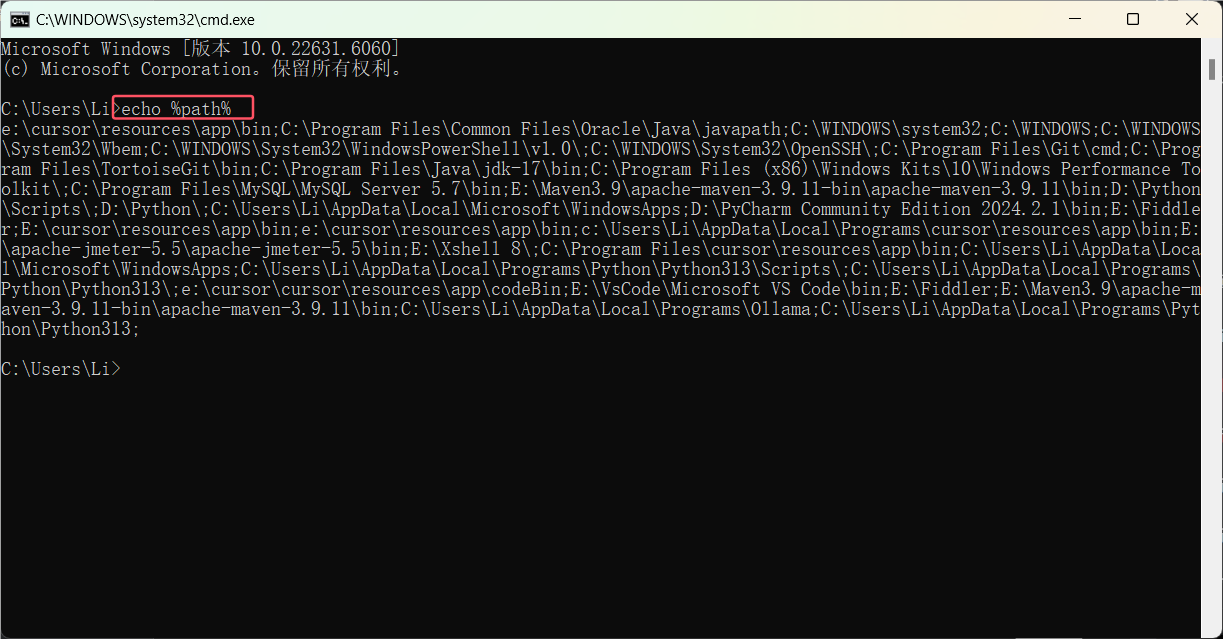
手动配置路径:
# 自动下载浏览器驱动
from selenium import webdriver
from selenium.webdriver.chrome.service import Service # 新加的
wd = webdriver.Chrome(service=Service(r"C:\Users\Li\.cache\selenium\chromedriver\win64\141.0.7390.122/chromedriver.exe"))


wd.get("https://www.baidu.com/index.php?tn=75144485_1_dg&ch=9")

input("敲回车退出")
5、如何在cmd运行Selenium程序
如果是第一次运行Selenium程序需要下载:
在cmd中输入
pip install selenium验证是否安装成功
pip list | findstr selenium在.py文件夹下,运行 文件名.py

但是有可能cmd中运行的程序有一些浏览器驱动的日志,会妨碍我们观察自己的日志,我们可以把这部分代码过滤掉
#加上参数,禁止chromedriver 日志写屏
options = webdriver.ChromeOptions()
options.add_experimental_option('excludeSwitches', ['enable-logging'])
6、选择器基础操作
使用By需要导入包:
from selenium.webdriver.common.by import By2.1 id选择器
通过id选择,唯一、简洁、稳定性高,最推荐使用
#找到输入框
element = driver.find_element(By.ID, "kw")
#导包
from selenium import webdriver
from selenium.webdriver.common.by import By
#加上参数,禁止chromedriver 日志写屏
options = webdriver.ChromeOptions()
options.add_experimental_option('excludeSwitches', ['enable-logging'])
# 下载驱动
driver = webdriver.Chrome()
print("成功进入")
#访问网页
driver.get("https://www.byhy.net/cdn2/files/selenium/stock1.html")
#找到输入框
element = driver.find_element(By.ID, "kw")
#输入\n 会自动回车
element.send_keys("四川\n")
input("回车退出程序")
#关闭浏览器
driver.quit()2.1.1 find_element() 和 find_elements()的区别
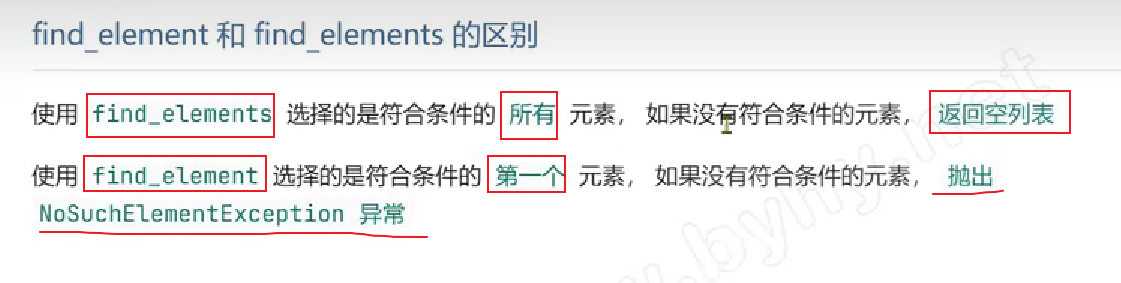
2.2 class name选择器
用与class类型的定位,class在HTML中不是唯一的,不建议使用
#                                  CLASS_NAME  选择器
elements = driver.find_elements(By.CLASS_NAME, "name")
#导包
from selenium import webdriver
from selenium.webdriver.common.by import By
#加上参数,禁止chromedriver 日志写屏
options = webdriver.ChromeOptions()
options.add_experimental_option('excludeSwitches', ['enable-logging'])
# 下载驱动
driver = webdriver.Chrome()
print("成功进入")
#访问网页
driver.get("https://www.byhy.net/cdn2/files/selenium/stock1.html")
# CLASS_NAME 选择器
elements = driver.find_elements(By.CLASS_NAME, "name")
for e in elements:
print(e.text)
input("回车退出程序")
#关闭浏览器
driver.quit()结果:
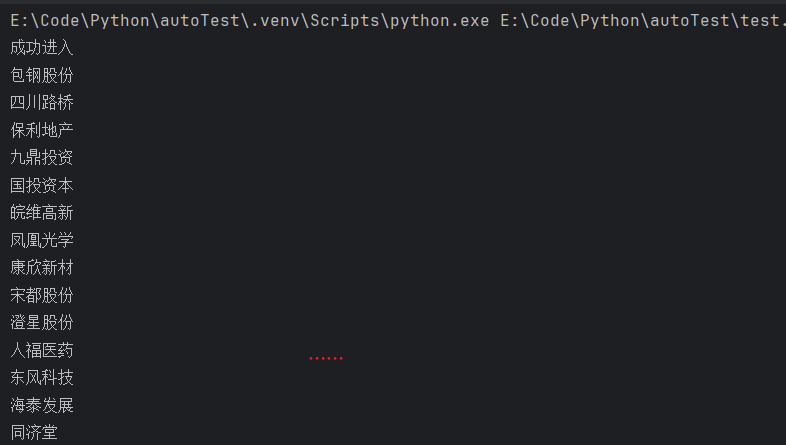
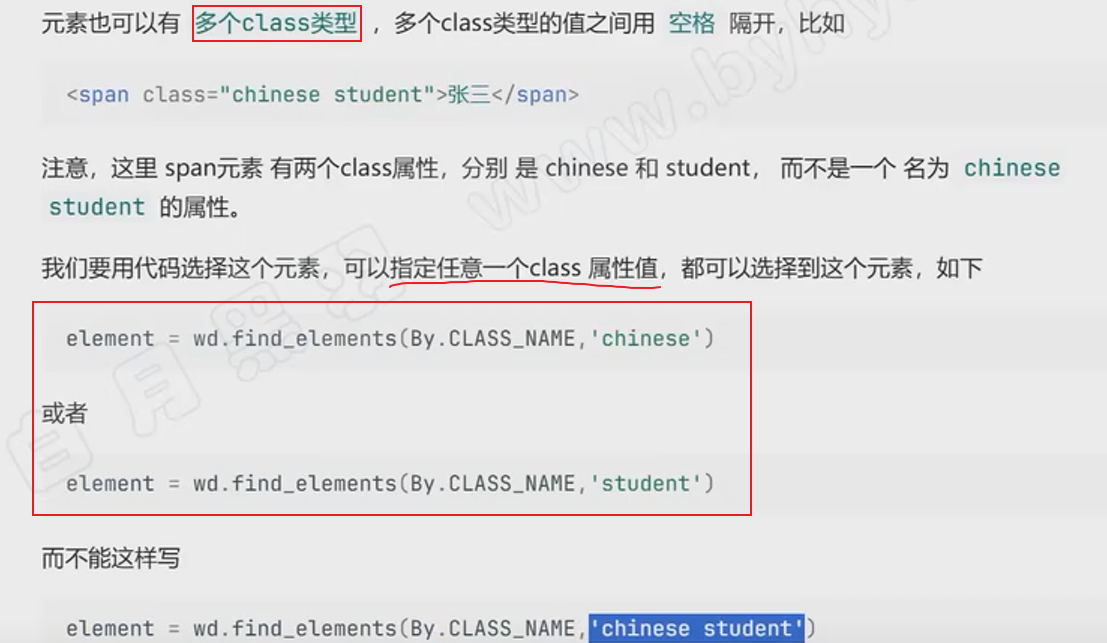
当元素有多个class类型:
2.3 tag name 选择器
用标签定位,例如:<span> <dev>等,需要保证只使用了一个,不建议使用
#                                  TAG_NAME 选择器
elements = driver.find_elements(By.TAG_NAME, "button")
#导包
from selenium import webdriver
from selenium.webdriver.common.by import By
#加上参数,禁止chromedriver 日志写屏
options = webdriver.ChromeOptions()
options.add_experimental_option('excludeSwitches', ['enable-logging'])
# 下载驱动
driver = webdriver.Chrome()
print("成功进入")
#访问网页
driver.get("https://www.byhy.net/cdn2/files/selenium/stock1.html")
# TAG_NAME 选择器
elements = driver.find_elements(By.TAG_NAME, "button")
for e in elements:
print(e.text)
input("回车退出程序")
#关闭浏览器
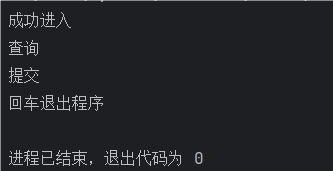
driver.quit()结果:
2.4 name 选择器
由于在HTML中name可以重复名,所以我们使用的使用一定要确保name是唯一的!
driver.get("https://dict.youdao.com/result?word=attribute&lang=en")
element = driver.find_element(By.NAME, "keywords").get_attribute("content")
print(element)
import time
#导包
from selenium import webdriver
from selenium.webdriver.common.by import By
from selenium.webdriver.support.ui import WebDriverWait
from selenium.webdriver.support import expected_conditions as EC
options = webdriver.ChromeOptions()
options.add_experimental_option('excludeSwitches', ['enable-logging'])
#下载驱动
driver = webdriver.Chrome()
# 隐式等待
driver.implicitly_wait(10)
driver.get("https://dict.youdao.com/result?word=attribute&lang=en")
element = driver.find_element(By.NAME, "keywords").get_attribute("content")
print(element)
input("回车退出")结果:

2.5 css Selector 选择器
这个选择器是有一些语法的,但是一般通过浏览器复制就可以了,所有我懒不想写了:
在控制台中选中元素,然后右击选择“复制selector”就行了
from selenium import webdriver
from selenium.webdriver.common.action_chains import ActionChains
from selenium.webdriver.common.by import By
from selenium.webdriver.support.ui import WebDriverWait
from selenium.webdriver.support import expected_conditions as EC
import time

driver = webdriver.Chrome()
driver.implicitly_wait(5)

driver.get("https://www.baidu.com/")

es = driver.find_elements(By.CSS_SELECTOR, "#s-hotsearch-wrapper")

for e in es:
    print(e.text)

input("回车退出")
2.6 Xpath 选择器
这个选择器是有一些语法的,但是一般通过浏览器复制就可以了,所有我懒不想写了:
在控制台中选中元素,然后右击选择“复制Xpath”就行了
from selenium import webdriver
from selenium.webdriver.common.action_chains import ActionChains
from selenium.webdriver.common.by import By
from selenium.webdriver.support.ui import WebDriverWait
from selenium.webdriver.support import expected_conditions as EC
import time

driver = webdriver.Chrome()
driver.implicitly_wait(5)

driver.get("https://www.baidu.com/")

es = driver.find_elements(By.XPATH, '//*[@id="s-hotsearch-wrapper"]')

for e in es:
    print(e.text)

input("回车退出")
7、WebElement对象的find_element或者find_elements
💡
webdriver.find_element() 返回的对象 element 也可以使用find_element()/ find_elements(),
只是element 的区域是你选择的标签内部的区域 例如:
<script>
<div></div>
<div></div>
<div></div>
<span></span>
</script>
这里面的元素标签就是element 涵盖的区域,而 webdriver 读取到的是全局的
element = driver.find_element(By.CLASS_NAME, "search-result")
# 在 search-result 下的所有元素 都可以通过 find_elements 或者 find_element 访问
es = element.find_elements(By.TAG_NAME, "div")
#导包
from selenium import webdriver
from selenium.webdriver.common.by import By
#加上参数,禁止chromedriver 日志写屏
options = webdriver.ChromeOptions()
options.add_experimental_option('excludeSwitches', ['enable-logging'])
# 下载驱动
driver = webdriver.Chrome()
print("成功进入")
#访问网页
driver.get("https://www.byhy.net/cdn2/files/selenium/stock1.html")
element = driver.find_element(By.CLASS_NAME, "search-result")
# 在 search-result 下的所有元素 都可以通过 find_elements 或者 find_element 访问
es = element.find_elements(By.TAG_NAME, "div")
for e in es:
print(e.text)
input("回车退出程序")
#关闭浏览器
driver.quit()
如果要读取全局的文本:
elements = driver.find_elements(By.TAG_NAME, "html")

for e in elements:
    print(e.text)
8、延时
8.1 强制延时
import time
time.sleep(3)
8.2 隐式等待
在驱动下载后就可以加上,功能是在每一次find_element 或者 find_elements 的时候,每隔 半秒 查找一次元素。直到超出你设定的时间,单位:秒
# 下载驱动
driver = webdriver.Chrome()
#隐式等待 做用于全局
driver.implicitly_wait(10)
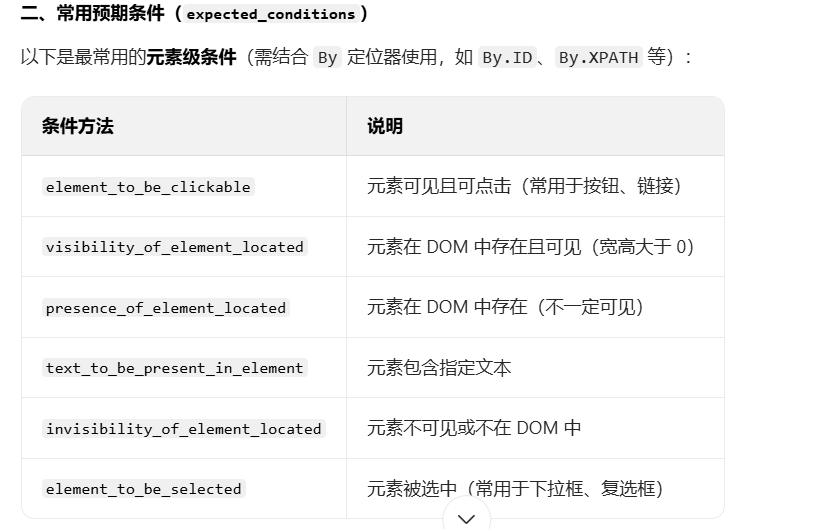
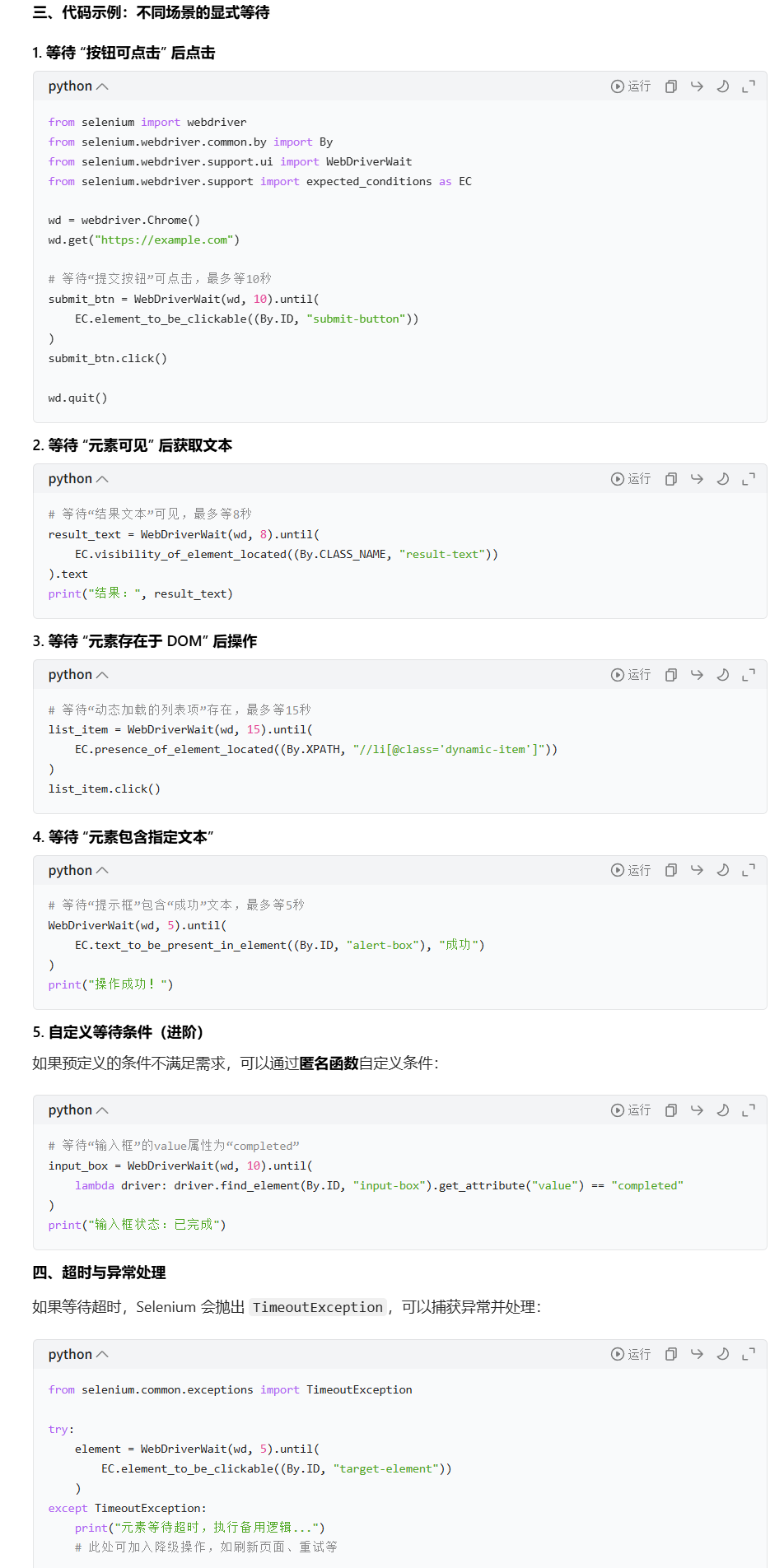
8.3 显示等待
只作用与一个元素,定制化高
关键代码:
from selenium.webdriver.support.ui import WebDriverWait
from selenium.webdriver.support import expected_conditions as EC

# 显示等待
text = WebDriverWait(driver, 10).until(
    EC.visibility_of_element_located((By.ID, "1")) #有两层()
)

# 输出文本
print(text.text)
#导包
from selenium import webdriver
from selenium.webdriver.common.by import By
from selenium.webdriver.support.ui import WebDriverWait
from selenium.webdriver.support import expected_conditions as EC

#加上参数,禁止chromedriver 日志写屏
options = webdriver.ChromeOptions()
options.add_experimental_option('excludeSwitches', ['enable-logging'])
# 下载驱动
driver = webdriver.Chrome()
#隐式等待 做用于全局
driver.implicitly_wait(10)


print("成功进入")

#访问网页
driver.get("https://www.byhy.net/cdn2/files/selenium/stock1.html")

driver.find_element(By.ID, "kw").send_keys("四川\n")
# 显示等待
text = WebDriverWait(driver, 10).until(
    EC.visibility_of_element_located((By.ID, "1")) #有两层()
)

# 输出文本
print(text.text)

input("回车退出程序")
#关闭浏览器
driver.quit()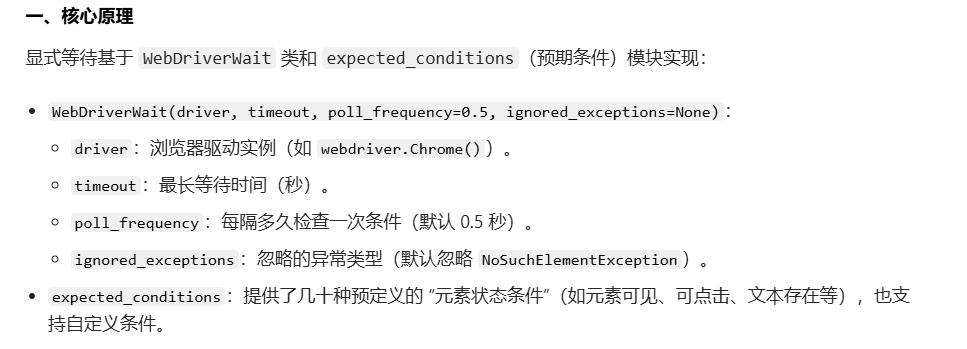
9、常用的操作
9.1点击click()
driver.find_element(By.ID, "go").click()9.2 输入文本send_keys()
driver.find_element(By.ID, "kw").send_keys("四川")9.3 获取文本内容text
element = driver.find_element(By.ID, "1")

print(element.text)
9.4 获取元素等信息get_attribute()
💡
在get_attribute()方法中输入不同的字符串有四种效果:
- 输入标签属性名,可以获取到该属性的值
- 输入outerHTML,可以获取选中区域的所有HTML内容
- 输入innerHTML,可以获取选中元素内部的HTML内容
- 输入value,可以获取到输入框中,自己输入的内容
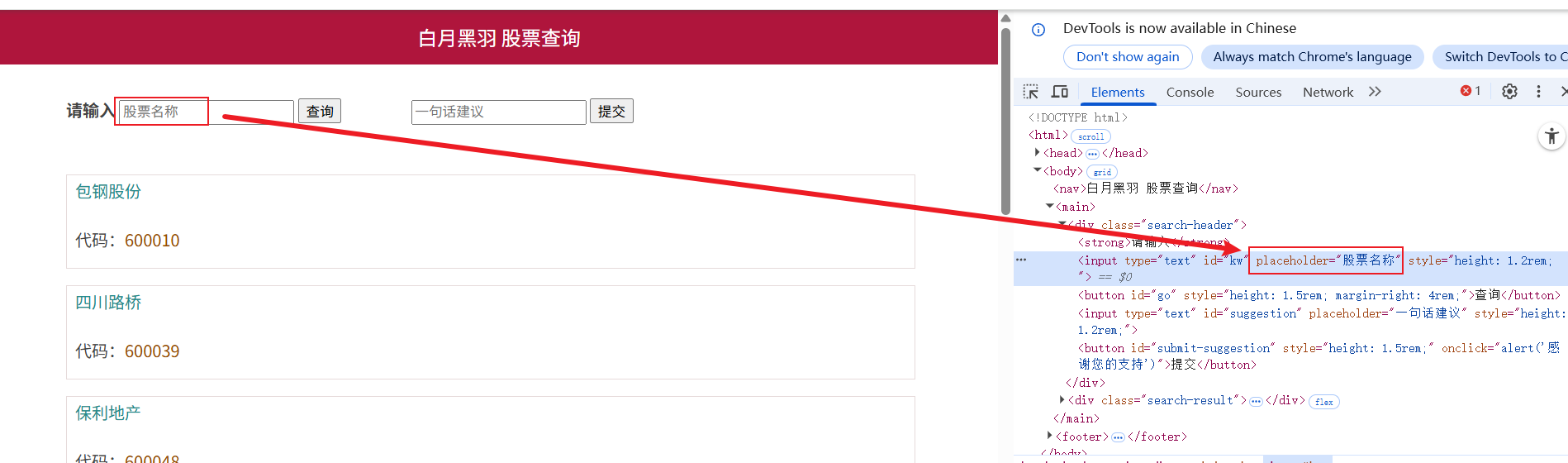
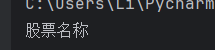
text = driver.find_element(By.ID, "kw").get_attribute("placeholder")
print(text)
结果:
💡
这是获取HTML中元素的值
也可以用来获取整个选中的HTML:
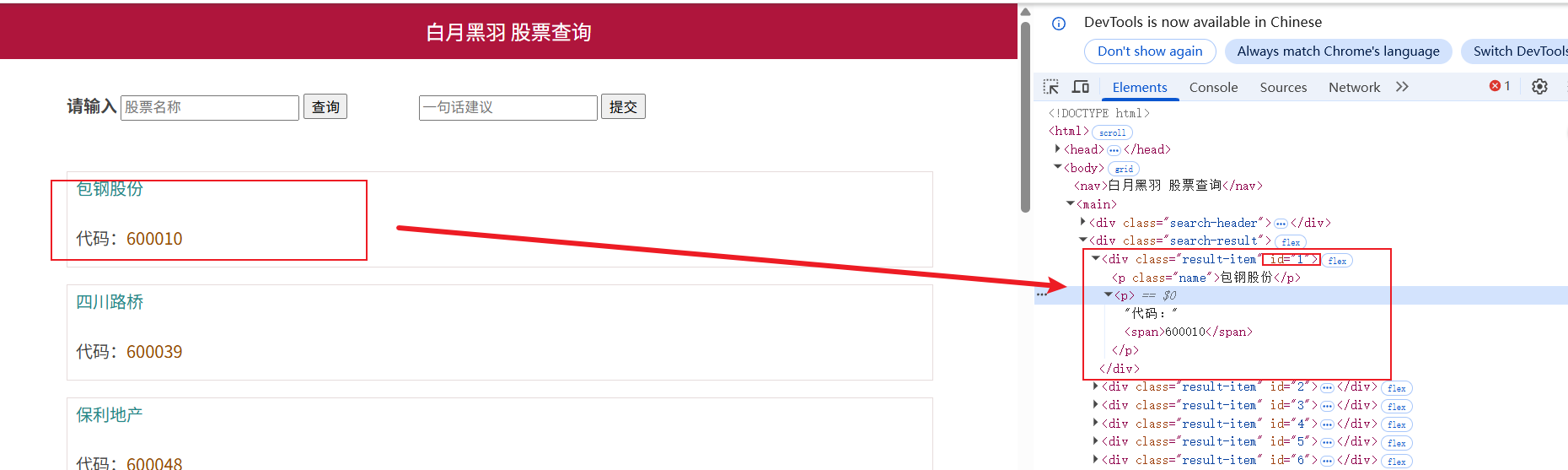
在get_attribute方法输入outerHTML
driver.get("https://www.byhy.net/cdn2/files/selenium/stock1.html")

element = driver.find_element(By.ID, "1").get_attribute("outerHTML")
print(element)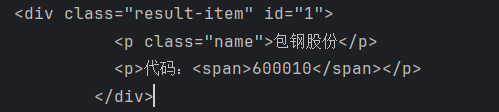
💡
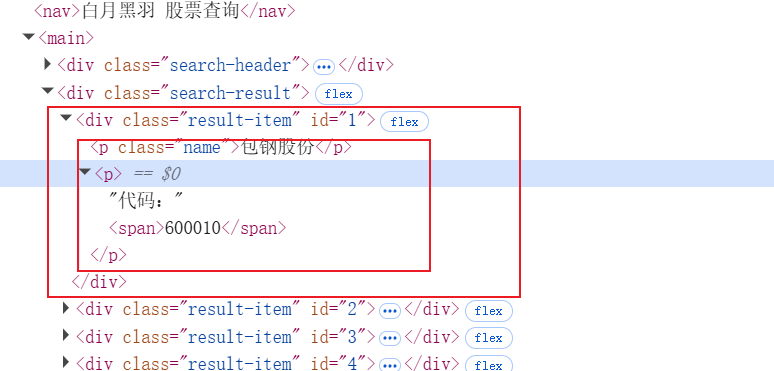
那如果换成输入innerHTML,就只会答应选中标签内部的信息
element = driver.find_element(By.ID, "1").get_attribute("innerHTML")
print(element)
结果:

💡
如果是value,那就是我们(用户)输入的数据,进行返回
# 输入四川
driver.find_element(By.ID, "kw").send_keys("四川")
# 获取输入的值
element = driver.find_element(By.ID, "kw").get_attribute("value")
# 打印输入的值
print(element)
结果:
并且我们之前学习的.text 是无法获取输入框中咱们自己输入的数据的

9.5 获取title名 .title
print("title :" + driver.title)9.6 获取页面id current_window_handle
driver.current_window_handle9.7 获取所有页面id
driver.window_handles9.8 窗口大小
# 获取窗口大小
print(driver.get_window_size())
# 改变窗口大小
driver.set_window_size(200 ,200)
9.8 获取URL地址
print(driver.current_url)9.9 屏幕截图
driver.get_screenshot_as_file("E:\Code\python-learn\\test.png")9.10 上传文件
# 先定位到上传文件的 input 元素
ele = wd.find_element(By.CSS_SELECTOR, 'input[type=file]')

# 再调用 WebElement 对象的 send_keys 方法
ele.send_keys(r'h:\g02.png')
9.11 手机模式
from selenium import webdriver

# 配置手机模拟参数:指定要模拟的移动设备名称(此处为iPhone 14 Pro Max)
# deviceName参数支持多种常见设备,如"Pixel 7"、"iPhone 13"、"iPad Pro"等
mobile_emulation = { "deviceName": "iPhone 14 Pro Max" }

# 初始化Chrome浏览器配置对象
chrome_options = webdriver.ChromeOptions()

# 将手机模拟配置添加到浏览器选项中
# 这一步是核心:通过experimental_option启用移动设备模拟模式
chrome_options.add_experimental_option("mobileEmulation", mobile_emulation)

# 以配置好的手机模式启动Chrome浏览器
driver = webdriver.Chrome(options=chrome_options)

# 访问目标网页(此时网页会自动适配手机版布局)
driver.get('http://www.baidu.com')

# 暂停程序,方便查看手机版网页效果(按回车继续)
input()

# 关闭浏览器
driver.quit()
10、frame切换
由于有时候HTML内部嵌入了一个HTML,那么WebDriver的范围就涵盖不到内嵌HTML中的元素:
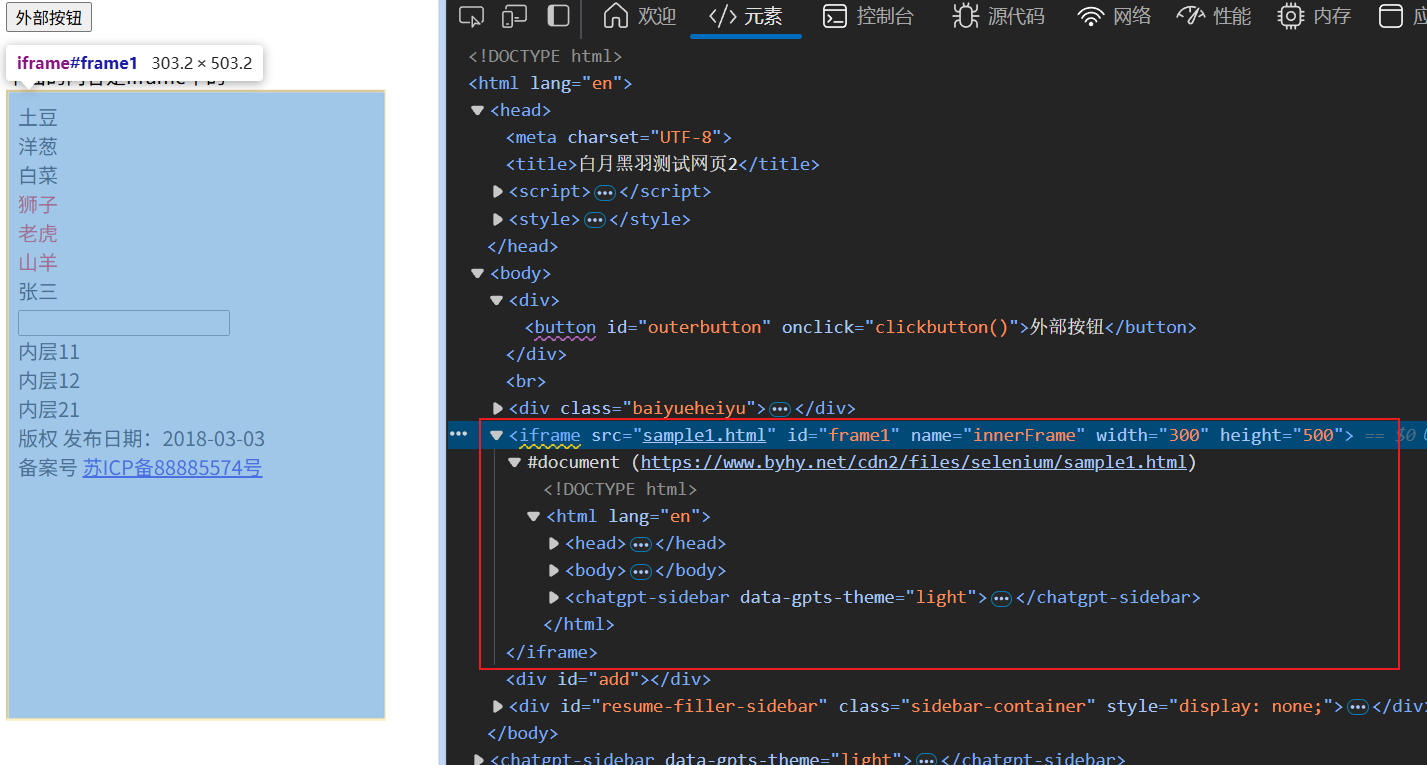
那么直接进行元素定位是定位不到的:
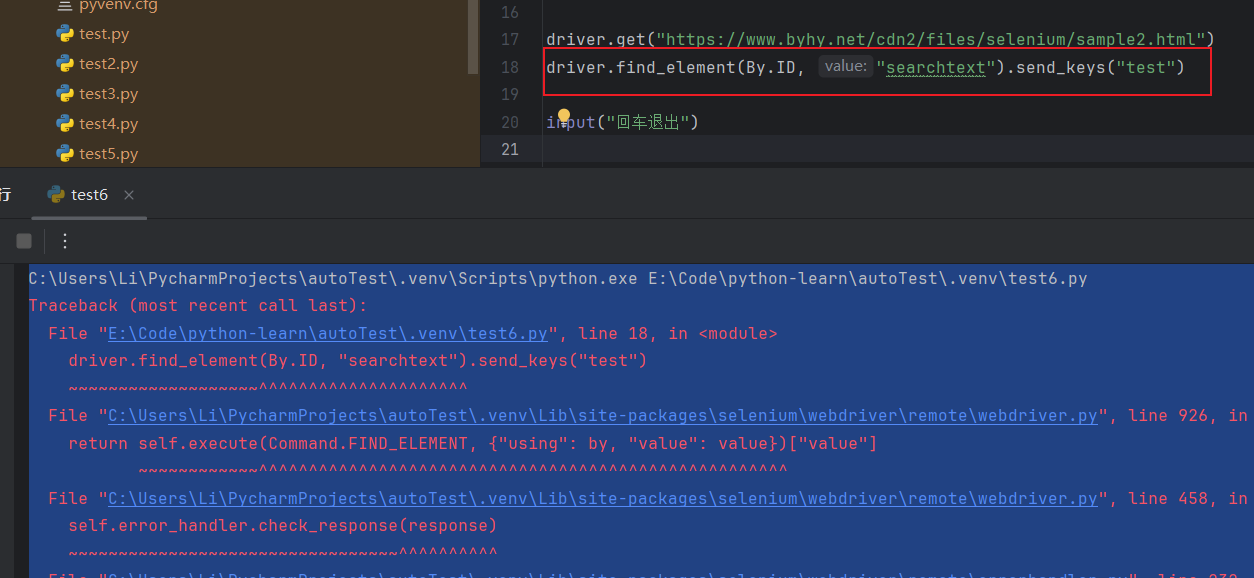
那么就需要这样一段代码切换到内存html中:
#driver.switch_to.frame('内存html标签的主要标志')
driver.switch_to.frame('frame1')
主要标志:例如:id和name,我也检查了name的名字是唯一的,所以可以使用

完整代码:
import time

#导包
from selenium import webdriver
from selenium.webdriver.common.by import By
from selenium.webdriver.support.ui import WebDriverWait
from selenium.webdriver.support import expected_conditions as EC

options = webdriver.ChromeOptions()
options.add_experimental_option('excludeSwitches', ['enable-logging'])

#下载驱动
driver = webdriver.Chrome()
# 隐式等待
driver.implicitly_wait(10)

driver.get("https://www.byhy.net/cdn2/files/selenium/sample2.html")
# 切换到内存HTML
driver.switch_to.frame('frame1')

driver.find_element(By.ID, "searchtext").send_keys("test")

input("回车退出")
结果:
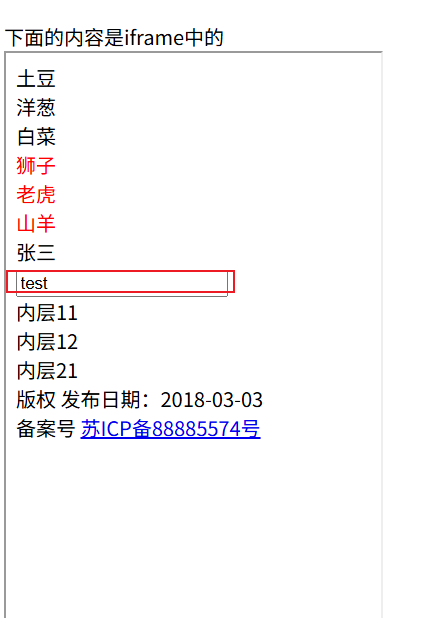
那么如果要切换回外层的HTML就使用:
driver.find_element(By.ID, "outerbutton").click()完整代码:
import time

#导包
from selenium import webdriver
from selenium.webdriver.common.by import By
from selenium.webdriver.support.ui import WebDriverWait
from selenium.webdriver.support import expected_conditions as EC

options = webdriver.ChromeOptions()
options.add_experimental_option('excludeSwitches', ['enable-logging'])

#下载驱动
driver = webdriver.Chrome()
# 隐式等待
driver.implicitly_wait(10)

driver.get("https://www.byhy.net/cdn2/files/selenium/sample2.html")
# 切换到内存HTML
driver.switch_to.frame('frame1')

driver.find_element(By.ID, "searchtext").send_keys("test")

# 切换为外层HTML
driver.switch_to.default_content()

driver.find_element(By.ID, "outerbutton").click()

input("回车退出")
11、窗口页面切换
当打开新的窗口,需要切换页面才可以对新页面进行操作。
当需要关闭新页面回到旧页面,也需要切换回原来的窗口,才可以继续操作
核心代码:
# 获取当前页面id
mainWindow = driver.current_window_handle
# 获取打开页面的id
targetWindow = None
for e in driver.window_handles:
    if e != mainWindow:
        targetWindow = e
# 关闭窗口
driver.close()

#切换窗口
driver.switch_to.window(mainWindow)
所有代码:
import time

#导包
from selenium import webdriver
from selenium.webdriver.common.by import By
from selenium.webdriver.support.ui import WebDriverWait
from selenium.webdriver.support import expected_conditions as EC

options = webdriver.ChromeOptions()
options.add_experimental_option('excludeSwitches', ['enable-logging'])

#下载驱动
driver = webdriver.Chrome()
# 隐式等待
driver.implicitly_wait(10)

driver.get("https://www.byhy.net/cdn2/files/selenium/sample3.html")


print("title :" + driver.title)
# 获取当前页面id
mainWindow = driver.current_window_handle
print("当前窗口id" + mainWindow)

driver.find_element(By.CSS_SELECTOR, "body > a").click()

# 获取打开页面的id
targetWindow = None
for e in driver.window_handles:
    if e != mainWindow:
        targetWindow = e

# 切换窗口
driver.switch_to.window(targetWindow)

print("当前窗口id" + driver.current_window_handle)

time.sleep(2)
# 关闭窗口
driver.close()

#切换窗口
driver.switch_to.window(mainWindow)

driver.find_element(By.CSS_SELECTOR, "#outerbutton").click()

input("回车退出")
12、复选框checkbox
由于复选框可以有多个选项,那么我们如何来确定哪些被选了呢?
可以通过具体的一个特征例如name都为teachers1,然后:checked。配合find_elements可以了
radio框(单选框)和这个原理一样,我就不多说了
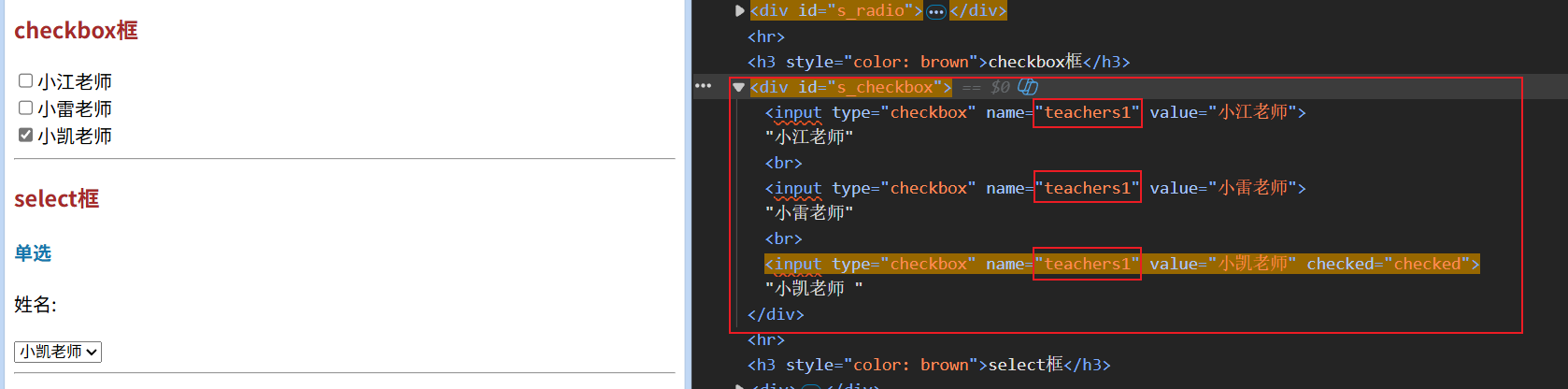
核心代码:
# 获取所有以选中的选项
eles = driver.find_elements(By.CSS_SELECTOR, "[name=teachers1]:checked")
import time
#导包
from selenium import webdriver
from selenium.webdriver.common.by import By
from selenium.webdriver.support.ui import WebDriverWait
from selenium.webdriver.support import expected_conditions as EC
options = webdriver.ChromeOptions()
options.add_experimental_option('excludeSwitches', ['enable-logging'])
#下载驱动
driver = webdriver.Chrome()
# 隐式等待
driver.implicitly_wait(10)
driver.get("https://www.byhy.net/cdn2/files/selenium/test2.html")
# chekbox选项框
driver.find_element(By.CSS_SELECTOR, "#s_checkbox > input[type=checkbox]:nth-child(3)").click()
eles = driver.find_elements(By.CSS_SELECTOR, "[name=teachers1]:checked")
for e in eles:
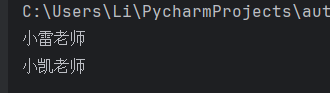
print(e.get_attribute("value"))结果:
13、下拉框 select
13.1 Select 单选框
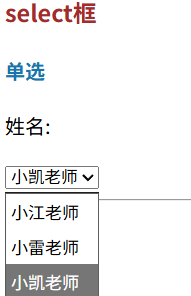
获取选项框中被选中的选项。
需要导入一个新的对象Select
核心代码:
from selenium.webdriver.support.select import Select

# 获取当前选中的选项
select = Select(driver.find_element(By.ID, "ss_single"))

for se in select.all_selected_options:
    print(se.text)

input("回车退出")
💡
select.all_selected_options解释:
返回的是所有选项的webelement元素,所以要查看文本得使用 .text
所有代码:
import time
#导包
from selenium import webdriver
from selenium.webdriver.common.by import By
from selenium.webdriver.support.ui import WebDriverWait
from selenium.webdriver.support import expected_conditions as EC
# 导入Select类
from selenium.webdriver.support.select import Select

options = webdriver.ChromeOptions()
options.add_experimental_option('excludeSwitches', ['enable-logging'])

#下载驱动
driver = webdriver.Chrome()
# 隐式等待
driver.implicitly_wait(10)

driver.get("https://www.byhy.net/cdn2/files/selenium/test2.html")

# select框(下拉框单选)
# # 点击其中一个选项
# driver.find_element(By.CSS_SELECTOR, "#ss_single > option:nth-child(2)").click()

# 获取当前选中的选项
select = Select(driver.find_element(By.ID, "ss_single"))

for se in select.all_selected_options:
    print(se.text)

input("回车退出")
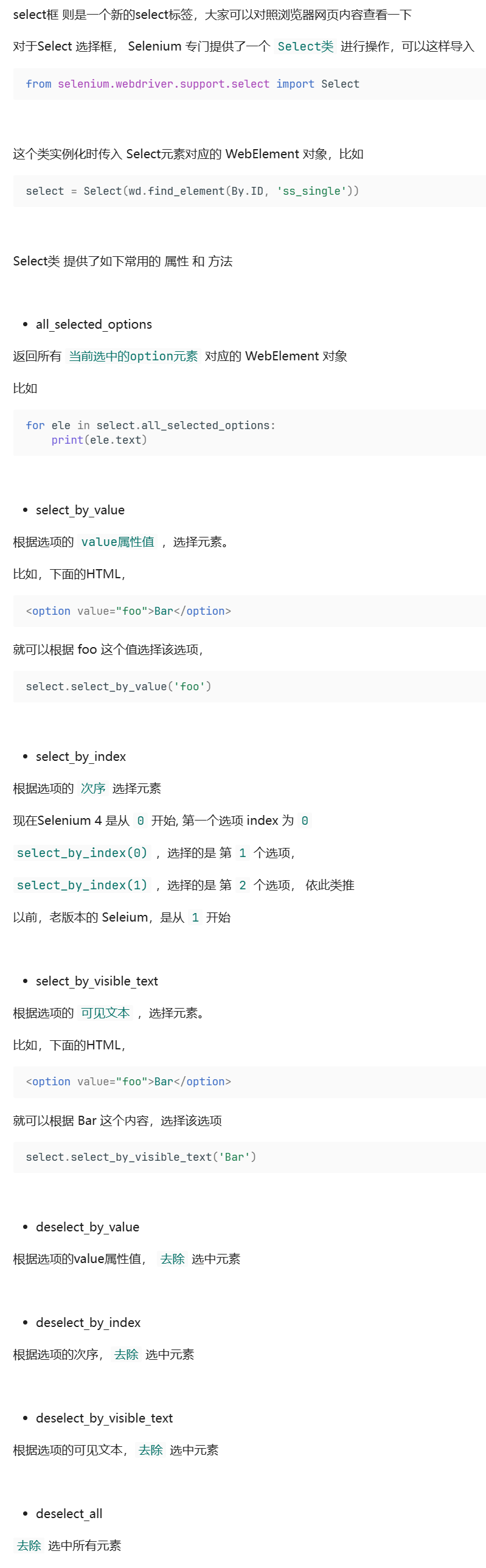
13.2 Select的一系列方法
13.3 Select 复选框
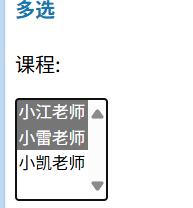
核心代码:
# Select 复选框
select = Select(driver.find_element(By.ID, "ss_multi"))

# 清除所有的选项
select.deselect_all()

# 选择选项
select.select_by_visible_text("小江老师")
select.select_by_visible_text("小雷老师")

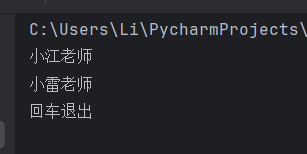
# 查看选择的所有元素
for se in select.all_selected_options:
    print(se.text)

input("回车退出")
全部代码:
import time

#导包
from selenium import webdriver
from selenium.webdriver.common.by import By
from selenium.webdriver.support.ui import WebDriverWait
from selenium.webdriver.support import expected_conditions as EC
# 导入Select类
from selenium.webdriver.support.select import Select


options = webdriver.ChromeOptions()
options.add_experimental_option('excludeSwitches', ['enable-logging'])

#下载驱动
driver = webdriver.Chrome()
# 隐式等待
driver.implicitly_wait(10)

driver.get("https://www.byhy.net/cdn2/files/selenium/test2.html")

# Select 复选框
select = Select(driver.find_element(By.ID, "ss_multi"))

# 清除所有的选项
select.deselect_all()

# 选择选项
select.select_by_visible_text("小江老师")
select.select_by_visible_text("小雷老师")

# 查看选择的所有元素
for se in select.all_selected_options:
    print(se.text)

input("回车退出")
结果:
14、ActionChains模拟鼠标操作
14.1 操作试例
完成以下两个动作:
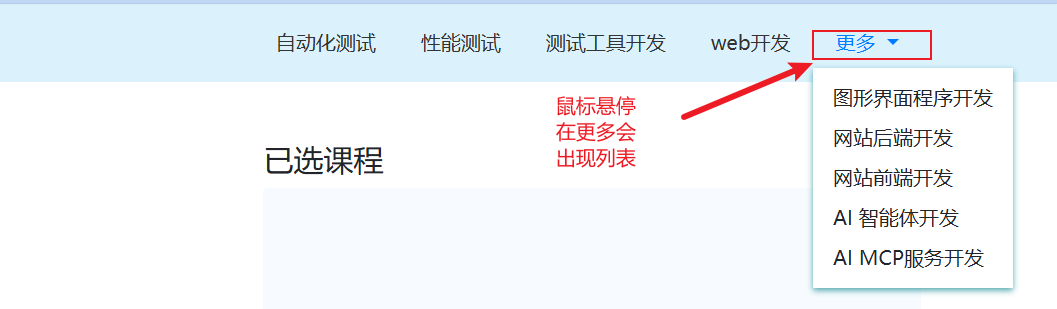
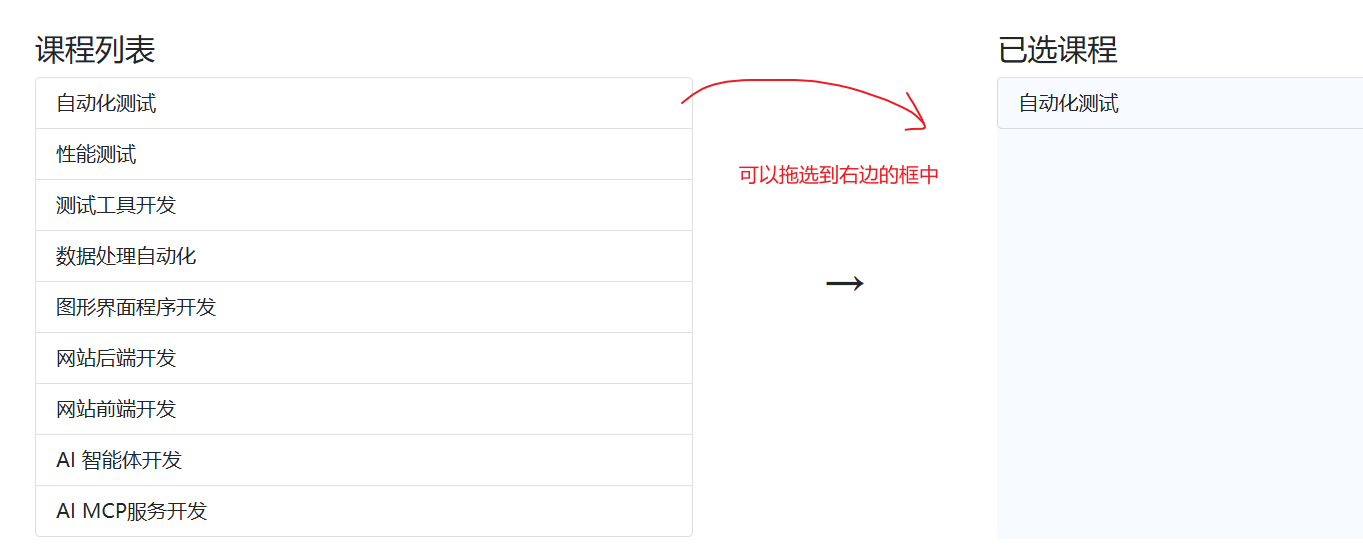
核心代码:
# 需要导入包
from selenium.webdriver.common.action_chains import ActionChains
ac = ActionChains(driver)
# 鼠标选停
ac.move_to_element(
    driver.find_element(By.ID, "navbarDropdown")
).perform()
time.sleep(3)

for i in range(1,6):
    #鼠标拖放
    ac.drag_and_drop(
        # 拖动的元素
        driver.find_element(By.ID, "course-" + str(i)),
        # 放到的位置
        driver.find_element(By.ID, "selected-courses")
    ).perform()
    time.sleep(1)
全部代码:
import time

#导包
from selenium import webdriver
from selenium.webdriver.common.by import By
from selenium.webdriver.support.ui import WebDriverWait
from selenium.webdriver.support import expected_conditions as EC
from selenium.webdriver.common.action_chains import ActionChains

options = webdriver.ChromeOptions()
options.add_experimental_option('excludeSwitches', ['enable-logging'])

#下载驱动
driver = webdriver.Chrome()
# 隐式等待
driver.implicitly_wait(10)

driver.get("https://www.byhy.net/cdn2/files/selenium/sample4.html")

ac = ActionChains(driver)

# 鼠标选停
ac.move_to_element(
    driver.find_element(By.ID, "navbarDropdown")
).perform()
time.sleep(3)

for i in range(1,6):
    #鼠标拖放
    ac.drag_and_drop(
        # 拖动的元素
        driver.find_element(By.ID, "course-" + str(i)),
        # 放到的位置
        driver.find_element(By.ID, "selected-courses")
    ).perform()
    time.sleep(1)

input("回车退出")
14.2 ActionChains 类的常用方法及作用列表
| 方法 | 作用说明 |
| 基础点击操作 | |
|
| 点击元素(默认点击当前鼠标位置,若指定 |
|
| 按住元素不松开(可用于拖拽、长按等场景)。 |
|
| 释放之前按住的元素(配合 |
|
| 双击元素(如双击文本选中、打开文件等)。 |
|
| 右键点击元素(弹出右键菜单)。 |
| 鼠标移动操作 | |
|
| 鼠标悬停到指定元素上(如显示下拉菜单、tooltip 提示)。 |
|
| 从当前鼠标位置沿 x 轴(水平)和 y 轴(垂直)移动指定像素(正数向右 / 下,负数向左 / 上)。 |
|
| 以指定元素为基准,偏移 x、y 像素后移动鼠标(如点击元素边缘)。 |
| 拖拽操作 | |
|
| 拖拽元素:从 |
|
| 拖拽元素:从 |
| 键盘操作 | |
|
| 向当前聚焦的元素输入文本或按键(如 |
|
| 向指定元素输入文本或按键(无需提前聚焦)。 |
| 其他操作 | |
|
| 暂停指定秒数(用于等待交互完成,单位:秒)。 |
|
| 清除当前 |
|
| 执行所有已添加到 |
💡
注意:
1、ActionChains 的方法需要通过 perform() 触发执行,例如:
from selenium.webdriver.common.action_chains import ActionChains actions = ActionChains(driver) actions.move_to_element(menu).click(submenu).perform() # 先悬停菜单,再点击子菜单2、方法可链式调用,按顺序执行动作,适合模拟连续的用户操作(如拖拽 + 释放、悬停 + 点击等)。
15、冻结页面
有的下拉框只要你鼠标移动开,下拉框就消失了,我们就定位不到。可以使用下面这串代码,输入在控制台中,5秒后页面就会冻结住
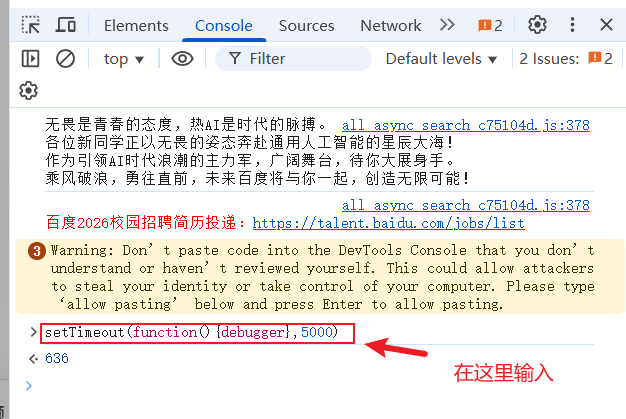
setTimeout(function(){debugger}, 5000)16、弹出对话框
浏览器原生态的对话框不属于HTML元素,是不能通过定位去操作的
16.1 alert对话框
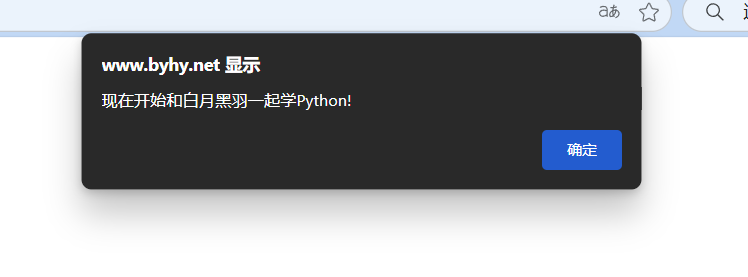
关键代码:
# 切换到弹窗
alert = driver.switch_to.alert
# 打印弹窗内容
print(alert.text)
# 确认
alert.accept()
全部代码:
from selenium import webdriver
from selenium.webdriver.common.action_chains import ActionChains
from selenium.webdriver.common.by import By
from selenium.webdriver.support.ui import WebDriverWait
from selenium.webdriver.support import expected_conditions as EC

driver = webdriver.Chrome()
driver.implicitly_wait(5)

driver.get("https://www.byhy.net/cdn2/files/selenium/test4.html")

driver.find_element(By.ID, "b1").click()

# 切换到弹窗
alert = driver.switch_to.alert

# 打印弹窗内容
print(alert.text)

# 确认
alert.accept()

input("回车退出")
16.2 confirm对话框
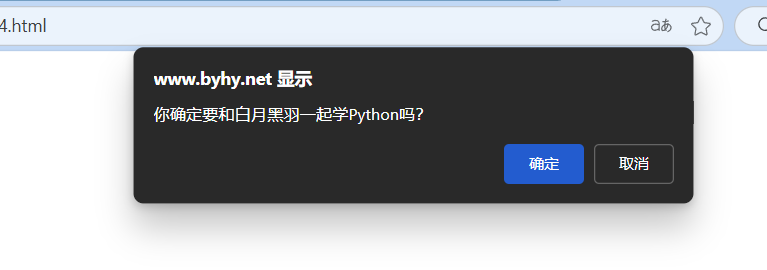
核心代码:
# 切换到对话框
alert = driver.switch_to.alert
# 点击取消按键
alert.dismiss()
# 点击确认按键
alert.accept()
全部代码:
from selenium import webdriver
from selenium.webdriver.common.action_chains import ActionChains
from selenium.webdriver.common.by import By
from selenium.webdriver.support.ui import WebDriverWait
from selenium.webdriver.support import expected_conditions as EC

driver = webdriver.Chrome()
driver.implicitly_wait(5)

driver.get("https://www.byhy.net/cdn2/files/selenium/test4.html")
# 弹出对话框
driver.find_element(By.ID, "b2").click()
# 切换到对话框
alert = driver.switch_to.alert
# 打印对话框内容
print(alert.text)
# 点击取消按键
alert.dismiss()
# 再次弹出对话框
driver.find_element(By.ID, "b2").click()
# 点击确认按键
alert.accept()

input("回车退出")
16.3 prompt对话框
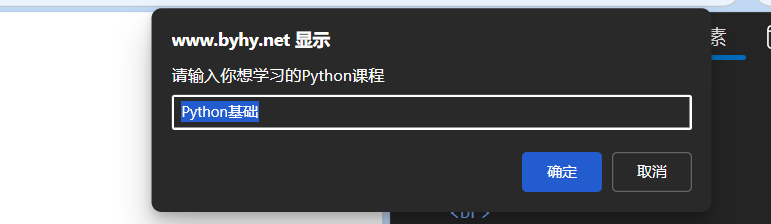
核心代码:
# 切换到弹窗
alert = driver.switch_to.alert
# 打印弹出的默认内容
print(alert.text)
# 输入数据
alert.send_keys("test")
# 确定
alert.accept()
# 取消
alert.dismiss()
全部代码:
from selenium import webdriver
from selenium.webdriver.common.action_chains import ActionChains
from selenium.webdriver.common.by import By
from selenium.webdriver.support.ui import WebDriverWait
from selenium.webdriver.support import expected_conditions as EC
import time

driver = webdriver.Chrome()
driver.implicitly_wait(5)

driver.get("https://www.byhy.net/cdn2/files/selenium/test4.html")

# 点出弹框
driver.find_element(By.ID, "b3").click()
# 切换到弹窗
alert = driver.switch_to.alert
# 打印弹出的默认内容
print(alert.text)
time.sleep(2)
# 输入数据
alert.send_keys("test")
# 确定
alert.accept()
# 重新点出弹窗
driver.find_element(By.ID, "b3").click()
time.sleep(2)
# 取消
alert.dismiss()

input("回车退出")





 扫一扫
扫一扫


 7566
7566

 被折叠的 条评论
为什么被折叠?
被折叠的 条评论
为什么被折叠?
 到【灌水乐园】发言





