 飞桨AI Studio部署Streamlit指南


飞桨AI Studio作为国内领先的人工智能开发平台,为开发者提供了便捷的项目部署环境。本文将详细介绍如何在飞桨AI Studio上部署Streamlit项目,针对无图片和有图片两种常见场景分别提供完整的部署指南,帮助开发者快速将本地项目迁移到云端。
飞浆官网:https://aistudio.baidu.com/
一、无图片的Streamlit项目部署
在百度飞桨AI Studio中部署无图片的Streamlit项目相对简单。确保项目代码中不涉及图片上传或显示功能。
1. 创建Streamlit应用代码文件(如hello.py),代码示例:
# hello.py
import streamlit as st
import datetime

# 页面配置
st.set_page_config(
    page_title="欢迎",
    page_icon="🏠",
    layout="centered",
    initial_sidebar_state="collapsed"
)
st.markdown('<div class="main-header"><h1>🏠 Welcome!</h1></div>', unsafe_allow_html=True)

# 欢迎卡片
st.markdown('<div class="welcome-card">', unsafe_allow_html=True)
st.markdown("### ✨ 欢迎访问!")
st.markdown("这是一个简单的页面,恭喜你成功打开网页!")
st.markdown("</div>", unsafe_allow_html=True)

# 当前时间显示
current_time = datetime.datetime.now()
formatted_date = current_time.strftime("%Y年%m月%d日")
formatted_time = current_time.strftime("%H:%M:%S")
2. 打开飞桨AI Studio平台,点击左下方的“项目”,进入“项目”;

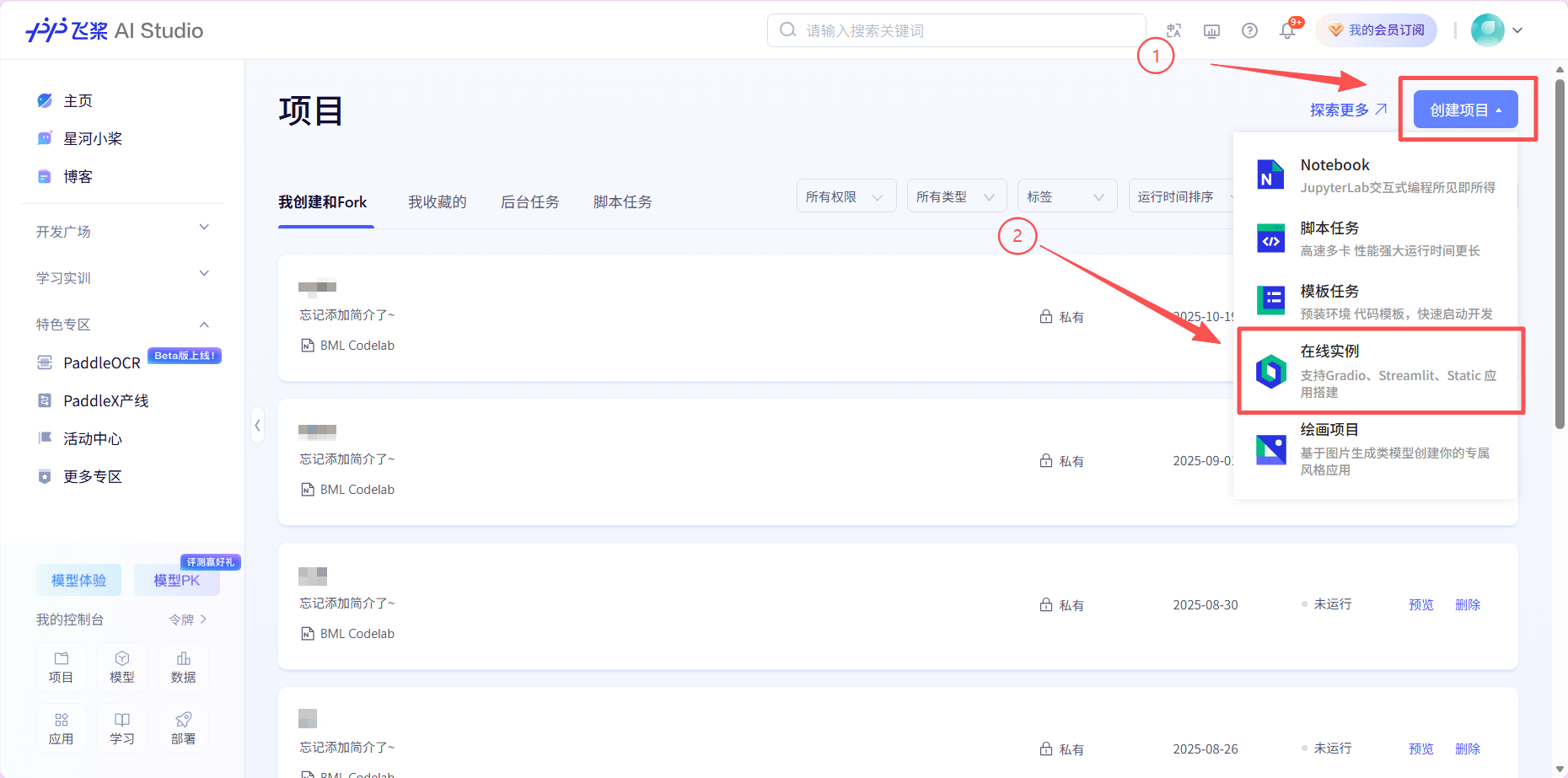
3. 点击右上角“创建项目”,接着点击“在线实例”;
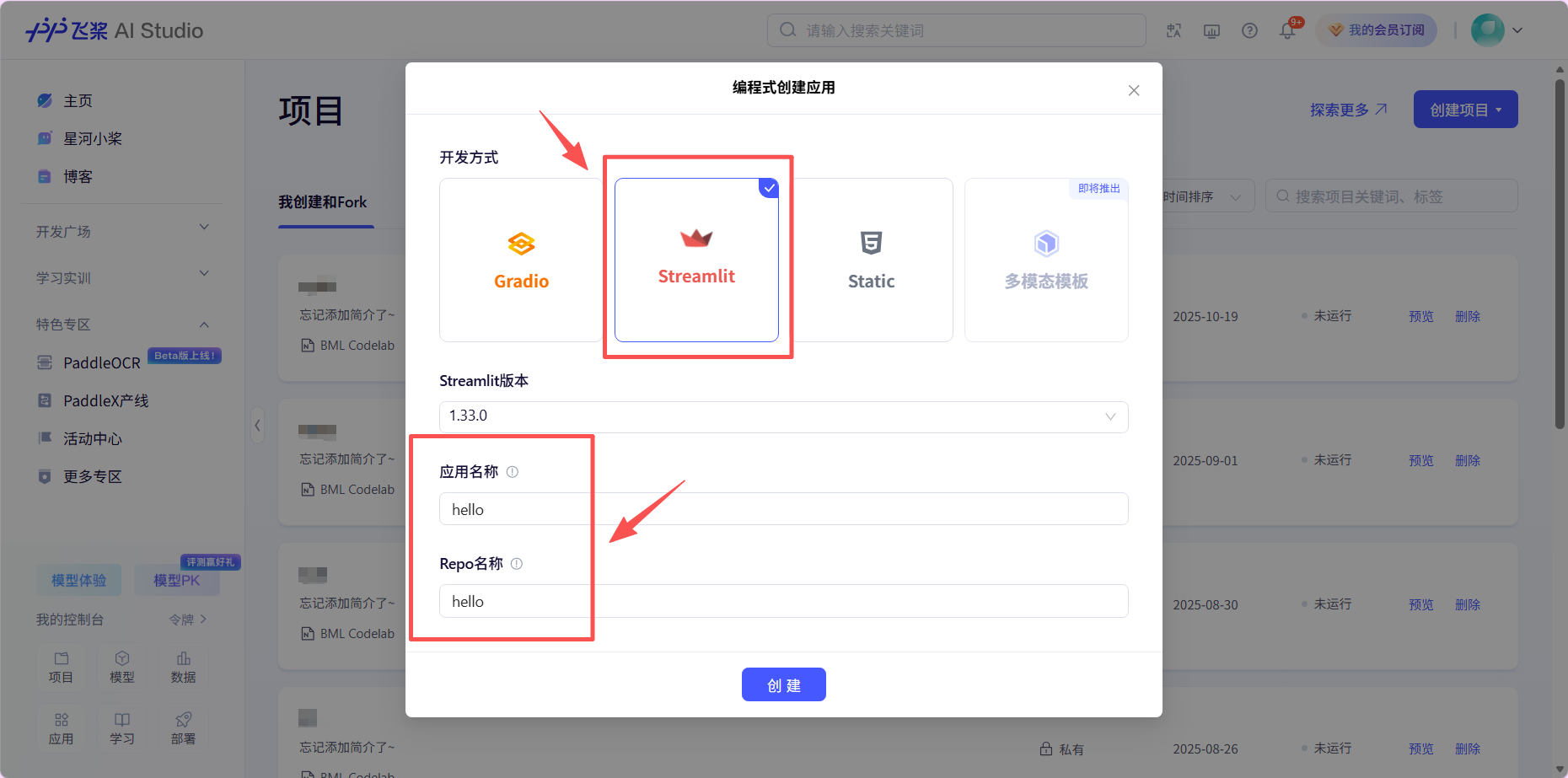
4. 选择“Streamlit”,填写自定义应用/Repo名称即可;
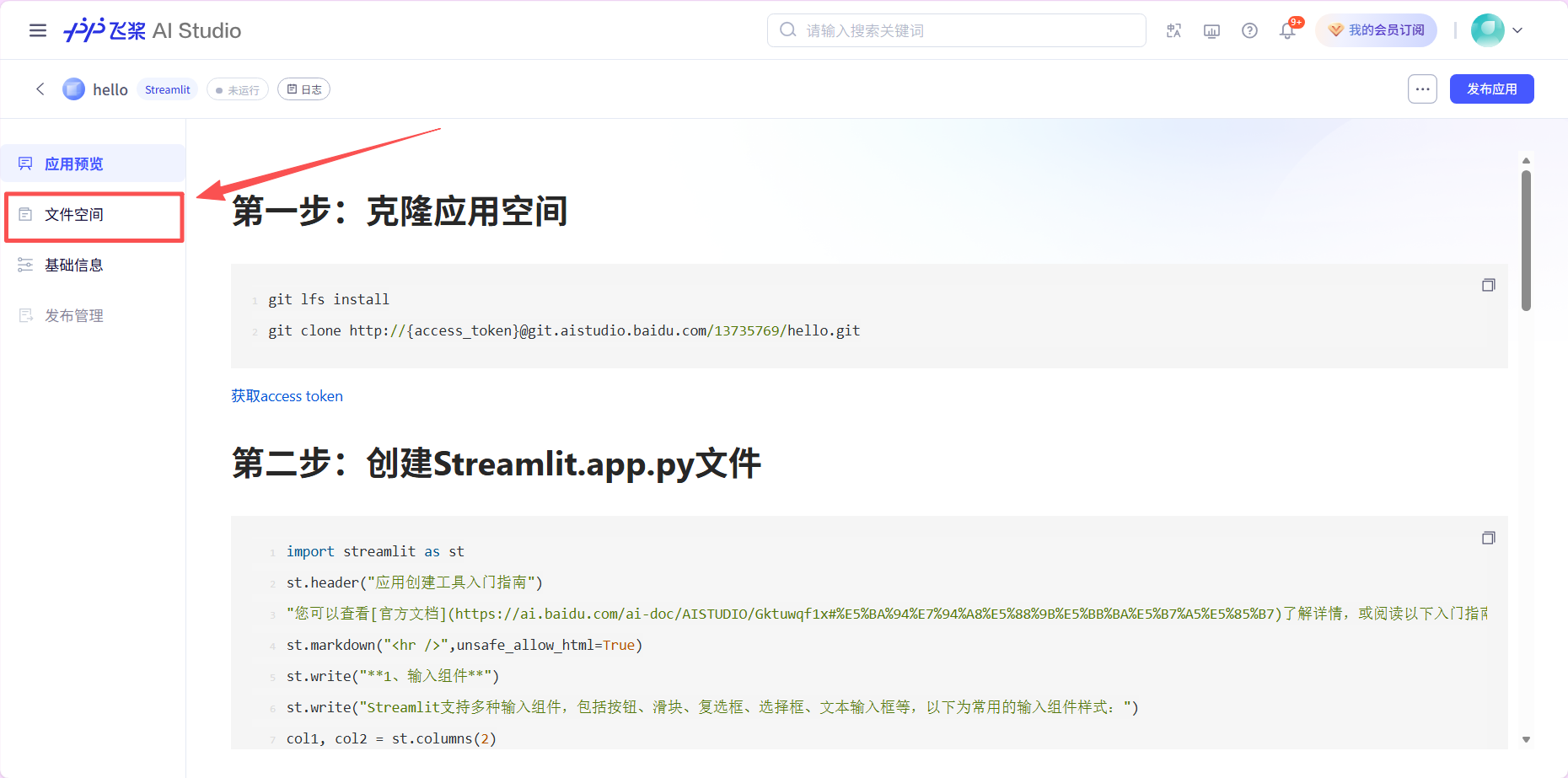
5. 自动跳转至“应用预览”,点击“文件空间”;
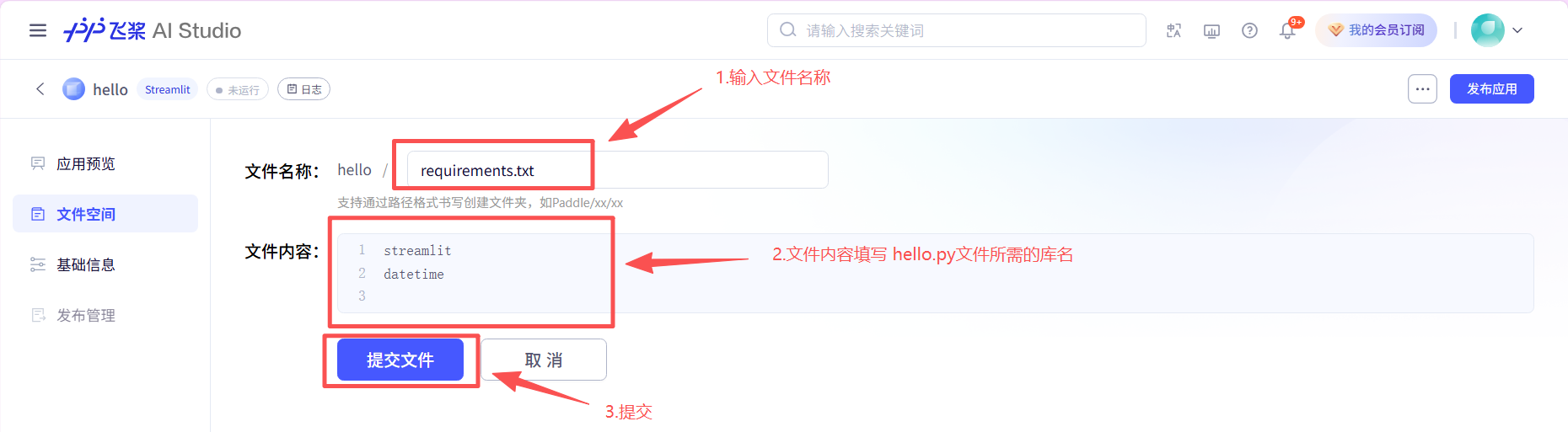
6. 建立一个“requirements.txt”文件存放 .py文件要用的库名;
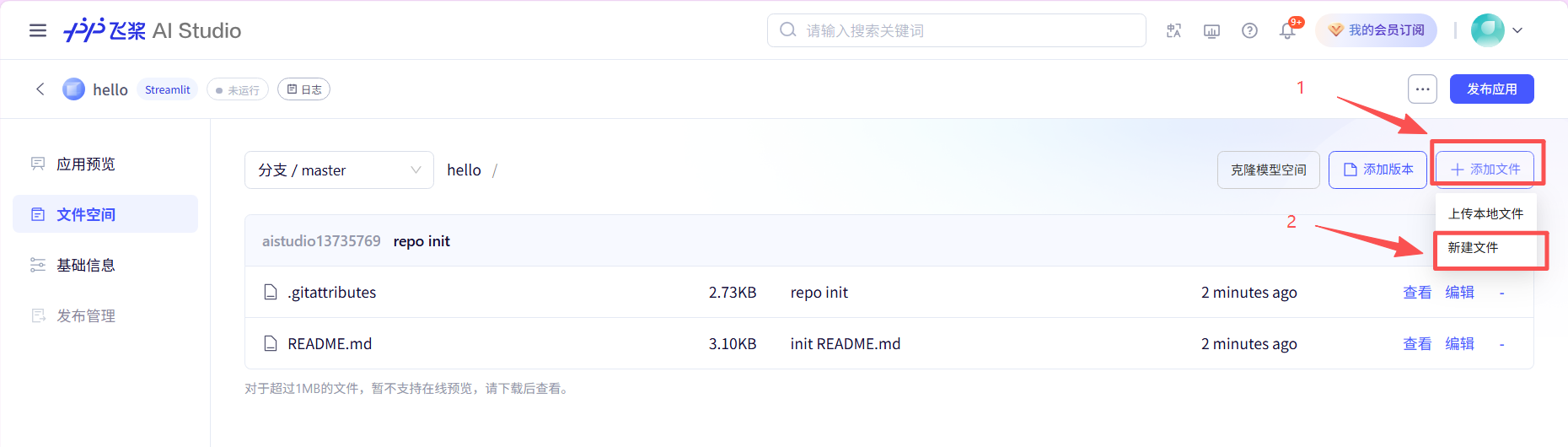
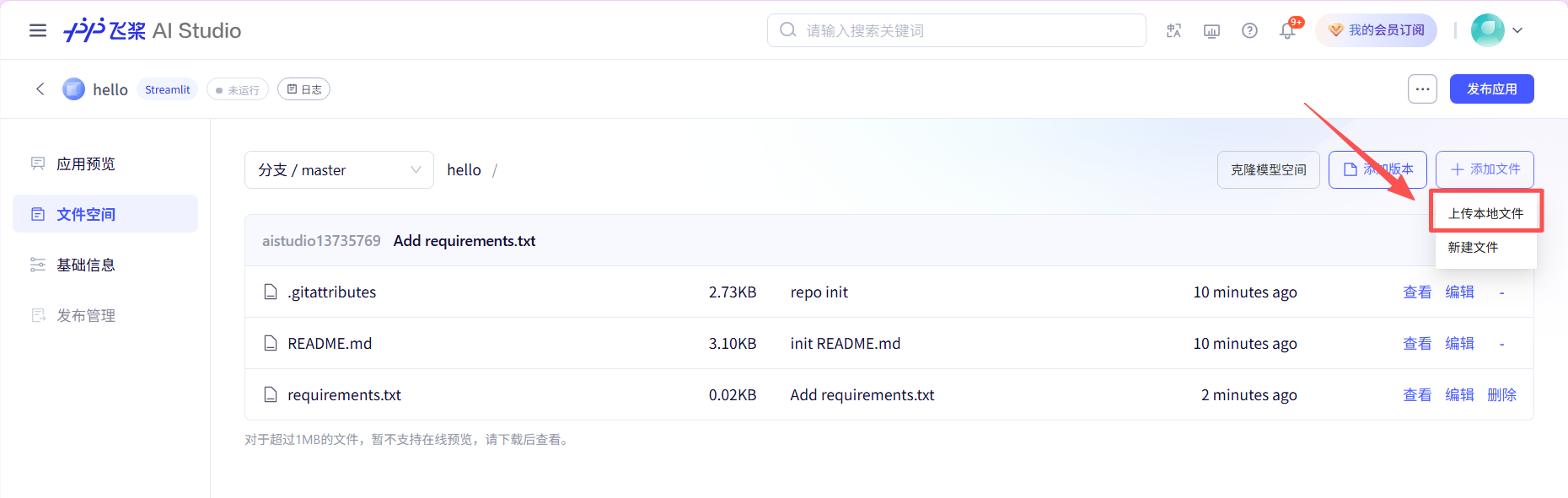
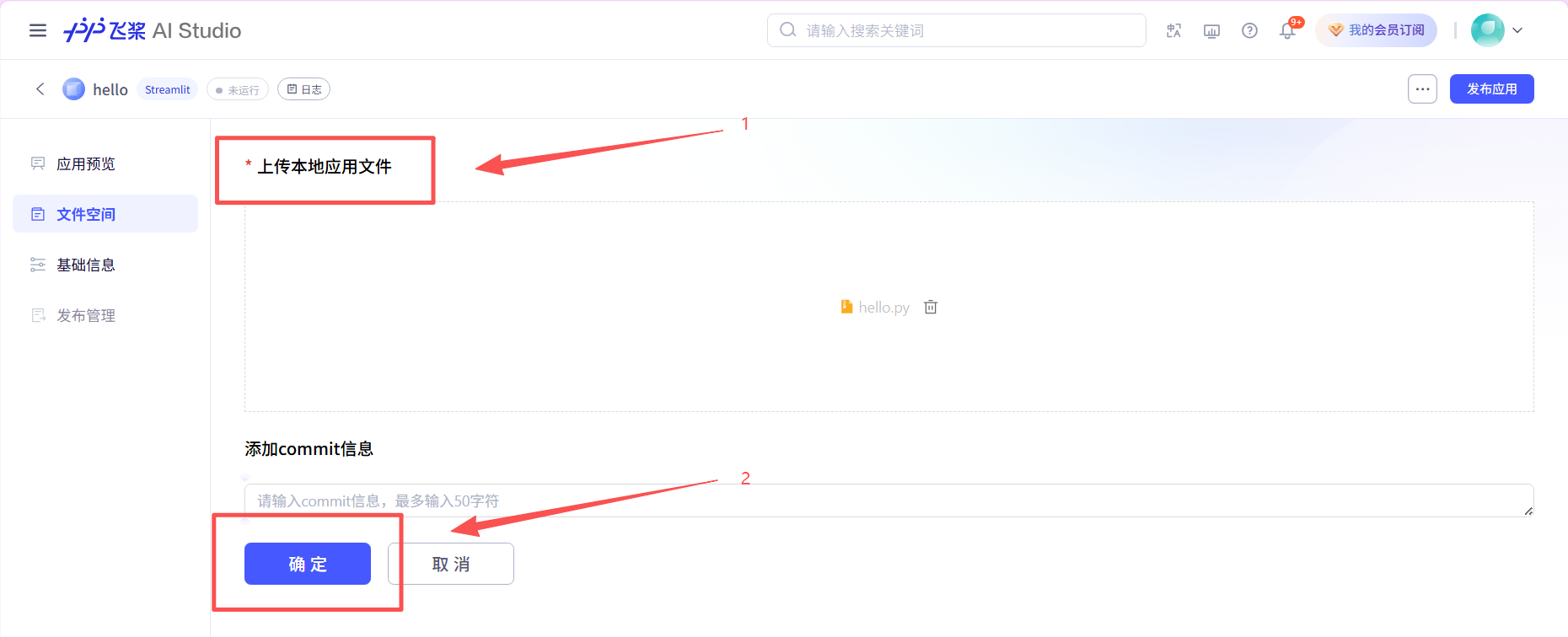
7. 上传hello.py文件;
8. 发布应用;
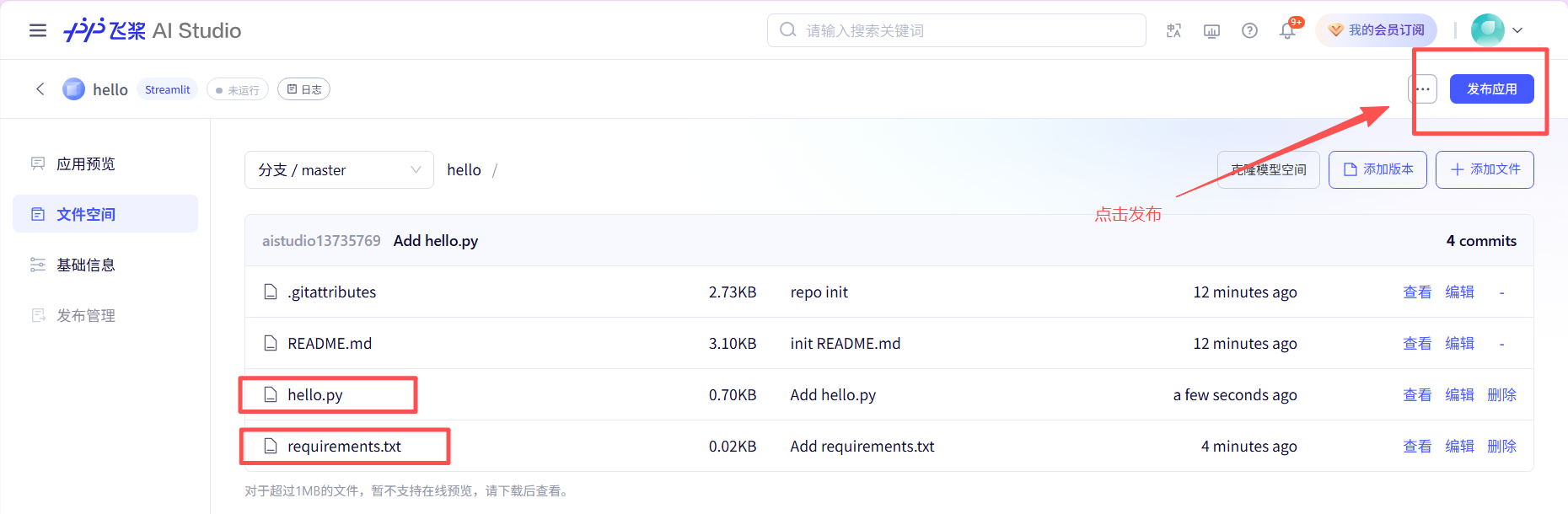
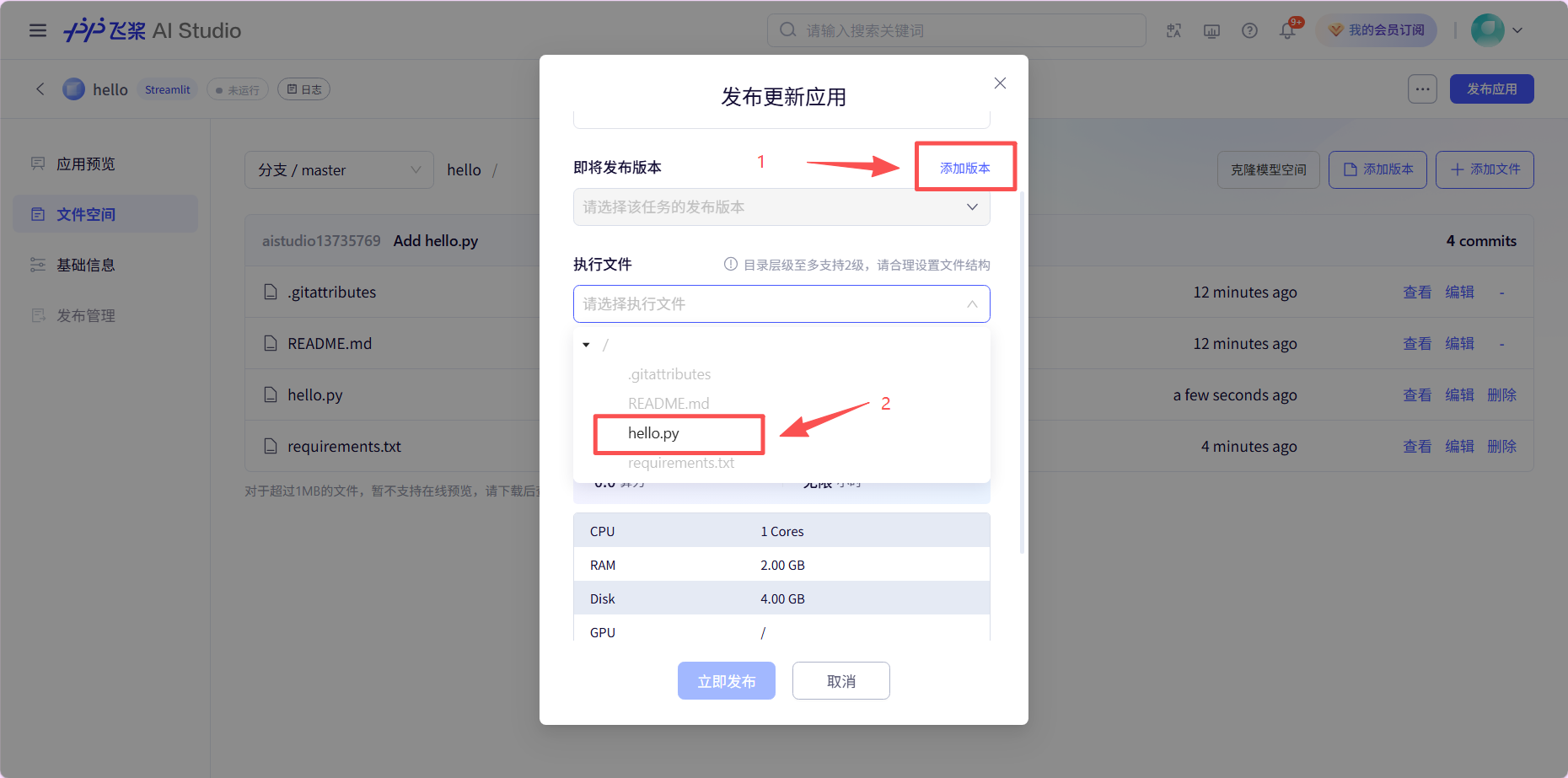
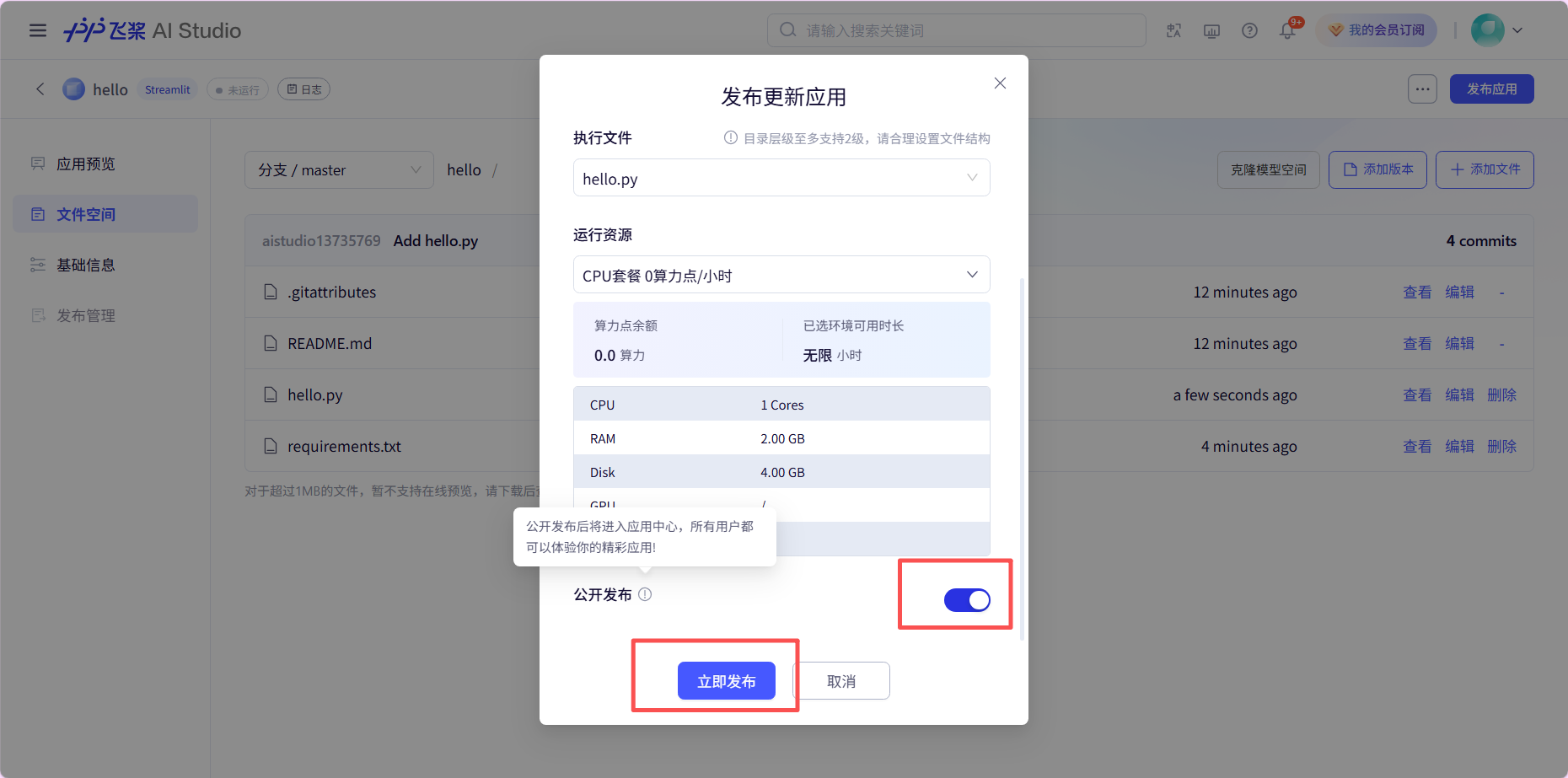
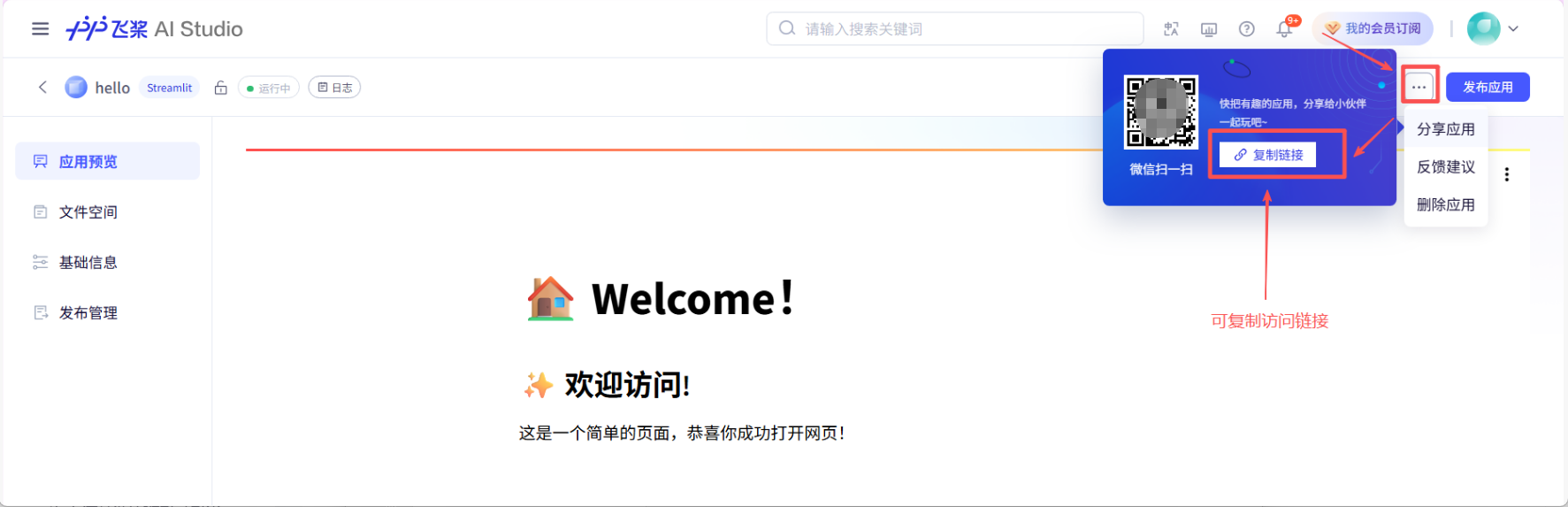
9. 等待左上角“发布中”变成“运行中”即可,右上角有访问链接。
二、有图片的Streamlit项目部署
对于包含图片处理功能的项目,需要额外处理静态文件路径问题。
有图片项目的Python示例代码(hello2.py):
# hello2.py
import streamlit as st
import datetime

# 页面配置
st.set_page_config(
    page_title="欢迎",
    page_icon="🏠",
    layout="centered",
    initial_sidebar_state="collapsed"
)

st.markdown('<div class="main-header"><h1>🏠 Welcome!</h1></div>', unsafe_allow_html=True)

# 欢迎卡片
st.markdown('<div class="welcome-card">', unsafe_allow_html=True)
st.markdown("### ✨ 欢迎访问!")
st.markdown("这是一个简单的页面,恭喜你成功打开网页!")
st.markdown("</div>", unsafe_allow_html=True)

# 当前时间显示
current_time = datetime.datetime.now()
formatted_date = current_time.strftime("%Y年%m月%d日")
formatted_time = current_time.strftime("%H:%M:%S")

# 添加图片——“images/图片.jpg”修改为自己的图片存放相对路径
col1, col2 = st.columns(2)
with col1:
    st.image("images/图片.jpg", caption="图片1", width=300)
with col2:
st.image("images/图片2.jpg", caption="图片2", width=300)首先进行无图片的Streamlit项目部署的1-8步骤,之后再次到项目页面,进行以下步骤;
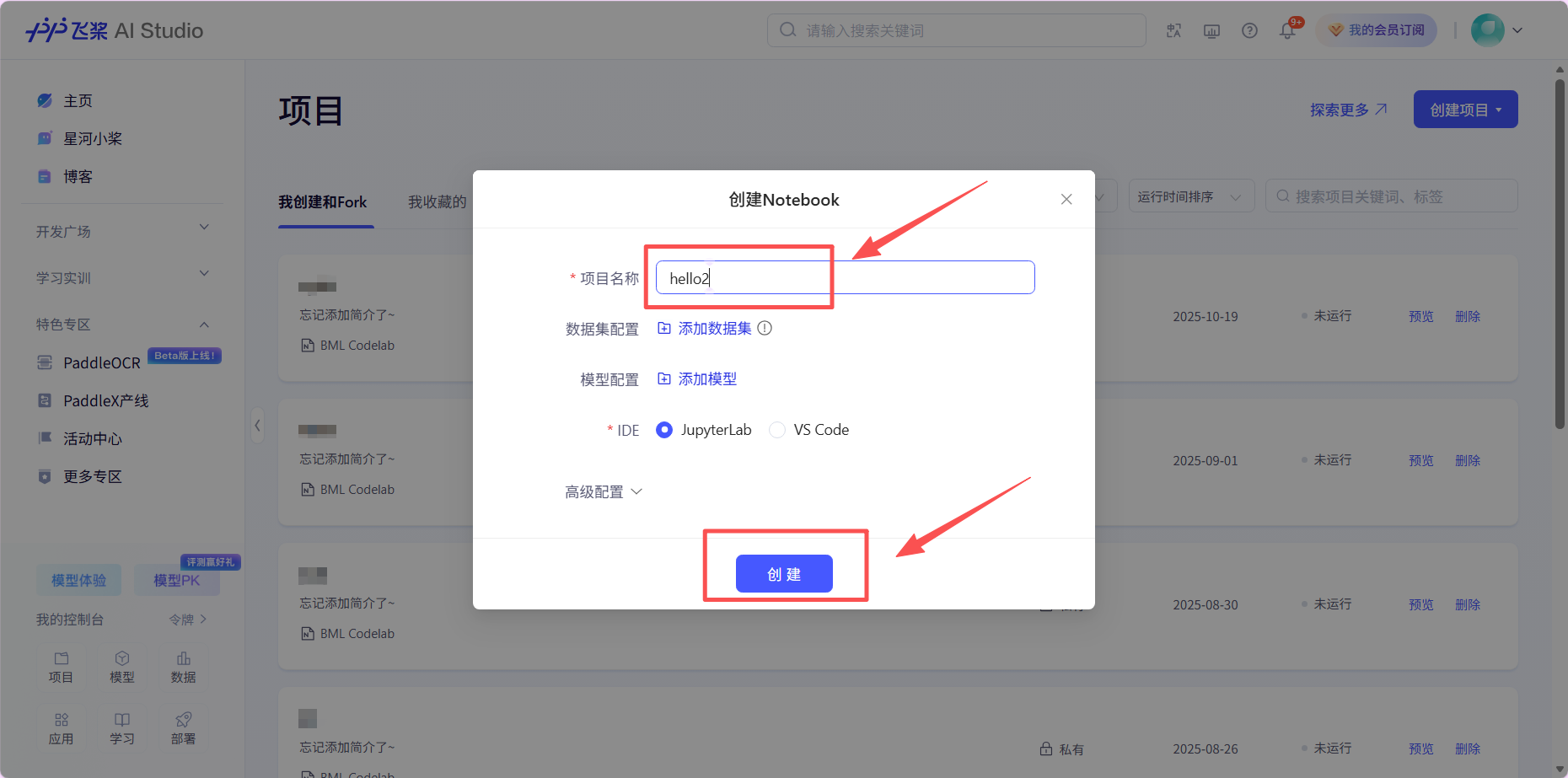
1. 创建一个“Notebook”;
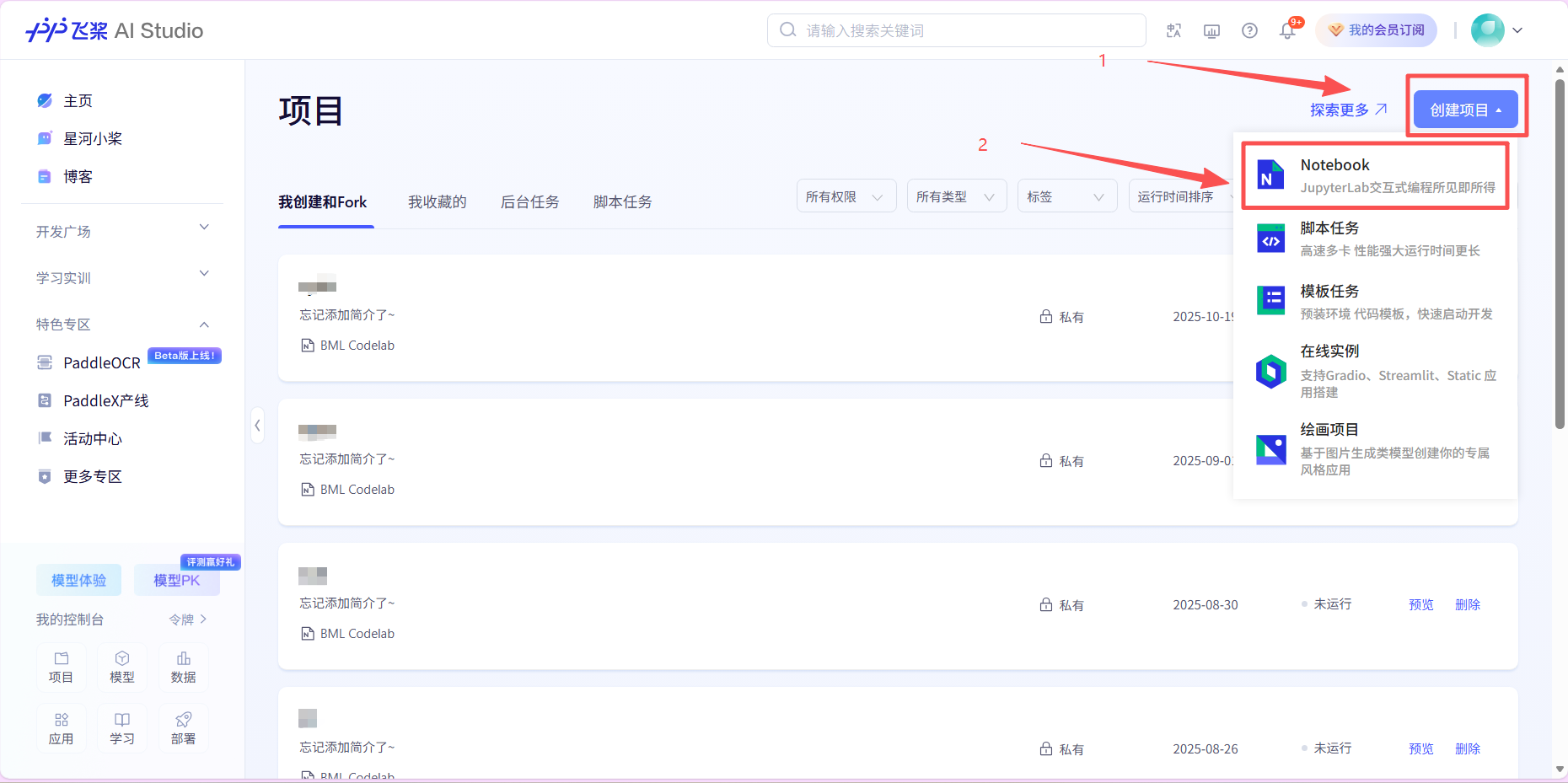
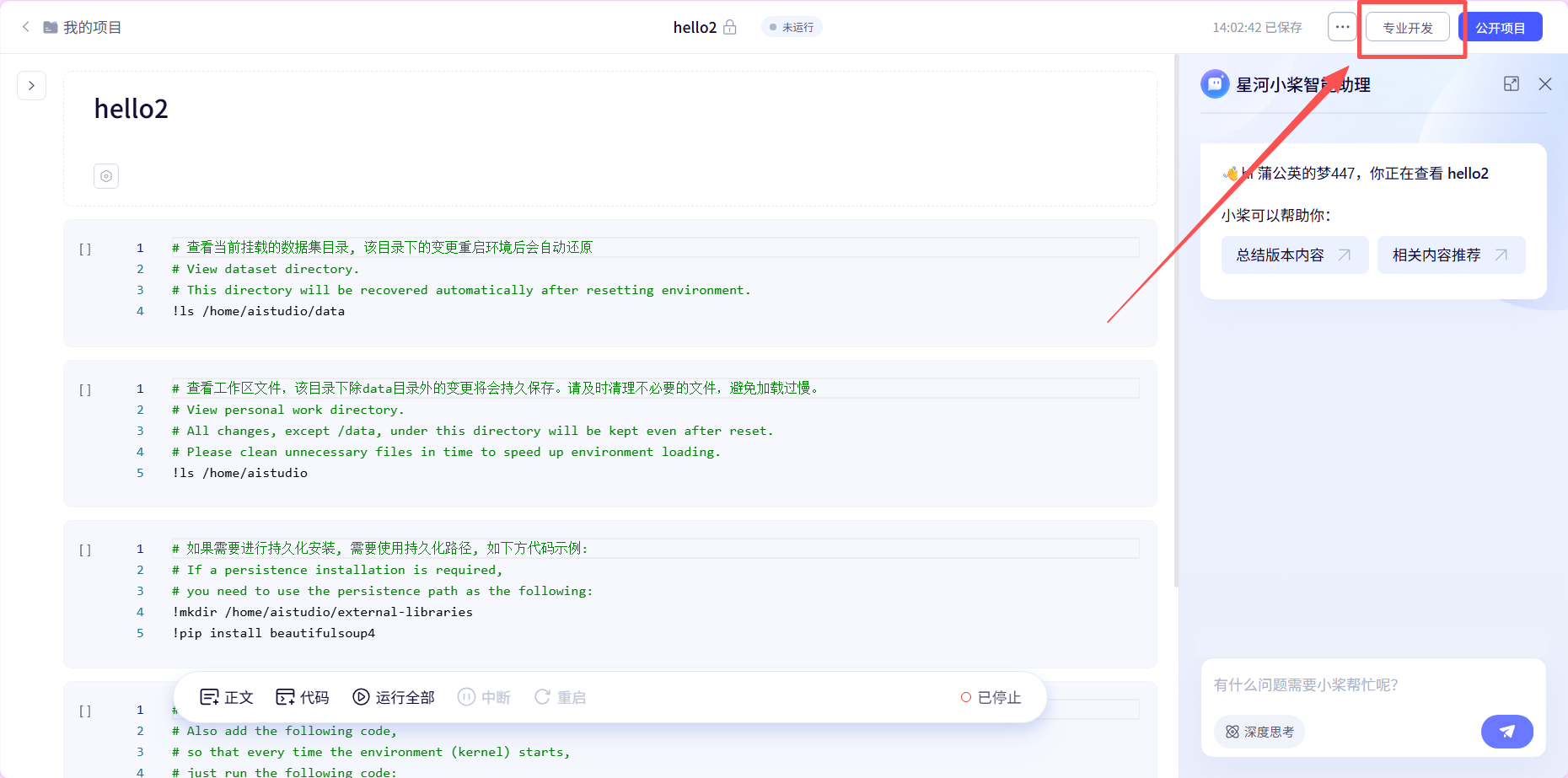
2. 进入“专业开发”;
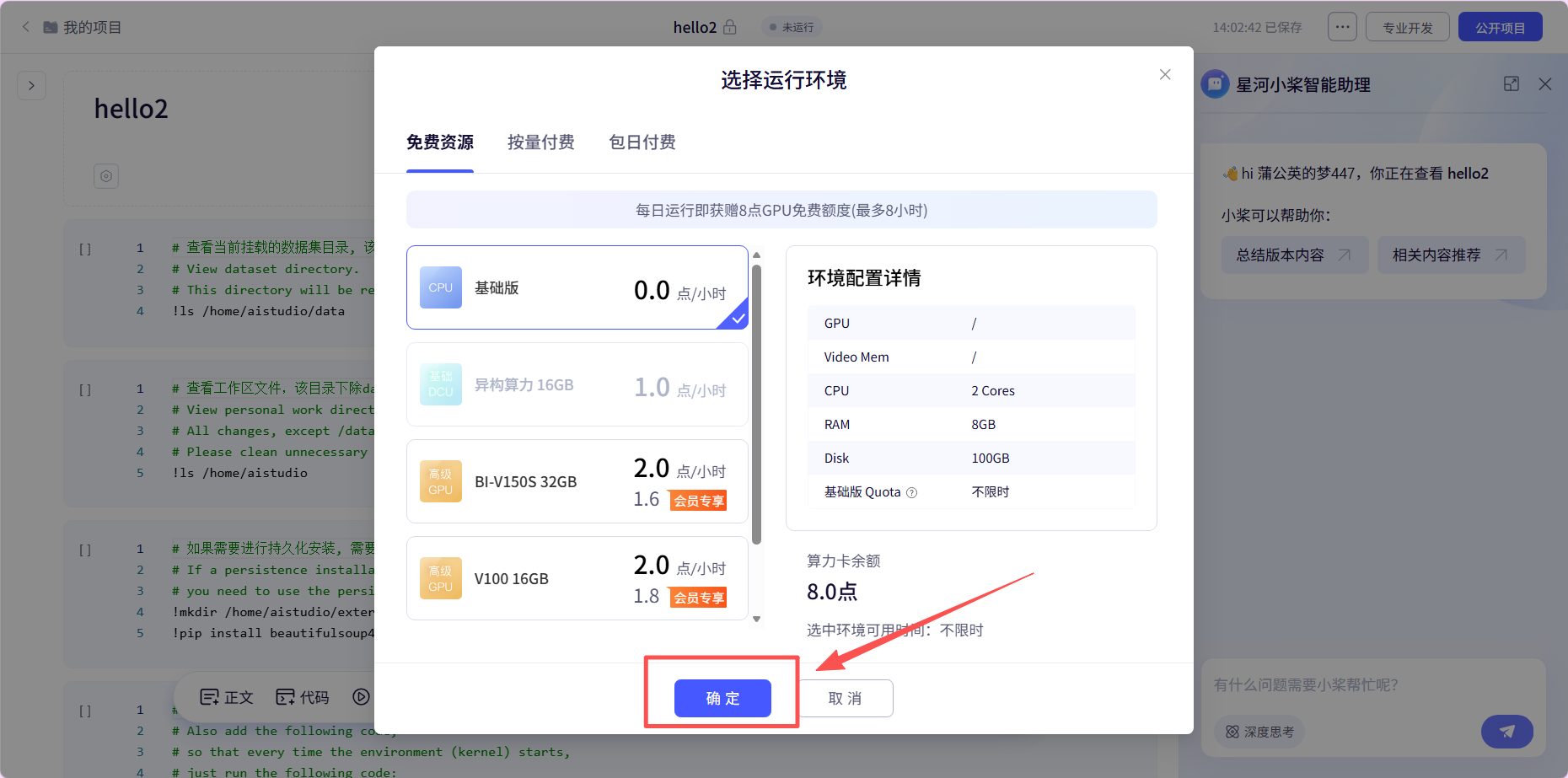
3. 上传文件压缩包(包含运行的hello2.py文件、images文件),再进行解压;
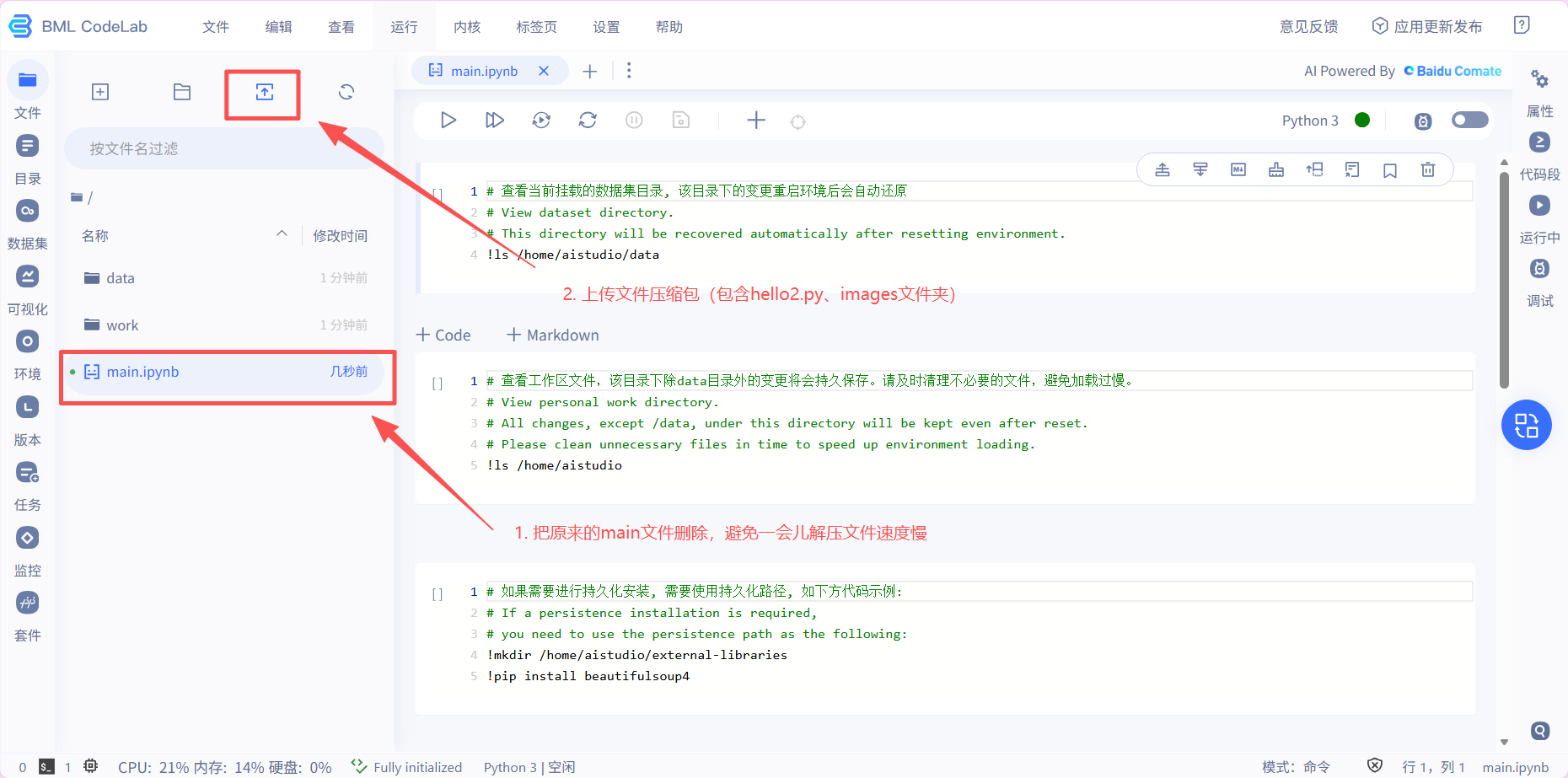
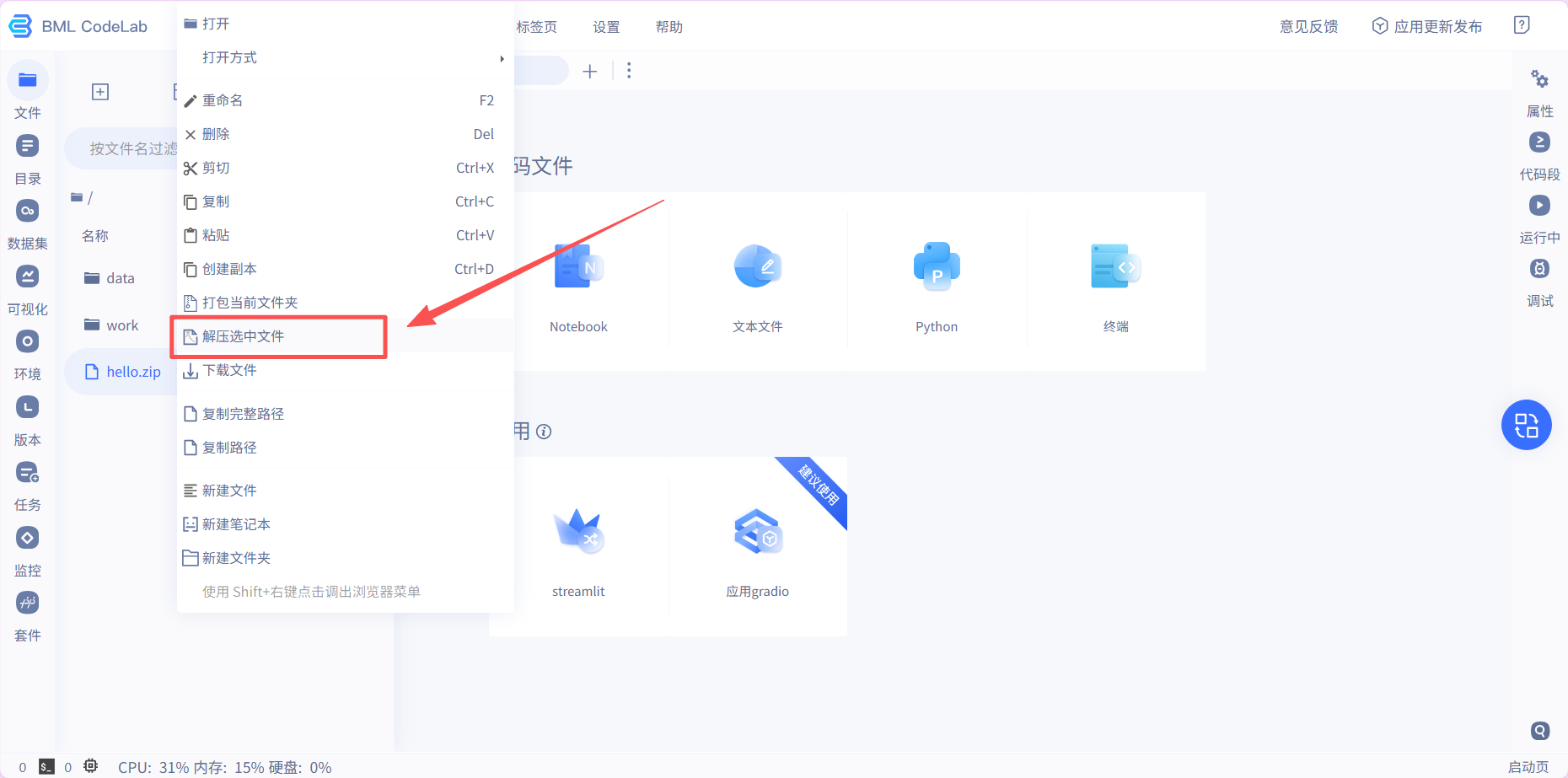
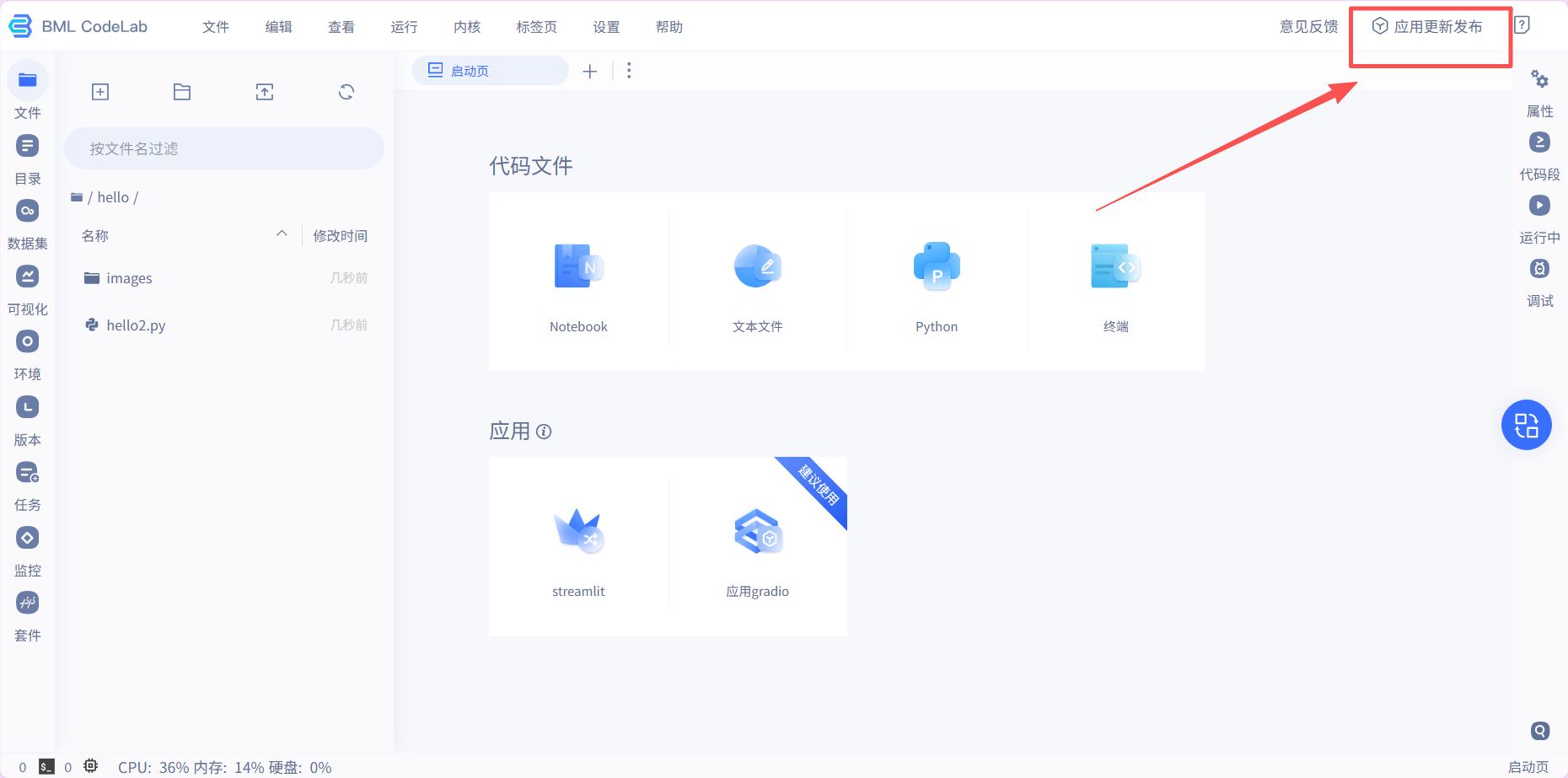
4. 解压文件之后,选中“images”文件,再点击“应用更新发布”,选择“Streamlit应用”,进行下一步,点击继续创建;
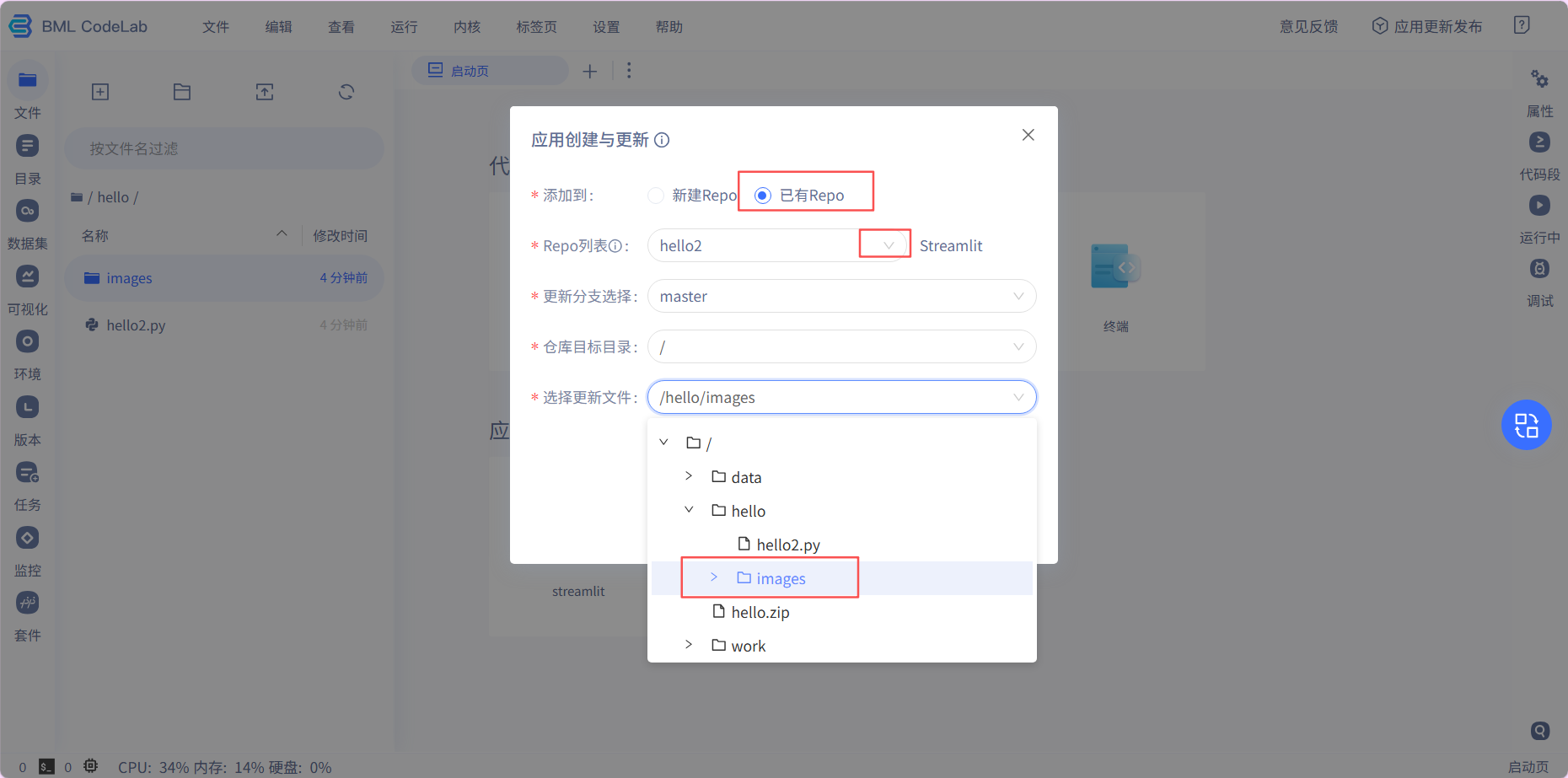
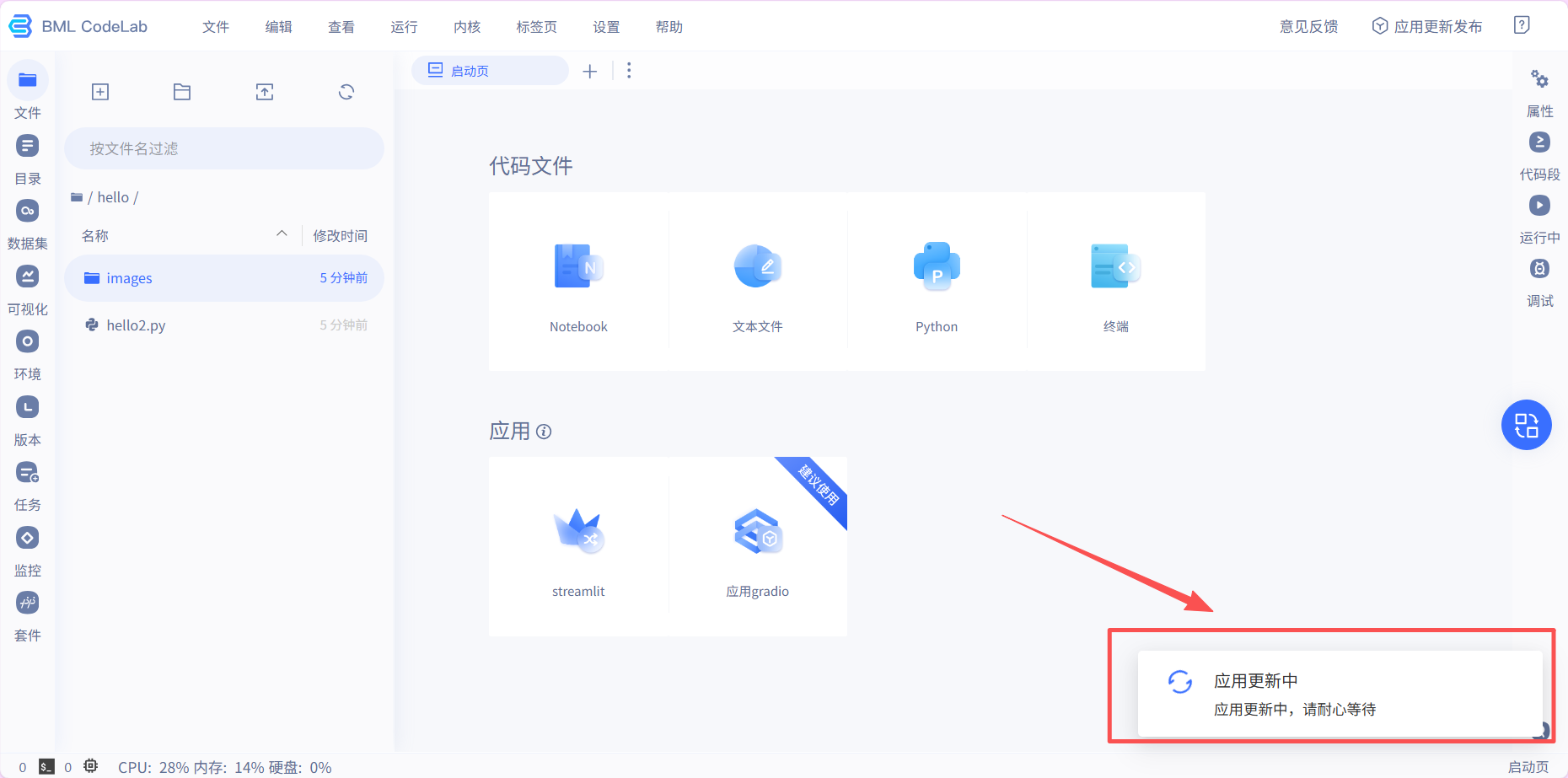
5. 等待应用更新完成,点击查看,再进行“发布应用”即可!
· 注意!
飞桨AI Streamlit部署后的网页链接有效期为3天,过期后需重新发布应用以恢复访问。如需长期稳定运行,建议迁移至其他支持持久化部署的平台。





 扫一扫
扫一扫


 588
588

 被折叠的 条评论
为什么被折叠?
被折叠的 条评论
为什么被折叠?
 到【灌水乐园】发言





