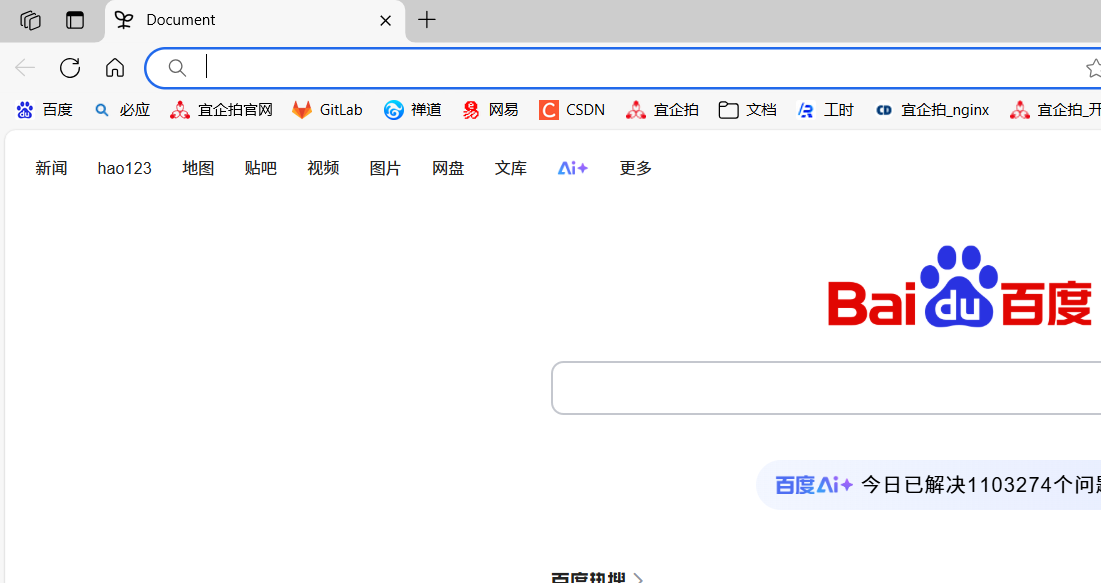
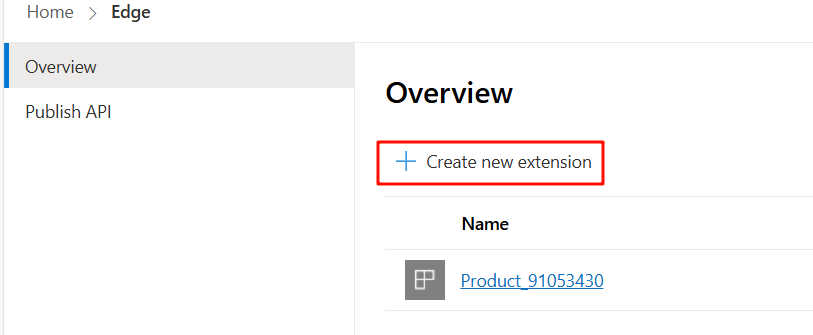
今天想开发一个新标签页的插件,因为 Edge 新标签页是 默认bing 搜索的,想换成百度的。

Microsoft Edge插件(或扩展)是基于Chromium内核的浏览器扩展,可以为浏览器添加新的功能或修改现有功能。开发Edge插件的核心技术栈包括JavaScript、HTML和CSS。 

Chromium manifest.json 配置项 

{
  "manifest_version": 3,
  "name": "Extension Name",
  "version": "1.0",
  "default_locale": "en",
  "description": "A description",
  "icons": {
    "16": "icon16.png",
    "48": "icon48.png",
    "128": "icon128.png"
  },
  "action": {
    "default_popup": "popup.html",
    "default_icon": {
      "16": "icon16.png",
      "48": "icon48.png",
      "128": "icon128.png"
    }
  },
  "author": "Author Name",
  "automation": "allowed or not",
  "background": {
    "service_worker": "background.js"
  },
  "chrome_settings_overrides": {
    "homepage": "http://www.homepage.com",
    "search_provider": {
      "name": "Search Provider Name",
      "keyword": "keyword",
      "search_url": "http://www.searchurl.com?q={searchTerms}",
      "favicon_url": "http://www.faviconurl.com/favicon.ico",
      "suggest_url": "http://www.suggesturl.com?q={searchTerms}",
      "instant_url": "http://www.instanturl.com?&q={searchTerms}",
      "image_url": "http://www.imageurl.com/search?q={searchTerms}&s=image",
      "new_tab_url": "newtab.html"
    },
    "startup_pages": ["http://www.startuppage.com"]
  },
  "chrome_ui_overrides": {
    "bookmarks_ui": {
      "remove_button": true,
      "remove_bookmark_shortcut": true,
      "remove_bookmarks_submenu": true
    }
  },
  "chrome_url_overrides": {
    "newtab": "newtab.html"
  },
  "commands": {
    "takeScreenshot": {
      "suggested_key": {
        "default": "Ctrl+Shift+Y",
        "mac": "Command+Shift+Y"
      },
      "description": "Take a screenshot"
    }
  },
  "content_scripts": [
    {
      "matches": ["http://www.example.com/*"],
      "css": ["mystyles.css"],
      "js": ["content_script.js"]
    }
  ],
  "content_security_policy": "script-src 'self' https://example.com; object-src 'self'",
  "converted_from_user_script": false,
  "current_locale": "",
  "declarative_net_request": {
    "rule_resources": [
      {
        "id": "ruleset_1",
        "enabled": true,
        "path": "rules.json"
      }
    ]
  },
  "devtools_page": "devtools.html",
  "event_rules": [
    {
      "event": "runtime.onStartup",
      "actions": [
        {
          "type": "declarativeContent.ShowPageAction"
        }
      ]
    }
  ],
  "externally_connectable": {
    "matches": ["*://*.example.com/*"]
  },
  "file_browser_handlers": [
    {
      "id": "upload",
      "default_icon": "icon16.png",
      "file_filters": [
        "filesystem:*.txt"
      ]
    }
  ],
  "file_system_provider_capabilities": {
    "configurable": true,
    "multiple_mounts": true,
    "source": "network"
  },
  "homepage_url": "http://www.homepage.com",
  "host_permissions": [
    "*://*.example.com/*"
  ],
  "import": [
    {
      "id": "abcdefghijklmnoabcdefhijklmnoabc",
      "minimum_version": "1.0"
    }
  ],
  "incognito": "spanning or split",
  "input_components": [
    {
      "name": "IME Component",
      "type": "ime",
      "id": "com.example.ime",
      "description": "A tool to input language.",
      "language": "en",
      "layouts": ["layout1"]
    }
  ],
  "key": "publicKey",
  "minimum_chrome_version": "88",
  "nacl_modules": [
    {
      "path": "module.nmf",
      "mime_type": "application/x-pnacl"
    }
  ],
  "oauth2": {
    "client_id": "clientid.apps.googleusercontent.com",
    "scopes": [
      "https://www.googleapis.com/auth/userinfo.email"
    ]
  },
  "offline_enabled": true,
  "omnibox": {
    "keyword": "keyword"
  },
  "optional_permissions": ["tabs"],
  "options_page": "options.html",
  "options_ui": {
    "chrome_style": true,
    "page": "options.html"
  },
  "permissions": ["storage"],
  "platforms": [
    {
      "nacl_arch": "x86-32",
      "sub_package_path": "_platform_specific/x86-32/"
    }
  ],
  "replacement_web_app": {},
  "requirements": {
    "3D": {
      "features": ["webgl"]
    }
  },
  "sandbox": [
    {
      "pages": ["sandbox.html"],
      "content_security_policy": "sandbox allow-scripts allow-same-origin"
    }
  ],
  "short_name": "Short Name",
  "storage": {
    "managed_schema": "schema.json"
  },
  "tts_engine": {
    "voices": [
      {
        "voice_name": "Voice",
        "lang": "en-US",
        "gender": "male",
        "event_types": ["start", "end", "error"]
      }
    ]
  },
  "update_url": "http://www.update_url.com",
  "version_name": "1.0 beta",
  "web_accessible_resources": [
    {
      "resources": [
        "images/*.png"
      ],
      "matches": [
        "https://*.example.com/*"
      ]
    }
  ]
}


manifest_version: 清单文件的版本,必须字段,当前应为3。
name: 扩展的名称,必须字段。
version: 扩展的版本号,必须字段。
default_locale: 如果您的扩展支持多种语言,则需要此字段。
description: 对扩展的简单描述。
icons: 一个对象,为扩展提供不同尺寸的图标。
action: 用来定义浏览器操作栏(浏览器旁边的扩展图标)的行为,例如弹出页面等。
author: 扩展的作者名字。
automation: 指出扩展是否可以自动化Chrome浏览器的某些操作。
background: 定义后台持久性脚本或持久性页面。
chrome_settings_overrides: 覆盖Chrome的某些设置,例如主页、搜索提供程序或启动页。
chrome_ui_overrides: 覆盖Chrome用户界面的某个部分,比如书签界面。
chrome_url_overrides: 覆盖特定的内置页面,比如新标签页。
commands: 定义扩展的键盘快捷键。
content_scripts: 向特定网页注入脚本的配置。
content_security_policy: 定义内容安全策略。
converted_from_user_script: 表示扩展是否是从用户脚本转换而来。
current_locale: 插件当前的本地化语言。
declarative_net_request: 声明性网络请求配置。
devtools_page: 为Chrome开发者工具定义一个自定义页面。
event_rules: 定义扩展中的事件规则,如果符合某些条件将会触发。
externally_connectable: 允许哪些网页与扩展通信。
file_browser_handlers: 定义扩展如何处理文件浏览器中的文件。
file_system_provider_capabilities: 定义扩展提供的文件系统的能力。
homepage_url: 扩展的主页地址。
host_permissions: 扩展可以访问的网站。
import: 允许在扩展之间共享代码。
incognito: 定义扩展在隐身模式下的行为。
input_components: 定义输入组件,主要用于输入法扩展。
key: 用于更新扩展时验证的公钥。
minimum_chrome_version: 扩展需要的最小Chrome版本。
nacl_modules: Native Client模块配置。
oauth2: OAuth2的配置,如客户端ID和权限范围。
offline_enabled: 表示扩展是否可以离线使用。
omnibox: 定义扩展如何与地址栏交互。
optional_permissions: 用户安装扩展后可以选择性给予扩展的额外权限。
options_page: 扩展的选项页面。
options_ui: 配置扩展的选项UI。
permissions: 扩展所需的权限。
platforms: 针对不同的硬件体系结构提供特定信息。
replacement_web_app: 如果扩展是为了替代一个现有的Web应用程序。
requirements: 扩展所需要的Chrome的某些特殊功能。
sandbox: 设置一个或多个网页为沙盒模式,以限制权限。
short_name: 扩展的简称。
storage: 关于扩展存储的信息。
tts_engine: 文字到语音转换引擎配置。
update_url: 扩展更新的JSON文件地址。
version_name: 一个更具可读性的版本名字。
web_accessible_resources: 列出可以被网页访问的扩展资源。
  • 1.
  • 2.
  • 3.
  • 4.
  • 5.
  • 6.
  • 7.
  • 8.
  • 9.
  • 10.
  • 11.
  • 12.
  • 13.
  • 14.
  • 15.
  • 16.
  • 17.
  • 18.
  • 19.
  • 20.
  • 21.
  • 22.
  • 23.
  • 24.
  • 25.
  • 26.
  • 27.
  • 28.
  • 29.
  • 30.
  • 31.
  • 32.
  • 33.
  • 34.
  • 35.
  • 36.
  • 37.
  • 38.
  • 39.
  • 40.
  • 41.
  • 42.
  • 43.
  • 44.
  • 45.
  • 46.
  • 47.
  • 48.
  • 49.
  • 50.
  • 51.
  • 52.
  • 53.
  • 54.
  • 55.
  • 56.
  • 57.
  • 58.
  • 59.
  • 60.
  • 61.
  • 62.
  • 63.
  • 64.
  • 65.
  • 66.
  • 67.
  • 68.
  • 69.
  • 70.
  • 71.
  • 72.
  • 73.
  • 74.
  • 75.
  • 76.
  • 77.
  • 78.
  • 79.
  • 80.
  • 81.
  • 82.
  • 83.
  • 84.
  • 85.
  • 86.
  • 87.
  • 88.
  • 89.
  • 90.
  • 91.
  • 92.
  • 93.
  • 94.
  • 95.
  • 96.
  • 97.
  • 98.
  • 99.
  • 100.
  • 101.
  • 102.
  • 103.
  • 104.
  • 105.
  • 106.
  • 107.
  • 108.
  • 109.
  • 110.
  • 111.
  • 112.
  • 113.
  • 114.
  • 115.
  • 116.
  • 117.
  • 118.
  • 119.
  • 120.
  • 121.
  • 122.
  • 123.
  • 124.
  • 125.
  • 126.
  • 127.
  • 128.
  • 129.
  • 130.
  • 131.
  • 132.
  • 133.
  • 134.
  • 135.
  • 136.
  • 137.
  • 138.
  • 139.
  • 140.
  • 141.
  • 142.
  • 143.
  • 144.
  • 145.
  • 146.
  • 147.
  • 148.
  • 149.
  • 150.
  • 151.
  • 152.
  • 153.
  • 154.
  • 155.
  • 156.
  • 157.
  • 158.
  • 159.
  • 160.
  • 161.
  • 162.
  • 163.
  • 164.
  • 165.
  • 166.
  • 167.
  • 168.
  • 169.
  • 170.
  • 171.
  • 172.
  • 173.
  • 174.
  • 175.
  • 176.
  • 177.
  • 178.
  • 179.
  • 180.
  • 181.
  • 182.
  • 183.
  • 184.
  • 185.
  • 186.
  • 187.
  • 188.
  • 189.
  • 190.
  • 191.
  • 192.
  • 193.
  • 194.
  • 195.
  • 196.
  • 197.
  • 198.
  • 199.
  • 200.
  • 201.
  • 202.
  • 203.
  • 204.
  • 205.
  • 206.
  • 207.
  • 208.
  • 209.
  • 210.
  • 211.
  • 212.
  • 213.
  • 214.
  • 215.
  • 216.
  • 217.
  • 218.
  • 219.
  • 220.
  • 221.
  • 222.
  • 223.
  • 224.
  • 225.
  • 226.
  • 227.
  • 228.
  • 229.
  • 230.
  • 231.
  • 232.
  • 233.
  • 234.
  • 235.
  • 236.
  • 237.
  • 238.
  • 239.
  • 240.
  • 241.
  • 242.
  • 243.
  • 244.
  • 245.
  • 246.

edge 插件安装目录: C:\Users\PC\AppData\Local\Microsoft\Edge\User Data\Default\Extensions

1. 创建插件目录

首先创建插件的文件夹 edge-new-tab,并在其中存放插件的所有文件。

2. 配置 manifest.json

在插件根目录下创建manifest.json文件,设置插件的基本信息和权限。

{
   "manifest_version": 3,
   "name": "自定义标签页-百度",
   "version": "1.0",
   "author": "huyunan",
   "homepage_url": "https://github.com/huyunan/edge-new-tab#",
   "description": "The new TAB of the edge browser has been changed to Baidu website.",
   "chrome_url_overrides": {
      "newtab": "newtab.html"
   },
   "icons": {
      "16": "icon_16.png",
      "48": "icon_48.png",
      "128": "icon_128.png"
   },
   "offline_enabled": true
}
  • 1.
  • 2.
  • 3.
  • 4.
  • 5.
  • 6.
  • 7.
  • 8.
  • 9.
  • 10.
  • 11.
  • 12.
  • 13.
  • 14.
  • 15.
  • 16.
  • 17.

图标放在根目录下,是在  ByteDance IconPark 上下载的,调好颜色大小,下载的时候选择 PNG

也可以下载 SVG, SVG转PNG – 在线将SVG文件转换为PNG 转换成 PNG

编辑 SVG 设置 width="128" height="128" 可设置像素大小

newtab.html

<!DOCTYPE html>
<html lang="zh-cn">
<head>
<meta charset="UTF-8">
<title>Document</title>
<style>
.frame {
    position: absolute;
    width:100vw;
    height: 100vh;
    top: 0;
    left: 0;
    border: 0;
}
</style>
</head>
<body>
    <iframe src="https://www.baidu.com/" class="frame"></iframe>
</body>
</html>
  • 1.
  • 2.
  • 3.
  • 4.
  • 5.
  • 6.
  • 7.
  • 8.
  • 9.
  • 10.
  • 11.
  • 12.
  • 13.
  • 14.
  • 15.
  • 16.
  • 17.
  • 18.
  • 19.
  • 20.

3. 加载插件到Edge浏览器

  1. 打开Edge浏览器,进入edge://extensions/页面。
  2. 开启“开发者模式”。
  3. 点击“加载已解压的扩展”按钮,选择插件文件夹。
  4. 插件安装成功后,可以在浏览器工具栏中看到插件图标,点击它即可更改背景

怎么开发一个实用的 Edge 插件_html

打开新标签页

怎么开发一个实用的 Edge 插件_html_02

插件发布与上传流程

一旦开发完成并经过测试,你可能希望将插件发布到Microsoft Edge扩展商店供更多用户使用。以下是发布插件的基本流程:

1. 注册开发者账号

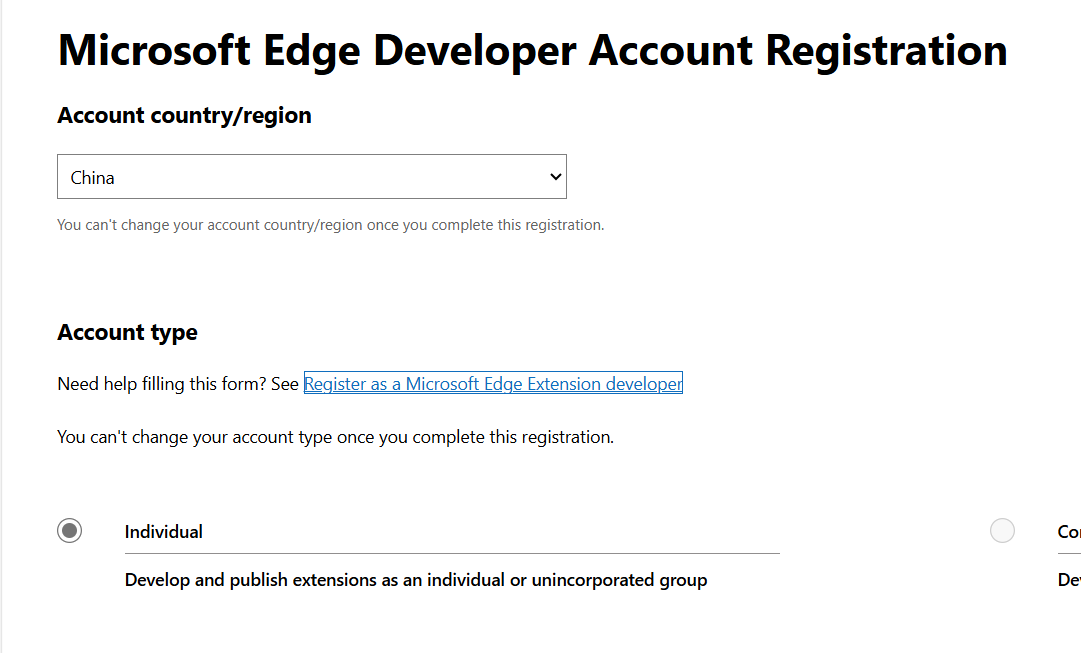
访问 Microsoft Edge Add-ons商店,并注册一个开发者账号。注意省份要填首字母,如 北京 填 BJ

2. 打包插件

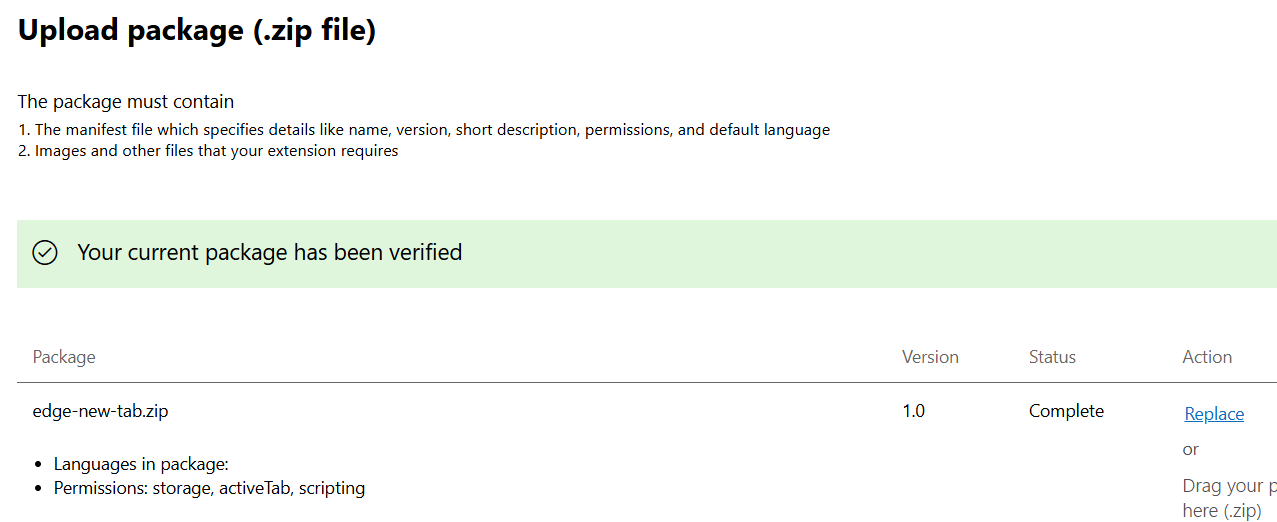
将插件文件夹打包成 ZIP 文件(不要把 .git 也打包进去)

3. 提交插件

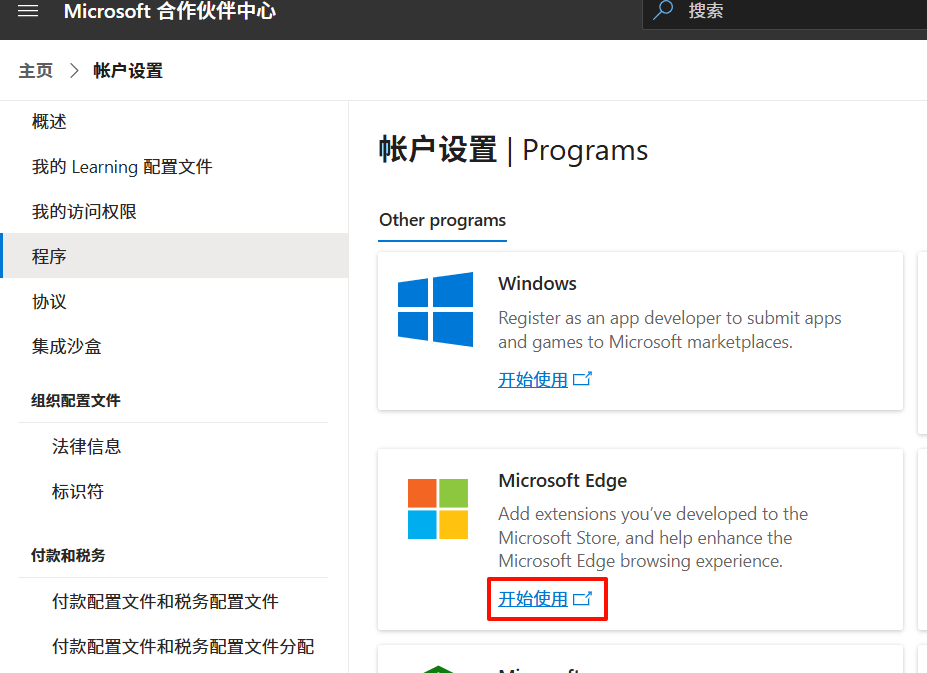
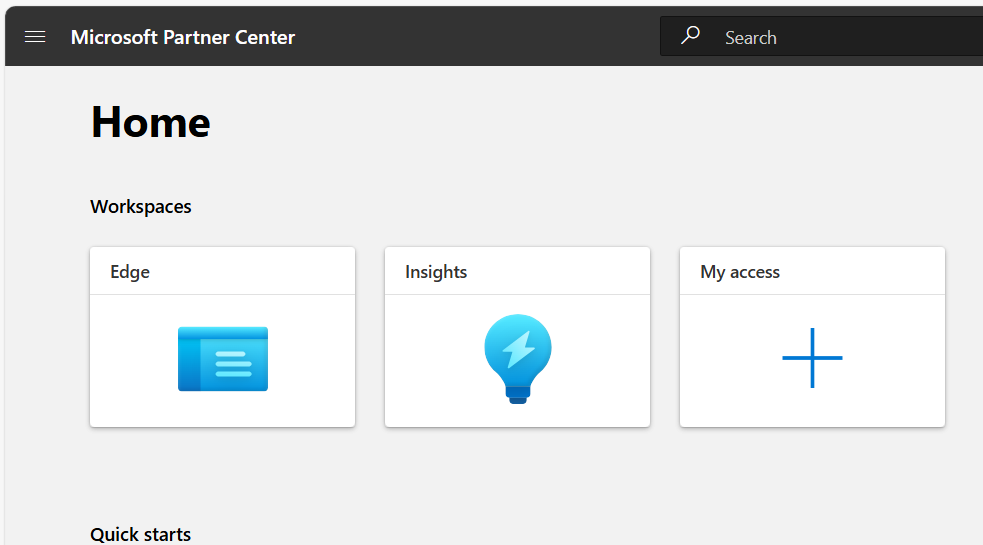
登录Microsoft Edge Add-ons开发者后台,点击开发人员=》开发人员仪表盘

初次使用,需要在 权限管理 添加 edge 开发申请
怎么开发一个实用的 Edge 插件_edge_03

怎么开发一个实用的 Edge 插件_ide_04

注意省份要填首字母,如 北京 填 BJ

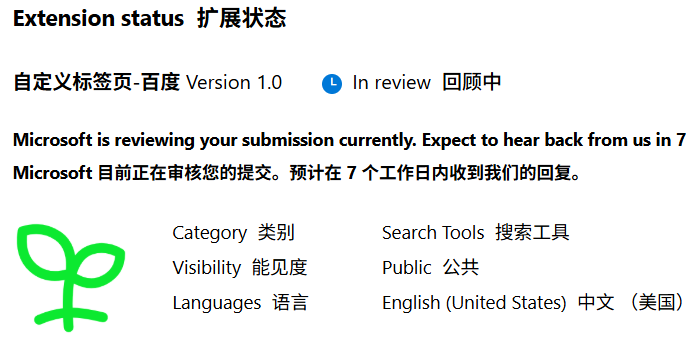
点击 Finish 成功后等待审核通过
怎么开发一个实用的 Edge 插件_ide_05

怎么开发一个实用的 Edge 插件_ico_06

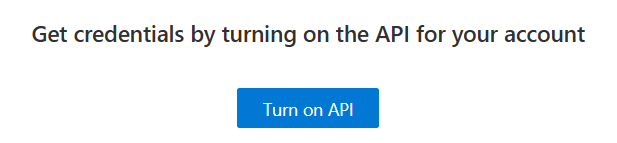
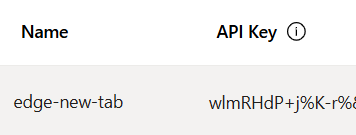
点击 Turn on API 获取 key

怎么开发一个实用的 Edge 插件_ide_07

怎么开发一个实用的 Edge 插件_前端_08

怎么开发一个实用的 Edge 插件_前端_09

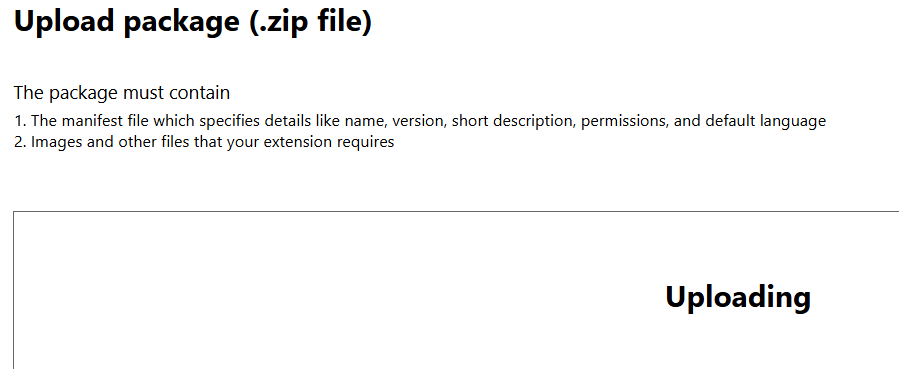
点击“发布扩展”,选择打包好的.zip文件,并填写相关的插件信息。

怎么开发一个实用的 Edge 插件_edge_10

怎么开发一个实用的 Edge 插件_edge_11

提交审核后,插件将被发布。

刷新页面

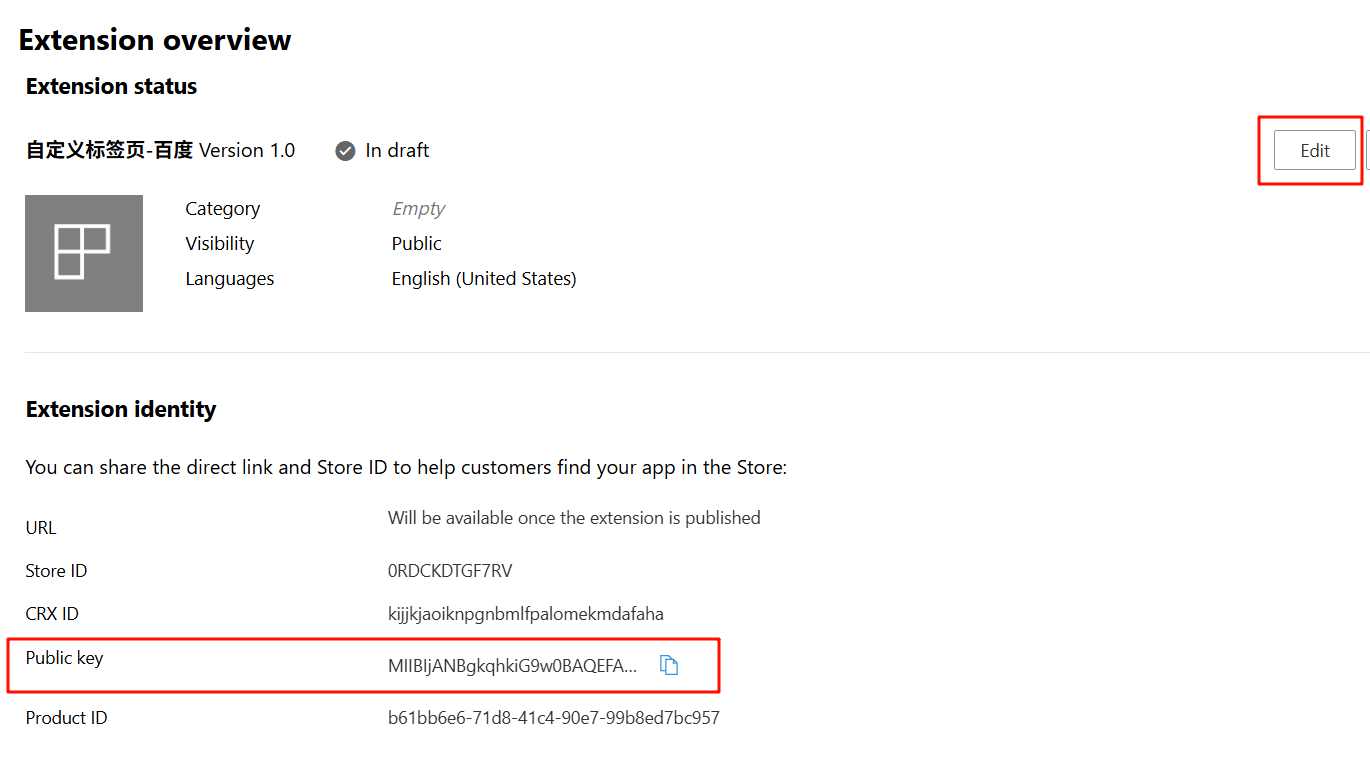
Extension overview 可以看 public key 添加到 manifest.json 中
怎么开发一个实用的 Edge 插件_前端_12

Availability 选择 public 并保存

Properties 填写并保存

Store Listings 填写并保存

Store Listings 可以点击发布
怎么开发一个实用的 Edge 插件_html_13

4. 插件更新

如果以后需要更新插件,可以在后台管理页面上传新版本的插件文件。每次更新需要重新提交审核。