 HTML集成阿里云百炼AI实战


一、阿里云百炼
1、什么是阿里云百炼?
阿里云百炼 是阿里云推出的一站式大模型应用开发平台,为企业提供全流程的大模型应用构建、调试、部署和管理服务。
核心定位
- 企业级大模型应用开发平台
- 全生命周期管理工具
- 多模型集成服务平台
- 可视化应用构建环境
2、平台核心功能
- 模型服务
| 模型服务 | 模型类型 | 代表模型 | 主要用途 |
|---|---|---|---|
| 对话模型 | 通义千问系列 | Qwen-Turbo Qwen-Plus Qwen-Max | 文本生成、问答对话、内容创作 |
| 图像模型 | 通义万相系列 | Wanx-v1 Wanx2.1-base Wanx2.1-turbo | 文生图、图生图、图像编辑 |
| 代码模型 | 通义灵码 | CodeQwen-7B CodeQwen-14B | 代码生成、代码解释、代码优化 |
| 多模态模型 | 通义多模态 | Qwen-VL Qwen-VL-Chat | 视觉理解、多模态交互、文档分析 |
- 模型系列
通义千问:Qwen-72B、Qwen-14B、Qwen-7B、Qwen-1.8B
通义万相:wanx-v1、wanx-2.0、wan2.5-t2i-preview
通义灵码:CodeQwen系列
第三方模型:ChatGLM、Baichuan、InternLM等
3、技术架构
三层架构
┌─────────────────────────────────────────┐
│ 应用层 (Application Layer) │
│ • 可视化编排 │
│ • 应用调试 │
│ • 版本管理 │
└─────────────────────────────────────────┘
┌─────────────────────────────────────────┐
│ 平台层 (Platform Layer) │
│ • 模型管理 │
│ • 数据管理 │
│ • 评估优化 │
└─────────────────────────────────────────┘
┌─────────────────────────────────────────┐
│ 引擎层 (Engine Layer) │
│ • 推理服务 │
│ • 微调训练 │
│ • 向量引擎 │
└─────────────────────────────────────────┘
4、主要API服务
- 文本生成API
// 基础调用
POST https://dashscope.aliyuncs.com/api/v1/services/aigc/text-generation/generation

// 请求示例
{
  "model": "qwen-turbo",
  "input": {
    "messages": [
      {
        "role": "user",
        "content": "你好"
      }
    ]
  },
  "parameters": {
    "result_format": "text"
  }
}
- 图片生成API
// 异步调用
POST https://dashscope.aliyuncs.com/api/v1/services/aigc/text2image/image-synthesis

// 请求头
{
  "Content-Type": "application/json",
  "Authorization": "Bearer sk-your-api-key",
  "X-DashScope-Async": "enable"
}

// 请求体
{
  "model": "wanx-v1",
  "input": {
    "prompt": "一只可爱的猫"
  },
  "parameters": {
    "size": "1024 * 1024",
    "n": 1
  }
}
- 任务查询API
// 查询异步任务状态
GET https://dashscope.aliyuncs.com/api/v1/tasks/{task_id}
5、开发工具和SDK
1. SDK支持
- Python SDK: pip install dashscope
- Java SDK: Maven依赖
- Node.js SDK: npm install @alicloud/bailian
- Go SDK: go get github.com/alibabacloud-go/bailian
2. Python SDK示例
import dashscope
3. 设置API密钥
dashscope.api_key = "sk-your-api-key"
4. 文本生成
response = dashscope.Generation.call(
    model="qwen-turbo",
    messages=[{"role": "user", "content": "你好"}]
)
print(response.output.text)
5. 图片生成
response = dashscope.ImageSynthesis.call(
    model="wanx-v1",
    prompt="一只可爱的猫",
    n=1,
    size="1024 * 1024"
)
print(response.output.results[0].url)
6、核心特性
- 可视化应用编排
- 拖拽式工作流设计
- 多节点连接
- 实时调试
- 版本对比
- 模型管理
- 多模型统一接入
- 模型版本管理
- 性能监控
- 成本分析
- 数据管理
- 数据集管理
- 数据标注
- 数据质量评估
- 数据版本控制
- 评估优化
- 自动评估指标
- A/B测试
- 性能优化建议成本优化
7、计费模式
- 按量计费
| 模型类型 | 计费单位 | 参考价格 |
|---|---|---|
| 通义千问 | 每千tokens | 0.008元/1K tokens |
| 通义万相 | 每张图片 | 1.2元/张 |
| 通义灵码 | 每千tokens | 0.012元/1K tokens |
- 资源包
- 预付费资源包
- 阶梯折扣
- 有效期管理
- 免费额度
- 新用户赠送体验额度
- 开发者测试额度
- 教育科研优惠
8、应用场景
- 智能客服
// 客服机器人示例
{
  "model": "qwen-plus",
  "input": {
    "messages": [
      {
        "role": "system",
        "content": "你是一个专业的客服助手,回答要礼貌、准确、简洁。"
      },
      {
        "role": "user",
        "content": "我的订单什么时候发货?"
      }
    ]
  }
}
- 内容创作
- 文章写作
- 营销文案
- 社交媒体内容
- 视频脚本
- 代码助手
- 代码生成
- 代码解释
- Bug修复
- 代码优化
- 设计生成
- 海报设计
- Logo设计
- UI界面
- 产品原型
9、快速开始
- 注册账号
- 访问官网
- 注册阿里云账号
- 完成实名认证
- 申请百炼服务
- 获取API密钥
# 控制台操作路径
控制台 → 百炼 → 模型服务 → API-KEY管理
- 创建应用
// 1. 创建对话应用
模型:qwen-turbo
用途:智能客服

// 2. 创建图片应用
模型:wanx-v1
用途:产品设计

// 3. 创建工作流应用
节点:文本生成 → 图片生成 → 内容审核
10、完整项目配置
- 项目结构
ai-project/
├── server.js          # 代理服务器
├── client.html        # 前端界面
├── package.json       # 项目配置
├── .env              # 环境变量
└── README.md         # 项目说明
- 环境配置
# 安装依赖
npm init -y
npm install express cors axios

# 创建.env文件
API_KEY=sk-your-api-key
PORT=3000
- 启动命令
// package.json
{
  "scripts": {
    "start": "node server.js",
    "dev": "node --watch server.js",
    "test": "node test-api.js"
  }
}
11、最佳实践
- 错误处理
try {
  const response = await axios.post(apiUrl, data, { headers });
  return response.data;
} catch (error) {
  if (error.response) {
    // API错误
    console.error('API Error:', error.response.status, error.response.data);
  } else if (error.request) {
    // 网络错误
    console.error('Network Error:', error.message);
  } else {
    // 配置错误
    console.error('Config Error:', error.message);
  }
  throw error;
}
- 性能优化
// 1. 使用异步处理
app.post('/api/image', async (req, res) => {
  const task = await submitImageTask(req.body);
  res.json({ task_id: task.id });
});

// 2. 实现轮询
async function pollTask(taskId, maxAttempts = 30) {
  for (let i = 0; i < maxAttempts; i++) {
    const status = await getTaskStatus(taskId);
    if (status === 'SUCCEEDED') return await getResult(taskId);
    await sleep(2000);
  }
  throw new Error('Timeout');
}
- 安全实践
// 1. 环境变量管理
const API_KEY = process.env.API_KEY;

// 2. 输入验证
function validateInput(input) {
  if (!input || input.trim().length === 0) {
    throw new Error('输入不能为空');
  }
  if (input.length > 1000) {
    throw new Error('输入过长');
  }
  return input.trim();
}
12、学习资源
- 官方文档
- 学习路径
 入门  →  基础  → 进阶  →  专家
  ↓       ↓       ↓       ↓
API调用 应用开发  模型微调  平台部署
  ↓       ↓       ↓       ↓
文档阅读 示例学习  项目实战  架构设计
13、常见问题
Q1: API调用失败?
# 检查步骤
1. 验证API密钥
2. 检查网络连接
3. 查看账户余额
4. 确认模型可用性
Q2: 图片生成慢?
// 优化建议
1. 使用异步接口
2. 实现轮询机制
3. 设置超时时间
4. 使用回调通知
Q3: 如何计费?
# 查看账单
控制台 → 费用中心 → 账单管理
# 设置预算
控制台 → 费用中心 → 预算管理
14、总结
阿里云百炼大模型平台提供:
✅ 一站式大模型应用开发
✅ 多模型统一接入
✅ 可视化应用编排
✅ 企业级安全可靠
✅ 弹性计费模式
✅ 丰富的开发者工具
无论您是初学者还是企业开发者,百炼都能提供从模型调用到应用部署的全链路支持
二、购买百炼AI模型
1、阿里云官方渠道
- 官网购买:访问 阿里云百炼产品
- 控制台开通:登录阿里云控制台 → 搜索"百炼" → 立即开通
2、购买步骤
1. 注册/登录阿里云账号
2. 完成实名认证和企业认证(如需企业服务)
3. 进入百炼产品页面
4. 选择服务套餐:
   - 按量付费:适合测试和低频使用
   - 包年包月:适合稳定生产使用
5. 在线支付开通
3、API接入方式
# 1. 创建AccessKey
阿里云控制台 → 访问控制 → 创建AccessKey

# 2. 获取百炼API Endpoint
https://dashscope.aliyuncs.com/compatible-mode/v1

# 3. 设置请求头
Authorization: Bearer ${api_key}
三、HTML代码实战
1、测试
1.1 创建test.js
const axios = require('axios');

const API_KEY='sk-xxxxx'

testApiKey();

async function testApiKey() {

    try {
        const authHeader = `Bearer ${API_KEY}`;

        // 测试2: 发送请求
        console.log('\n  🔄 发送测试请求到阿里云API...');

        const response = await axios.post(
            'https://dashscope.aliyuncs.com/api/v1/services/aigc/text-generation/generation',
            {
                model: "qwen-turbo",
                input: {
                    messages: [{
                        role: "user",
                        content: "Hello"
                    }]
                },
                parameters: {
                    result_format: "text"
                }
            },
            {
                headers: {
                    'Content-Type': 'application/json',
                    'Authorization': authHeader
                },
                timeout: 10000
            }
        );

        console.log('  ✅ 请求成功!状态码:', response.status);
        console.log('  响应数据:', JSON.stringify(response.data, null, 2));

    } catch (error) {
        console.log('  ❌ 请求失败:');

        if (error.response) {
            console.log('  状态码:', error.response.status);
            console.log('  错误信息:', JSON.stringify(error.response.data, null, 2));

            if (error.response.status === 401 || error.response.status === 403) {
                console.log('  🔴 认证失败!API密钥无效');
            } else if (error.response.status === 400) {
                console.log('  🔴 请求格式错误');
                if (error.response.data?.error?.includes('Authorization')) {
                    console.log('  🔴 Authorization头部包含非法字符');
                }
            }
        } else {
            console.log('  错误:', error.message);
        }
    }
}
1.2 测试JS
使用node.js 命令
PS H:Ai>npm init -y
PS H:Ai>node test.js
返回结果
PS H:Ai> node test.js
  🔄 发送测试请求到阿里云API...
  ✅ 请求成功!状态码: 200
  响应数据: {
  "output": {
    "finish_reason": "stop",
    "text": "Hello! How can I assist you today? 😊"
  },
  "usage": {
    "input_tokens": 13,
    "output_tokens": 11,
    "prompt_tokens_details": {
      "cached_tokens": 0
    },
    "total_tokens": 24
  },
  "request_id": "cde24ffc-187e-4f50-adfc-6567ef161d1e"
}
PS H:Ai>
2、HTML实战
2.1 创建test.html
<!DOCTYPE html>
<html lang="zh-CN">
<head>
<meta charset="UTF-8">
<meta name="viewport" content="width=device-width, initial-scale=1.0">
<title>AI文生图测试</title>
<style>
* {
margin: 0;
padding: 0;
box-sizing: border-box;
font-family: 'Segoe UI', 'Microsoft YaHei', sans-serif;
}
body {
background: linear-gradient(135deg, #6a11cb 0%, #2575fc 100%);
color: #333;
min-height: 100vh;
padding: 20px;
}
.container {
max-width: 500px;
margin: 0 auto;
}
.header {
text-align: center;
margin-bottom: 40px;
color: white;
}
.header h1 {
font-size: 42px;
margin-bottom: 15px;
font-weight: 700;
text-shadow: 0 2px 10px rgba(0, 0, 0, 0.2);
}
.header p {
font-size: 18px;
opacity: 0.9;
max-width: 600px;
margin: 0 auto;
line-height: 1.6;
}
.generator-card {
background: white;
border-radius: 16px;
box-shadow: 0 10px 30px rgba(0, 0, 0, 0.15);
overflow: hidden;
transition: transform 0.3s, box-shadow 0.3s;
}
.generator-card:hover {
transform: translateY(-5px);
box-shadow: 0 15px 35px rgba(0, 0, 0, 0.2);
}
.card-header {
padding: 25px 30px;
color: white;
text-align: center;
background: linear-gradient(135deg, #ff6b6b 0%, #ff8e53 100%);
}
.card-header h2 {
font-size: 24px;
margin-bottom: 10px;
}
.card-header p {
opacity: 0.9;
font-size: 15px;
}
.card-content {
padding: 25px 30px;
}
.input-label {
display: block;
margin-bottom: 12px;
font-weight: 600;
color: #444;
font-size: 16px;
}
.input-hint {
font-size: 14px;
color: #666;
margin-top: 5px;
margin-bottom: 15px;
}
.text-input {
width: 100%;
min-height: 150px;
padding: 15px;
border: 2px solid #e1e5ee;
border-radius: 10px;
font-size: 15px;
line-height: 1.6;
resize: vertical;
transition: all 0.3s;
}
.text-input:focus {
outline: none;
border-color: #2575fc;
box-shadow: 0 0 0 3px rgba(37, 117, 252, 0.1);
}
.btn {
padding: 12px 24px;
border: none;
border-radius: 8px;
font-size: 16px;
font-weight: 600;
cursor: pointer;
transition: all 0.3s;
width: 100%;
margin-top: 15px;
background: linear-gradient(135deg, #ff6b6b 0%, #ff8e53 100%);
color: white;
}
.btn:hover {
transform: translateY(-2px);
box-shadow: 0 5px 15px rgba(0, 0, 0, 0.2);
}
.btn:disabled {
opacity: 0.6;
cursor: not-allowed;
transform: none !important;
}
.footer {
text-align: center;
padding: 30px;
color: white;
font-size: 15px;
opacity: 0.9;
}
/* 结果展示样式 */
.result-container {
margin-top: 20px;
padding: 15px;
border-radius: 10px;
background: #f8f9fa;
text-align: center;
}
.loading {
color: #666;
font-size: 14px;
padding: 15px;
}
.loading::before {
content: "";
display: inline-block;
width: 20px;
height: 20px;
border: 3px solid #f3f3f3;
border-top: 3px solid #2575fc;
border-radius: 50%;
animation: spin 1s linear infinite;
margin-right: 8px;
vertical-align: middle;
}
@keyframes spin {
0% { transform: rotate(0deg); }
100% { transform: rotate(360deg); }
}
.error {
color: #ff6b6b;
padding: 15px;
background: #fff5f5;
border-radius: 8px;
margin: 10px 0;
}
.success {
color: #28a745;
padding: 15px;
background: #f0fff4;
border-radius: 8px;
margin: 10px 0;
font-weight: 600;
}
.result-img {
max-width: 100%;
border-radius: 12px;
margin: 15px 0;
box-shadow: 0 5px 20px rgba(0,0,0,0.15);
border: 3px solid white;
}
.download-btn {
padding: 12px 24px;
background: #2575fc;
color: white;
border: none;
border-radius: 8px;
cursor: pointer;
margin: 10px 5px;
font-size: 14px;
font-weight: 600;
transition: all 0.3s;
}
.download-btn:hover {
background: #1c65e0;
transform: translateY(-2px);
}
.retry-btn {
padding: 12px 24px;
background: #6c757d;
color: white;
border: none;
border-radius: 8px;
cursor: pointer;
margin: 10px 5px;
font-size: 14px;
font-weight: 600;
transition: all 0.3s;
}
.retry-btn:hover {
background: #5a6268;
transform: translateY(-2px);
}
.prompt-info {
font-size: 14px;
color: #666;
margin: 15px 0;
text-align: left;
background: #f8f9fa;
padding: 12px;
border-radius: 8px;
border-left: 4px solid #2575fc;
}
.prompt-info strong {
color: #333;
}
/* 配置信息样式 */
.config-info {
background: rgba(255, 255, 255, 0.1);
padding: 15px;
border-radius: 10px;
margin: 20px 0;
color: white;
}
.config-info h3 {
margin-bottom: 10px;
font-size: 16px;
}
.config-info pre {
background: rgba(0, 0, 0, 0.2);
padding: 10px;
border-radius: 5px;
overflow-x: auto;
font-size: 13px;
}
/* 示例样式 */
.examples {
margin-top: 20px;
}
.examples h3 {
margin-bottom: 12px;
color: #444;
font-size: 16px;
}
.example-item {
background: #f8faff;
border-left: 4px solid #2575fc;
padding: 10px 12px;
margin-bottom: 8px;
border-radius: 0 6px 6px 0;
cursor: pointer;
transition: all 0.2s;
font-size: 14px;
}
.example-item:hover {
background: #eef4ff;
transform: translateX(5px);
}
@media (max-width: 768px) {
.header h1 {
font-size: 32px;
}
.header p {
font-size: 16px;
}
.download-btn, .retry-btn {
width: 100%;
margin: 5px 0;
}
}
</style>
</head>
<body>
<div class="container">
<div class="header">
<h1>AI文生图测试</h1>
<p>输入文本描述,AI将生成对应的图片</p>
</div>
<!-- 配置信息展示 -->
<div class="config-info">
<h3>当前配置</h3>
<pre id="config-display"></pre>
</div>
<div class="generator-card">
<div class="card-header">
<h2>文生图生成器</h2>
<p>输入文本描述,AI将根据描述生成图片</p>
</div>
<div class="card-content">
<label for="image-input" class="input-label">图片描述</label>
<p class="input-hint">详细描述您想要生成的图片内容、风格和元素</p>
<textarea id="image-input" class="text-input" placeholder="例如:一只可爱的卡通猫坐在窗台上,阳光透过窗户,周围有绿植,风格温暖明亮"></textarea>
<button id="generate-image" class="btn">生成图片</button>
<div id="image-result" class="result-container">
<!-- 结果将在这里显示 -->
</div>
<div class="examples">
<h3>示例提示</h3>
<div class="example-item" data-target="image-input">一只在森林中奔跑的红色狐狸,阳光透过树叶,神秘梦幻的风格</div>
<div class="example-item" data-target="image-input">未来城市夜景,霓虹灯光,飞行汽车,赛博朋克风格</div>
<div class="example-item" data-target="image-input">宁静的海滩日落,金色沙滩,粉色天空,帆船在远处,油画风格</div>
</div>
</div>
</div>
<div class="footer">
<p>AI文生图测试 © 2025</p>
</div>
</div>
<script>
// 配置信息
const CONFIG = {
PROXY_URL: "http://localhost:3000",
TEXT_MODEL: "qwen-turbo",
IMAGE_MODEL: "wan2.5-t2i-preview"
};
// 状态管理
const state = {
isGenerating: false,
lastGeneratedImage: null
};
// 优化提示词的模板
const PROMPT_TEMPLATE = (userInput) =>
`Generate a high-quality image with the following description: ${userInput}.
Style: professional, visually appealing, well-composed, with good lighting and detail.
The image should be suitable for digital use and display.`;
// 1. 优化提示词
async function optimizePrompt(userInput) {
try {
console.log(`优化提示词:`, userInput);
// 如果用户输入的是中文,使用模板优化
if (/[\u4e00-\u9fa5]/.test(userInput)) {
const optimized = PROMPT_TEMPLATE(userInput);
console.log("优化后的提示词:", optimized);
return optimized;
}
return userInput;
} catch (error) {
console.error("提示词优化失败:", error);
return userInput;
}
}
// 2. 检查任务状态
async function checkTaskStatus(taskId) {
try {
const response = await fetch(`${CONFIG.PROXY_URL}/api/tasks/${taskId}`, {
method: "GET",
});
if (!response.ok) {
const errorData = await response.json();
throw new Error(`查询失败: ${response.status} - ${errorData.error || '未知错误'}`);
}
const data = await response.json();
if (data.output?.task_status === 'SUCCEEDED') {
// 任务完成,返回图片URL
return {
status: 'success',
imageUrl: data.output.results?.[0]?.url,
taskData: data
};
} else if (data.output?.task_status === 'PENDING' || data.output?.task_status === 'RUNNING') {
// 任务仍在处理中
return {
status: 'pending',
taskStatus: data.output.task_status,
taskData: data
};
} else if (data.output?.task_status === 'FAILED') {
// 任务失败
throw new Error(`任务失败: ${data.output?.message || '未知错误'}`);
} else {
// 未知状态
throw new Error(`未知任务状态: ${data.output?.task_status}`);
}
} catch (error) {
console.error('任务状态查询错误:', error);
throw error;
}
}
// 3. 轮询检查任务状态
async function pollTaskStatus(taskId, resultContainer, optimizedPrompt) {
const maxAttempts = 30; // 最多尝试30次
const interval = 3000; // 3秒检查一次
for (let attempt = 0; attempt < maxAttempts; attempt++) {
try {
const result = await checkTaskStatus(taskId);
if (result.status === 'success') {
// 任务完成,显示图片
state.lastGeneratedImage = result.imageUrl;
const downloadId = `download_${Date.now()}`;
const retryId = `retry_${Date.now()}`;
resultContainer.innerHTML = `
<div class="success">🎉 生成成功!</div>
<img src="${result.imageUrl}" alt="AI生成图片" class="result-img">
<div class="prompt-info">
<strong>优化后提示词:</strong><br>
${optimizedPrompt.substring(0, 150)}${optimizedPrompt.length > 150 ? '...' : ''}
</div>
<div>
<button id="${downloadId}" class="download-btn">
📥 下载图片
</button>
<button id="${retryId}" class="retry-btn">
🔄 重新生成
</button>
</div>
`;
// 重新绑定下载按钮事件
document.getElementById(downloadId).addEventListener('click', () => {
downloadImage(result.imageUrl, `ai_image_${Date.now()}`);
});
// 重新绑定重试按钮事件
document.getElementById(retryId).addEventListener('click', retryGeneration);
return;
} else if (result.status === 'pending') {
// 仍在处理中
const status = result.taskStatus || '处理中';
const progress = Math.min(100, Math.floor((attempt / maxAttempts) * 100));
resultContainer.innerHTML = `<div class="loading">⏳ 图片生成中... (${status}) 进度: ${progress}% (${attempt + 1}/${maxAttempts})</div>`;
// 继续等待
await new Promise(resolve => setTimeout(resolve, interval));
}
} catch (error) {
console.error('轮询错误:', error);
resultContainer.innerHTML = `
<div class="error">❌ 任务处理失败</div>
<div style="color:#666; margin:10px 0; font-size:14px;">${error.message}</div>
<button class="retry-btn" onclick="retryGeneration()">🔄 重新尝试</button>
`;
return;
}
}
// 超时处理
resultContainer.innerHTML = `
<div class="error">⏰ 生成超时,请稍后重试</div>
<div class="prompt-info">
<strong>任务ID:</strong> ${taskId}<br>
<strong>优化提示词:</strong> ${optimizedPrompt.substring(0, 100)}...
</div>
<button class="retry-btn" onclick="retryGeneration()">🔄 重新尝试</button>
`;
}
// 4. 生成图片
async function generateImage() {
if (state.isGenerating) {
alert("请等待当前生成完成");
return;
}
const userInput = document.getElementById('image-input').value.trim();
if (!userInput) {
alert("请输入图片描述!");
return;
}
// 更新UI状态
state.isGenerating = true;
const button = document.getElementById('generate-image');
const resultContainer = document.getElementById('image-result');
const originalText = button.textContent;
button.textContent = "生成中...";
button.disabled = true;
resultContainer.innerHTML = '<div class="loading">AI正在创作中,这可能需要10-30秒...</div>';
try {
// 优化提示词
const optimizedPrompt = await optimizePrompt(userInput);
console.log(`生成图片,优化后提示词:`, optimizedPrompt);
const requestBody = {
model: CONFIG.IMAGE_MODEL,
prompt: optimizedPrompt,
parameters: {
size: "1024 * 1024",
n: 1
}
};
console.log(`生成图片请求体:`, requestBody);
// 调用图片生成接口
const response = await fetch(`${CONFIG.PROXY_URL}/api/image`, {
method: "POST",
headers: {
"Content-Type": "application/json"
},
body: JSON.stringify(requestBody)
});
if (!response.ok) {
const errorText = await response.text();
console.error("请求失败响应:", errorText);
throw new Error(`图片生成失败:${response.status}`);
}
const data = await response.json();
console.log(`图片生成响应:`, data);
if (data.output?.task_id) {
// 获取任务ID,开始轮询
const taskId = data.output.task_id;
console.log(`任务已提交,任务ID: ${taskId}`);
// 开始轮询任务状态
await pollTaskStatus(taskId, resultContainer, optimizedPrompt);
} else if (data.output?.results?.[0]?.url) {
// 如果直接返回图片URL(同步模式)
const imageUrl = data.output.results[0].url;
state.lastGeneratedImage = imageUrl;
resultContainer.innerHTML = `
<div class="success">🎉 生成成功!</div>
<img src="${imageUrl}" alt="AI生成图片" class="result-img">
<div class="prompt-info">
<strong>优化后提示词:</strong><br>
${optimizedPrompt.substring(0, 150)}${optimizedPrompt.length > 150 ? '...' : ''}
</div>
<div>
<button id="download-btn-latest" class="download-btn">
📥 下载图片
</button>
<button id="retry-btn-latest" class="retry-btn">
🔄 重新生成
</button>
</div>
`;
// 绑定下载按钮事件
document.getElementById('download-btn-latest').addEventListener('click', () => {
downloadImage(imageUrl, `ai_image_${Date.now()}`);
});
// 绑定重试按钮事件
document.getElementById('retry-btn-latest').addEventListener('click', retryGeneration);
} else {
throw new Error("未获取到图片URL或任务ID");
}
} catch (error) {
console.error(`图片生成失败:`, error);
let errorMessage = error.message;
if (errorMessage.includes("Failed to fetch")) {
errorMessage = "网络连接失败。请检查:\n1. 代理服务器是否启动\n2. 网络连接是否正常\n3. 端口号是否正确";
}
resultContainer.innerHTML = `
<div class="error">❌ 生成失败</div>
<div style="color:#666; margin:10px 0; font-size:14px; white-space: pre-line;">
${errorMessage}
</div>
<button class="retry-btn" onclick="retryGeneration()">
🔄 重新尝试
</button>
`;
} finally {
// 恢复状态
state.isGenerating = false;
button.textContent = originalText;
button.disabled = false;
}
}
// 5. 重新生成
async function retryGeneration() {
await generateImage();
}
// 6. 下载图片 - 修复版
async function downloadImage(imageUrl, filename) {
try {
// 显示下载提示
alert('开始下载图片,请稍候...');
// 使用fetch获取图片数据
const response = await fetch(imageUrl);
if (!response.ok) {
throw new Error(`下载失败: ${response.status}`);
}
// 转换为blob
const blob = await response.blob();
// 创建下载链接
const url = window.URL.createObjectURL(blob);
const link = document.createElement('a');
link.href = url;
link.download = filename + '.png';
// 添加到DOM并点击
document.body.appendChild(link);
link.click();
// 清理
document.body.removeChild(link);
window.URL.revokeObjectURL(url);
// 显示成功提示
setTimeout(() => {
alert('图片下载成功!请查看您的下载文件夹。');
}, 100);
} catch (error) {
console.error('下载失败:', error);
// 如果fetch失败,尝试使用备用方法
try {
alert('直接下载失败,尝试备用方法...');
// 备用方法:在新窗口中打开图片,让用户手动保存
const newWindow = window.open(imageUrl, '_blank');
if (!newWindow) {
alert('请允许弹出窗口,然后右键图片选择"图片另存为..."');
}
} catch (fallbackError) {
console.error('备用方法也失败:', fallbackError);
alert('下载失败,请右键图片选择"图片另存为..."');
}
}
}
// 7. 初始化
document.addEventListener('DOMContentLoaded', function() {
// 显示配置信息
document.getElementById('config-display').textContent =
`代理地址: ${CONFIG.PROXY_URL}\n` +
`文本模型: ${CONFIG.TEXT_MODEL}\n` +
`图片模型: ${CONFIG.IMAGE_MODEL}\n` +
`图片尺寸: 1024x1024`;
// 绑定示例点击
document.querySelectorAll('.example-item').forEach(item => {
item.addEventListener('click', function() {
const targetId = this.getAttribute('data-target');
const targetInput = document.getElementById(targetId);
if (targetInput) {
targetInput.value = this.textContent;
targetInput.focus();
}
});
});
// 绑定生成按钮
document.getElementById('generate-image').addEventListener('click', generateImage);
// 允许按Enter键生成图片(在文本框中)
document.getElementById('image-input').addEventListener('keydown', function(event) {
if (event.ctrlKey && event.key === 'Enter') {
event.preventDefault();
generateImage();
}
});
console.log('前端配置:', CONFIG);
});
</script>
</body>
</html>
2.2 创建server.js
const express = require('express');
const cors = require('cors');
const axios = require('axios');

const app = express();

// 1. 基础配置
app.use(cors());
app.use(express.json({ strict: true }));

// 2. 核心
const API_KEY = 'sk-xxx';

// 3. 创建安全的请求头
function createHeaders(isImage = false) {
    const headers = {
        'Content-Type': 'application/json',
        'Authorization': `Bearer ${API_KEY}`
    };
    if (isImage) {
        headers['X-DashScope-Async'] = 'enable';
    }
    return headers;
}

// 4. 文本生成接口
app.post('/api/text', async (req, res) => {
    try {
        console.log('📝 文本生成请求');
        const headers = createHeaders(false);
        const response = await axios.post(
            'https://dashscope.aliyuncs.com/api/v1/services/aigc/text-generation/generation',
            req.body,
            { headers, timeout: 30000 }
        );
        res.json(response.data);
    } catch (error) {
        console.error('文本生成错误:', error.message);
        res.status(error.response?.status || 500).json({
            error: error.message,
            details: error.response?.data
        });
    }
});

// 5. 图片生成接口
app.post('/api/image', async (req, res) => {
    try {
        console.log('🎨 图片生成请求');
        const headers = createHeaders(true);

        // 构造请求体,确保包含必要参数
        const requestBody = {
            model: req.body.model || "wan2.5-t2i-preview", // 默认模型
            input: {
                prompt: req.body.prompt
            },
            parameters: req.body.parameters || {
                size: "1024*1024",
                n: 1
            }
        };

        console.log('📤 发送图片生成请求:', JSON.stringify(requestBody, null, 2));

        const response = await axios.post(
            'https://dashscope.aliyuncs.com/api/v1/services/aigc/text2image/image-synthesis',
            requestBody,
            { headers, timeout: 60000 }
        );

        console.log('📥 图片生成响应:', JSON.stringify(response.data, null, 2));
        res.json(response.data);

    } catch (error) {
        console.error('❌ 图片生成错误:', error.message);
        if (error.response) {
            console.error('错误响应:', error.response.data);
        }
        res.status(error.response?.status || 500).json({
            error: error.message,
            details: error.response?.data
        });
    }
});

// 6. 任务状态查询接口
app.get('/api/tasks/:taskId', async (req, res) => {
    try {
        const { taskId } = req.params;
        console.log(`🔍 查询任务状态: ${taskId}`);

        const headers = createHeaders(false);

        const response = await axios.get(
            `https://dashscope.aliyuncs.com/api/v1/tasks/${taskId}`,
            { headers, timeout: 10000 }
        );

        console.log('📋 任务状态响应:', response.data);
        res.json(response.data);

    } catch (error) {
        console.error('❌ 任务查询错误:', error.message);
        res.status(error.response?.status || 500).json({
            error: error.message,
            details: error.response?.data
        });
    }
});

// 7. 健康检查
app.get('/api/health', (req, res) => {
    res.json({
        status: 'ok',
        apiKey: {
            length: API_KEY.length,
            valid: API_KEY.startsWith('sk-') && API_KEY.length === 35,
            authHeader: `Bearer ${API_KEY.substring(0, 10)}...`
        }
    });
});

// 8. 测试接口
app.post('/api/test', async (req, res) => {
    try {
        const headers = createHeaders(false);
        const testData = {
            model: "qwen-turbo",
            input: {
                messages: [{ role: "user", content: "你好" }]
            }
        };
        const response = await axios.post(
            'https://dashscope.aliyuncs.com/api/v1/services/aigc/text-generation/generation',
            testData,
            { headers, timeout: 10000 }
        );
        res.json({ success: true, data: response.data });
    } catch (error) {
        res.status(500).json({
            success: false,
            error: error.message,
            response: error.response?.data
        });
    }
});

// 启动服务器
const PORT = 3000;
app.listen(PORT, () => {
    console.log('\n🚀 代理服务器启动成功');
    console.log(`🌐 健康检查: http://localhost:${PORT}/api/health`);
    console.log(`🧪 测试接口: http://localhost:${PORT}/api/test`);
    console.log(`🎨 图片生成: http://localhost:${PORT}/api/image`);
    console.log(`🔍 任务查询: http://localhost:${PORT}/api/tasks/:taskId`);
});
2.3 运行server.js
PS H:Ai> node server.js

🚀 代理服务器启动成功
🌐 健康检查: http://localhost:3000/api/health
🧪 测试接口: http://localhost:3000/api/test
🎨 图片生成: http://localhost:3000/api/image
🔍 任务查询: http://localhost:3000/api/tasks/:taskId
2.4 运行结果
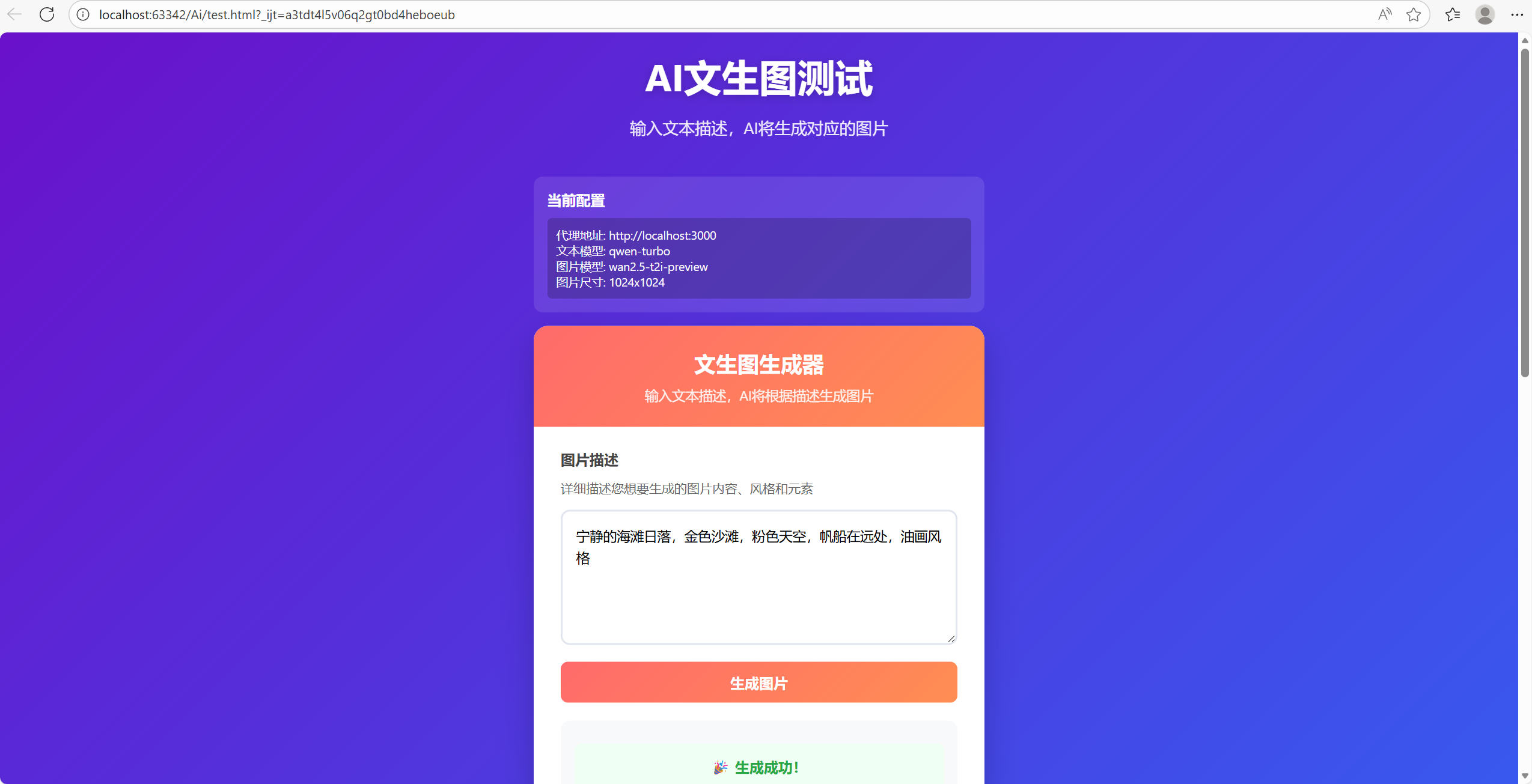

阿里云百炼大模型集成完成





 扫一扫
扫一扫


 1万+
1万+

 被折叠的 条评论
为什么被折叠?
被折叠的 条评论
为什么被折叠?
 到【灌水乐园】发言





