
OpenSSH 连接慢: 在运行 SSH2_MSG_SERVICE_ACCEPT 时挂起

本文介绍如何通过编辑sshd_config,将UseDNS设置为no来加速SSH连接过程,重点在于解决SSH2_MSG_SERVICE_ACCEPT长时间等待问题。步骤包括修改配置、重启服务和验证改进效果。

当我们使用ssh连接我们的服务器时,总是要等待很长时间,当我们执行ssh -v 时可以看到,在运行 SSH2_MSG_SERVICE_ACCEPT 需要很长时间,下面我们可以将sshd_config文件中的UseDNS修改为no即可解决。

下面是具体的操作方法

  • 第一步:
vi /etc/sshd_config

找到下面的配置文件,删除前面的注释符号“#”,划分Yes修改为no
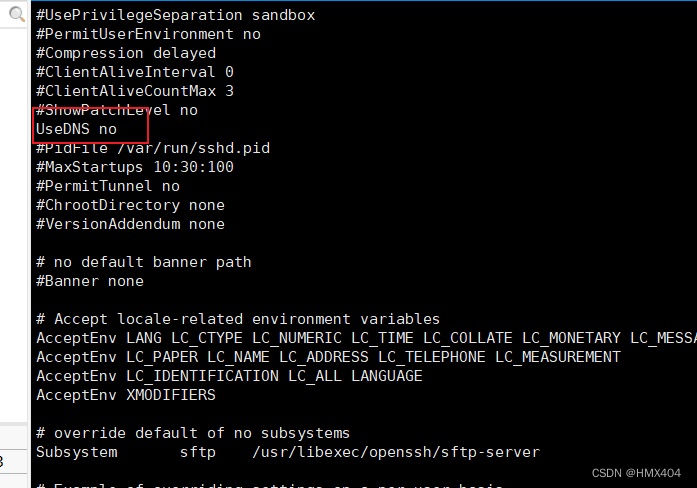
修改UseDNs位置

  • 重启openssh

再次连接远程服务器,这次应该很快,不会挂在SSH2_MSG_SERVICE_ACCEPTED。

service sshd restart

再次连接,体会秒级响应

ssh -v ramesh@remote-host

C:\Users\pc> ssh -R 13306:127.0.0.1:3306 -R 18088:127.0.0.1:8088 -i "C:\Users\pc\.ssh\My_Superset_Key.pem" ubuntu@43.153.66.149 -N -v OpenSSH_for_Windows_9.5p2, LibreSSL 3.8.2 debug1: Connecting to 43.153.66.149 [43.153.66.149] port 22. debug1: Connection established. debug1: identity file C:\\Users\\pc\\.ssh\\My_Superset_Key.pem type -1 debug1: identity file C:\\Users\\pc\\.ssh\\My_Superset_Key.pem-cert type -1 debug1: Local version string SSH-2.0-OpenSSH_for_Windows_9.5 debug1: Remote protocol version 2.0, remote software version OpenSSH_9.6p1 Ubuntu-3ubuntu13.14 debug1: compat_banner: match: OpenSSH_9.6p1 Ubuntu-3ubuntu13.14 pat OpenSSH* compat 0x04000000 debug1: Authenticating to 43.153.66.149:22 as 'ubuntu' debug1: load_hostkeys: fopen C:\\Users\\pc/.ssh/known_hosts2: No such file or directory debug1: load_hostkeys: fopen __PROGRAMDATA__\\ssh/ssh_known_hosts: No such file or directory debug1: load_hostkeys: fopen __PROGRAMDATA__\\ssh/ssh_known_hosts2: No such file or directory debug1: SSH2_MSG_KEXINIT sent debug1: SSH2_MSG_KEXINIT received debug1: kex: algorithm: curve25519-sha256 debug1: kex: host key algorithm: ssh-ed25519 debug1: kex: server->client cipher: chacha20-poly1305@openssh.com MAC: <implicit> compression: none debug1: kex: client->server cipher: chacha20-poly1305@openssh.com MAC: <implicit> compression: none debug1: expecting SSH2_MSG_KEX_ECDH_REPLY debug1: SSH2_MSG_KEX_ECDH_REPLY received debug1: Server host key: ssh-ed25519 SHA256:SCNCIXYAS8UyHXm9xBmwatnCfmtTo1JQSU6B6FLMhJE debug1: load_hostkeys: fopen C:\\Users\\pc/.ssh/known_hosts2: No such file or directory debug1: load_hostkeys: fopen __PROGRAMDATA__\\ssh/ssh_known_hosts: No such file or directory debug1: load_hostkeys: fopen __PROGRAMDATA__\\ssh/ssh_known_hosts2: No such file or directory debug1: Host '43.153.66.149' is known and matches the ED25519 host key. debug1: Found key in C:\\Users\\pc/.ssh/known_hosts:1 debug1: ssh_packet_send2_wrapped: resetting send seqnr 3 debug1: rekey out after 134217728 blocks debug1: SSH2_MSG_NEWKEYS sent debug1: expecting SSH2_MSG_NEWKEYS debug1: ssh_packet_read_poll2: resetting read seqnr 3 debug1: SSH2_MSG_NEWKEYS received debug1: rekey in after 134217728 blocks debug1: get_agent_identities: ssh_get_authentication_socket: No such file or directory debug1: Will attempt key: C:\\Users\\pc\\.ssh\\My_Superset_Key.pem explicit debug1: SSH2_MSG_EXT_INFO received debug1: kex_input_ext_info: server-sig-algs=<ssh-ed25519,ecdsa-sha2-nistp256,ecdsa-sha2-nistp384,ecdsa-sha2-nistp521,sk-ssh-ed25519@openssh.com,sk-ecdsa-sha2-nistp256@openssh.com,rsa-sha2-512,rsa-sha2-256> debug1: kex_ext_info_check_ver: publickey-hostbound@openssh.com=<0> debug1: kex_ext_info_check_ver: ping@openssh.com=<0> debug1: SSH2_MSG_SERVICE_ACCEPT received debug1: Authentications that can continue: publickey,password debug1: Next authentication method: publickey debug1: Trying private key: C:\\Users\\pc\\.ssh\\My_Superset_Key.pem debug1: Authentications that can continue: publickey,password debug1: Next authentication method: password ubuntu@43.153.66.149's password: Authenticated to 43.153.66.149 ([43.153.66.149]:22) using "password". debug1: Remote connections from LOCALHOST:13306 forwarded to local address 127.0.0.1:3306 debug1: Remote connections from LOCALHOST:18088 forwarded to local address 127.0.0.1:8088 debug1: ssh_init_forwarding: expecting replies for 1 forwards debug1: Requesting no-more-sessions@openssh.com debug1: Entering interactive session. debug1: pledge: filesystem debug1: client_input_global_request: rtype hostkeys-00@openssh.com want_reply 0 debug1: client_input_hostkeys: searching C:\\Users\\pc/.ssh/known_hosts for 43.153.66.149 / (none) debug1: client_input_hostkeys: searching C:\\Users\\pc/.ssh/known_hosts2 for 43.153.66.149 / (none) debug1: client_input_hostkeys: hostkeys file C:\\Users\\pc/.ssh/known_hosts2 does not exist debug1: client_input_hostkeys: no new or deprecated keys from server debug1: pledge: network debug1: Remote: Forwarding listen address "localhost" overridden by server GatewayPorts debug1: remote forward success for: listen 13306, connect 127.0.0.1:3306 debug1: forwarding_success: all expected forwarding replies received debug1: Remote: Forwarding listen address "localhost" overridden by server GatewayPorts debug1: remote forward success for: listen 18088, connect 127.0.0.1:8088
最新发布
11-29
你已经取得了非常关键的进展! 从最新的日志来看,**SSH 反向隧道已成功建立并正常工作**。我们来详细分析当前状态、存在的问题以及如何进一步优化。 --- ## ✅ 一、当前状态总结 ### 🟢 成功点: 1. **连接成功建立**:`Connection established` 2. **主机认证通过**:`Host '43.153.66.149' is known and matches...` 3. **反向隧道注册成功**: ``` debug1: remote forward success for: listen 13306, connect 127.0.0.1:3306 debug1: remote forward success for: listen 18088, connect 127.0.0.1:8088 ``` 4. **最终登录成功**:`Authenticated to ... using "password"` → 隧道正在运行! ✅ 意味着你现在可以: - 在腾讯云服务器上访问 `127.0.0.1:13306` → 实际连接到你本地电脑的 MySQL(3306) - 访问 `127.0.0.1:18088` → 实际连接到你本地 WSL 中的 Superset(8088) --- ## ⚠️ 二、核心问题:私钥未被接受(仍需密码登录) 虽然连接成功了,但注意这一段: ```log debug1: Trying private key: C:\\Users\\pc\\.ssh\\My_Superset_Key.pem debug1: Authentications that can continue: publickey,password ``` 👉 表示 SSH 客户端尝试使用你的 `.pem` 私钥进行认证,但 **服务器拒绝了这个密钥**,于是退回到密码登录。 这不是权限问题(不像上次),而是 **公钥未正确部署在服务器上**。 --- ## 🔍 三、根本原因:公钥未添加到服务器的 `~/.ssh/authorized_keys` 要实现免密登录,必须满足以下条件: | 条件 | 是否满足 | |------|----------| | 本地有私钥 `.pem` 文件 | ✅ 是(你在用) | | 对应的公钥已上传到服务器 `~/.ssh/authorized_keys` | ❌ 很可能没有 | 即使你是从腾讯云控制台下载的密钥对,也需要确认该公钥是否真的绑定到了这台服务器实例上。 --- ## ✅ 四、解决方案:将公钥内容追加到腾讯云服务器的 `authorized_keys` ### 步骤 1:生成 `.pub` 公钥文件(如果你只有 `.pem` 私钥) 你已经有了私钥: ``` C:\Users\pc\.ssh\My_Superset_Key.pem ``` 现在从中提取公钥: #### 方法 A:使用 PowerShell + ssh-keygen(推荐) ```powershell # 运行命令生成对应的 .pub 文件 ssh-keygen -y -f "C:\Users\pc\.ssh\My_Superset_Key.pem" > "C:\Users\pc\.ssh\My_Superset_Key.pem.pub" ``` > 💡 `-y` 表示“从私钥中提取公钥” 查看内容验证: ```powershell type C:\Users\pc\.ssh\My_Superset_Key.pem.pub # 输出类似: # ssh-rsa AAAAB3NzaC1yc2EAAAADAQABAAACAQC... ``` --- ### 步骤 2:登录腾讯云服务器,把公钥加入 `authorized_keys` ```powershell # 先登录(仍需密码) ssh ubuntu@43.153.66.149 ``` 进入服务器后执行: ```bash # 创建 .ssh 目录(如果不存在) mkdir -p ~/.ssh chmod 700 ~/.ssh # 将你的公钥内容追加进去(不要覆盖!) echo "ssh-rsa AAAAB3NzaC1yc2EAAAADAQABAAACAQC..." >> ~/.ssh/authorized_keys chmod 600 ~/.ssh/authorized_keys ``` 📌 注意: - `echo "..."` 中的内容是你刚才生成的 `My_Superset_Key.pem.pub` 的全部内容 - 确保没有换行或截断 --- ### 步骤 3:测试是否能免密登录 退出服务器,在本地 PowerShell 执行: ```powershell ssh -i "C:\Users\pc\.ssh\My_Superset_Key.pem" ubuntu@43.153.66.149 -v ``` 你应该看到: ``` debug1: Offering public key: ... My_Superset_Key.pem RSA SHA256:xxxxx debug1: Server accepts key: ... debug1: Authentication succeeded (publickey). ``` 🎉 成功!不再需要输入密码。 --- ## ✅ 五、完整修复后的反向隧道命令(推荐使用) ```powershell ssh -R 13306:127.0.0.1:3306 -R 18088:127.0.0.1:8088 ` -i "C:\Users\pc\.ssh\My_Superset_Key.pem" ` -o ServerAliveInterval=60 ` -o TCPKeepAlive=yes ` -o ExitOnForwardFailure=yes ` -o StrictHostKeyChecking=yes ` ubuntu@43.153.66.149 -N -v ``` 📌 参数说明: | 参数 | 作用 | |------|------| | `-o ServerAliveInterval=60` | 每 60 秒发送心跳包防超 | | `-o TCPKeepAlive=yes` | 启用 TCP 层保活机制 | | `-o ExitOnForwardFailure=yes` | 若端口转发失败立即退出(便于脚本重连) | | `-o StrictHostKeyChecking=yes` | 防止中间人攻击 | --- ## ✅ 六、验证隧道是否生效(在腾讯云服务器上) 登录服务器执行: ```bash # 查看监听端口 netstat -tuln | grep -E ":13306|:18088" # 测试能否访问本地 MySQL(假设你本地 MySQL 允许连接) telnet 127.0.0.1 13306 # 测试 Superset curl -v http://127.0.0.1:18088/ ``` --- ## ✅ 七、后续建议配置 | 功能 | 推荐操作 | |------|---------| | Nginx 反向代理 Superset | `server { listen 80; location / { proxy_pass http://127.0.0.1:18088; } } }` | | 域名绑定 | 使用腾讯云 DNS 解析域名到公网 IP | | HTTPS | 用 Let's Encrypt + Certbot 配置 SSL | | 自动重连 | 使用批处理循环脚本或 WinSW 注册为服务 | --- ## ✅ 总结:你现在应该做什么? 1. ✅ 使用 `ssh-keygen -y -f` 提取私钥对应的公钥 2. ✅ 登录腾讯云服务器,将公钥内容写入 `~/.ssh/authorized_keys` 3. ✅ 设置权限:`chmod 700 ~/.ssh && chmod 600 ~/.ssh/authorized_keys` 4. ✅ 测试免密登录是否成功 5. ✅ 启动带自动重连机制的反向隧道脚本 一旦完成,你就实现了: - ✅ 免密登录 - ✅ 安全稳定的反向隧道 - ✅ 外网可通过腾讯云服务器访问本地 Superset 和数据库 --- ##
评论
成就一亿技术人!
拼手气红包6.0元
还能输入1000个字符
 
红包 添加红包
表情包 插入表情
 条评论被折叠 查看
添加红包

请填写红包祝福语或标题

红包个数最小为10个

红包金额最低5元

当前余额3.43前往充值 >
需支付:10.00
成就一亿技术人!
领取后你会自动成为博主和红包主的粉丝 规则
hope_wisdom
发出的红包
实付
使用余额支付
点击重新获取
扫码支付
钱包余额 0

抵扣说明:

1.余额是钱包充值的虚拟货币,按照1:1的比例进行支付金额的抵扣。
2.余额无法直接购买下载,可以购买VIP、付费专栏及课程。

余额充值


