


 该文提供了使用VMwareWorkstation创建CentOS虚拟机的详细步骤,包括创建controller和compute节点,下载所需软件和镜像,配置网络、IP地址,关闭防火墙,安装软件,设置yum源,以及配置FTP服务。整个过程是为建立OpenStack云环境做准备。
需要使用到的软件
VMware-workstation-full-16.1.2
链接:https://pan.baidu.com/s/1oauUyyfQFNAKboUXDu9QQg?pwd=6666
提取码:6666
SecureCRTPortable
链接:https://pan.baidu.com/s/1kXJsYeQuQeClJYNbgkIjRw?pwd=6666
提取码:6666
需要下载以下三种镜像
CentOS-7.5-x86_64-DVD-1804
链接:https://pan.baidu.com/s/1xy8PIGowJZeFQjCGO8mtCA?pwd=6666
提取码:6666
CentOS-7-x86_64-DVD-1804
链接:https://pan.baidu.com/s/17N4zS2emHDDUyfPigT6uAg?pwd=6666
提取码:6666
chinaskills_cloud_iaas
链接:https://pan.baidu.com/s/1zOOXj6JIWrrXykZjbZZQbQ?pwd=6666
提取码:6666
创建虚拟机controller
跟着图片操作
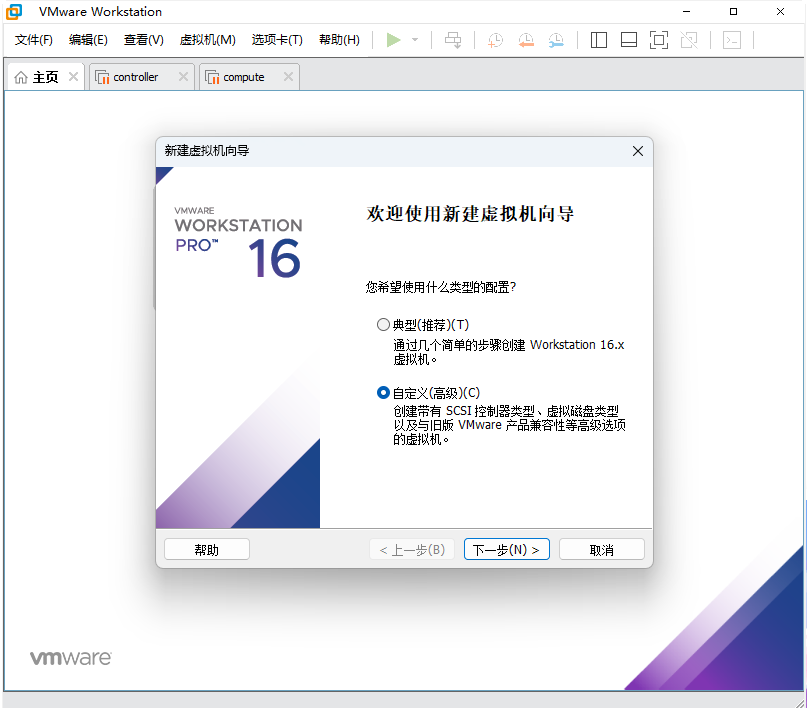
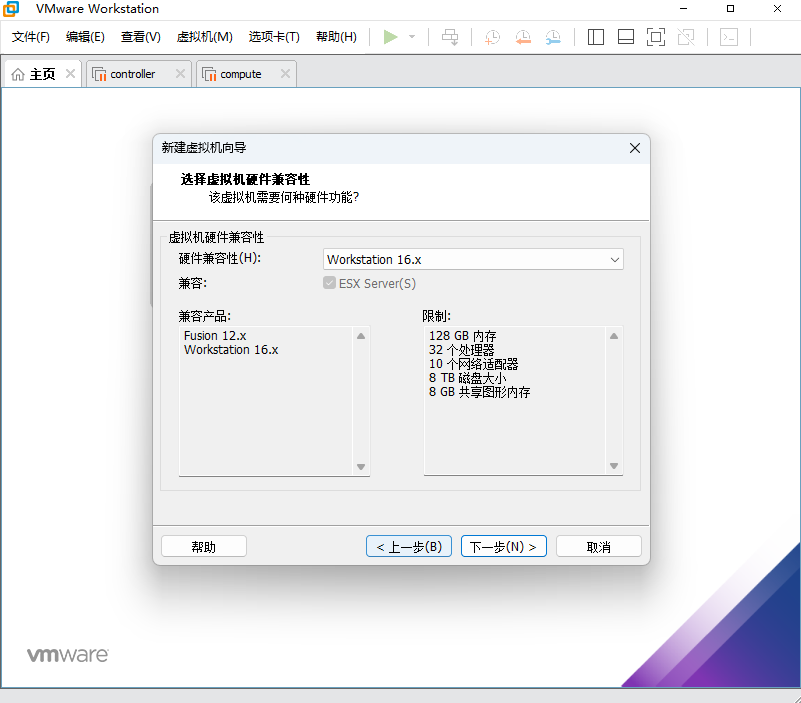
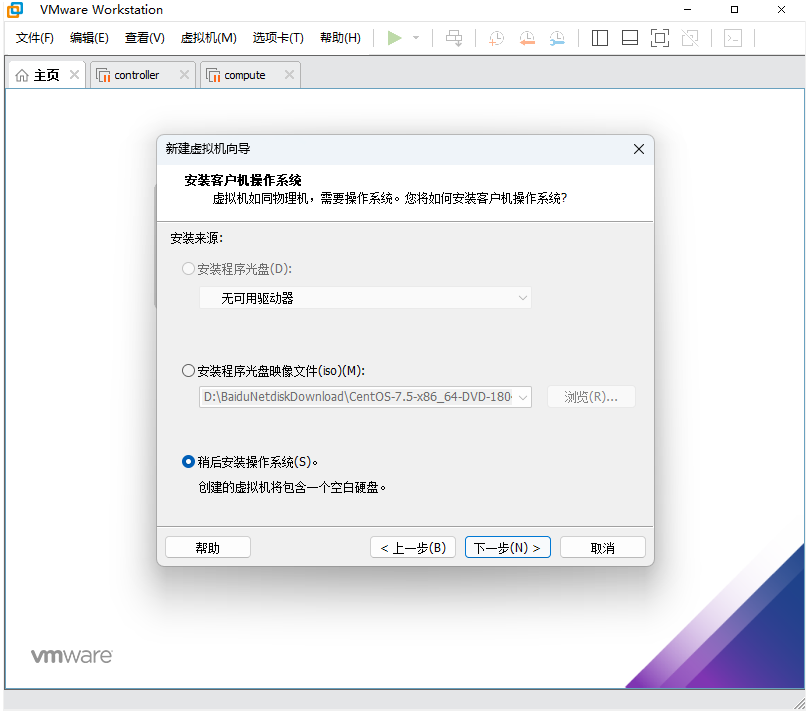
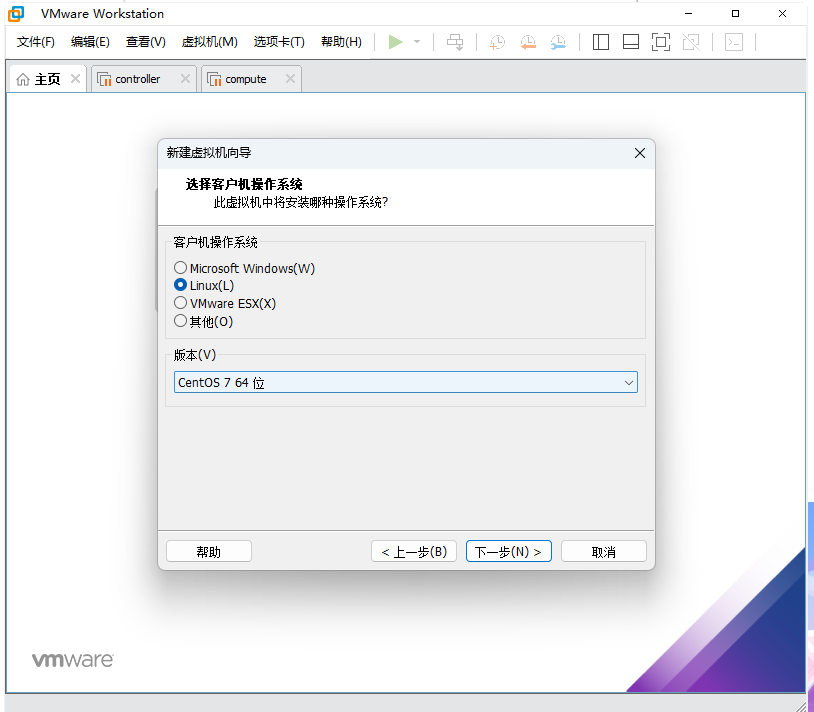
注意:
创建虚拟机 controller
注意更改磁盘位置
建议在 D盘创建两个空文件夹,名字是controller
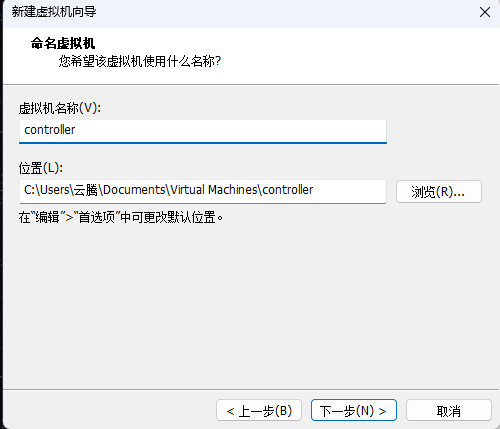
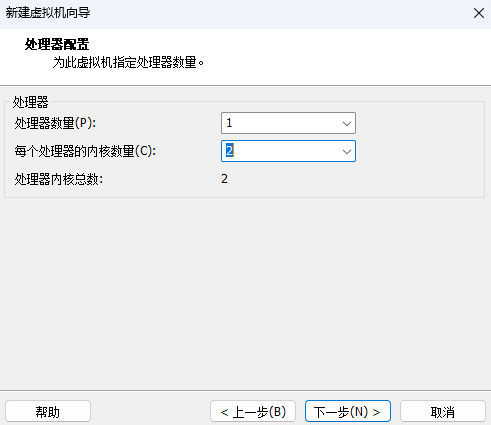
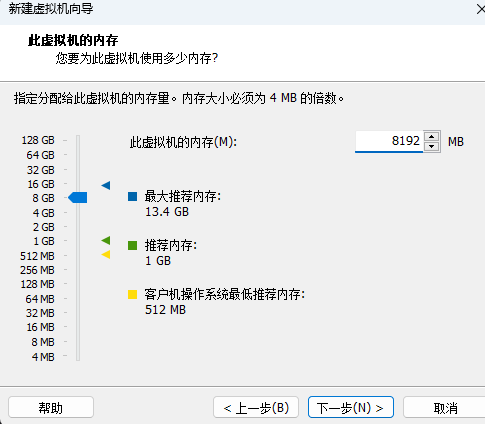
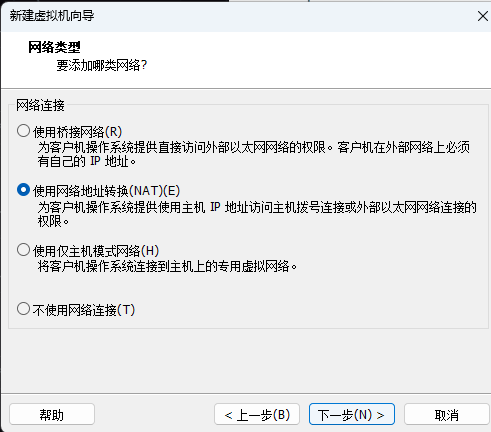
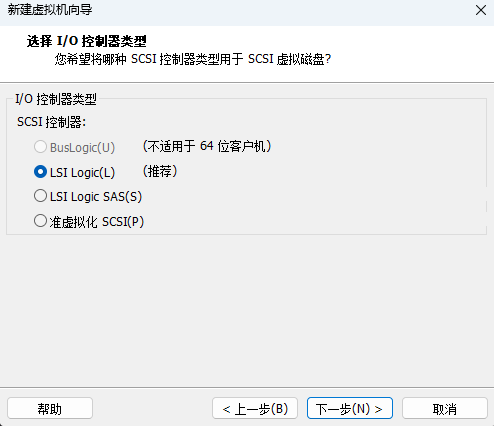
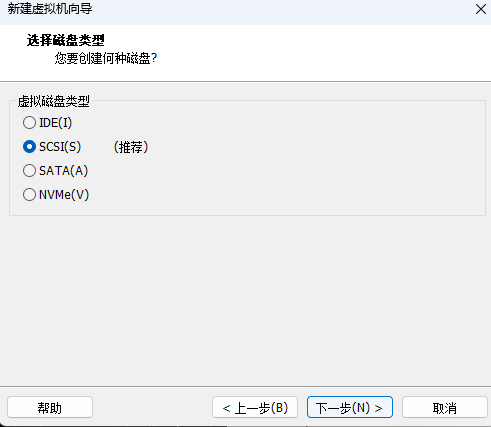
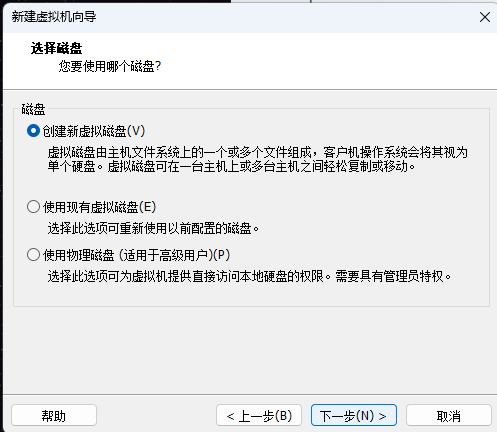
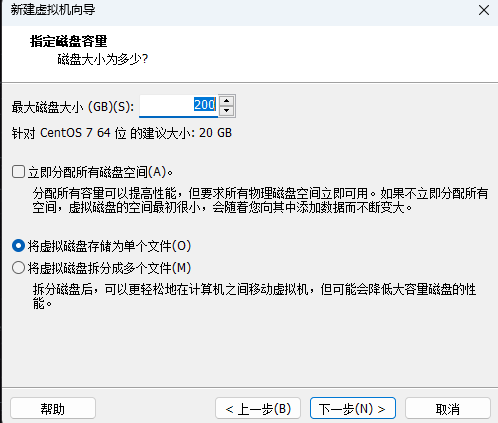
注意:在这里放CentOS-7.5-x86_64-DVD-1804镜像
创建一个网络适配器2
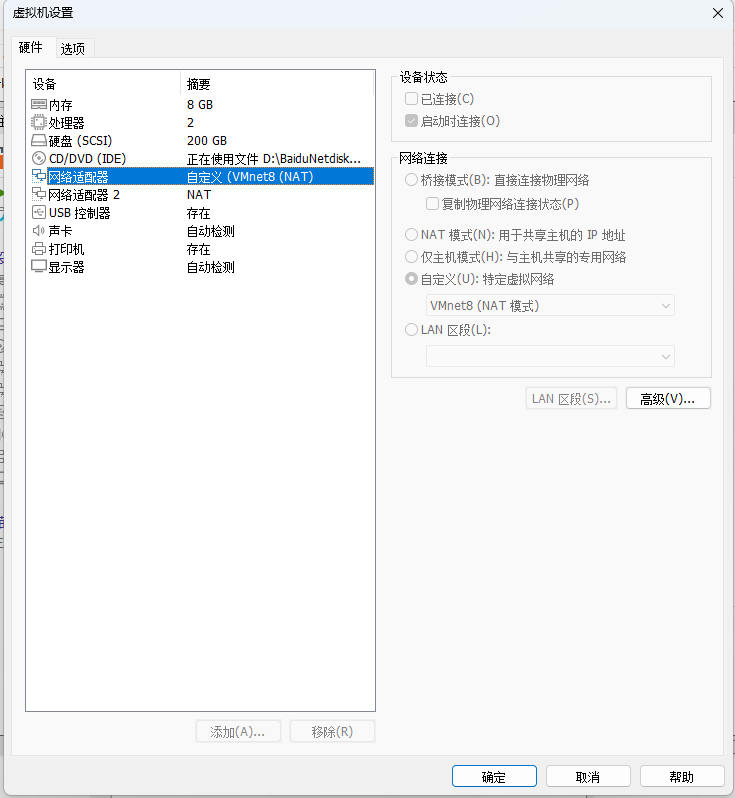
一直点击确定就完成创建虚拟机controller
创建虚拟机compute
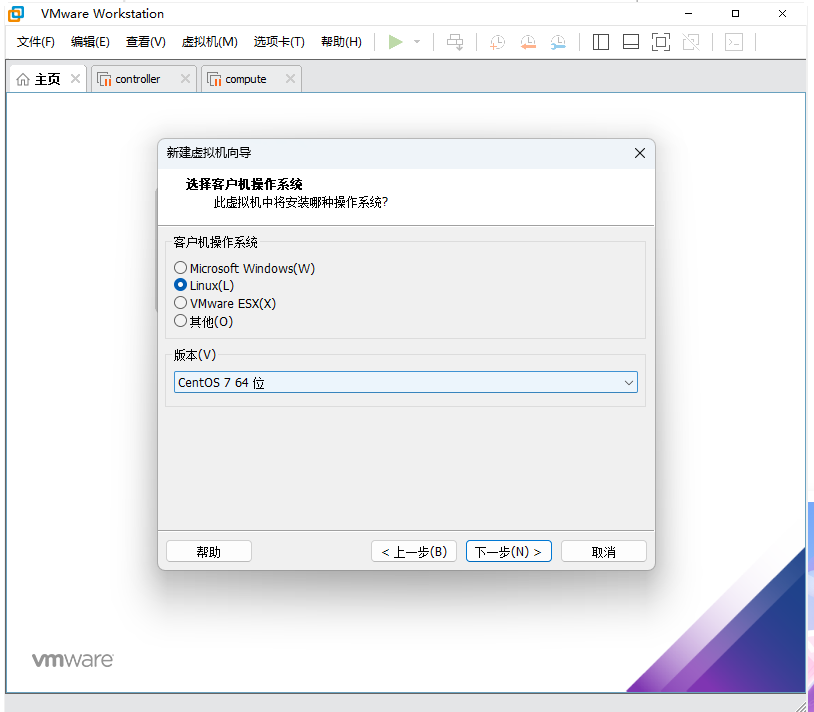
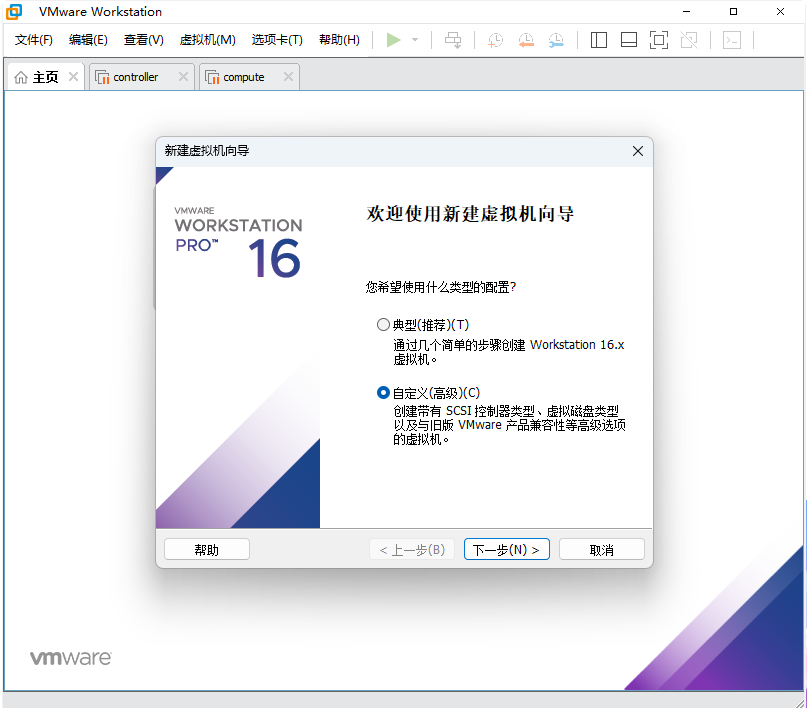
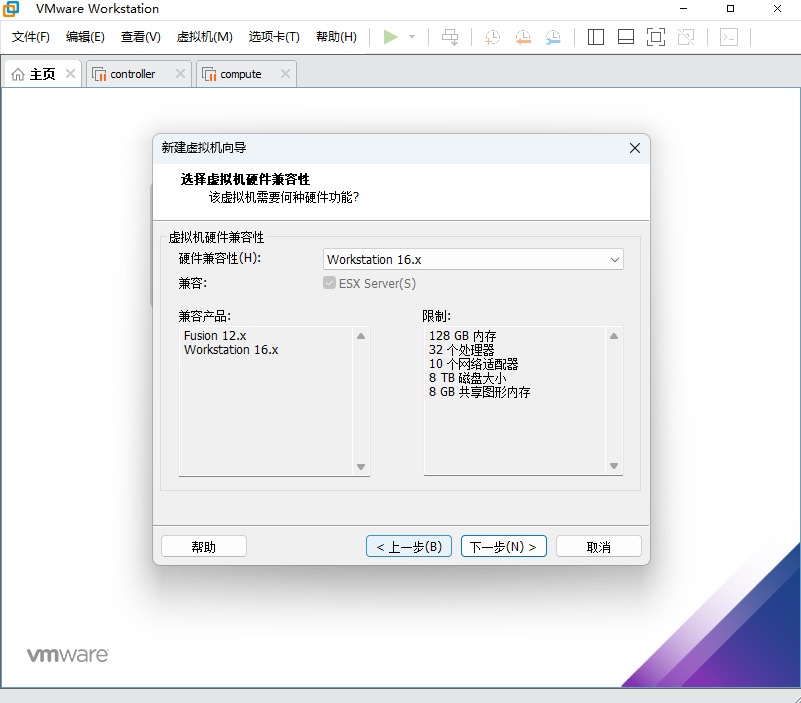
 最低0.47元/天 解锁文章






 扫一扫
扫一扫


 3798
3798


 到【灌水乐园】发言



