


 本文详细介绍如何使用JavaScript在微信小程序中实现视频列表切换、自动播放和随机颜色弹幕功能。通过实例演示了视频播放区域、弹幕控制与列表的交互,并分享了关键代码和操作步骤。
## **一、实验目标**
1、掌握视频列表的切换方法;2、掌握视频自动播放方法;3、掌握视频随机颜色弹幕效果。
## 二、实验步骤
列出实验的关键步骤、代码解析、截图。
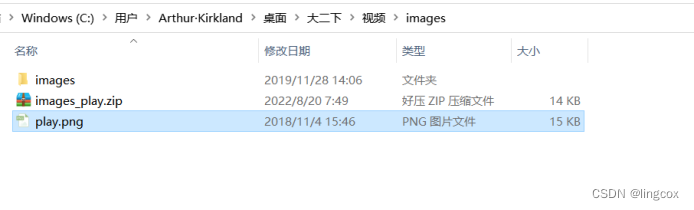
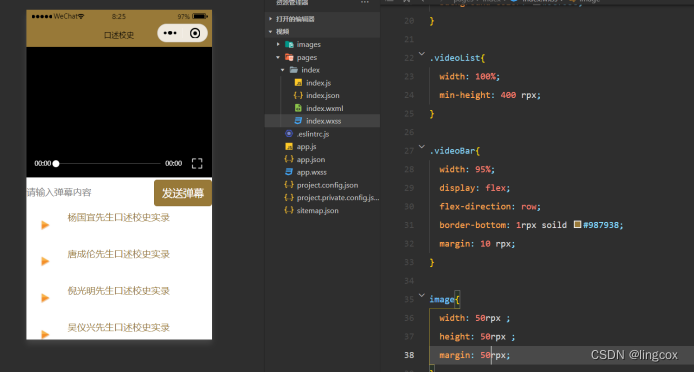
先进行前期工作的准备,把图标文件目录安置好
然后实现视频播放区域
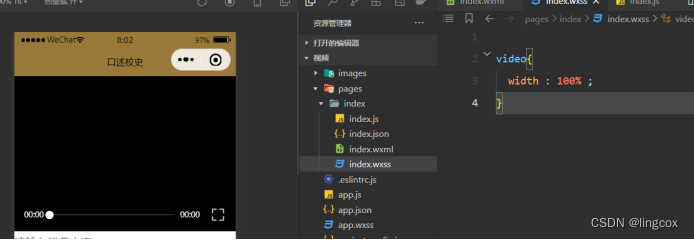
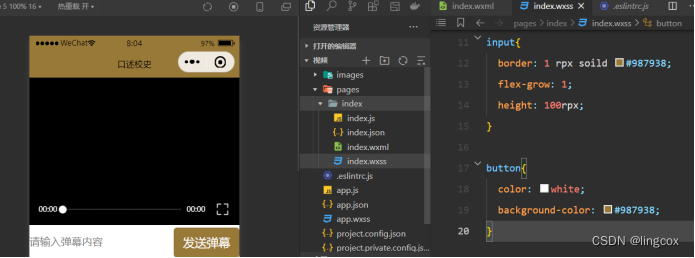
与弹幕播放区域
随后是视频的调用区域
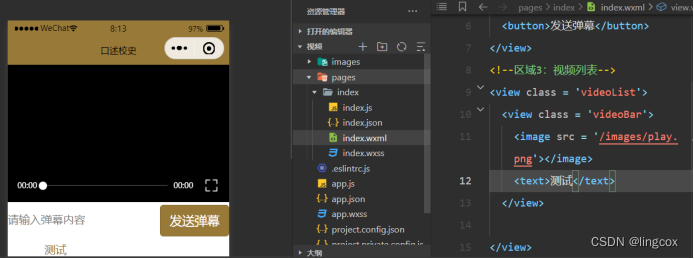
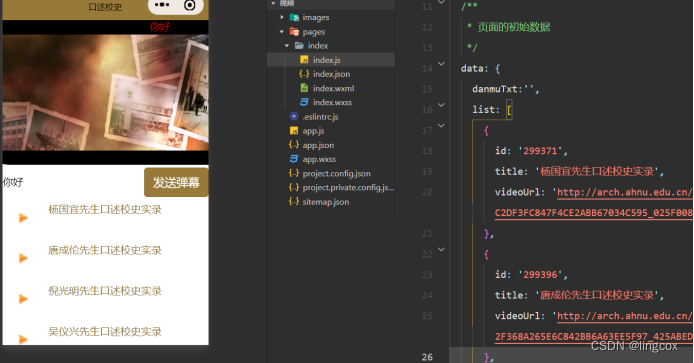
将list的数据放入
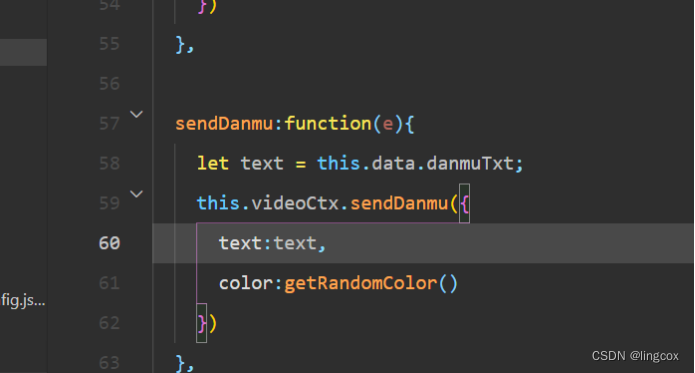
实现弹幕发送的功能
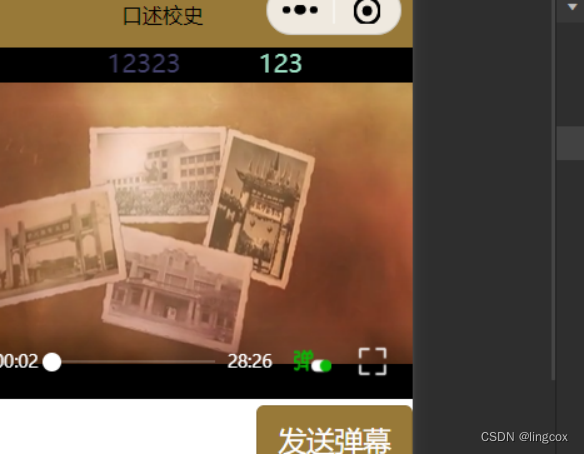
并最终实现随机颜色弹幕
## 三、程序运行结果
## 四、代码展示
图标文件地址:https://gaopursuit.oss-cn-beijing.aliyuncs.com/2022/images_play.zip
index.js
function getRandomColor() {

  let rgb=[]

  for(let i = 0;i<3;++i){

    let color = Math.floor(Math.random()*256).toString(16)

    color = color.length == 1?'0'+color:color

    rgb.push(color)

  }

  return '#'+rgb.join('')

}


Page({

  playVideo:function(e){

    this.videoCtx.stop()

    this.setData({

      src:e.currentTarget.dataset.url

    })

    this.videoCtx.play()

  },


  /**

   * 页面的初始数据

   */

  data: {

    danmuTxt:'',

    list: [

      {

        id: '299371',

        title: '杨国宜先生口述校史实录',

        videoUrl: 'http://arch.ahnu.edu.cn/__local/6/CB/D1/C2DF3FC847F4CE2ABB67034C595_025F0082_ABD7AE2.mp4?e=.mp4'

      },

      {

        id: '299396',

        title: '唐成伦先生口述校史实录',

        videoUrl: 'http://arch.ahnu.edu.cn/__local/E/31/EB/2F368A265E6C842BB6A63EE5F97_425ABEDD_7167F22.mp4?e=.mp4'

      },

      {

        id: '299378',

        title: '倪光明先生口述校史实录',

        videoUrl: 'http://arch.ahnu.edu.cn/__local/9/DC/3B/35687573BA2145023FDAEBAFE67_AAD8D222_925F3FF.mp4?e=.mp4'

      },

      {

        id: '299392',

        title: '吴仪兴先生口述校史实录',

        videoUrl: 'http://arch.ahnu.edu.cn/__local/5/DA/BD/7A27865731CF2B096E90B522005_A29CB142_6525BCF.mp4?e=.mp4'

      }

    ]

  },


  getDanmu:function(e){

    this.setData({

      danmuTxt:e.detail.value

    })

  },


  sendDanmu:function(e){

    let text = this.data.danmuTxt;

    this.videoCtx.sendDanmu({

      text:text,

      color:getRandomColor()

    })

  },


  /**

   * 生命周期函数--监听页面加载

   */

  onLoad: function (options) {

    this.videoCtx = wx.createVideoContext('myVideo')

  },


  /**

   * 生命周期函数--监听页面初次渲染完成

   */

  onReady: function () {


  },


  /**

   * 生命周期函数--监听页面显示

   */

  onShow: function () {


  },


  /**

   * 生命周期函数--监听页面隐藏

   */

  onHide: function () {


  },


  /**

   * 生命周期函数--监听页面卸载

   */

  onUnload: function () {


  },


  /**

   * 页面相关事件处理函数--监听用户下拉动作

   */

  onPullDownRefresh: function () {


  },


  /**

   * 页面上拉触底事件的处理函数

   */

  onReachBottom: function () {


  },


  /**

   * 用户点击右上角分享

   */

  onShareAppMessage: function () {


  }

})
index.wxml
<!--区域1:视频播放器-->

<video id= 'myVideo' src = '{{src}}' controls enable - danmu-btn></video>

<!--区域2:弹幕控制-->

<view class= 'danmuArea'>

  <input type = 'text'placeholder = '请输入弹幕内容'bindinput = 'getDanmu'></input>

  <button bindtap = 'sendDanmu'>发送弹幕</button>

</view>

<!--区域3:视频列表-->

<view class = 'videoList'>

  <view class = 'videoBar'wx:for = '{{list}}' wx:key = 'video{{index}}'data-url = '{{item.videoUrl}}'bindtap = 'playVideo'>

    <image src = '/images/play.png'></image>

    <text>{{item.title}}</text>

  </view>

</view>
index.wxss
video{

  width : 100% ;

}


.danmuArea{

  display: flex;

  flex-direction: row;

}


input{

  border: 1 rpx soild #987938;

  flex-grow: 1;

  height: 100rpx;

}


button{

  color: white;

  background-color: #987938;

}


.videoList{

  width: 100%;

  min-height: 400 rpx;

}


.videoBar{

  width: 95%;

  display: flex;

  flex-direction: row;

  border-bottom: 1rpx soild #987938;

  margin: 10 rpx;

}


image{

  width: 50rpx ;

  height: 50rpx ;

  margin: 50rpx;

}


text{

  font-size: 45 rpx;

  color:#987938;

  flex-grow:1;

  margin: 20rpx;

}





 扫一扫
扫一扫


 12万+
12万+


 被折叠的 条评论
为什么被折叠?
被折叠的 条评论
为什么被折叠?
 到【灌水乐园】发言




