



 本文介绍了如何利用Element UI库来构建HTML页面,通过Element官网获取组件资源,并提供了从下载到实际应用的步骤,包括四个不同的页面示例。
Element官网component资源点击这里
结构图,element-ui自行下载复制到一致路径
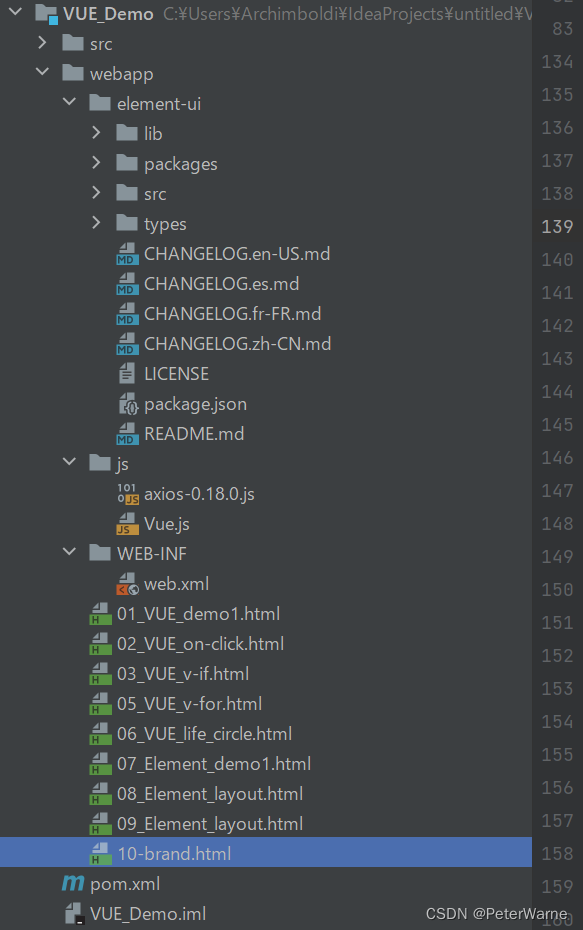
第一个html
<!DOCTYPE html>
<html lang="en">
<head>
    <meta charset="UTF-8">
    <title>Title</title>
</head>
<body>
<div id="app">
    <el-row>
        <el-button>Default</el-button>
        <el-button type="primary">Primary</el-button>
        <el-button type="success">Success</el-button>
        <el-button type="info">Info</el-button>
        <el-button type="warning">Warning</el-button>
        <el-button type="danger">Danger</el-button>
    </el-row>

    <el-row>
        <el-button plain>Plain</el-button>
        <el-button type="primary" plain>Primary</el-button>
        <el-button type="success" plain>Success</el-button>
        <el-button type="info" plain>Info</el-button>
        <el-button type="warning" plain>Warning</el-button>
        <el-button type="danger" plain>Danger</el-button>
    </el-row>

    <el-row>
        <el-button round>Round</el-button>
        <el-button type="primary" round>Primary</el-button>
        <el-button type="success" round>Success</el-button>
        <el-button type="info" round>Info</el-button>
        <el-button type="warning" round>Warning</el-button>
        <el-button type="danger" round>Danger</el-button>
    </el-row>

    <el-row>
        <el-button icon="el-icon-search" circle></el-button>
        <el-button type="primary" icon="el-icon-edit" circle></el-button>
        <el-button type="success" icon="el-icon-check" circle></el-button>
        <el-button type="info" icon="el-icon-message" circle></el-button>
        <el-button type="warning" icon="el-icon-star-off" circle></el-button>
        <el-button type="danger" icon="el-icon-delete" circle></el-button>
    </el-row>
</div>

<script src="js/Vue.js"></script>
<script src="element-ui/lib/index.js"></script>
<link rel="stylesheet" href="element-ui/lib/theme-chalk/index.css">

<script>
    new Vue({
        el: "#app"

    })
</script>

</body>
</html>```
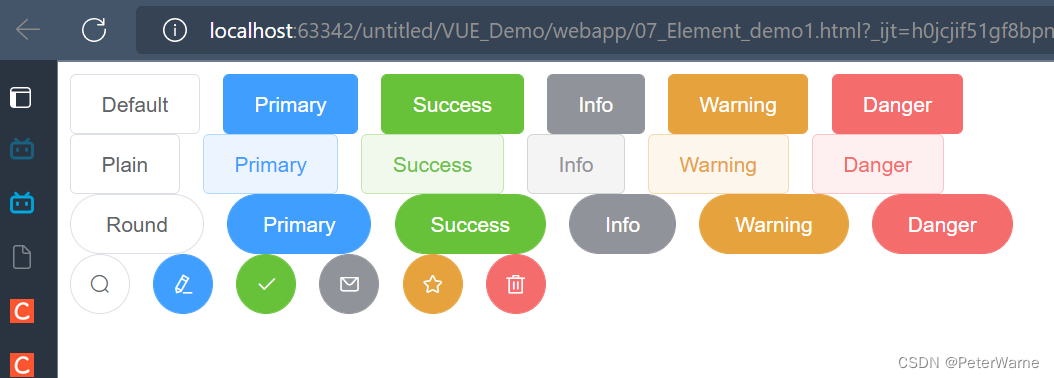
第二个
<!DOCTYPE html>
<html lang="en">
<head>
    <meta charset="UTF-8">
    <title>Title</title>

    <style>
        .el-row {
            margin-bottom: 20px;
        }
        .el-col {
            border-radius: 4px;
        }
        .bg-purple-dark {
            background: #99a9bf;
        }
        .bg-purple {
            background: #d3dce6;
        }
        .bg-purple-light {
            background: #e5e9f2;
        }
        .grid-content {
            border-radius: 4px;
            min-height: 36px;
        }
        .row-bg {
            padding: 10px 0;
            background-color: #f9fafc;
        }
    </style>

</head>
<body>
<div id="app">
    <el-row>
        <el-col :span="24"><div class="grid-content bg-purple-dark"></div></el-col>
    </el-row>
    <el-row>
        <el-col :span="12"><div class="grid-content bg-purple"></div></el-col>
        <el-col :span="12"><div class="grid-content bg-purple-light"></div></el-col>
    </el-row>
    <el-row>
        <el-col :span="8"><div class="grid-content bg-purple"></div></el-col>
        <el-col :span="8"><div class="grid-content bg-purple-light"></div></el-col>
        <el-col :span="8"><div class="grid-content bg-purple"></div></el-col>
    </el-row>
    <el-row>
        <el-col :span="6"><div class="grid-content bg-purple"></div></el-col>
        <el-col :span="6"><div class="grid-content bg-purple-light"></div></el-col>
        <el-col :span="6"><div class="grid-content bg-purple"></div></el-col>
        <el-col :span="6"><div class="grid-content bg-purple-light"></div></el-col>
    </el-row>
    <el-row>
        <el-col :span="4"><div class="grid-content bg-purple"></div></el-col>
        <el-col :span="4"><div class="grid-content bg-purple-light"></div></el-col>
        <el-col :span="4"><div class="grid-content bg-purple"></div></el-col>
        <el-col :span="4"><div class="grid-content bg-purple-light"></div></el-col>
        <el-col :span="4"><div class="grid-content bg-purple"></div></el-col>
        <el-col :span="4"><div class="grid-content bg-purple-light"></div></el-col>
    </el-row>

    <!--
        添加一行,8个格子  24/8 = 3
    -->

    <el-row>
        <el-col :span="3"><div class="grid-content bg-purple"></div></el-col>
        <el-col :span="3"><div class="grid-content bg-purple-light"></div></el-col>
        <el-col :span="3"><div class="grid-content bg-purple"></div></el-col>
        <el-col :span="3"><div class="grid-content bg-purple-light"></div></el-col>
        <el-col :span="3"><div class="grid-content bg-purple"></div></el-col>
        <el-col :span="3"><div class="grid-content bg-purple-light"></div></el-col>
        <el-col :span="3"><div class="grid-content bg-purple"></div></el-col>
        <el-col :span="3"><div class="grid-content bg-purple-light"></div></el-col>
    </el-row>

</div>

<script src="js/Vue.js"></script>
<script src="element-ui/lib/index.js"></script>
<link rel="stylesheet" href="element-ui/lib/theme-chalk/index.css">

<script>
    new Vue({
        el:"#app"
    })

</script>
</body>
</html>
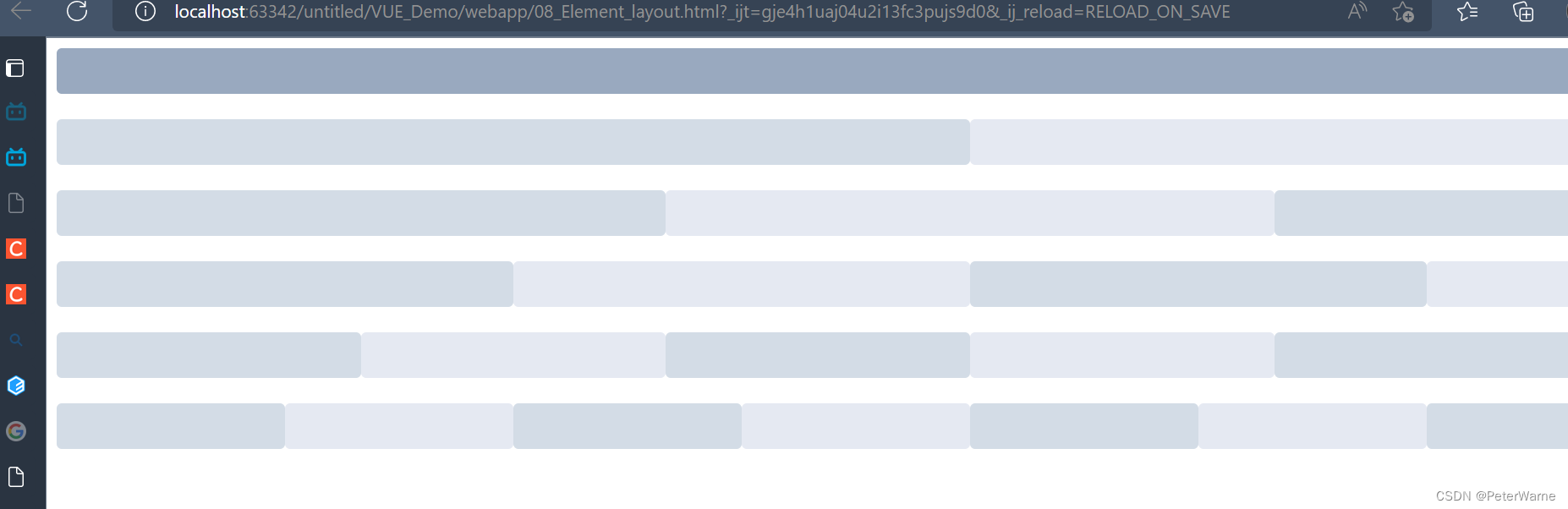
第三个
<!DOCTYPE html>
<html lang="en">
<head>
    <meta charset="UTF-8">
    <title>Title</title>

    <style>
        .el-header {
            background-color: #B3C0D1;
            color: #333;
            line-height: 60px;
        }

        .el-aside {
            color: #333;
        }
    </style>

</head>
<body>
<div id="app">
    <el-container style="height: 500px; border: 1px solid #eee">
        <el-aside width="200px" style="background-color: rgb(238, 241, 246)">
            <el-menu :default-openeds="['1', '3']">
                <el-submenu index="1">
                    <template slot="title"><i class="el-icon-message"></i>Navigator One</template>
                    <el-menu-item-group>
                        <template slot="title">Group 1</template>
                        <el-menu-item index="1-1">Option 1</el-menu-item>
                        <el-menu-item index="1-2">Option 2</el-menu-item>
                    </el-menu-item-group>
                    <el-menu-item-group title="Group 2">
                        <el-menu-item index="1-3">Option 3</el-menu-item>
                    </el-menu-item-group>
                    <el-submenu index="1-4">
                        <template slot="title">Option4</template>
                        <el-menu-item index="1-4-1">Option 4-1</el-menu-item>
                    </el-submenu>
                </el-submenu>
                <el-submenu index="2">
                    <template slot="title"><i class="el-icon-menu"></i>Navigator Two</template>
                    <el-menu-item-group>
                        <template slot="title">Group 1</template>
                        <el-menu-item index="2-1">Option 1</el-menu-item>
                        <el-menu-item index="2-2">Option 2</el-menu-item>
                    </el-menu-item-group>
                    <el-menu-item-group title="Group 2">
                        <el-menu-item index="2-3">Option 3</el-menu-item>
                    </el-menu-item-group>
                    <el-submenu index="2-4">
                        <template slot="title">Option 4</template>
                        <el-menu-item index="2-4-1">Option 4-1</el-menu-item>
                    </el-submenu>
                </el-submenu>
                <el-submenu index="3">
                    <template slot="title"><i class="el-icon-setting"></i>Navigator Three</template>
                    <el-menu-item-group>
                        <template slot="title">Group 1</template>
                        <el-menu-item index="3-1">Option 1</el-menu-item>
                        <el-menu-item index="3-2">Option 2</el-menu-item>
                    </el-menu-item-group>
                    <el-menu-item-group title="Group 2">
                        <el-menu-item index="3-3">Option 3</el-menu-item>
                    </el-menu-item-group>
                    <el-submenu index="3-4">
                        <template slot="title">Option 4</template>
                        <el-menu-item index="3-4-1">Option 4-1</el-menu-item>
                    </el-submenu>
                </el-submenu>
            </el-menu>
        </el-aside>

        <el-container>
            <el-header style="text-align: right; font-size: 12px">
                <el-dropdown>
                    <i class="el-icon-setting" style="margin-right: 15px"></i>
                    <el-dropdown-menu slot="dropdown">
                        <el-dropdown-item>View</el-dropdown-item>
                        <el-dropdown-item>Add</el-dropdown-item>
                        <el-dropdown-item>Delete</el-dropdown-item>
                    </el-dropdown-menu>
                </el-dropdown>
                <span>Tom</span>
            </el-header>

            <el-main>
                <el-table :data="tableData">
                    <el-table-column prop="date" label="Date" width="140">
                    </el-table-column>
                    <el-table-column prop="name" label="Name" width="120">
                    </el-table-column>
                    <el-table-column prop="address" label="Address">
                    </el-table-column>
                </el-table>
            </el-main>
        </el-container>
    </el-container>

</div>

<script src="js/Vue.js"></script>
<script src="element-ui/lib/index.js"></script>
<link rel="stylesheet" href="element-ui/lib/theme-chalk/index.css">

<script>
    new Vue({
        el:"#app",
        data() {
            const item = {
                date: '2016-05-02',
                name: 'Tom',
                address: 'No. 189, Grove St, Los Angeles'
            };
            return {
                tableData: Array(20).fill(item)
            }
        }
    })

</script>
</body>
</html>
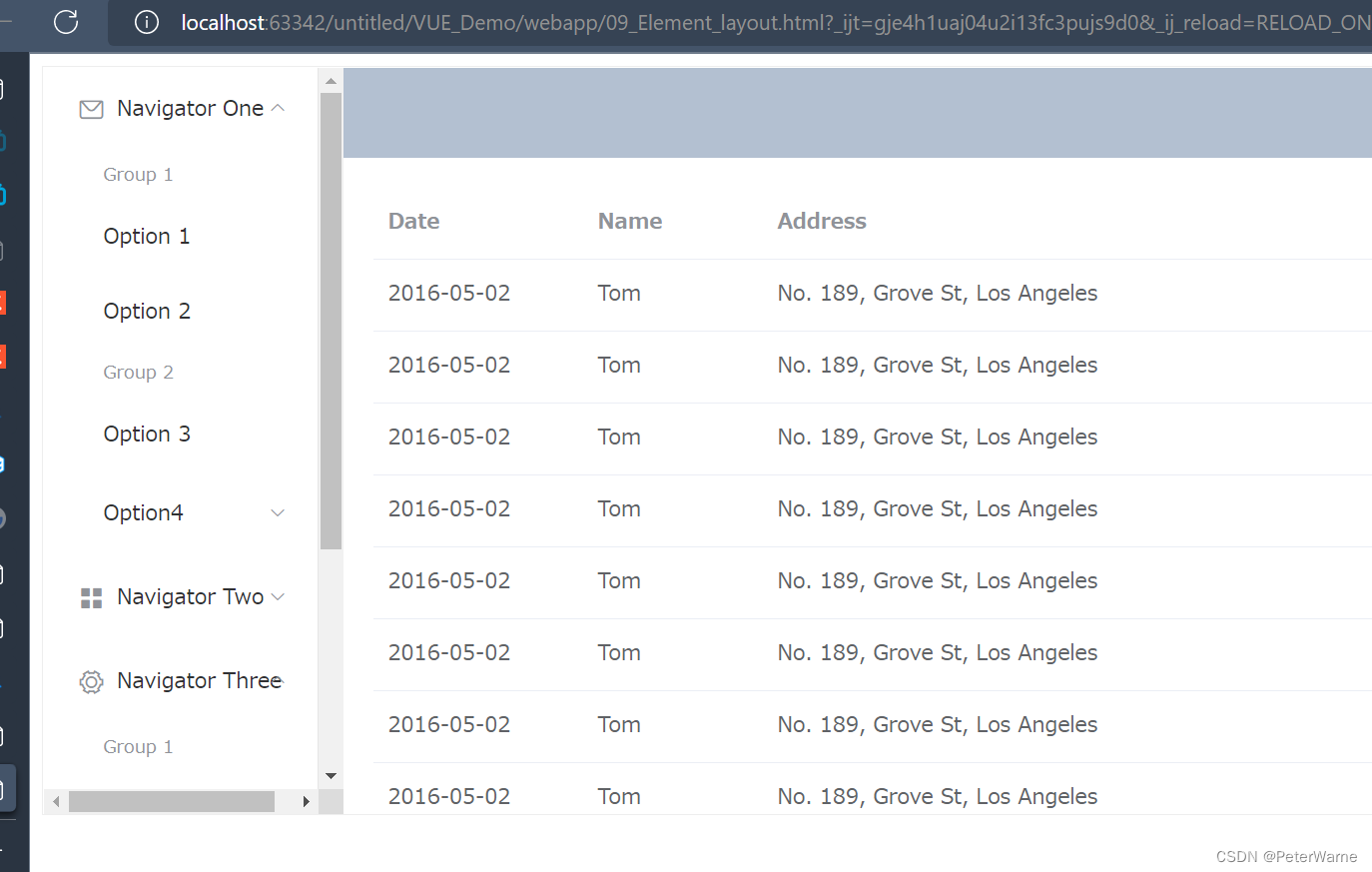
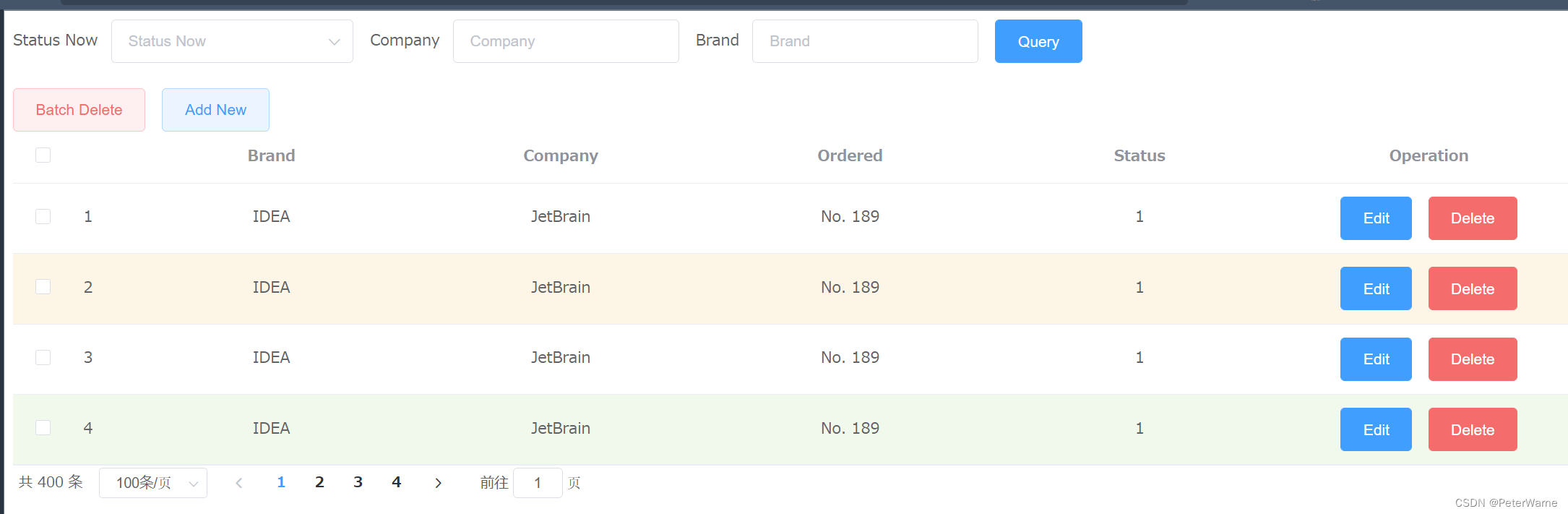
第四,最后一个
<!DOCTYPE html>
<html lang="en">
<head>
    <meta charset="UTF-8">
    <title>Title</title>
    <style>
        .el-table .warning-row {
            background: oldlace;
        }

        .el-table .success-row {
            background: #f0f9eb;
        }
    </style>


</head>
<body>
<div id="app">

    <!--Search Form-->
    <el-form :inline="true" :model="brand" class="demo-form-inline">
        <el-form-item label="Status Now">
            <el-select v-model="brand.Status" placeholder="Status Now">
                <el-option label="Enable" value="1"></el-option>
                <el-option label="Disable" value="0"></el-option>
            </el-select>
        </el-form-item>

        <el-form-item label="Company">
            <el-input v-model="brand.Company" placeholder="Company"></el-input>
        </el-form-item>

        <el-form-item label="Brand">
            <el-input v-model="brand.Brand" placeholder="Brand"></el-input>
        </el-form-item>
        <el-form-item>
            <el-button type="primary" @click="onSubmit">Query</el-button>
        </el-form-item>
    </el-form>

    <el-row>
        <el-button type="danger" plain>Batch Delete</el-button>
        <el-button type="primary" @click="dialogVisible = true" plain>Add New</el-button>
    </el-row>
    <!--dialog form-->
    <el-dialog
            title="Edit Brand"
            :visible.sync="dialogVisible"
            width="30%"
            >

        <el-form ref="form" :model="brand" label-width="120px">
            <el-form-item label="Brand">
                <el-input v-model="brand.Brand"></el-input>
            </el-form-item>
            <el-form-item label="Company">
                <el-input v-model="brand.Company"></el-input>
            </el-form-item>
            <el-form-item label="Ordered">
                <el-input v-model="brand.Ordered"></el-input>
            </el-form-item>
            <el-form-item label="Remark">
                <el-input type="textarea" v-model="brand.Description"></el-input>
            </el-form-item>
            <el-form-item label="Status">
                <el-switch v-model="brand.Status" active-value="1" inactive-value="0"></el-switch>
            </el-form-item>

            <el-form-item>
                <el-button type="primary" @click="addBrand">Create</el-button>
                <el-button @click="dialogVisible = false">Cancel</el-button>
            </el-form-item>
        </el-form>

<!--        <span slot="footer" class="dialog-footer">
    <el-button @click="dialogVisible = false">Cancel</el-button>
    <el-button type="primary" @click="dialogVisible = false">Confirm</el-button>-->
  </span>
    </el-dialog>


    <template>
        <el-table
                :data="tableData"
                style="width: 100%"
                :row-class-name="tableRowClassName"
                @selection-change="handleSelectionChange">
            <el-table-column
                    type="selection"
                    align="center"
                    width="55">
            </el-table-column>
            <el-table-column
                    type="index"
                    width="50">
            </el-table-column>
            <el-table-column
                    prop="Brand"
                    label="Brand"
                    align="center"
                    >
            </el-table-column>
            <el-table-column
                    prop="Company"
                    label="Company"
                    align="center"
                    >
            </el-table-column>
            <el-table-column
                    prop="Ordered"
                    label="Ordered"
                    align="center"
                    >
            </el-table-column>
            <el-table-column
                    prop="Status"
                    label="Status"
                    align="center">
            </el-table-column>

            <el-table-column

                    label="Operation"
                    align="center">

                <el-row>
                    <el-button type="primary">Edit</el-button>
                    <el-button type="danger">Delete</el-button>
                </el-row>
            </el-table-column>
        </el-table>
    </template>

    <!--pagination-->
    <el-pagination
            @size-change="handleSizeChange"
            @current-change="handleCurrentChange"
            :current-page.sync="currentPage"
            :page-sizes="[100, 200, 300, 400]"
            :page-size="100"
            layout="total, sizes, prev, pager, next, jumper"
            :total="400">
    </el-pagination>

</div>


<script src="js/Vue.js"></script>
<script src="element-ui/lib/index.js"></script>
<link rel="stylesheet" href="element-ui/lib/theme-chalk/index.css">

<script>
    new Vue({
        el: "#app",
        methods: {
            tableRowClassName({row, rowIndex}) {
                if (rowIndex === 1) {
                    return 'warning-row';
                } else if (rowIndex === 3) {
                    return 'success-row';
                }
                return '';
            },
            /*multi selection be selected , do this method*/
            handleSelectionChange(val) {
                this.multipleSelection = val;
                /*output the multiple selection see how it is, on browser F12 page*/
                console.log(this.multipleSelection)
            },
            /*for search form, click submit button, see output on browser F12 page */
            onSubmit() {
                console.log(this.brand);
            },

            addBrand(){
                console.log(this.brand)
            },

            /*for pagination*/
            handleSizeChange(val) {
                console.log(`${val} items per page`);
            },
            handleCurrentChange(val) {
                console.log(`current page: ${val}`);
            }

        },
        data() {
            return {
                /*for pagination*/
                currentPage4: 4,

                /*for pop dialog form*/
                dialogVisible: false,

                /*for search form data, and for form in dialog*/
                brand: {
                    Id: '',
                    Brand: '',
                    Company: '',
                    Ordered: '',
                    Description: '',
                    Status: ''
                },

                /*for multi selection box */
                multipleSelection:[],

                tableData:  [{
                    Brand: 'IDEA',
                    Company: 'JetBrain',
                    Ordered: 'No. 189',
                    Status: '1'
                }, {
                    Brand: 'IDEA',
                    Company: 'JetBrain',
                    Ordered: 'No. 189',
                    Status: '1'
                }, {
                    Brand: 'IDEA',
                    Company: 'JetBrain',
                    Ordered: 'No. 189',
                    Status: '1'
                }, {
                    Brand: 'IDEA',
                    Company: 'JetBrain',
                    Ordered: 'No. 189',
                    Status: '1'
                }]

            }
        }

    })

</script>

</body>
</html>





 扫一扫
扫一扫


 979
979

 被折叠的 条评论
为什么被折叠?
被折叠的 条评论
为什么被折叠?
 到【灌水乐园】发言





