



 本文带你通过实战构建一个微信风格应用,从创建Flutter项目开始,深入解析BottomNavigationBar组件的使用,包括设置、属性及页面切换。跟随步骤,掌握核心组件的实践应用。
1. 写在前面
在上篇文章中介绍了Flutter中的Button组件,学了这么多基础组件了,该是实战验证一下学习成果了,那么今天就来个实战项目,搭建一下微信的框架吧!

- [基础组件合集]
【Flutter】基础组件【08】BottomNavigationBar
2. 新建项目
- 新建项目
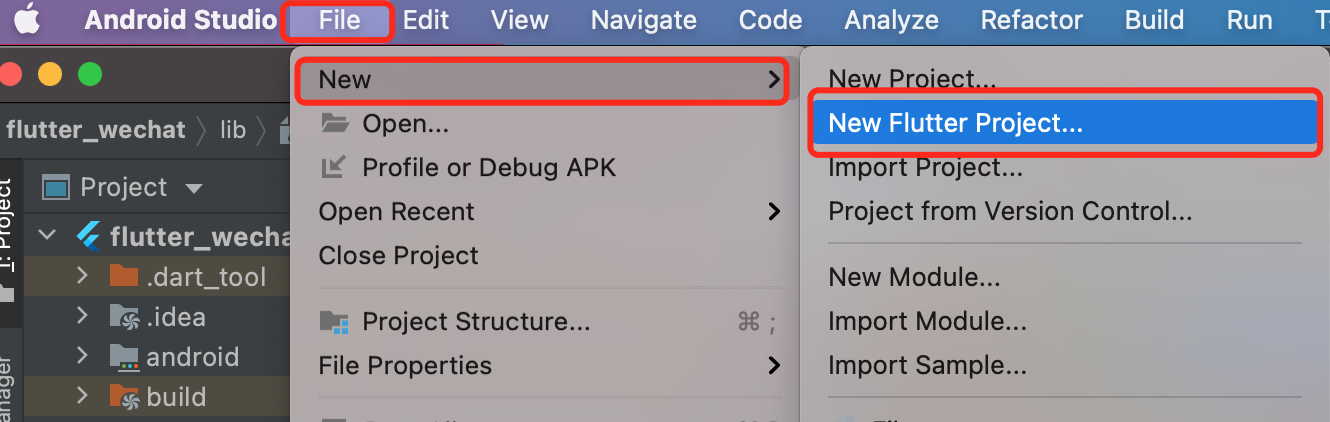
选择File -> New -> New Flutter Project新建一个 flutter 项目
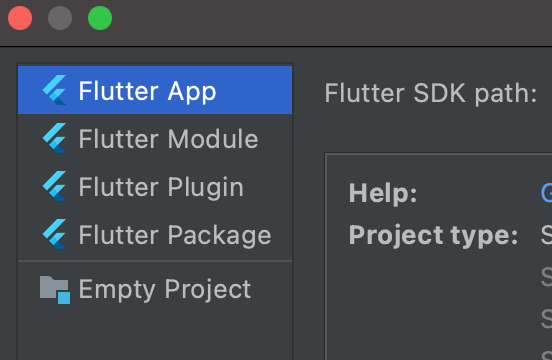
- 选择 Flutter App
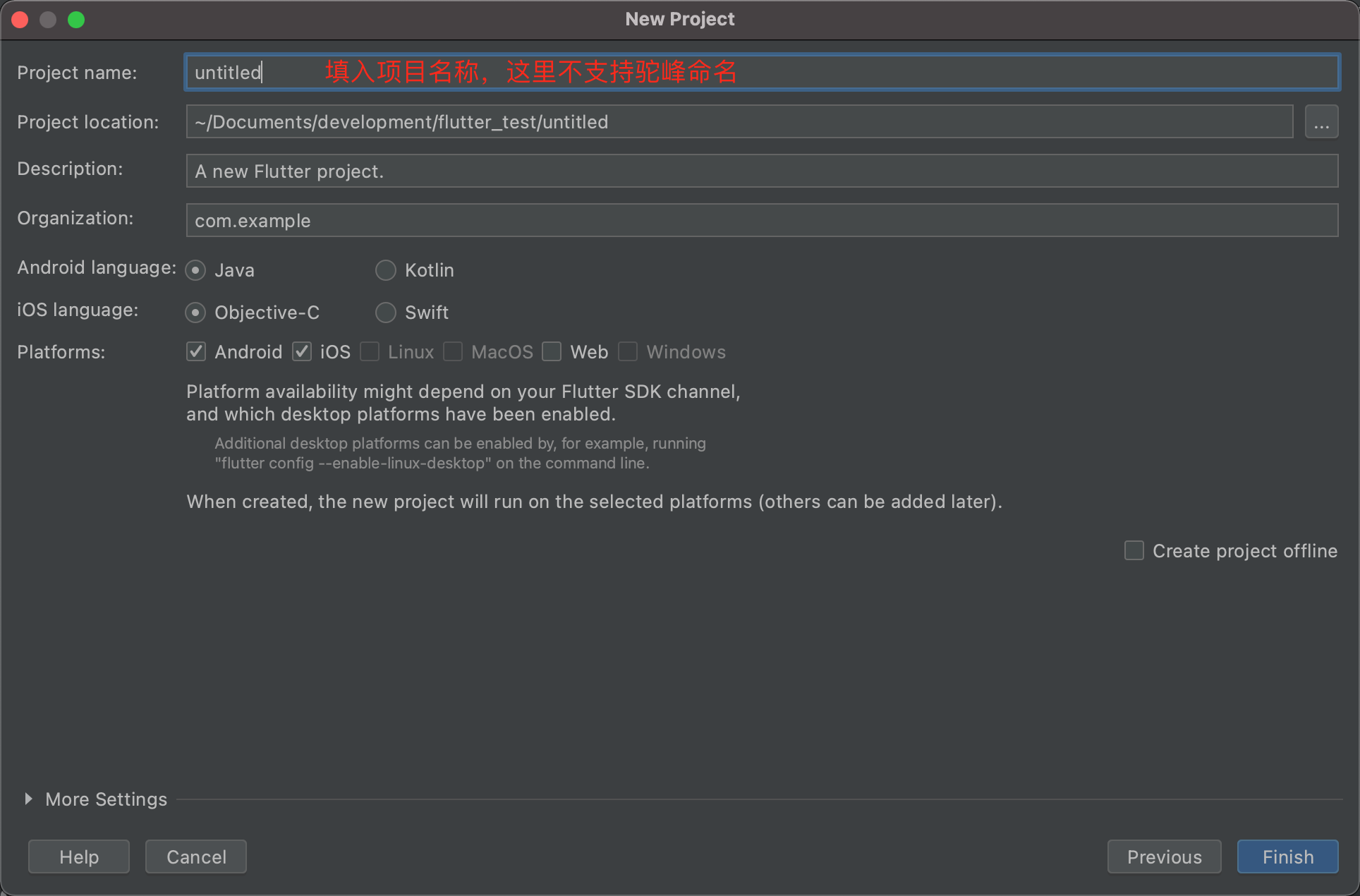
- 设置项目名称为
flutter_wechat
3. main.dart
3.1 main函数
void main() {
  runApp(const MyApp());
}

class MyApp extends StatelessWidget {
  const MyApp({Key? key}) : super(key: key);

  // This widget is the root of your application.
  @override
  Widget build(BuildContext context) {
    return  MaterialApp(
      debugShowCheckedModeBanner: true,//去掉 debug 标记
      theme:ThemeData(
        primarySwatch: Colors.blue,//导航栏颜色
      ),
      home: RootPage(),
    );
  }
}
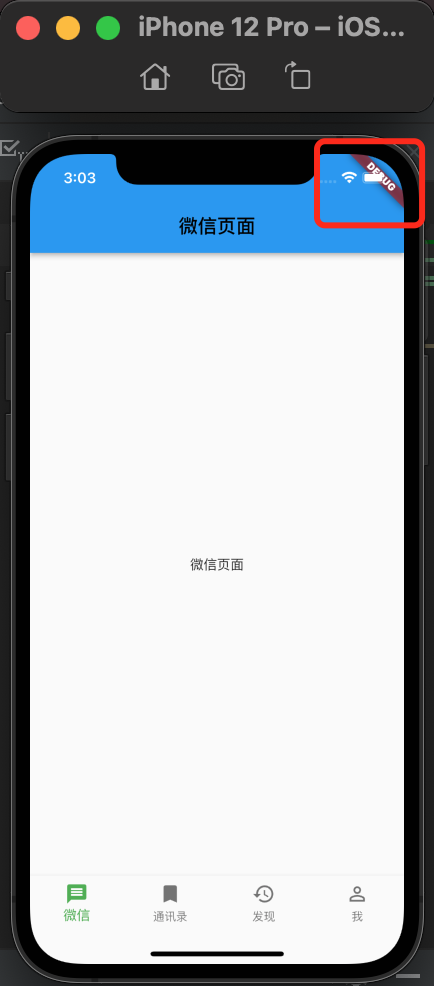
home: 相当于 OC 中的 UITabBarController,这是 APP 的骨架debugShowCheckedModeBanner:去掉 debug的标记,设置 false就不展示theme:主题的设置
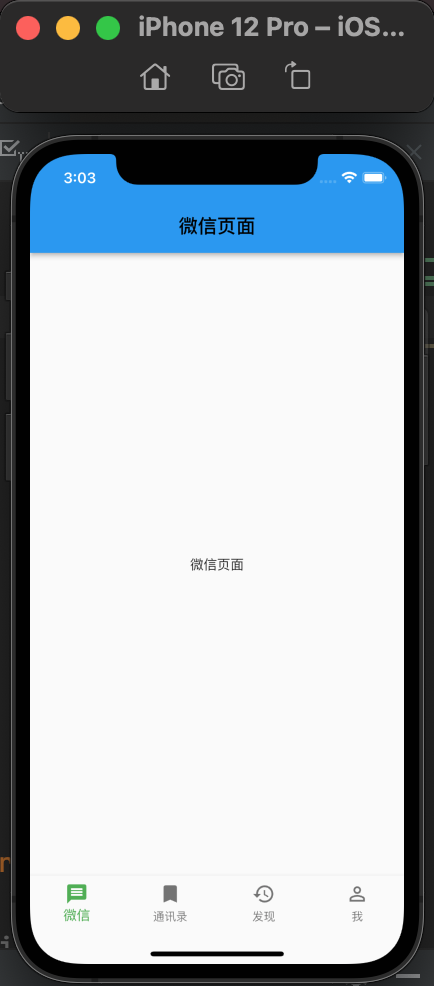
3.2 创建根视图
- 根视图
RootPage设置,
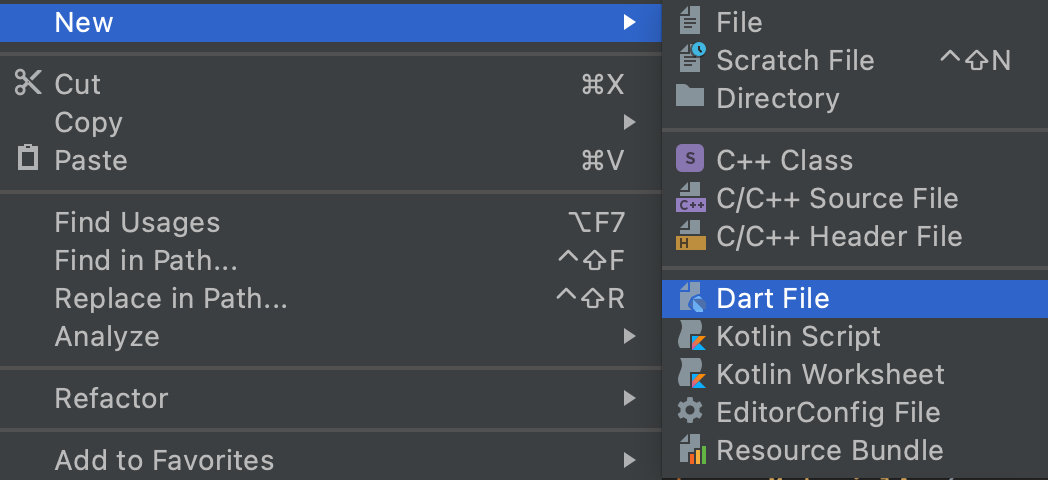
先来创建一个文件root_page.dart,设置 tabbar
- 新建 dart 文件
3.3 设置BottomNavigationBar
- bottomNavigationBar
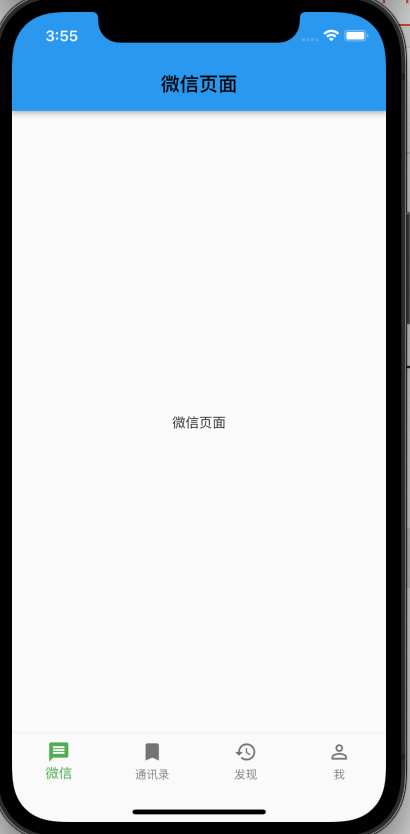
在Scaffold组件里面有个属性bottomNavigationBar,这个就是相当于我们 OC 中的 tabbar,它是继承自StatefulWidget。通过BottomNavigationBar的items来设置 4 个页面,用BottomNavigationBarItem来构造。
bottomNavigationBar: BottomNavigationBar(
        currentIndex: 0,
        fixedColor: Colors.green,
        type: BottomNavigationBarType.fixed,
        items: const [
          BottomNavigationBarItem(
              icon: Icon(Icons.message),
              label: '微信'),
          BottomNavigationBarItem(
              icon: Icon(Icons.bookmark),
              label: '通讯录'),
          BottomNavigationBarItem(
              icon: Icon(Icons.history),
              label: '发现'),
          BottomNavigationBarItem(
              icon: Icon(Icons.person_outline),
              label: '我'),
        ],
      )
3.4 BottomNavigationBar
BottomNavigationBar的一些属性介绍:
type:BottomNavigationBarItem的模式,BottomNavigationBarType是枚举,有fixed和shifting两种模式设置。currentIndex:当前选中的是哪个 item,就是底部 4 个 item的切换选中的值,可以通过点击的方法切换改值fixedColor:填充的颜色,item 的填充颜色
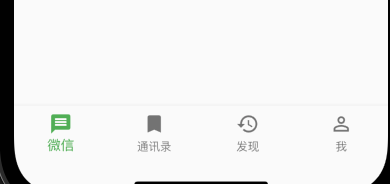
3.5 创建微信页面
- 微信界面
一个 BottomNavigationBarItem 对应的页面就相当于 OC 中的 UIViewController。
class ChatPage extends StatefulWidget {
  const ChatPage({Key? key}) : super(key: key);
  @override
  _ChatPageState createState() => _ChatPageState();
}

class _ChatPageState extends State<ChatPage> {
  @override
  Widget build(BuildContext context) {
    return  Scaffold(
      appBar: AppBar(
        title: const Text(
          '微信页面',
          style: TextStyle(color: Colors.black),
        ),
      ),
      body:const Center(
        child: Text('微信页面'),
      ),
    );
  }
}
- BottomNavigationBarItem的切换
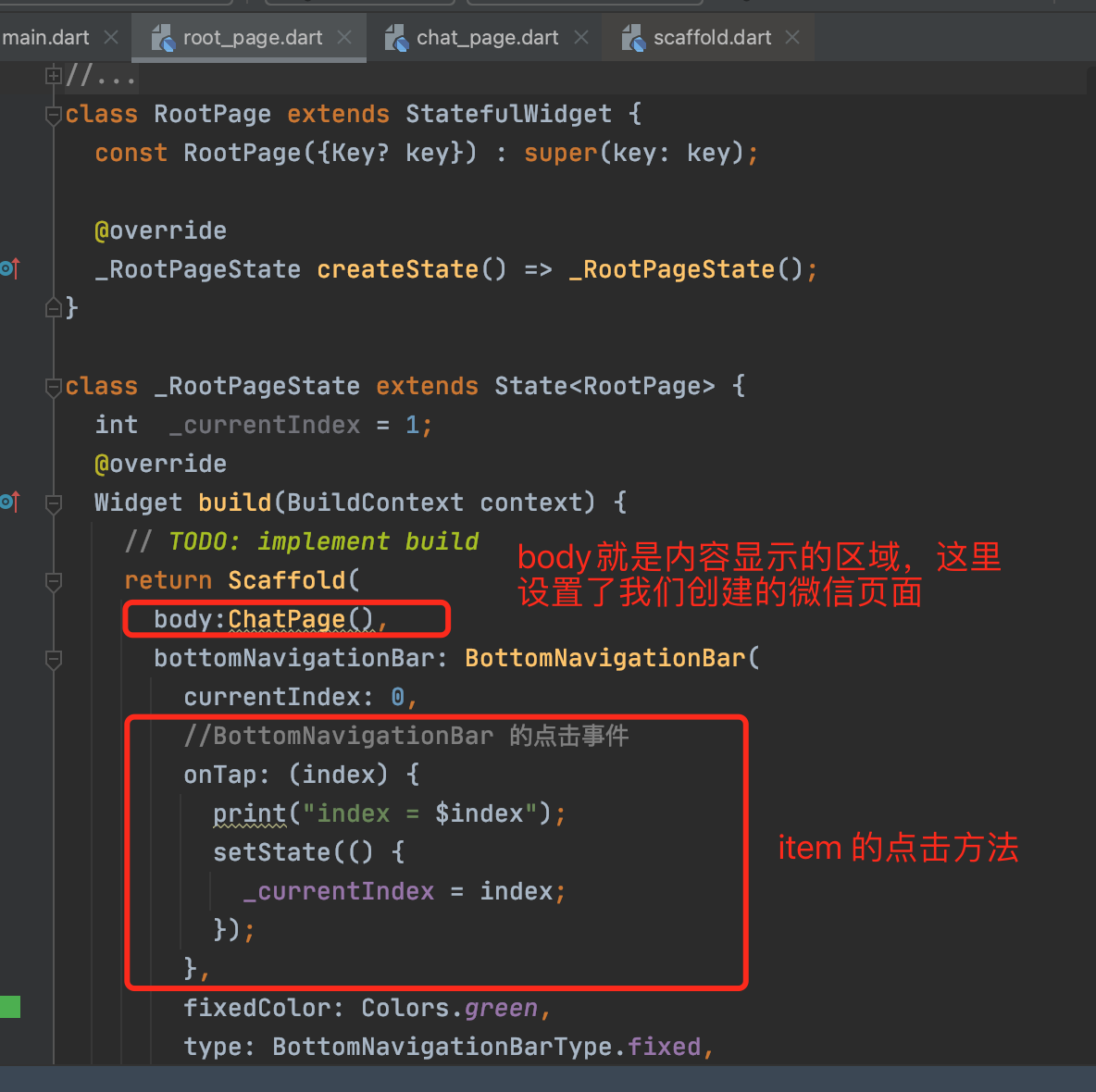
BottomNavigationBarItem的切换需要实现onTap 点击方法来进行切换。
//BottomNavigationBar 的点击事件
        onTap: (index) {
          print("index = $index");
          setState(() {
            _currentIndex = index;
          });
        },
在onTap方法的回调里面,可以拿到点击的 item 的值,就可以设置当前需要显示的页面时哪个,通过_currentIndex = index;来改变。
注意:
因为涉及到状态的改变,所以Widget必须使用带状态的StatefulWidget,在回调方法里面,需要使用setState来设置状态的改变。
GitHub项目地址
4. 写在后面
关注我,更多内容持续输出
🌹 喜欢就点个赞吧👍🌹
🌹 觉得有收获的,可以来一波 收藏+关注,以免你下次找不到我😁🌹
🌹欢迎大家留言交流,批评指正,
转发请注明出处,谢谢支持!🌹





 扫一扫
扫一扫


 1128
1128

 被折叠的 条评论
为什么被折叠?
被折叠的 条评论
为什么被折叠?
 到【灌水乐园】发言





