


需求:内网项目,只能使用离线地图
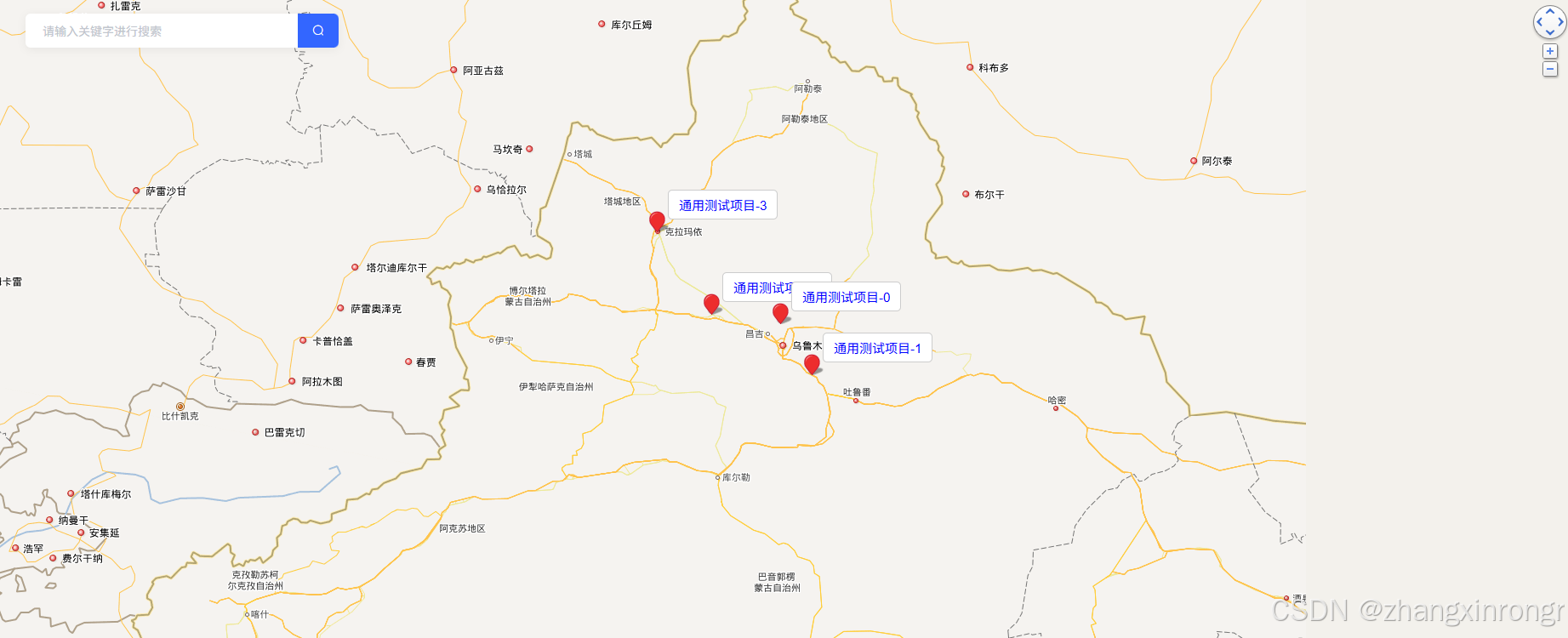
目标:实现地图显示,缩放、添加标识,检索功能
先上图
1.下载瓦片地图
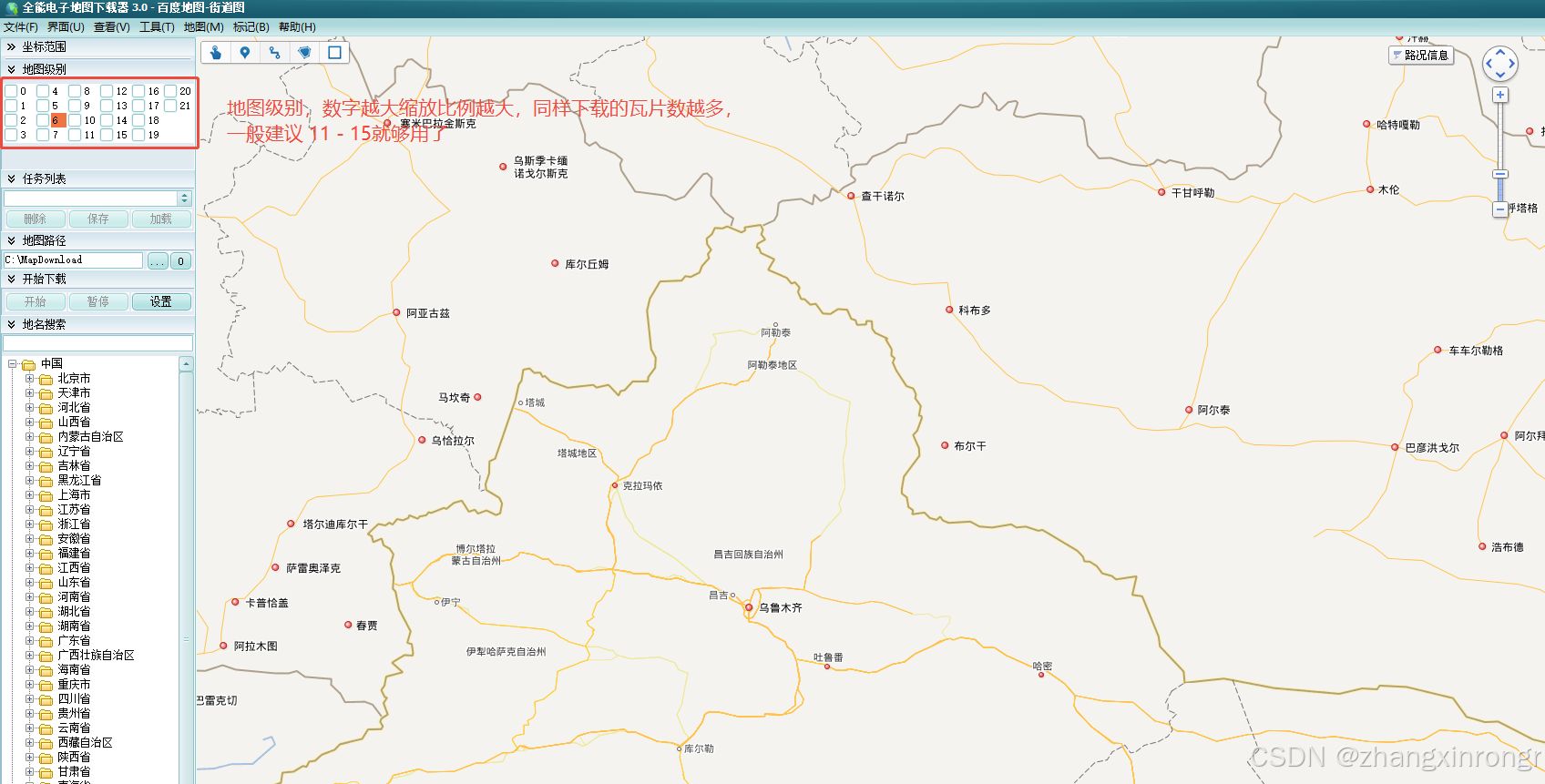
使用全能地图下载器
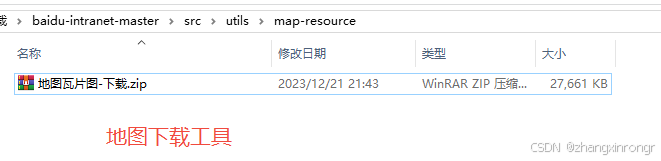
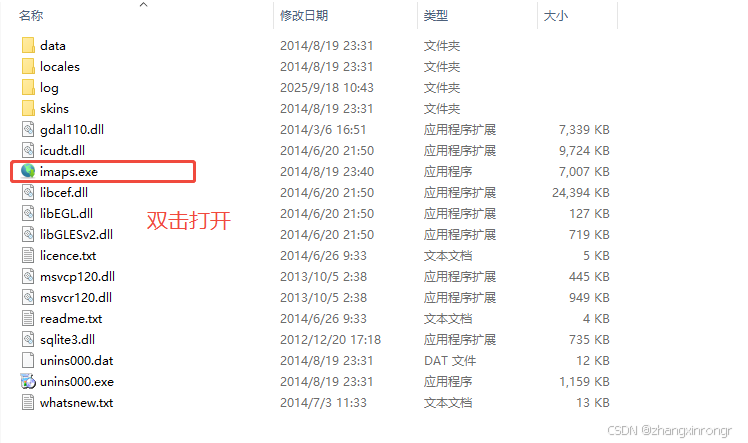
如图所示
2. 所需主要文件讲解
2.1 主要文件
必要文件放在static目录下。
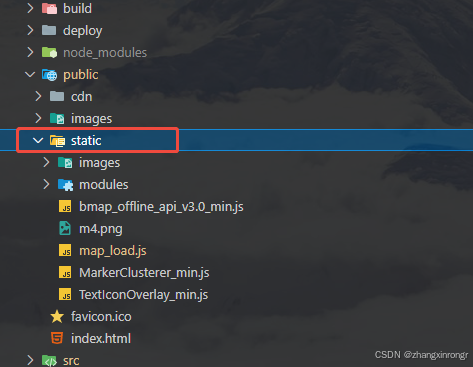
2.2 map_load.js文件
配置瓦片资源访问路径
let bmapcfg = {
  // 瓦片图的后缀-一般不用改
  imgext: '.png',
  // 瓦片图的地址,基地址路径(默认名字)
  tiles_dir: '/roadmap',
  // 瓦片图地址-尽量使用127或者localhost-方便断网测试
  tiles_path: 'http://localhost:8089',
  // 卫星瓦片图的地址-可为空
  tiles_hybrid: '',
  //自定义图层的地址-可为空
  tiles_self: ''
}

// 下面可以保持不动
var scripts = document.getElementsByTagName('script')
var JS__FILE__ = scripts[scripts.length - 1].getAttribute('src') //获得当前js文件路径
bmapcfg.home = JS__FILE__.substr(0, JS__FILE__.lastIndexOf('/') + 1) //地图API主目录
;(function () {
  window.BMap_loadScriptTime = new Date().getTime()
  //加载地图API主文件
  document.write(
    '<script type="text/javascript" src="' +
      bmapcfg.home +
      'bmap_offline_api_v3.0_min.js"></script>'
  )
})()
2.3 需要在public下index.html引入
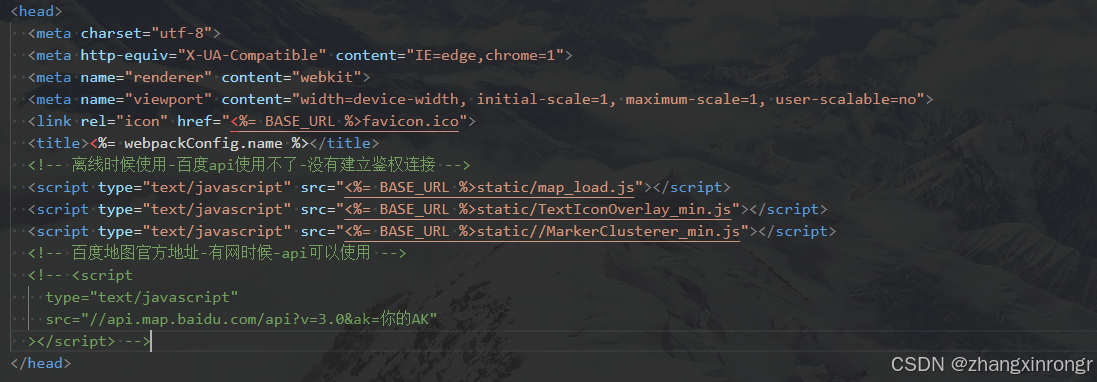
  <script type="text/javascript" src="<%= BASE_URL %>static/map_load.js"></script>
  <script type="text/javascript" src="<%= BASE_URL %>static/TextIconOverlay_min.js"></script>
  <script type="text/javascript" src="<%= BASE_URL %>static//MarkerClusterer_min.js"></script>
3.页面引入
此处为组件,在所需页面引入即可
<template>
  <div class="container-box">
    <div id="container"></div>
    <div class="search-panel">
      <div class="search-control">
        <div class="searchInput-container">
          <el-input type="text" v-model="keyword" @keyup.enter.native="search" class="searchInput" placeholder="请输入关键字进行搜索" />
          <el-button icon="el-icon-search" @click="search" class="searchButton"></el-button>
        </div>
      </div>
    </div>
  </div>

</template>

<script>
export default {
  name: 'map',
  data () {
    return {
      // 地图实例
      map: null,
      // 点实例
      mk: null,
      // 新疆 乌鲁木齐
      point: [87.62, 43.84],
      mapPoints: [],
      markerClusterer: [],
      keyword: undefined,
    }
  },
  created () {
    // 加载地图
    this.$nextTick(() => {
      this.initMap()
    })
  },
  methods: {
    search() {
      console.log('执行搜索', this.keyword)
      var Point = new BMap.Point(93.49,42.82)
      // 初始化地图中心点和放大级别
      this.map.centerAndZoom(Point, 7)
    },
    // 获取地图
    initMap () {
      // 内网使用-地图对象-在public/index.html引入文件
      let BMap = window.BMap
      console.log('window.BMap', window.BMap)
      // 创建Map实例
      this.map = new BMap.Map('container')
      // 地图中心点-经纬度决定我们加载哪里的地图
      var Point = new BMap.Point(this.point[0], this.point[1])
      // 初始化地图中心点和放大级别
      this.map.centerAndZoom(Point, 7)
      // 限制地图放大等级-为什么限制
      // 1.因为内网时我们访问不到公网百度地图数据资源
      // 2.同时这里地图放大等级也对应着我们下载的瓦片图资源
      this.map.setMinZoom(6)
      this.map.setMaxZoom(15)
      //开启鼠标滚轮缩放
      // this.map.enableScrollWheelZoom(true)
      // 添加点
      this.addMarker()
      // 4、添加(右上角)平移缩放控件
      this.map.addControl(
        new BMap.NavigationControl({
          anchor: BMAP_ANCHOR_TOP_RIGHT,
          type: BMAP_NAVIGATION_CONTROL_SMALL
        })
      )
    },
    initPoints() {
      let BMap = window.BMap
      var point = new BMap.Point(87.57,44.17) // 创建点坐标
      var point1 = new BMap.Point(88.25,43.37) // 创建点坐标
      var point2 = new BMap.Point(86.08,44.32) // 创建点坐标
      var point3 = new BMap.Point(84.90,45.59) // 创建点坐标
      this.mapPoints.push(point)
      this.mapPoints.push(point1)
      this.mapPoints.push(point2)
      this.mapPoints.push(point3)
    },
    addMarker() {
      let BMap = window.BMap
      // 初始化要显示的点的坐标
      this.initPoints()
      // let mapMarkers = []
      this.mapPoints.forEach((point, idx) => {
        const ponit = new BMap.Point(point.lng, point.lat)
        var opts = {
            position: ponit, // 指定文本标注所在的地理位置
            offset: new BMap.Size(12, -50), // 设置文本偏移量
        }
        var label = new BMap.Label('', opts)
        label.setContent(`
            <div class="label">${`测试项目-${idx}`}</div>
        `)
        label.setStyle({
          color: 'blue',
          borderRadius: '5px',
          borderColor: '#ccc',
          padding: '0 12px',
          fontSize: '15px',
          height: '35px',
          lineHeight: '35px',
        })
        this.map.addOverlay(label)
        let marker = new BMap.Marker(point)
        this.map.addOverlay(marker)
      })
    },

  }
}
// 须知
// 1.内网离线情况下我们访问不了百度数据资源,所有只有把数据资源下载在本地启动服务才可以解决这个问题
// 2.确实可以满足基本的需求
// 3.地图放大,缩小,控件,定位
// 4.加载那里的地图我们首先要下载地图瓦片图,然后地图中心点定位在哪里就会加载的地图
// 5.地图的放大等级我们要控制起来,因为是下载的瓦片图要对应
// 6.瓦片图下载等级最好下载,11-15,刚好铺满全屏,再多就下载很慢
// 7.开发时候我们用npm下载serve,把地图资源从本机运行起来(直接serve)
// 8.所有地址最好写127.0.0.1和localhost方便测试(因为你后续直接断开网线测试时候,你就只能访问自己)
// 瓦片图加载报错-404解决
// 1.瓦片图,就是把一个地图区域根据放大等级分割成等额大小图片进行加载
// 1.首先确定地图中心点经纬度和下载地图瓦片图是否是一致的
// 2.瓦片图下载等级和代码地图限制放大等级是否一样(比如地图放大19级,但是下载地图没有19级图片也会报错)
// 3.用serve启动好本地图片资源后-查看map_load.js文件(一般默认不用改)
// 4..把404图片路径复制到本机浏览器看是否能访问
// 优点
// 1.引入项目比较轻便-确实在内网情况下可以使用(不能访问外网情况下-离线)
// 缺点
// 1.鼠标滚动的时候,会调用百度的api报错,但不影响使用
// 2.百度api会失效,比如逆地址解析,没有建立百度资源连接带身份(就是没有在public/index-正常引入百度地图)
// 3.如果单纯地图展示看,定位-可以,要使用api不满足-目前还没找到解决方案
</script>

<style lang="scss" scoped>
.container-box{
  padding: 20px;
  background: #fff;
  position: relative;

  .search-panel {
      position: absolute;
      left: 55px;
      top: 40px;
      z-index: 12;
      display: flex;
      align-items: center;

      .search-control {
          display: flex;
          align-items: center;
          background: #FFFFFF;
          box-shadow: 0px 2px 10px 0px rgba(0, 0, 0, 0.06);
          border-radius: 6px;

          .searchInput-container {
              display: flex;
              align-items: center;
              flex: 1;
              position: relative;

              .searchInput {
                  flex: 1;
                  width: 320px;
                  height: 40px;
                  padding: 0 5px;
                  border: none;
                  outline: none;
                  font-size: 14px;
                  color: #333333;
                  background: transparent;
              }

              .searchButton {
                display: flex;
                align-items: center;
                justify-content: center;
                width: 48px;
                height: 40px;
                border: none;
                color: #fff;
                font-size: 14px;
                transition: background-color 0.2s;
                flex-shrink: 0;
                background: #3366FF;
                border-radius: 0px 6px 6px 0px;
            }
          }
      }
  }
}
#container {
  width: 100%;
  min-height: 820px;
}
::v-deep .search-panel .el-input--small .el-input__inner{
  height: 40px;
  line-height: 40px;
  border: none;
}
</style>
4.瓦片资源太多解决方案
npm全局安装serve 指定目录启动
npm install -g serve  // 全局安装serve
serve -p 8089         // 指定端口启动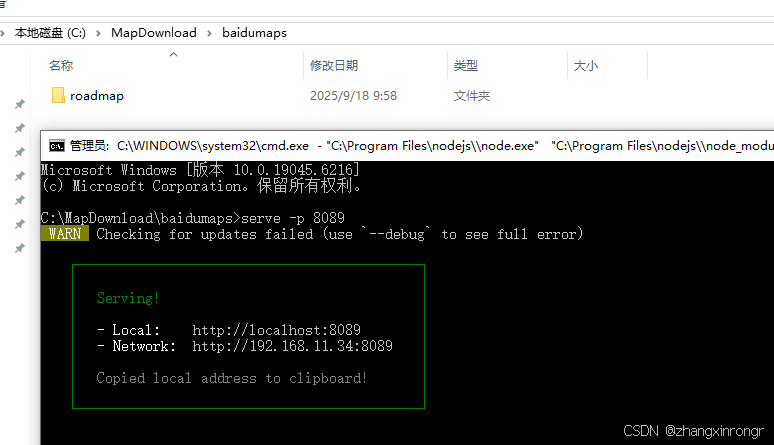





 扫一扫
扫一扫


 930
930

 被折叠的 条评论
为什么被折叠?
被折叠的 条评论
为什么被折叠?
 到【灌水乐园】发言





