



 本文介绍了一种在登录界面中实现二维码登录与密码登录切换的方法。通过使用qrcode.js库生成二维码,并结合jQuery进行界面元素的显示与隐藏,实现了用户在两种登录方式之间的无缝切换。
上一章简单介绍了按钮登录和回车键登录(六),如果没有看过,[请观看上一章]
有时候,在一个地方,放置不同的图标,可以随时切换图标。在切换图标的时候,实际上会相应切换底下的不同的界面。
一 前端基本表单界面
生成二维码,引入了qrcode.js库
<!DOCTYPE html>
<html lang="en">
<head>
<meta http-equiv="content-type" content="text/html; charset=UTF-8">
<meta charset="utf-8">
<meta name="viewport" content="width=device-width, initial-scale=1.0">
<title>登录页面 | Corswork Software</title>

<!--Bootstrap Stylesheet [ REQUIRED ]-->
<link href="plugins/bootstrap/css/bootstrap.min.css" rel="stylesheet">
<link href="plugins/bootstrap/css/bootstrap-theme.min.css"
	rel="stylesheet">

<link href="plugins/animate-css/animate.min.css" rel="stylesheet">
<link href="plugins/font-awesome/css/font-awesome.min.css"
	rel="stylesheet">
<link rel="shortcut icon" href="img/wkapp.png">
</head>
<body>
	<div class="container">
		<div class="row">
			<div class="col-sm-4 col-sm-offset-8" style="margin-top: 100px;padding-right:0;">
				<form class="form-horizontal" id="loginForm">
					<div class="loginmode">
						<!-- 显示第一个图标 -->
						<a id="ewm"  href="#" >
							<img width="26px" height="26px" alt="" src="img/login/ewm.png">
						</a>
						<!-- 显示第二个图标 -->
						<a id="up" style="display: none;" href="#">
							<img width="26px" height="26px" alt="" src="img/login/up.png">
						</a>
					</div>
						<!-- 第一个界面 -->
						<div class="" id="upTab">
							<div class="form-group">
								<input type="text" class="form-control" id="userName"
									placeholder="用户名" name="userName"> <i class="fa fa-user"></i>
							</div>
							<div class="form-group help">
								<input type="password" class="form-control" id="userPW"
									placeholder="密 码" name="userPW"> <i class="fa fa-lock"></i>
									<!-- 忘记密码是这样显示的. 有一个data-toggle -->
									 <a
									title="忘记密码" id="forgetBtn" href="#"
									class="fa fa-question-circle" data-toggle="tooltip"></a>
							</div>
							<div class="form-group">
								<div class="main-checkbox">
									<input type="checkbox" value="None" id="remember" name="check"
										checked="checked" /> <label for="remember"></label>
								</div>
								<label class="text" for="remember">记住我</label>
								<button type="button" class="btn btn-default" id="login">登录</button>
							</div>
						</div>
						<!-- 第二个界面 -->
						<!-- 点击二维码时显示这一个 -->
						<div class="" style="display: none;" id="ermTab">
							<div class="form-group">
								<div class="row" style="padding-left:10px;">
									<!-- <img
										class="mar-ver col-sm-5 col-sm-offset-2 img-lg img-thumbnail img-rounded img-responsive"
										src="img/app.png" style="width: 200px; height: 200px;" /> -->
									<div id="qrcode_container" ></div>
									<img id="img-buffer" src="img/logo.png" style="display:none"/>
								</div>
								<span class="text-login">打开手机APP,扫一扫登录</span>
							</div>

						</div>
				<!-- 	</div> -->
				</form>
			</div>
		</div>
	</div>
	<script src="plugins/jquery/jquery-2.1.1.min.js"></script>
	<script src="plugins/jquery/jquery.cookie.js"></script>
	<script src="plugins/bootstrap/js/bootstrap.min.js"></script>
	<script src="plugins/qrcode/jquery-qrcode-0.14.0.min.js"></script>
	<script src="login.js"></script>
</body>
</html>
二 初始化页面
/**二维码登录和用户密码登录切换**/
$("#up").hide();
$("#ewm").show();
$("#ermTab").hide();
$("#upTab").show();
三 点击二维码按钮时,切换到二维码界面
var time=null;//定时任务
$("#ewm").on('click',function(){
	$("#ewm").hide();
	$("#up").show();
	$("#upTab").hide();
	$("#ermTab").show();
	setQrcode();
})
//生成二维码操作
function setQrcode(){
		//生成登录二维码
		var keyid ='不同的唯一uuid'
		var curWwwPath = window.document.location.href;
		var pathName = window.document.location.pathname;
		var pos = curWwwPath.indexOf(pathName);
		var localhostPaht = curWwwPath.substring(0, pos);
		var projectName = pathName.substring(0, pathName.substr(1).indexOf('/') + 1);
		var text = localhostPaht + projectName+"?keyid="+keyid;
    	var options = {
    			render:"canvas",
    			ecLevel:"H",
    			minVersion:6,
    			fill:"#333333",
    			background:"#ffffff",
    			text:text,
    			size:200,
    			radius:0,
    			quiet:1,
    			mode:4,
    			mSize:0.11,
    			mPosX:0.5,
    			mPosY:0.5,
				image: $('#img-buffer')[0]
    	};
        $('#qrcode_container').empty().qrcode(options);
        //发起登录申请
       // time=setInterval("sendLogo()",1000);
}
四 点击电脑图标时,切换到电脑图标
$("#up").on('click',function(){
	$("#up").hide();
	$("#ewm").show();
	$("#ermTab").hide();
	$("#upTab").show();
	clearInterval(time);//关闭定时任务
})
五 重启服务器,进行相关验证
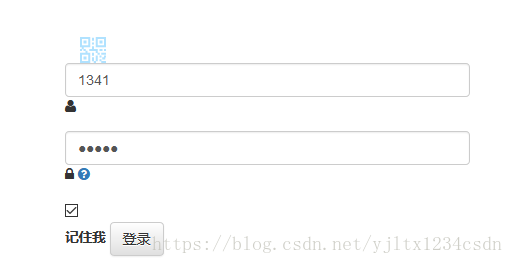
点击二维码时:
正常显示相应的二维码信息。





 扫一扫
扫一扫


 2311
2311

 被折叠的 条评论
为什么被折叠?
被折叠的 条评论
为什么被折叠?
 到【灌水乐园】发言





